Manage Billing
What this does
This guide explains how to manage billing in Franmantra CRM.
The Billing page lets you manage payment cards, add money to the wallet, control auto-renew or auto-pay, and review transaction history. Agencies can also view the current plan and upgrade the plan from this page.
Steps
- Make sure you can open the Settings page from the header.
- Keep the card number, expiration date, and CVC ready when you want to add a card.
- Use an agency account when you need to manage or upgrade the subscription plan.
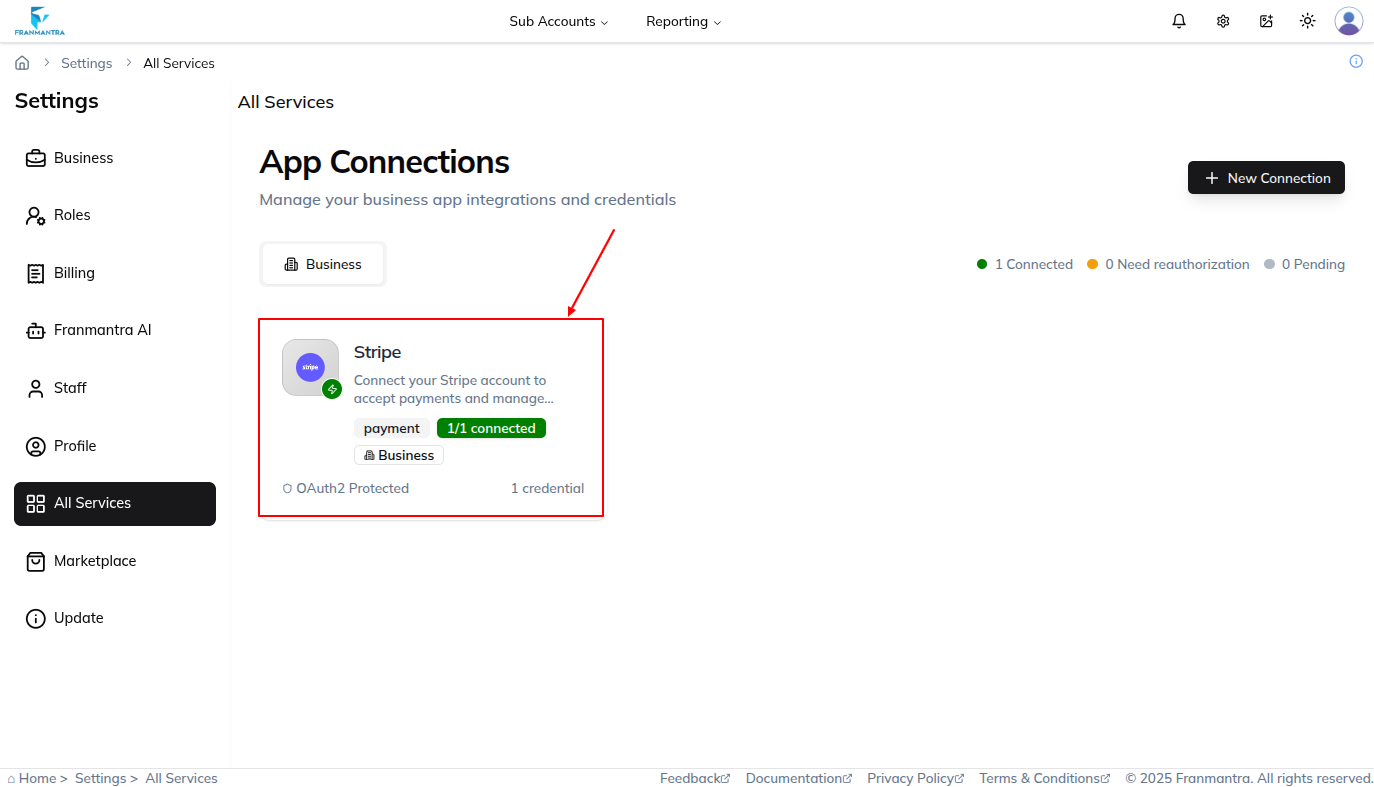
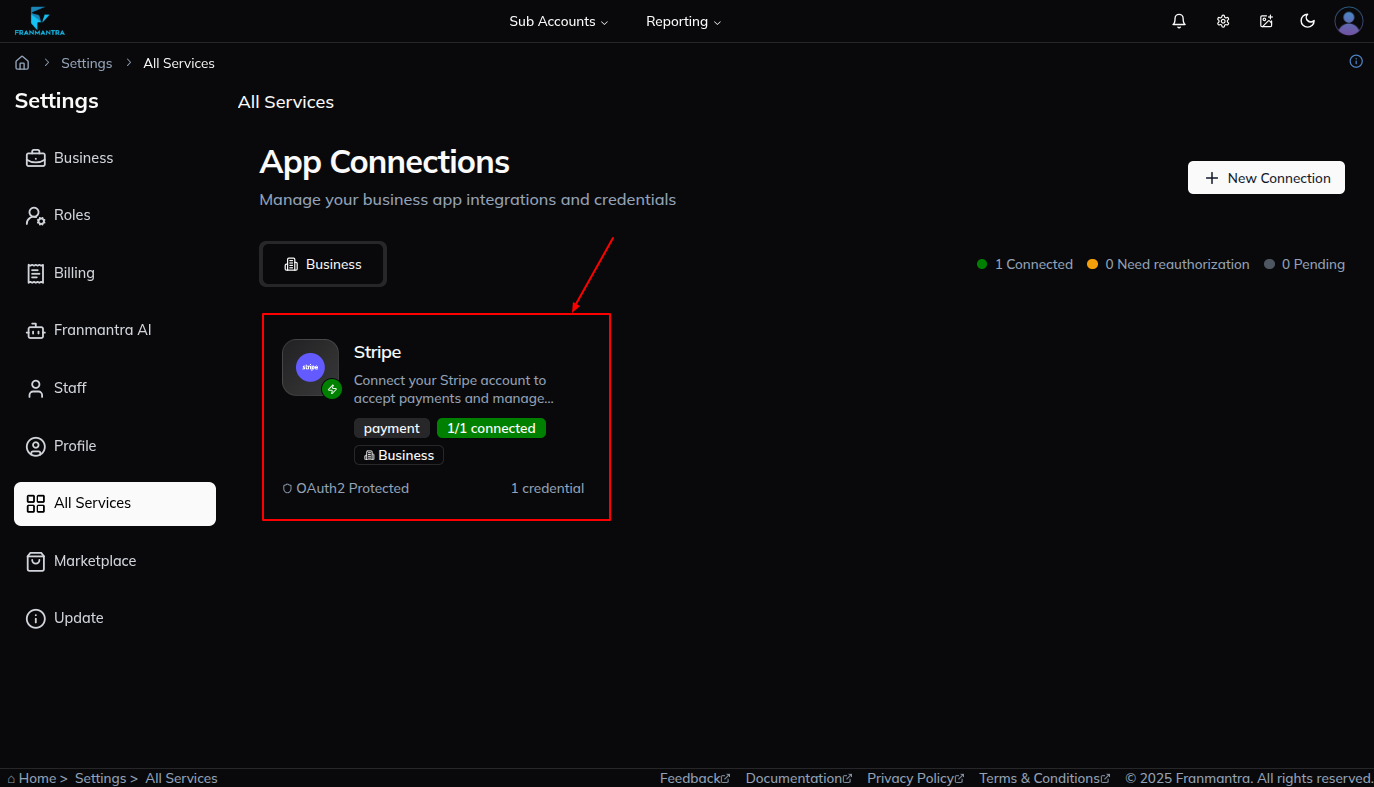
- Connect the agency Stripe account from Settings > All Services before adding cards. If Stripe is not connected at the agency level, cards cannot be added for the agency or its Sub-accounts.
Connect Stripe Before Adding Cards
The agency must connect a Stripe account before anyone can add payment cards. This setup happens in All Services at the agency level. After Stripe is connected, both the agency and its Sub-accounts can add and manage cards from Billing.
- Open Settings.
- Go to All Services.
- Connect the agency Stripe account.
- Return to Billing.
- Add the payment card from the card section.
Open Billing
- Click the settings icon in the header.
- The Business Settings page opens by default.
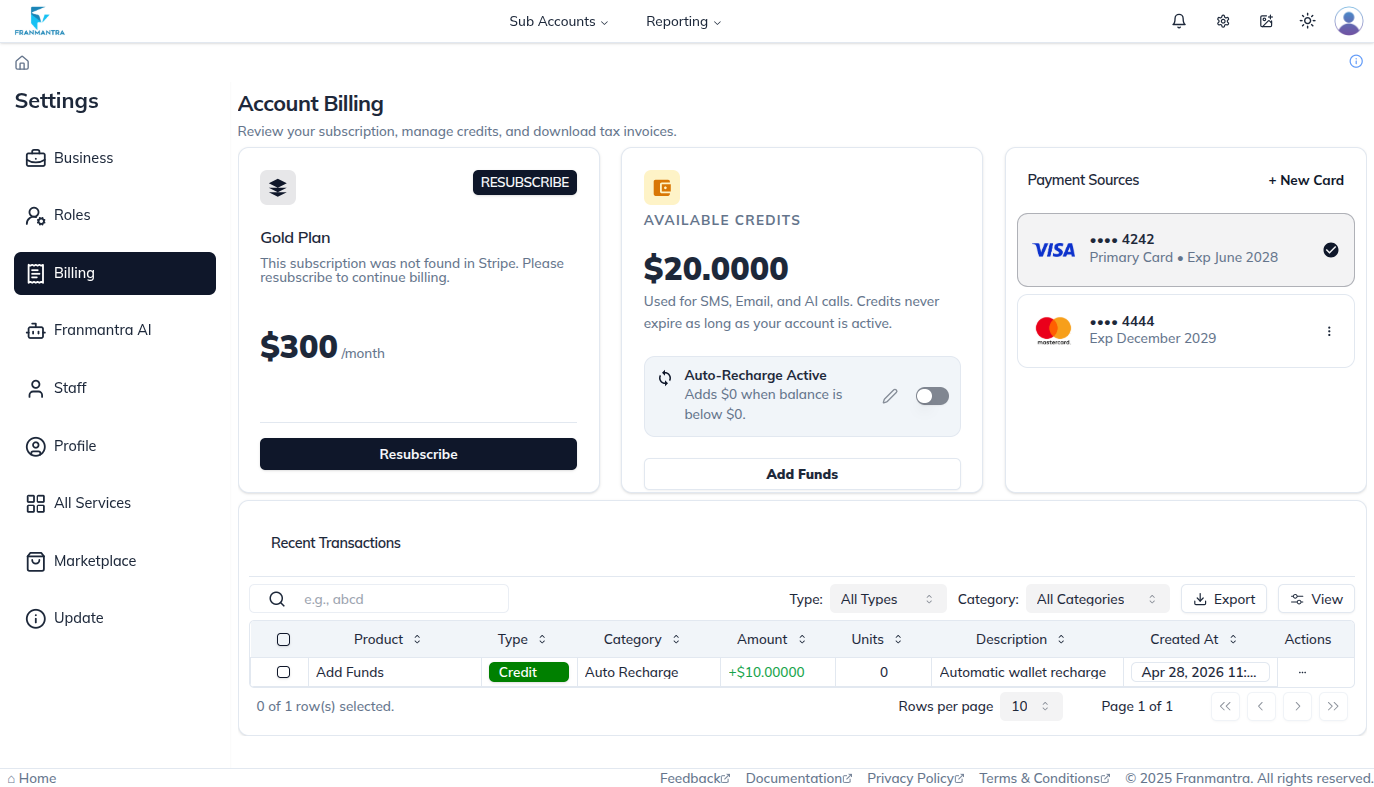
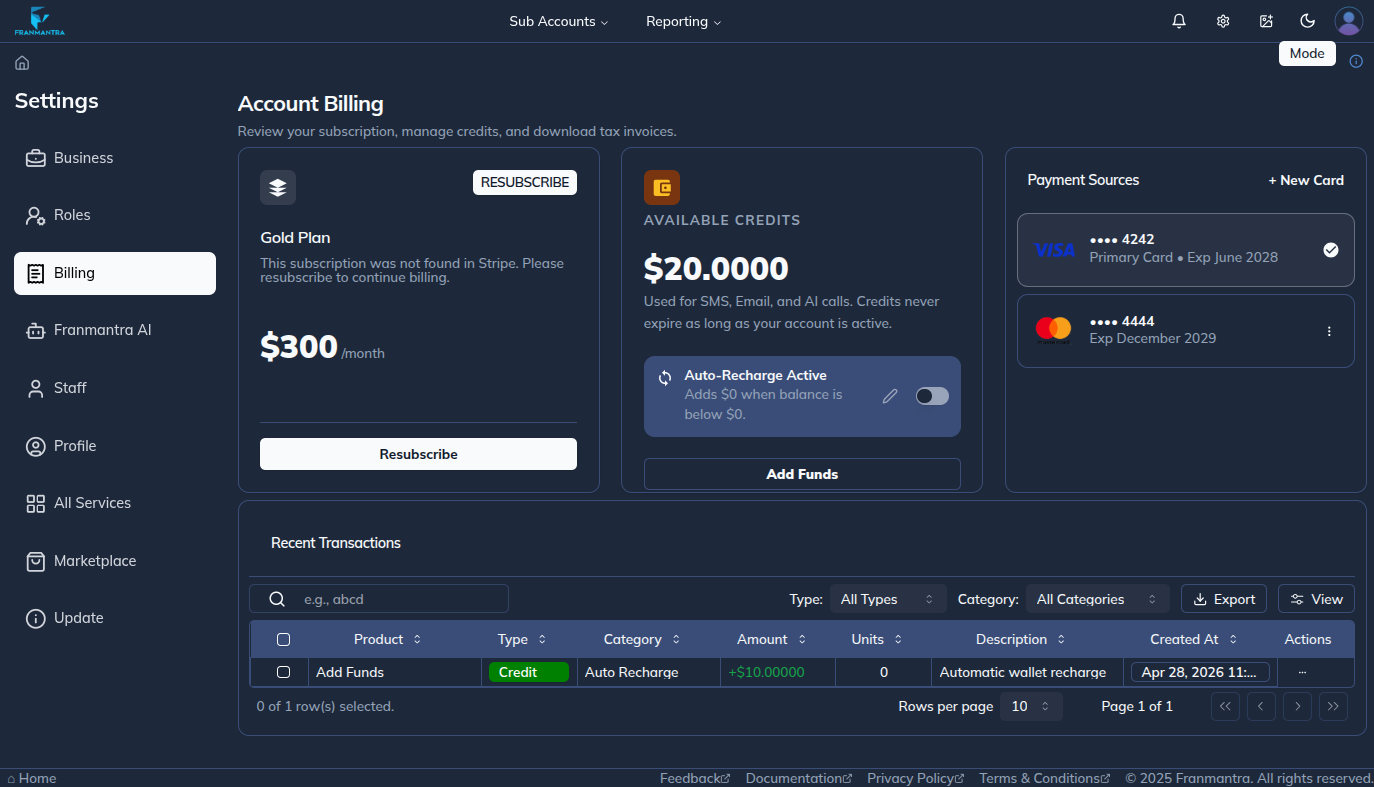
- In the left sidebar, click Billing.
- The Billing page opens with the available billing sections for your account.
Add the First Card
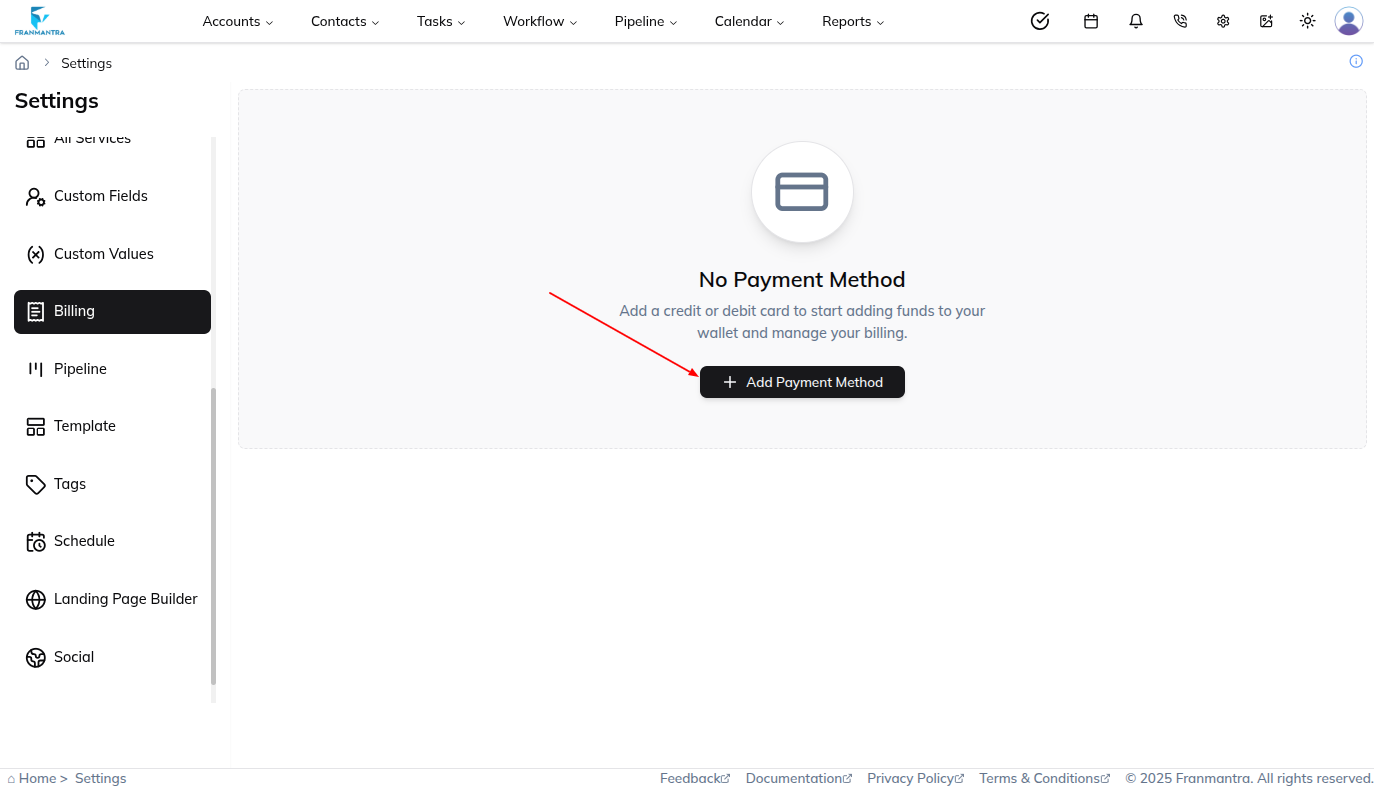
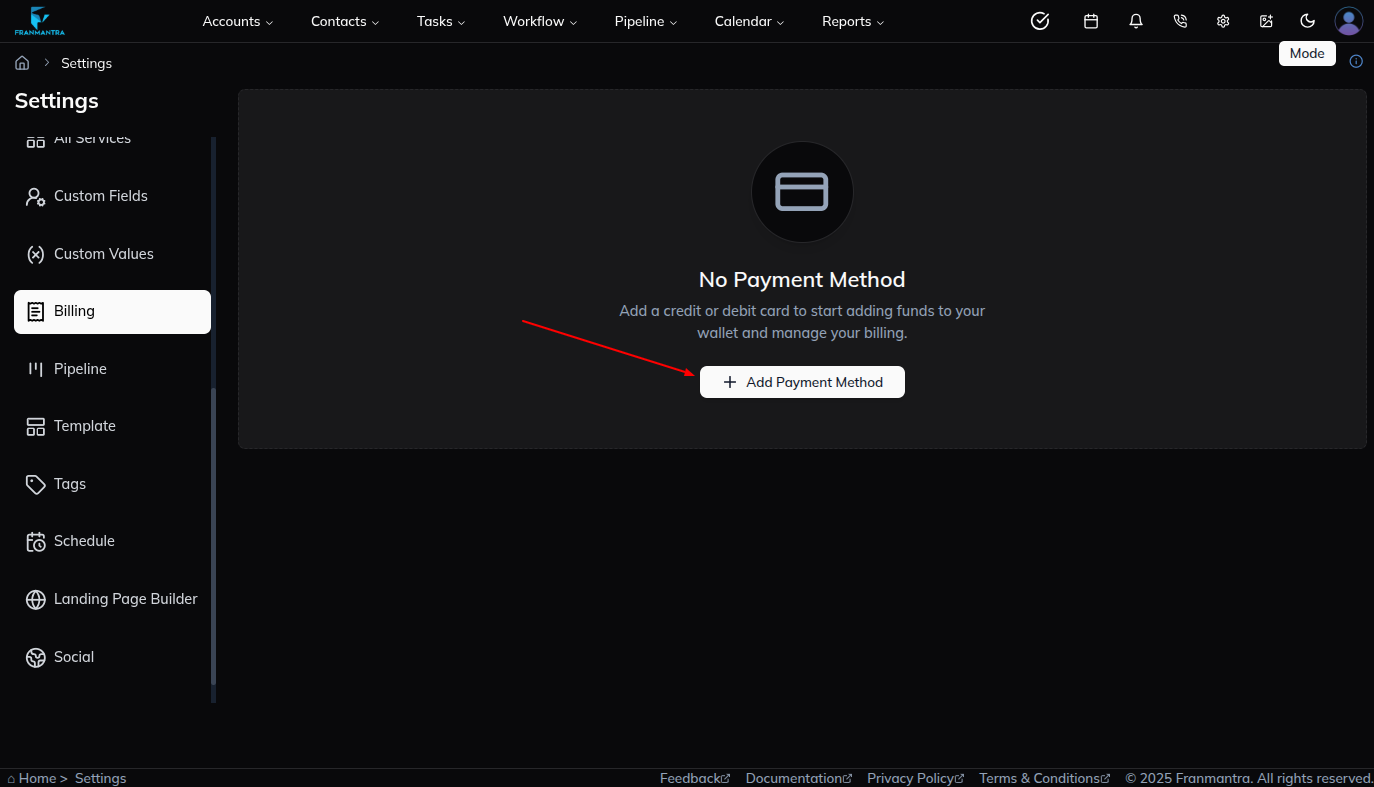
If no payment method has been added yet, the Billing page shows an Add Payment Method button.
- Click Add Payment Method.
- Enter the card number.
- Enter the card expiration date.
- Enter the card CVC number.
- Click Add Card to save the card.
After the card is added, it appears in the card section. If it is the first card, it becomes the primary card by default.
Manage Multiple Cards
You can keep more than one card in the card section.
- Open the card section on the Billing page.
- Click New Card when you want to add another card.
- Fill in the card number, expiration date, and CVC number.
- Click Submit to add the new card.
- Change the primary card when you want billing to use a different saved card.
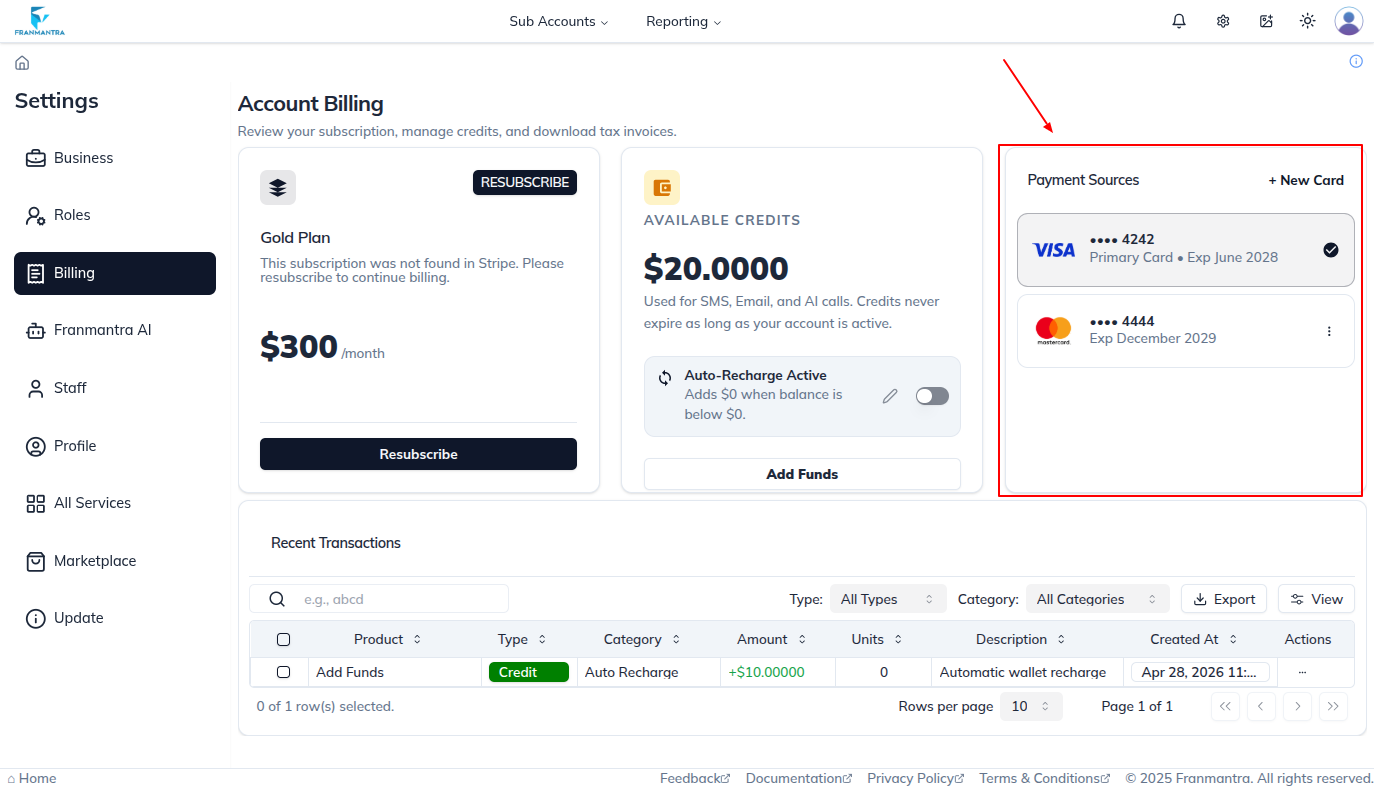
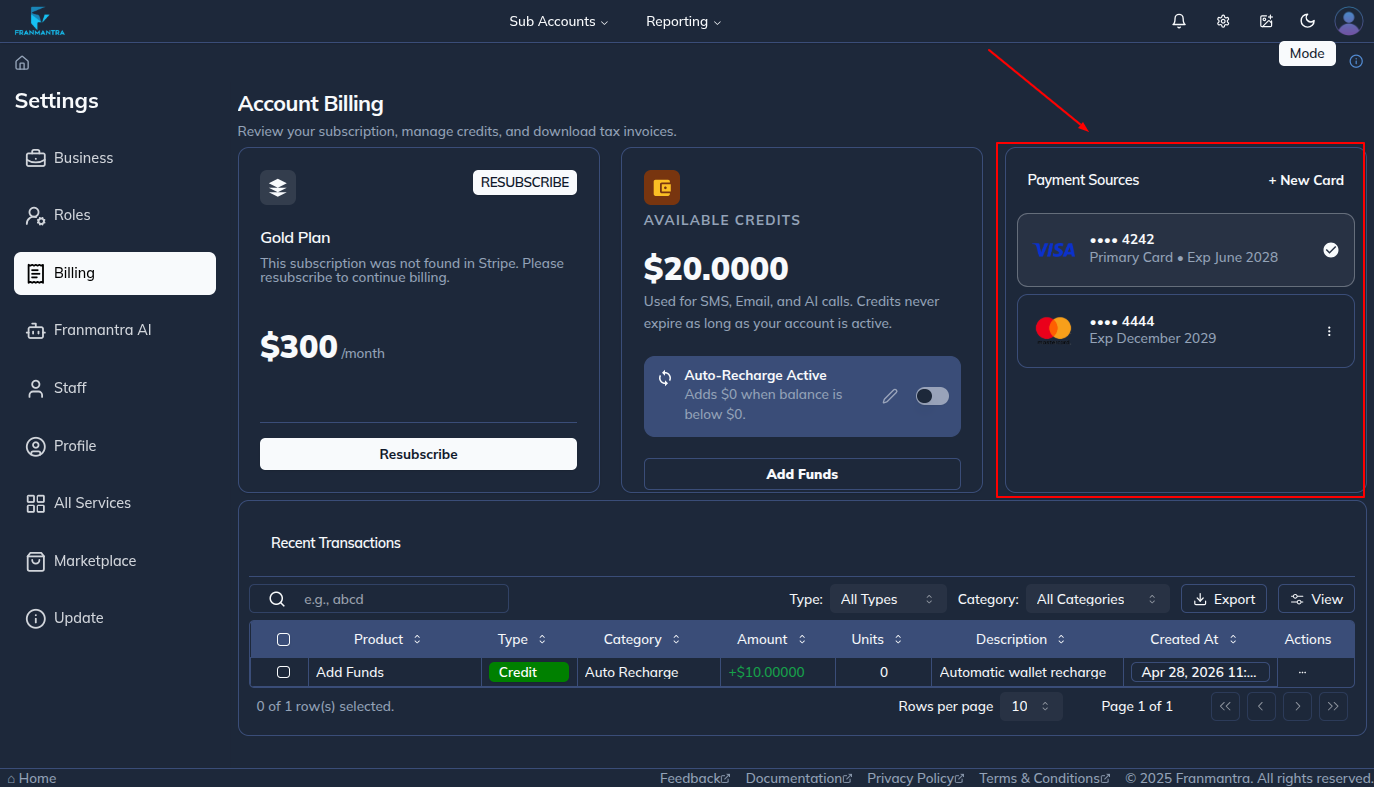
The first card is usually selected as the primary card, but you can change the primary card later when more cards are available.
Manage Wallet Balance
The wallet section shows the amount currently added to the wallet. You can add more money from this section when needed.
- Open the wallet section on the Billing page.
- Click the option to add money.
- Enter the amount you want to add.
- Submit the form to update the wallet balance.
Control Auto-Renew or Auto-Pay
The Billing page includes a switch for auto-renew or auto-pay. Use this switch when you want billing to renew automatically, or turn it off when you do not want automatic renewal.
- Find the auto-renew or auto-pay switch on the Billing page.
- Turn the switch on to enable automatic renewal.
- Turn the switch off to disable automatic renewal.
Manage Agency Plan Subscription
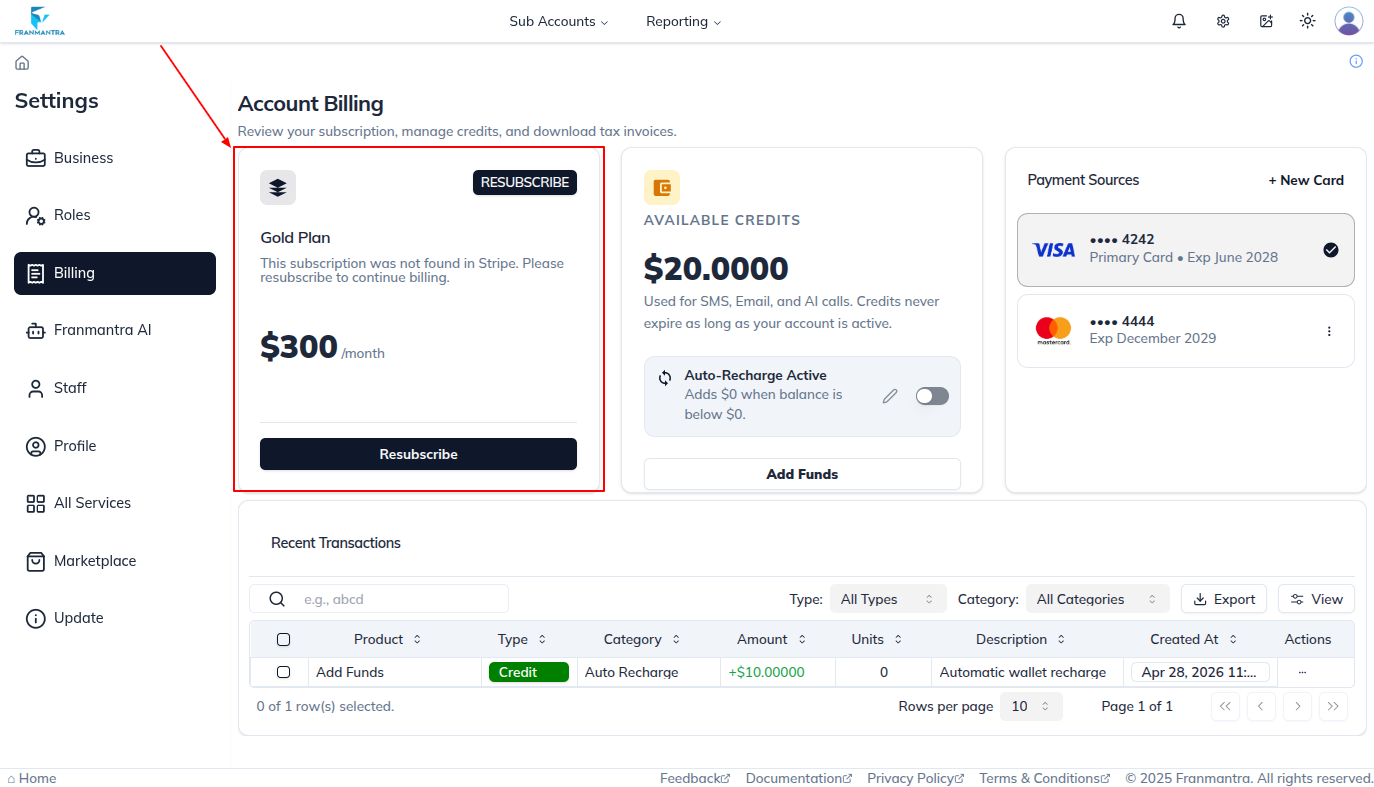
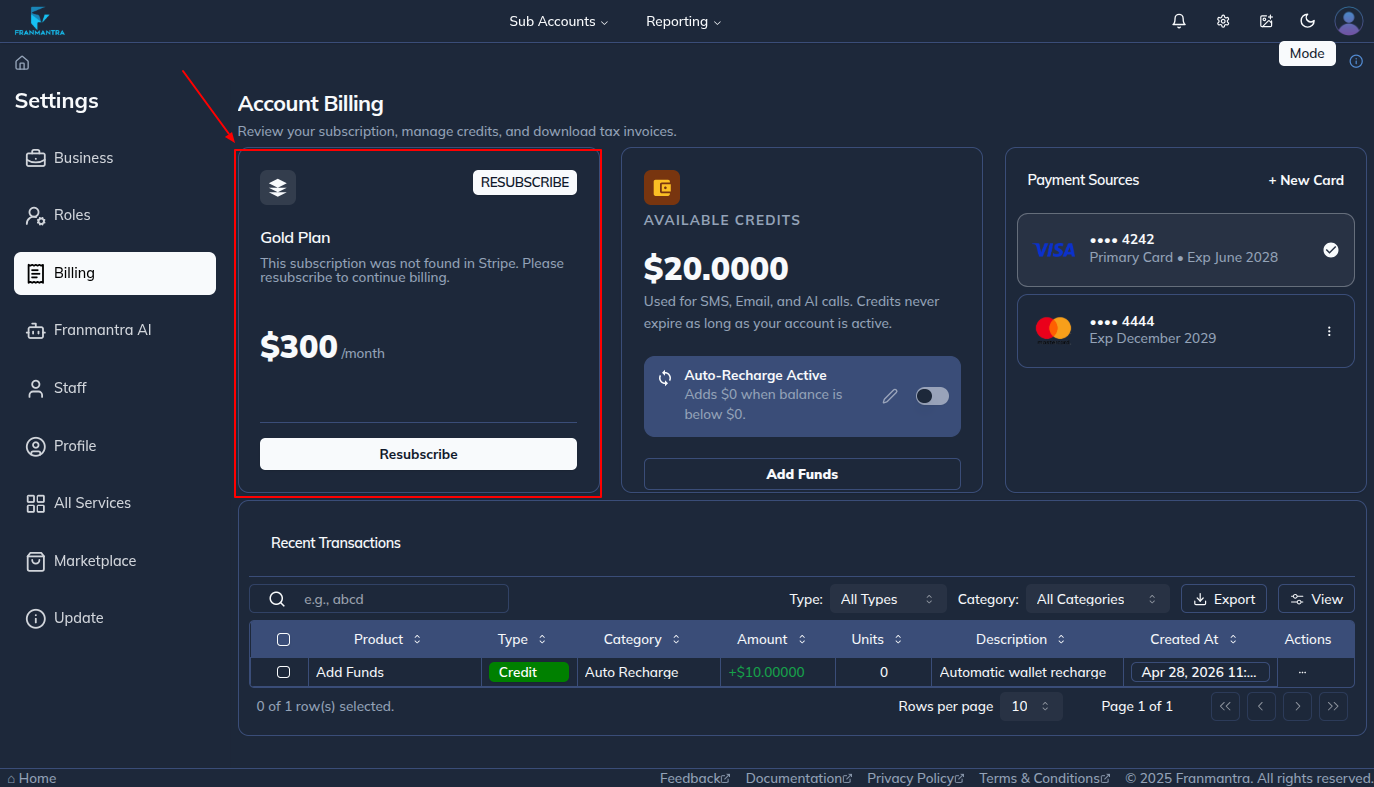
Agency accounts can see the plan subscription section. This section shows the current plan and gives the agency the option to upgrade the plan.
- Open the plan subscription section.
- Review the current plan.
- Choose the upgrade option when you want to move to another plan.
- Follow the on-screen steps to complete the plan change.
Sub-accounts do not manage plan upgrades from their Billing page.
Review Transaction History
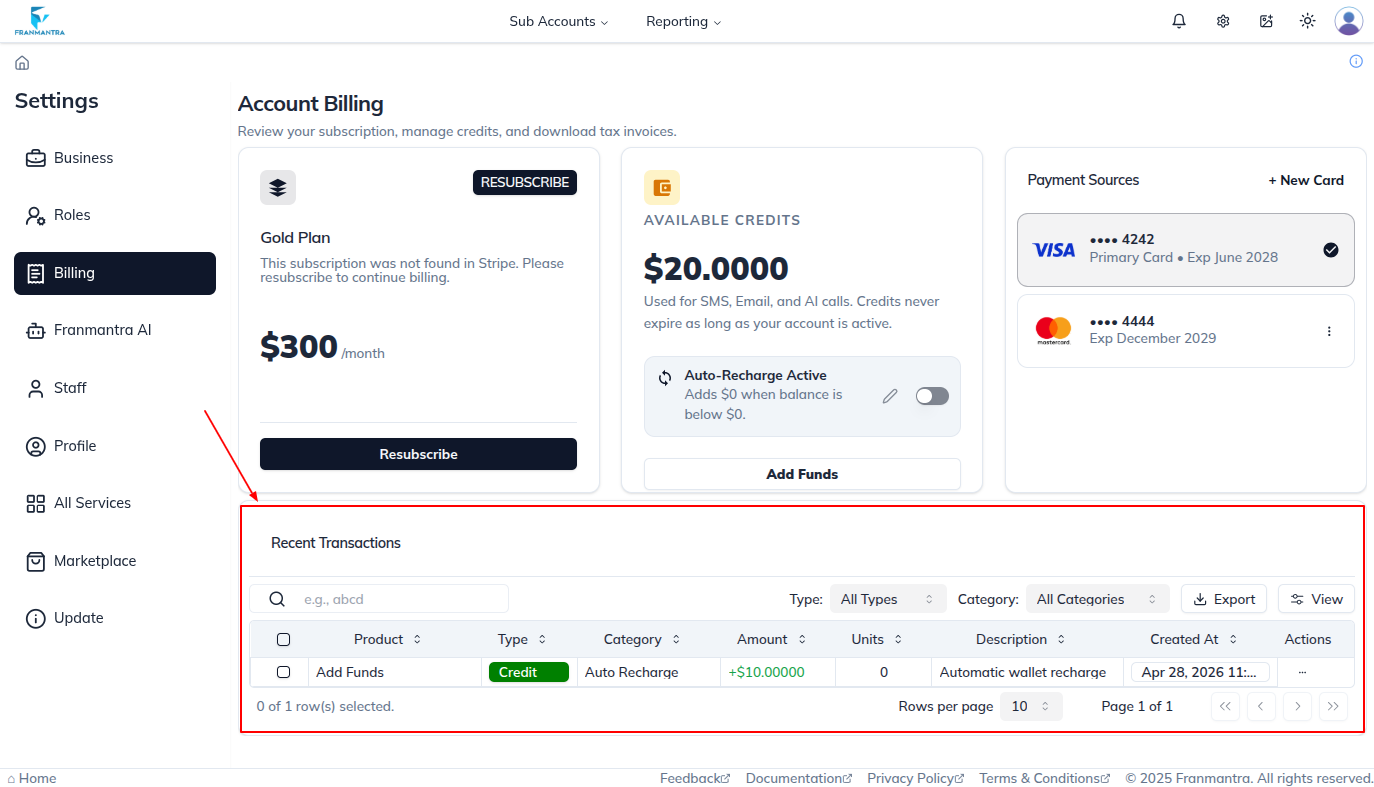
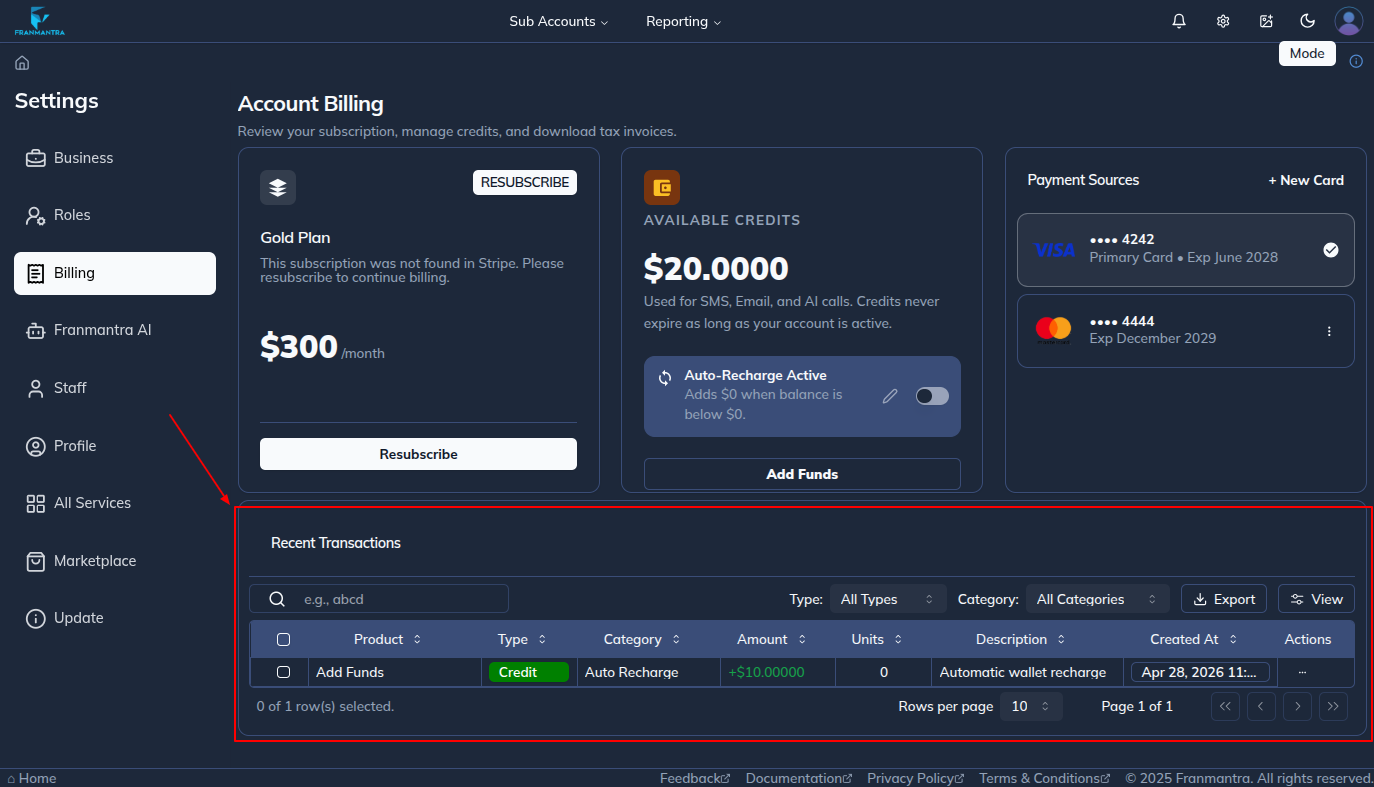
The transaction history table shows previous billing activity for the account. Use this table when you need to review wallet additions, billing changes, or other billing records shown in the system.
- Open the transaction history table on the Billing page.
- Review the listed records.
- Use the available table controls if you need to search, filter, or move through multiple pages.
What happens next
Your saved cards, wallet balance, auto-renew setting, and transaction history remain available from the Billing page. Agencies can return to the same page later to review or upgrade the subscription plan.
Notes
- Agencies and Sub-accounts can both manage cards, wallet balance, auto-renew or auto-pay, and transaction history.
- Only agencies can manage the plan subscription section and upgrade plans.
- Stripe must be connected in agency All Services before cards can be added for the agency or any Sub-account.
- The first saved card is usually the primary card until you select a different primary card.
Result
The change is saved in Franmantra CRM and is available to users with the right permissions.
Troubleshooting
- If you cannot see the option, check your role permissions or ask an admin to update your access.
- If the update does not appear immediately, refresh the page and confirm you are in the correct Sub-account.