Workflow Module
What This Is
The Workflow module helps you automate repeated work. A workflow is a set of steps that runs automatically when something happens.
For example, when a new lead is added, a workflow can send a welcome email, assign a task, and notify a team member.
When To Use It
Use Workflows when you want the CRM to do simple repeated jobs for you, such as:
- Send follow-up emails or SMS messages.
- Assign tasks to team members.
- Move a lead or deal to another step.
- Notify users when important activity happens.
- Pause, update, duplicate, or share an automation.
What You Can Do
In the Workflow module, you can:
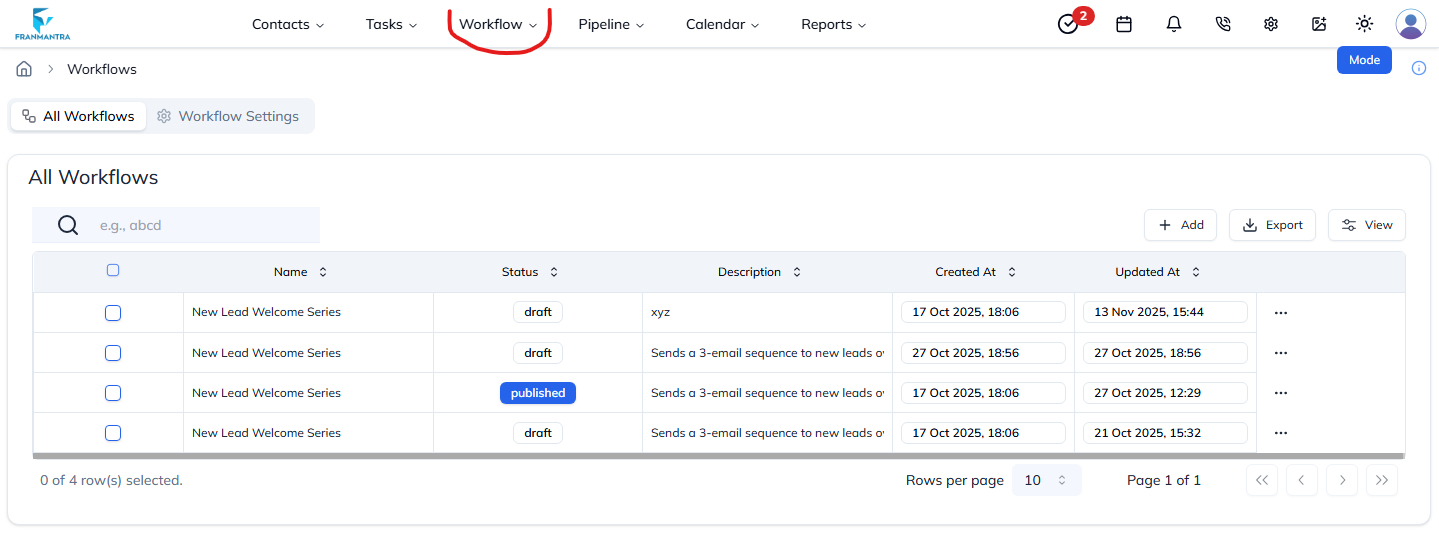
- View all workflows in one place.
- Create a new workflow.
- Search for a workflow by name.
- Turn workflows on or off.
- Edit or delete existing workflows.
- Export workflow information when needed.
Basic Workflow
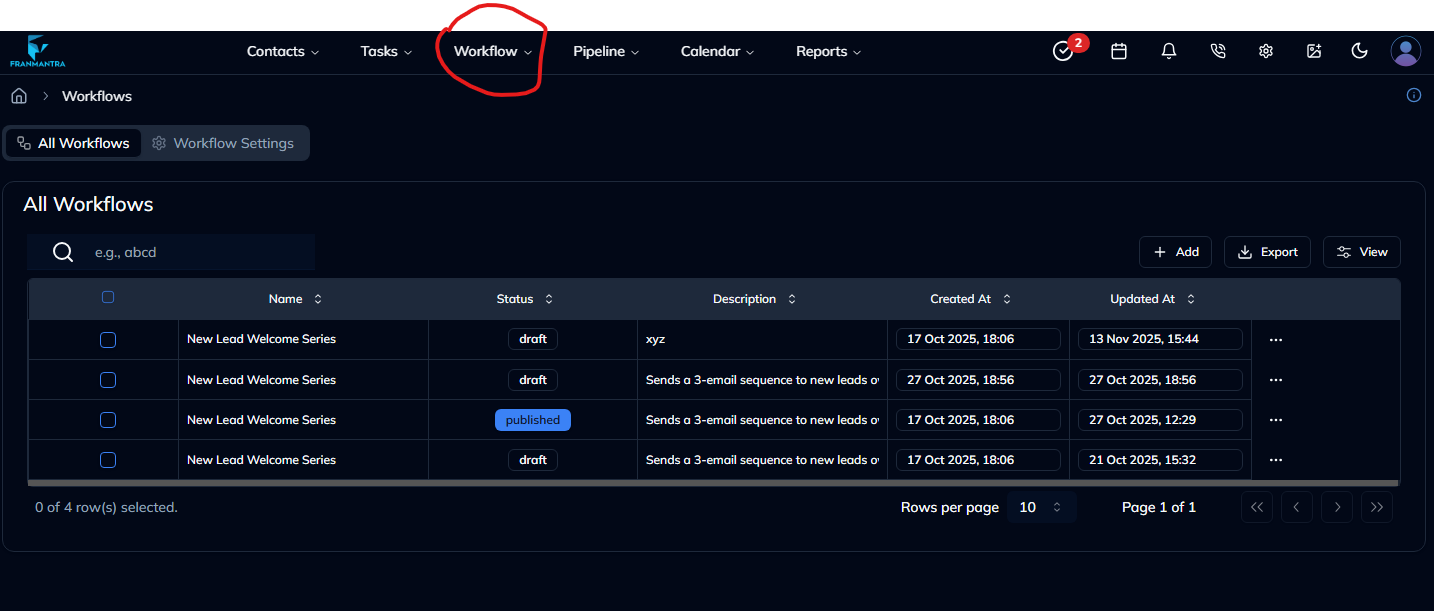
- Hover over Workflow in the header, then click Workflows in the dropdown menu.
- Click Add to create a new workflow.
- Give the workflow a clear name.
- Choose what should start the workflow.
- Add the actions the CRM should run.
- Save and test the workflow before using it with real customers.
Example
If a customer fills out a lead form, a workflow can send an email, create a task for a salesperson, and wait two days before sending another follow-up message.
Notes
- Give every workflow a clear name so your team understands what it does.
- Test workflows before turning them on.
- Review old workflows regularly so customers do not receive outdated messages.