Set Up Conversation AI
What this does
This guide explains how to set up conversation ai in Franmantra CRM.
Set up Conversation AI so it can reply with the right tone and use your saved business information.
Before you start
- Make sure AI is enabled for the business.
- Create a Knowledge Base first.
- Decide what the bot should be allowed to do.
Steps
1. Open the AI Agent Area
- In the header, click the Settings button to open the business settings page.
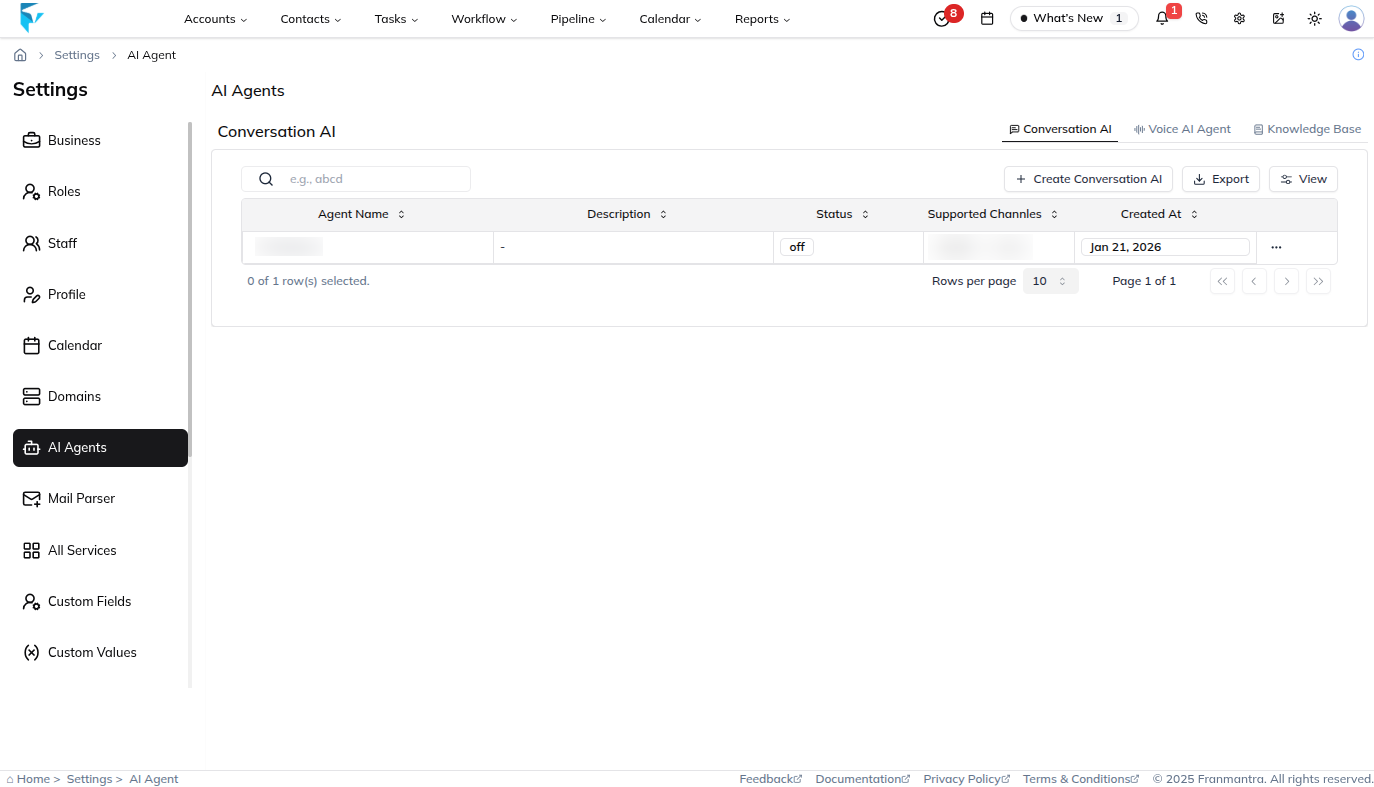
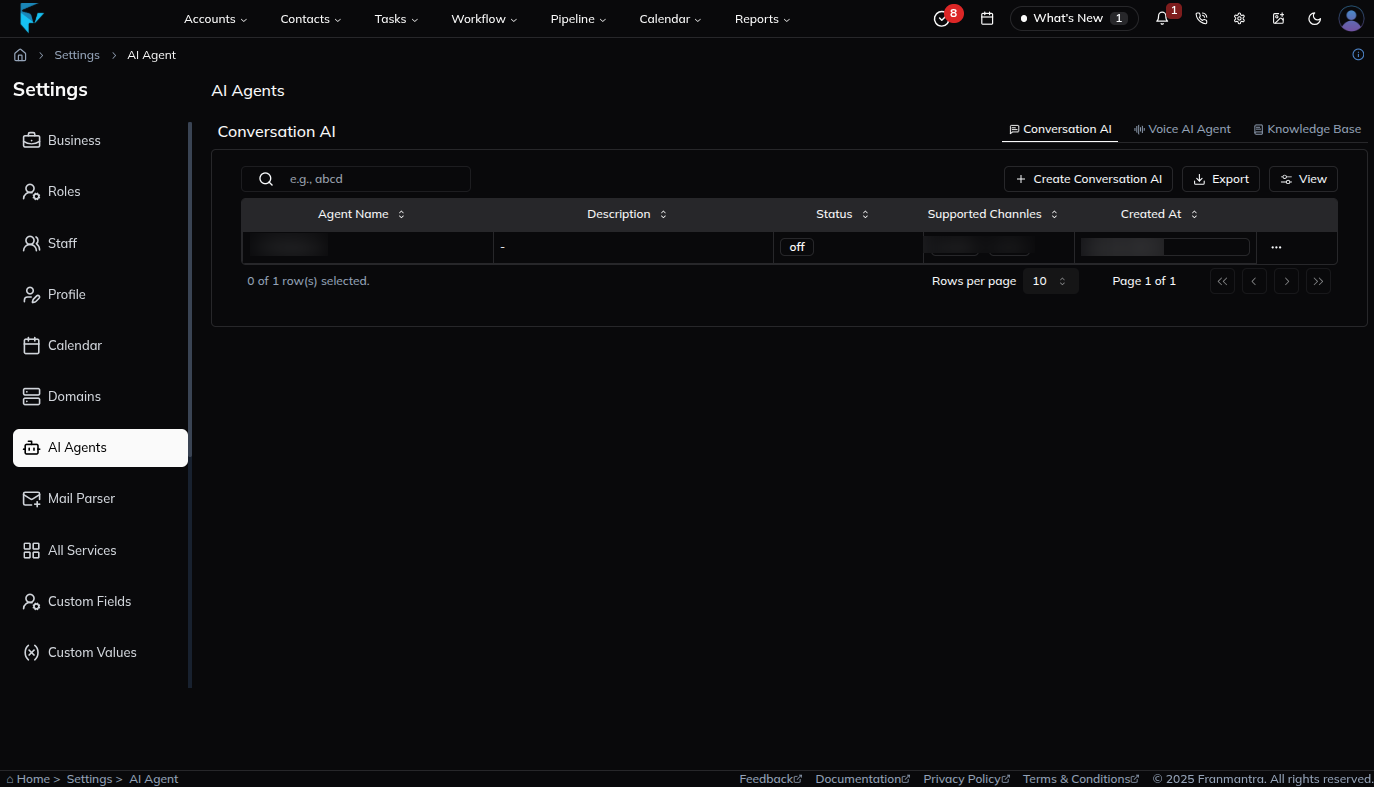
- After the business settings page opens, look at the left sidebar menu and click AI Agent.
- The AI Agent page opens and takes you to the AI configuration area for the business.
2. Review the Available AI Tabs
- On the AI Agent page, review the three available options: Conversation AI, Voice AI Agent, and Knowledge Base.
- The page opens on Conversation AI by default, so this is the first tab you see when you land in the AI Agent area.
- Stay on the Conversation AI tab to begin creating the bot.
3. Start a New Conversation AI Setup
- On the Conversation AI page, click Create Conversation AI.
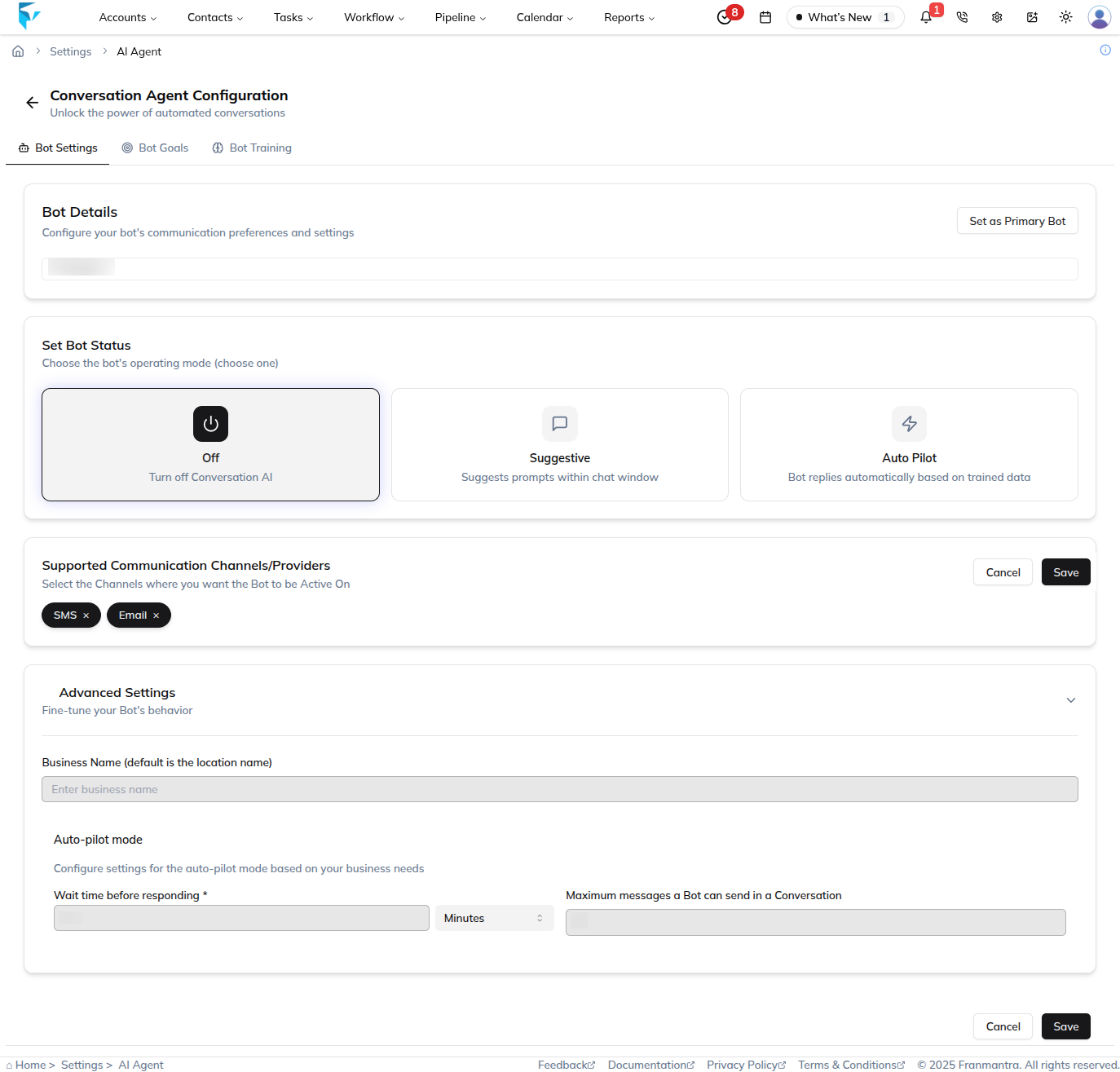
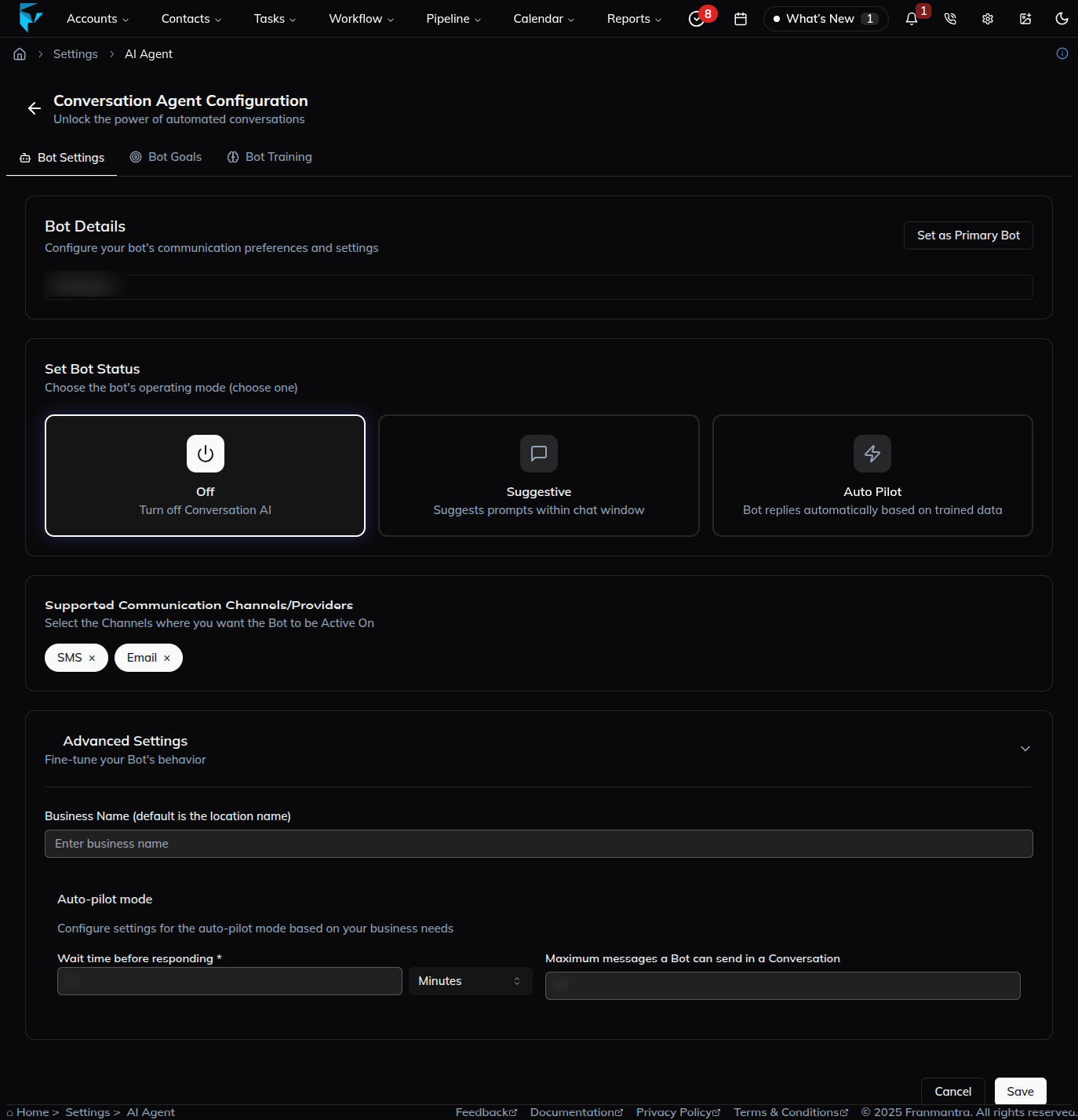
- The create page opens and shows the setup divided into three parts: Bot Setting, Bot Goal, and Bot Training.
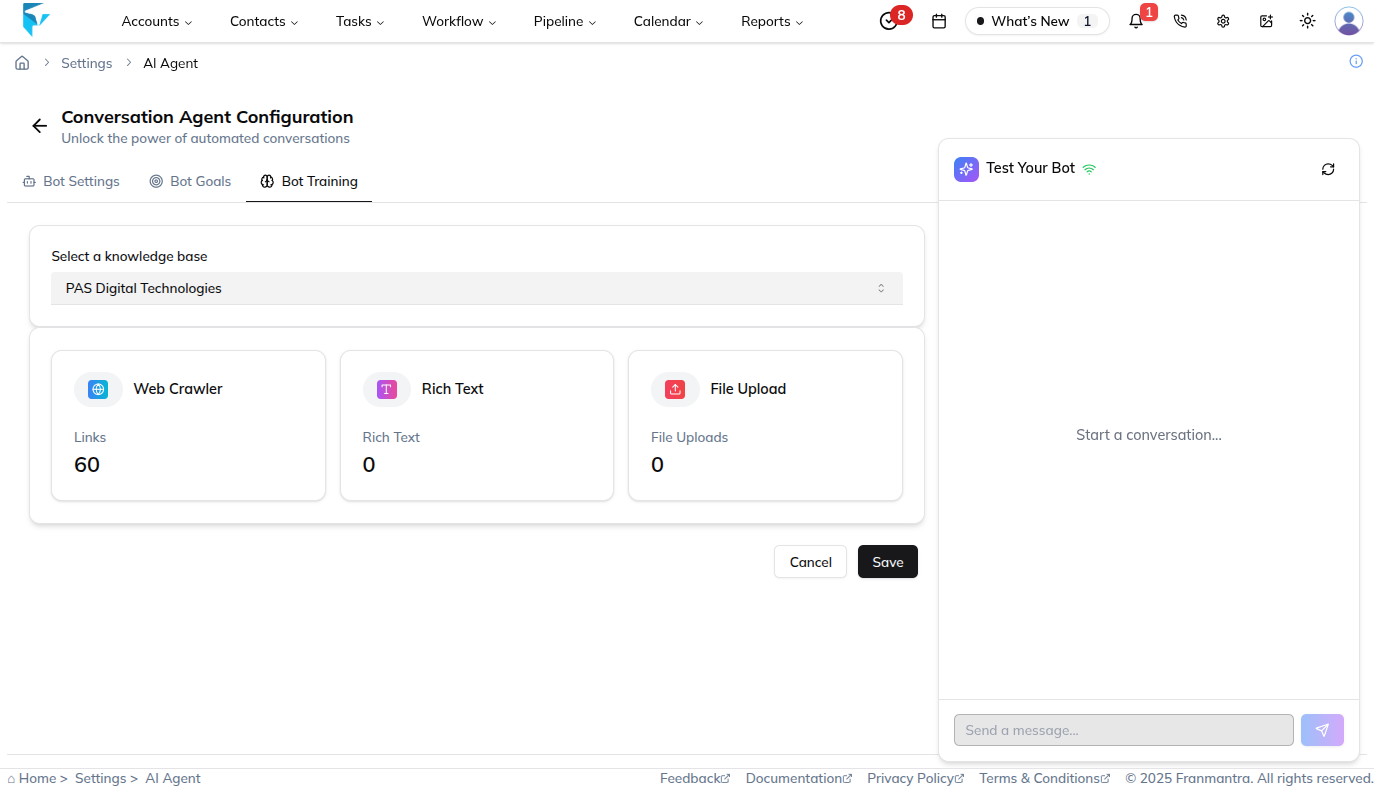
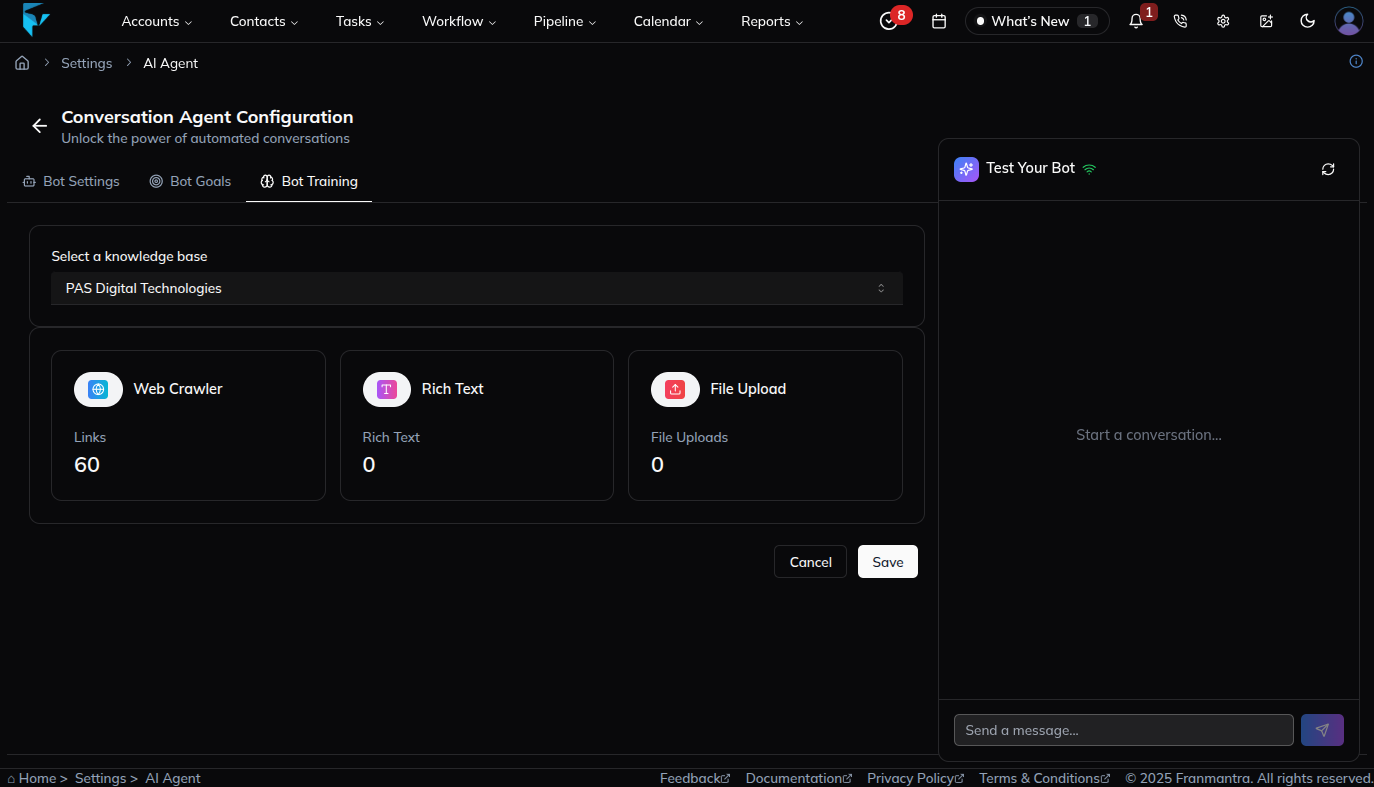
- Select or connect the Knowledge Base the bot should use before finishing the setup.
4. Complete the Bot Setup Sections
- Open Bot Setting and choose the access options the bot should use, such as suggestions, auto-replies, maximum auto-replies, and response wait time.
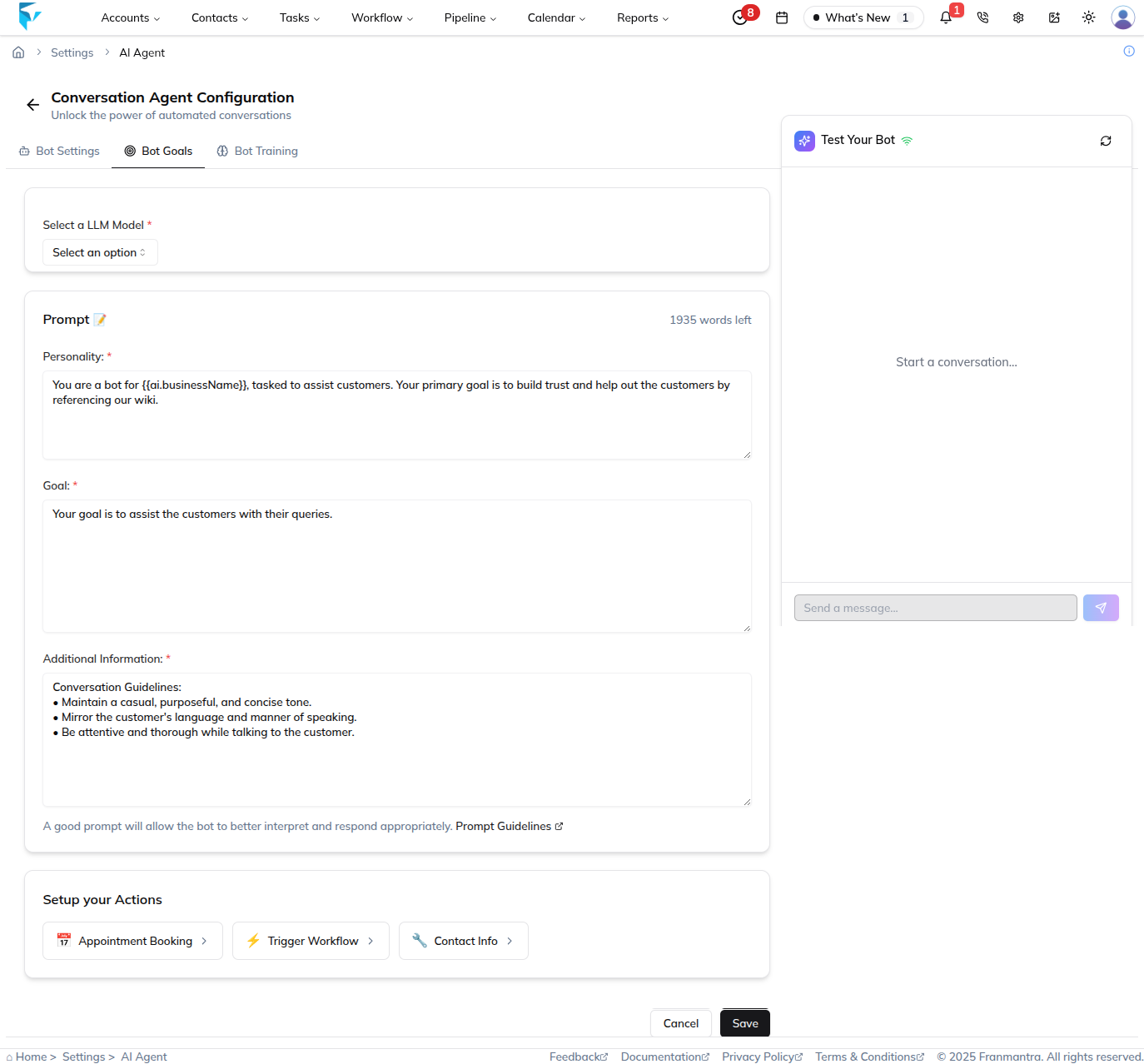
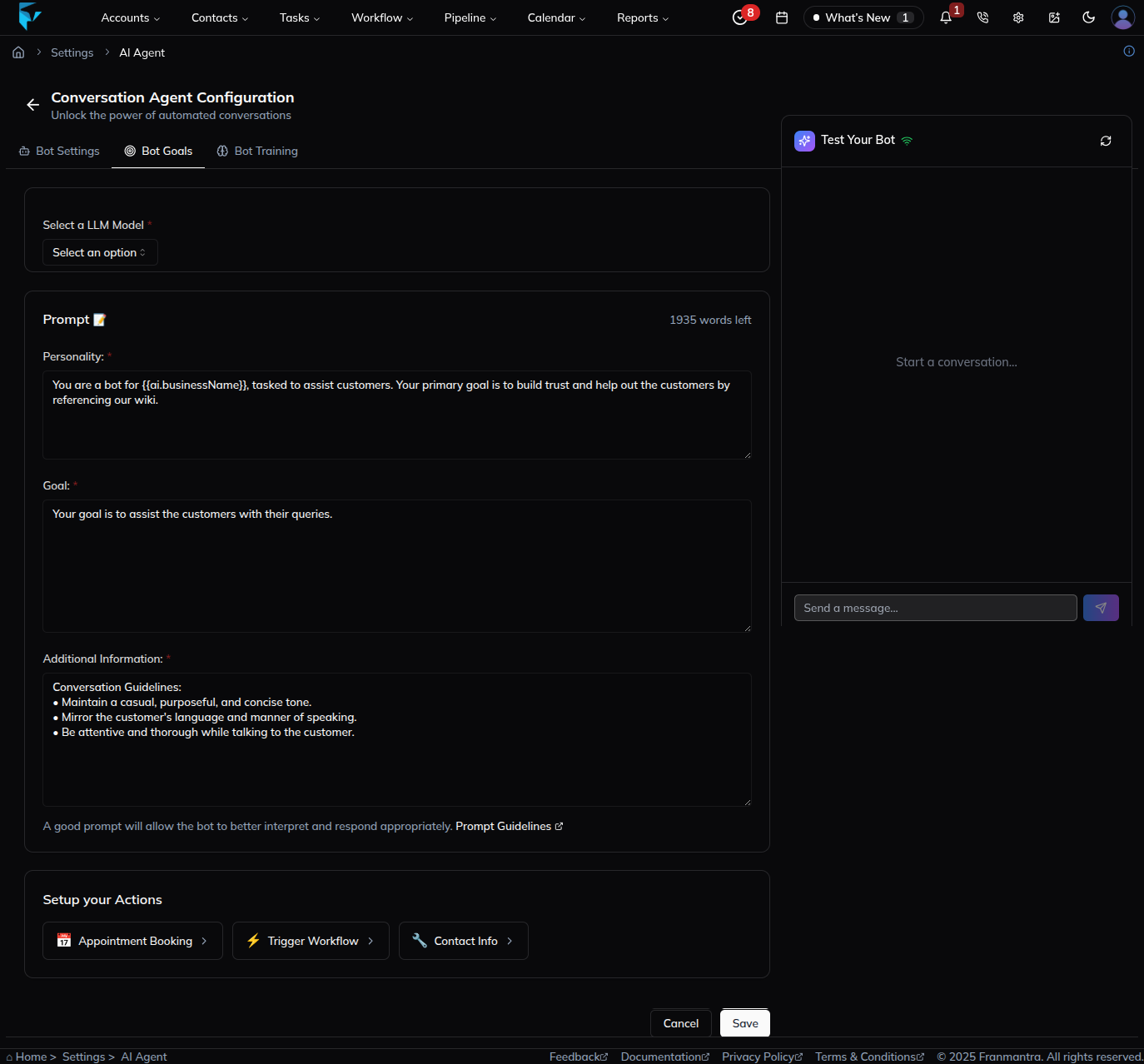
- Open Bot Goal and write the prompt that defines the bot's tone and behavior.
- Open Bot Training and connect the bot to the selected training resources.
5. Review and Save
- Review the full setup to make sure the selected Knowledge Base, settings, goals, and training resources are correct.
- Save the Conversation AI settings to finish the setup.
What happens next
The bot can use the selected Knowledge Base and settings to help with customer communication.
Notes
- Bot Setting controls what the bot can do.
- Bot Goal controls how the bot should sound and behave.
- Bot Training connects the bot to the information it should use.
Result
The change is saved in Franmantra CRM and is available to users with the right permissions.
Troubleshooting
- If you cannot see the option, check your role permissions or ask an admin to update your access.
- If the update does not appear immediately, refresh the page and confirm you are in the correct Sub-account.