Create a Contact
A contact is an individual or an organization that is stored in the CRM database. It stores relevant information such as name, address, phone number, email, and other relevant details. Contacts are used to build relationships between customers and the CRM application. They are also used to track customer interactions and activities. In a CRM like Franmantra, a contact can be a customer, a supplier, a business partner, or even an employee.
Open the Contact Page
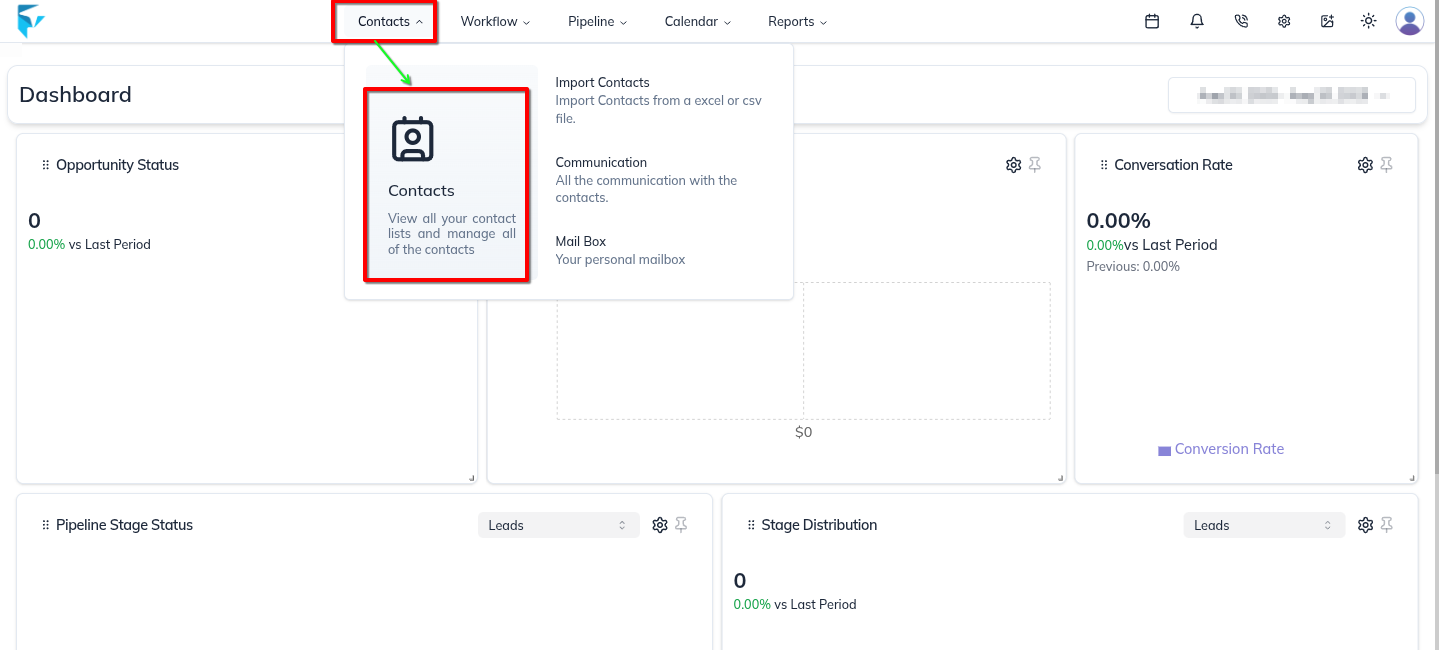
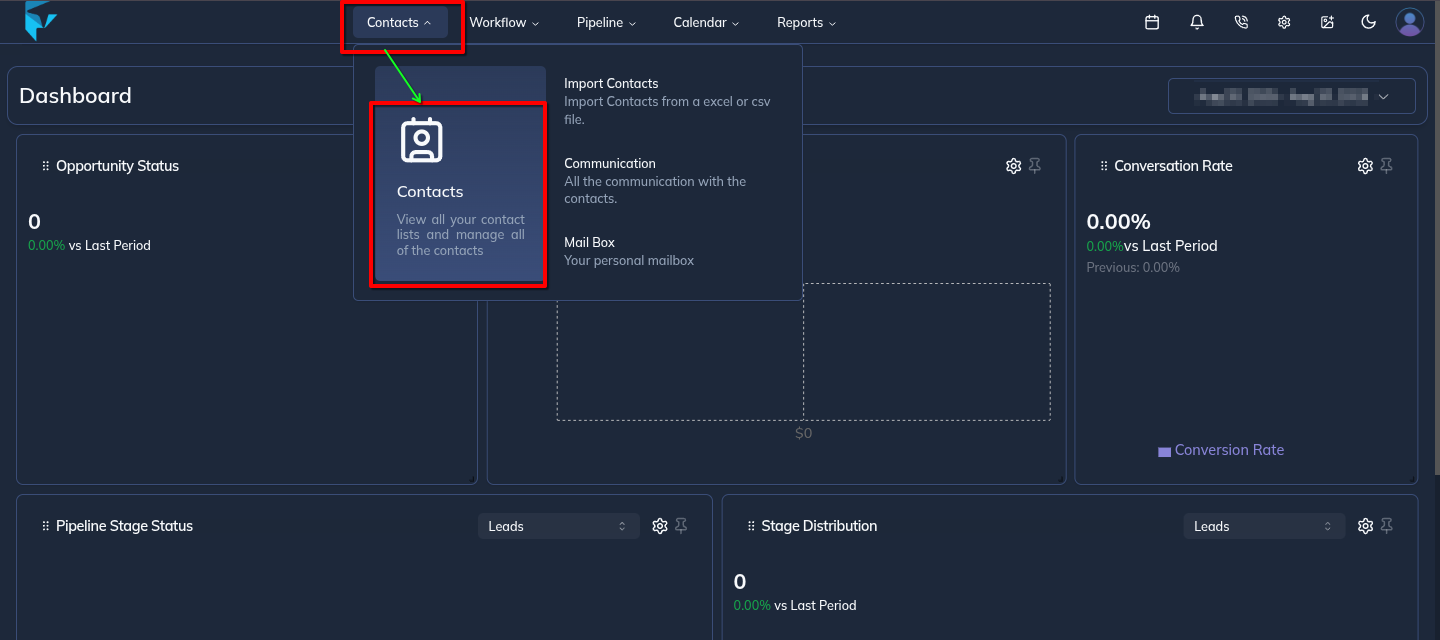
On the menu bar, click or hover on the Contact option.
Then select Contact from the dropdown list. This will open the contact page.
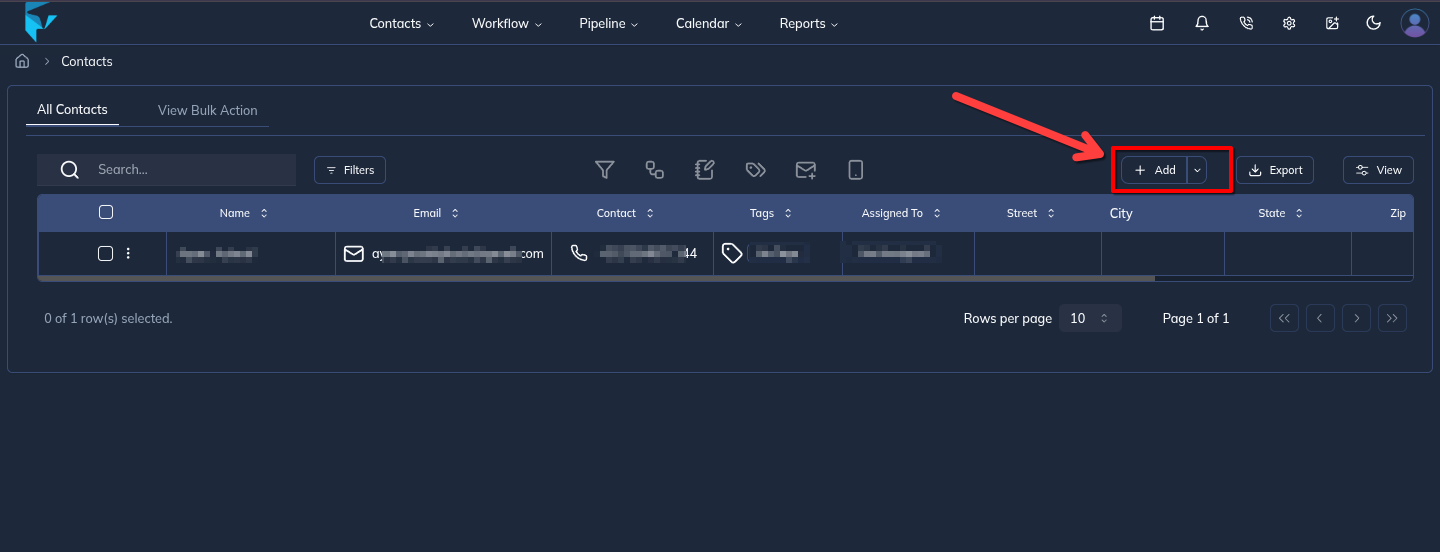
The contact page is where all the contacts are listed. You can also create a new contact or edit an existing one from this page.

After you have opened the contact listing page, you will see a page that lists all the contacts that have been created in the CRM. This page provides a quick overview of all the contacts and their details. From here, you can create a new contact, edit an existing one, or delete an unwanted contact. To create a new contact, click on the Add Contact button located at the top right corner of the page. This will open the contact creation form.

Manually Contact Creation
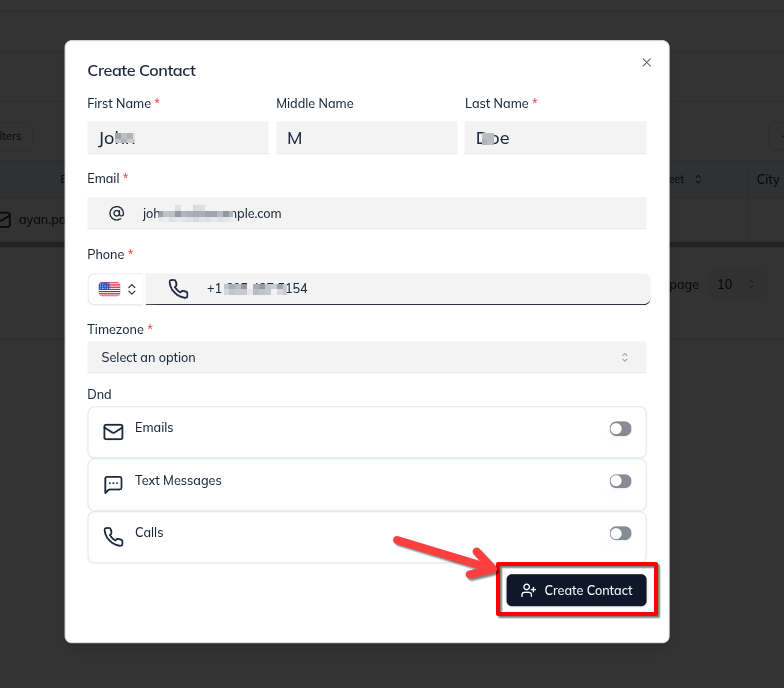
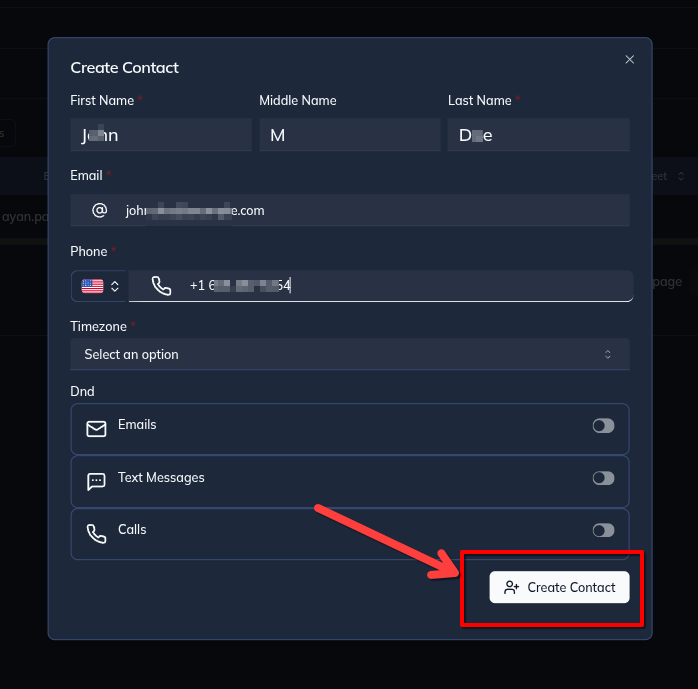
On the contact creation form, you can provide the required information such as name, email, phone number, and other relevant details. Once you have filled in the required information, click on the Create Contact button to create the contact. The contact will then be added to the contact list page and you can view its details by clicking on the View button.

Import Bulk Contact
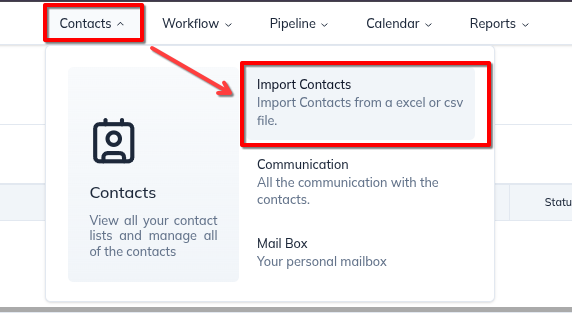
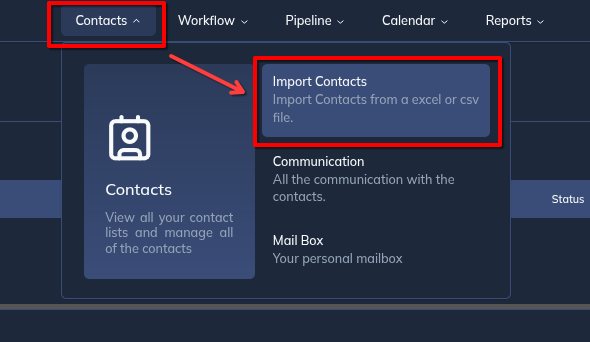
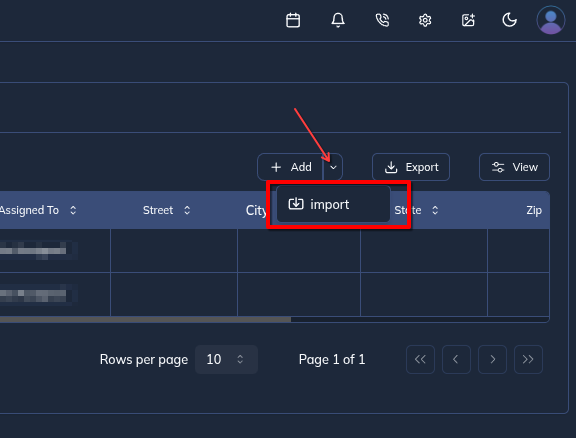
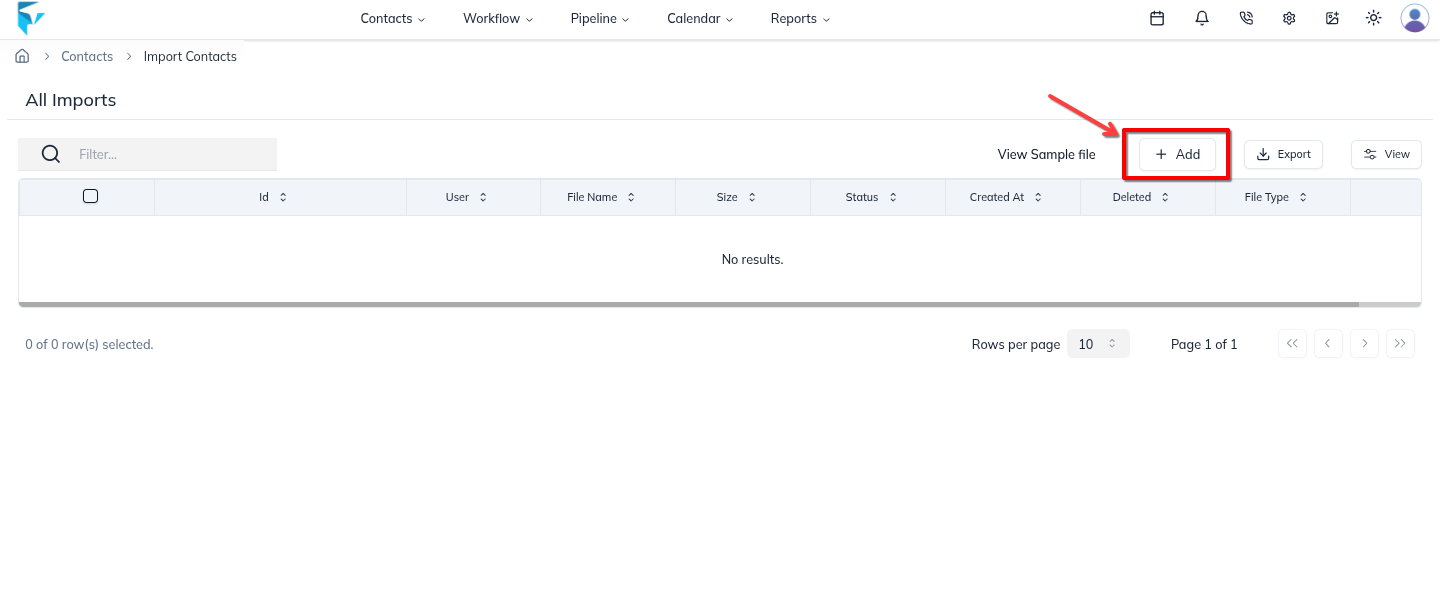
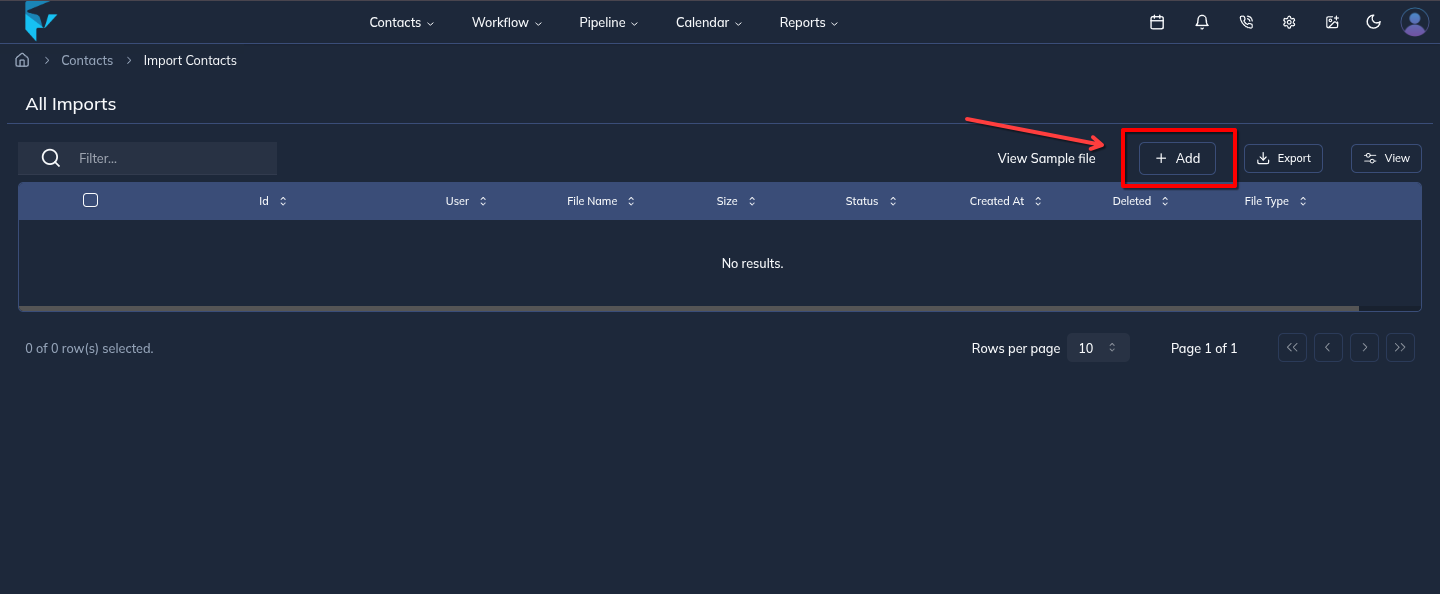
To import contacts from a CSV file, navigate to the import page by clicking on the dropdown beside the Add Contact button in the Contact list page or from the Contact menu, then select Import Contact.
This will open the import page where you can upload a CSV file. The CSV file should contain the contact details in the correct format. Once the CSV file is uploaded, the contacts will be imported into the CRM. The import page provides an easy way to import contacts from a CSV file.

Select an Object
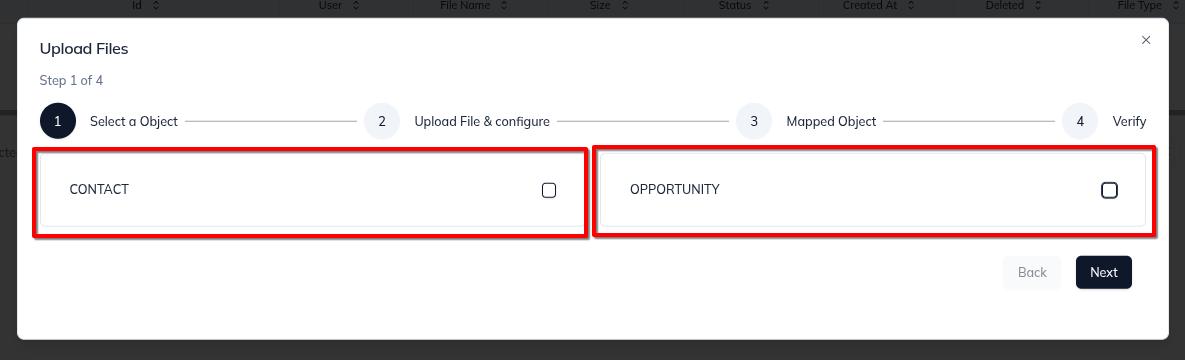
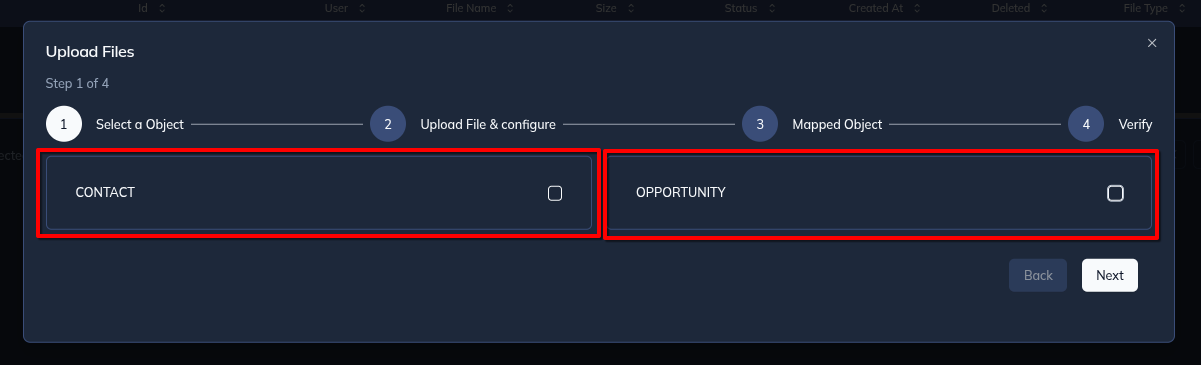
Once you click on the add button, a modal window will open. In this modal window, you will be asked to choose what you want to upload. You can either upload a contact or an opportunity. Make your choice by clicking on the appropriate radio button. Then, click on the Next button to proceed.

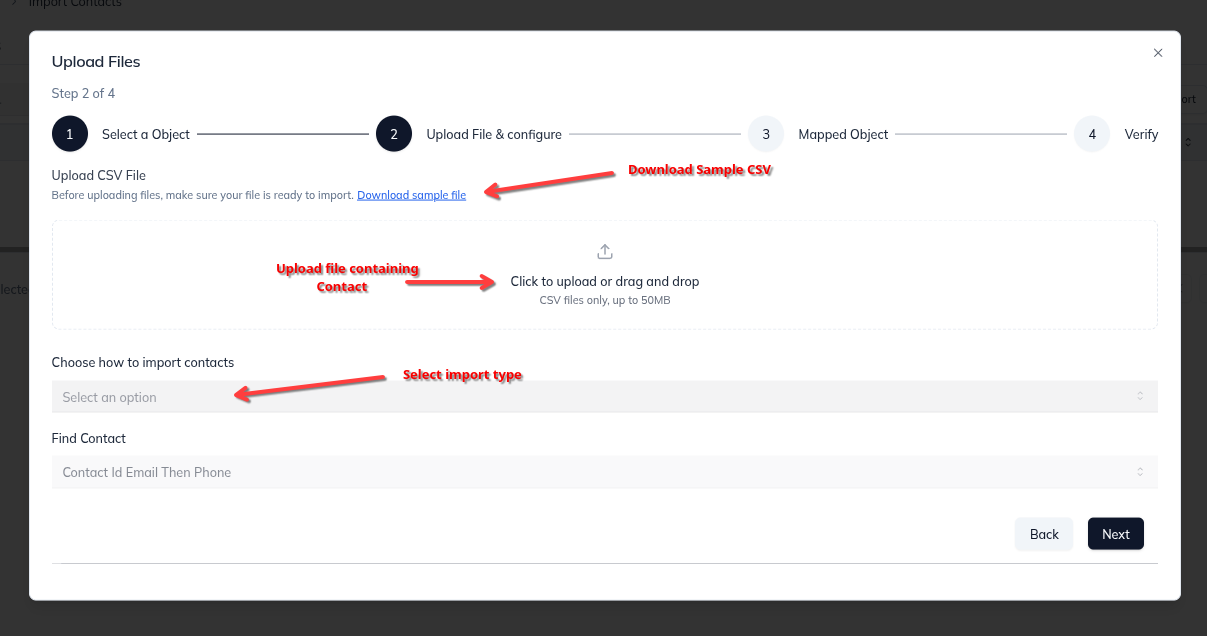
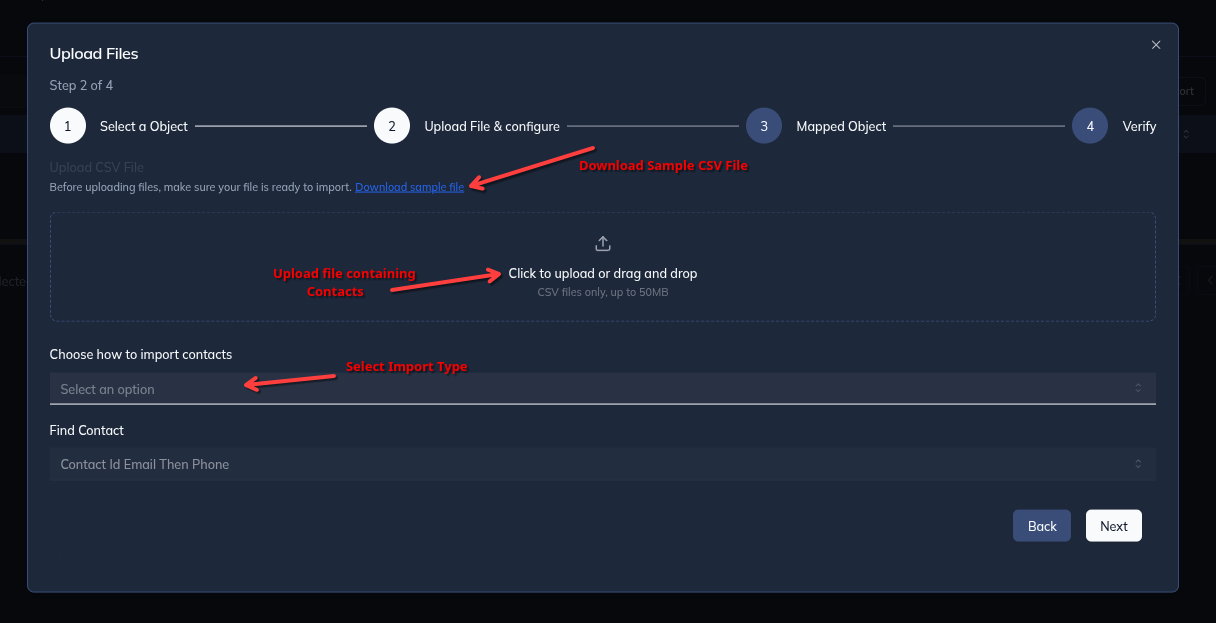
Upload file and Configure
Select any one or both of the options to import. You can either import a contact or an opportunity or both. If you want to import both, select both the options.

Mapped Object
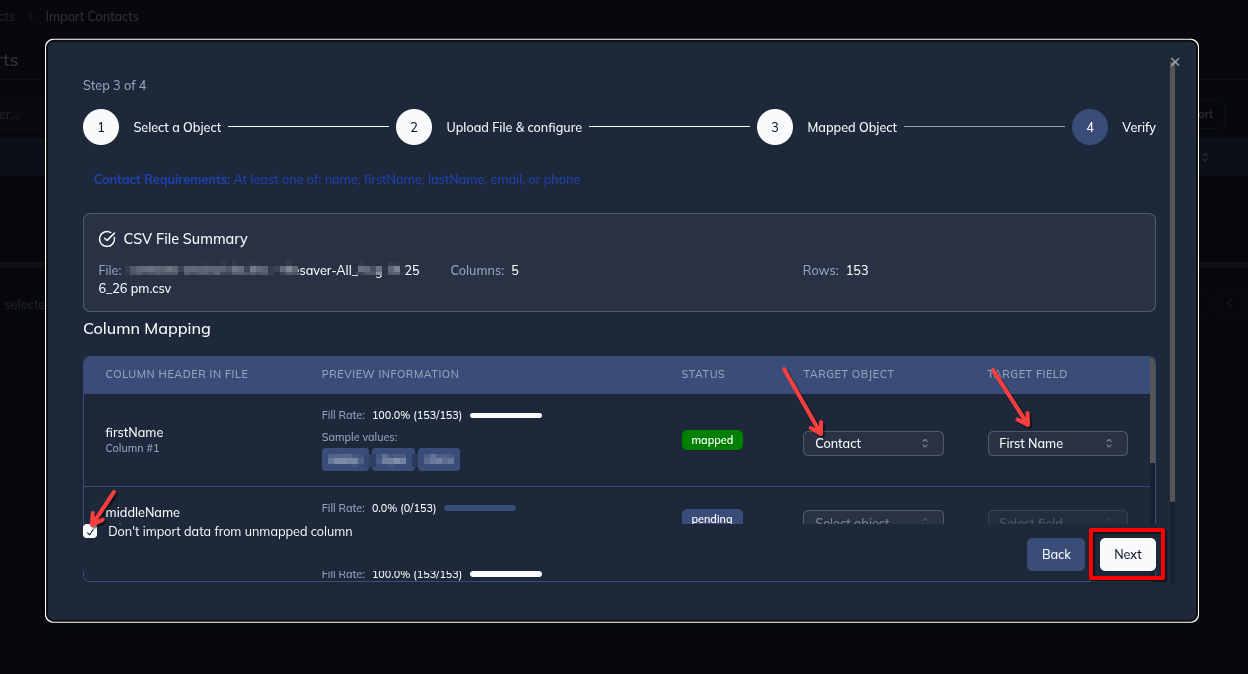
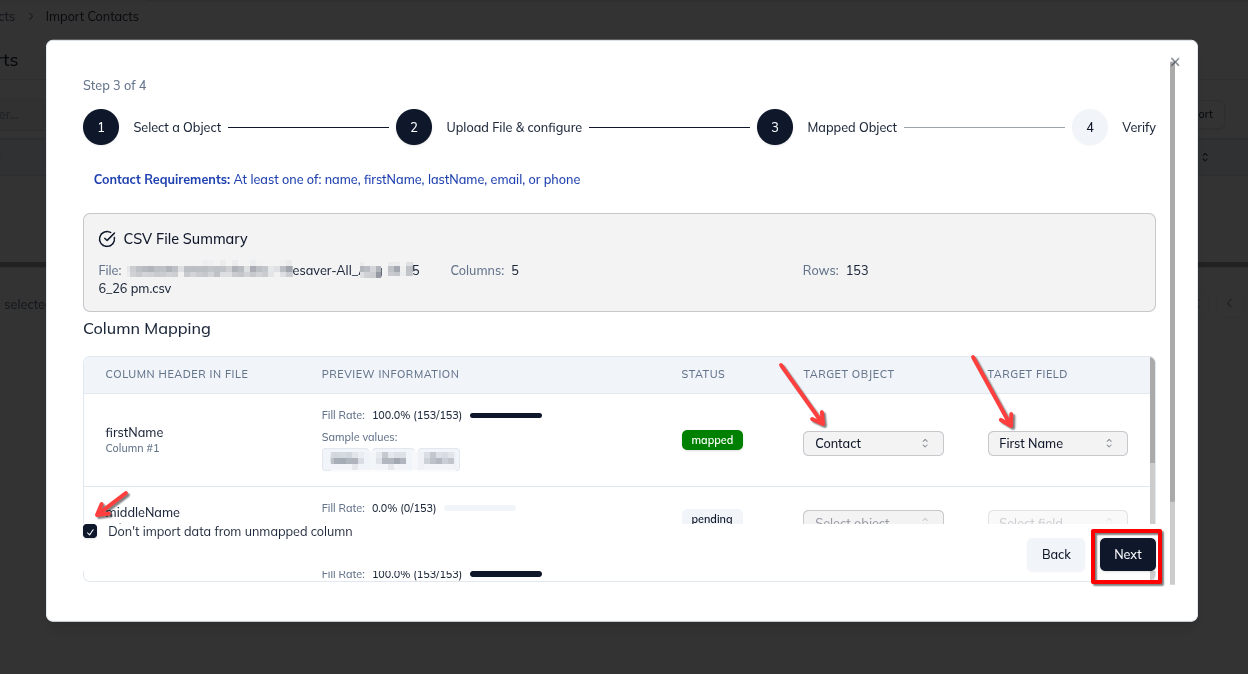
After uploading the file, map the headers of the uploaded file with the fields in the CRM. Make sure that the headers of the uploaded file match with the fields in the CRM. If the headers do not match, the import will fail. You can map the headers of the uploaded file with the fields in the CRM by selecting the appropriate field from the dropdown.
and if you want to skip any unwanted header from the csv, just check the box at the bottom left corner that says don't import data from unmapped columns. This will prevent the import of any columns that do not have a matching field in the CRM. This can be useful if you have columns in your CSV file that you do not want to import.
Verify and Import
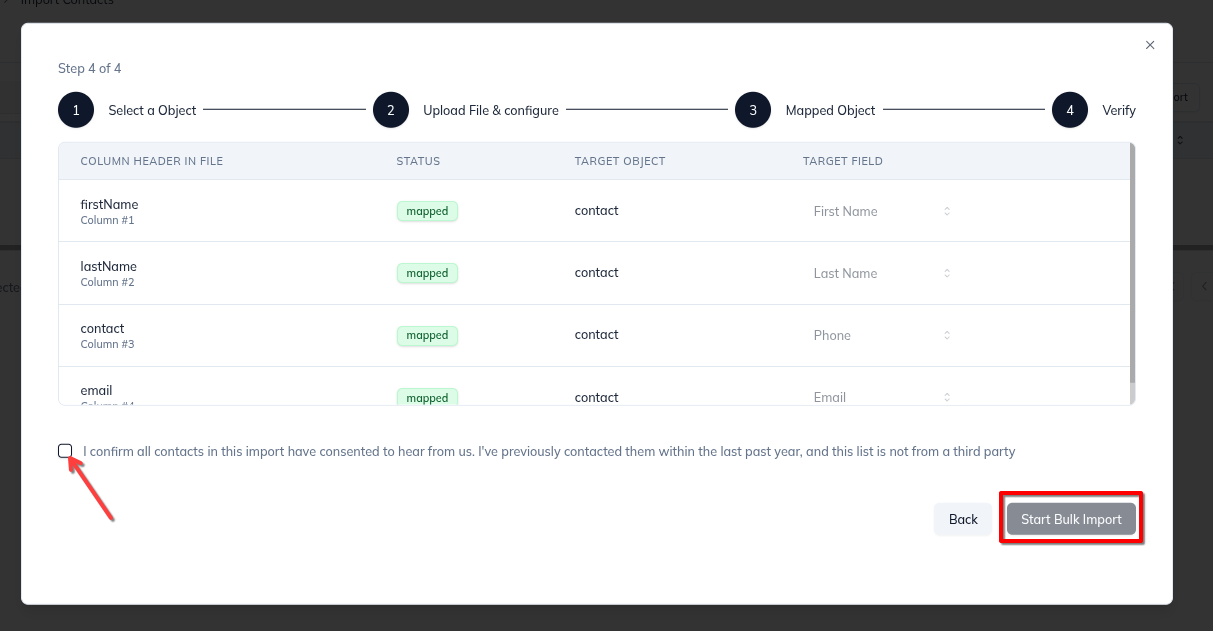
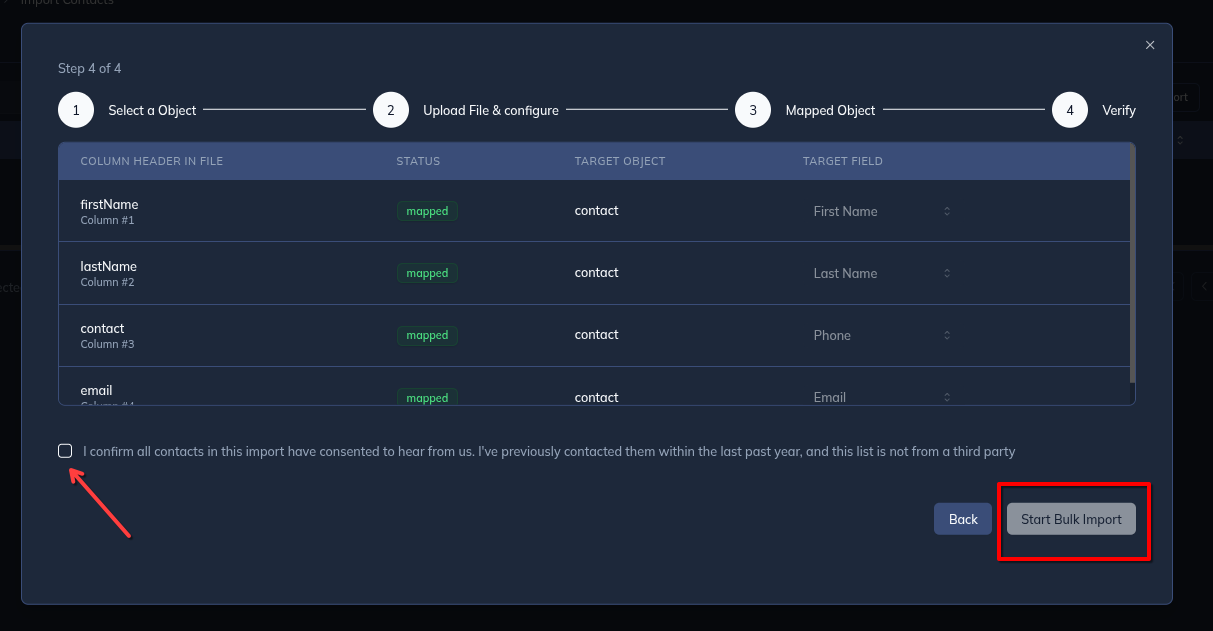
So in the last step of the import, verify what you are going to import and accept the terms and conditions. This is the final step of the import process. Please make sure that you have mapped all the headers of the uploaded file with the fields in the CRM correctly. If everything is correct, click on the Start Import button to start importing the contacts.

Import Status
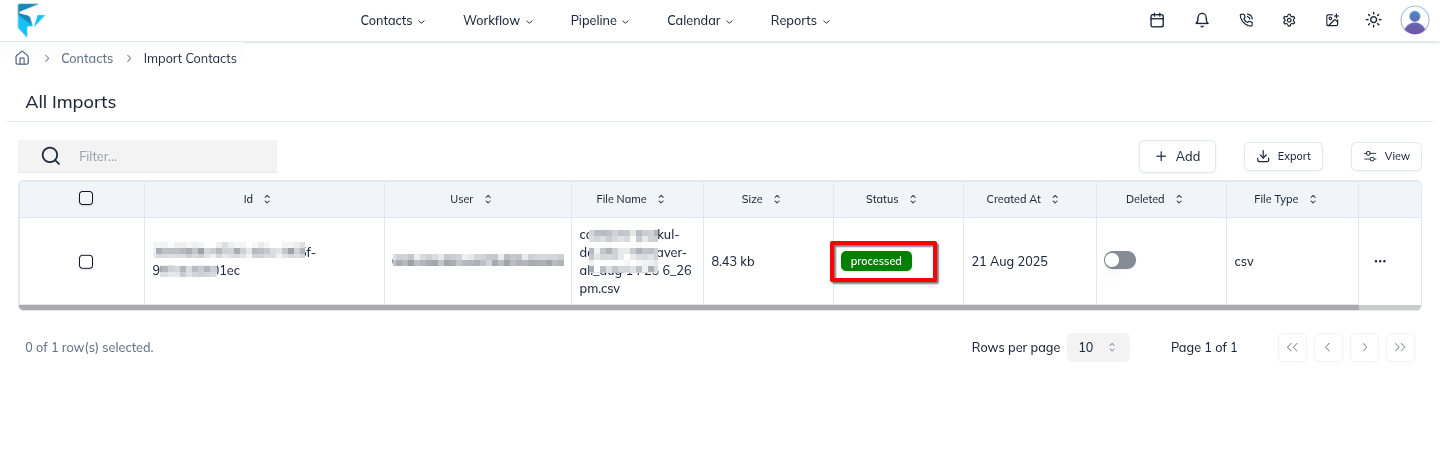
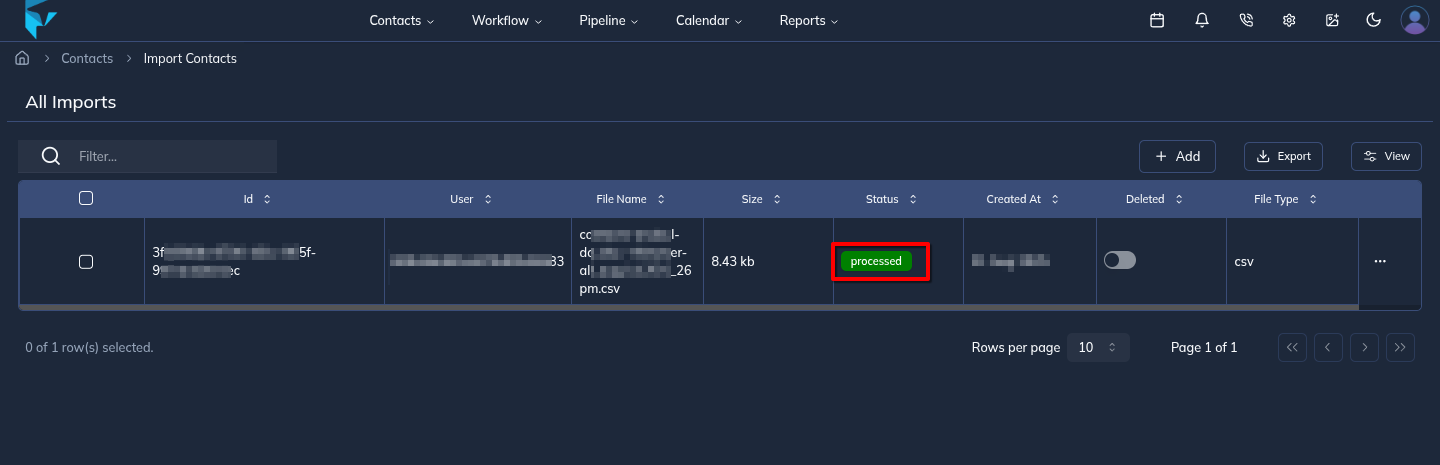
After the import is complete, the system will display the list of files that were imported. This list will contain the status of each file, which can be either "pending" or "processed". The "pending" status indicates that the file is still being processed by the system and the contacts have not yet been imported. The "processed" status indicates that the file has been successfully imported and the contacts are now available in the CRM. You can use this list to track the status of each file and to identify any issues that may have occurred during the import process. This can be useful for troubleshooting and for ensuring that all of your contacts have been successfully imported.