Contacts Module
What This Is
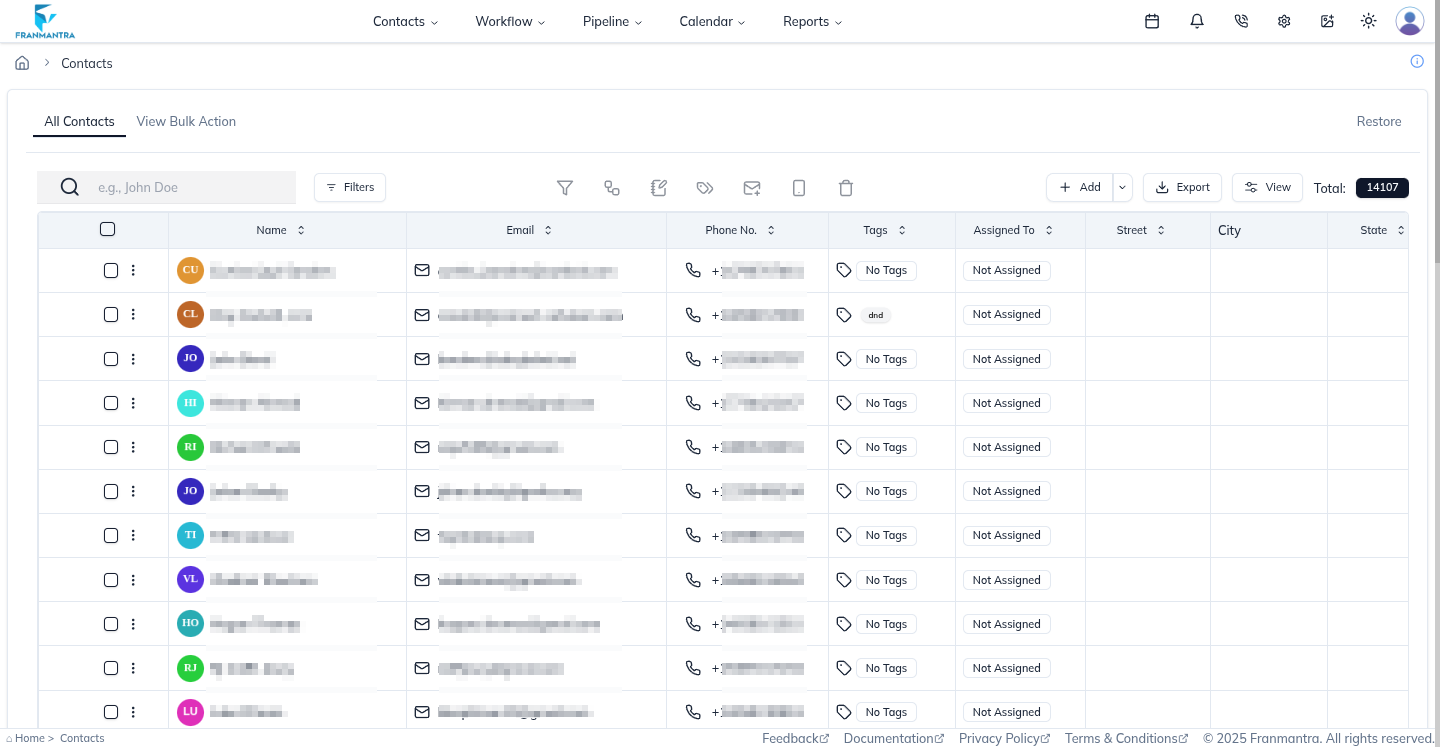
The Contacts module stores people your business works with. A contact can be a lead, customer, partner, or any person your team needs to follow up with.
Think of it like an address book for your CRM, but with more details, notes, tags, messages, and activity history.
When To Use It
Use Contacts when you want to:
- Save a new lead or customer.
- Find a person quickly by name, email, phone, tag, or filter.
- Update contact details when information changes.
- Send an email or SMS to a person.
- Organize contacts using tags or smart lists.
- Move deleted contact records to Trash and restore them when needed.
What You Can Do
In the Contacts module, you can:
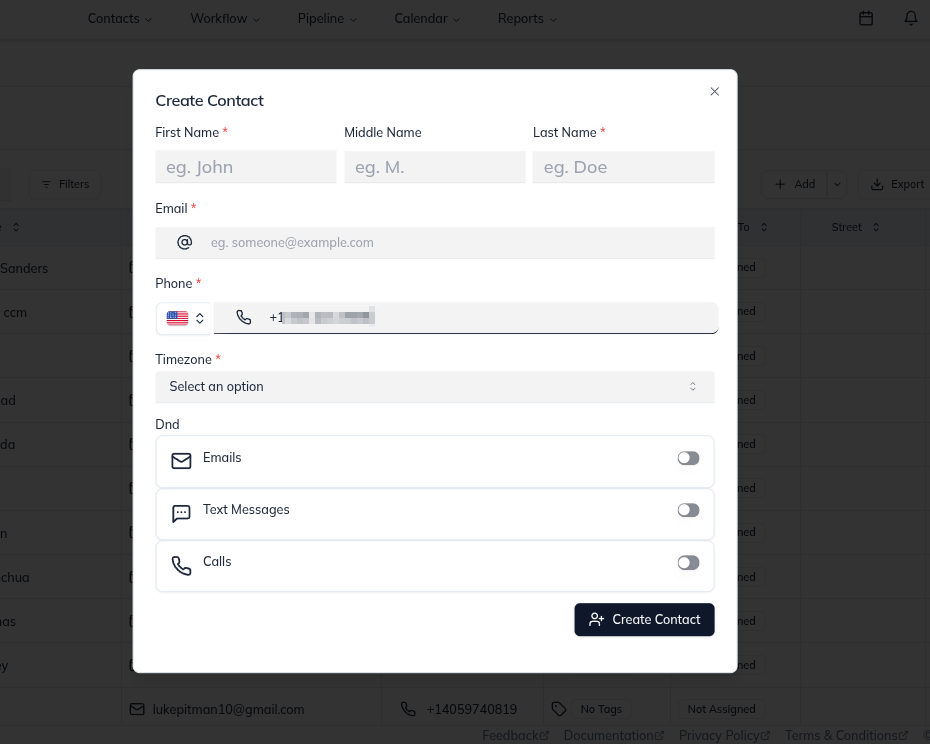
- Create a new contact with name, email, phone, and other details.
- View and edit existing contact information.
- Use filters to find a specific group of contacts.
- Use bulk actions to update many contacts at once.
- Delete contacts to move them to Trash, then restore them later if needed.
Basic Workflow
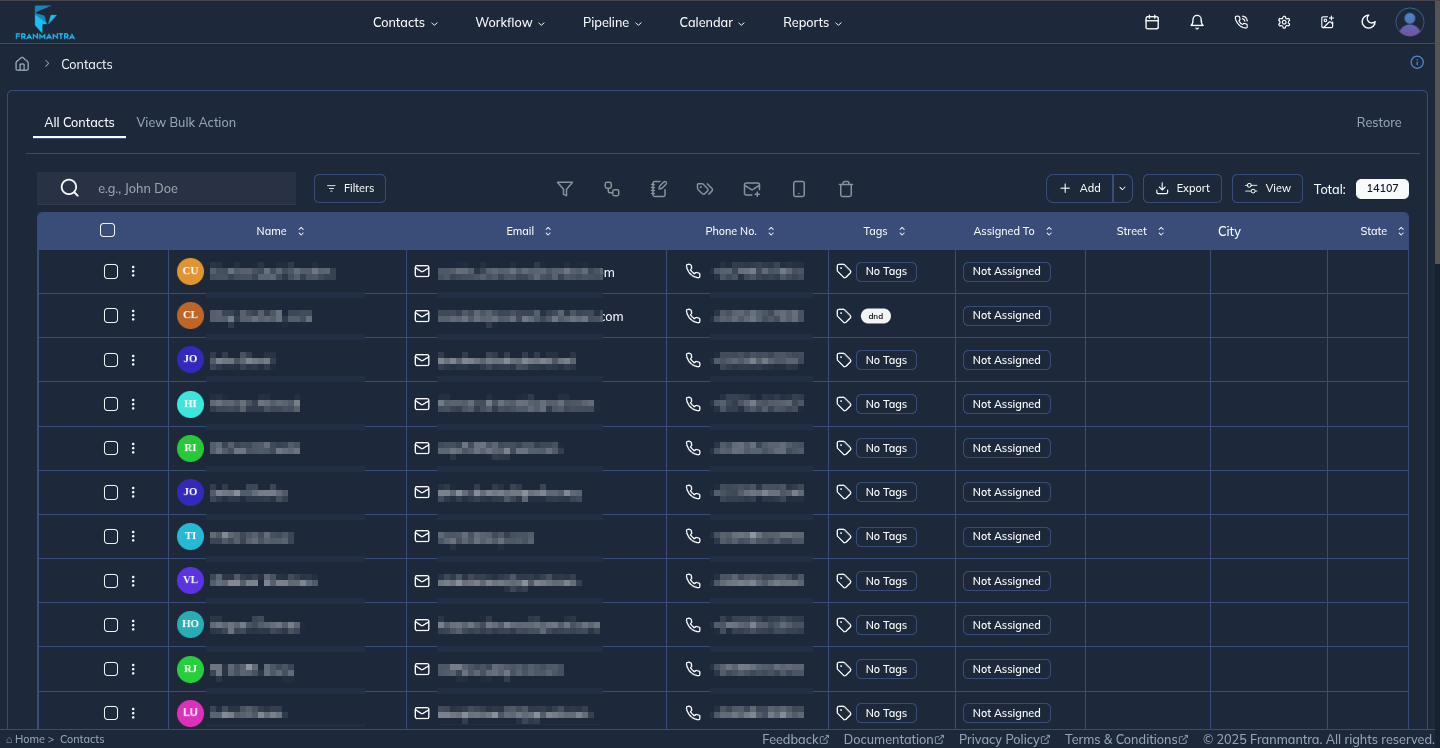
- Hover the Contacts in the headers then click Contacts in the dropdown menu.
- the contacts page opens.
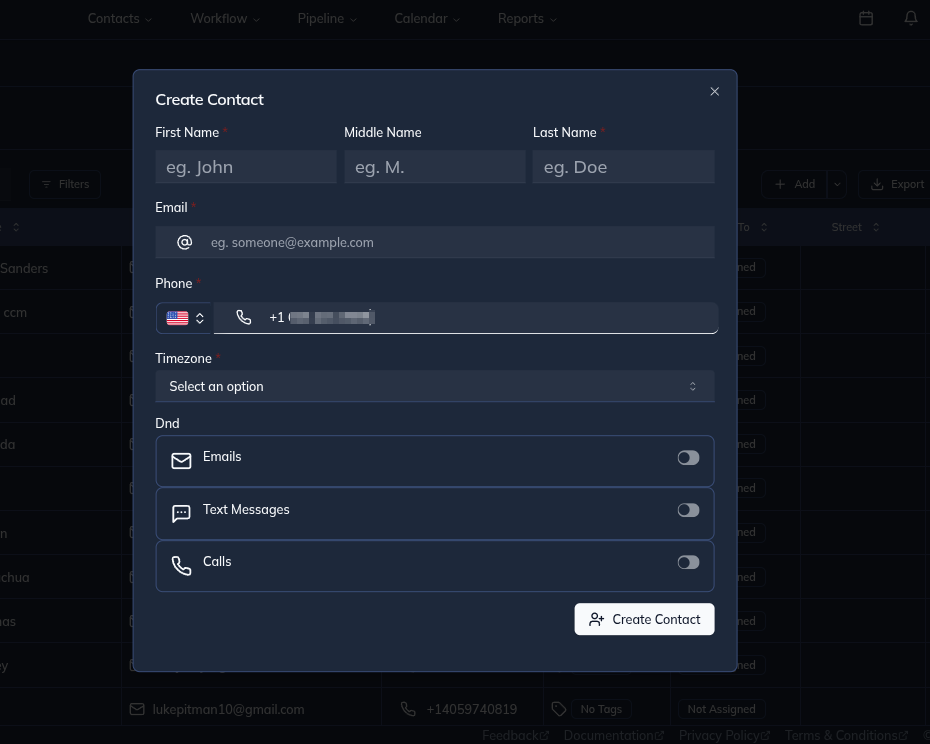
- Click Add.
- Enter the person's details.
- Save the contact.
- Use the contact record to track communication, notes, tags, and follow-up work.
Example
If someone asks about your franchise services, add them as a contact. Your team can then call them, send follow-up messages, add tags, and track the next step.
Notes
- Use the correct timezone so scheduled messages are sent at the right time.
- Use tags to group contacts, such as New Lead, Interested, or Customer.
- Check for duplicates before creating a new contact.