Enable or Disable AI for a Business
What this does
This guide explains how to enable or disable ai for a business in Franmantra CRM.
Turn AI on or off for one business account.
Steps
- Log in as an agency user or admin who can manage business AI access.
- Know which business account you want to update.
Open Settings
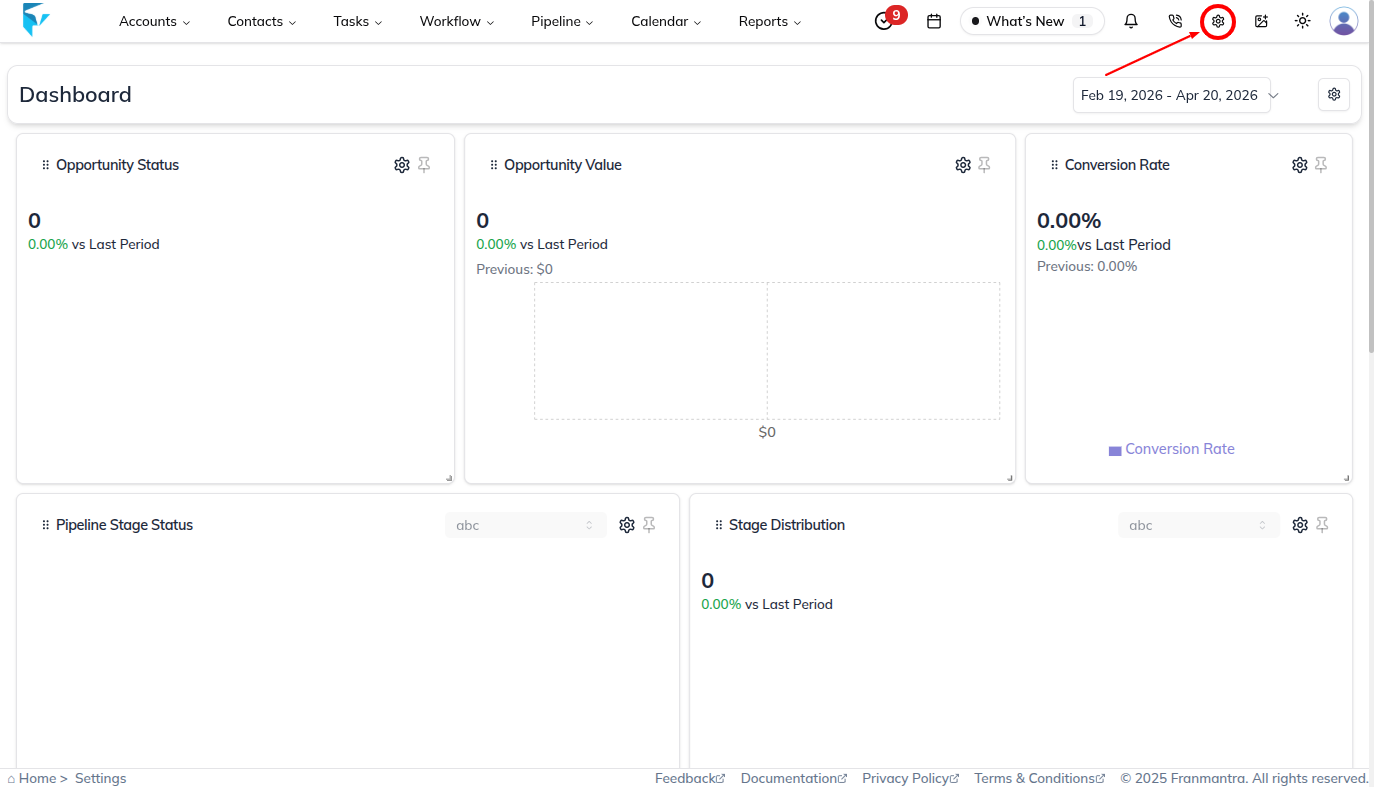
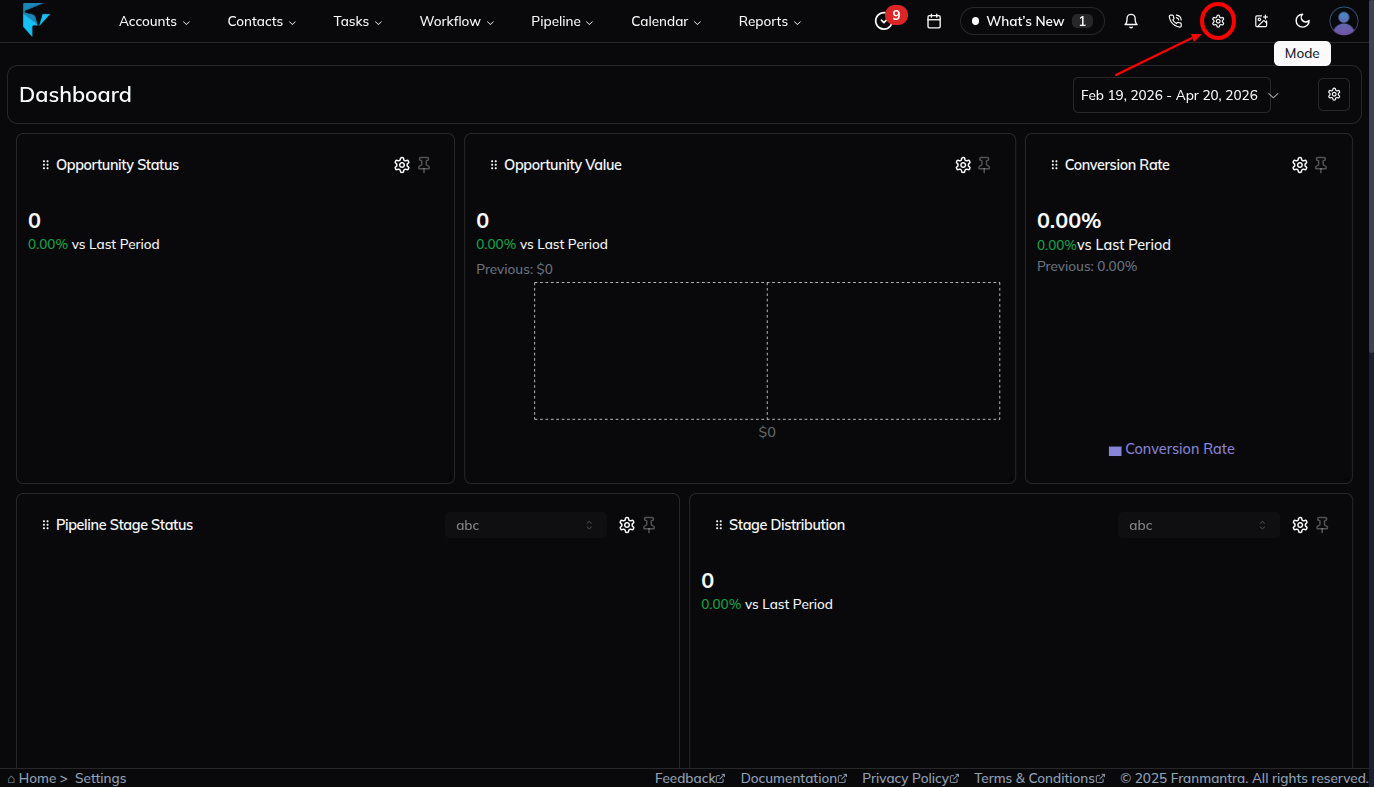
Log in as the agency or an authorized admin. In the header, click the settings icon to open the business detail/settings page.
After you click the settings icon, you land on the business detail page. This page includes a sidebar menu that helps you move between business settings, roles, billing, users, profile, services, and AI access areas.
Enable Franmantra AI in Business Features
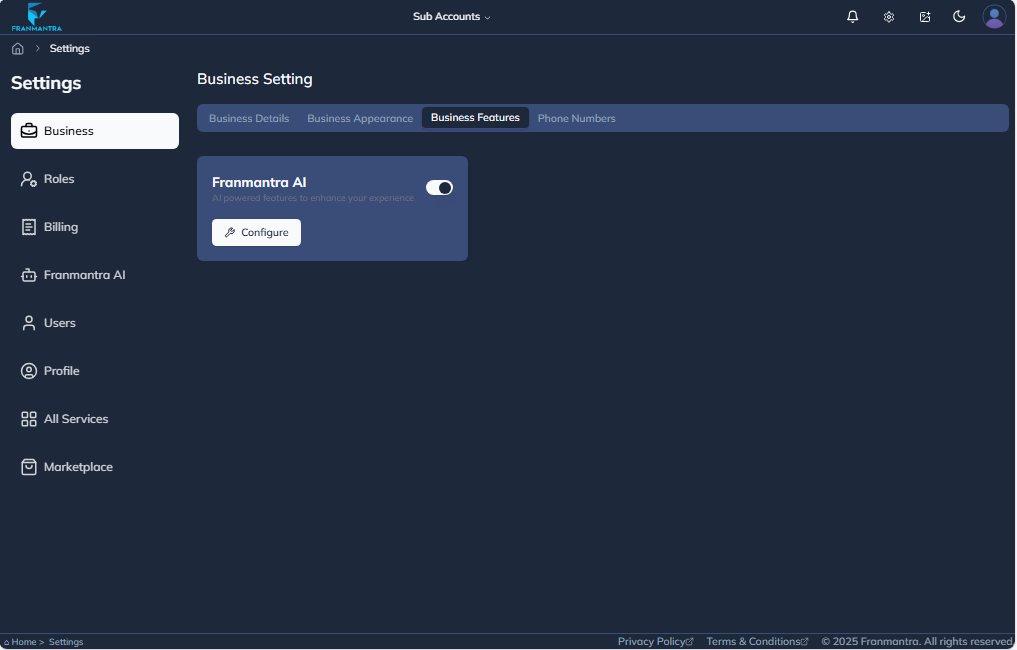
On the business detail page, open Business Features. The Franmantra AI option appears in this area.
Turn Franmantra AI on when you want to enable AI features for the business. Turn it off when you want to disable AI features for the business.
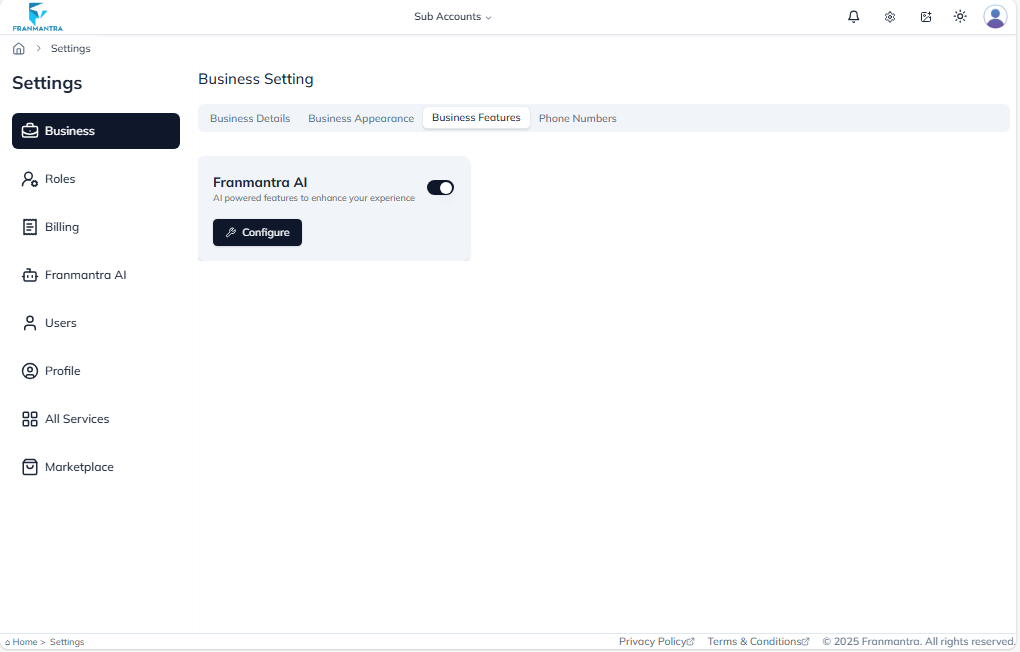
When Franmantra AI is enabled in Business Features, the Franmantra AI menu becomes available in the sidebar.
Open Franmantra AI
In the sidebar menu, click Franmantra AI. This section is where admins manage AI access business-wise, account-wise, or for a particular agency user or agency account.
Find the business, account, or user you want to update before changing the AI status.
Enable or Disable AI
After you find the correct business, account, or user, locate the relevant AI switch or access control, such as All AI.
Turn the switch on when you want to enable AI access. Turn the switch off when you want to disable AI access.
Confirm the Change
After changing the switch, read the confirmation message carefully.
Confirm the action to apply the change. The AI status is updated only after you confirm it.
What happens next
AI features become available or unavailable for that business based on the option you selected.
Notes
- Disabling AI can hide or stop AI-related tools for that business.
- Only users with the correct access should change AI availability.
Result
The change is saved in Franmantra CRM and is available to users with the right permissions.
Troubleshooting
- If you cannot see the option, check your role permissions or ask an admin to update your access.
- If the update does not appear immediately, refresh the page and confirm you are in the correct Sub-account.