Create a Knowledge Base
What this does
This guide explains how to create a knowledge base in Franmantra CRM.
Create a Knowledge Base so AI can learn from your website pages, files, and written notes.
Before you start
- Make sure AI is enabled for the business.
- Prepare the information you want AI to learn from.
- Decide whether you will use web content, written context, uploaded files, or a mix of sources.
Steps
1. Open the AI Agent Area
- In the header, click the Settings button to open the business settings page.
- After the business settings page opens, look at the left sidebar menu and click AI Agent.
- The AI Agent page opens and takes you to the AI configuration area for the business.
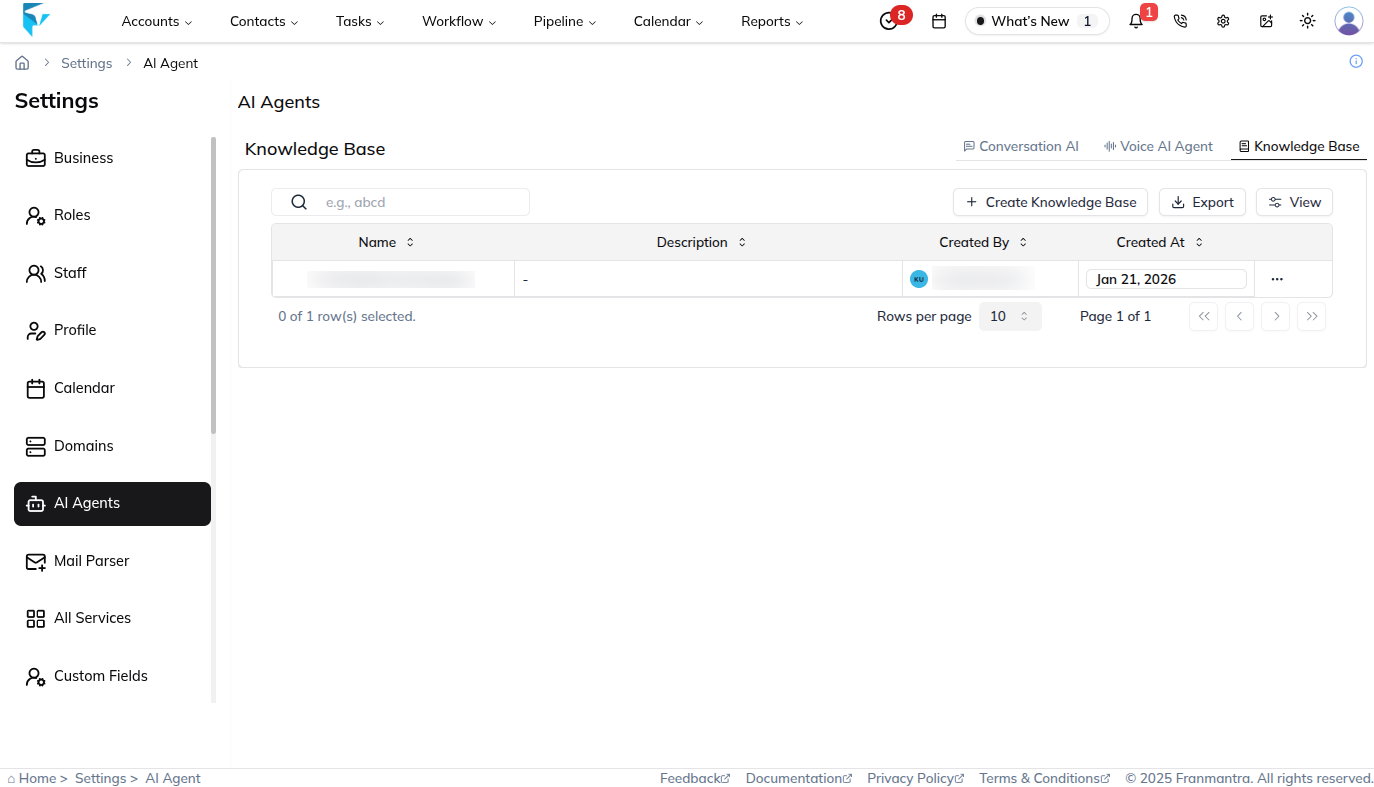
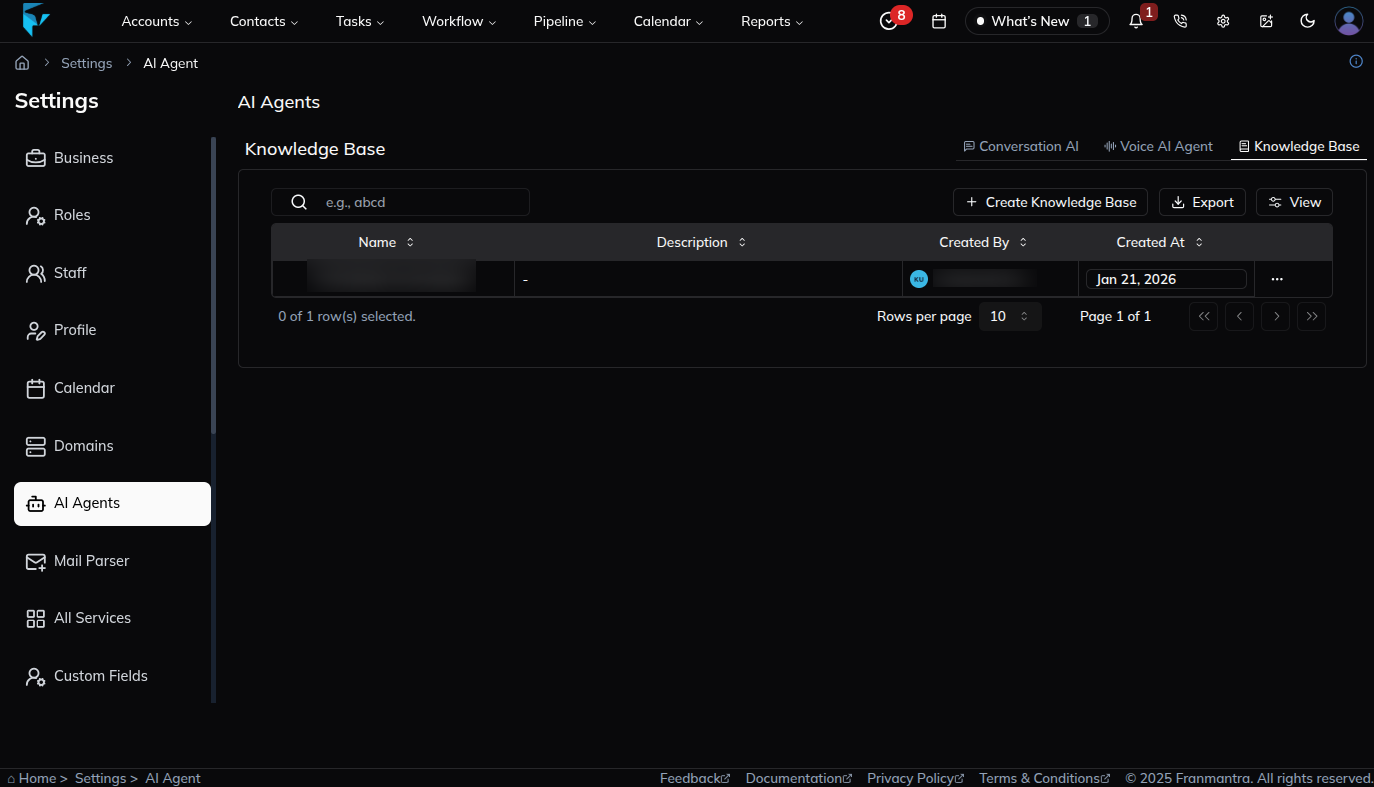
2. Review the AI Tabs and Open Knowledge Base
- On the AI Agent page, review the three available options: Conversation AI, Voice AI Agent, and Knowledge Base.
- The page opens on Conversation AI by default, so this is the first tab you see when you land in the AI Agent area.
- Click Knowledge Base to move to the Knowledge Base section.
3. Create a New Knowledge Base
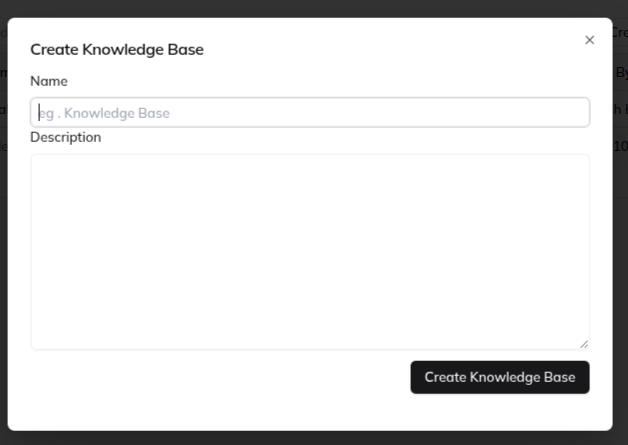
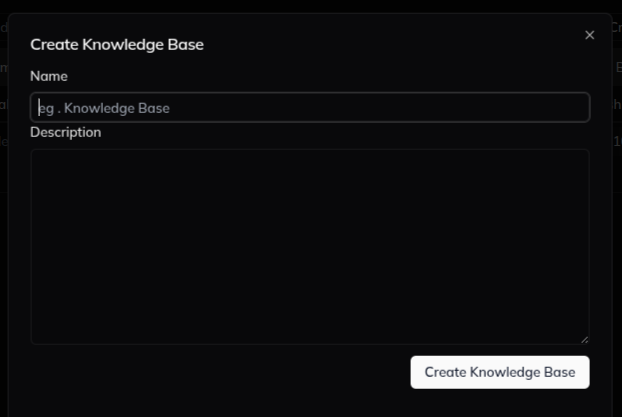
- On the Knowledge Base page, click Create Knowledge Base to open the create form.
- Enter the required details in the form.
- After you create the Knowledge Base, the record appears in the Knowledge Base list.
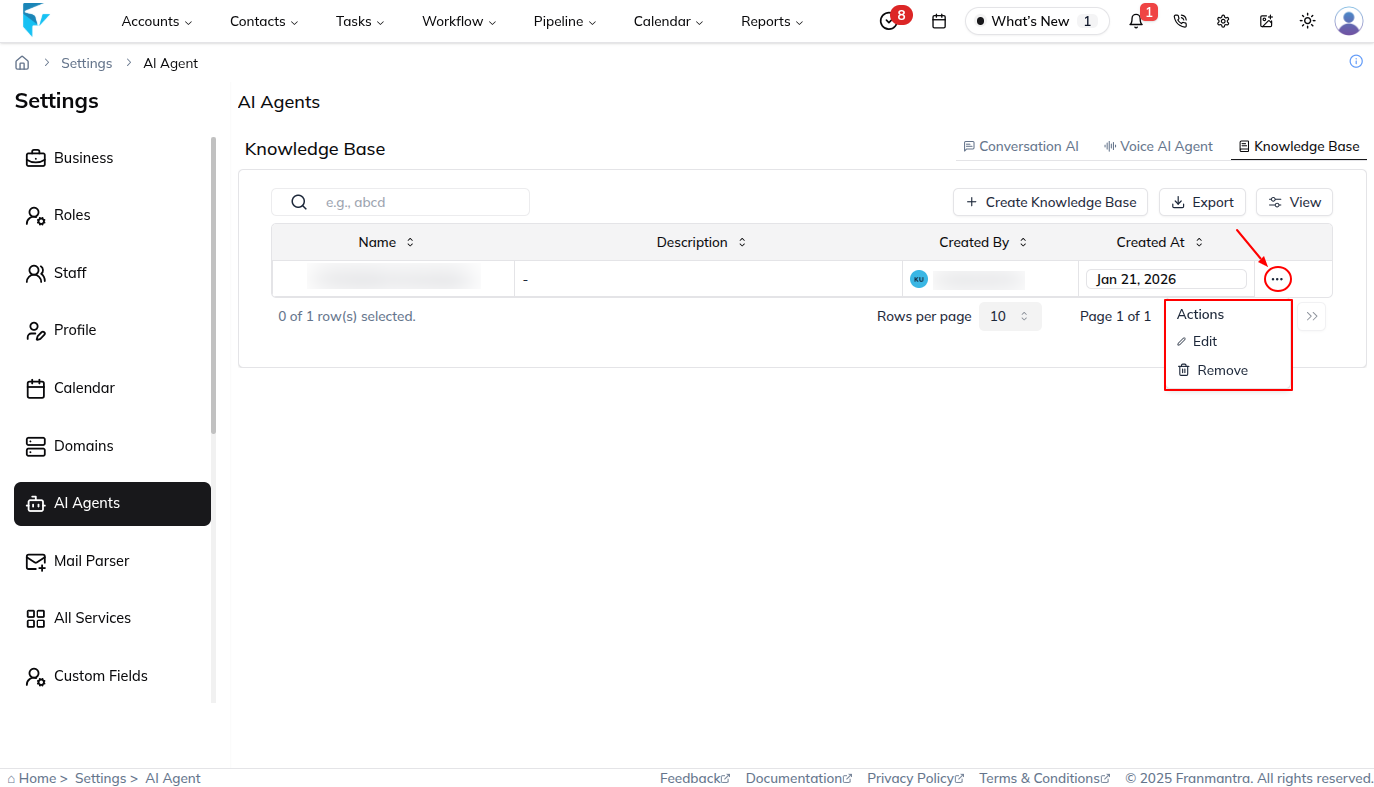
5. Manage Existing Knowledge Base Records
- Return to the Knowledge Base list page to view the saved records.
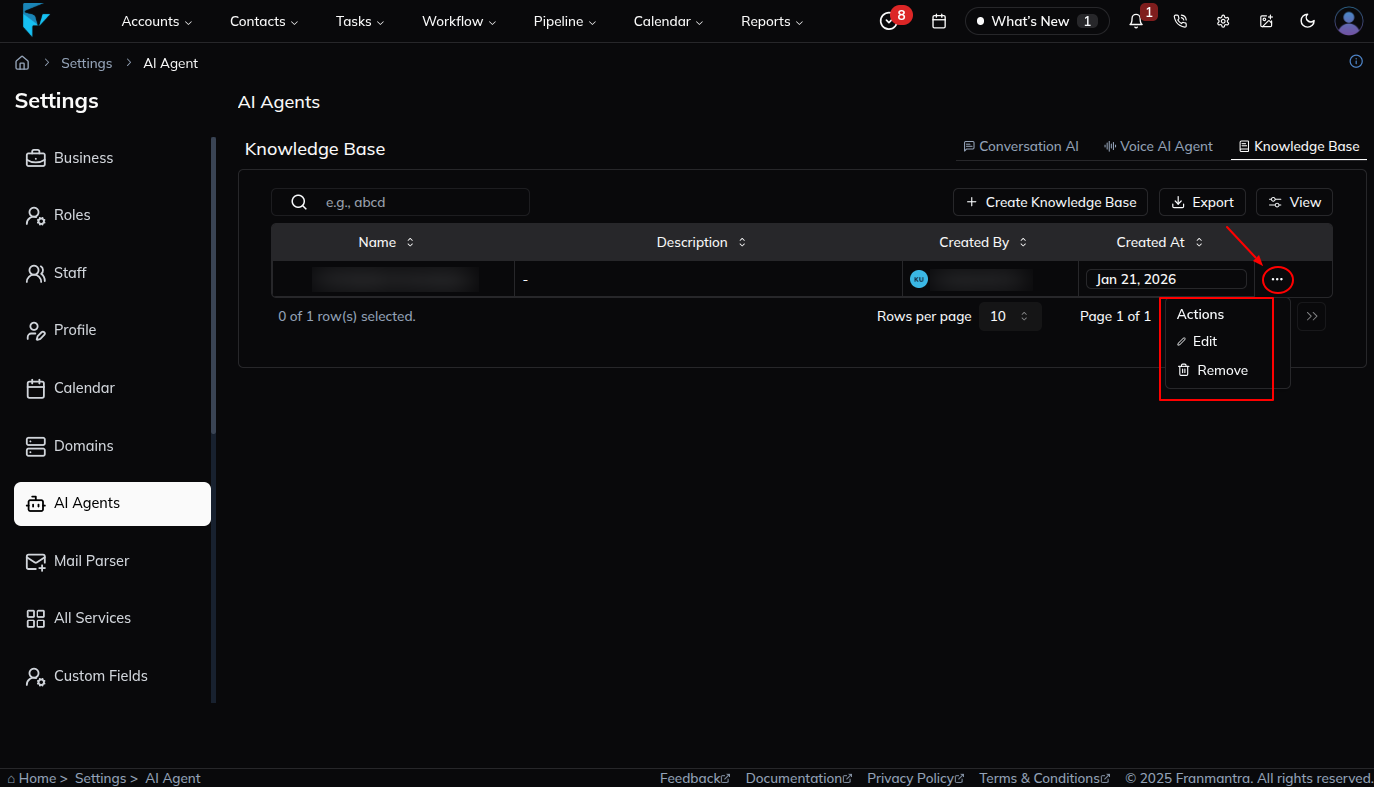
- Each Knowledge Base record includes an action menu in the ... column.
- Open the action menu to view the available actions: Edit and Delete.
- Click Edit to open a new page where you can add or update the knowledge for that Knowledge Base.
6. Add Training Sources
- Add the training sources the Knowledge Base should use, such as web crawls, context entries, or uploaded files.
7. Review and Save
- Review the information to make sure the details and training sources are correct.
- Save the Knowledge Base to finish the setup.
What happens next
The Knowledge Base is saved. You can connect it to Conversation AI so the bot can use the information.
Notes
- Use accurate information because AI responses depend on the Knowledge Base.
- Update the Knowledge Base when business information changes.
Result
The change is saved in Franmantra CRM and is available to users with the right permissions.
Troubleshooting
- If you cannot see the option, check your role permissions or ask an admin to update your access.
- If the update does not appear immediately, refresh the page and confirm you are in the correct Sub-account.