Create a global Template

How to Create a Global Template for Workflow, Pipeline, and Reports

  1. Log in as Super Admin
    • Only the super admin has permission to create global templates.
  1. Prepare the Item First
    • Before creating a template, you must first create the base item (workflow, pipeline, or report).
    • Example: If you want to make a global workflow template, first create the workflow itself. If it doesn’t exist, the system will not allow you to save it as a template.
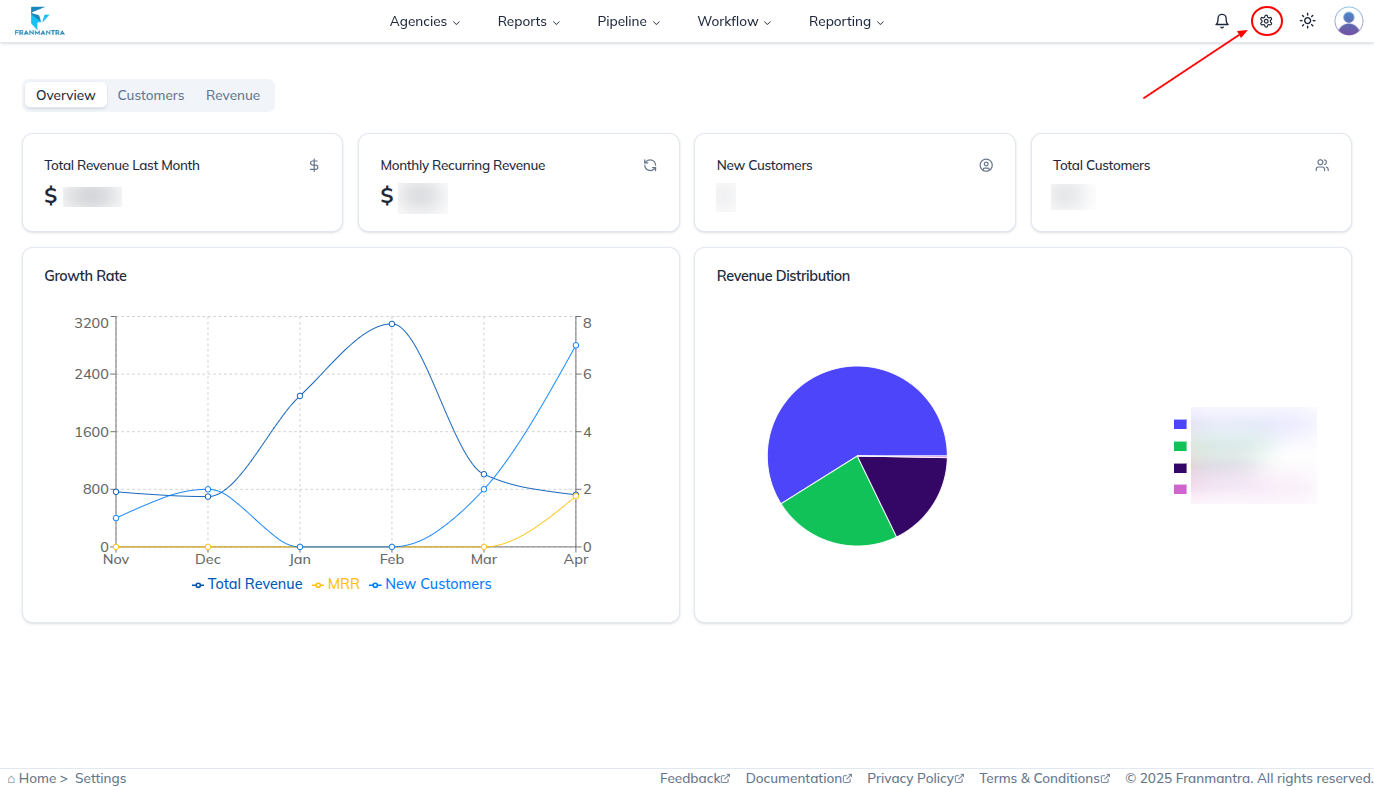
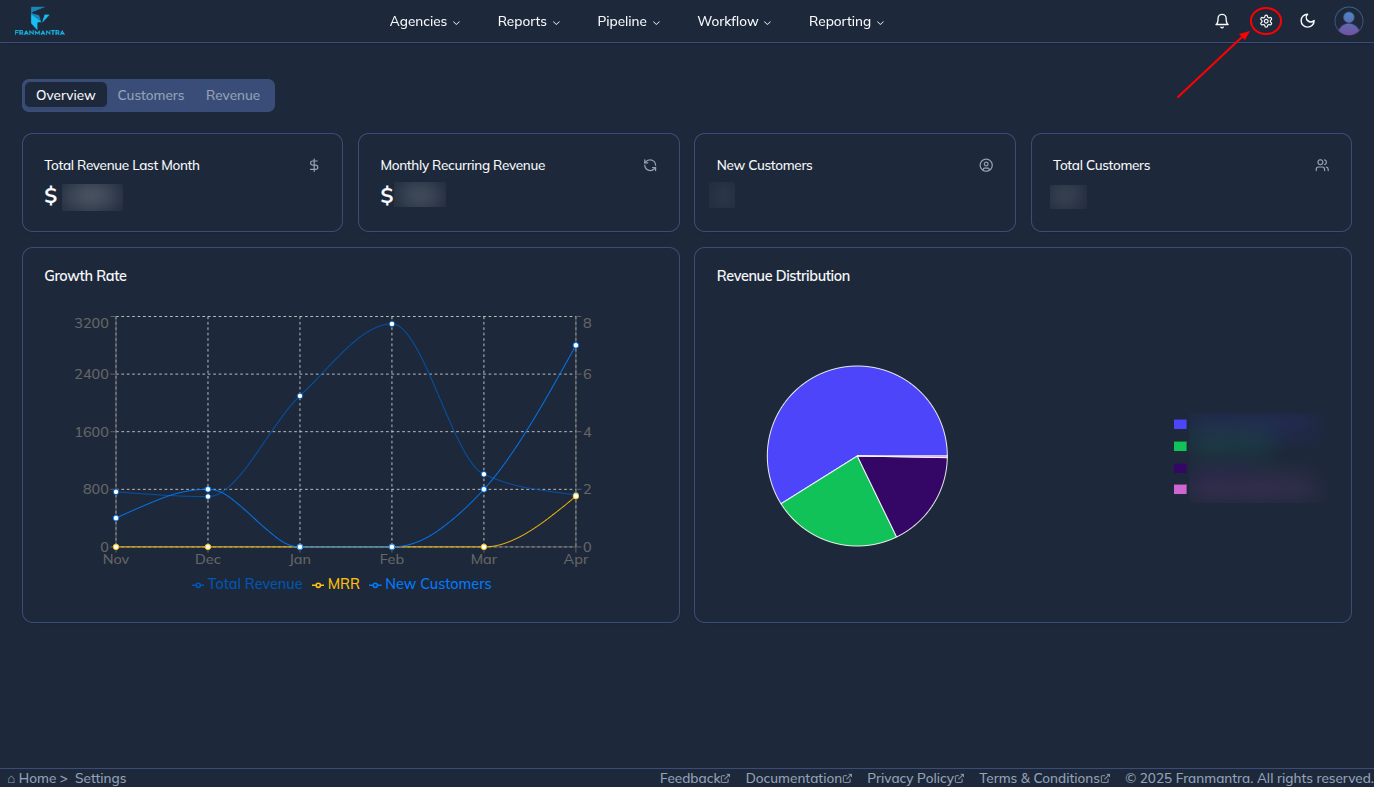
  1. Navigate to Settings Page There are two ways to open the Settings page:
    • Option 1: Click the Settings icon on the top-left side of the header.
    • Option 2: Click your avatar on the top-left side of the header → from the dropdown menu, click Settings.
home Pagehome Page

  1. Open the Templates Section
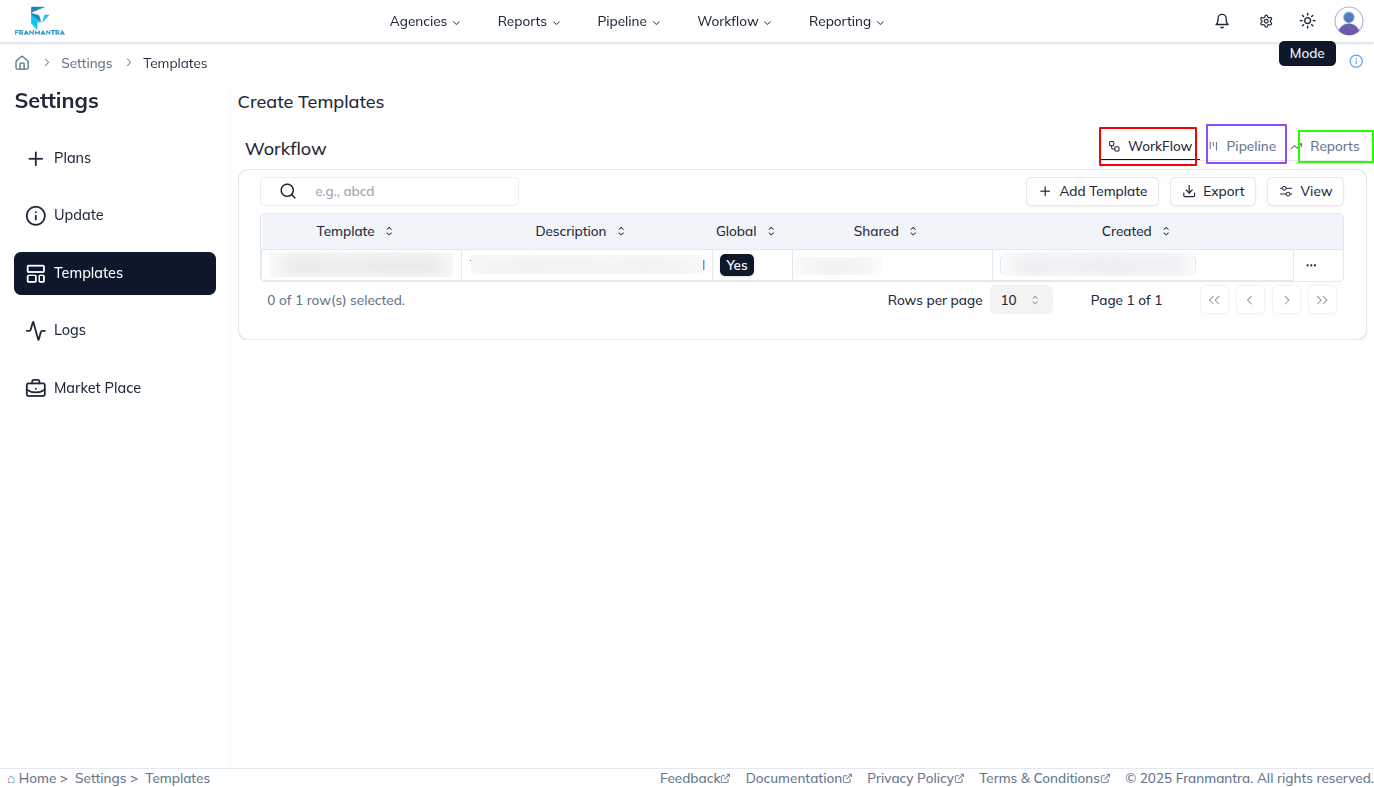
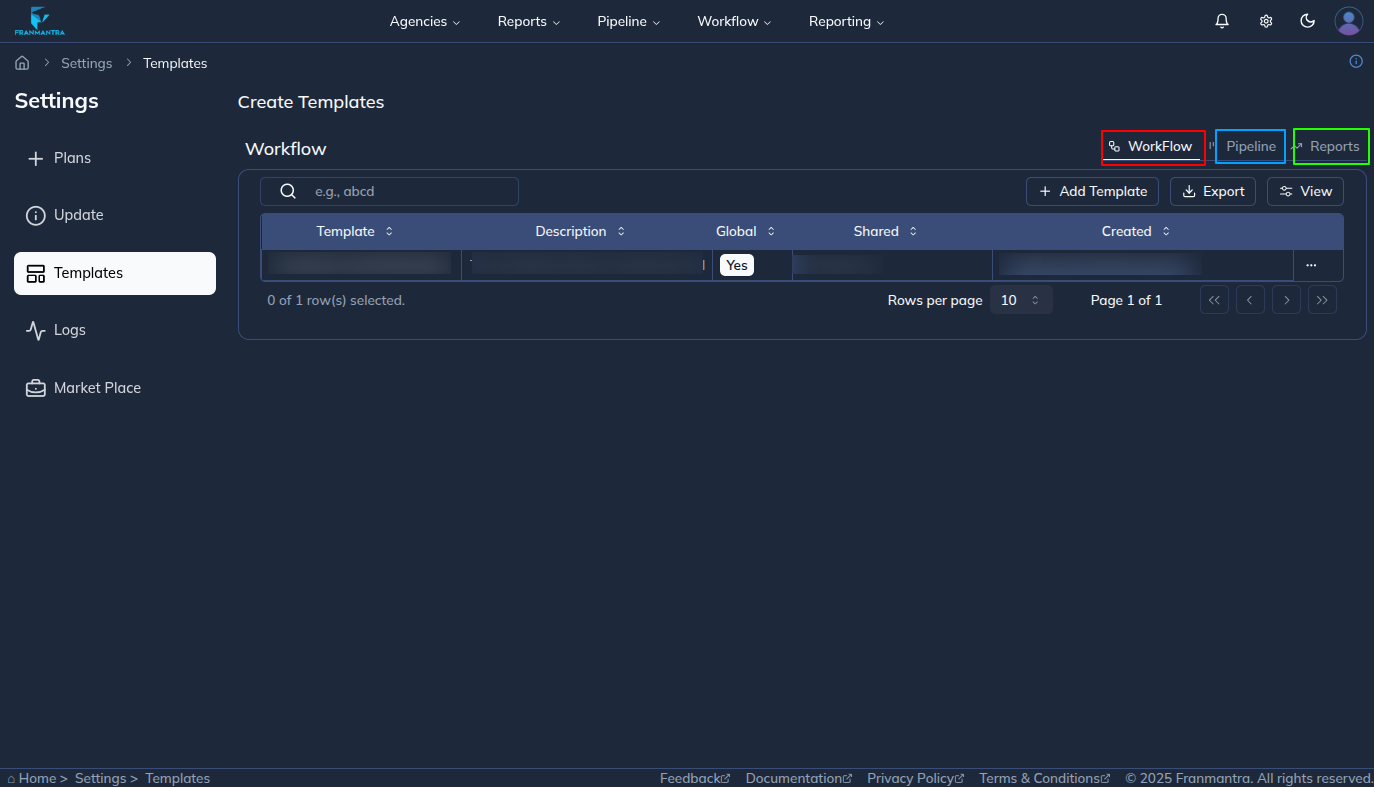
    • On the Settings page, the left sidebar contains menus.
    • Click Templates → A new page opens showing three template categories: Workflow, Pipeline, Report.
home Pagehome Page

  1. Select What to Create
    • Example: To create a workflow template, click Workflow.
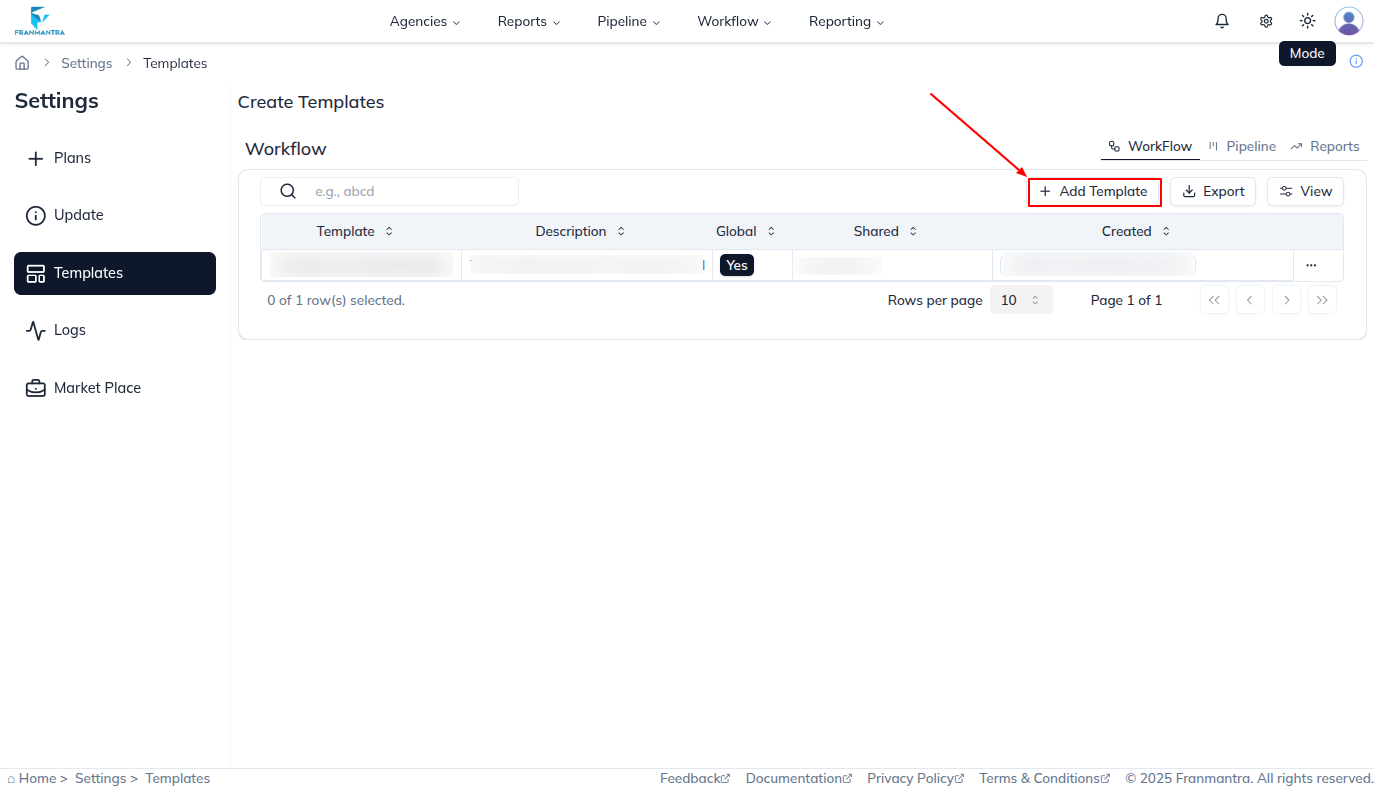
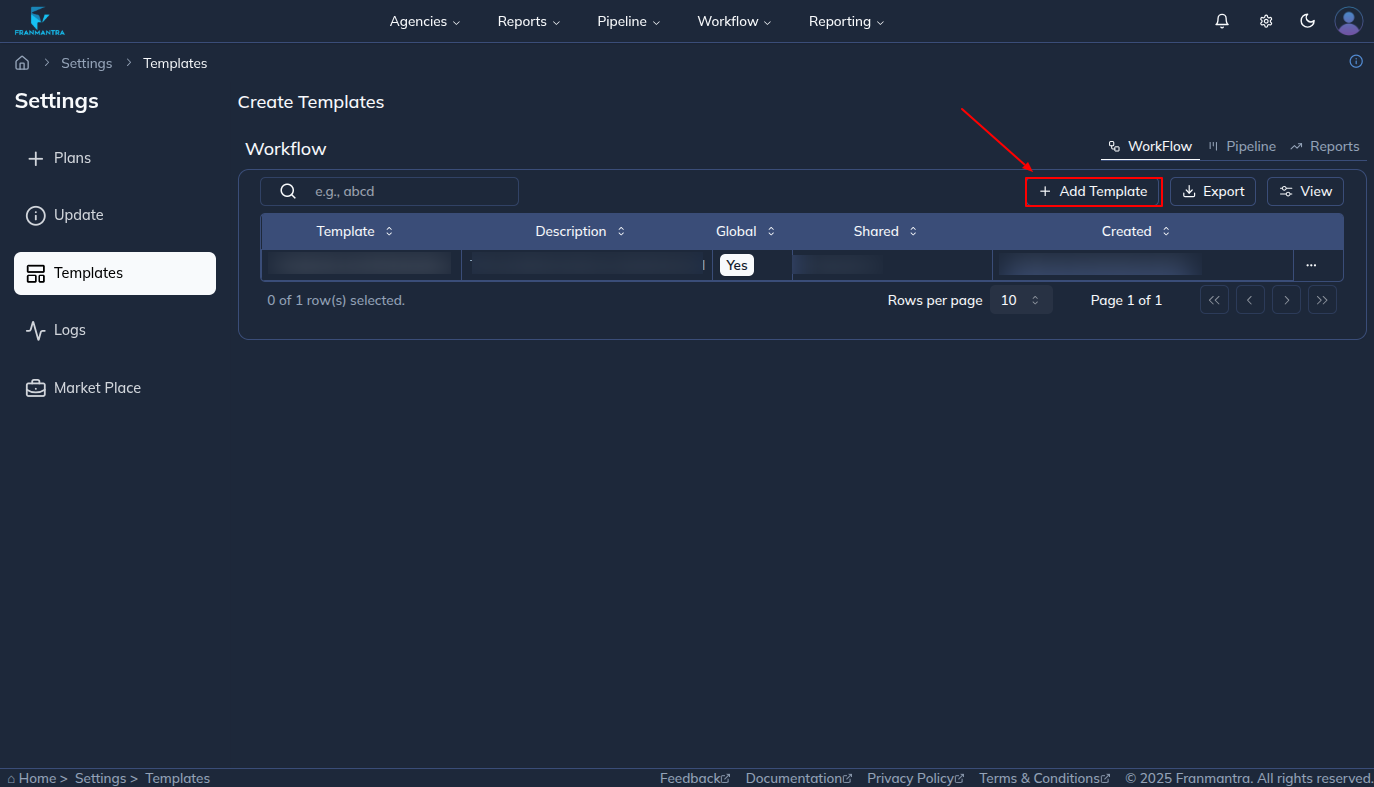
    • You’ll see a table with a list of existing workflow templates.
home Pagehome Page

  1. Add a New Template

    • Click the Add Template button.
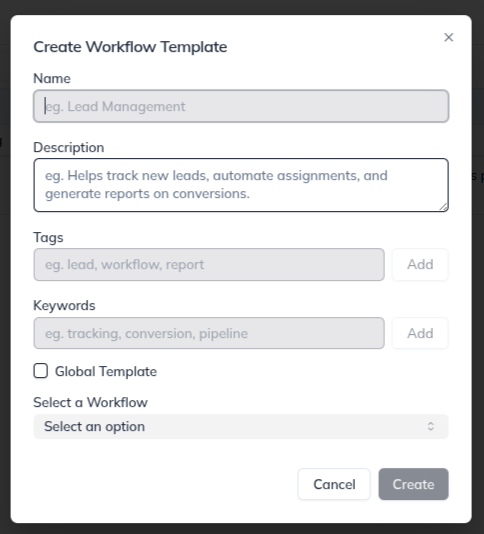
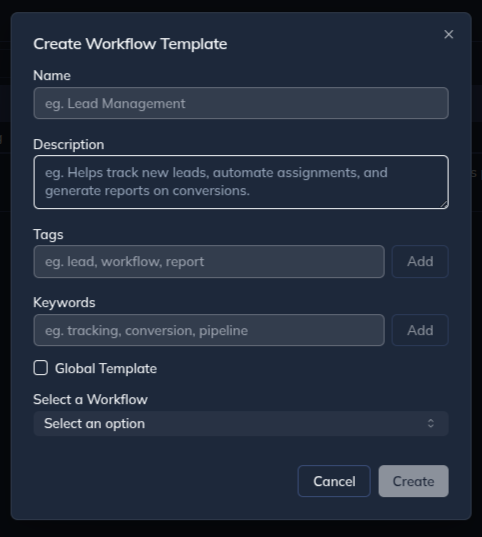
    • A pop-up form appears with the following fields:
      • Name – Title of the template
      • Description – Brief explanation of what it does
      • Tags / Keywords – For easy searching
      • Select Item – Choose the workflow/pipeline/report you already created
      • Is Global – Checkbox to mark if this should be a global template
home Pagehome Page

  1. Save the Template
    • Fill in the form details.
    • Tick Is Global to make the template available for all users.
    • Click Save.
home Pagehome Page

Example:

  • Step 1: Log in as Super Admin.
  • Step 2: Create a workflow named “Lead Qualification Workflow”.
  • Step 3: Go to Settings → Templates → Workflow.
  • Step 4: Click Add Template.
  • Step 5: Fill in the form:
    • Name: Lead Qualification Workflow
    • Description: Standard process for qualifying new leads across all teams
    • Tags: leads, qualification, sales
    • Select Item: Lead Qualification Workflow (the one you created earlier)
    • Check Is Global.
  • Step 6: Click Save.

✅ Now, the Lead Qualification Workflow is available as a Global Template for everyone.