Staffs Module
What This Is
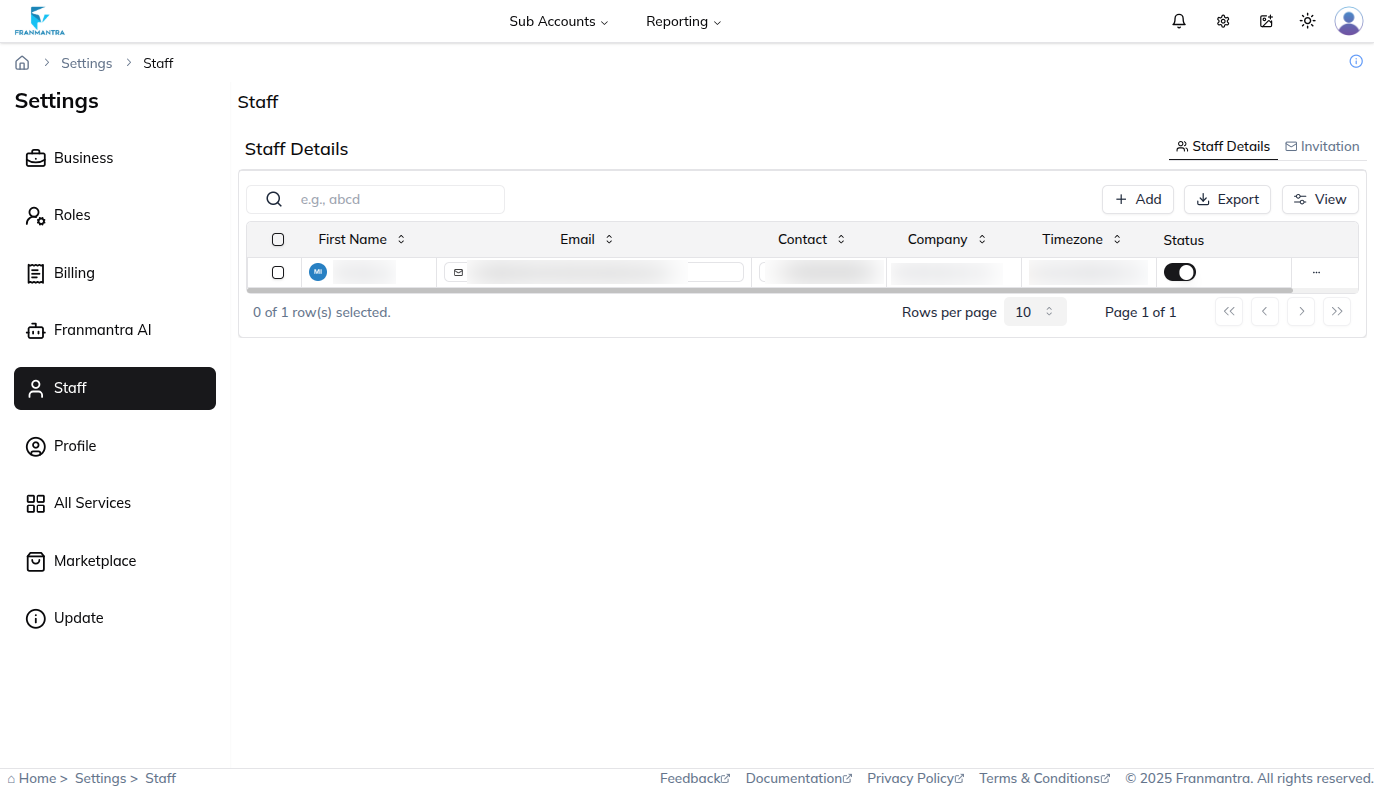
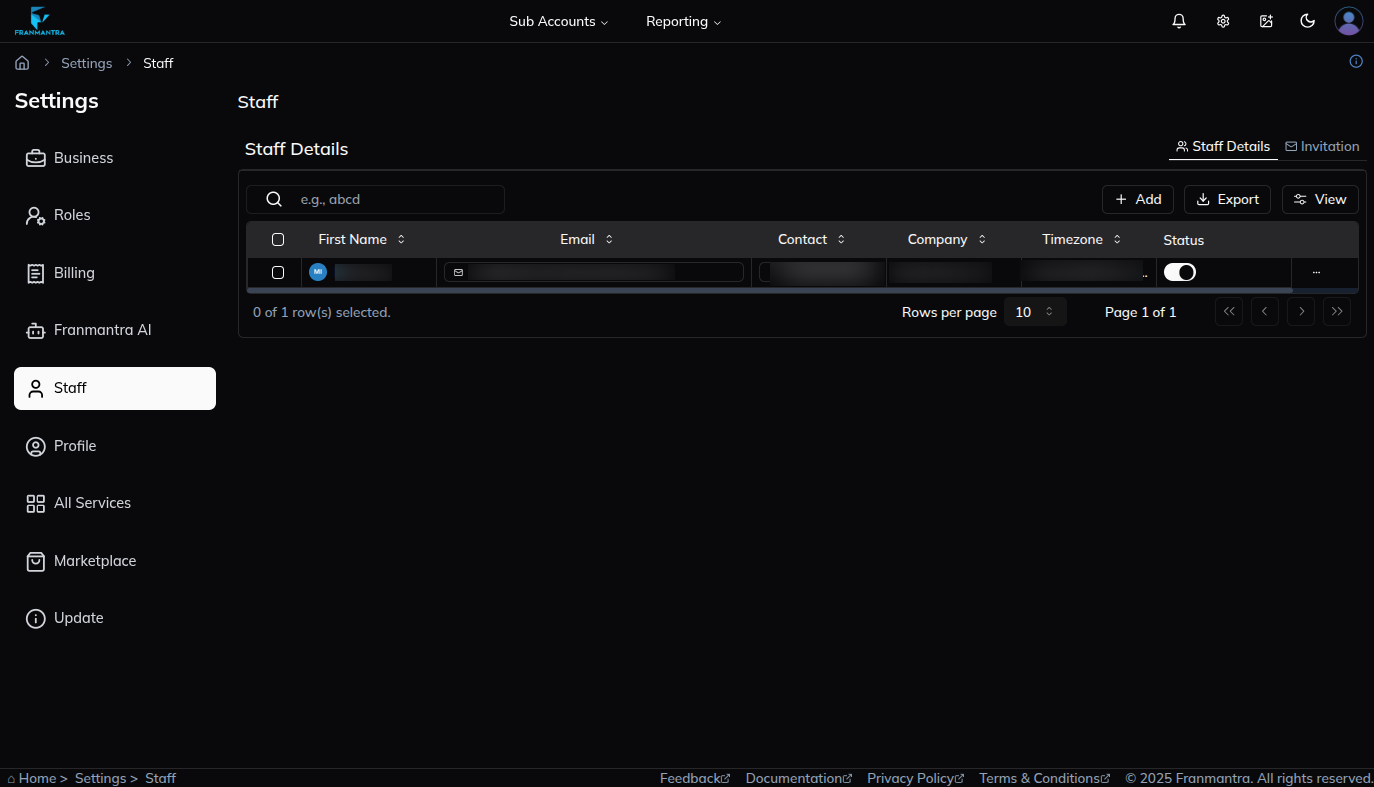
The Staff module is where you manage people who can log in to Franmantra CRM. Each user can have personal information, login access, and a role.
A role controls what the user can see and do.
When To Use It
Use Staffs when you want to:
- Invite a new team member.
- Review who has access to the CRM.
- Assign a role to a user.
- Check user details and permissions.
- Manage staff access as your business changes.
What You Can Do
In the Staffs module, you can:
- Add or invite a new user.
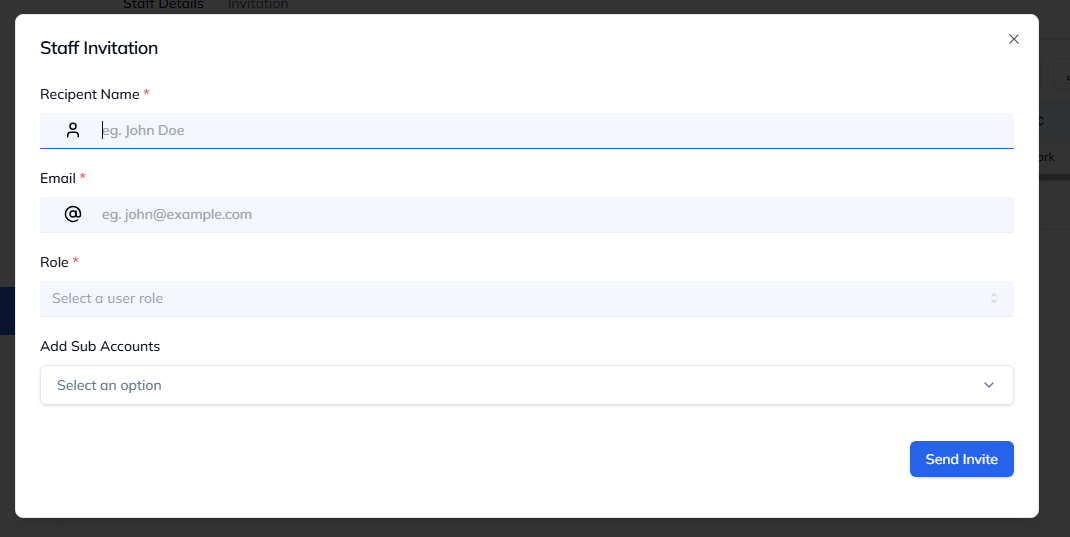
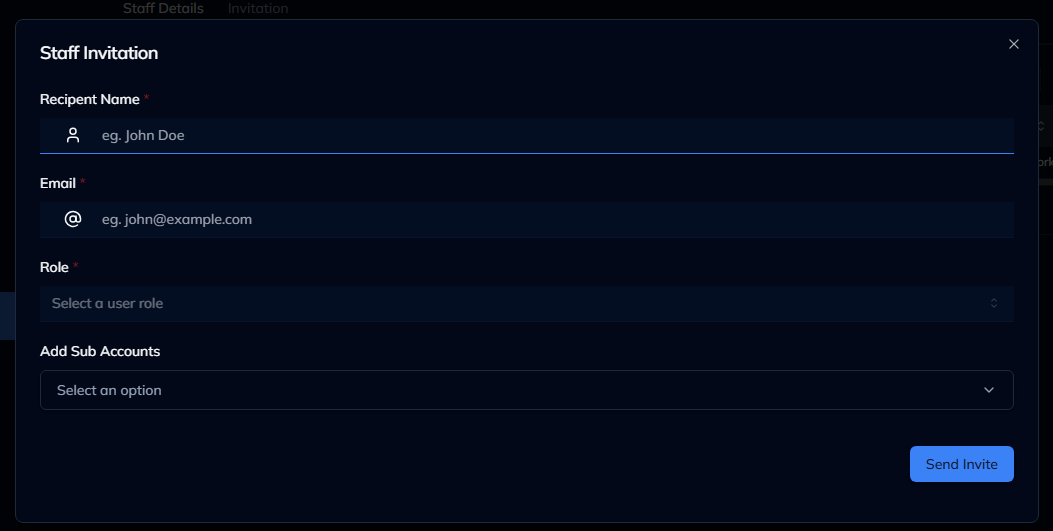
- Enter user details such as name, email, and phone number.
- Assign a role to control access.
- View permissions based on the selected role.
- Send an invitation so the user can join the CRM.
Basic Workflow
- Open Settings > Staff.
- Click Add.
- Enter the user's required details.
- Select the correct role.
- Review the permission information.
- Click Send Invite.
Example
If you hire a new salesperson, add them as a user and assign a sales role. They can then log in and work on contacts, deals, and tasks.
Notes
- User permissions come from the assigned role.
- If a permission is wrong, update the role instead of changing it from the user form.
- Use correct email addresses because invitations are sent by email.