Creating a Report
This guide shows how to create a new report in Franmantra starting from the Reports page after you have already logged in.
1. Open the Report List
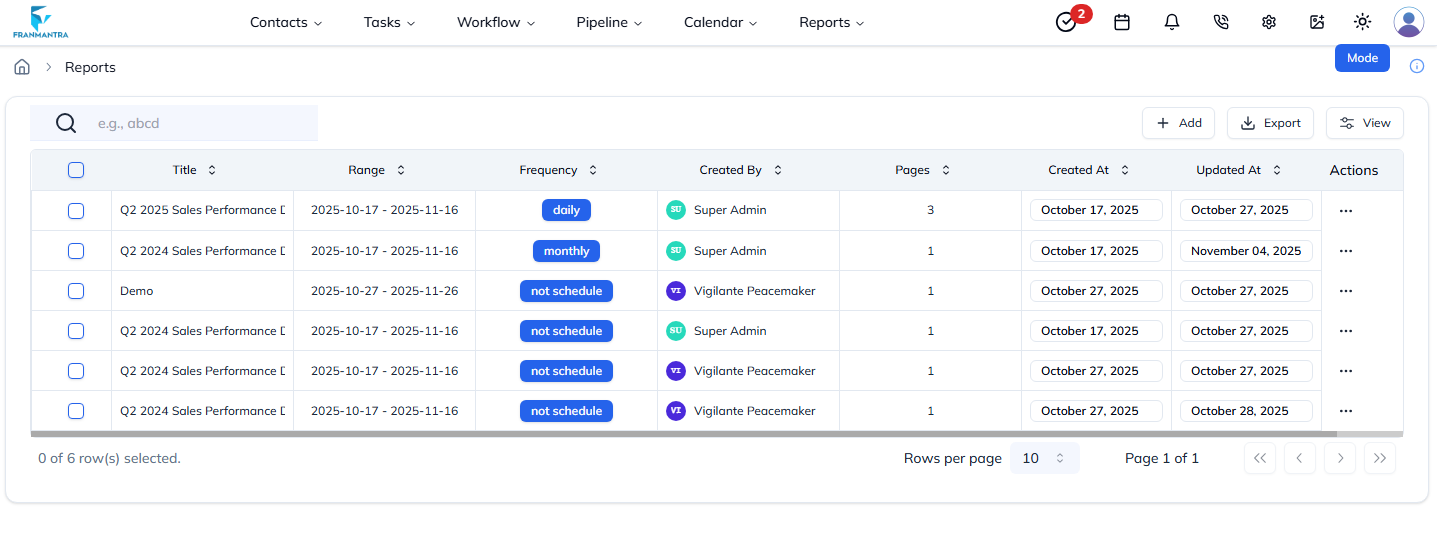
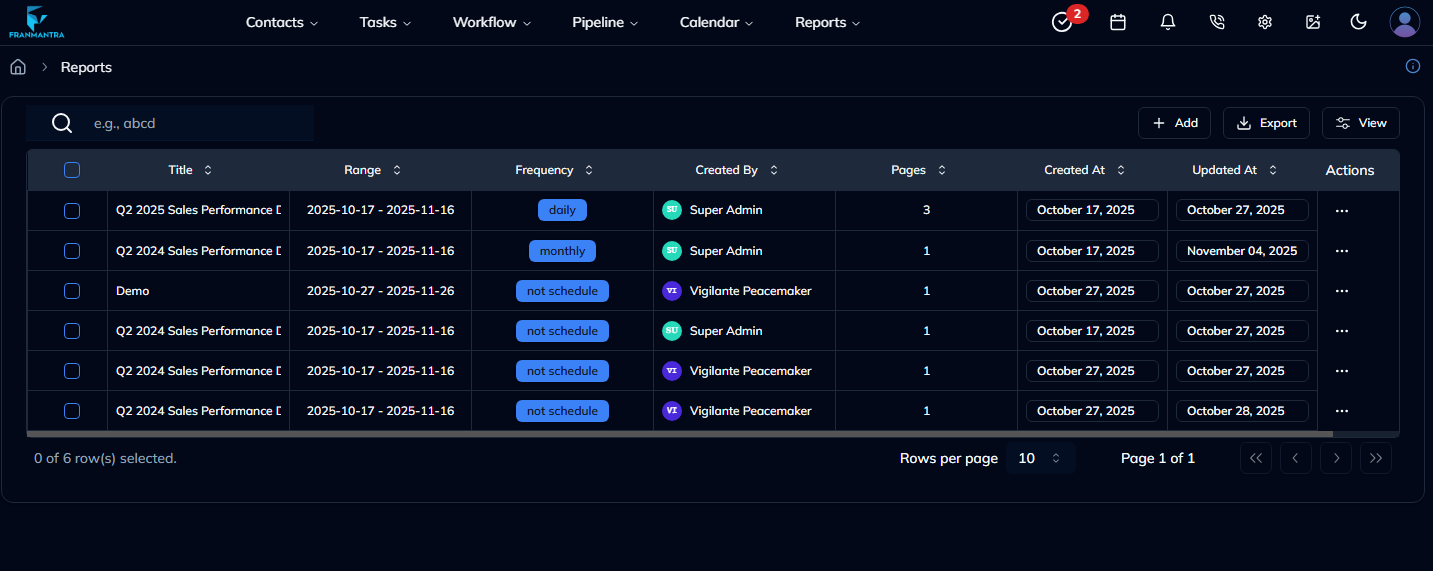
From the left-hand navigation bar, click Reports to open the list of existing reports.
2. Click Add
In the top-right corner of the report list, click the Add button to open the Create Report dialog.
3. Fill in Report Details
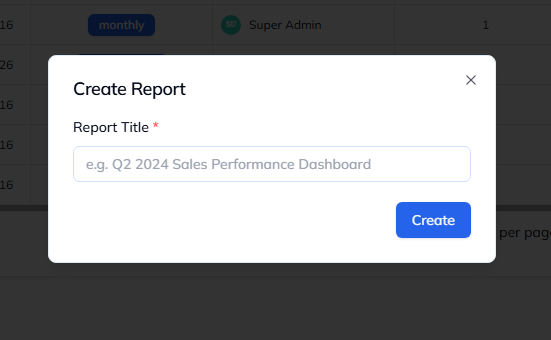
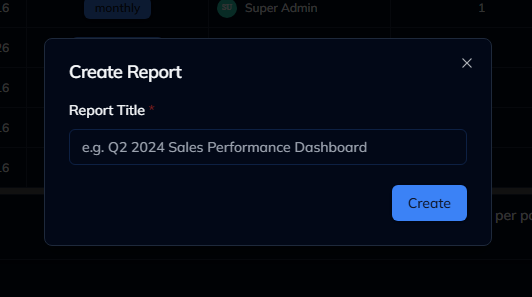
- Enter a descriptive Report Title (e.g.,
Q2 2024 Sales Performance Dashboard). - Click Create to save.
The new report now appears in the list. You can select it to configure widgets, filters, and sharing options as needed.
That’s it! You have successfully created a new report in Franmantra.