Profile
Overview
The Profile section lets you manage your personal details, availability, and personal app connections. It is divided into three parts: Profile, Availability, and Connections.
Profile
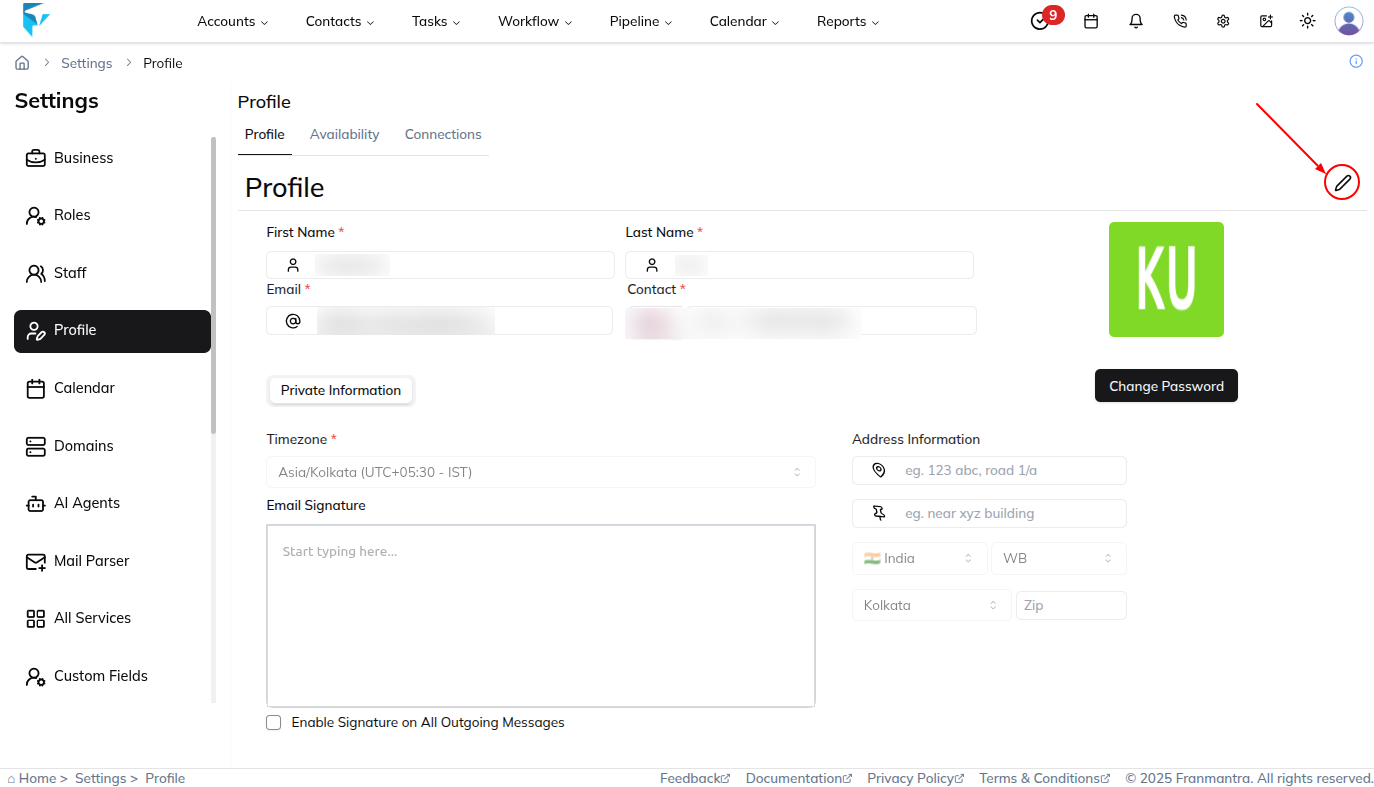
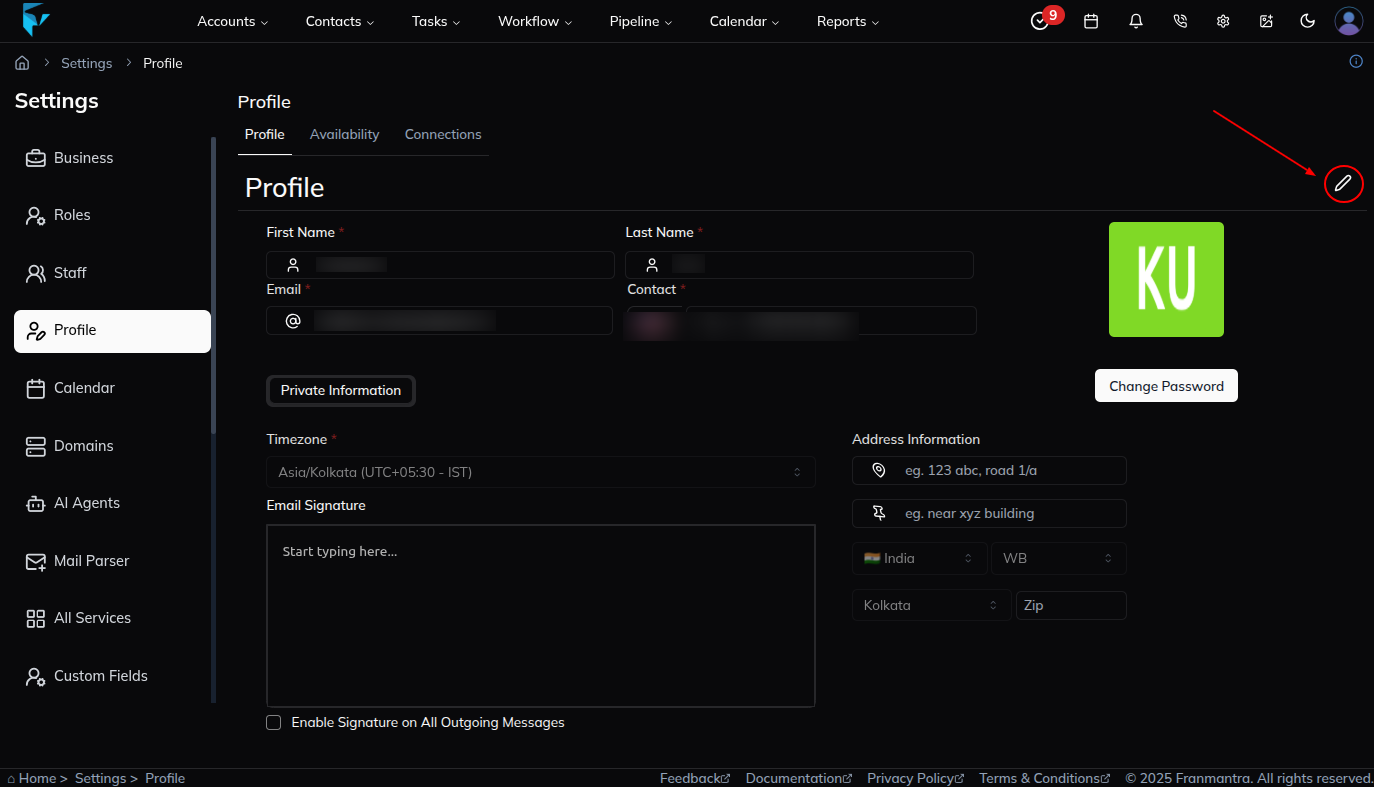
This tab contains your personal details. Click the pen icon to edit your information, then click Update Profile to save the changes.
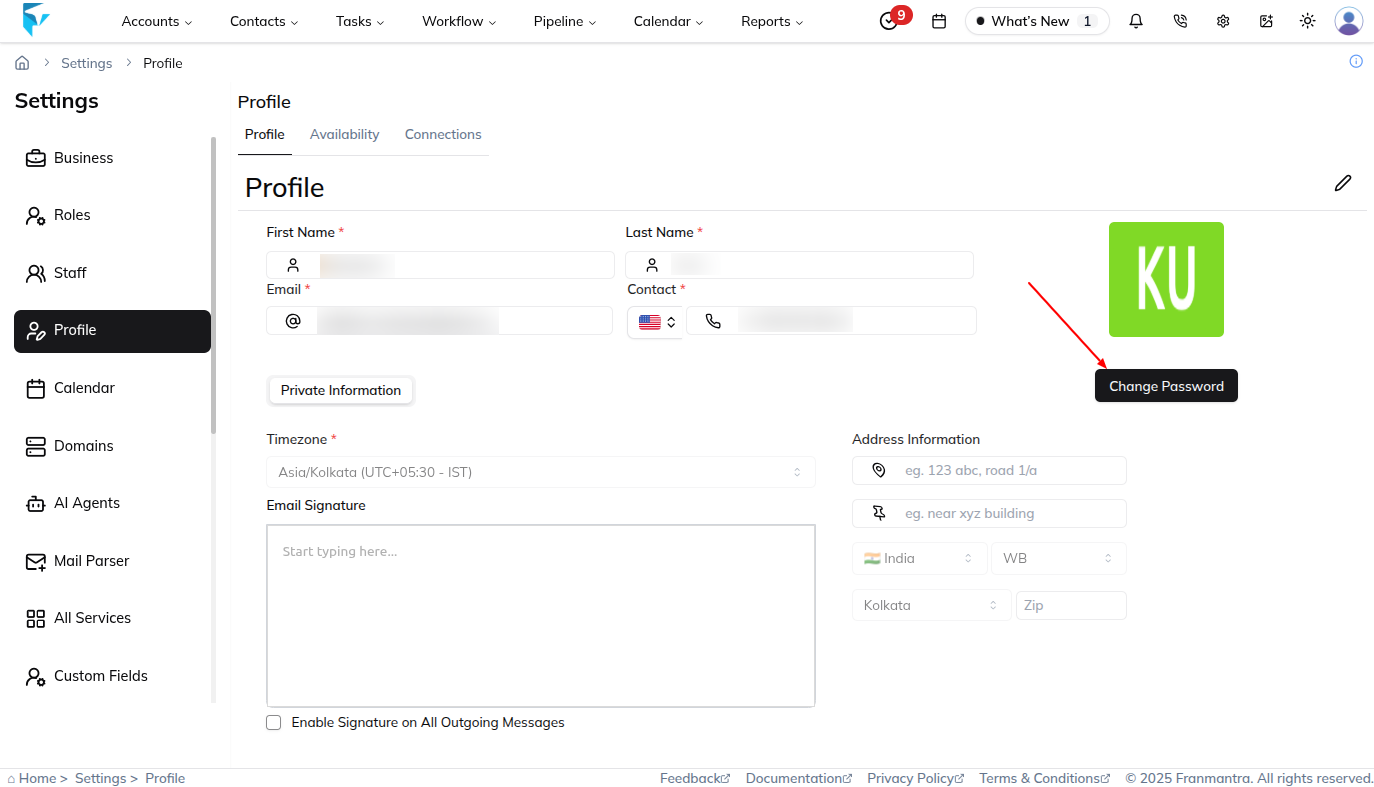
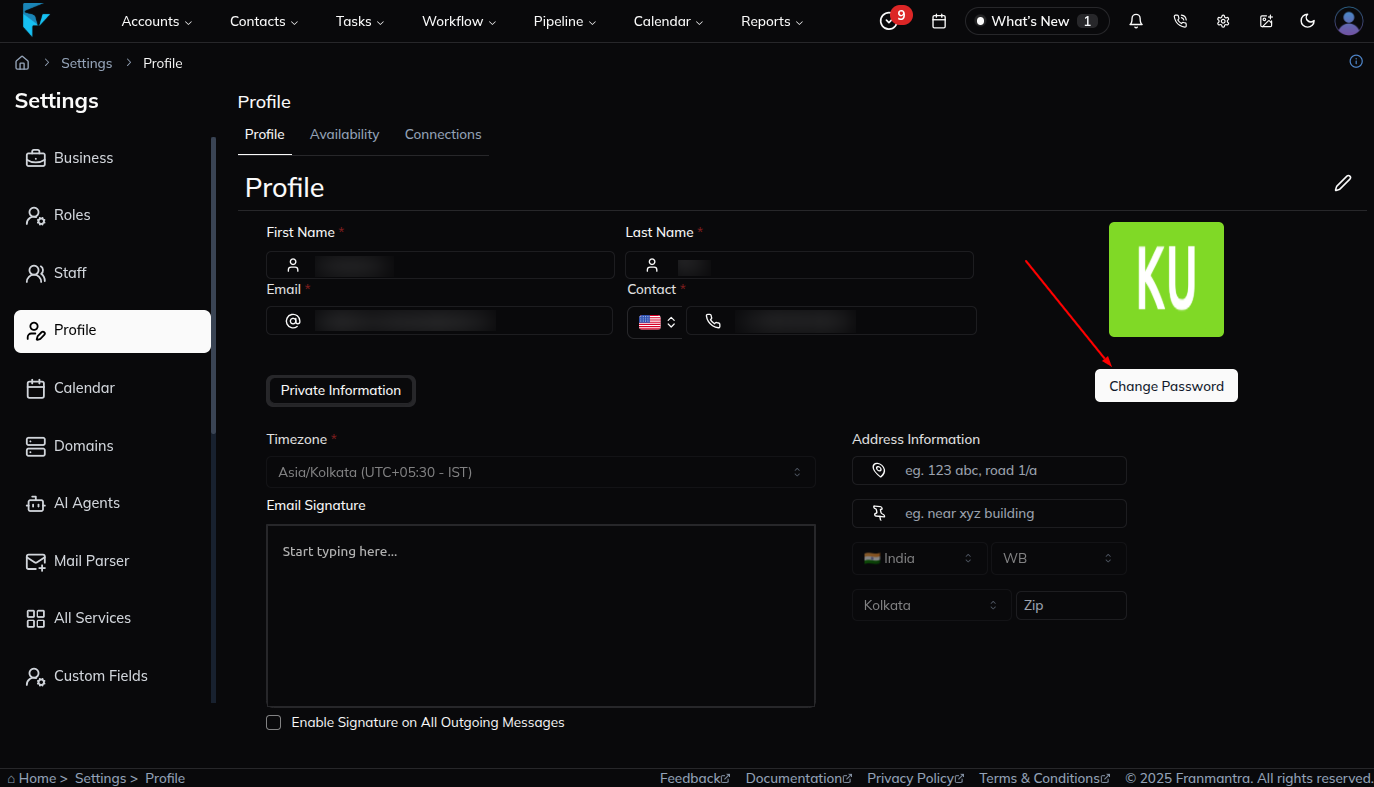
You can also click Change Password to open a form where you enter your current password and set a new one.
Availability
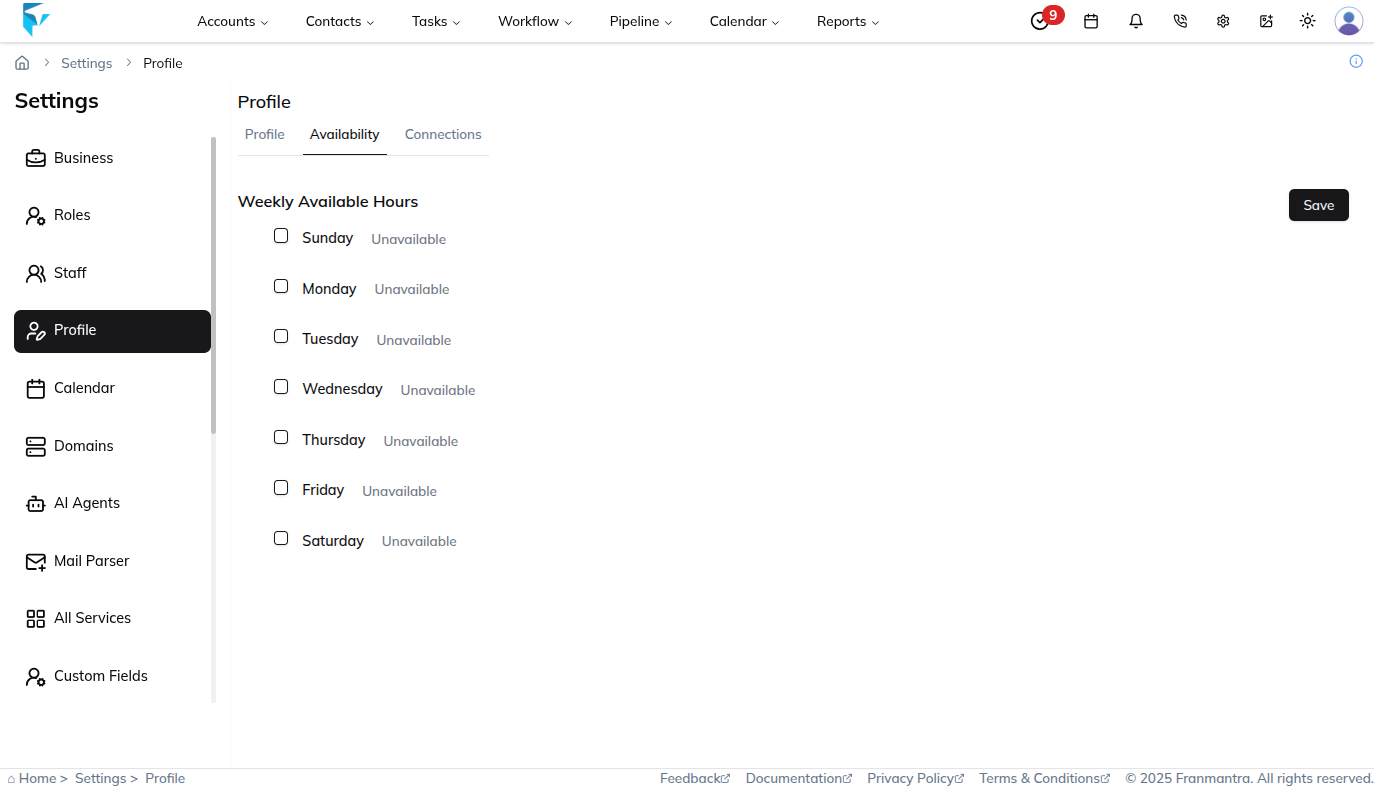
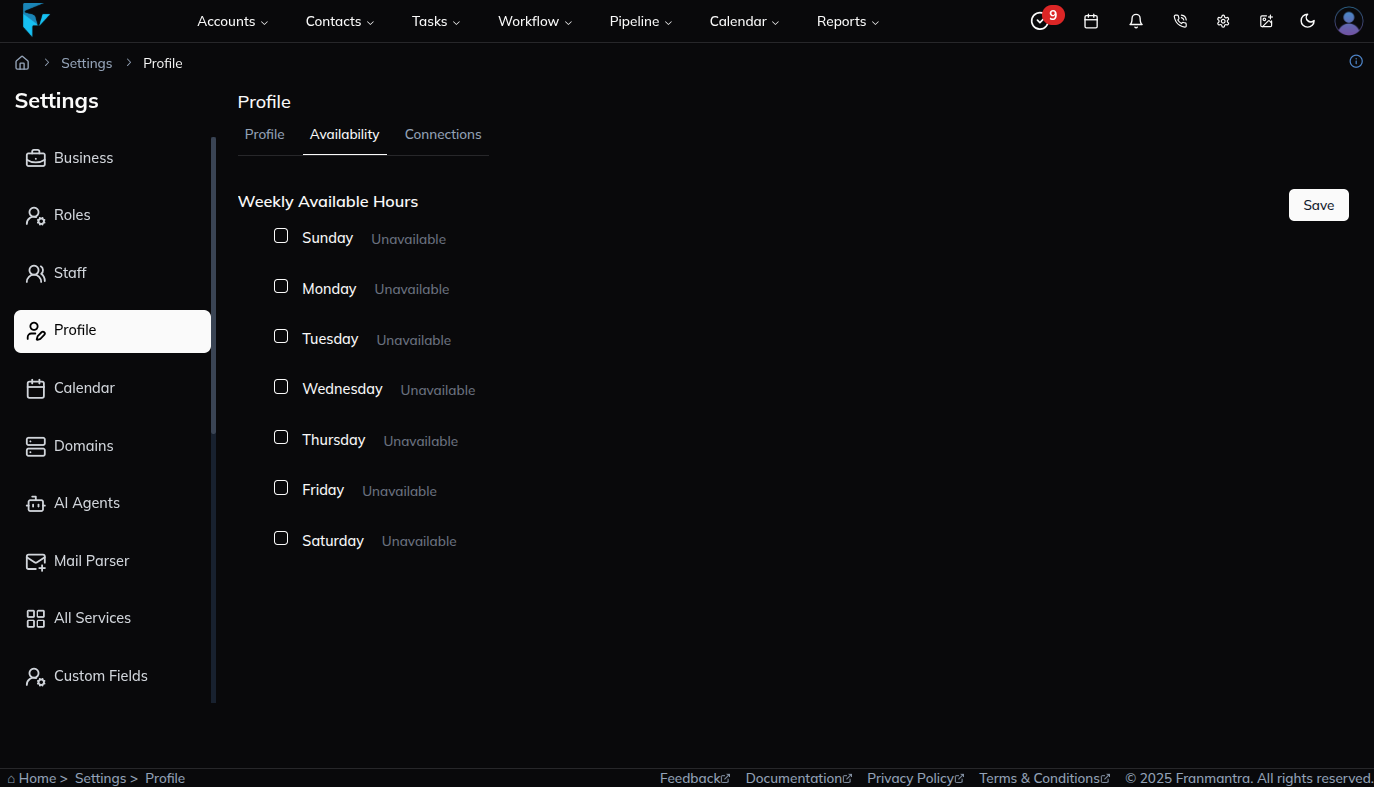
Use this tab to define the days and times when you are available. Your availability syncs with the Calendar, so only those time slots will be offered when someone books an appointment.
Connections
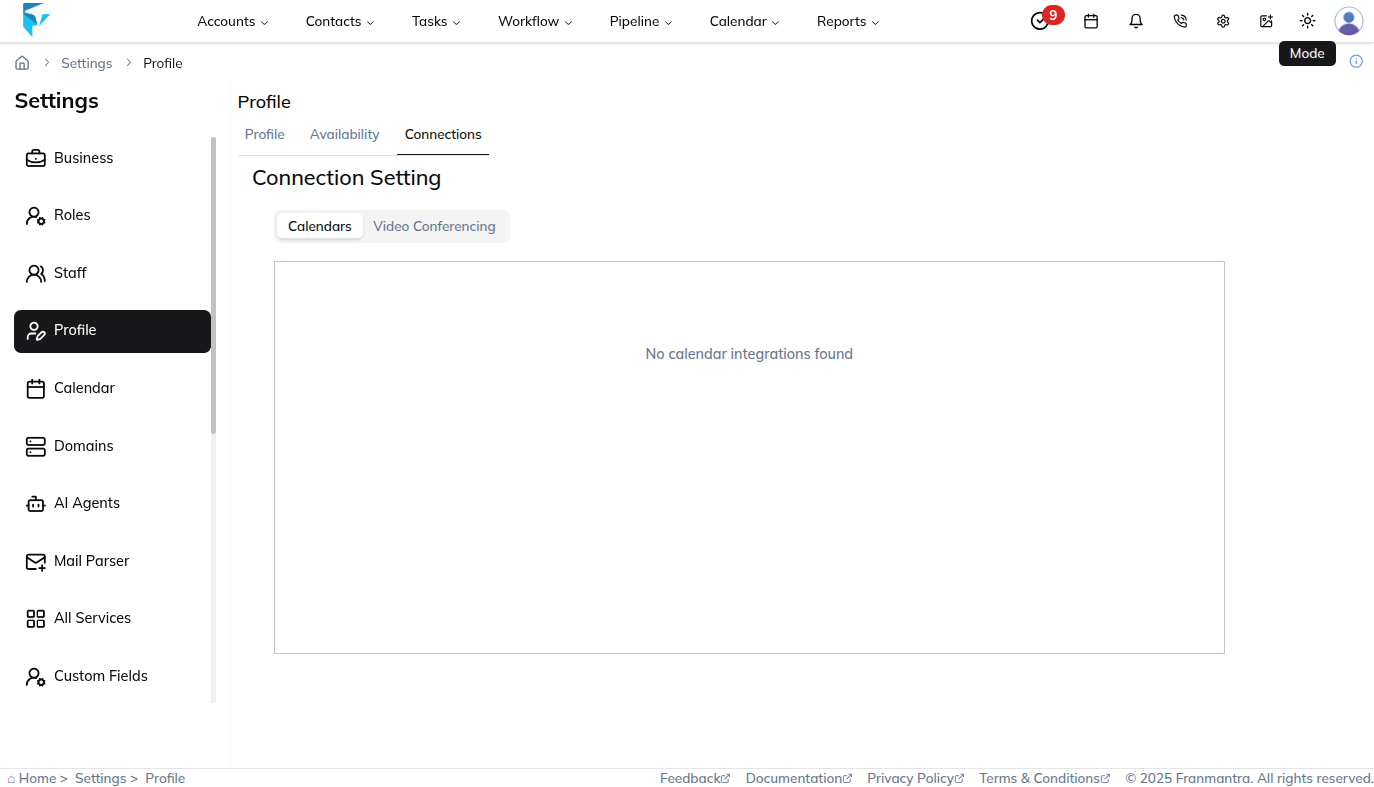
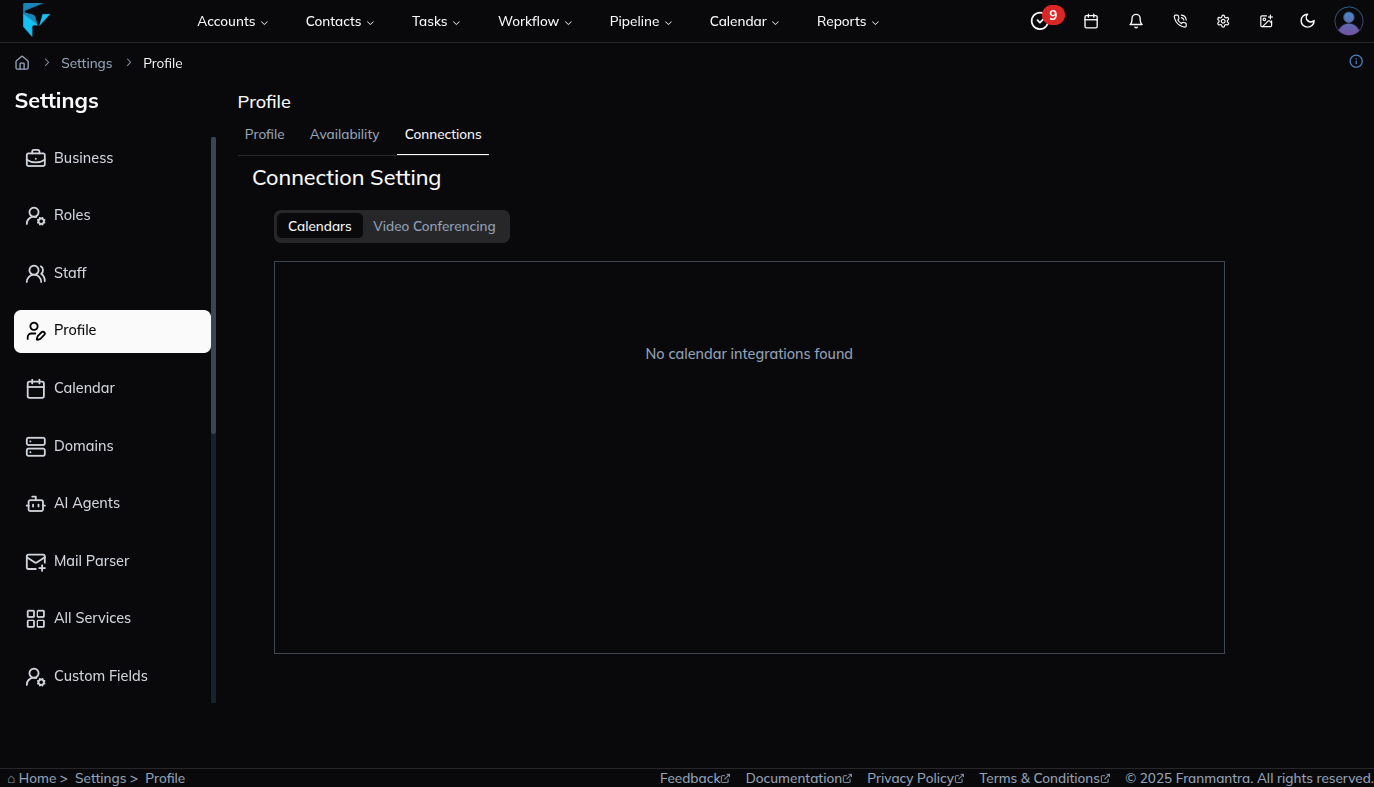
This tab is where you manage your personal app connections.
Example
If you are a franchise manager, you can update your contact information in Profile, set your working hours in Availability, and manage your personal integrations in Connections.