Template
Overview
The Template section is where you manage reusable message templates. Templates help you send consistent email or SMS content without writing the same message every time.
What You See
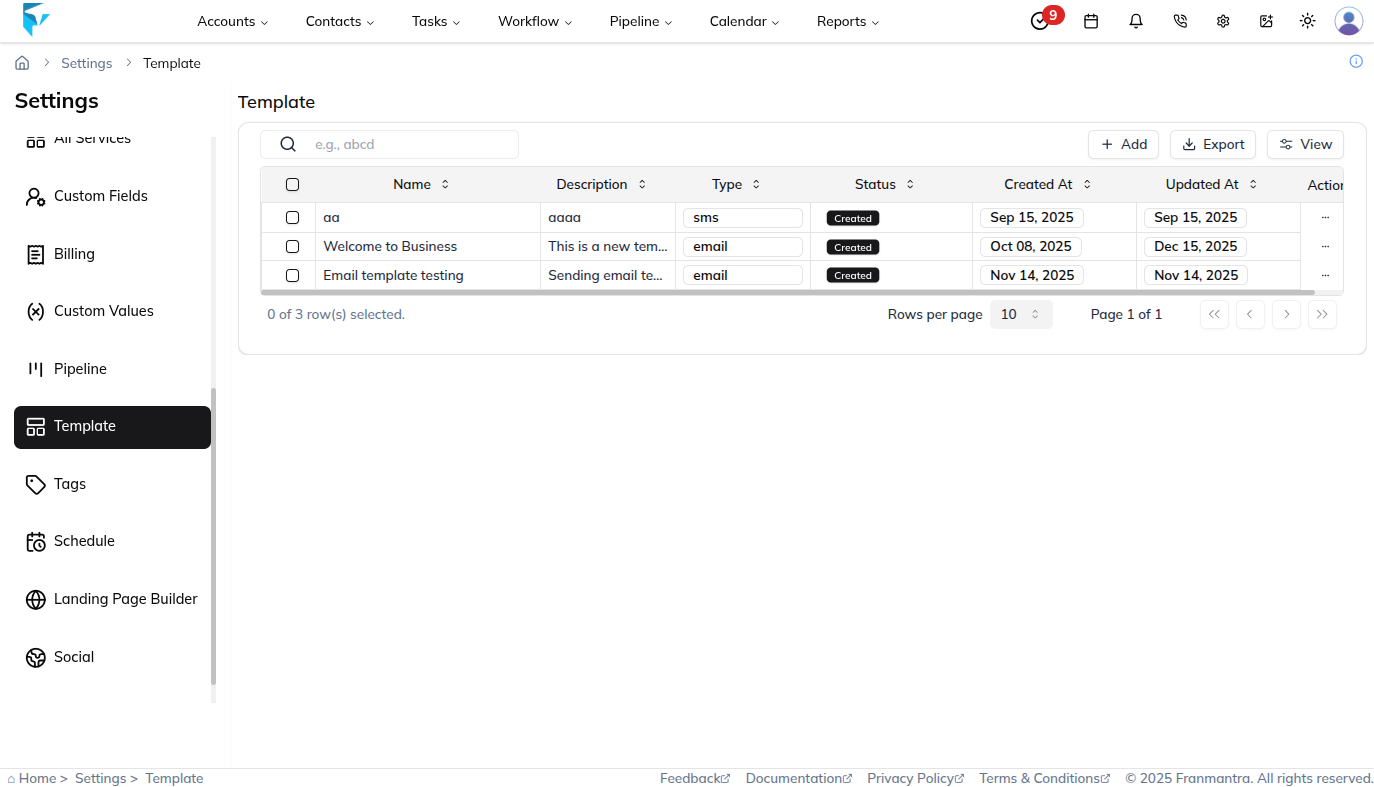
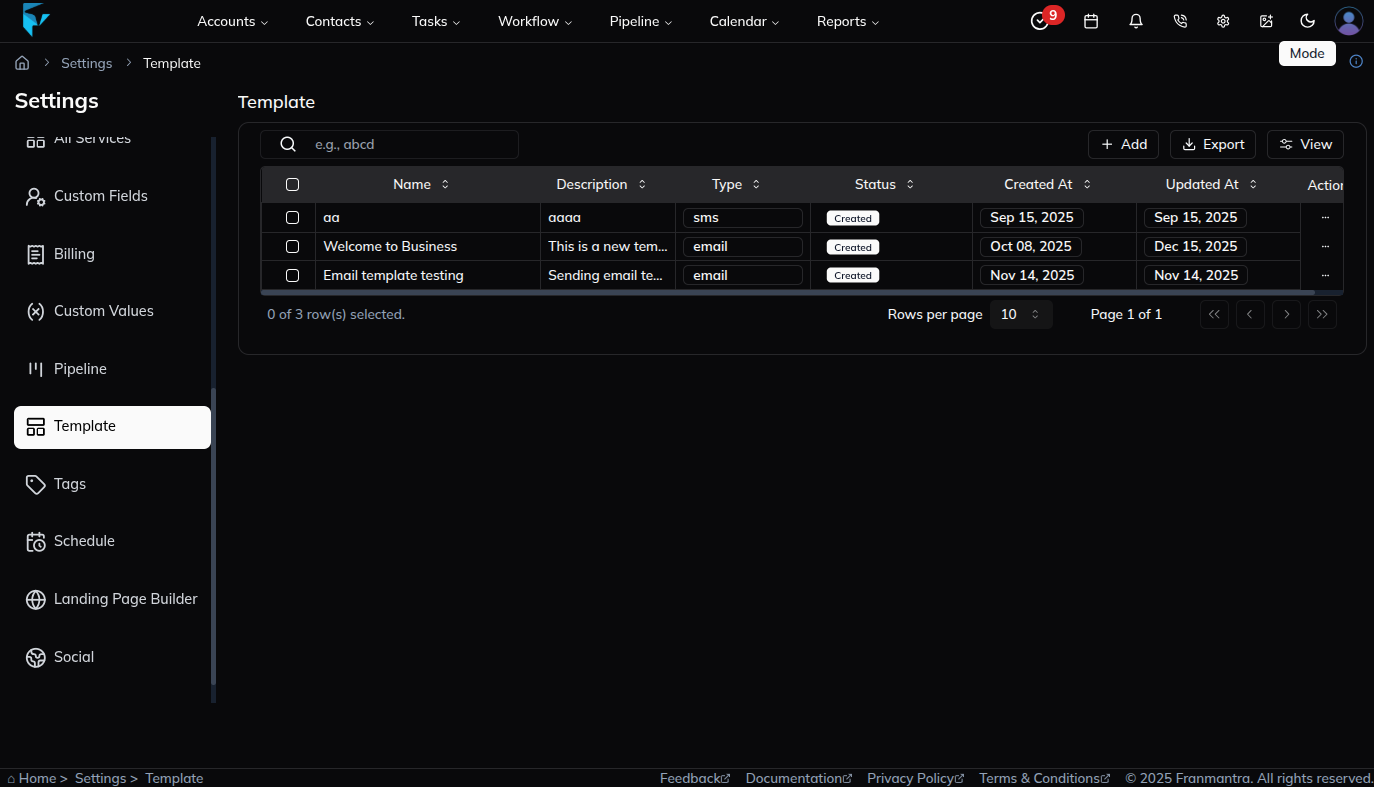
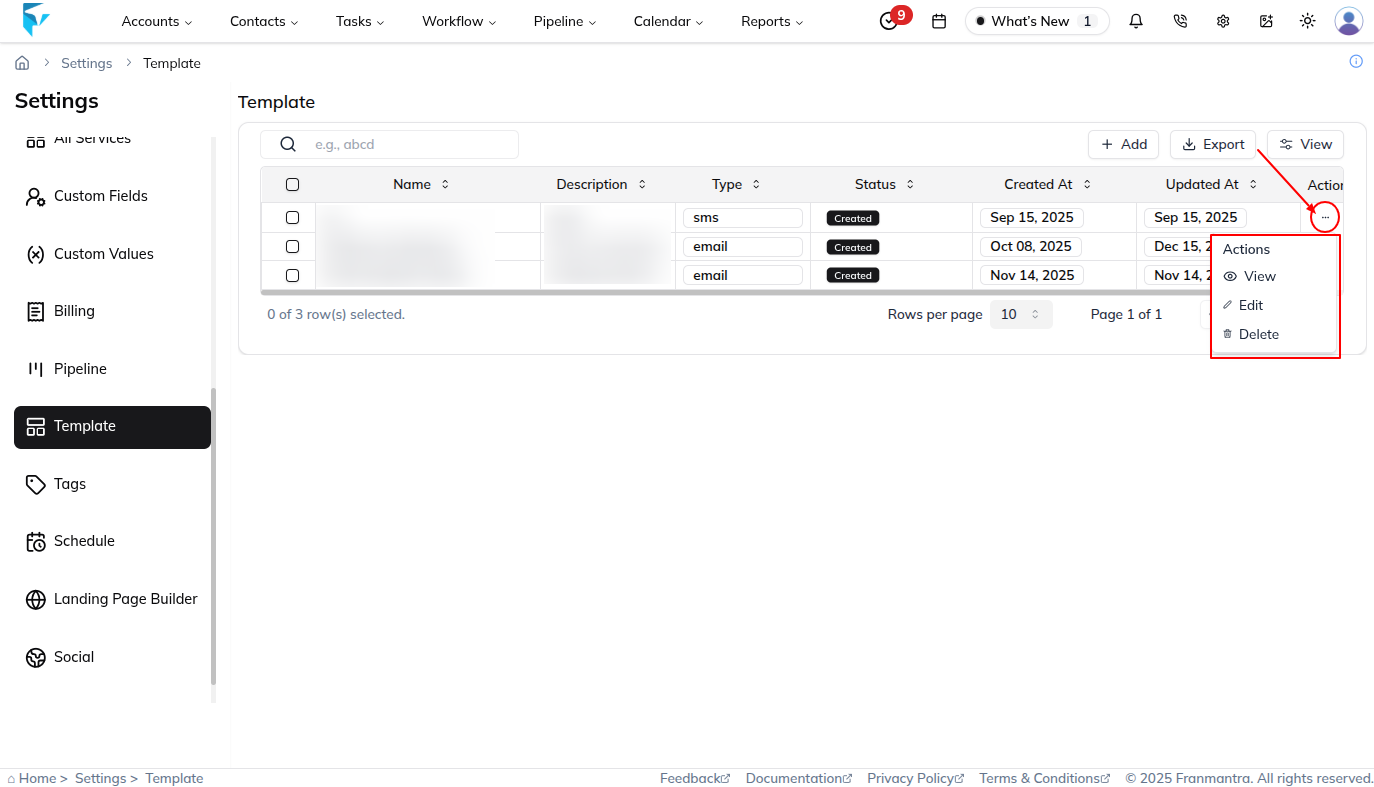
When you open this page, templates are shown in a table. Each row represents one template and includes details such as the template name and related actions.
Key Actions
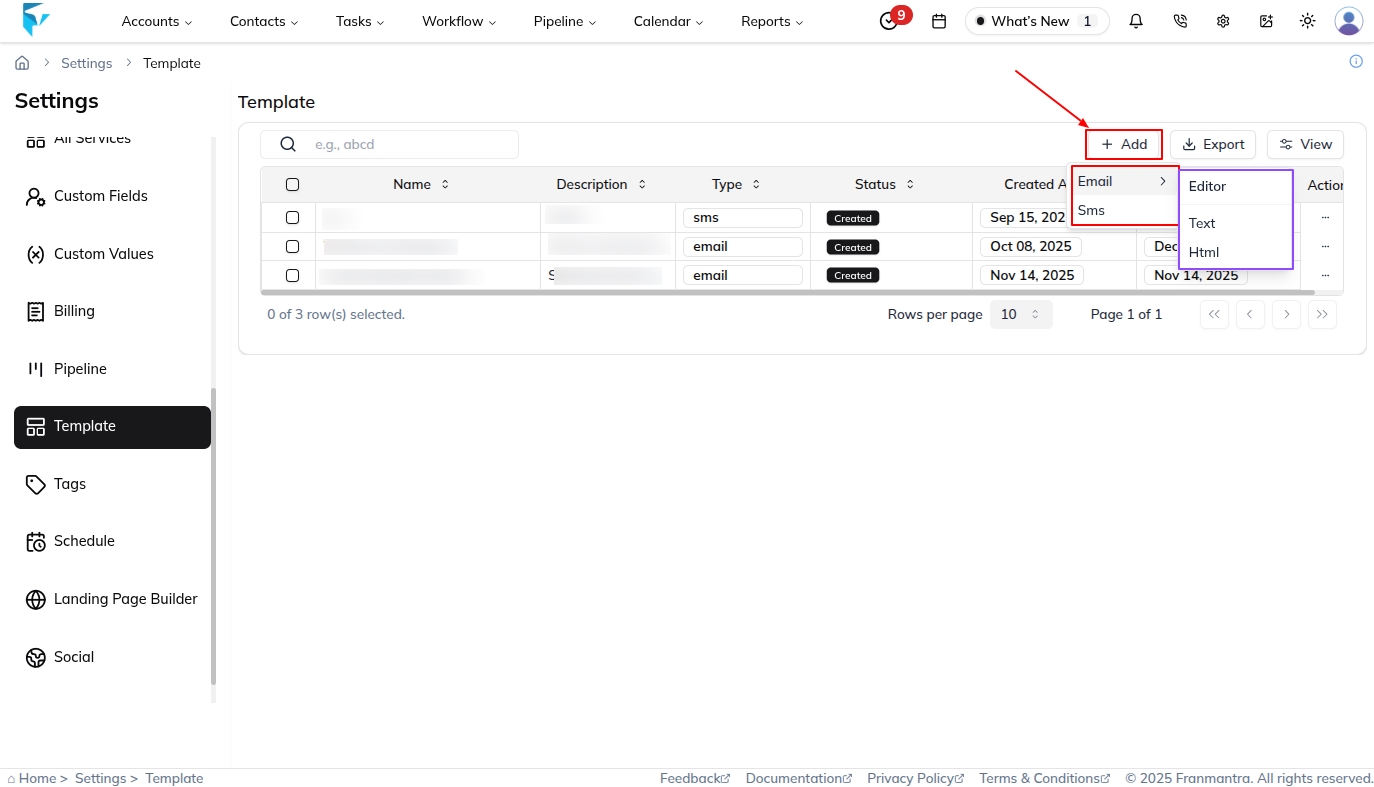
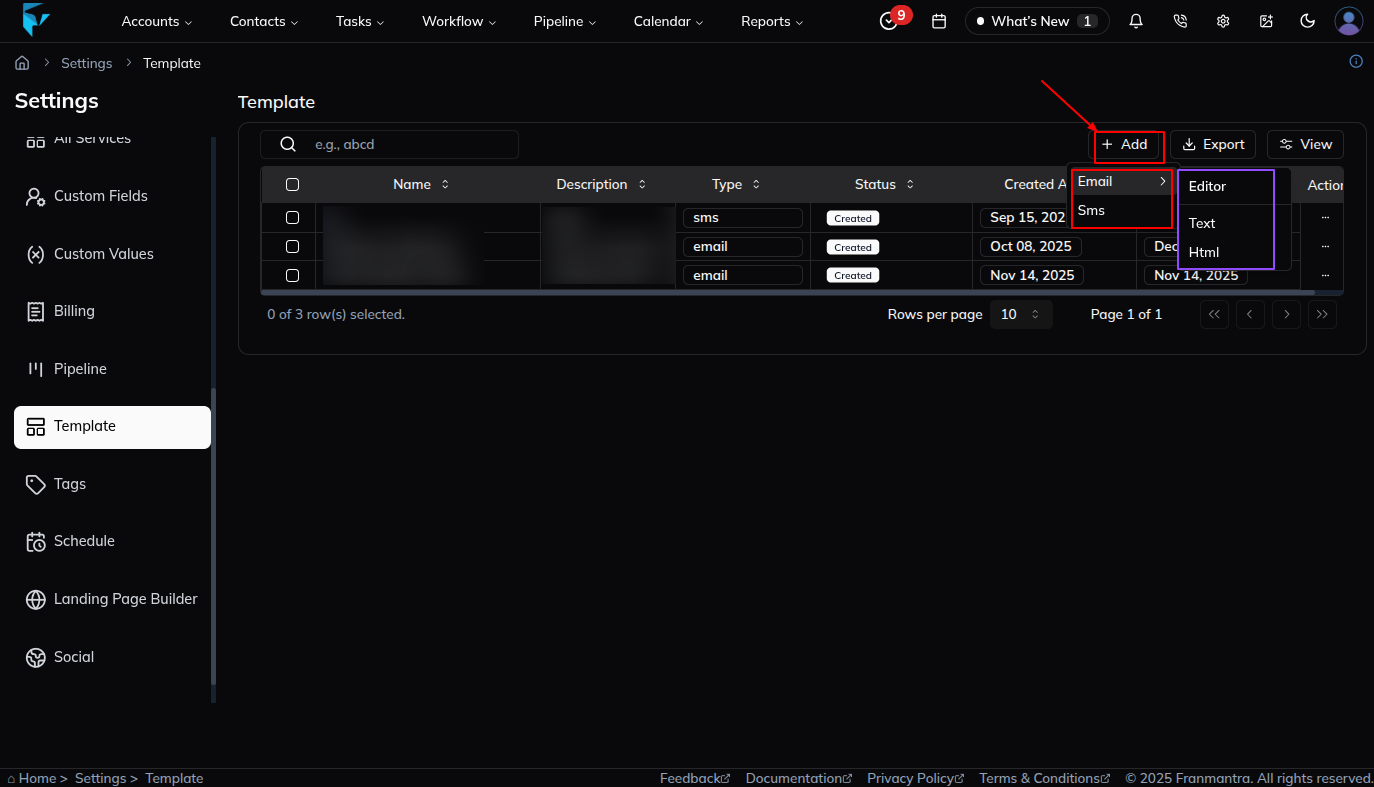
Click Add to create a new template. You can choose either Email or SMS:
- Email templates can be plain text or styled HTML layouts
- SMS templates are short text messages for reminders or updates
For example, you might create a welcome email for new customers or an appointment reminder SMS.
Use the Export button to download all templates or selected templates in CSV or Excel format.
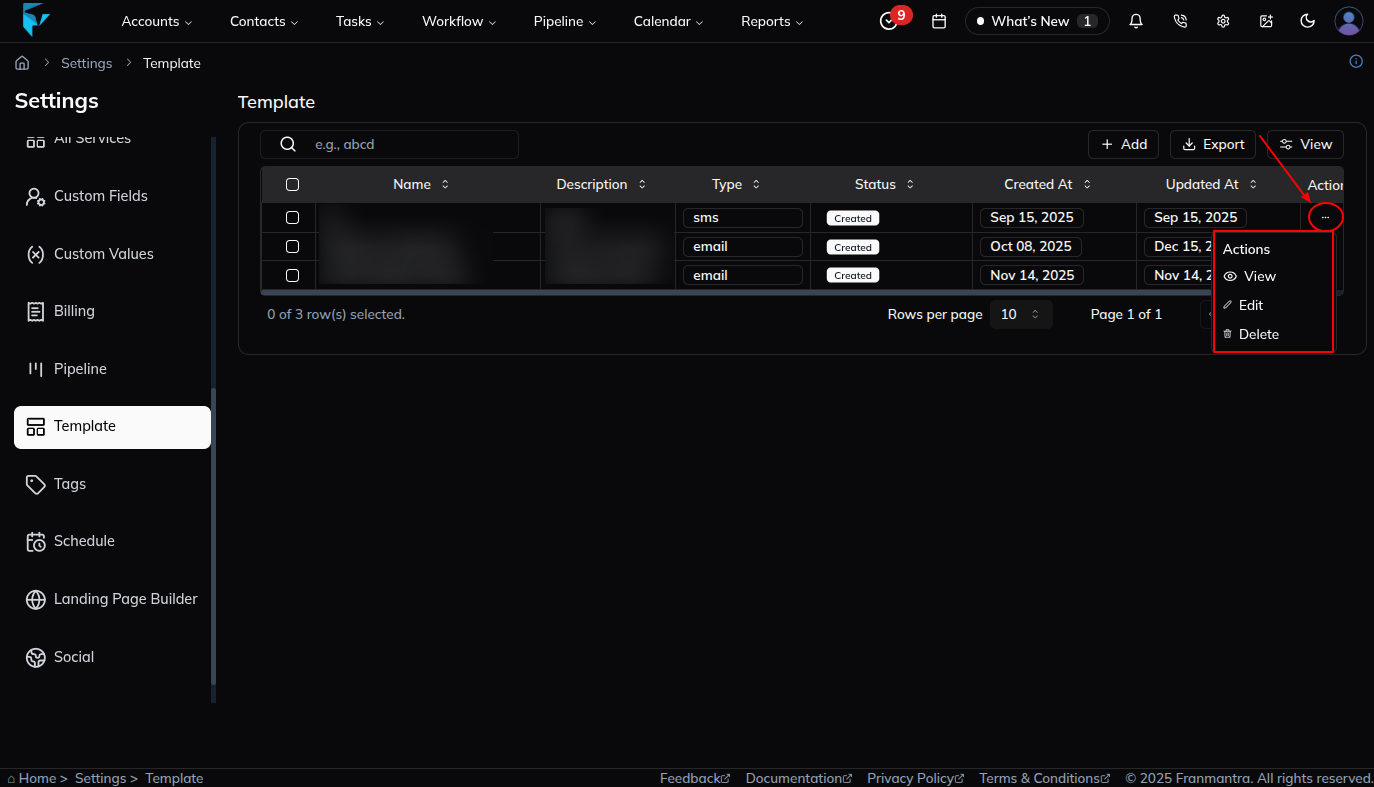
Click a template name in the table to open its detail sheet. There you can review the full content and use the Edit button to make changes. Each row also has an actions menu with options to View, Edit, or Delete the template.
Example
If your team sends the same welcome message to new leads, create an email template once and reuse it whenever needed. You can also create an SMS template for appointment reminders or quick follow-ups.