Pipeline
Overview
The Pipeline section helps you organize your business process step by step. You can use pipelines to manage leads, sales, or other workflows in a clear and structured way.
What You See
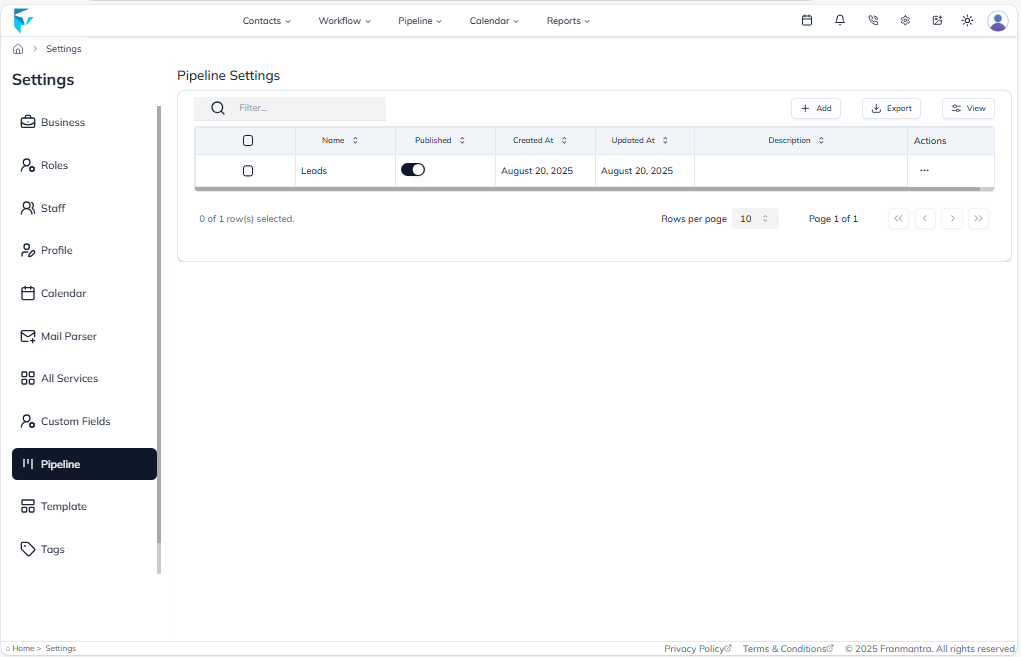
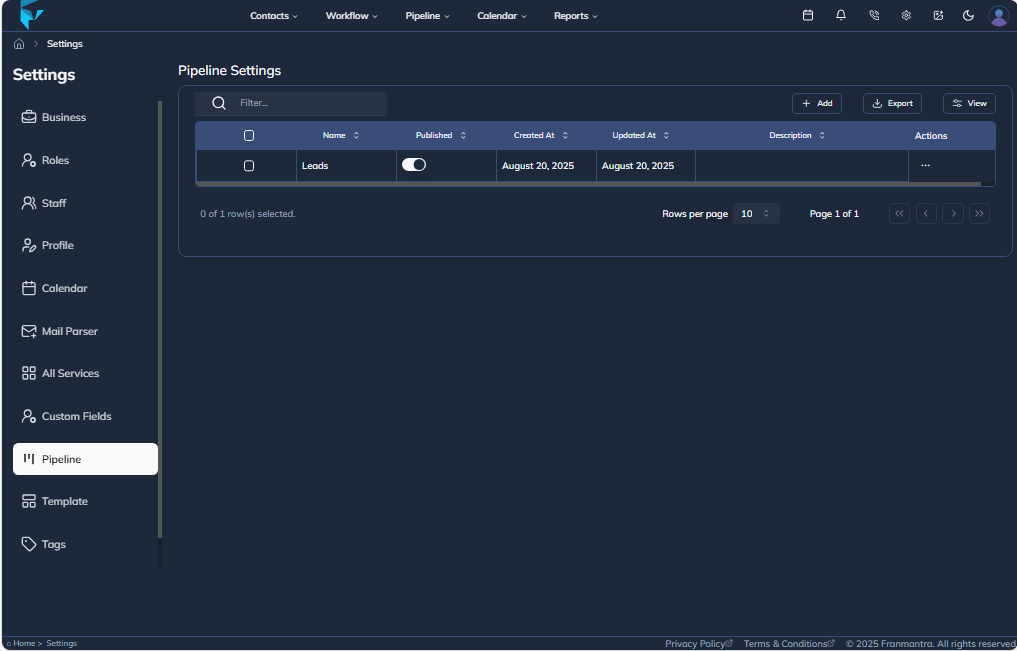
When you open the Pipeline page, you will see a table listing all existing pipelines. The table shows the pipeline name, status, and available actions so you can manage everything from one place.
Key Actions
To add a new pipeline, click Add. You will see two choices:
- Create from Scratch to build your own pipeline
- Use a Template to start with a ready-made setup provided by the super admin
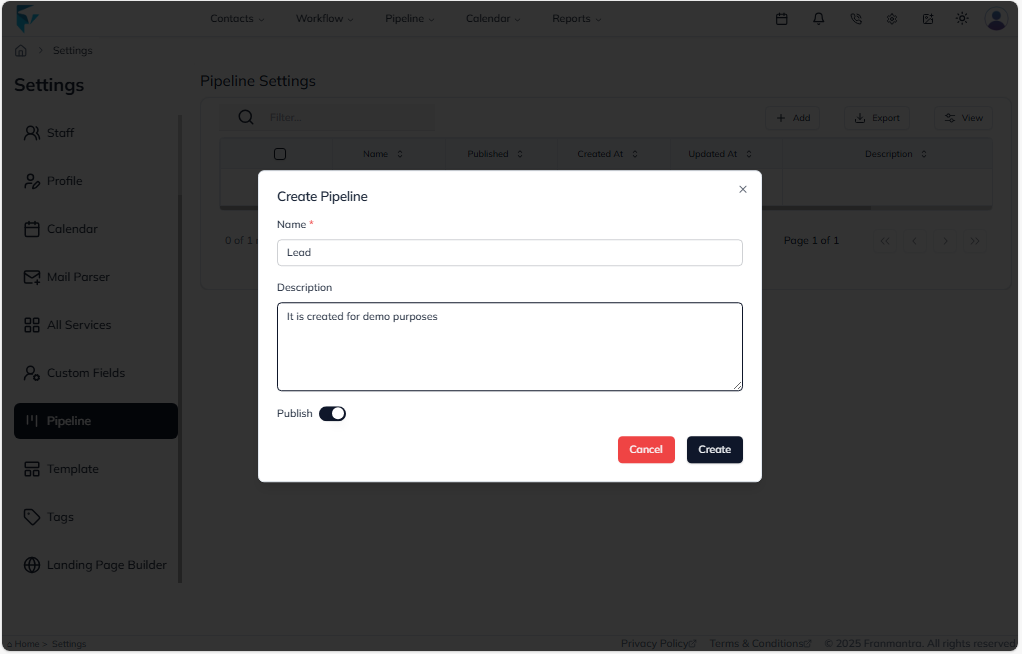
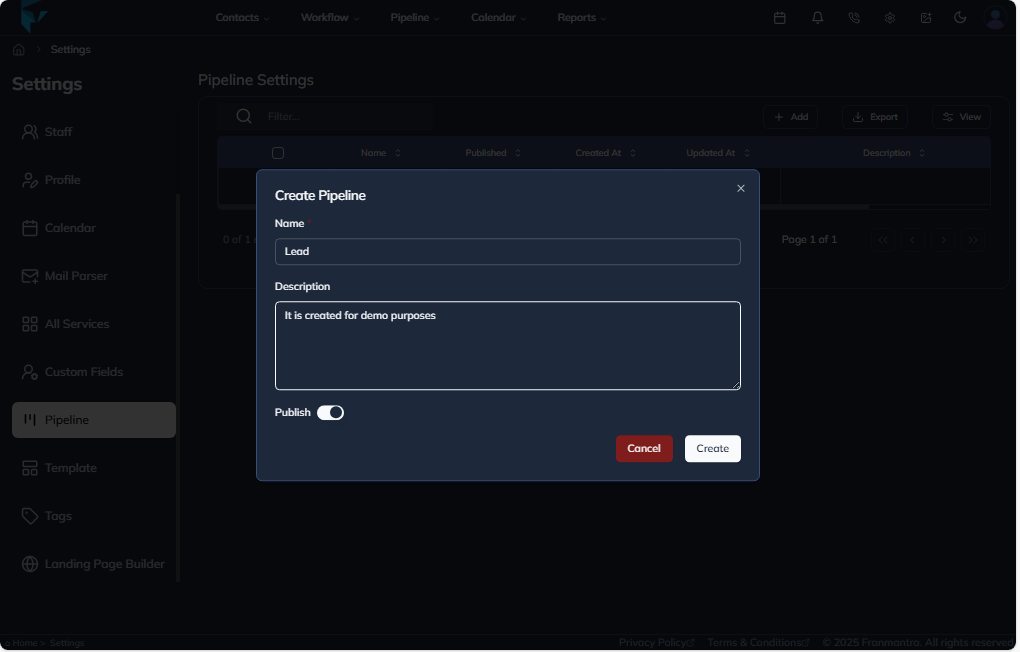
Use the Export button to download all pipelines or selected pipelines in CSV or Excel format. This is useful for backups or sharing pipeline data with your team.
Each pipeline row has an actions menu shown as a three-dots icon. From there, you can:
- Edit the pipeline
- View the pipeline details
- Delete the pipeline if it is no longer needed
Click a pipeline name in the table to open its details sheet. This sheet shows the full pipeline information and includes an Edit button for quick updates.
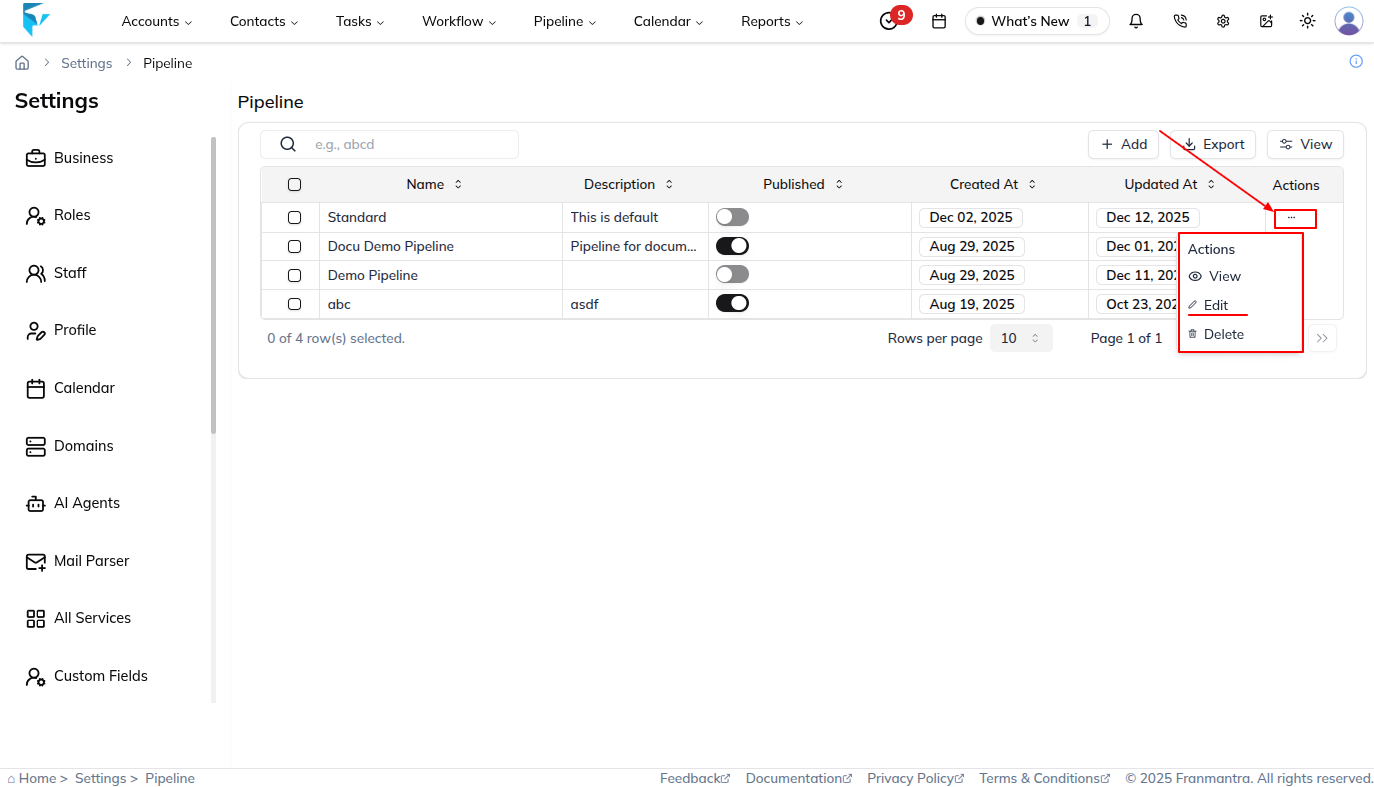
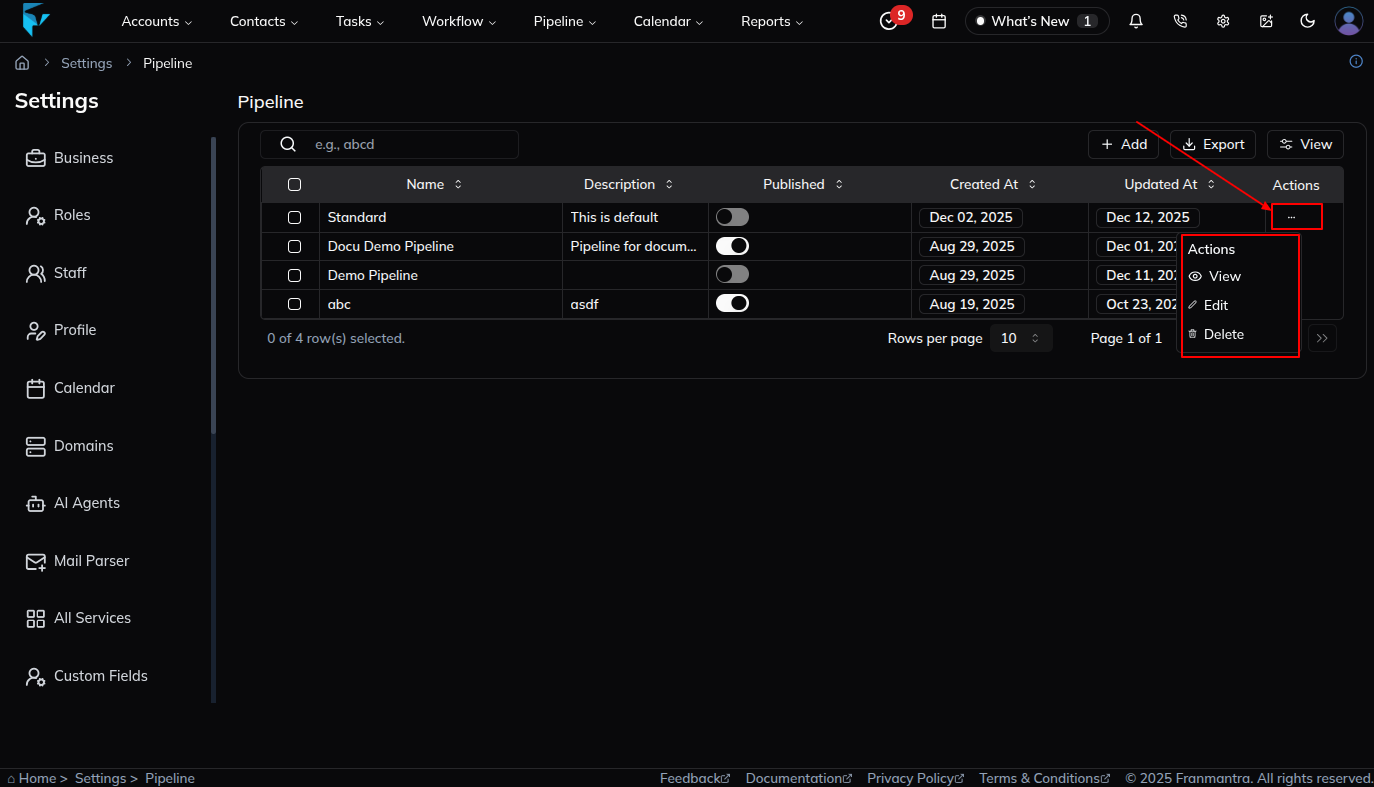
The table also includes a Published field with a toggle. Use it to publish or unpublish a pipeline. When you change the toggle, a confirmation popup appears before the update is applied.
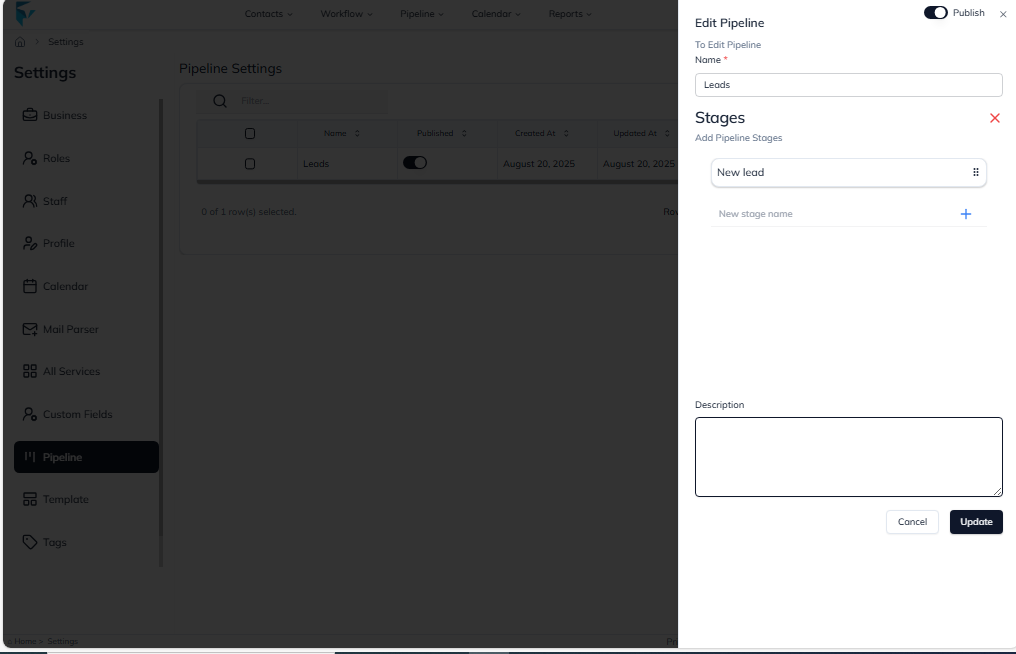
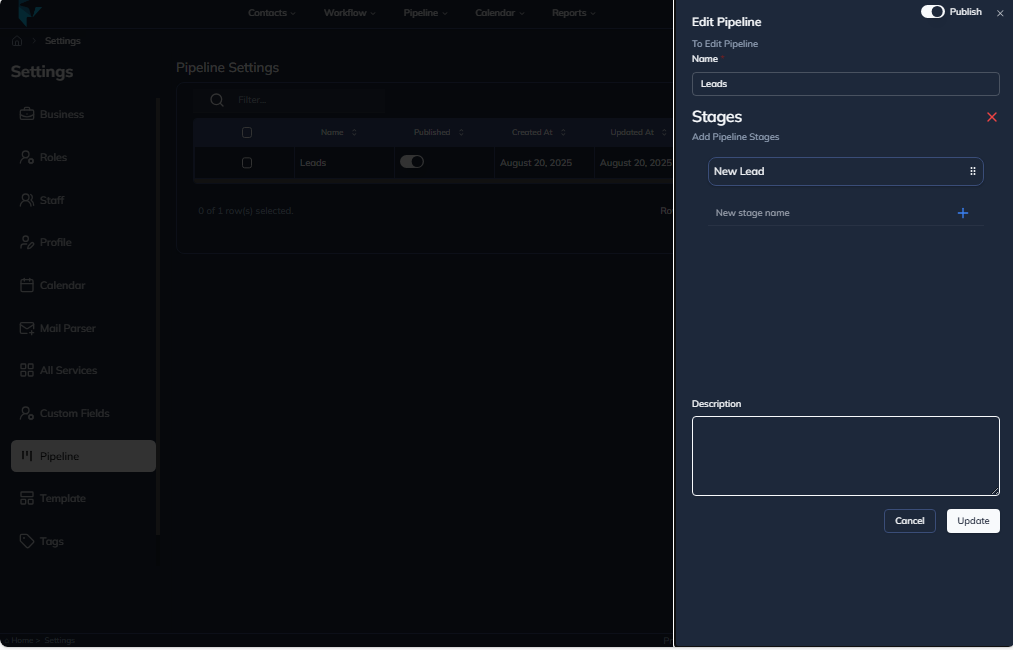
Example
If you want to track how leads move through your sales process, you can create a pipeline with stages such as New Lead, Contacted, Meeting Scheduled, and Closed. If you are testing a new flow, you can unpublish the pipeline until it is ready to use.