Calendar Module
Calendar Dashboard
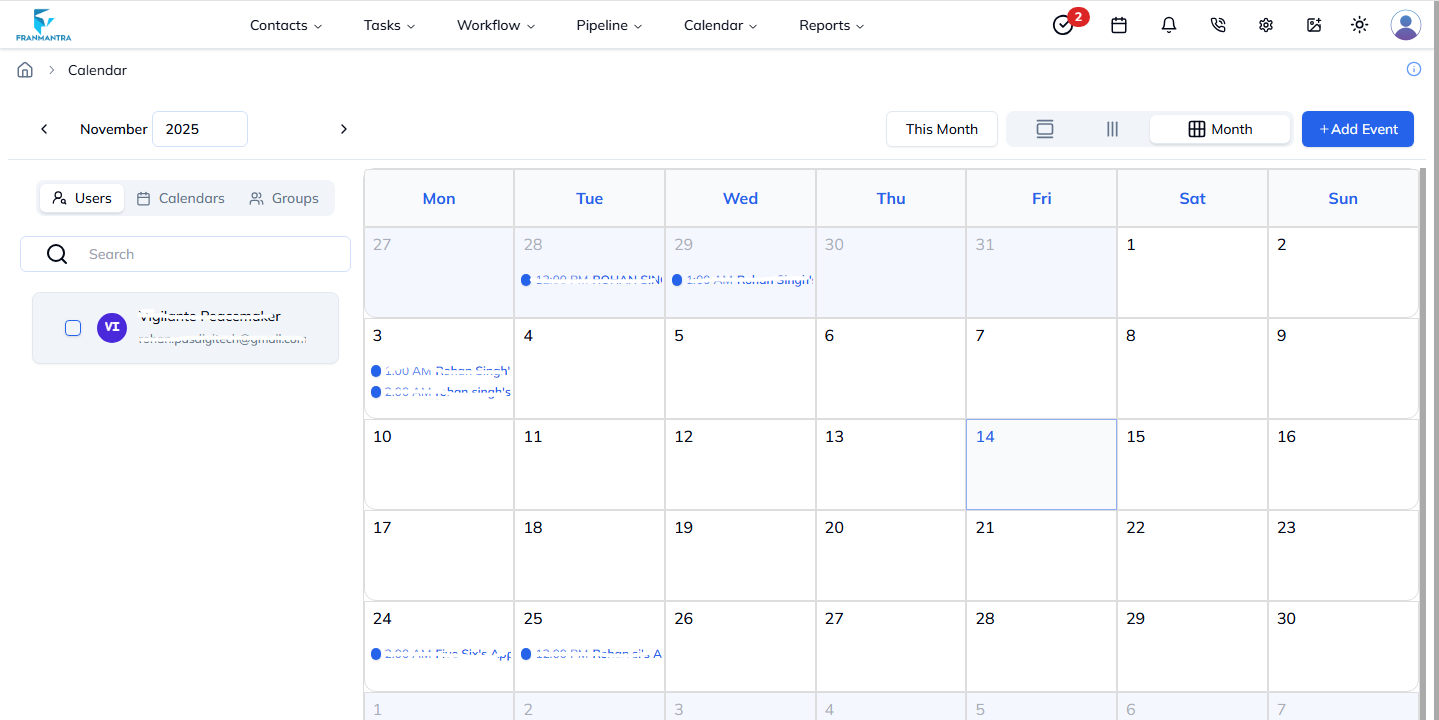
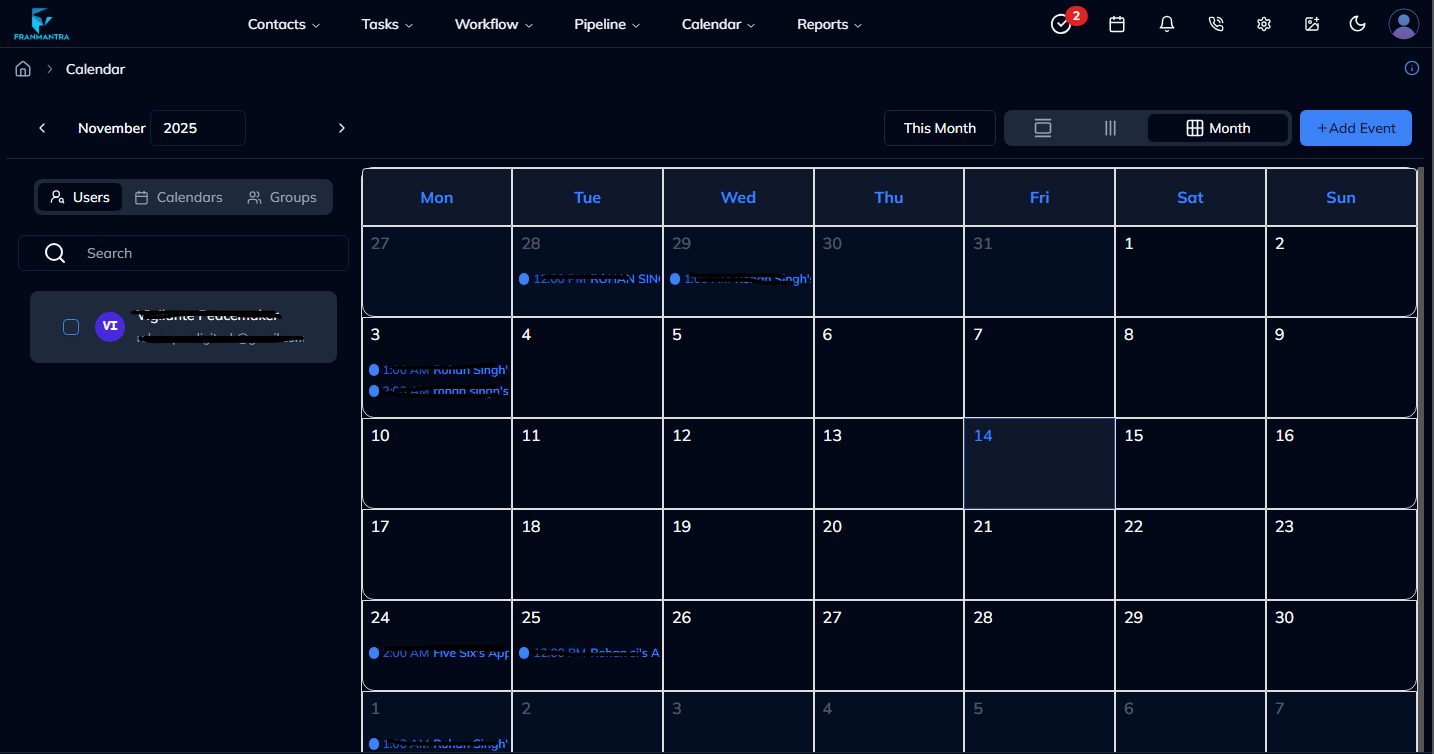
The Calendar Dashboard provides a consolidated monthly view of all events. You can switch between Month, Week, and Day views using the tabs located at the top-right corner of the calendar.
Key Actions
- Navigate Between Dates – Use the left/right arrow buttons to move to previous or next periods.
- Jump to Today – Click This Month (or Today in Day view) to return to the current date.
- Filter by User/Calendar/Group – Switch tabs under the calendar header to filter events.
- Search Events – Use the search bar to quickly locate events.
Creating a New Event
- Click the Add Event button located at the top-right of the Calendar page.
Add Event Modal
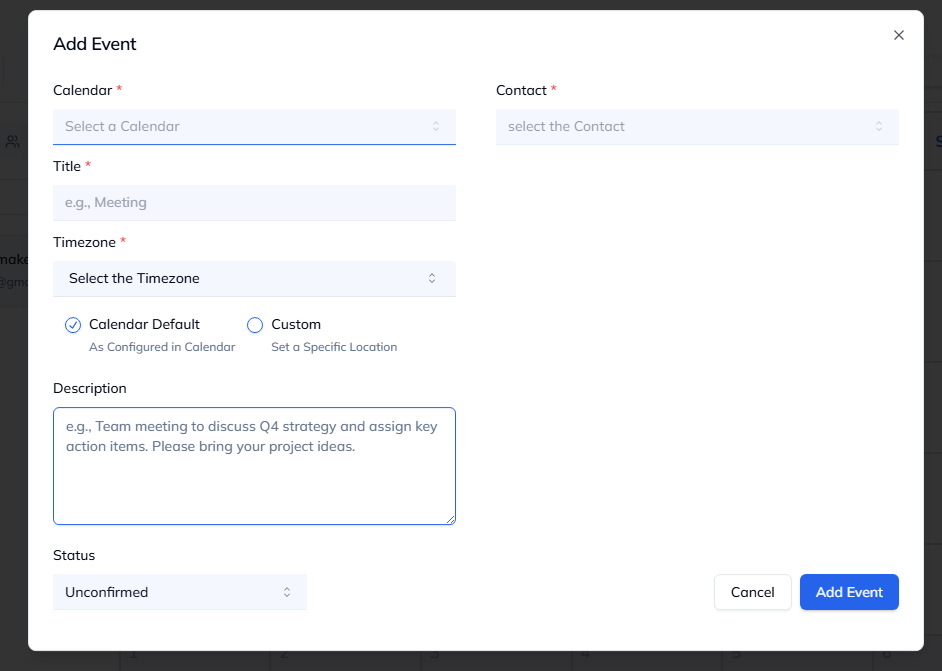
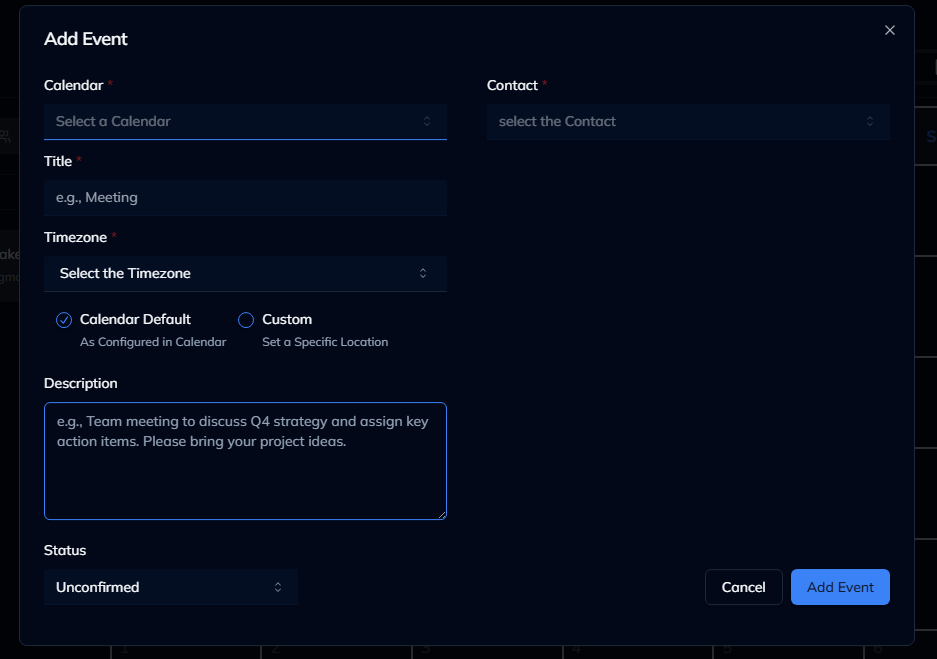
| Field | Description |
|---|---|
| Calendar | Select the calendar the event belongs to. |
| Title | Provide a meaningful title for the event. |
| Timezone | Choose between the calendar default timezone or specify a custom one. |
| Description | (Optional) Add detailed notes for the event. |
| Contact | Associate a contact with the event. |
| Status | Mark the event status (e.g., Unconfirmed, Confirmed). |
Steps
- Fill in the required fields denoted by an asterisk (*).
- Click Add Event to save or Cancel to discard changes.
Viewing & Managing Events
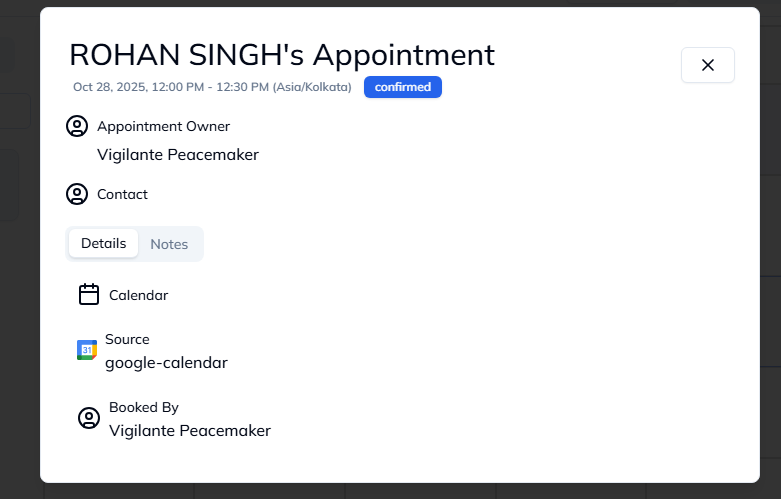
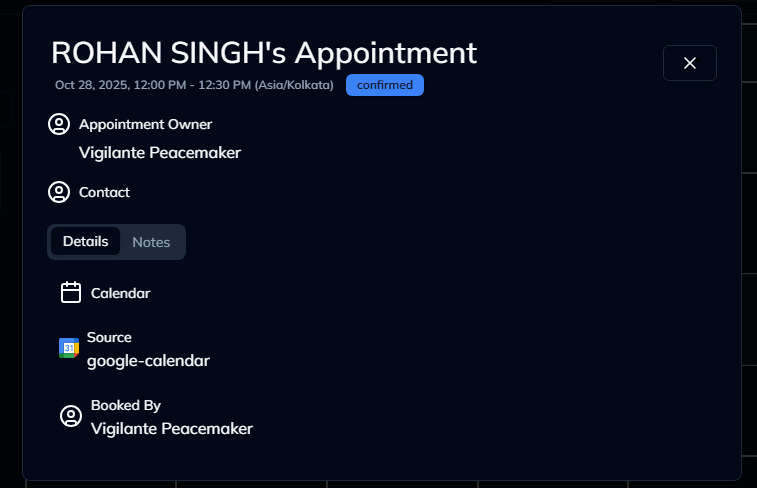
• Click on an event to open its detail view where you can edit or delete the entry.
• Drag & Drop events within the calendar grid to reschedule quickly.
Tips & Tricks
- Use the search bar to filter events by title or description.
- Combine user, calendar, and group filters for granular control of visible events.
- Toggle between light and dark mode via the theme switcher in the top navigation.
© 2025 Franmantra CRM Documentation