Reports Module
This guide explains how to access, filter, create, and manage Reports within Franmantra CRM. The Reports module helps you visualize and export data across Contacts, Opportunities, Communication Logs, and more.
1. Overview of the Reports Module
The Reports module allows users to:
- View all reports in List View or Card View
- Filter and search through reports
- Export report data
- Create reports from scratch or using predefined templates
- Automatically trigger report creation via URL parameters (e.g.,
?type=create)
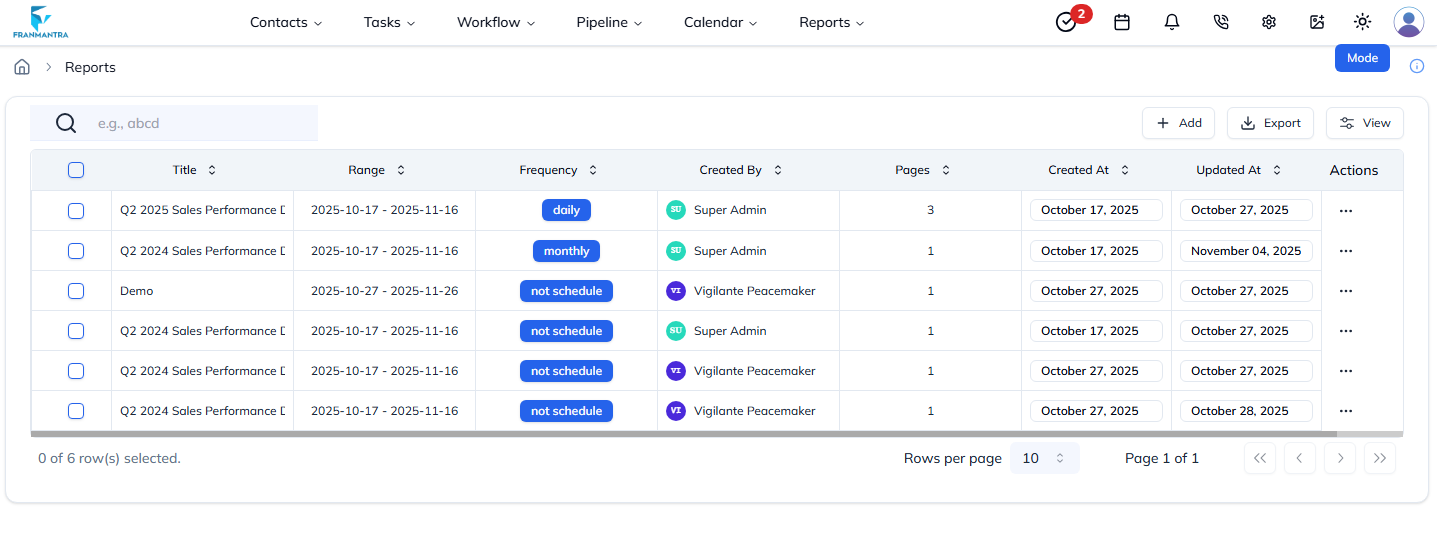
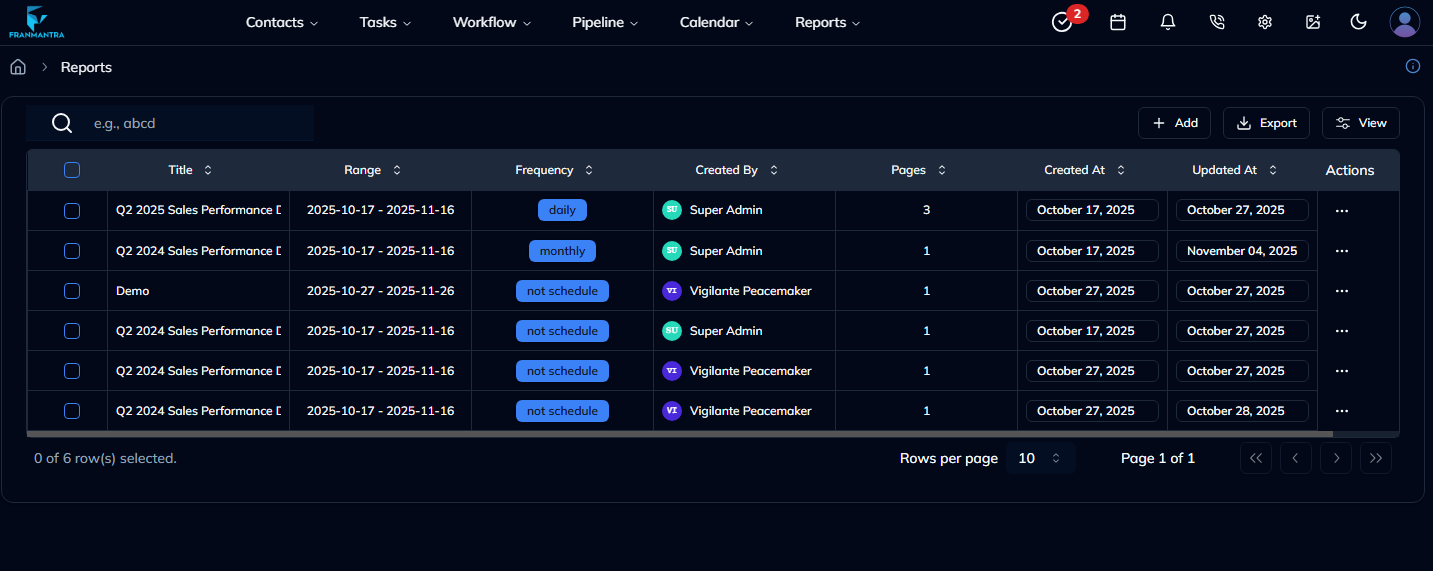
Figure 1: Reports list with filtering, export, and view toggle options.
2. Creating a New Report
There are two ways to create a report:
A. Create From Scratch
- Navigate to Reports from the sidebar.
- Click the Add button.
- Choose From Scratch.
- Fill in details such as:
- Report name
- Data source
- Required fields
- Filters or conditions
- Click Create Report.
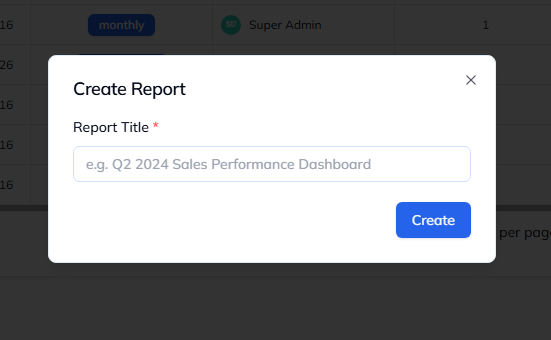
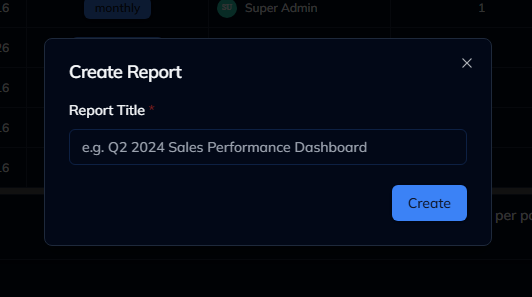
Figure 2: Create Report modal showing creation options.
B. Create Using Templates
For Subordinate or Master–Subordinate Accounts, the Add button shows two options:
- From Scratch
- Using Template
Selecting a template allows you to quickly generate a standard report format.
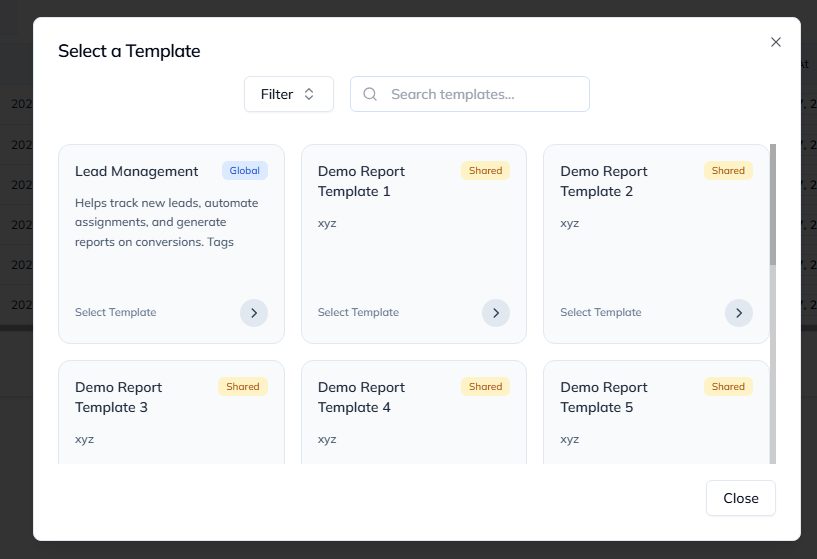
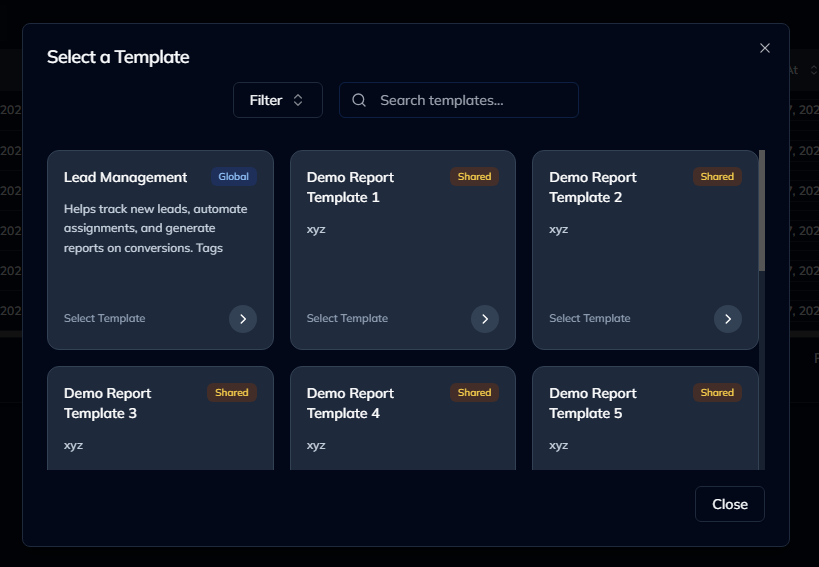
Figure 3: Create Report using template.
3. Viewing & Editing Reports
- Locate a report in the list or card view.
- Click the report name or choose View from the action menu.
- You can:
- Preview report data
- Edit report configuration
- Rename the report
- Change filters or source fields
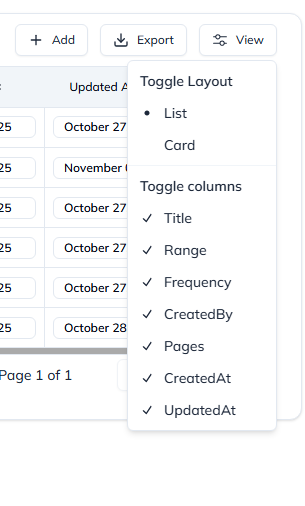
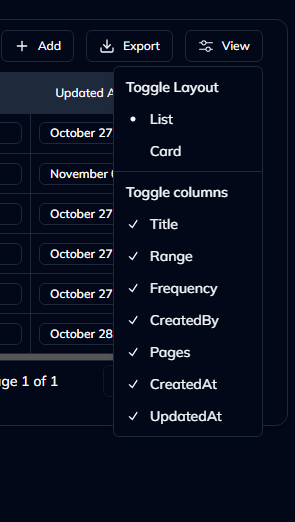
Figure 4: Report detail drawer with configuration and metadata.
4. Performing Actions on Reports
Each report card or row includes a three-dot action menu with options:
- View – Opens full report details
- Edit – Modify report name, filters, data source
- Clone – Duplicate an existing report
- Delete – Move the report to trash
- Export – Download full dataset
5. Switching View Modes
You can toggle between:
- List View (Table) – Best for detailed data comparison
- Card View – Visual layout showing reports as cards
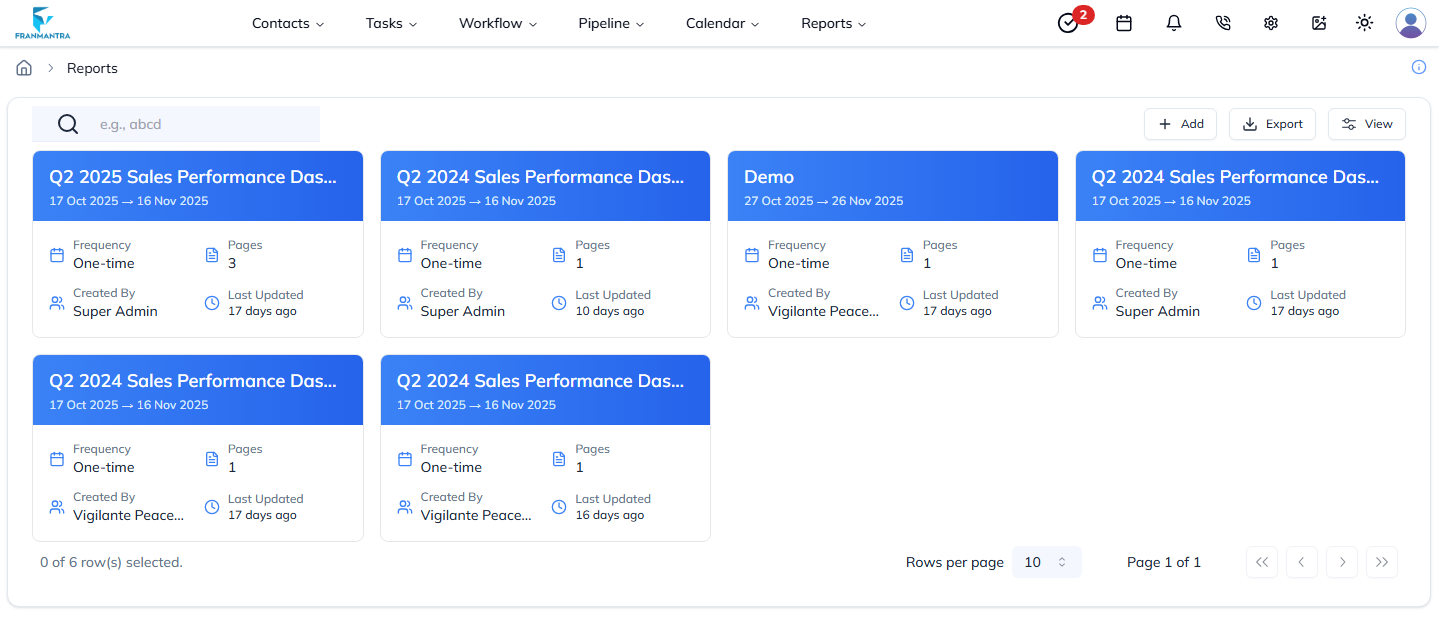

Figure 5: Card view displaying reports with icons and descriptions.
7. Exporting Reports
Users can export:
- The currently filtered data
Export supports multiple formats depending on system configuration.
Last updated: 14 Nov 2025