All Services Module
The All Services Module in Franmantra CRM provides a centralized dashboard for managing all external integrations — including Twilio (SMS/Calls), Mailgun (Email), Gmail, Google Calendar, Google Meet, Outlook, and AI services.
From this page, administrators can connect, configure, and manage service credentials across multiple business accounts.
1. Overview of the All Services Page
This module displays all available third-party services that can be connected to your Franmantra account.
You can:
- Connect or disconnect integrations (SMS, Email, Calendar & Call)
- Manage service credentials and access scopes
- Set default or primary connections
- Configure additional settings like TwiML, Domains, and Calendar Sync
- Perform instance-level actions (Add Domain, Add Instance)
- Filter services by type or search by name
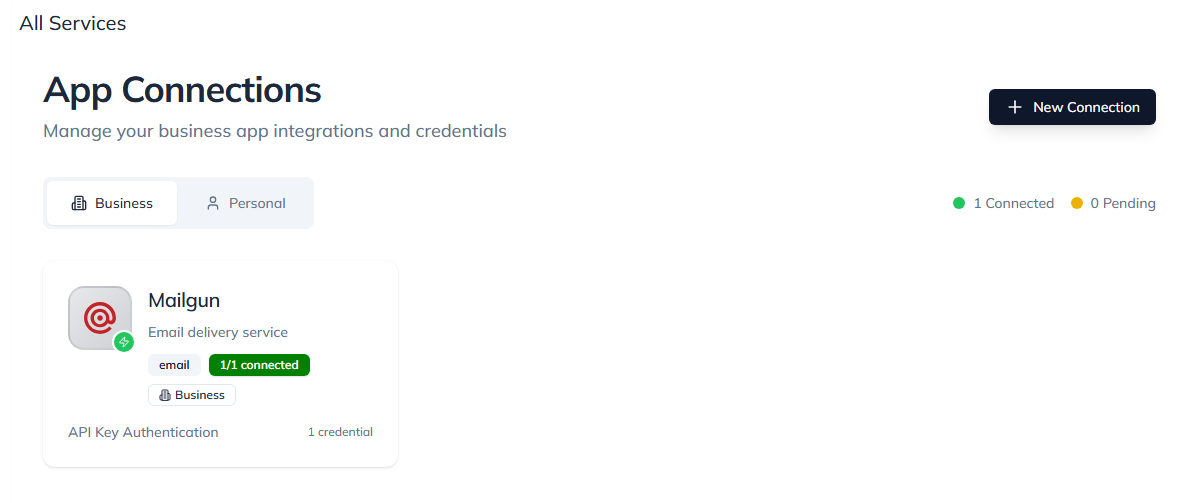
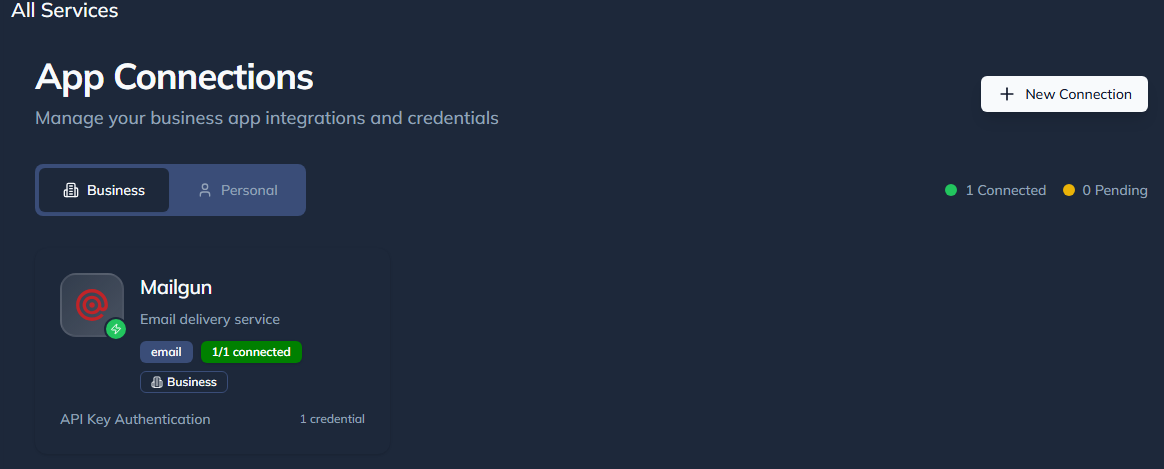
Figure 1: All Services list view with filter options and connection status.
2. Business and Personal Tabs
At the top of the All Services page, you’ll find two main tabs that categorize integrations based on their scope and usage:
| Tab | Description |
|---|---|
| Business Services | Displays all integrations connected at the business or agency level. These are shared across all sub-accounts (e.g., Mailgun, Twilio, AI Settings). |
| Personal Services | Lists integrations connected under an individual user’s account, such as Gmail, Google Calendar, or Outlook, used for personal communication and scheduling. |
Switching between these tabs helps you easily differentiate between shared (organization-wide) and private (user-specific) connections.
Figure 2: The All Services page showing Business and Personal service tabs.
3. Connecting a New Service
Each unconnected service card shows a Connect button.
Clicking Connect opens a modal that allows you to enter required credentials or authorize your account.
Steps:
- Locate the desired service.
- Click Connect.
- Enter credentials or authorize via OAuth (for Google or Outlook).
- Click Save / Connect Service.
Once connected, the service card updates to show the connection status and available actions.
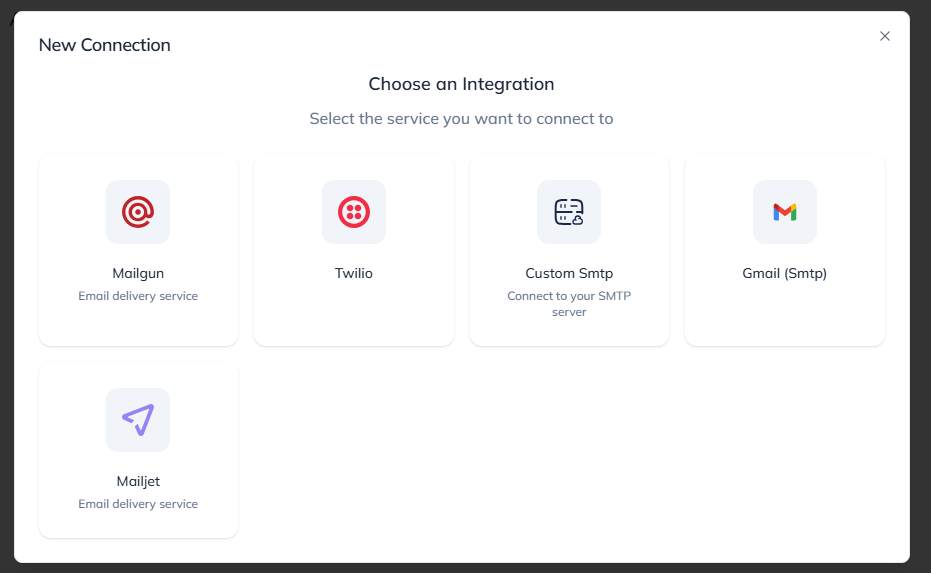
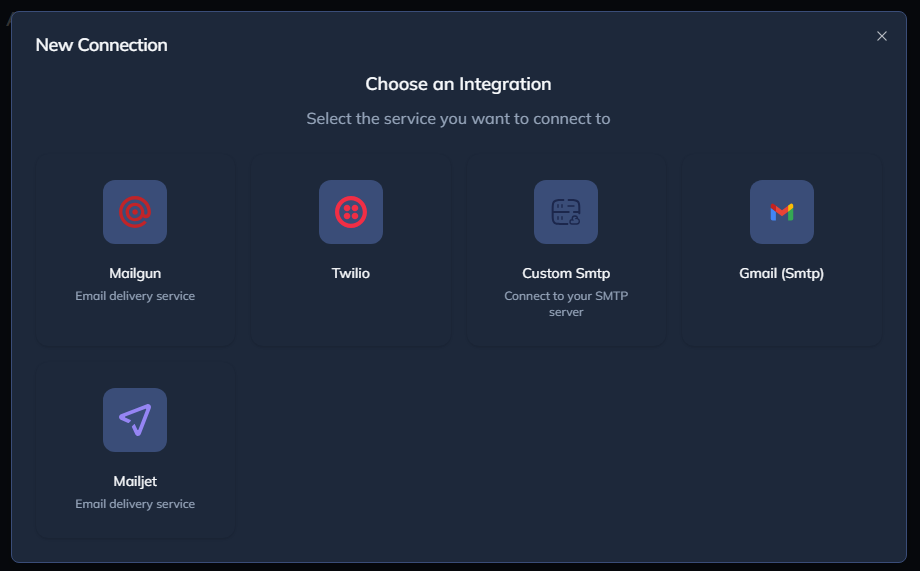
Figure 3: Connecting a New Service.
4. Managing Connected Services
Each connected service card provides a three-dot menu (⋮) with actions specific to the service type.
Below are the available actions categorized by integration:
📨 Mailgun (Email Service)
- Add Domain – Opens domain setup modal for Mailgun.
- Add New Instance – Add another Mailgun configuration.
- Set as Default – Mark this account as default for sending.
- Account Settings (Agency Only) – Access global Mailgun settings.
- Manage Credentials – Edit or update existing credentials.
📞 Twilio (SMS / Call Service)
- Automatic Sub-Account Creation (Agency Only) – Toggle automated sub-account setup.
- Add Voice Setting – Open TwiML configuration for voice calls.
- Set as Default – Make this the primary Twilio connection.
- Manage Credentials – Edit or rotate API tokens.
📧 Gmail (Email Service)
- Add Instance – Connect additional Gmail accounts.
- Set as Default – Choose default Gmail connection.
- Manage Credentials – Edit OAuth credentials.
📅 Google Calendar (Calendar Service)
- Sync Calendar – Enable real-time synchronization between CRM and Google Calendar.
- Add Instance – Connect another Google Calendar.
- Set as Default – Make this the primary calendar integration.
- Disconnect – Remove connected calendar access.
🎥 Google Meet (Video Conferencing)
- Authorize Account – Link Google account for Meet scheduling.
- Default Meeting Provider – Set Meet as the default for video meetings.
- Disconnect – Revoke connection.
📬 Outlook / Microsoft 365
- Connect Account – Authorize via Microsoft OAuth for email and calendar sync.
- Sync Calendar – Sync events and meeting data with CRM.
- Add Instance – Connect another Outlook account.
- Set as Default – Use Outlook as the default email or calendar service.
- Disconnect – Revoke Microsoft integration.
5. Supported Modals and Actions
The following modals are dynamically triggered based on the action:
| Modal | Purpose |
|---|---|
| ConnectServiceModal | For connecting or adding new service credentials. |
| EditServiceModal | For managing or editing connected services. |
| DomainStepperModal | Used for Mailgun domain configuration. |
| DnsRecordModal | Displays DNS records for domain verification. |
| AddTwimlSettingModal | Configures Twilio voice call TwiML settings. |
| AccountEmailSettingModal | Access Mailgun account settings (agency level). |
| CalendarSyncModal | Enables sync setup for Google Calendar or Outlook. |
| MeetingProviderModal | For linking or switching video conferencing services (Meet, Zoom, etc.). |
6. Setting a Primary Service
You can designate a primary service within each category (Email, SMS, Calendar, etc.).
This ensures default routing for all automated workflows and messages.
- Only one primary per service category.
- “Primary” label appears as a ribbon on the service card.
7. Calendar and Meeting Integrations
Franmantra supports seamless scheduling and syncing between your CRM and external calendars:
| Integration | Supported Features |
|---|---|
| Google Calendar | Two-way sync for events, reminders, and appointments. |
| Outlook Calendar | Sync tasks, meetings, and invites. |
| Google Meet | Auto-generate Meet links for booked meetings. |
| Zoom / Other (Coming Soon) | Planned future support for Zoom meetings. |
Use these integrations to ensure meetings created in the CRM appear in your linked calendar automatically.
8. Dynamic Credential Management
Each service can store multiple credentials (instances).
You can:
- View all connected instances
- Edit or rename credentials
- Add or remove configurations
- Rotate API keys without disconnecting old ones
9. Conditional Access & Roles
The module respects access control based on ACCESS_TYPE:
- Agency users get advanced configuration tools (e.g., account-level Mailgun setup, sub-account automation).
- Sub-accounts and regular users have basic connection and credential management options.
10. Typical Workflow
- Open Settings → All Services.
- Click Connect (e.g., Google Calendar or Outlook).
- Authorize via OAuth and confirm connection.
- (Optional) Mark as default or sync immediately.
- Repeat for other services as needed.
Summary
The All Service Module is the central hub for managing all connected services in Franmantra CRM.
It unifies communication, scheduling, and automation across platforms — including Twilio, Mailgun, Gmail, Google Calendar, Google Meet, Outlook etc — ensuring your business runs efficiently with minimal manual setup.
Last updated: 13 Nov 2025