Tasks Module
The Tasks module allows you to create, view, edit, and manage tasks for your contacts, projects, or internal workflows. Tasks can have priorities, due dates, and statuses, and you can perform both single and bulk operations.
1. Overview of the Tasks Module
The Tasks module provides a centralized dashboard to:
- View all tasks in a table or card view.
- Track task status, priority, assignee, and due dates.
- Perform bulk actions on multiple tasks.
- Open task details in a side sheet.
- Create new tasks quickly using the Add Tasks button.
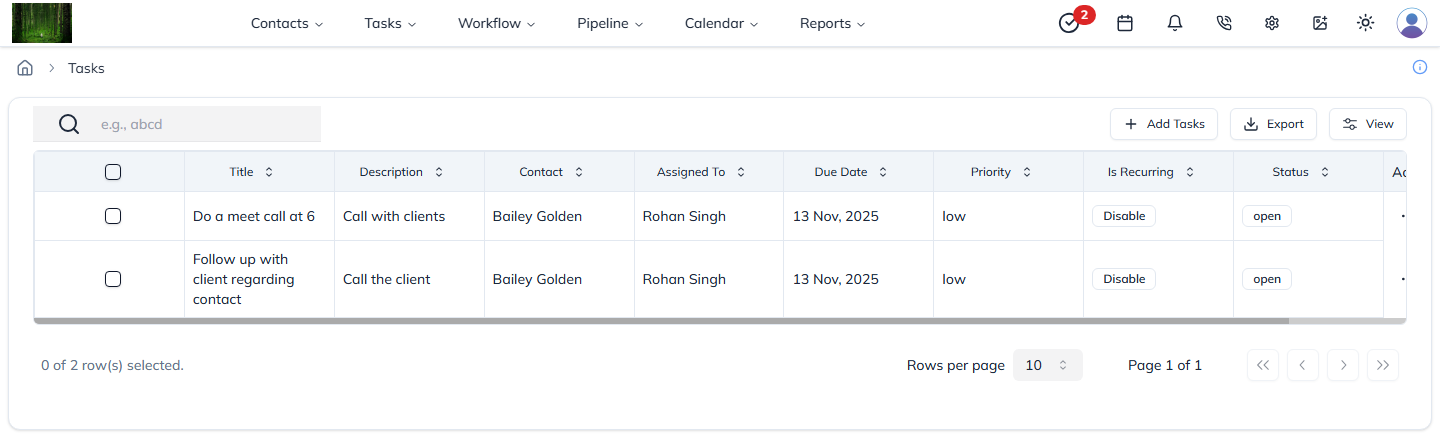
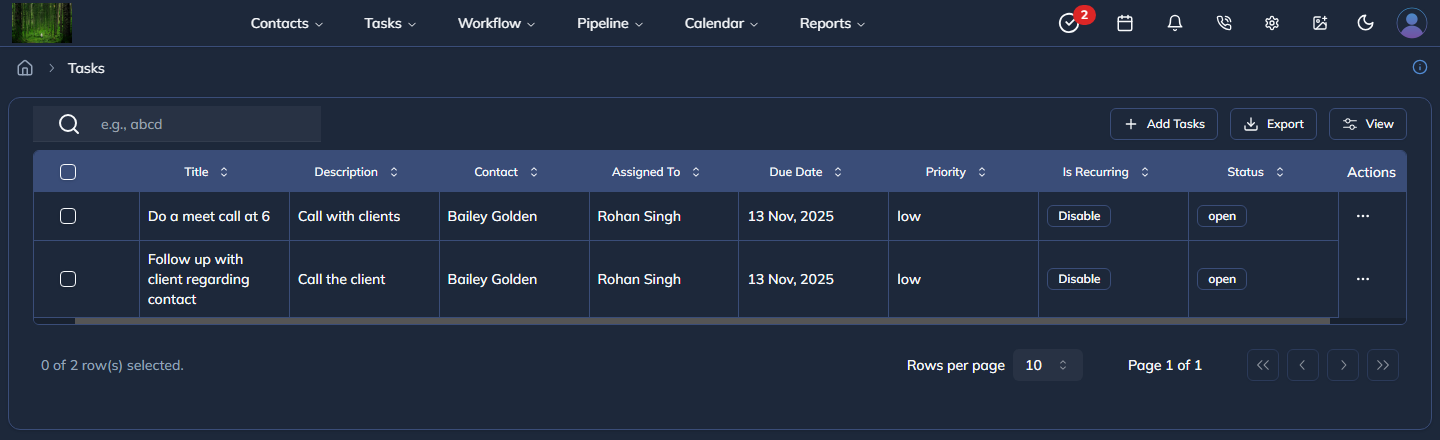
Figure 1: Tasks list with filters, actions, and status badges.
2. Creating a New Task
- Click the Add Tasks button in the top toolbar.
- The Create Task Modal opens.
- Fill in the required fields:
- Task Title
- Description
- Priority
- Due Date
- Assigned To
- Recurring options (if needed)
- Click Create Task to save.
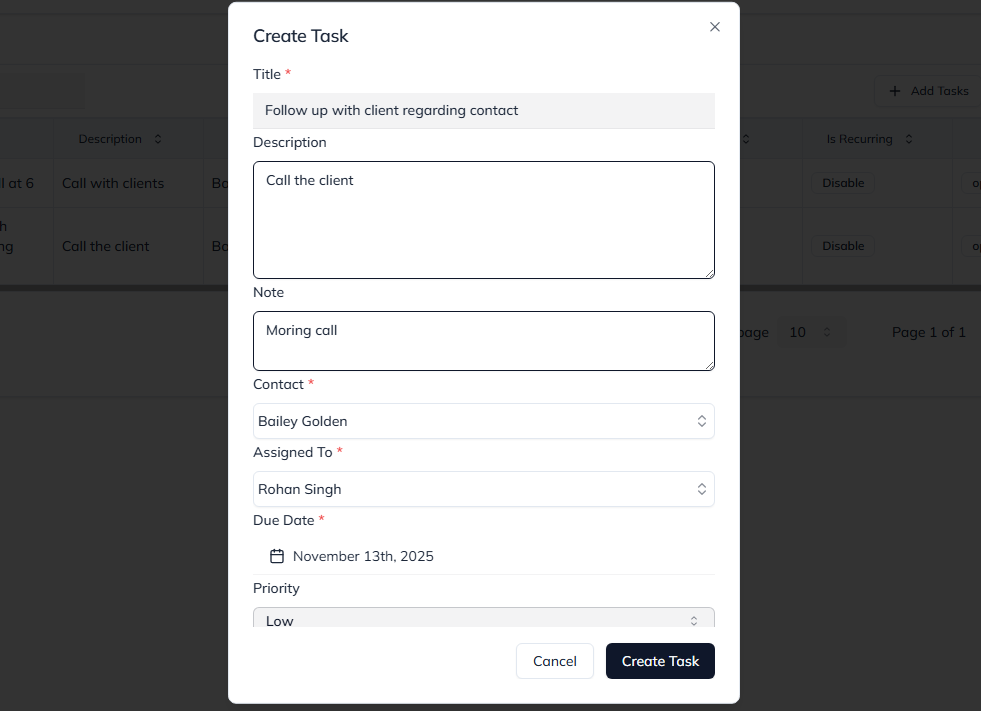
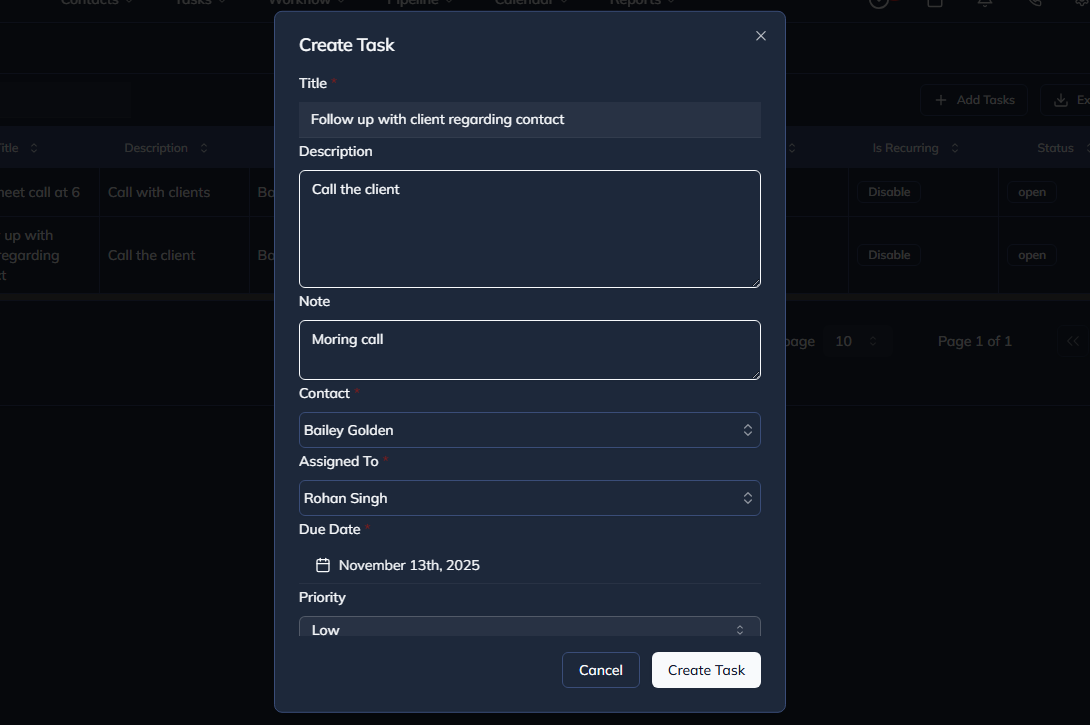
Figure 2: Create Task modal with required fields.
Tip: Set the task priority correctly to help your team focus on urgent items first.
3. Viewing & Editing a Task
- Click on a task in the list or card view.
- The Task Detail Sheet opens showing all information about the task.
- Edit the fields as needed and click Save.

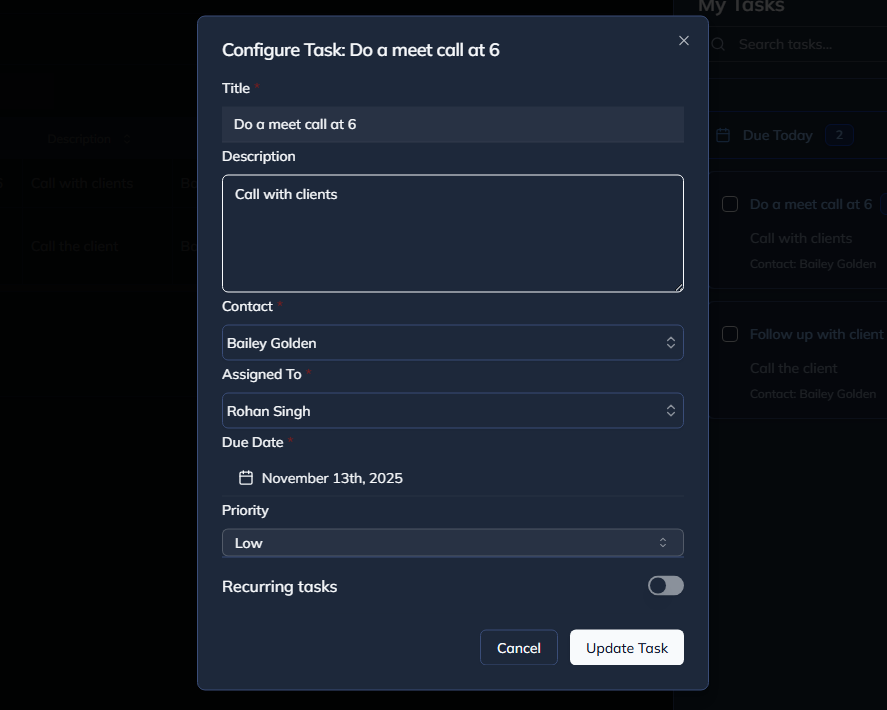
Figure 3: Task detail sheet with editable fields.
4. Task Actions
Each task row has an Actions menu (three-dot icon) with the following options:
- View – Open task detail sheet.
- Edit – Modify task details.
- Delete – Move task to trash.

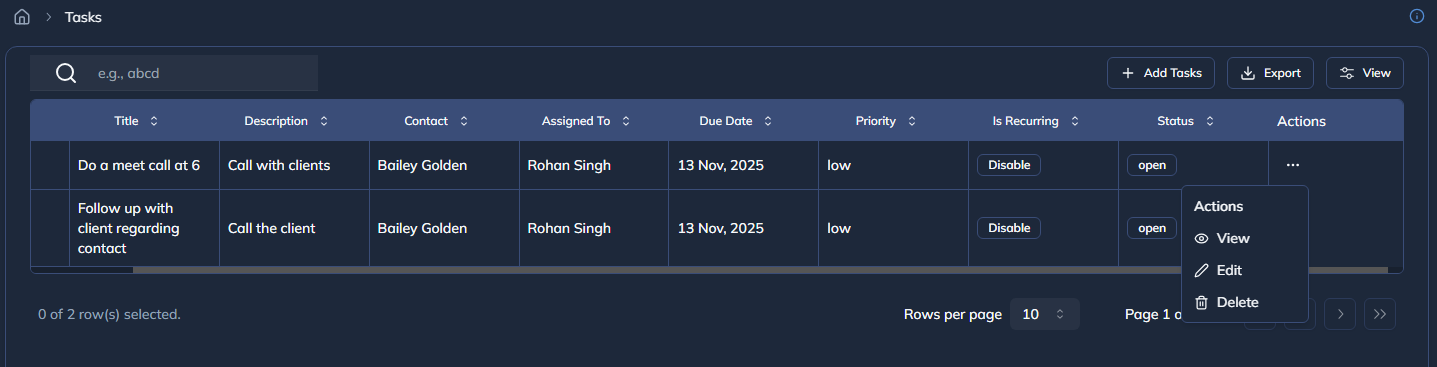
Figure 4: Task detail sheet with editable fields.
5. Bulk Operations
You can select multiple tasks using the checkboxes and perform bulk actions, such as:
- Assign tasks to users
- Change status or priority
- Delete or restore tasks
6. Task Card View
Tasks can also be displayed in card view. Each card shows:
- Task title and description
- Assigned user avatar
- Priority and status badges
- Last updated timestamp
Clicking a card opens the Task Detail Sheet for quick editing.
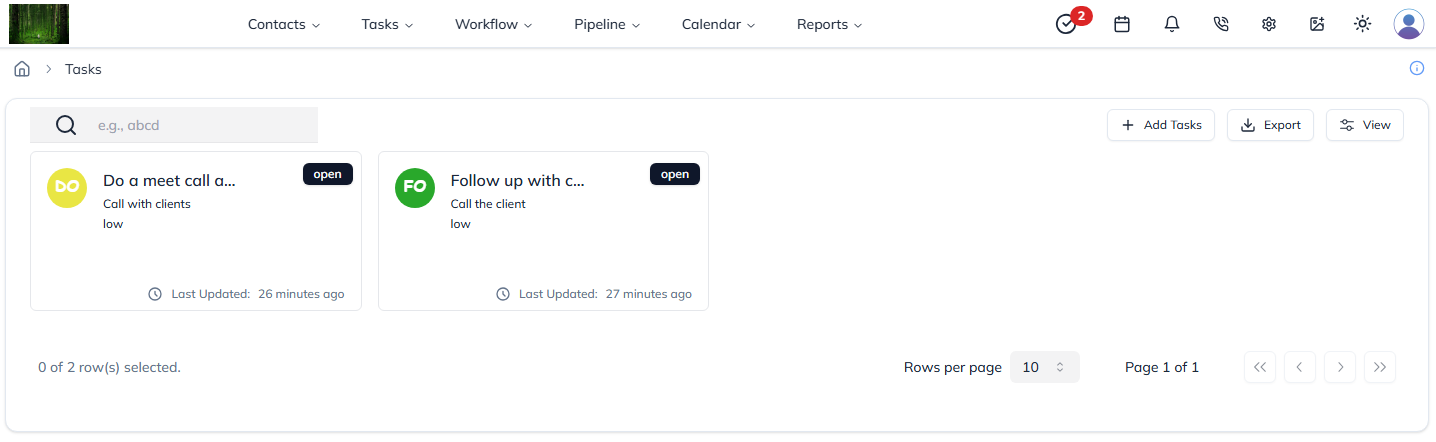
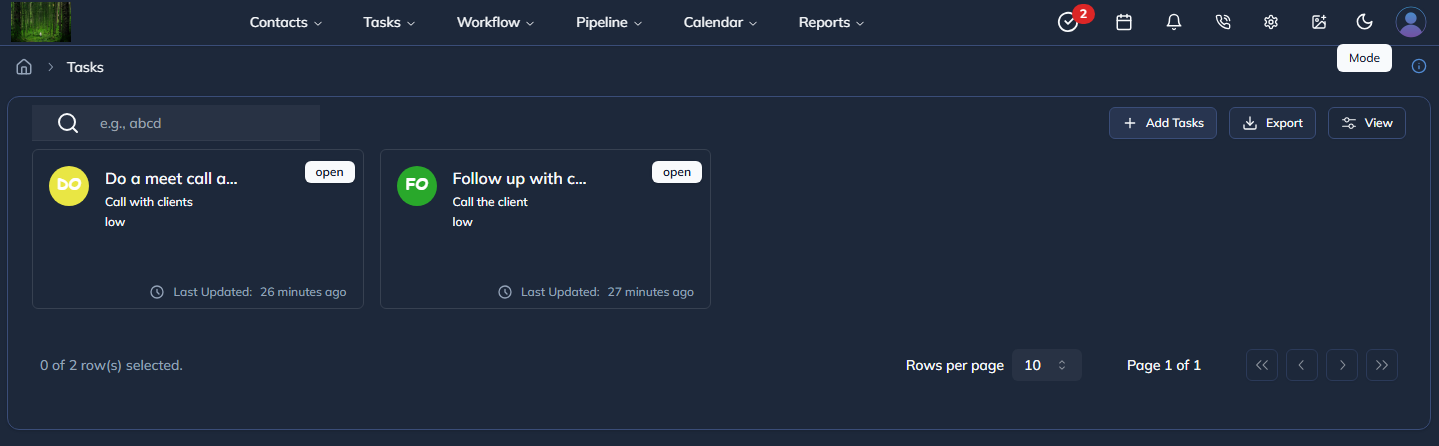
Figure 5: Task card view for easy visual tracking.
Last updated: 13 Nov 2025