Template Page
This page describes how to create, edit, share, and manage templates inside the Franmantra CRM system. Templates allow users to design reusable content for emails and SMS messages that can be sent automatically through workflows or campaigns.
1. Overview of Template Module
The Template module enables users to create various types of templates for communication:
- Email Templates (Text or HTML format)
- SMS Templates
Each template stores key information like:
- Name
- Subject / Message Content
- Type (Email or SMS)
- Status (Created, Shared, Pending, Accepted, or Rejected)
- Creation & Update timestamps
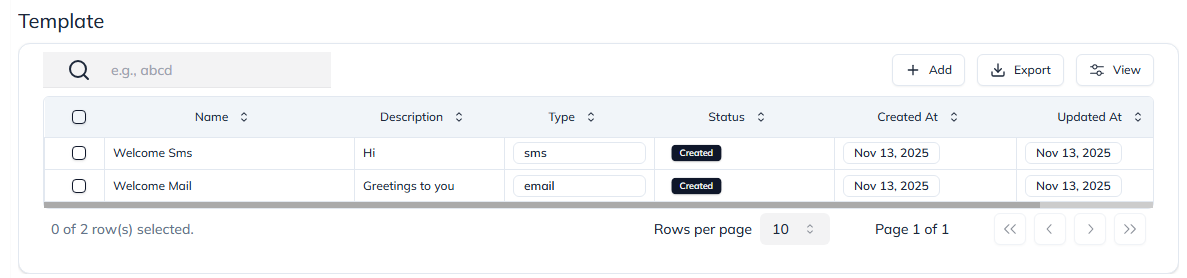
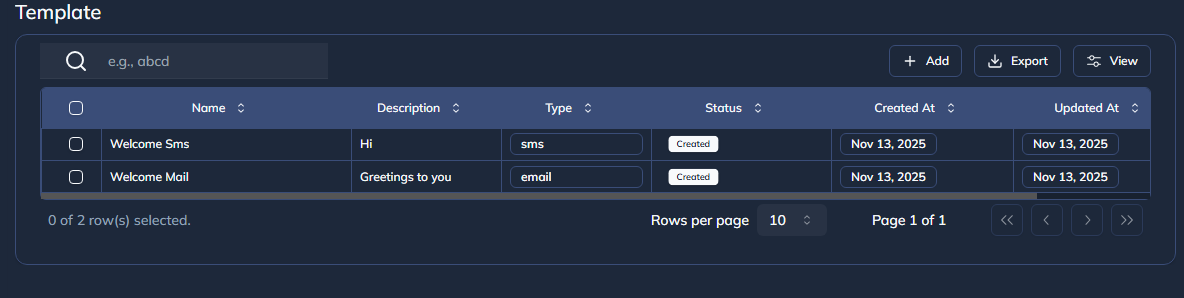
Figure 1: Template List view with filters and bulk actions.
2. Creating a Template
Click the Add button in the toolbar to open a dropdown for different template types.
You can create:
- Email → Text Editor – Opens a simple editor (
BasicEmail) - Email → HTML Editor – Opens the drag-and-drop builder (
DragDropWebsiteBuilder) - SMS Template – Opens the SMS editor (
SmsEditor)
After selecting the desired editor:
- Enter the template name and content.
- Configure dynamic placeholders, if required.
- Click Create to create the template.
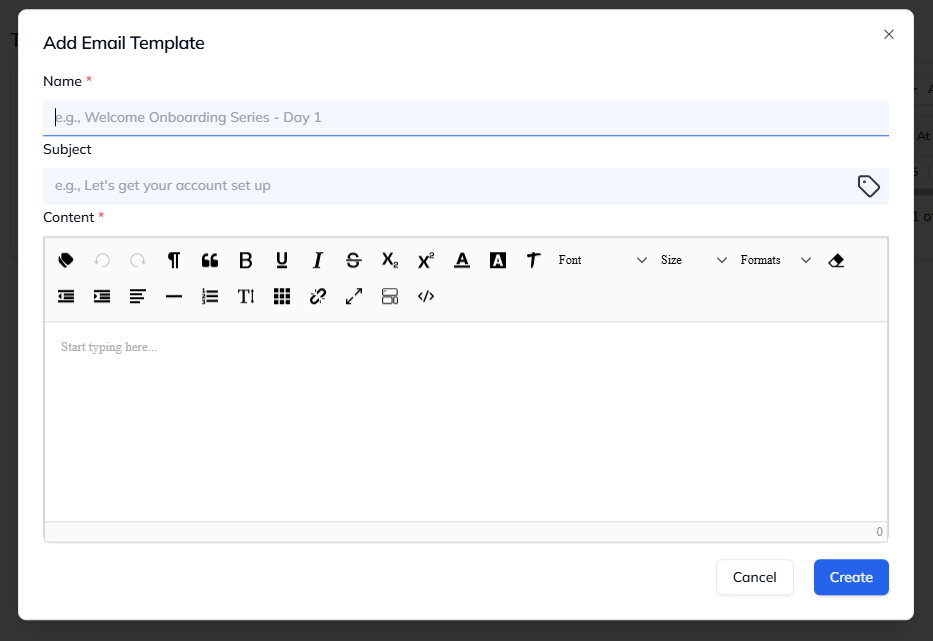
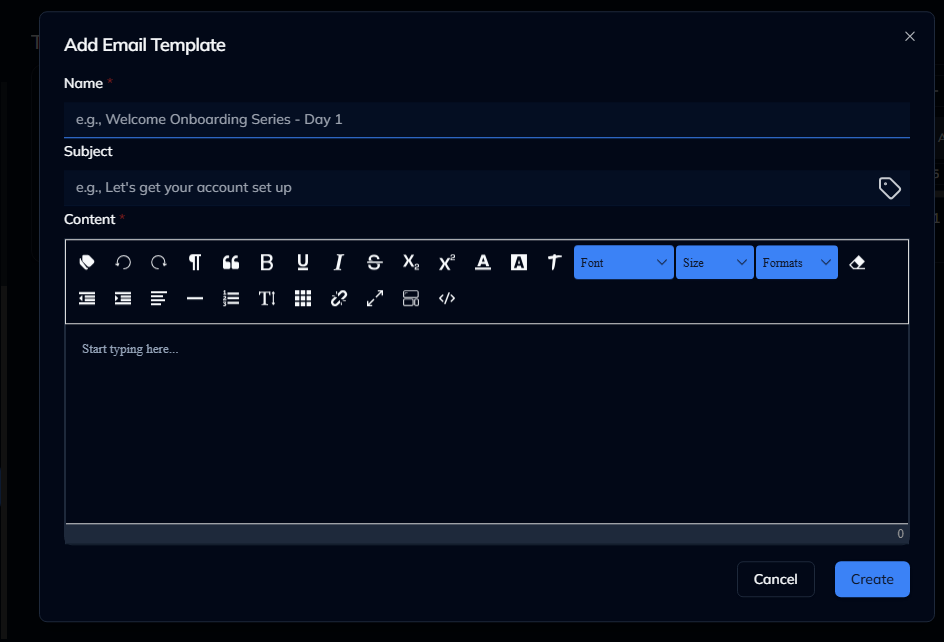
Figure 2: Creating a new template using the Email Text editor.
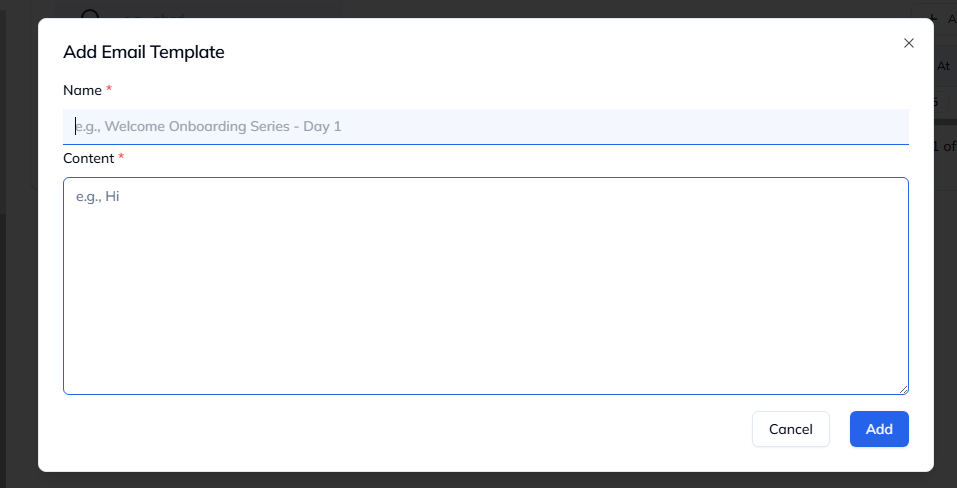
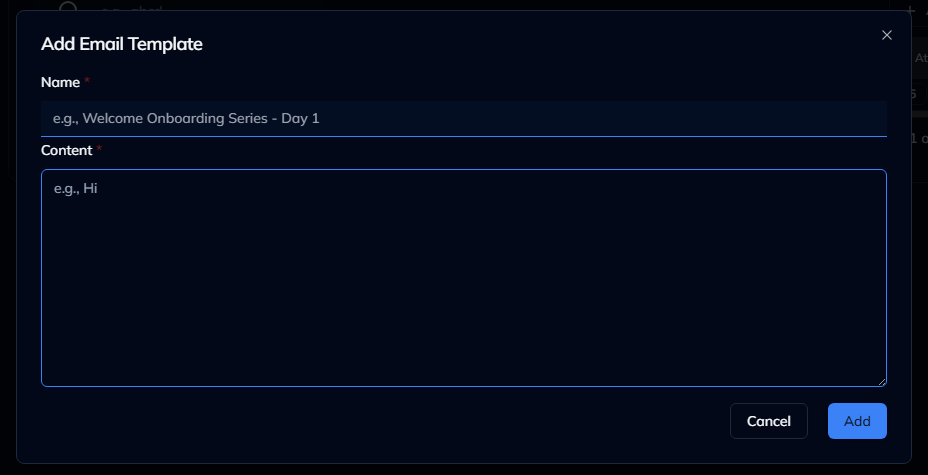
Figure 3: Creating a new template using the Sms Text editor.
3. Viewing & Editing a Template
You can view details of any template by:
- Clicking the template name, or
- Selecting View from the action menu (three dots).
The details open inside a Template Detail Sheet, showing the name, type, subject/content, and metadata.
To edit a template:
- Open the action menu on the desired row.
- Click Edit.
- The editor opens based on template type:
- Email → Text or HTML editor
- SMS → SMS editor
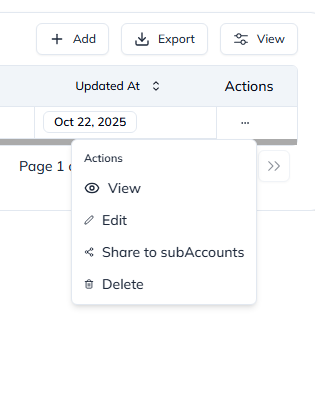
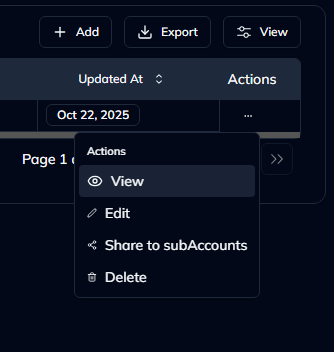
Figure 4: Actions buttons.
4. Managing Template Actions
Each template row has an Actions menu with the following options:
| Action | Description |
|---|---|
| View | Open template detail sheet |
| Edit | Edit the template content |
| Share | Share the template to sub-accounts (available for master/subordinate accounts) |
| Delete | Permanently delete the template |
| Accept / Reject | For shared templates with pending status |
Status badges help identify templates quickly:
- 🟡 Pending – Awaiting approval
- 🟢 Accepted – Shared and approved
- 🔴 Rejected – Sharing declined
- ⚪ Created – Default state
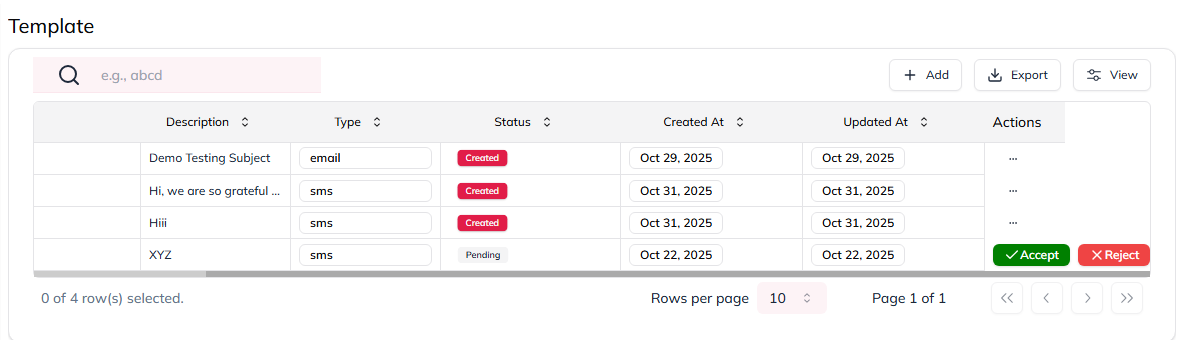
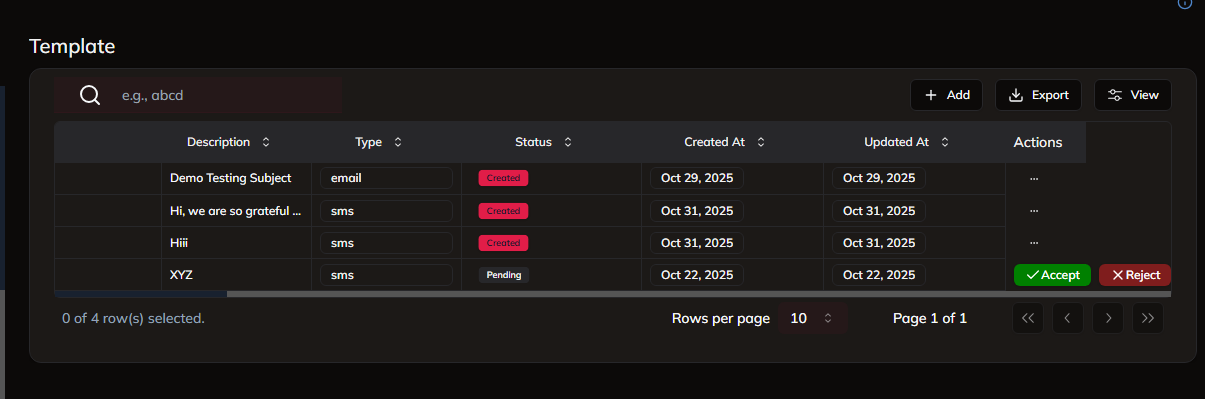
Figure 5: Template Status available in the list view.
5. Sharing Templates
Master accounts can share templates with sub-accounts using the “Share to SubAccounts” option.
A modal appears (ShareDataToSubAccModal) to select sub-accounts and confirm sharing.
Statuses update automatically based on recipient actions (Accept / Reject).
6. Bulk Operations
The template table supports selecting multiple rows using checkboxes.
Bulk operations (if enabled) allow:
- Deleting multiple templates
- Exporting templates
- Performing filter-based actions
7. DataTable Integration
The Template module uses the DataTable component for:
- Sorting and filtering
- Pagination
- Card/List toggle view
- Exporting data to CSV
- Custom render for “Card View” using
TemplateCard
In Card View, each template is displayed with:
- Avatar initials
- Type and status badge
- Last updated timestamp
- Clickable area to view details
8. Code Highlights
- Uses RTK Query hooks for API calls (
useLazyGetAllTemplateQuery,useCloneTemplateMutation, etc.) - Integrated with global Redux state for user accounts
- Modularized UI components with
@components/commonand@components/ui - Breadcrumb updates via
useBreadcrumb()hook - Navigation handled with React Router’s
useNavigate
9. Summary
The Template Module streamlines creating and managing reusable templates across email and SMS channels.
It integrates advanced UI interactions like real-time editing, sharing, and filtering—all powered by Franmantra’s unified CRM platform.
Last updated: 13 Nov 2025