Tags Module
The Tags module allows you to create, view, edit, delete, and share tags across your CRM system. Tags help categorize contacts, tasks, or other entities for better organization and filtering.
1. Overview of the Tags Module
- View all tags in table or card view.
- Check status (Active/Deleted) and color of each tag.
- Perform bulk actions like export, delete, or share.
- Access Tag Details in a side sheet.
- Share tags with sub-accounts (for master-subordinate accounts).
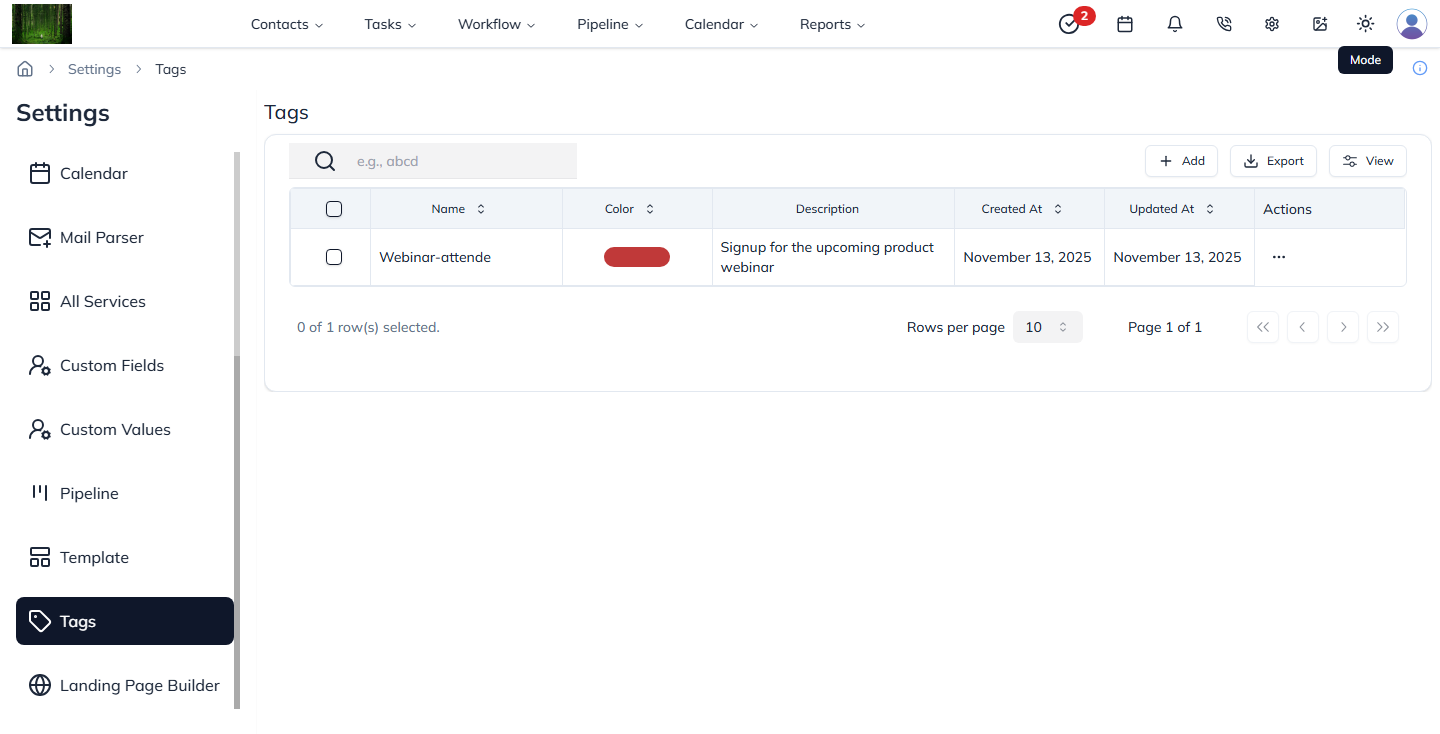
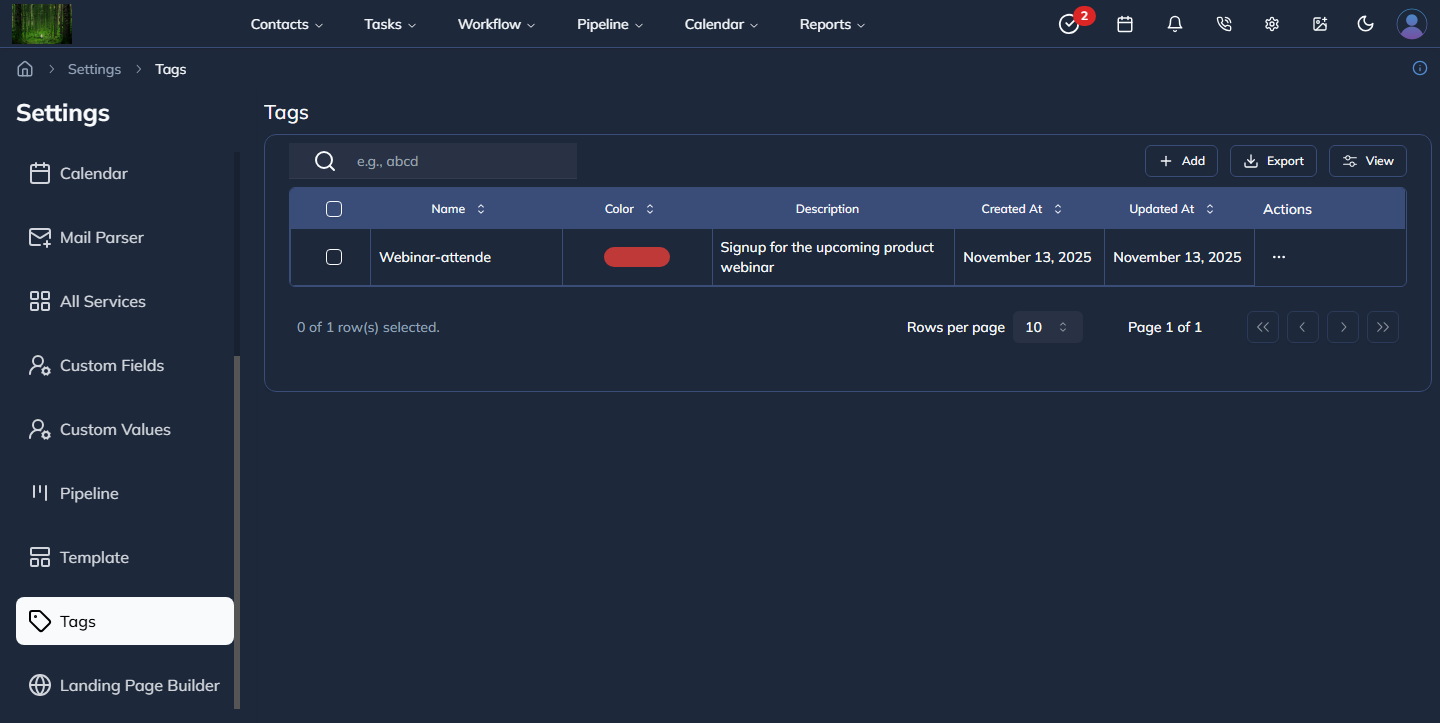
Figure 1: Tags list view with table and actions.
2. Creating a New Tag
- Click the Add button in the toolbar.
- The Create Tag Modal opens.
- Fill in the required fields:
- Name
- Color
- Description
- Click Create to save.
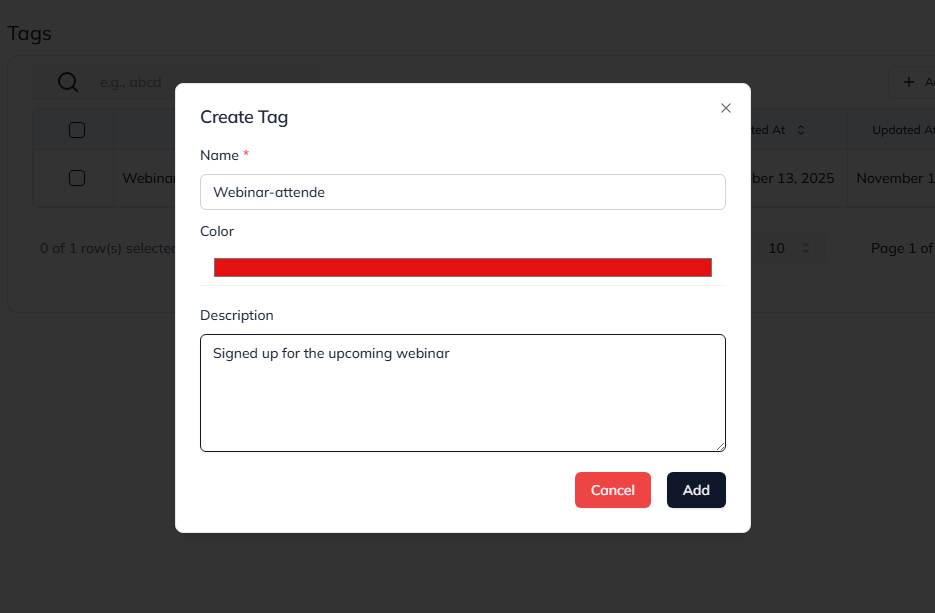
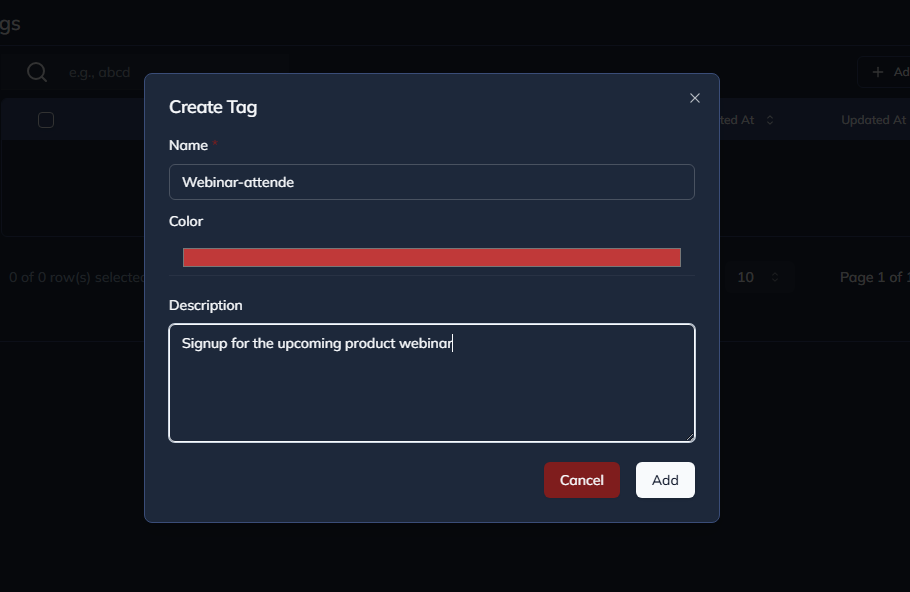
Figure 2: Create Tag modal with required fields.
3. Viewing & Editing a Tag
- Click on a tag in the table or card view to open the View Tag Detail Sheet.
- For editing, click Edit in the actions menu. Only users with permission can edit tags.
- Make necessary changes and click Save.
4. Tag Actions
Each tag row has an Actions menu:
- View – Open detail sheet.
- Edit – Modify tag information (permission required).
- Delete – Delete tag with confirmation. Existing data remains intact.
- Share to Sub-Account – Available for master-subordinate accounts.
Pending/Rejected Shares:
- Tags shared with sub-accounts can have Pending or Rejected status.
- Pending tags show Accept/Reject badges for approval.
- Rejected tags show a Rejected badge.
5. Card View
Tags can also be displayed in card view, which shows:
- Tag name
- Color
- Description
- Status badge (Active/Deleted)
- Last updated timestamp
Clicking a card opens the View Tag Detail Sheet for quick access.
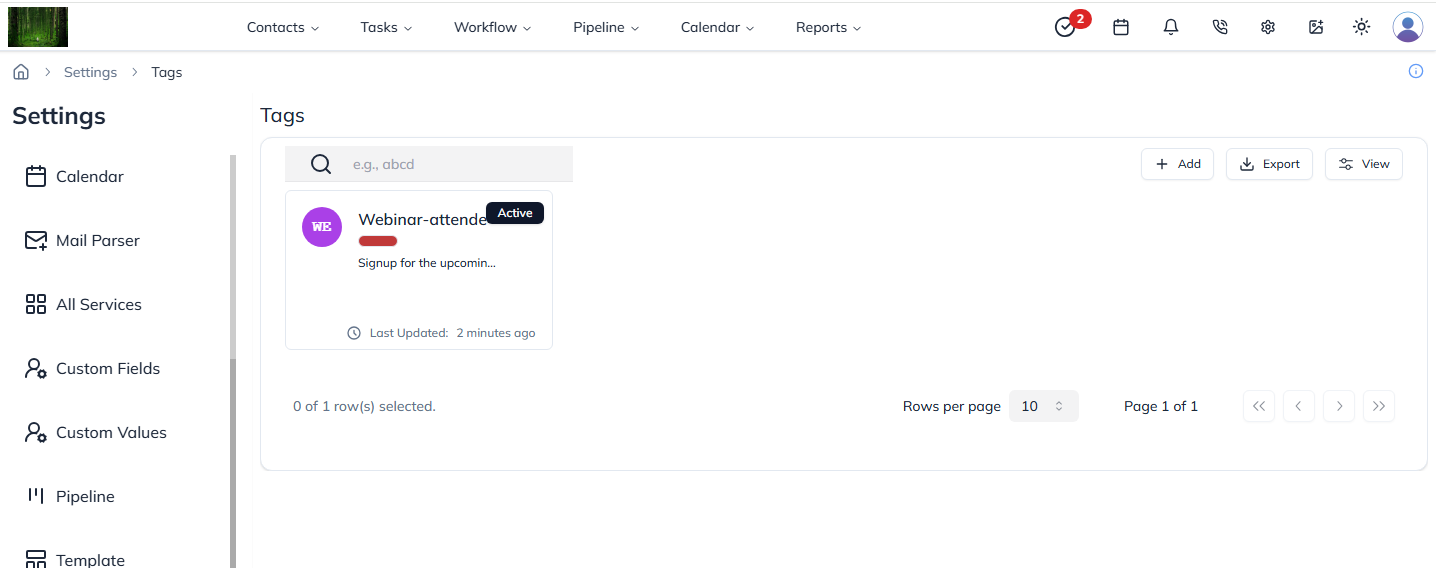
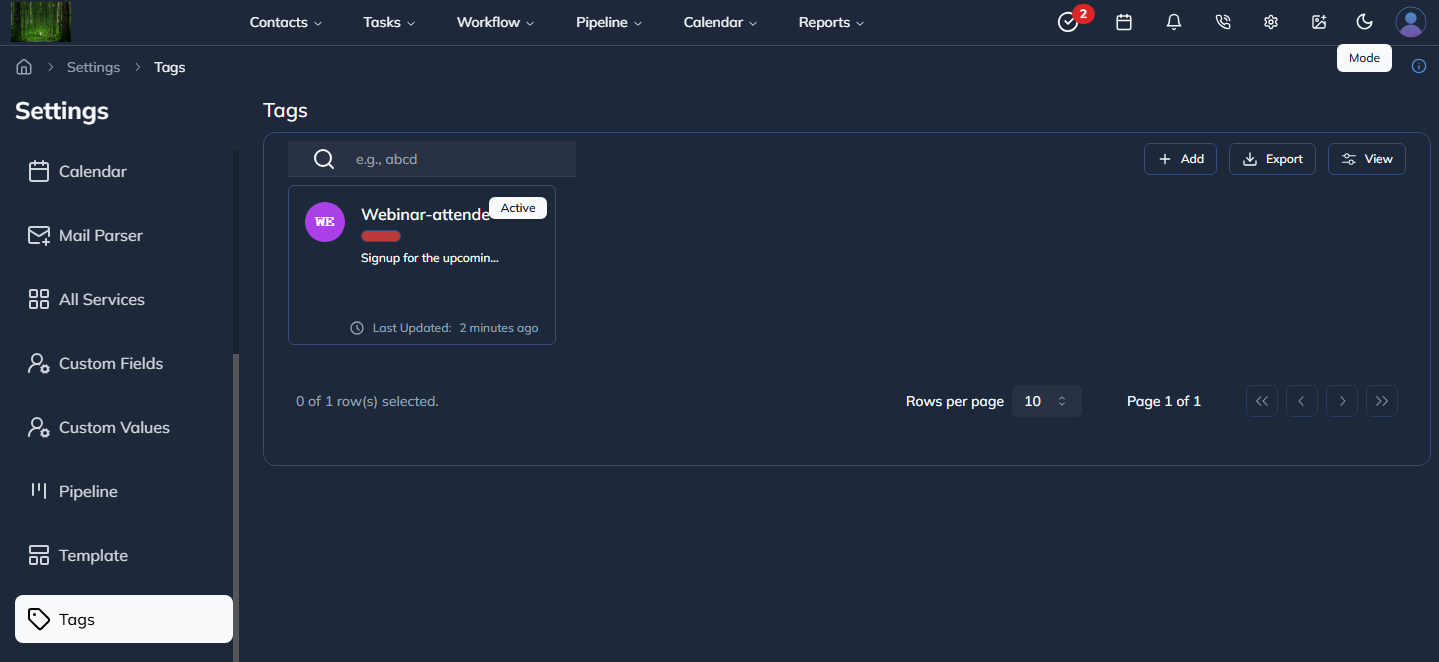
Figure 4: Tag card view for quick visual reference.
6. Bulk Operations & Export
- Use the checkboxes to select multiple tags.
- Apply bulk actions like delete, export, or share.
- Export all tag data using the export option in the toolbar.
Last updated: 13 Nov 2025