Business Settings
What This Is
Business Settings is where admins manage the main setup for a business account. This includes business details, brand appearance, AI availability, and phone numbers.
When To Use It
Use Business Settings when you want to:
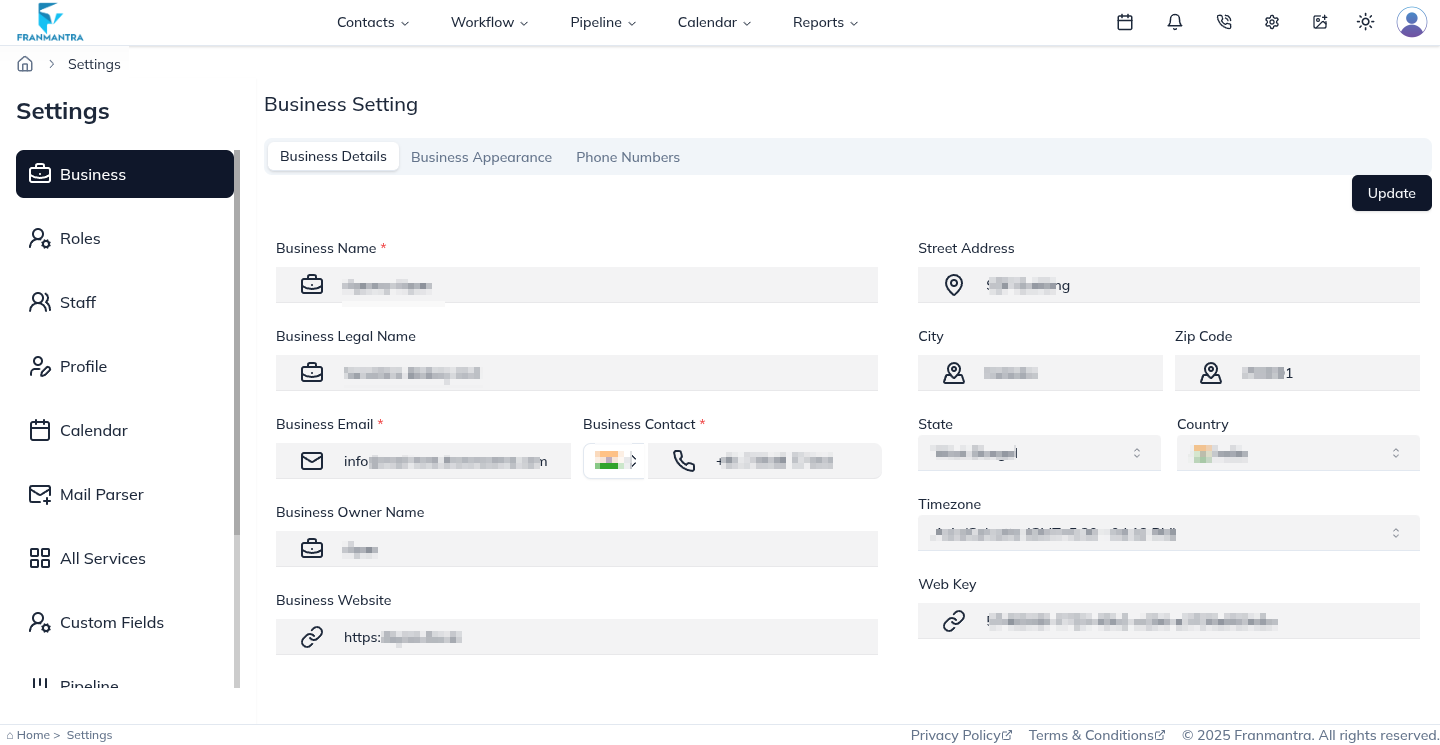
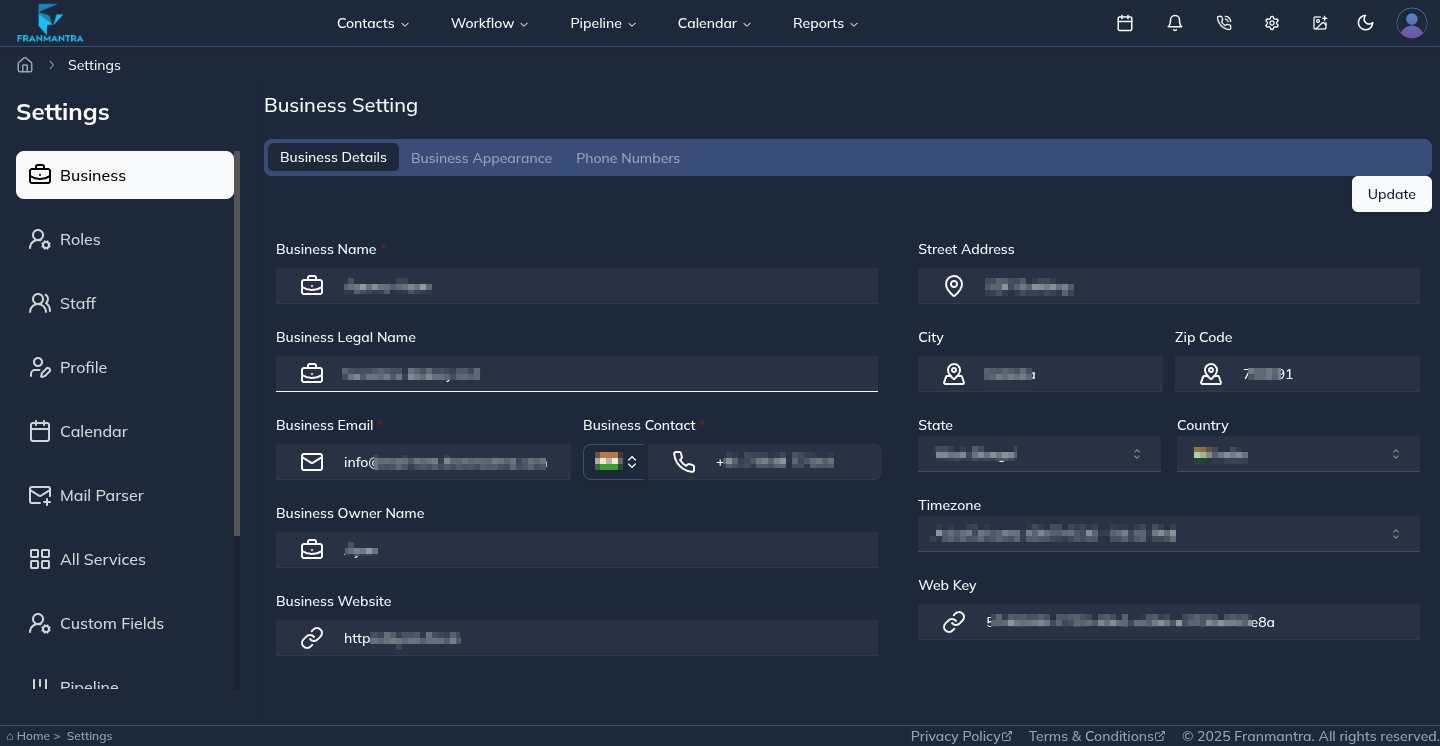
- Update business name, address, or contact information.
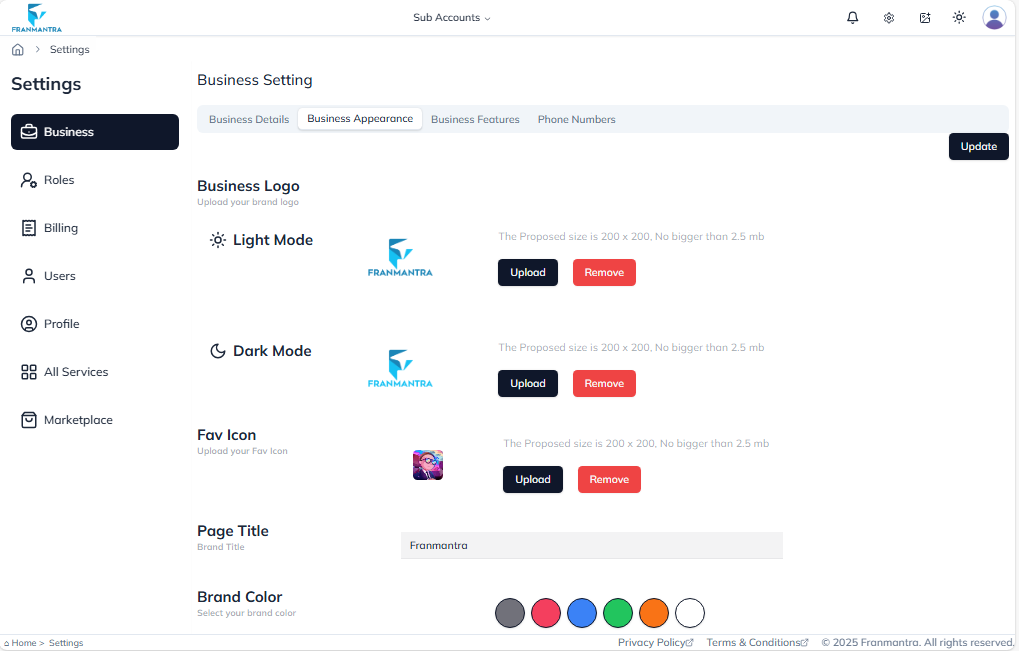
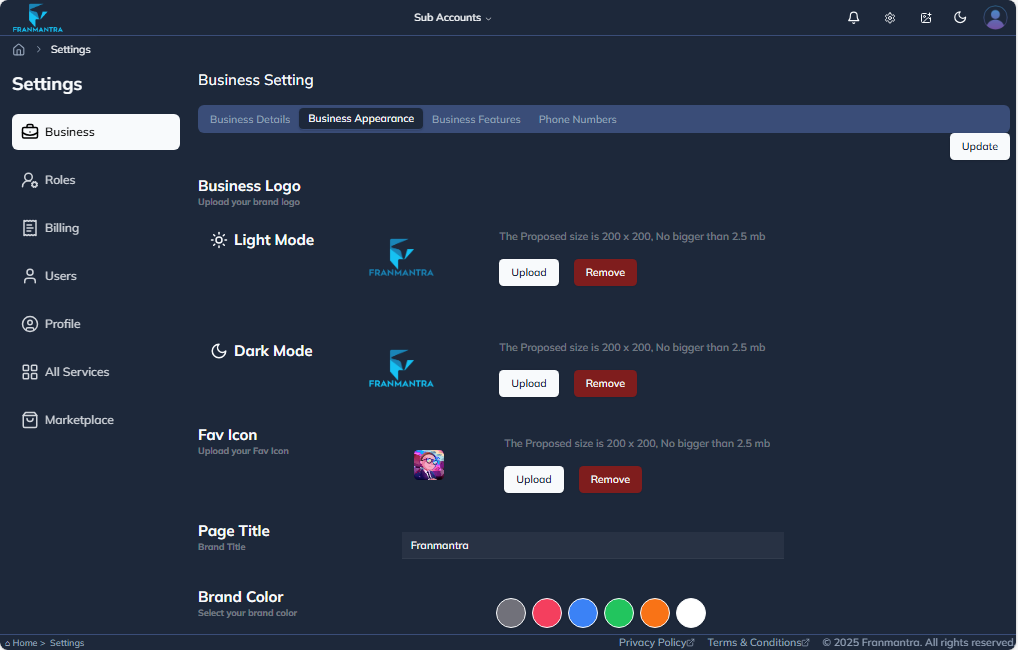
- Upload a logo or favicon.
- Set brand color and page title.
- Turn business features on or off.
- Manage phone numbers connected to Twilio.
What You Can Do
Business Settings includes these areas:
- Business Details: view and update business information.
- Business Appearance: manage logo, favicon, page title, and brand color.
- Business Features: enable or disable features such as Franmantra AI.
- Phone Numbers: manage phone numbers when Twilio is connected.
Basic Workflow
- Open Settings > Business.
- Choose the business settings tab you want to update.
- Change the required information.
- Click Update or save the changes.
- Review the page to make sure the new settings are correct.
Example
If your company changes its logo, open Business Appearance, upload the new logo, choose the brand color, and save the update.
Notes
- Business settings can affect the whole account.
- Only users with the correct permission should change these settings.
- Twilio must be connected before phone number options can be used.