Pipeline Overview
This guide walks you through accessing and using the Pipeline page in Franmantra CRM.
1. Open the Pipeline Page
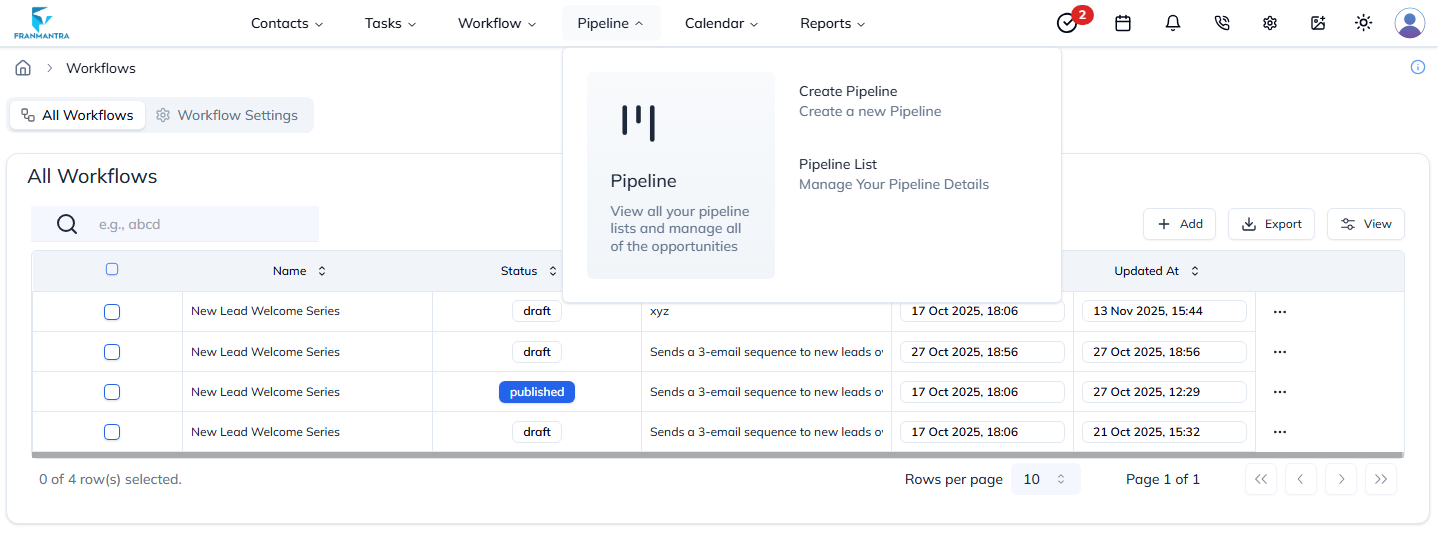
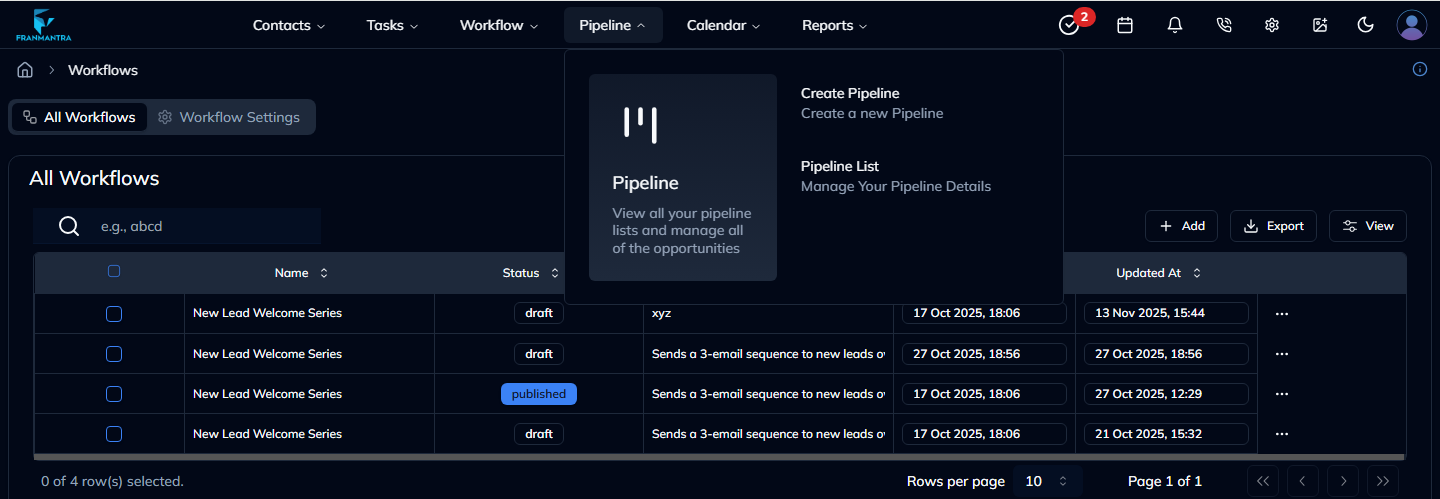
From the top navigation bar:
- Hover over Pipeline.
- In the drop-down, click Pipeline.
2. Understanding the Pipeline Interface
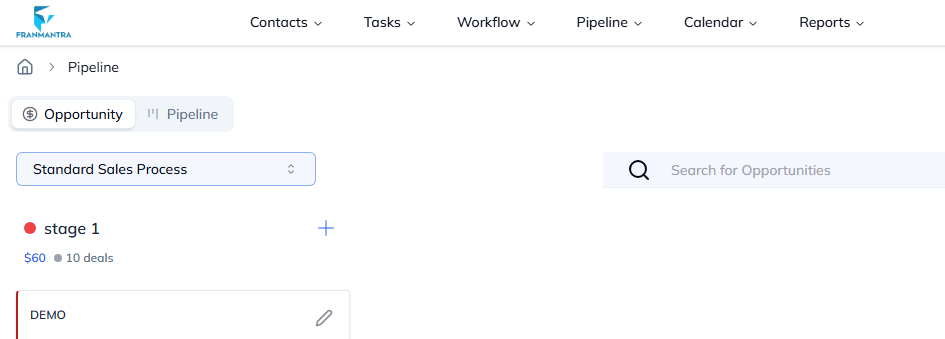
The Pipeline page is divided into two main tabs:
| Tab | Purpose |
|---|---|
| Opportunity | View individual opportunities and related details |
| Pipeline | Kanban-style board of opportunity stages |
2.1 Opportunity Filter & Search
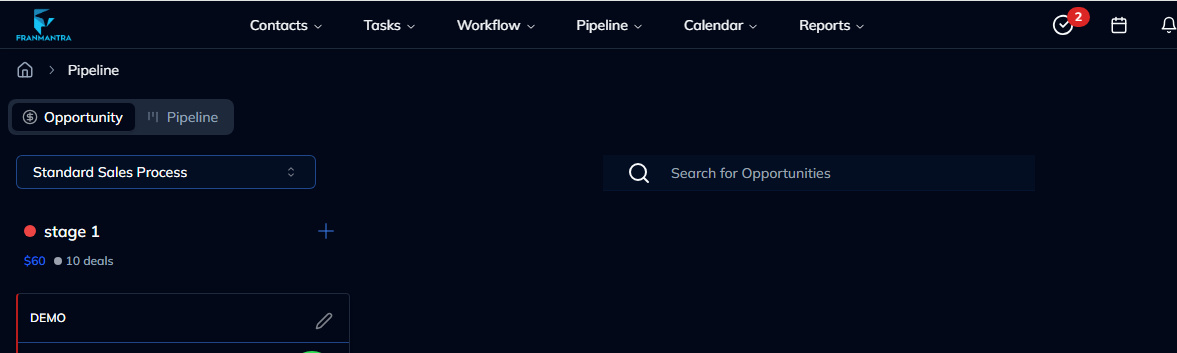
• Dropdown (index 26) – Filter by pipeline name (e.g. abc).
• Search Bar (index 31) – Keyword search across opportunities.
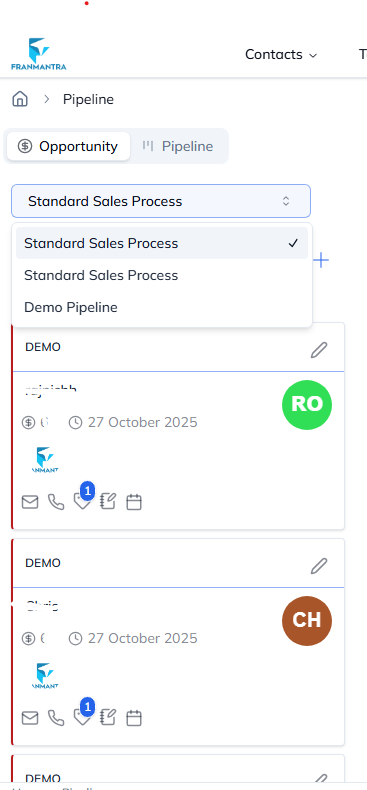
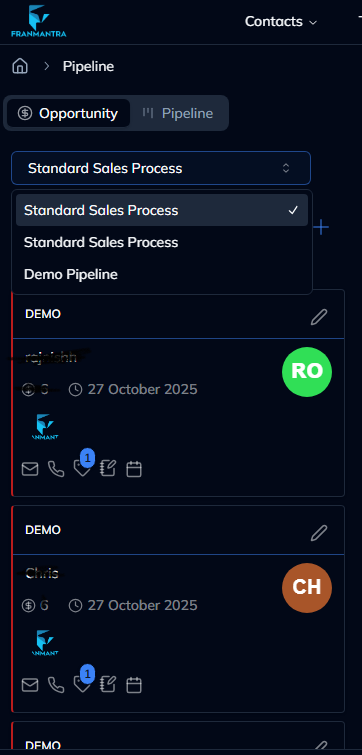
2.2 Kanban Columns
Each column represents a stage (e.g. aaa, bbb, ccc):
- Add Deal (+) button to create a new deal in that stage.
- Each card shows the deal count and quick stats.
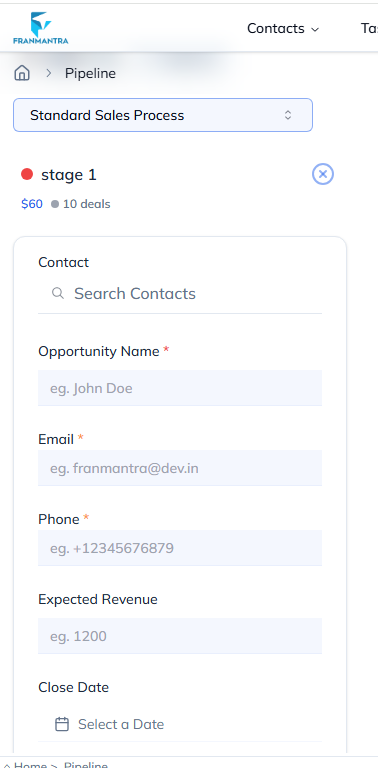
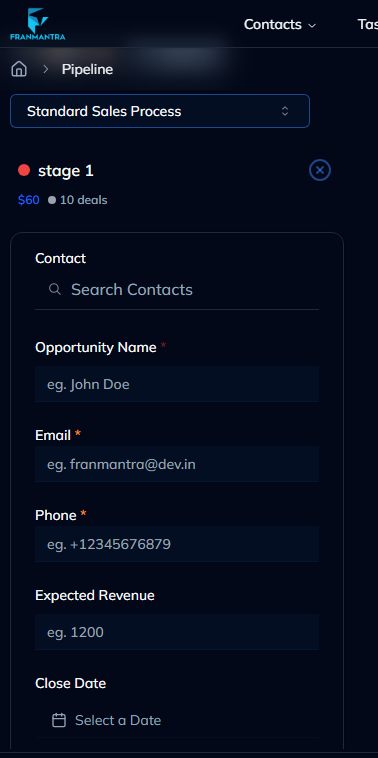
3. Adding a New Deal
- Click + in the desired stage column.
- Fill in opportunity details in the pop-up dialog.
- Click Save to create the new deal.
4. Moving Deals Between Stages
Drag-and-drop a deal card between columns to update its stage.
5. Additional Actions
| Icon | Action |
|---|---|
| 🛈 (index 21) | Page details & settings |
| 🗂 Toggle (index 33 / 34) | Switch between list & grid views |
| 🌙 / ☀ (index 13) | Toggle dark-mode theme |
6. Tips & Tricks
- Use the search bar to quickly locate specific opportunities by keyword.
- Customize stages via Settings → Pipeline Setup (admin only).
- Use keyboard shortcut Ctrl + F to open browser search within the page.
7. Troubleshooting
- If the Pipeline page does not load, refresh the browser (F5).
- Ensure pop-ups are allowed for Franmantra to enable deal dialogs.
- Contact support via Help → Feedback if issues persist.