Custom Fields Module
What This Is
The Custom Fields module lets you add extra fields to collect information your business needs. A field is a place where users enter data, such as text, number, date, or dropdown selection.
For example, you can add a field called Preferred Location or Franchise Budget.
When To Use It
Use Custom Fields when you want to:
- Store information that is not available in the default CRM fields.
- Customize contact, opportunity, or business records.
- Create dropdowns, date fields, number fields, or text fields.
- Group related fields into folders.
- Collect better information for sales, reports, or workflows.
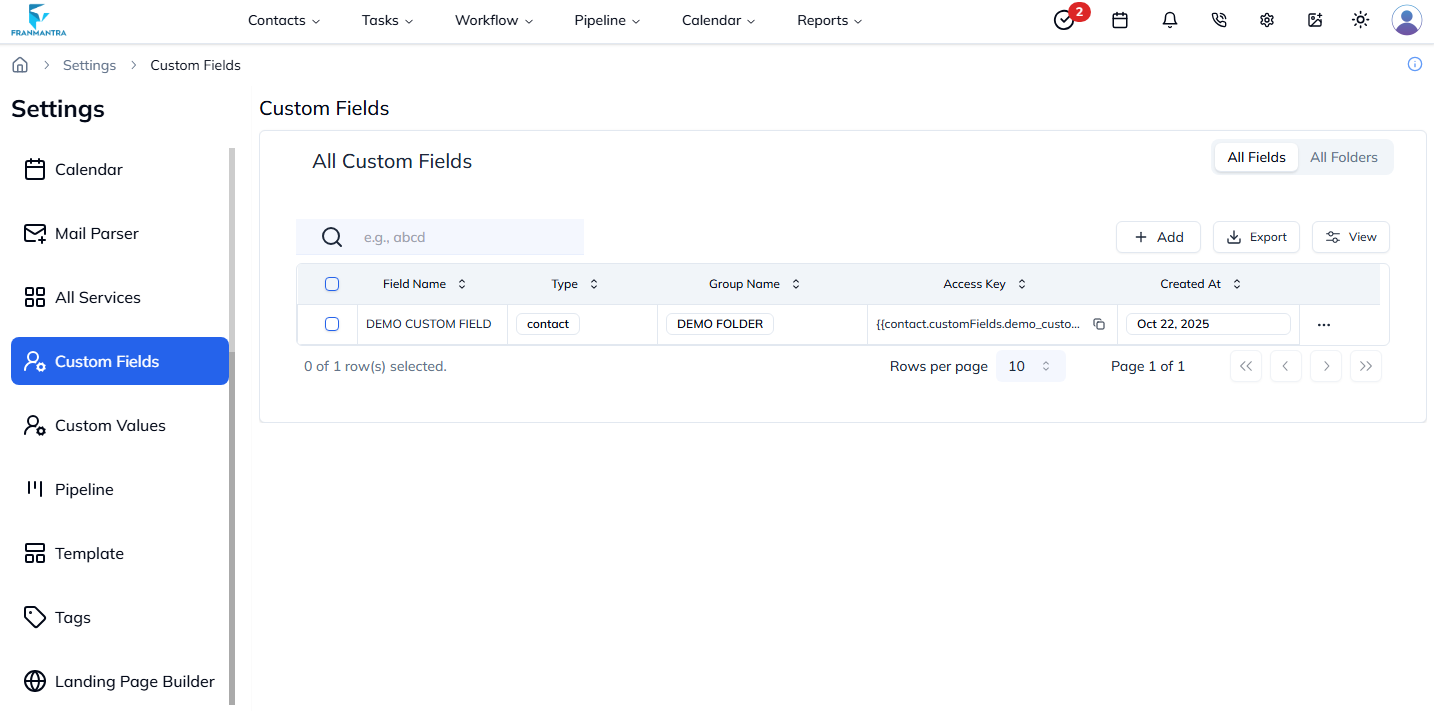
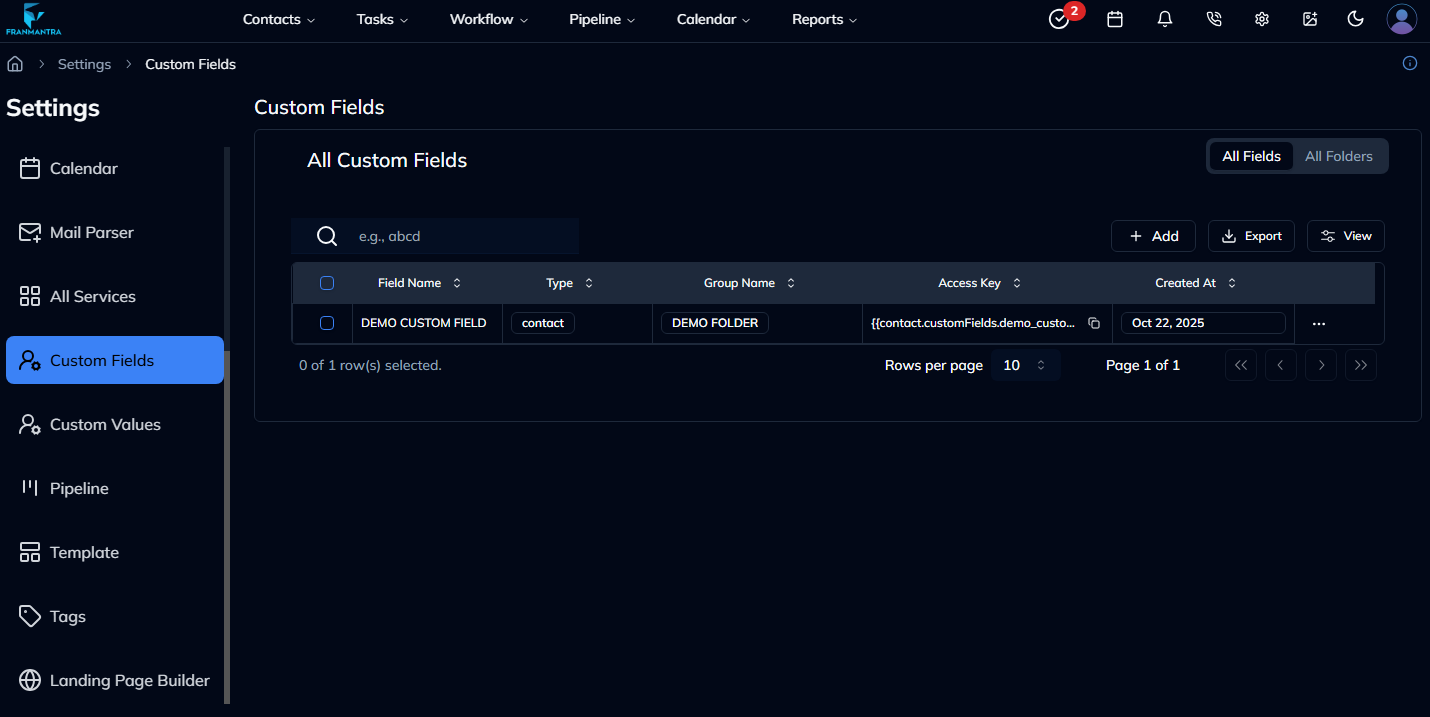
What You Can Do
In the Custom Fields module, you can:
- Create new fields.
- Choose the field type.
- Edit or clone existing fields.
- Delete fields that are no longer needed.
- Organize fields into folders.
- Switch between list and card views.
Basic Workflow
- Open Settings > Custom Fields.
- Click Add Field.
- Enter the field name.
- Choose the field type.
- Select a folder if needed.
- Save the field.
Example
If your sales team needs to know a lead's budget, create a custom field called Budget Range. The team can then store that information directly on the contact or opportunity.
Notes
- Choose field names that are easy to understand.
- Pick the correct field type before saving.
- Be careful when deleting fields because other records may depend on them.