Calendar Module
What This Is
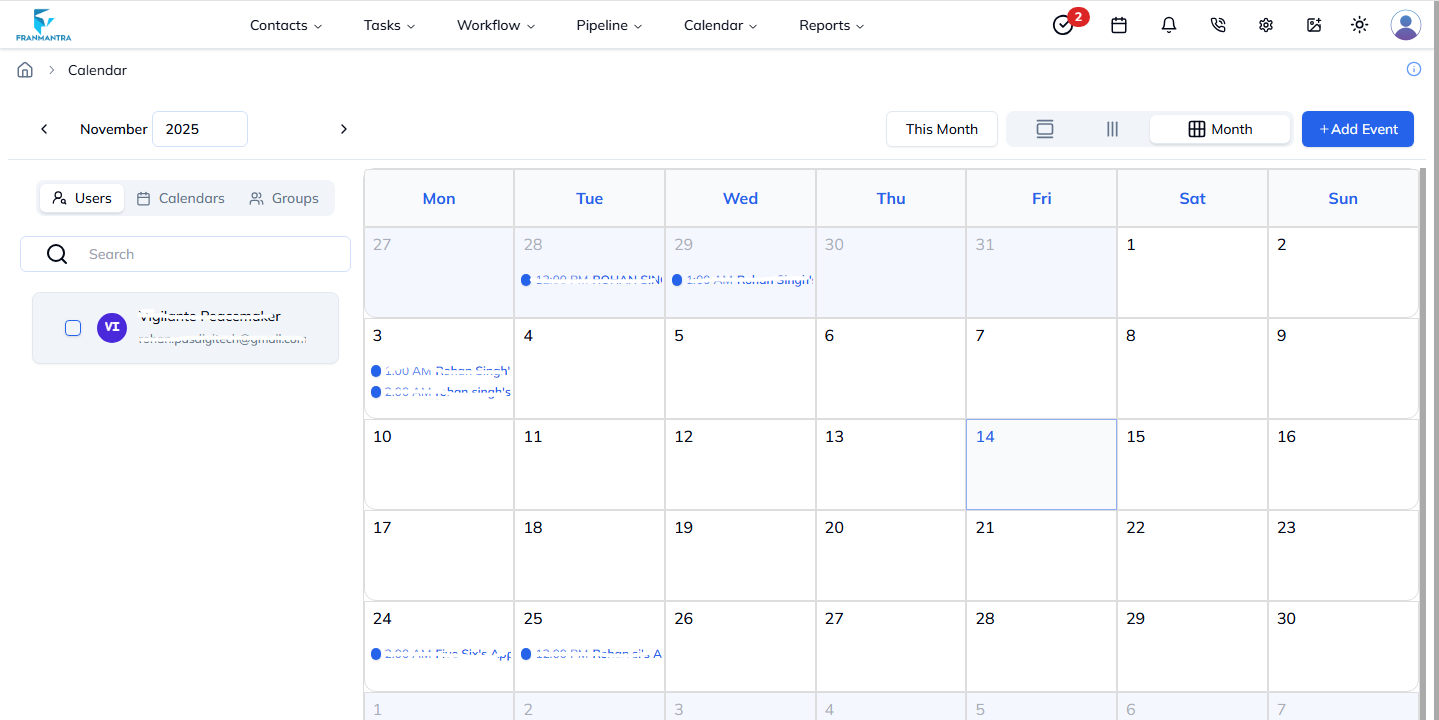
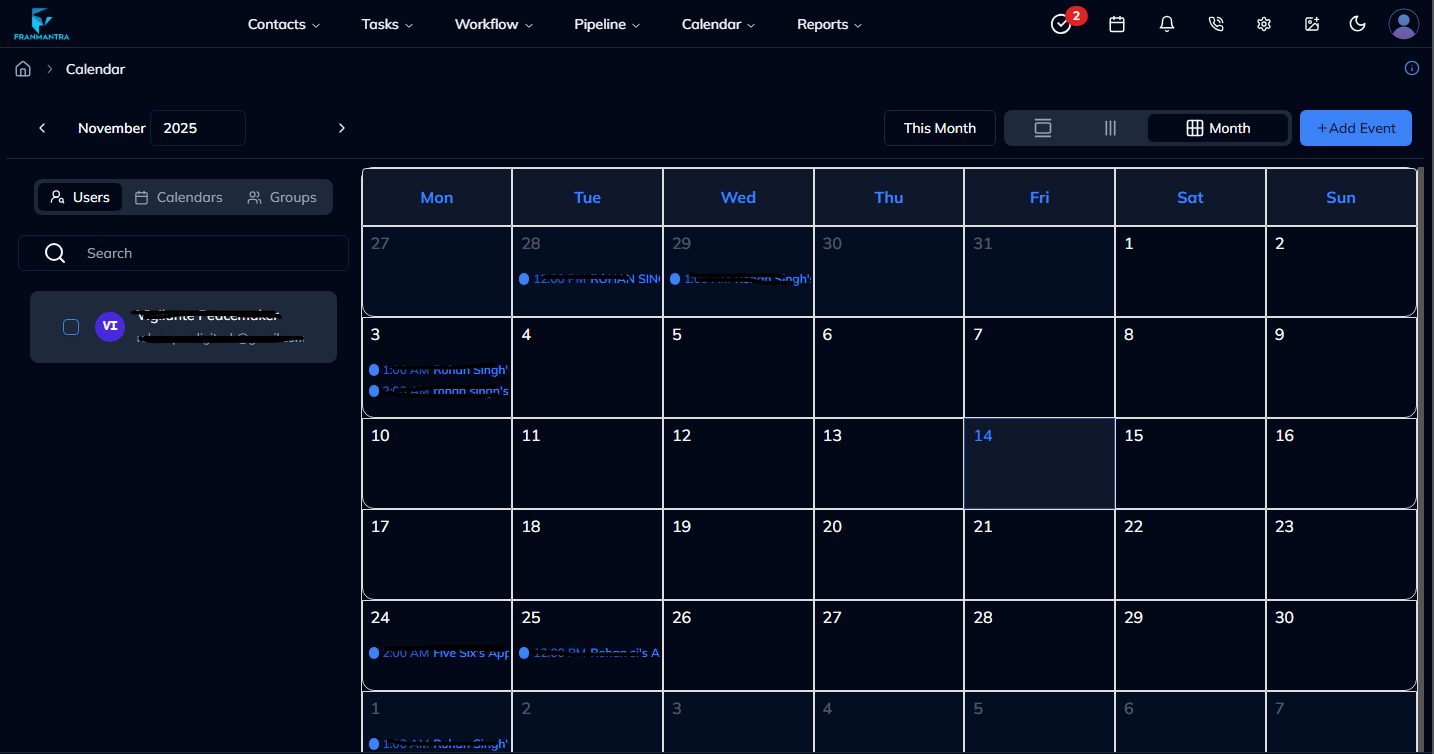
The Calendar module helps your team manage meetings, appointments, and events. It shows scheduled work in day, week, and month views.
Use it like a shared schedule for customer calls, demos, follow-ups, and team events.
When To Use It
Use Calendar when you want to:
- Add a new meeting or appointment.
- View events for a day, week, or month.
- Search for a scheduled event.
- Filter events by user, calendar, or group.
- Open an event to view or update details.
- Reschedule an event when the time changes.
What You Can Do
In the Calendar module, you can:
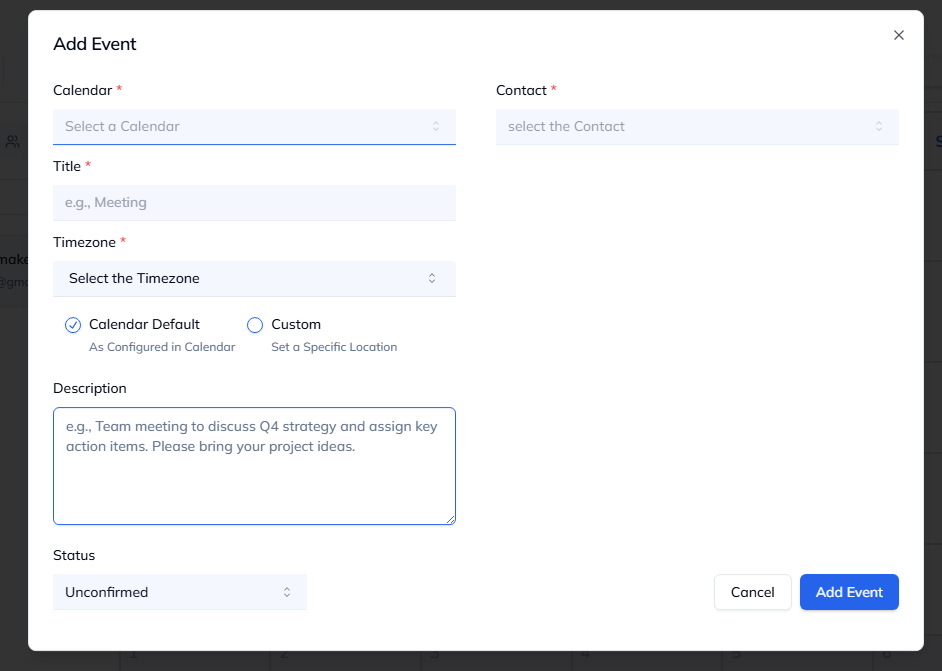
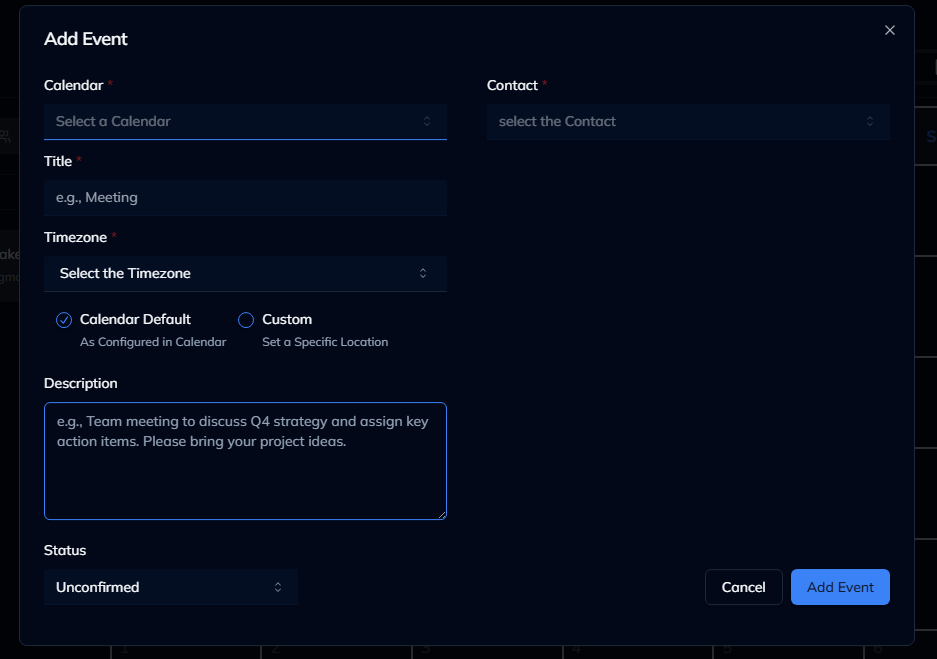
- Create events with title, time, contact, status, and description.
- View scheduled events in different calendar views.
- Click an event to see more details.
- Edit or delete events when needed.
- Drag events to another time if the calendar supports it.
Basic Workflow
- Hover over Calendar in the header, then click Calendar in the dropdown menu.
- Click Add Event.
- Fill in the event details.
- Connect the event to a contact if needed.
- Save the event.
- Open the calendar later to view, edit, or reschedule the event.
Example
If a lead wants a call tomorrow, create a calendar event, select the contact, add the time, and save it. Your team can then see the appointment on the calendar.
Notes
- Use the correct timezone when scheduling events.
- Add a clear title so everyone understands the event.
- Connect events to contacts when the meeting is customer-related.