Tasks Module
What This Is
The Tasks module helps your team track work that needs to be done. A task can be a call, follow-up, reminder, internal job, or customer-related action.
When To Use It
Use Tasks when you want to:
- Create work for yourself or another team member.
- Set a due date for follow-up.
- Mark work as pending, in progress, or completed.
- Track task priority.
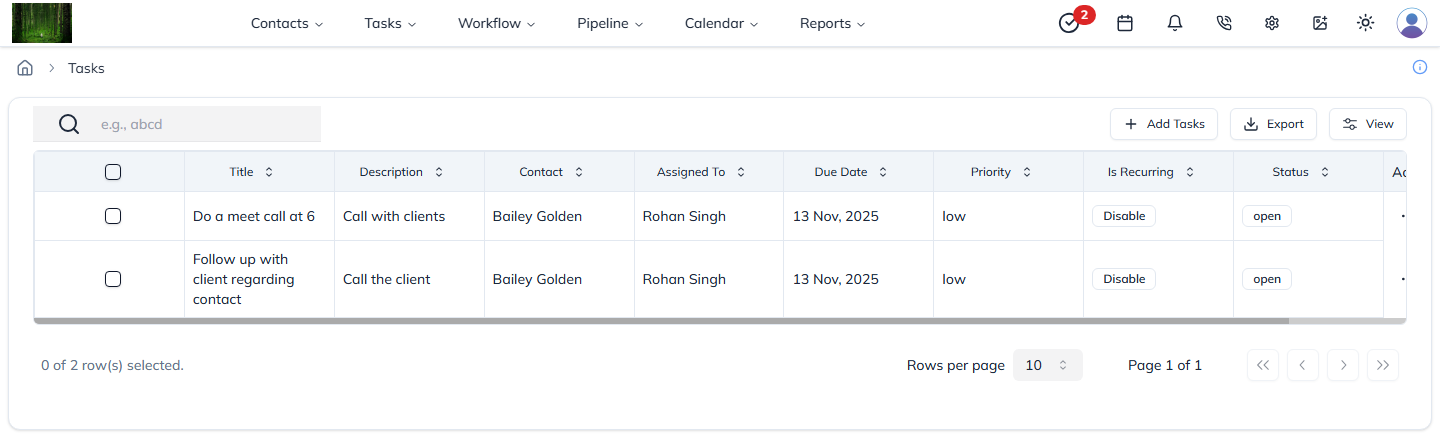
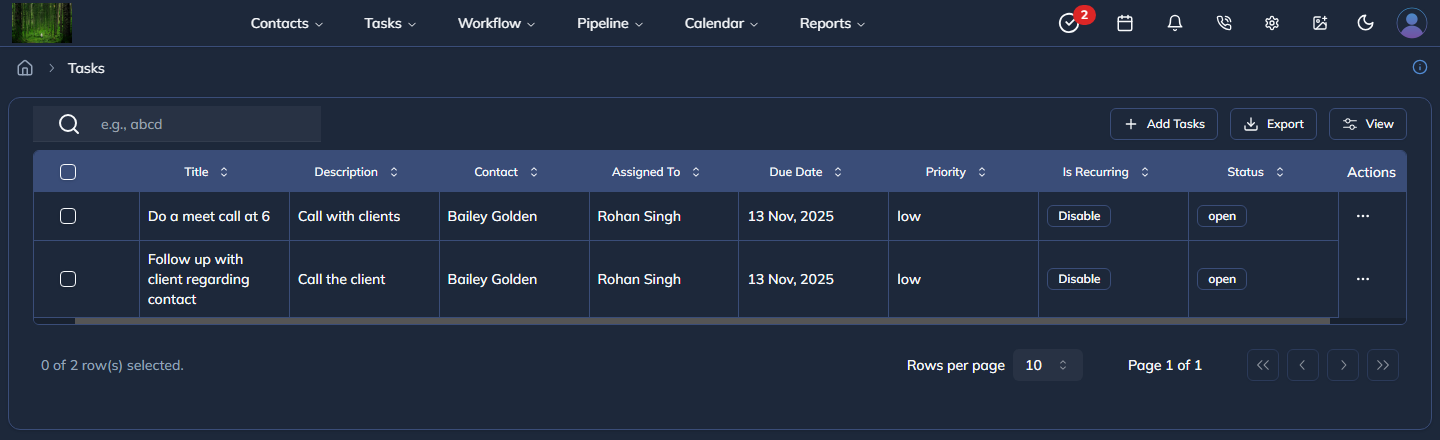
- View tasks in list or card view.
- Update many tasks at once with bulk actions.
What You Can Do
In the Tasks module, you can:
- Create a task with title, description, priority, due date, and assignee.
- Open a task to view or edit details.
- Assign tasks to users.
- Change task status or priority.
- Delete or restore tasks.
- Switch between table view and card view.
Basic Workflow
- Hover over Tasks in the header, then click Task in the dropdown menu.
- Click Add Tasks.
- Enter the task details.
- Assign the task to the correct user.
- Save the task.
- Update the status as the work moves forward.
Example
If a lead asks for a callback tomorrow, create a task, assign it to a salesperson, and set the due date for tomorrow.
Notes
- Use clear task titles so the assignee understands the work.
- Set priority for urgent tasks.
- Keep task status updated so the team knows what is still pending.