Lead Scoring Module
What This Is
Lead Scoring helps your team identify potential contacts. It assigns positive or negative points to contact details, engagement, and business signals, then combines those points into a score that helps you decide which contacts need attention first.
Lead scoring must be enabled before scores are shown in Contacts.
When To Use It
Use Lead Scoring when you want to:
- Rank contacts by potential or engagement.
- Give points to profile details, behavior, and opportunity signals.
- Reduce a contact's score after a period of inactivity.
- Create rules based on tags, custom fields, forms, email events, contact fields, or appointment status.
- Recalculate a contact's score after its data changes.
What You Can Configure
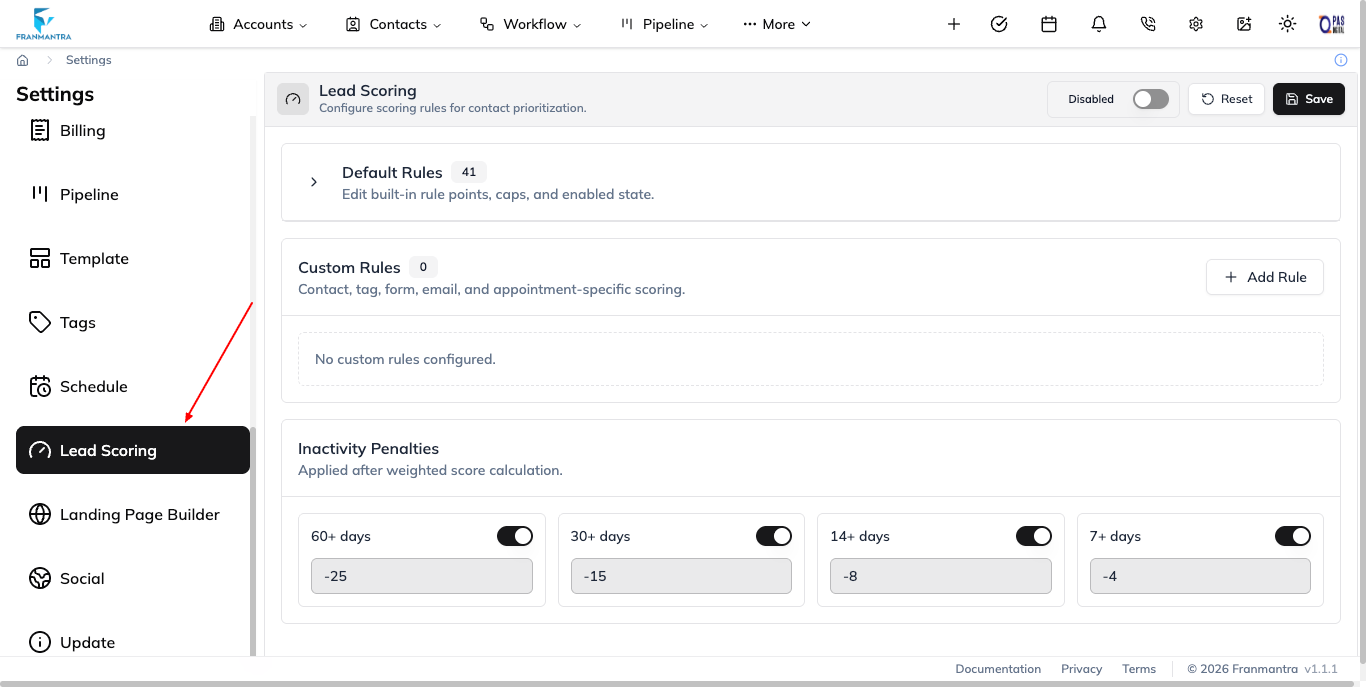
The Lead Scoring settings page contains:
- Enabled or Disabled: turn scoring on or off for contacts.
- Default Rules: update built-in rule points, caps, and enabled state.
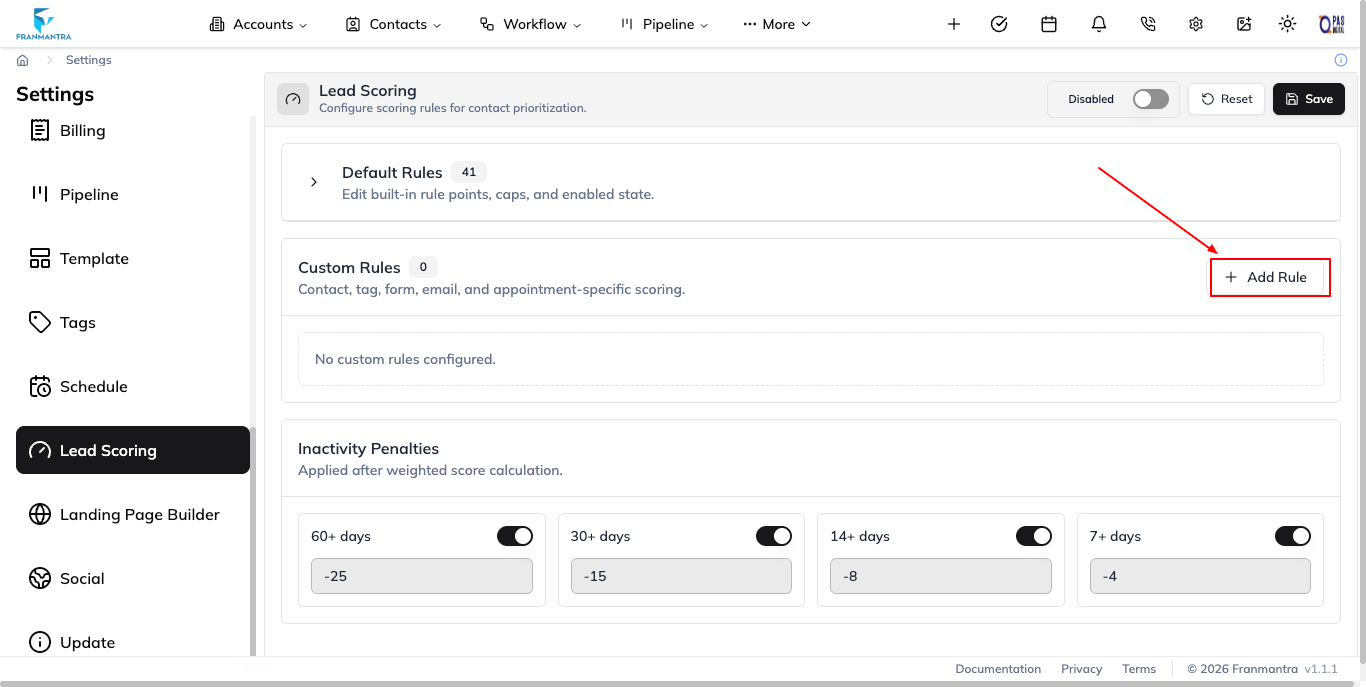
- Custom Rules: add business-specific scoring conditions.
- Inactivity Penalties: apply configured point reductions after a contact has been inactive for a defined number of days.
- Reset: restore the scoring configuration.
- Save: save the current scoring model.
Custom rules can use the following types:
- Tag
- Custom field
- Form submit
- Email event
- Contact field
- Appointment status
Rules are grouped into the categories profile, behaviour, and opportunity. A rule can use positive or negative points, and an optional cap can limit how much it contributes.
How Scores Help Your Team
When scoring is enabled, Contacts can show a lead score badge. A contact record can also show the final score, profile score, behaviour score, opportunity score, inactivity penalty, score tier, and last calculated time. From the contact actions, you can use Recalculate score to run the rules again against the contact's current data.
Basic Workflow
- Open Settings.
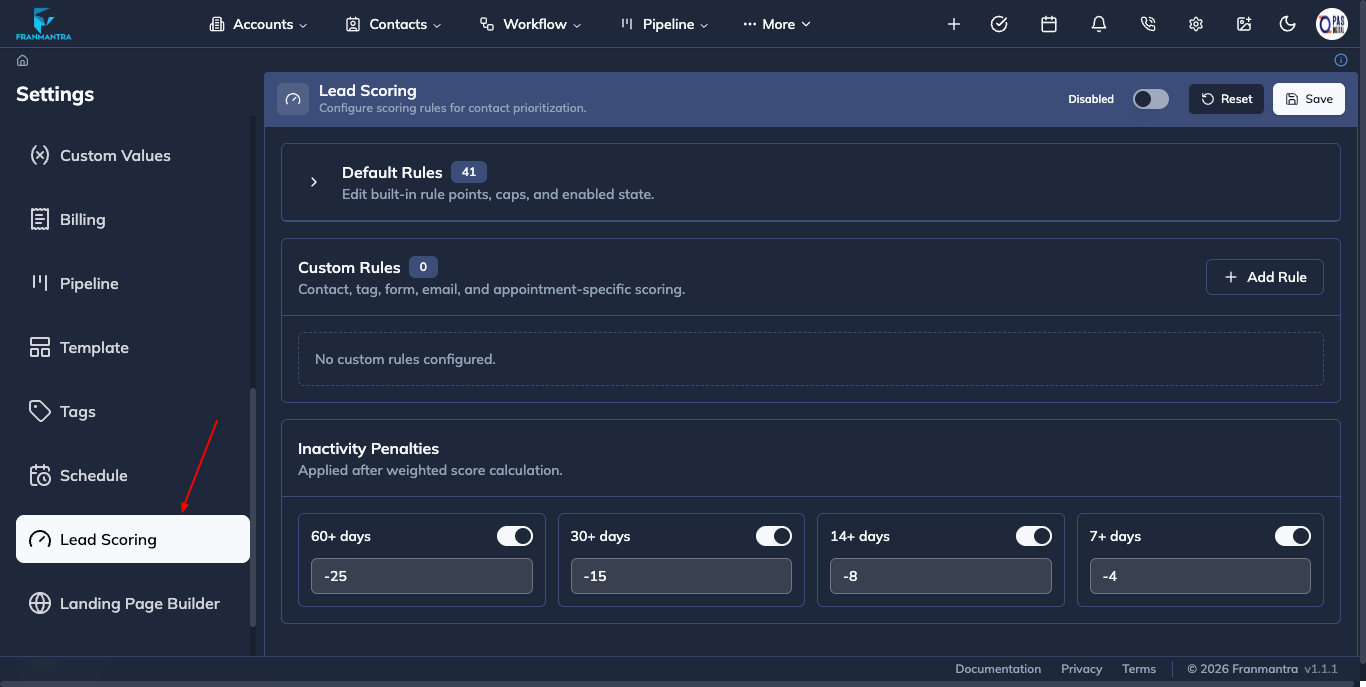
- Select Lead Scoring in the settings sidebar.
- Turn on Enabled.
- Review Default Rules and adjust their points, caps, or switches.
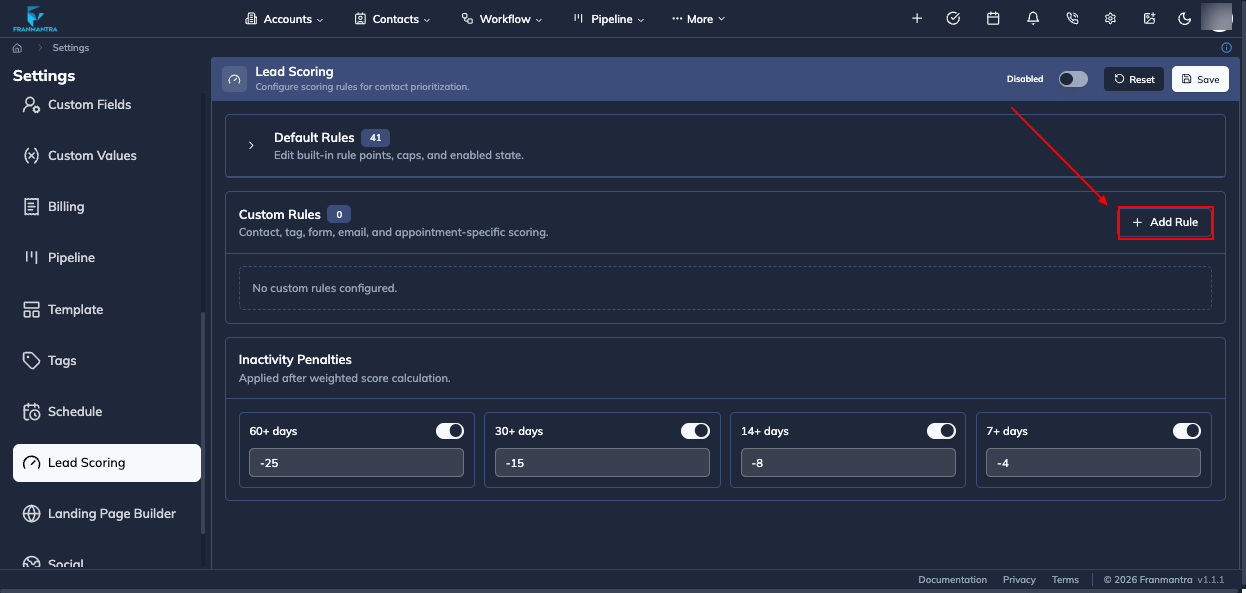
- Select Add Rule in Custom Rules when you need a business-specific condition.
- Configure Inactivity Penalties if inactive contacts should lose points.
- Click Save.
- Review lead scores in Contacts and recalculate individual contacts when needed.
Example
You can give points to a contact who submits a form, opens or replies to an email, has a high-value tag, or reaches a confirmed appointment status. You can apply a negative rule when the contact has not engaged for a set number of days. The resulting score helps the team focus follow-up on the contacts most likely to convert.