Social Media Module
What This Is
The Social setting is a social media workspace for business content. It lets you manage posts for connected Facebook Pages, LinkedIn Pages, and Instagram or Instagram Business accounts from one place. You can create content, save drafts, publish now, schedule posts for later, and review post status.
Connect a social account first from Settings > All Services. The Social page shows an empty state with No social accounts connected until at least one account is available.
Social Tabs
The Social page can include these tabs, depending on the connected accounts and account type:
- Social Hub: view posts from connected platforms in one list.
- Linkedin: manage LinkedIn Page posts.
- Facebook: manage Facebook Page posts and reels where available.
- Instagram: manage Instagram posts and reels where available.
- Shared Posts: review posts shared with a subordinate account.
- Mapping: map Facebook lead form answers to contact fields.
- Dashboard: review social interactions and performance information.
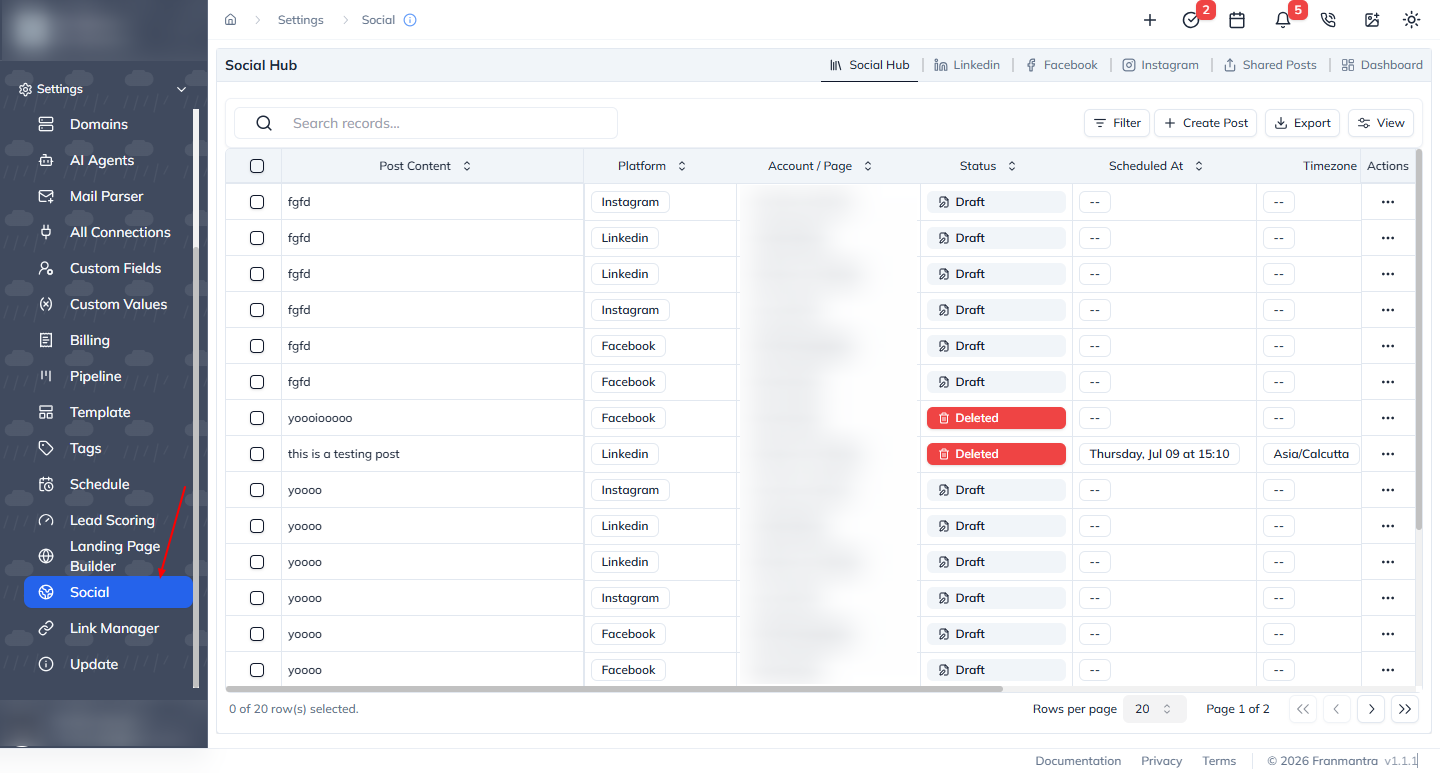
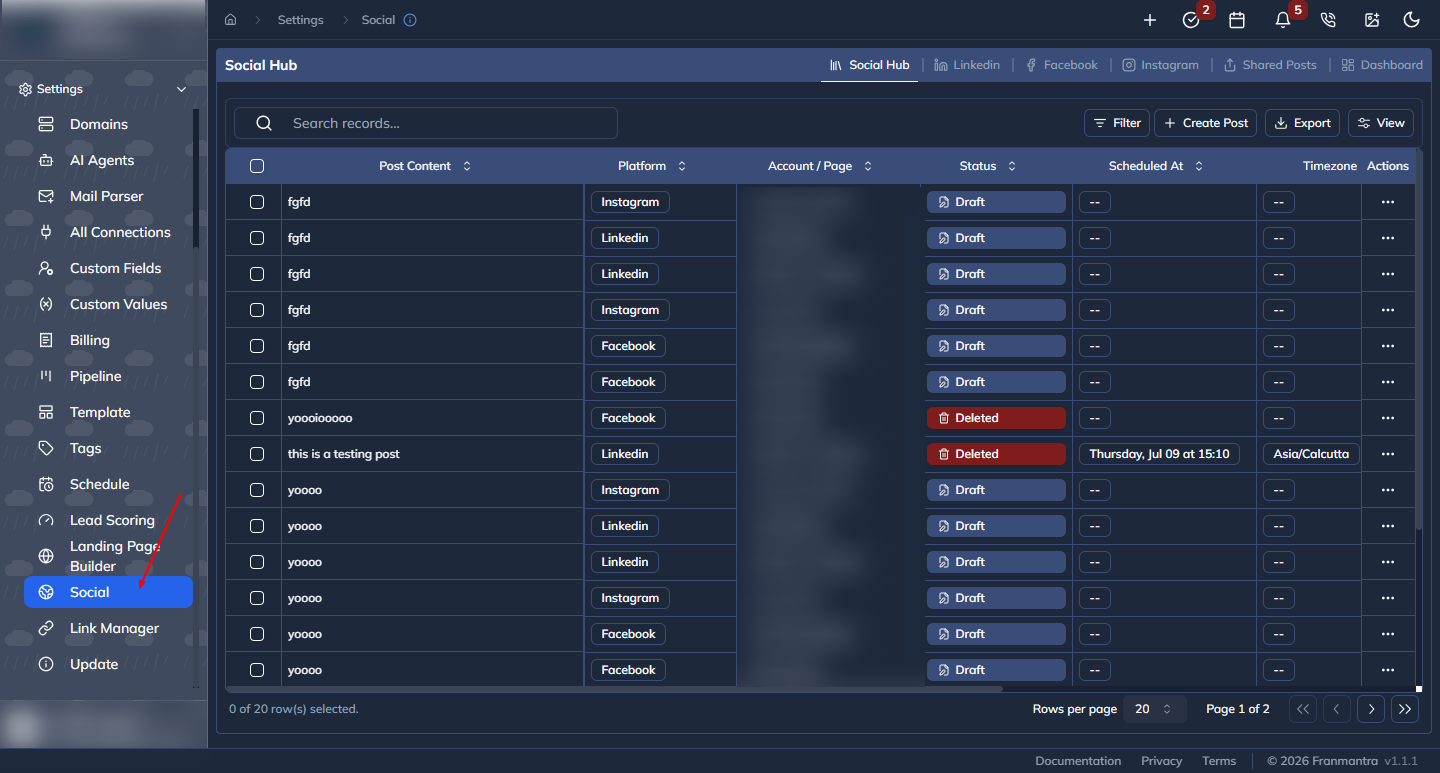
The page also provides platform-specific account or page selectors. The unified view can be filtered by platform and page or account.
Facebook Lead Form Mapping
The Mapping tab connects a Facebook lead form to contact fields. When the form creates a contact, each answer is written to the contact field you chose.
- Open Social > Mapping.
- Select the connected Facebook Page.
- Select the lead Form.
- Review the current mapping rows.
- Select Create Mapping when no mapping exists, or Edit Mapping to change it.
- For each form question, choose the contact field that should receive the answer.
- Add a fixed value when every contact from this form should receive the same value.
- Under Fields without a mapping, choose Keep on contact to save the answer for reference or Skip to discard it.
- Leave Create missing custom fields automatically on when a mapped custom field should be created if it does not exist.
- Select Save mapping.
A saved mapping is reused when the same form creates contacts. Use Reset to defaults in the mapping window to return to the suggested field matches.
What You Can Do
From Social Hub, you can:
- Click Create Post.
- Enter Post Content and add photos or videos with Add Photos or Videos.
- Choose platforms from Select Platforms.
- Choose the target Facebook Pages, LinkedIn Pages, Instagram Accounts, or Instagram Business Accounts.
- Set Schedule (Optional) and select a Timezone.
- Publish immediately or create a draft.
- Review statuses such as draft, scheduled, published, or failed.
- View, edit, publish, or delete a post from its actions menu when the status allows it.
Instagram posts require media. If Instagram is selected, add a photo or video before publishing or saving the post.
Facebook, LinkedIn, and Instagram Workflows
For a platform-specific workflow, open the Facebook, Linkedin, or Instagram tab, select the connected page or account, and click Create Post. Facebook and LinkedIn support text and media posts with an optional schedule. Instagram supports photo/video posts and reels, with scheduling available in the post editor.
The post detail view can be opened from the post content or the row's View action. Use the detail view to review the post and available engagement information.
Example
Prepare a product announcement once, select a Facebook Page, LinkedIn Page, or Instagram Business account, add the campaign image, choose a future date and timezone, and schedule the post. Use Social Hub to check its scheduled status and to manage it later.
Notes
- Social accounts and pages must be connected and authorized before they can be selected.
- The available tabs and account selectors depend on the connections available to your account.
- Use All Services to connect or repair a social connection.
- Use the separate Schedule setting to review scheduled social posts and their local scheduled time.