Custom Values
Overview
Custom Values are reusable values that work like variables. You can save a value once, such as a support email, booking link, phone number, or common text, and then insert it in supported CRM areas when needed.
What You See
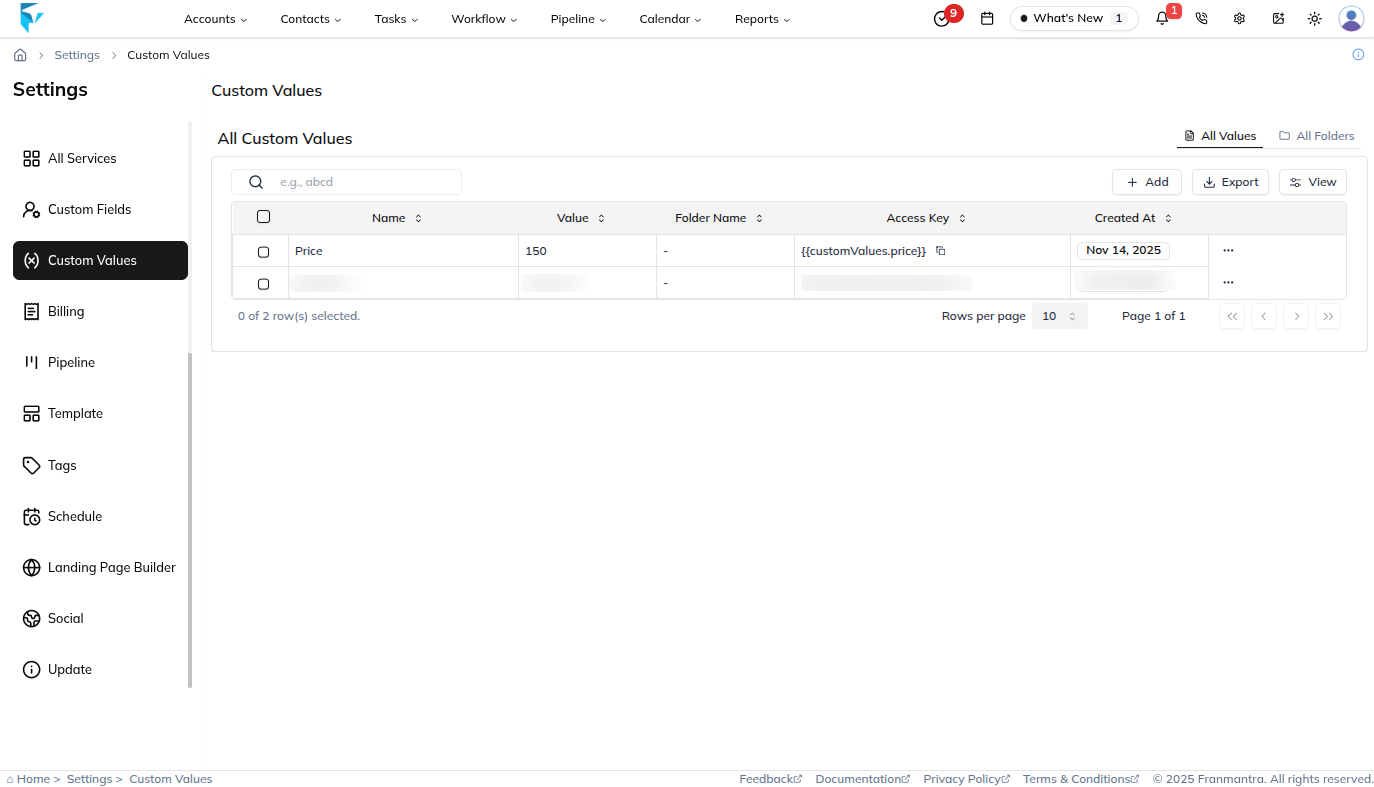
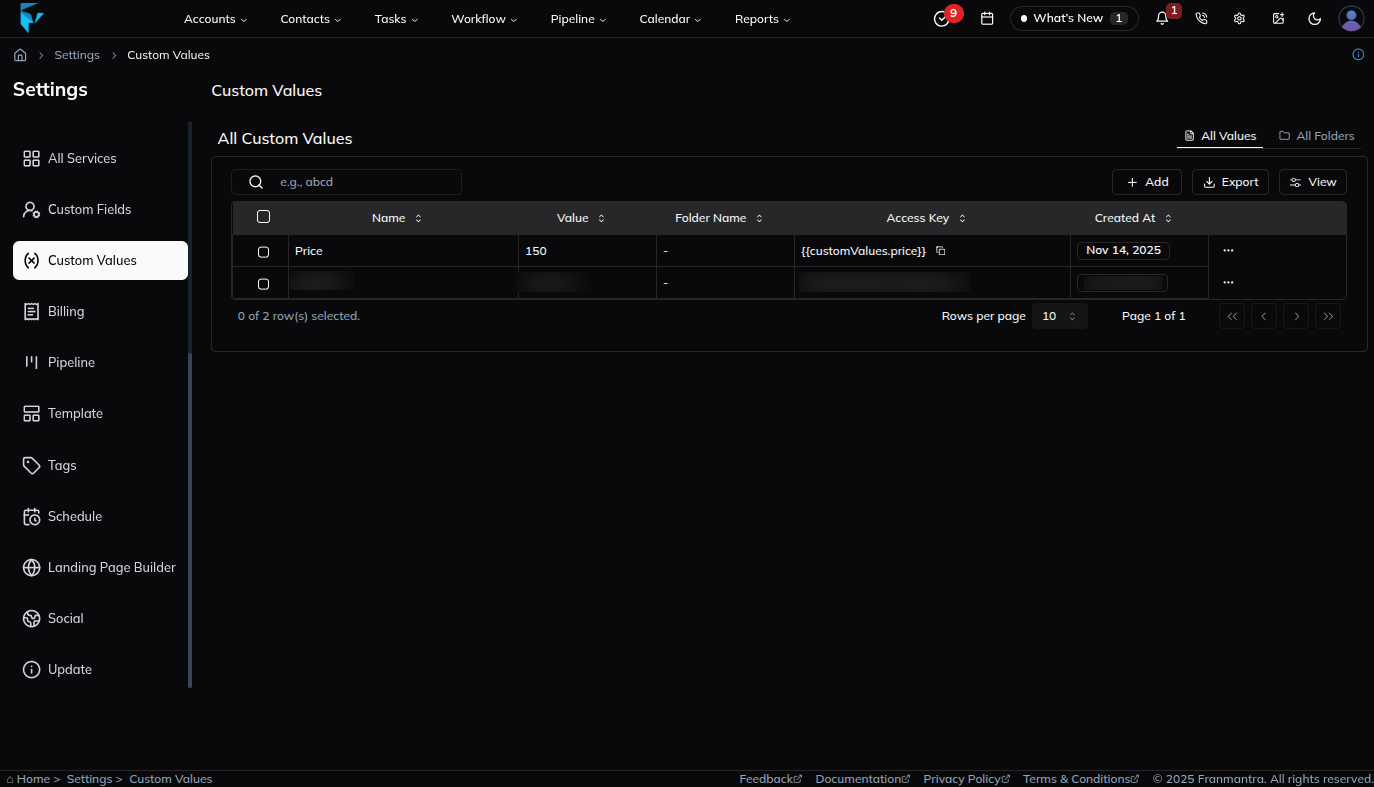
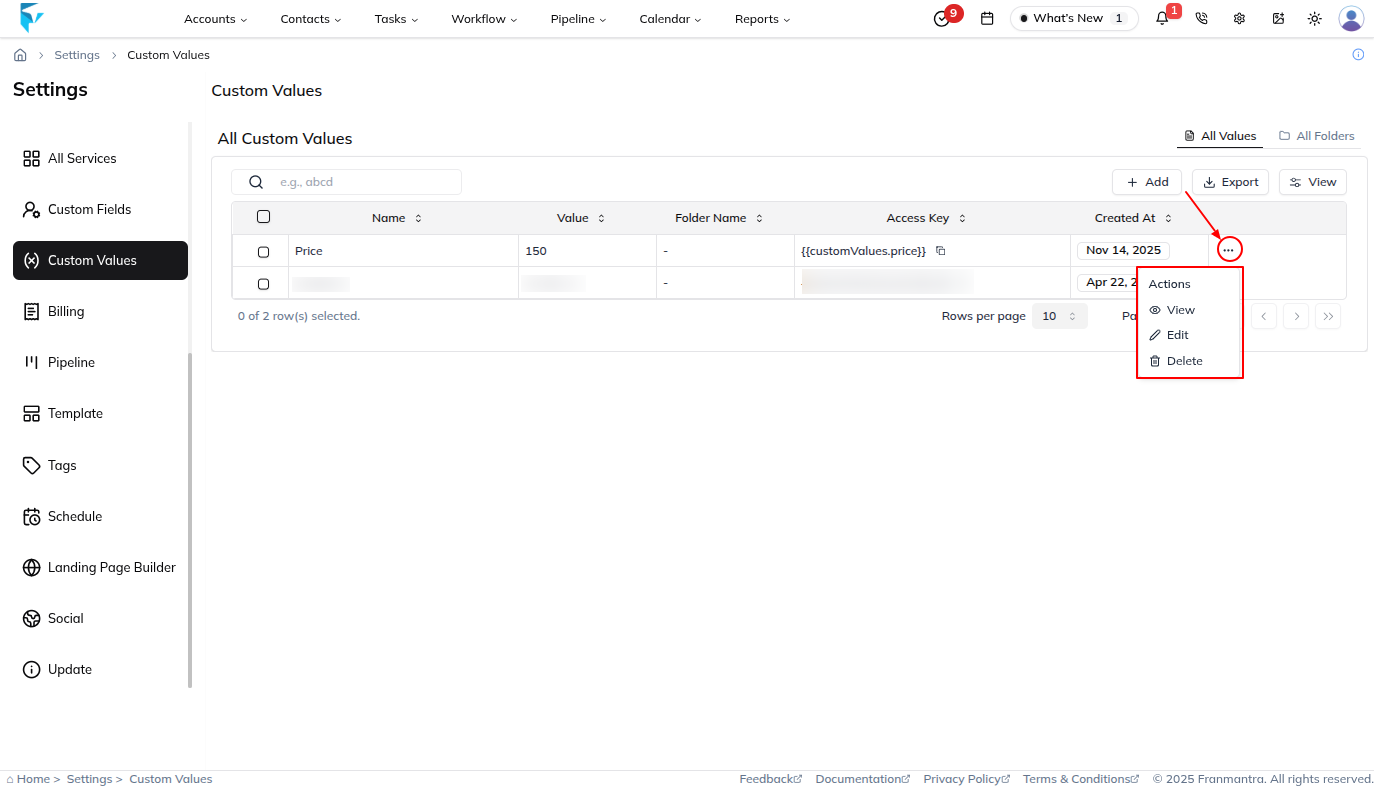
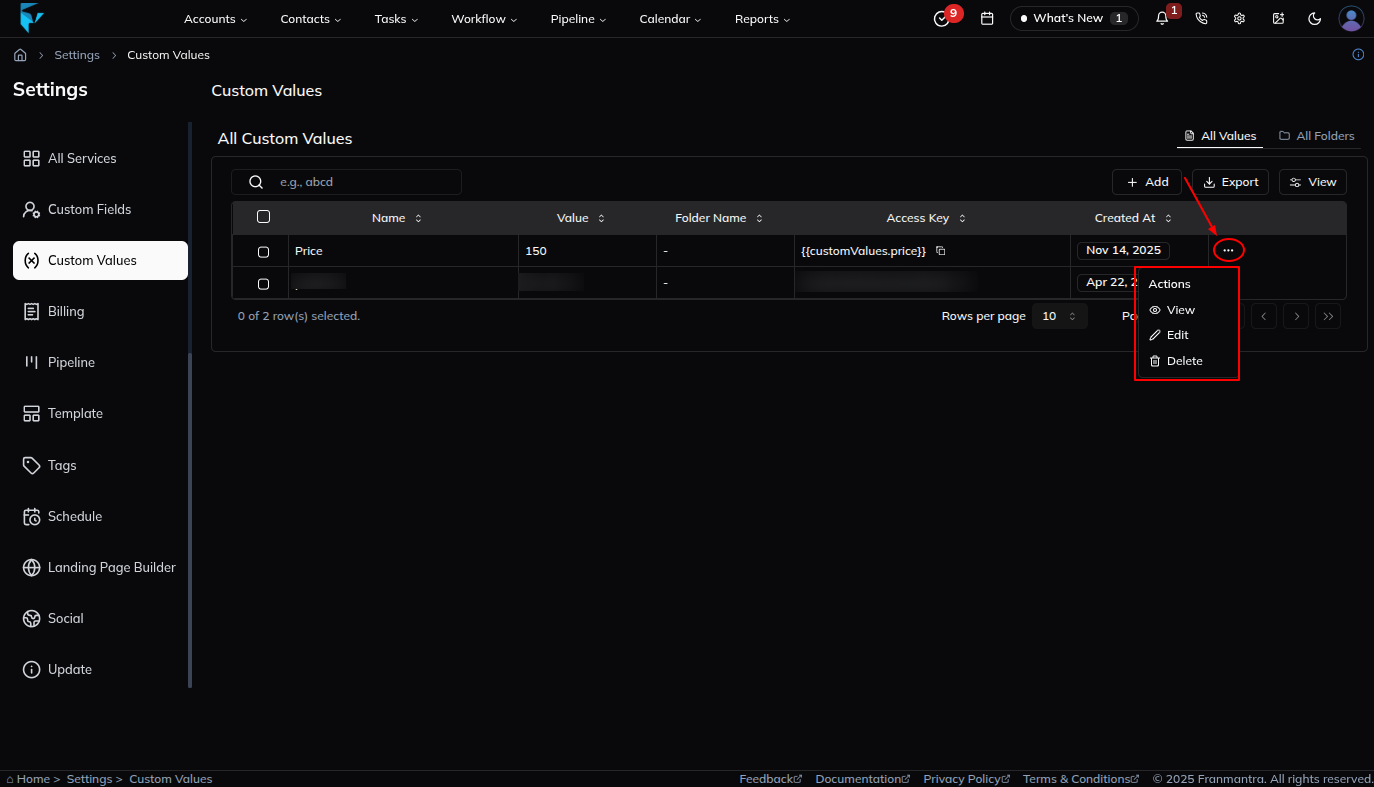
When you open the Custom Values section, you will see a table listing all saved custom values. The table helps you review value names, folders, and available actions from one place.
Key Actions
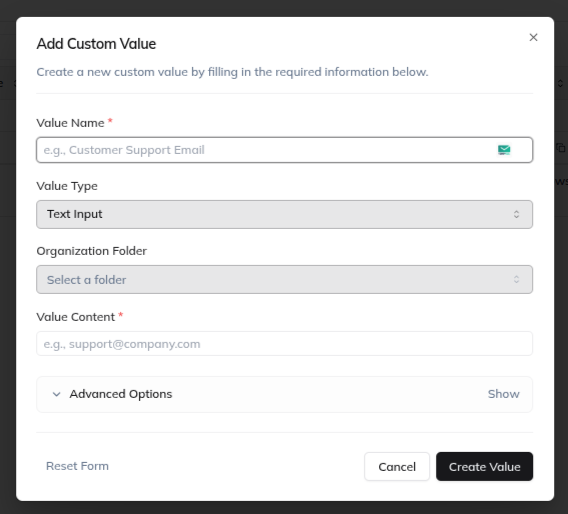
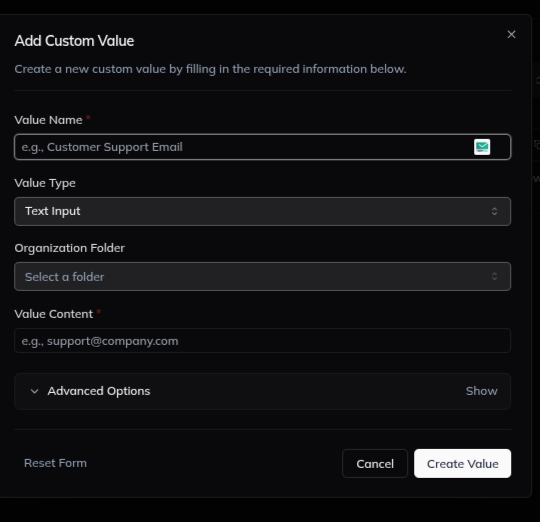
To create a custom value, click Add. A form opens where you can enter the Value Name, Value Type, Organization Folder, Value Content, and any needed Advanced Options. After you click Create Value, the new value appears in the list.
Each custom value record has a three-dots action menu. Use this menu to Edit, View, or Delete a custom value. You can also click a custom value name to open its details.
Where Custom Values Are Used
Custom Values are used in many CRM areas, especially forms and fields that support tag-style insert options. When you click the tag option in a supported field, choose Custom Value, then select one of your saved values to add it to the field.
Example
If your team uses the same booking link in multiple forms or messages, save it as a custom value. When the link changes later, update the saved custom value instead of rewriting the link in every place it is used.
Notes
- Use clear names so your team can quickly understand each custom value.
- Group related values with folders when possible.
- Be careful when editing values that are already used in forms, templates, workflows, or other CRM areas.