Staff
Overview
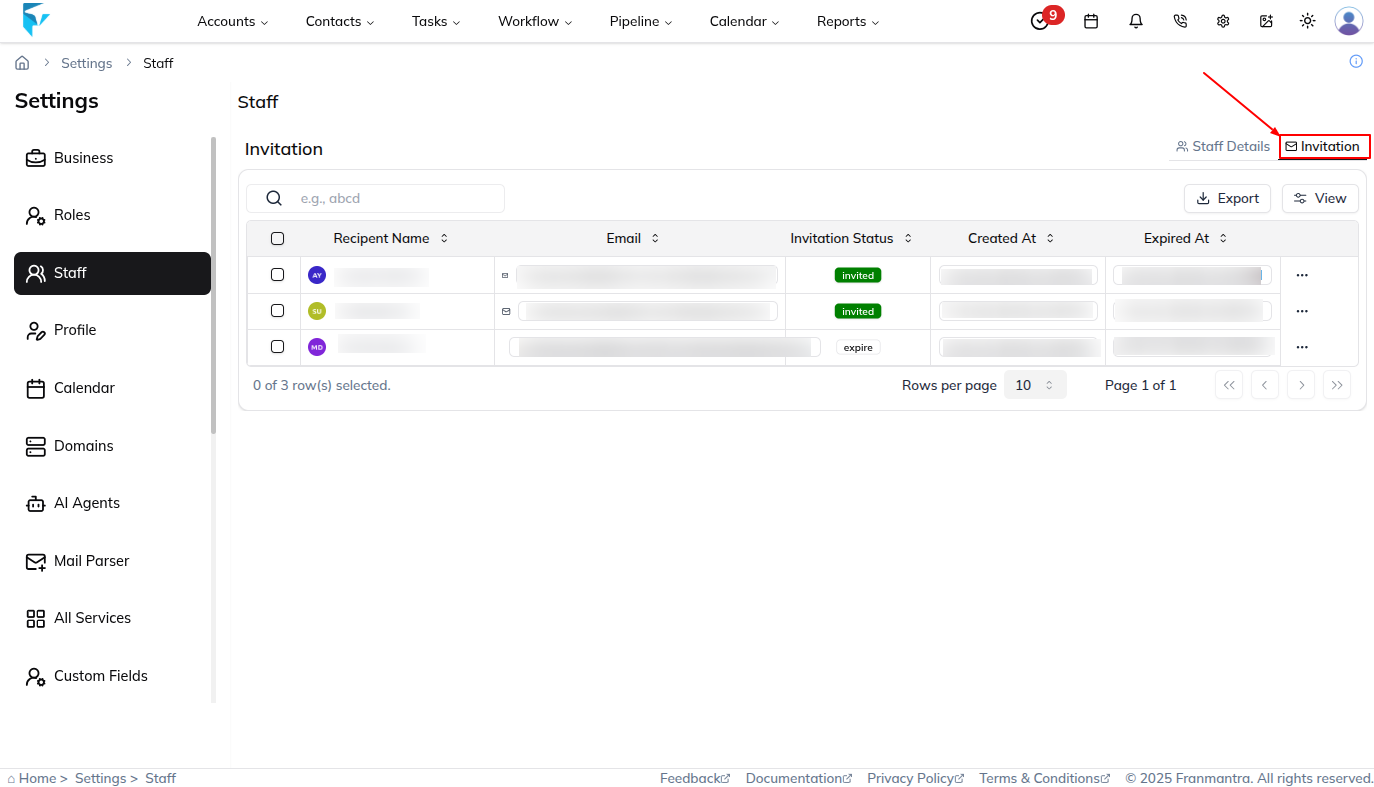
The Staff section helps you manage team members in your business. From here, you can add staff, send invitations, and track whether invited users have joined. This section includes Staff Details and Invitations.
Staff Details
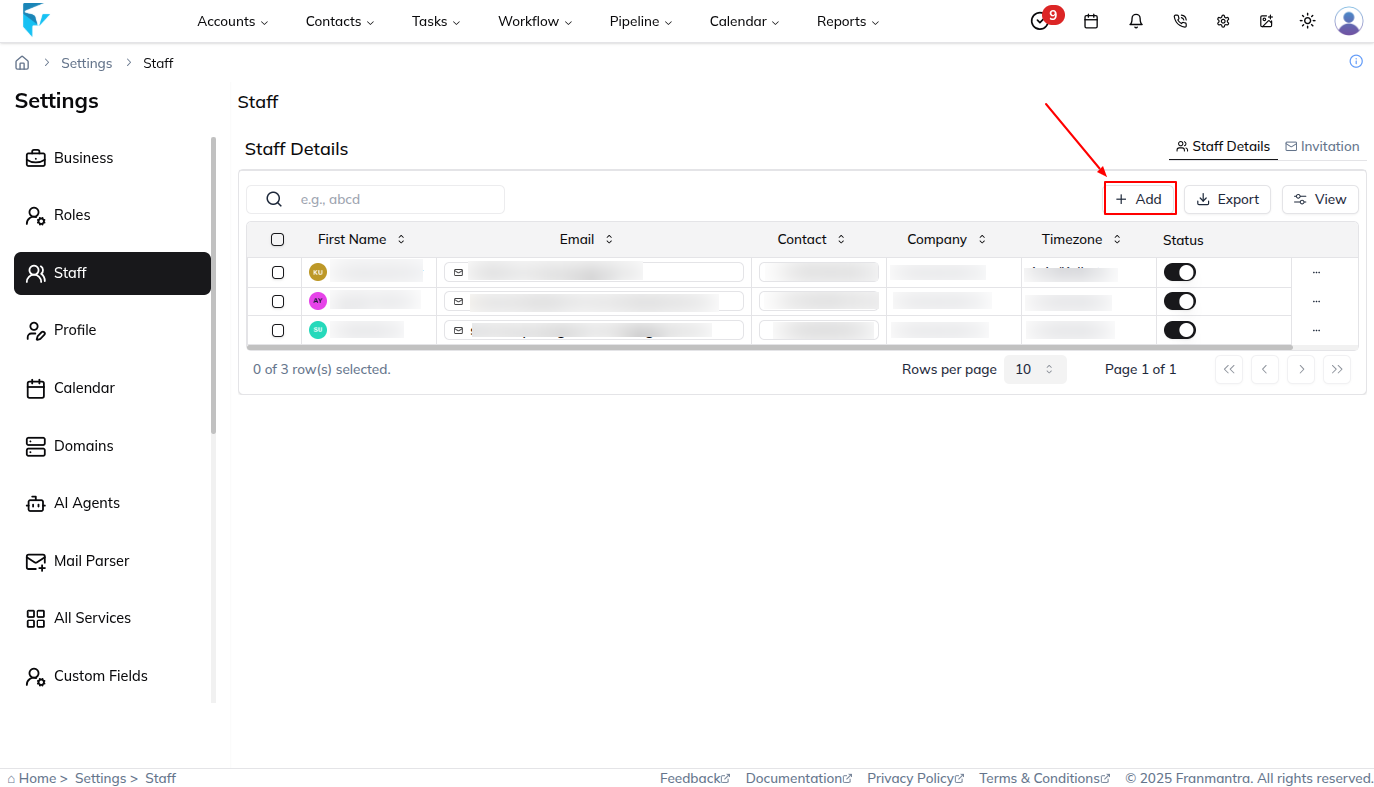
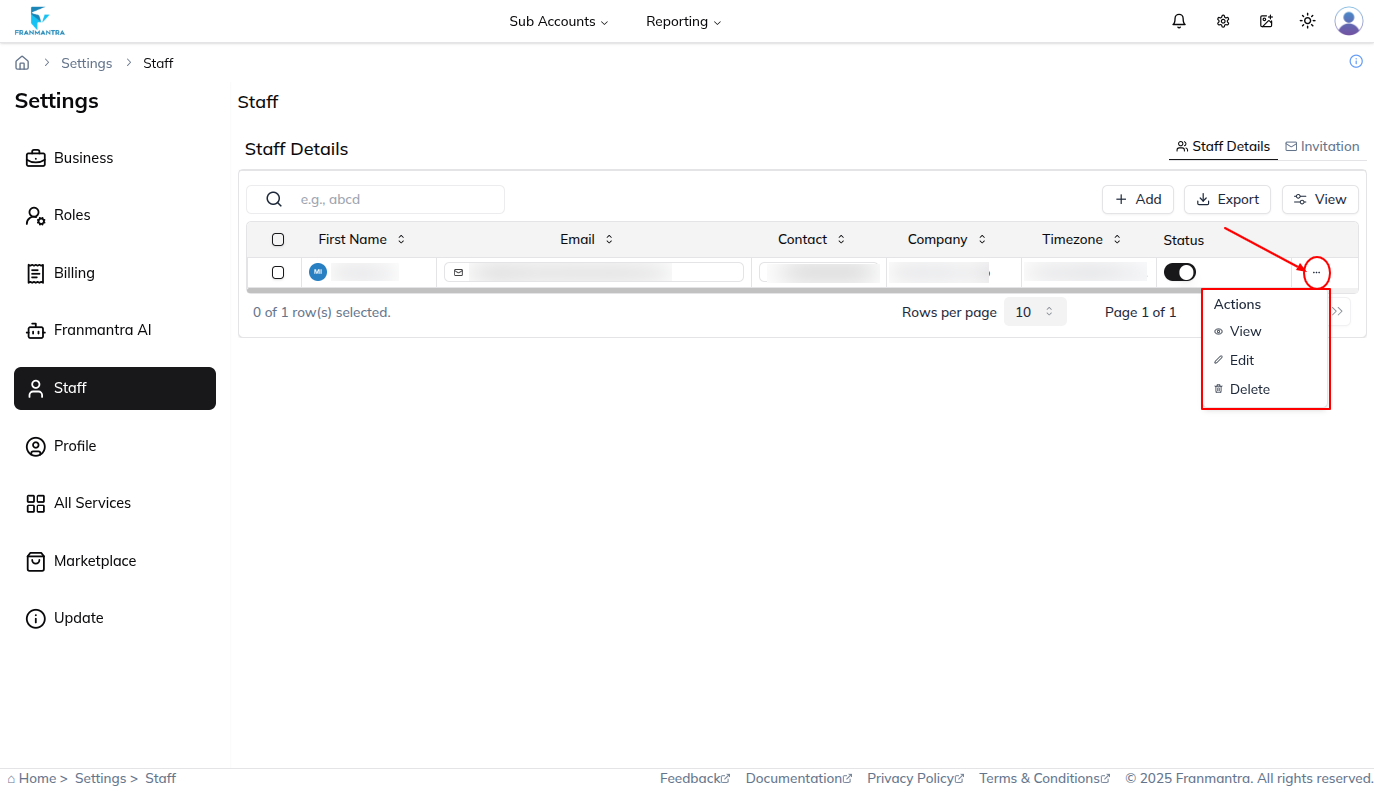
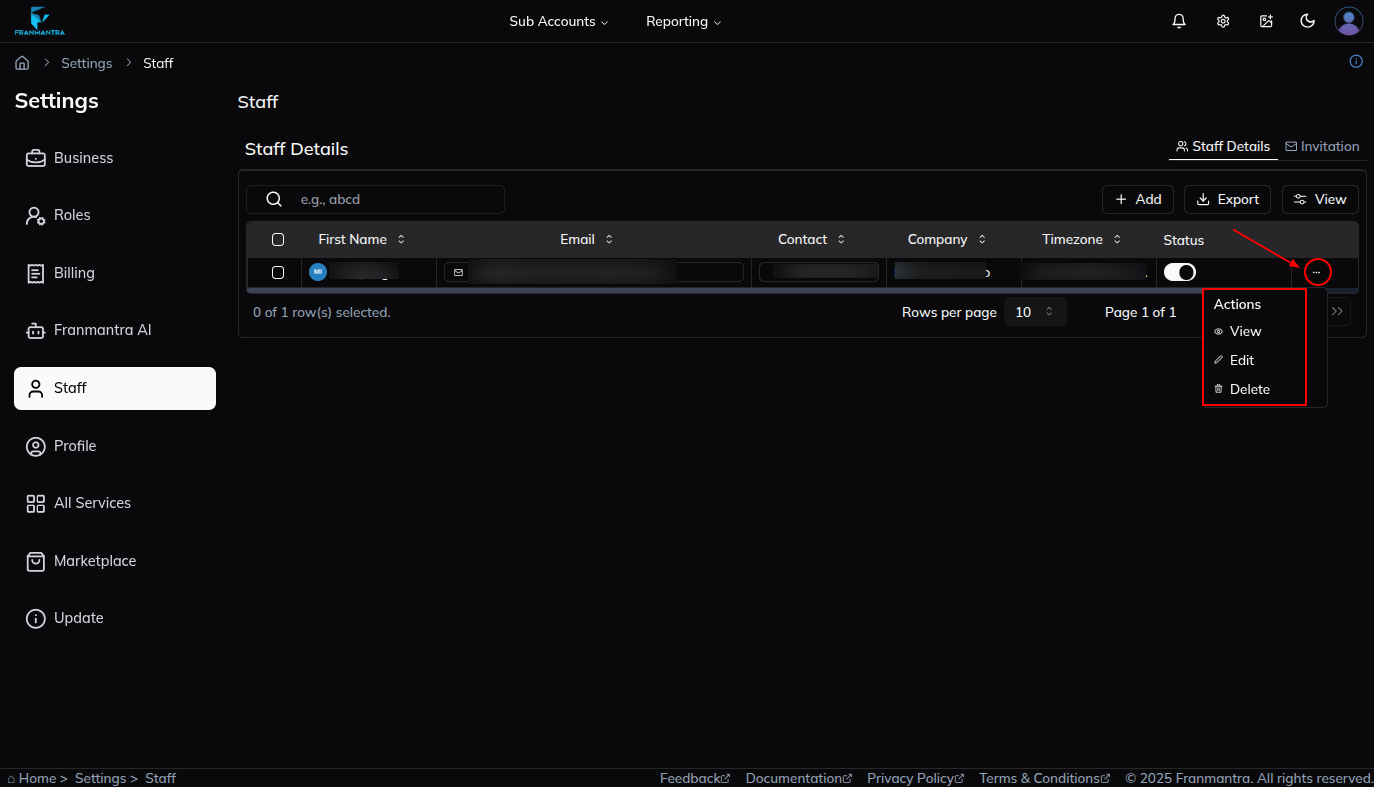
In this section, you will see a table listing all staff members. The table shows details such as email, role, and other key information.
Key Actions
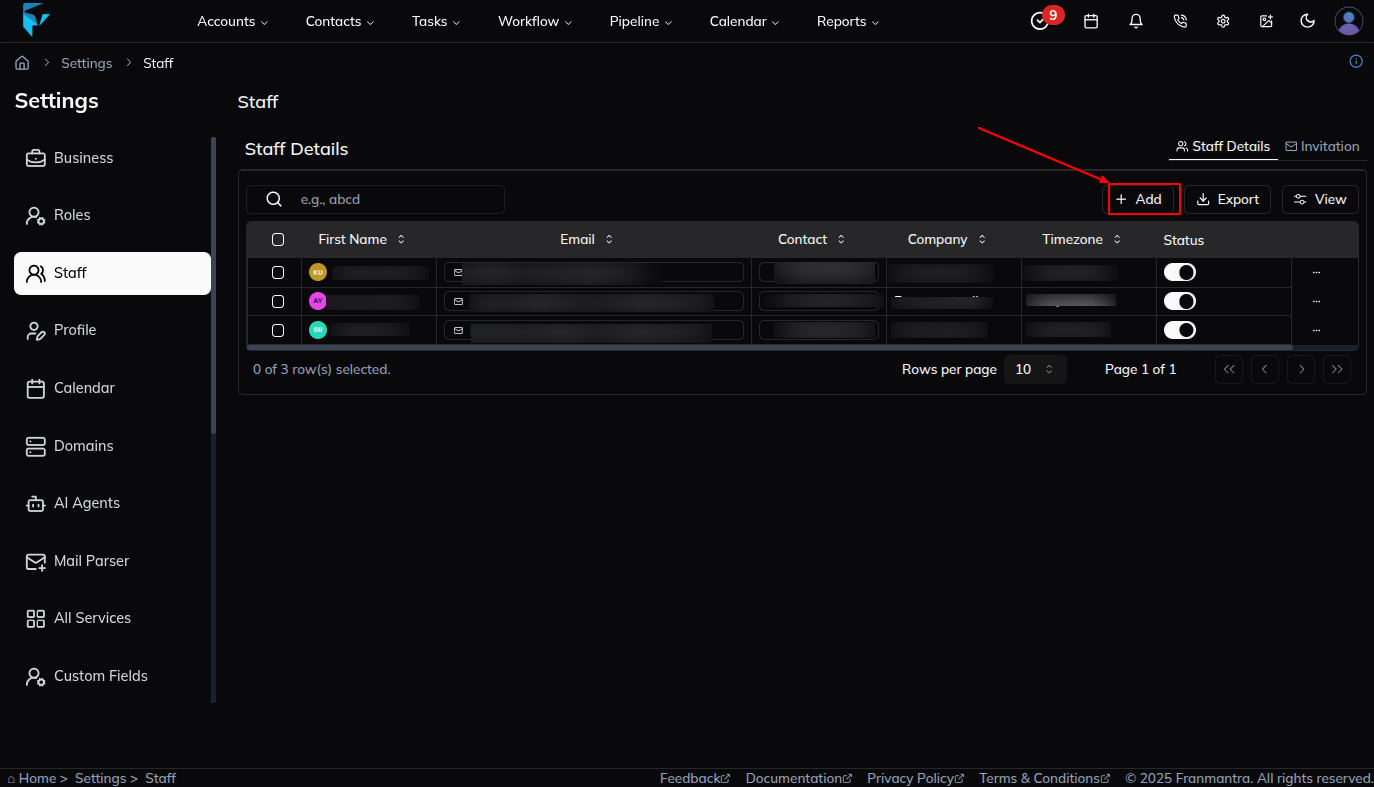
To add a new staff member, click Add. Enter the required details, including the user’s email address, then click Send Invite. The system will send an invitation email so the person can join.
Use the Export button to download all staff records or selected records as a CSV or Excel file.
Click a staff member’s name in the table to open a details sheet. From there, you can review the user’s information and click Edit to update it.
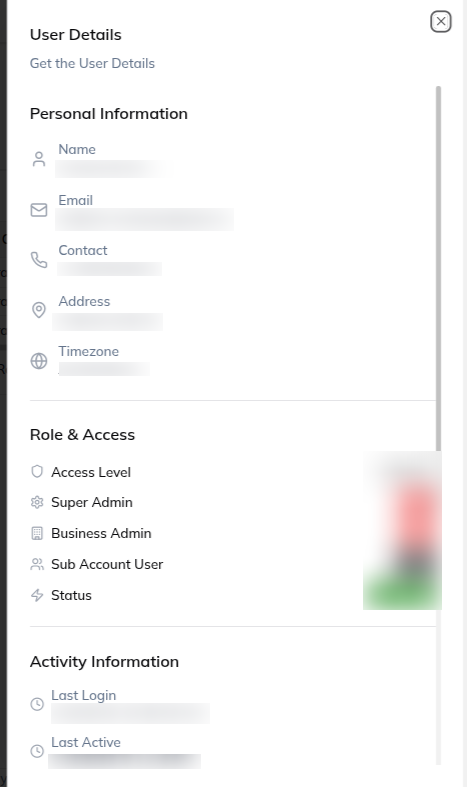
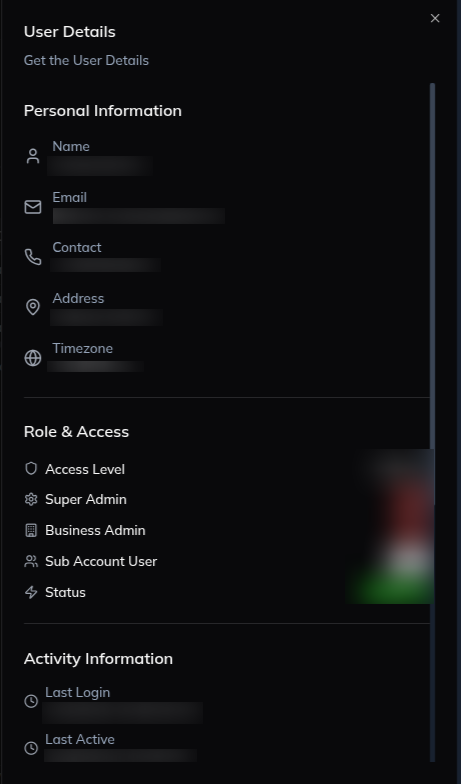
Each row also has an actions menu shown as a three-dots icon. From there, you can View, Edit, or Delete a staff member. Editing and deleting are available only to admins.
Invitations
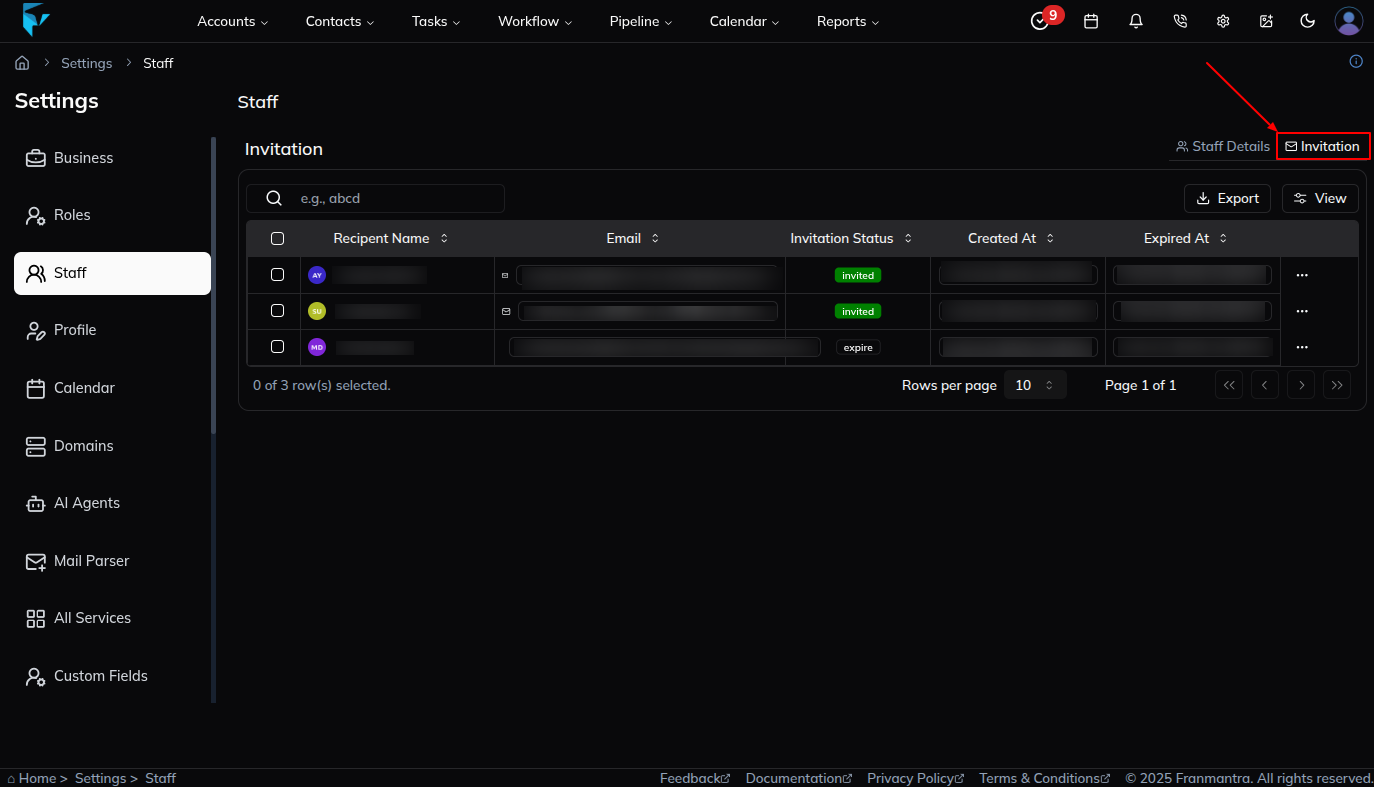
This tab shows the invitations sent to staff members. Each invite displays a status such as Accepted or Pending, so you can see who has completed registration and who has not.
Example
If you invite three new team members, you can track each invitation from the Invitations tab. Users who accept will show as Accepted, while users who have not responded yet will stay in Pending until they join.