Configure the Sub-account Dashboard
What this does
This guide explains how to configure the Sub-account dashboard in Franmantra CRM.
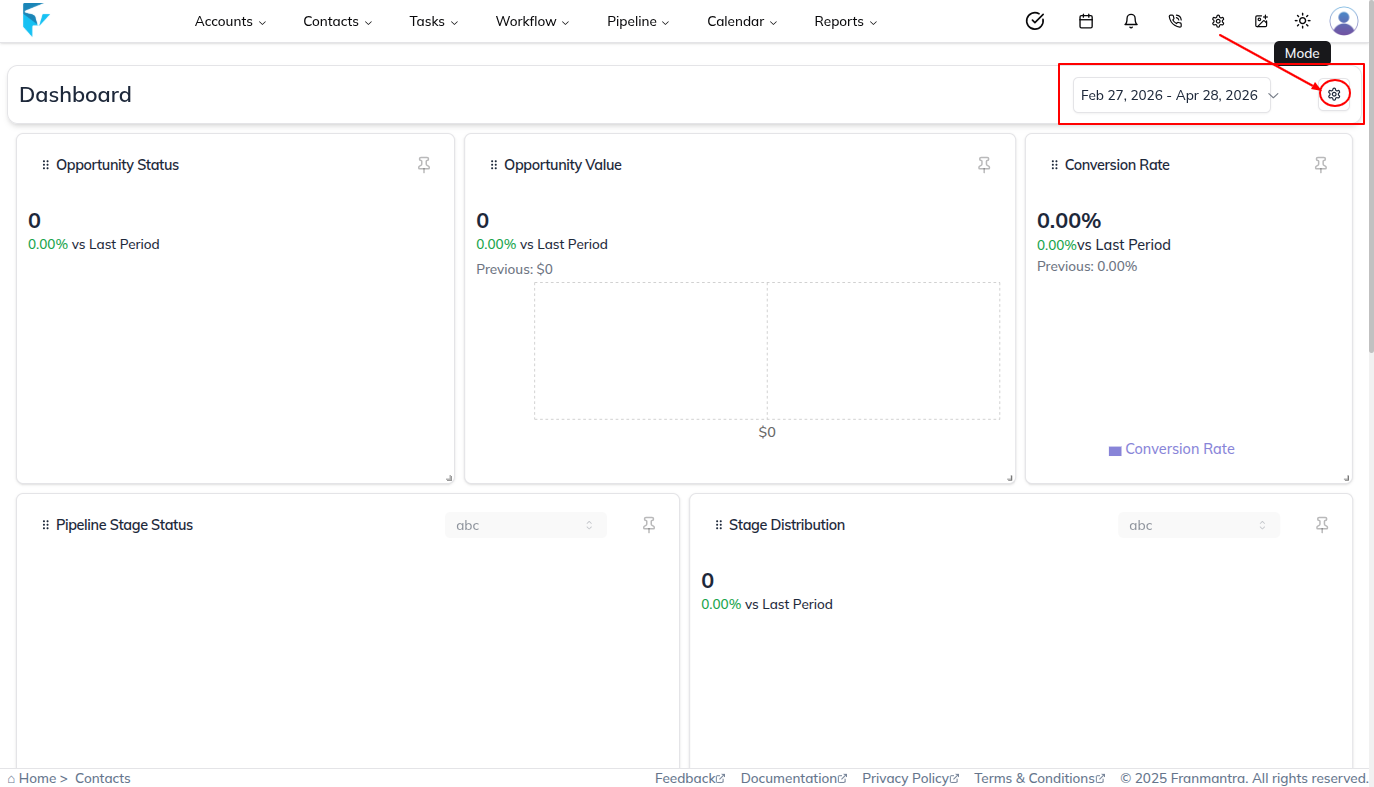
When you log in as a Sub-account, the system opens the Dashboard page. From the Dashboard, you can change, configure, and arrange the sections based on what you want to monitor.
You can also select a date range to display Dashboard data for that period.
Before you start
Steps
- Make sure you can log in to the Sub-account.
- Open the Dashboard page after login.
- Decide which Dashboard modules and sections should appear for the Sub-account.
Open the Dashboard Settings
- Log in as a Sub-account.
- Open the Dashboard page.
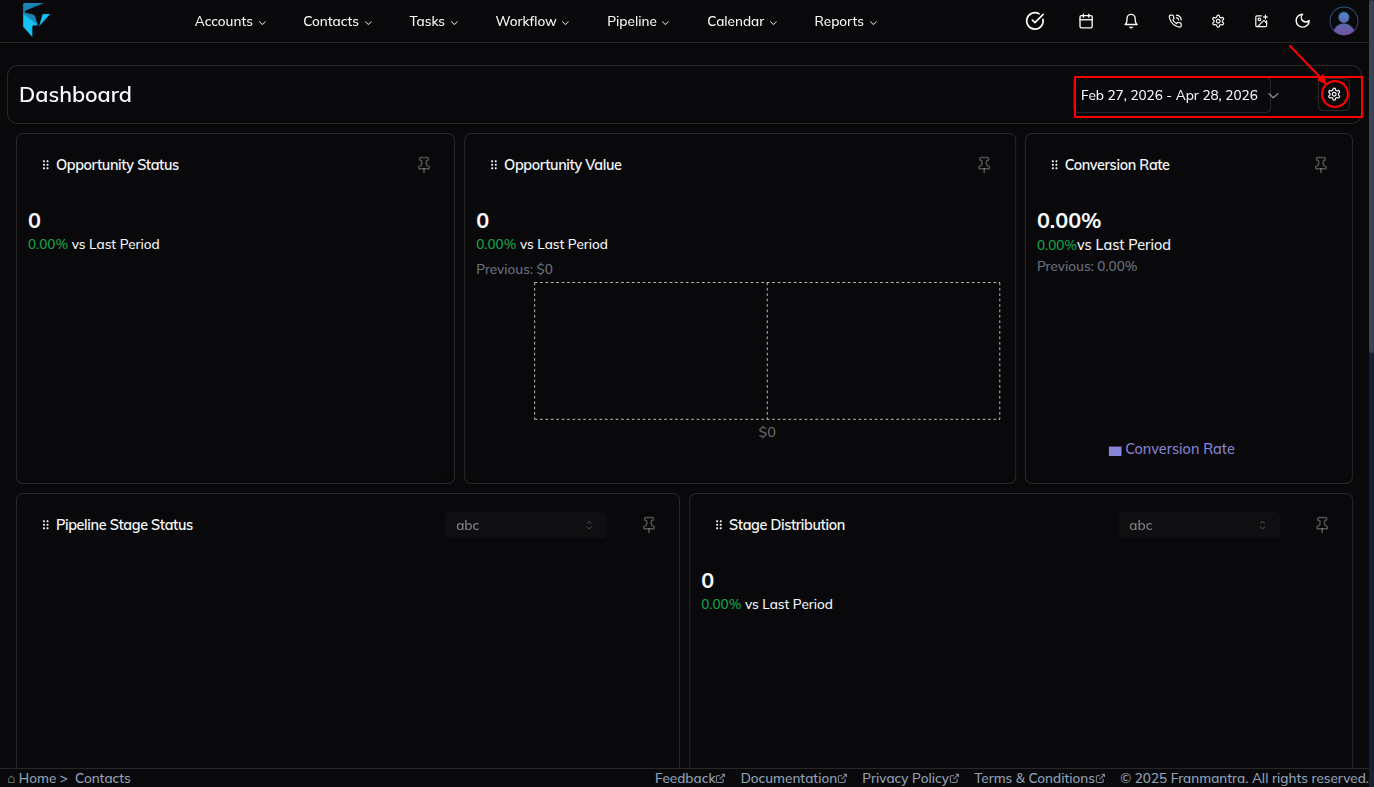
- Click the settings icon on the Dashboard page.
- Review the sidebar that opens with the available Dashboard modules.
Choose the Date Range
Use the date range control on the Dashboard to choose the period you want to review. The Dashboard updates the displayed data based on the selected range.
Activate or Deactivate Dashboard Modules
The Dashboard settings sidebar lists the modules that can be shown on the Dashboard.
- Open the Dashboard settings sidebar.
- Find the module you want to manage.
- Turn the module switch on to activate the module.
- Turn the module switch off to deactivate the module.
Activated modules appear on the Dashboard. Deactivated modules are hidden from the Dashboard.
Arrange Dashboard Sections
Use the available Dashboard controls to change, configure, and arrange the sections. Arrange the sections in the order that helps the Sub-account review the most important data first.
What happens next
The Dashboard shows data for the selected date range and displays only the modules that are active in the Dashboard settings sidebar.
Notes
- Dashboard settings apply to the Sub-account Dashboard view.
- Activated modules are shown on the Dashboard.
- Deactivated modules are hidden from the Dashboard.
- Change the date range whenever you need to review Dashboard data for a different period.
Result
The change is saved in Franmantra CRM and is available to users with the right permissions.
Troubleshooting
- If you cannot see the option, check your role permissions or ask an admin to update your access.
- If the update does not appear immediately, refresh the page and confirm you are in the correct Sub-account.