Social Media
Overview
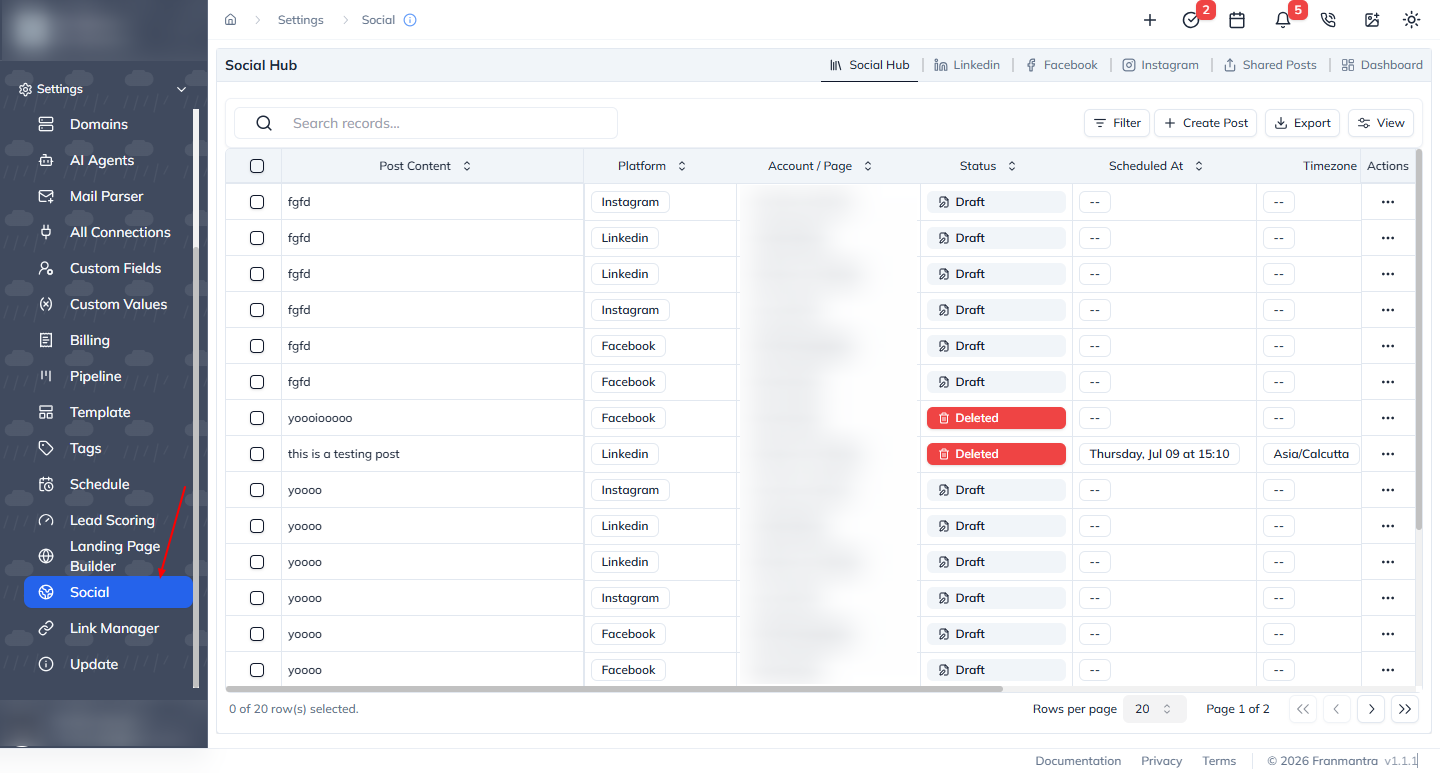
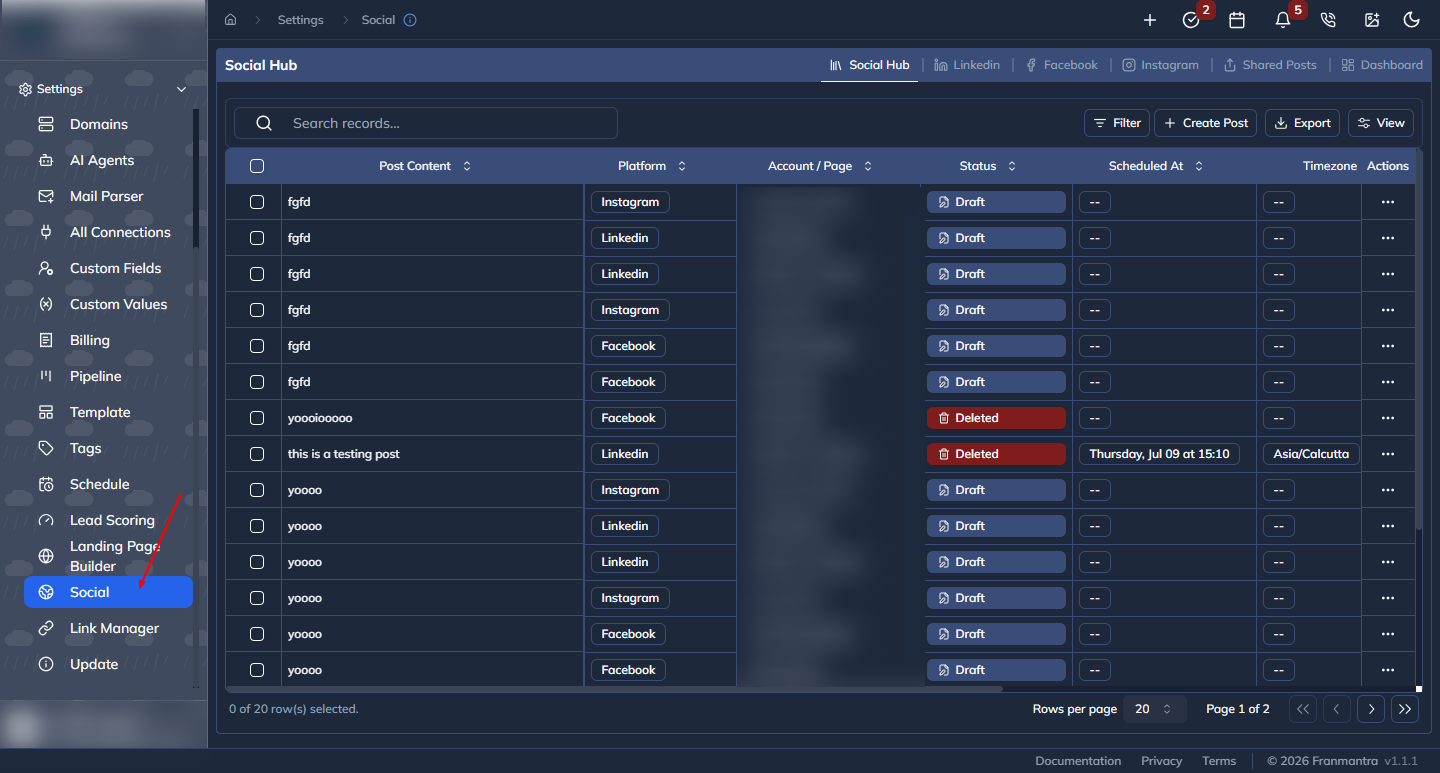
The Social setting is where you manage business posts for connected Facebook Pages, LinkedIn Pages, and Instagram or Instagram Business accounts. It includes a unified view, platform-specific views, drafts, publishing, scheduling, and post management.
Open Social Media
- Open Settings.
- Select Social in the settings sidebar.
- If no account is connected, click Connect Social Account and connect one from All Services.
- Open Social Hub, Facebook, Linkedin, or Instagram depending on the work you need to do.
Create or Schedule a Post
- Click Create Post.
- Enter Post Content.
- Select Add Photos or Videos when the post needs media. Instagram requires media.
- In Platforms, select Facebook, LinkedIn, Instagram, or Instagram Business.
- In Select Accounts, select the pages or accounts that should receive the post.
- Leave Schedule (Optional) empty to publish now, or select a future date and time.
- Select a Timezone.
- Publish the post, or save it as a draft when you are not ready.
Manage Existing Posts
Use the post table to review Post Content, Platform, Account / Page, Status, Scheduled At, Timezone, and Local Scheduled Time. Use the row actions to View, Edit, Publish, or Delete when the current post status allows the action.
Use Shared Posts to review posts shared with subordinate accounts. Use Dashboard to review social interactions and performance information.
Notes
- LinkedIn posts are published to selected LinkedIn Pages.
- Facebook posts are published to selected Facebook Pages.
- Instagram posts are published to selected Instagram accounts; Instagram Business accounts are available when the business connection is configured.
- Account availability depends on the connected service and permissions.
- Scheduled posts can also be reviewed from Settings > Schedule > Social.