Share a Calendar Booking Link
What this does
This guide explains how to share a calendar booking link in Franmantra CRM.
Before you start
- Sign in to Franmantra with a role that has permission to use this area.
- Confirm you are working in the correct Sub-account before making changes.
Steps
You can easily schedule your calendar with anyone by generating a public scheduling link. Recipients will get a link to view your meeting details and link to join meeting
1. Access the Calendar
- Open the Calendar page in one of these ways:
- In the header, hover over Calendar, then click Calendar List to land on the Calendar page.
- Click the settings icon in the header. The Business Details page opens by default. In the left sidebar, click Calendar to land on the Calendar page.
- You’ll see a list or card view of all your created calendars.
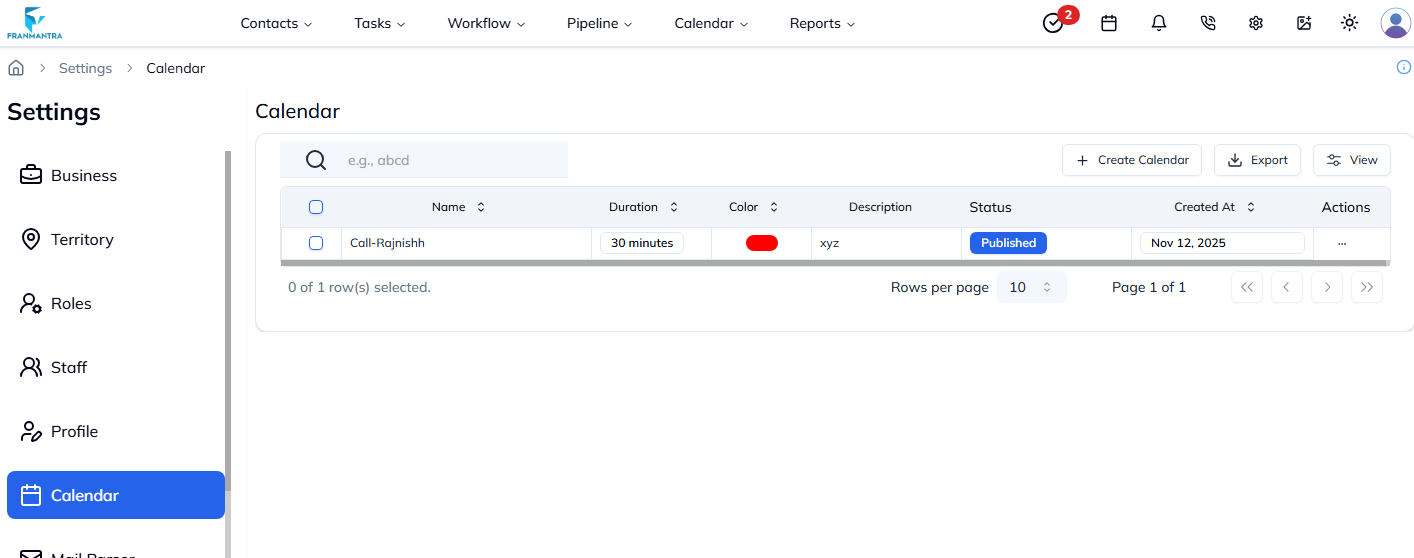
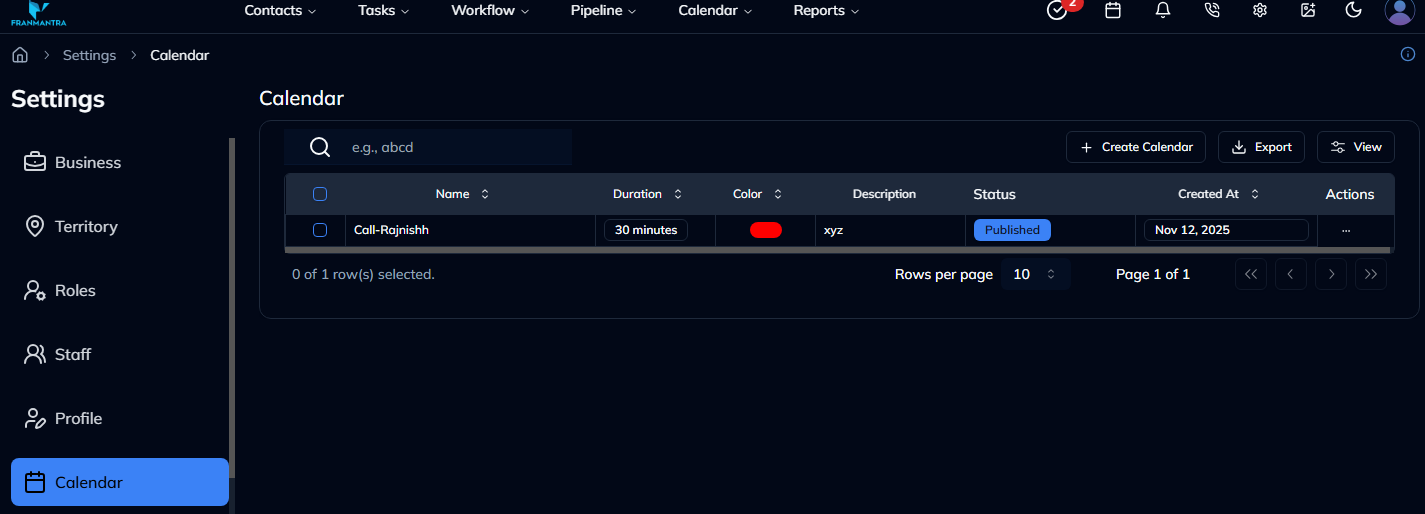
Figure 1: Calendar list with available actions.
2. Generate the Share Link
- Find the calendar you want to share.
- Click the Action (⋯) button beside it.
- From the dropdown, select Share.
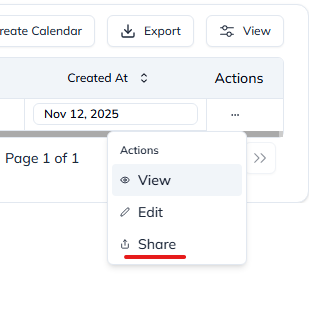
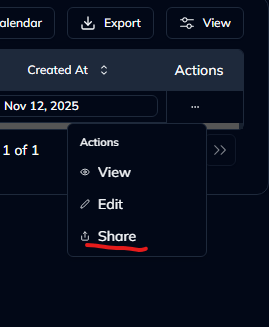
Figure 2: Click “Share” from the action menu.
- A modal or popup will appear showing your calendar’s public link.
- Click Copy Link to copy it to your clipboard.
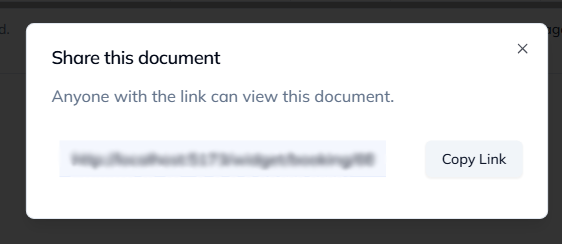
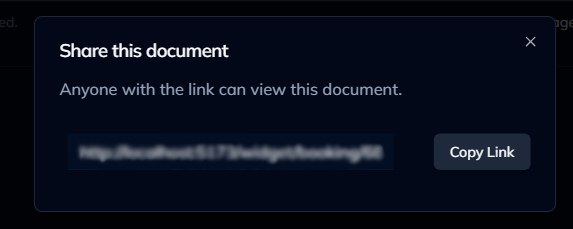
Figure 3: Sharing Modal.
3. Open the Link in incognito window
- You can paste the link into a browser tab to schedule the calendar.
4. Scheduling a Meeting
Once you selects a slot:
- You’ll have to enter their name, email, and details.
- Click Schedule to confirm.
- They’ll receive a **notification through mail and a contact will be created in your crm.
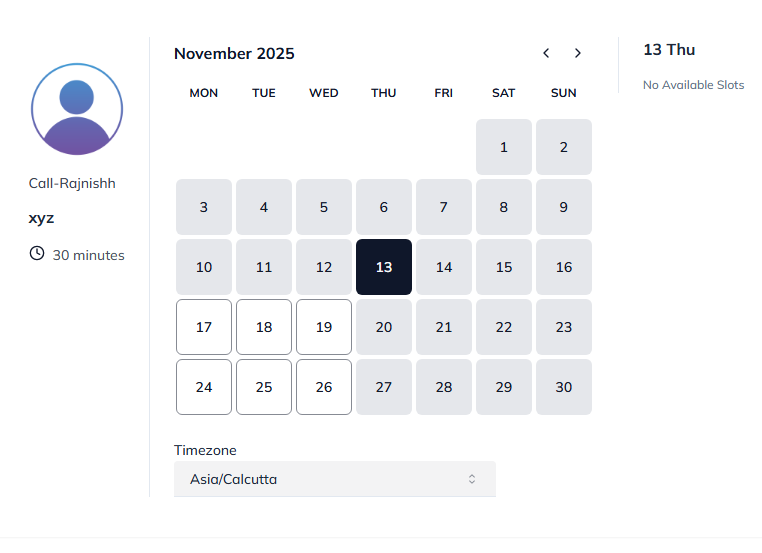
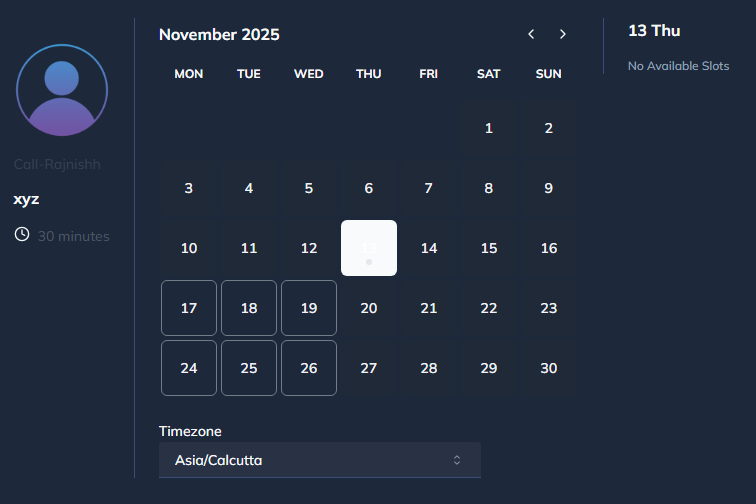
Figure 4: Scheduling page.
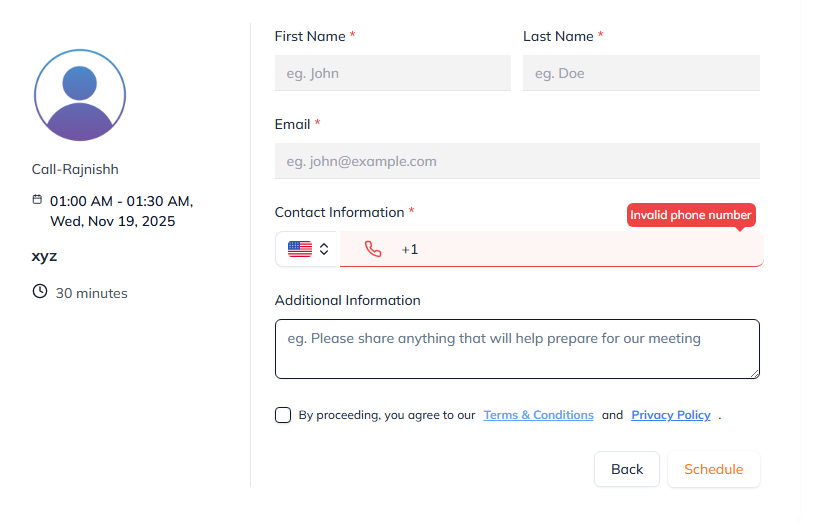
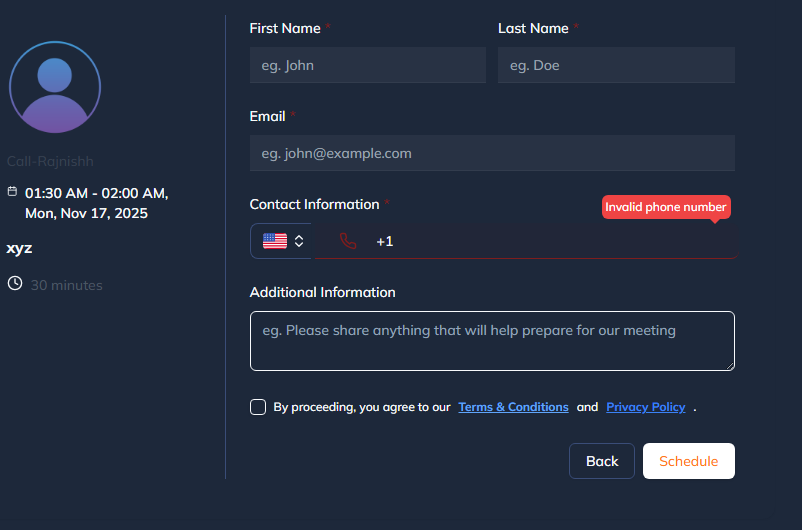
Figure 5: Scheduling page.
Tip: Create different calendars for different meeting types (e.g., “Client Demo,” “Internal Review”) and share unique links for each one.
Result
The change is saved in Franmantra CRM and is available to users with the right permissions.
Troubleshooting
- If you cannot see the option, check your role permissions or ask an admin to update your access.
- If the update does not appear immediately, refresh the page and confirm you are in the correct Sub-account.