Manage Tasks
What this does
This guide explains how to manage tasks in Franmantra CRM.
Create and manage tasks to track work, reminders, meetings, or follow-ups.
Before you start
Steps
- Hover over Tasks in the header, then click Task in the dropdown menu.
- Decide the task name, owner, due date, and priority.
Open the Tasks Menu
In the header, hover over Tasks to open the dropdown menu. The dropdown includes options such as Task and Create Task.
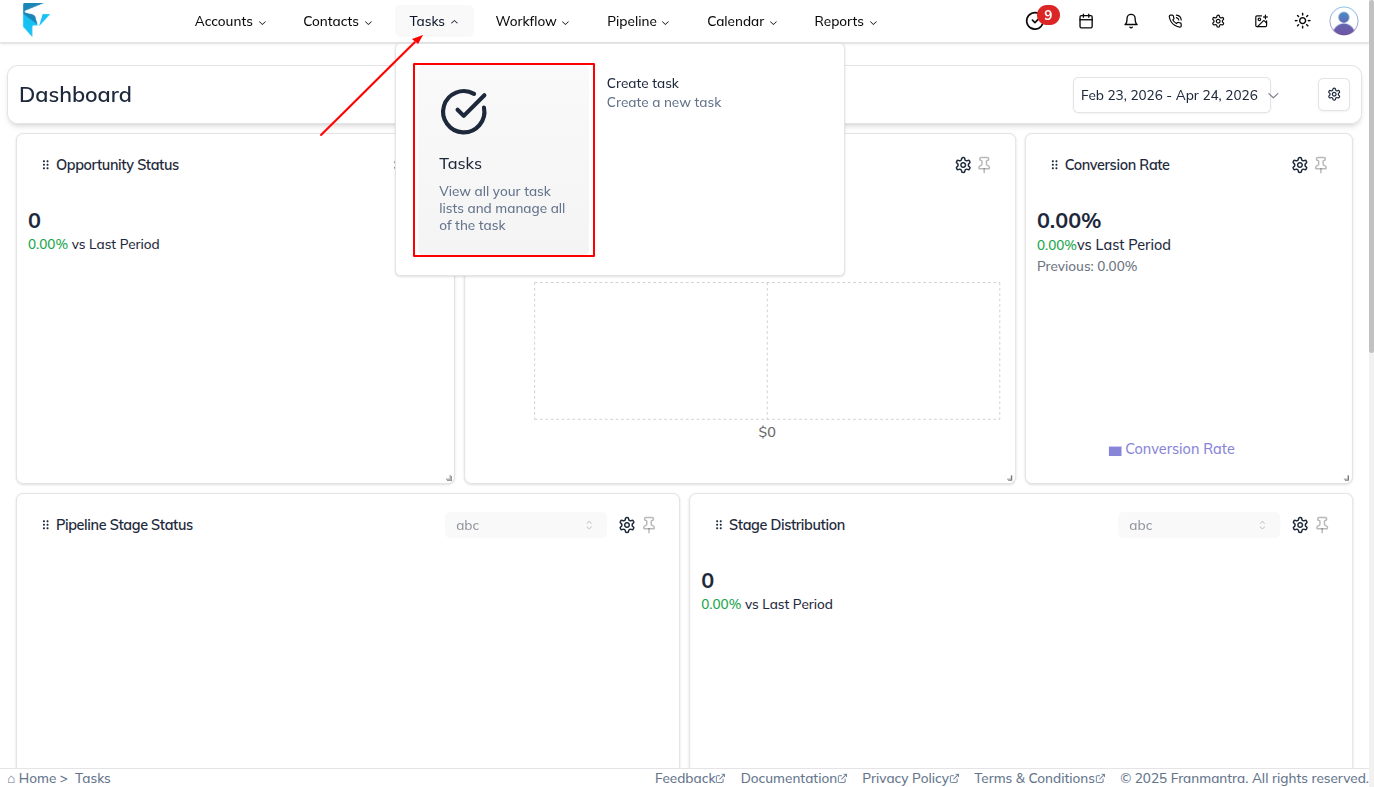
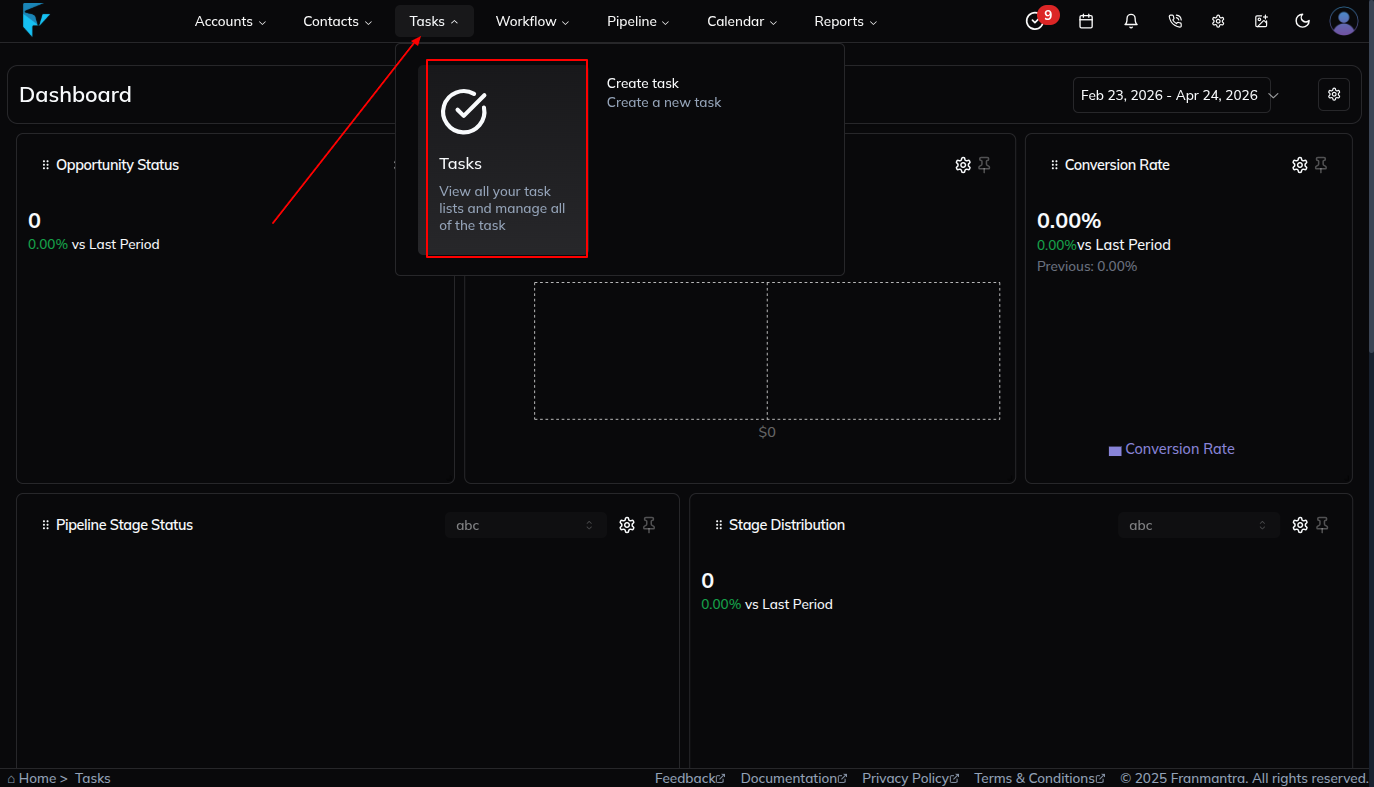
Click Create Task when you want to open the create task form directly. Click Task when you want to land on the task list page and review all tasks.
Create a Task
You can create a task in two ways.
From the Header Menu
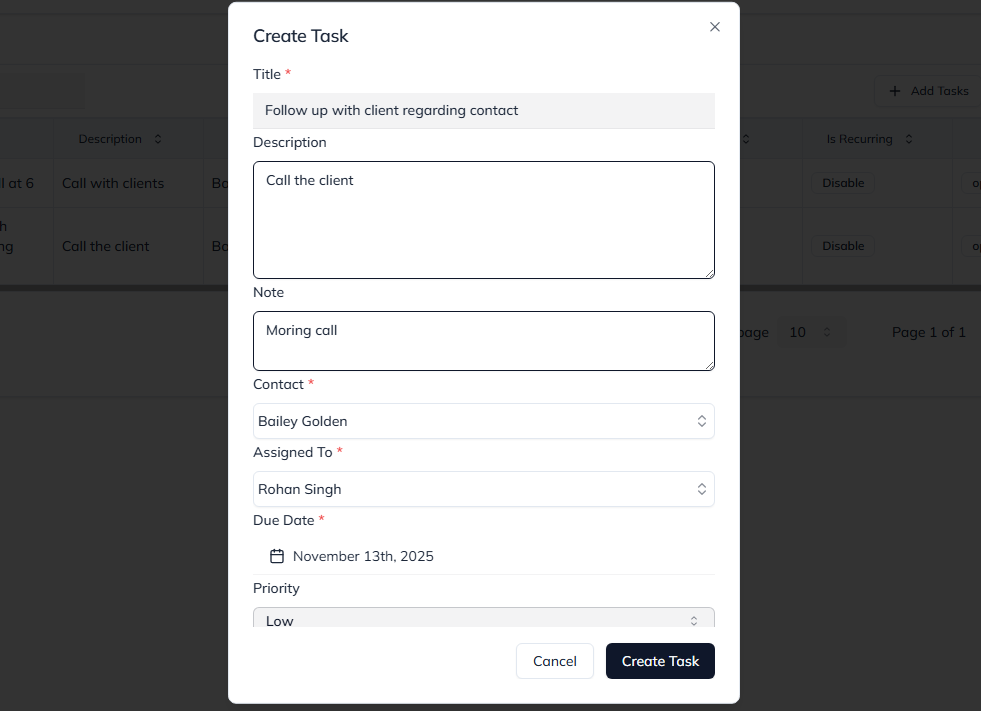
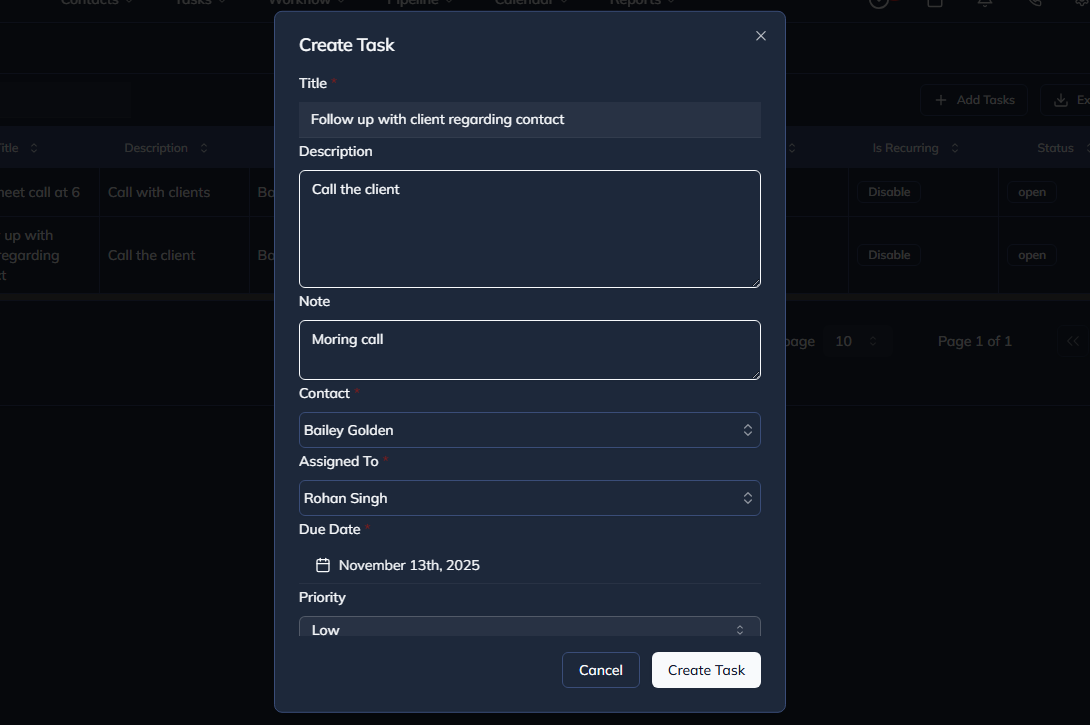
Hover over Tasks in the header, then click Create Task. The create task form opens directly. Fill in the required fields such as:
- Task Name
- Assigned To
- Due Date
- Priority (Low, Medium, High)
- Tags (optional)
Click Create Task to save it.
From the Task List Page
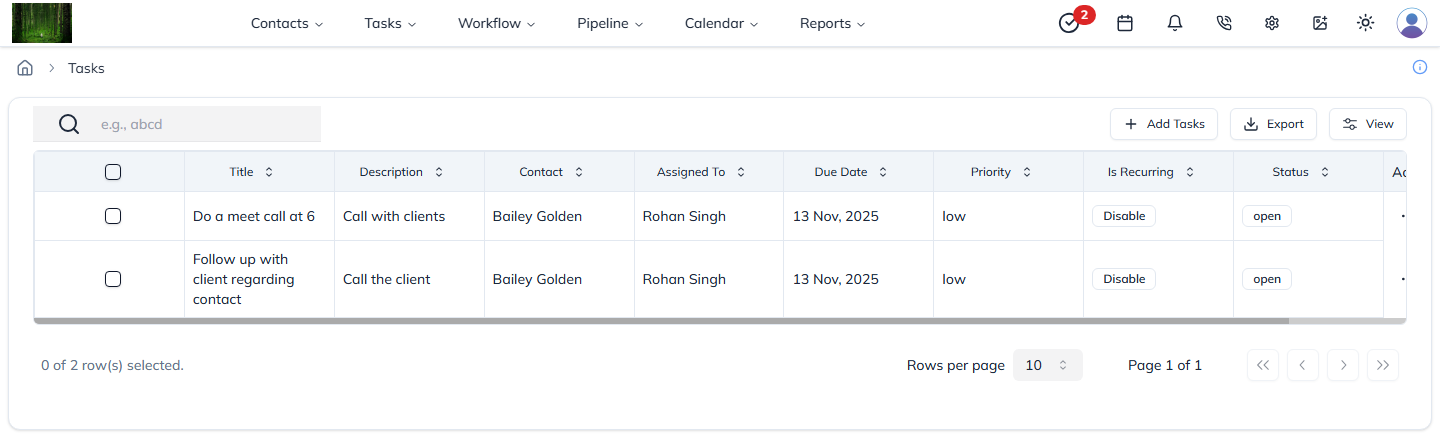
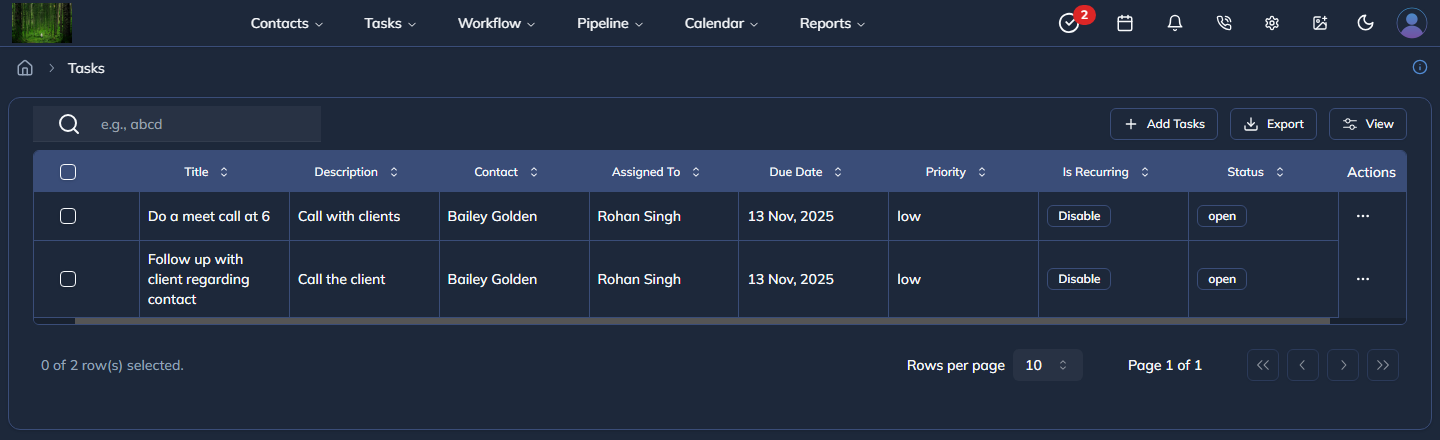
Hover over Tasks in the header, then click Task. You will land on the task list page, where all tasks are shown.
On the task list page, click Add Tasks to open the create task form. Fill in the task details, then click Create Task to save it.
View Tasks
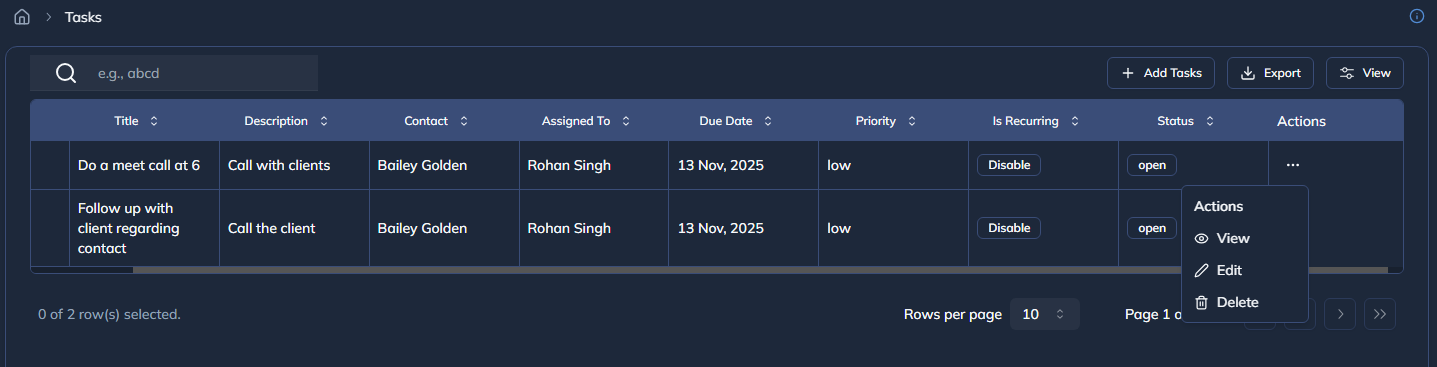
The Task page shows all tasks in a list. Each task row has an action column with a three-dots (...) menu.
Click the three-dots (...) menu, then click View to open the task details.

Edit a Task
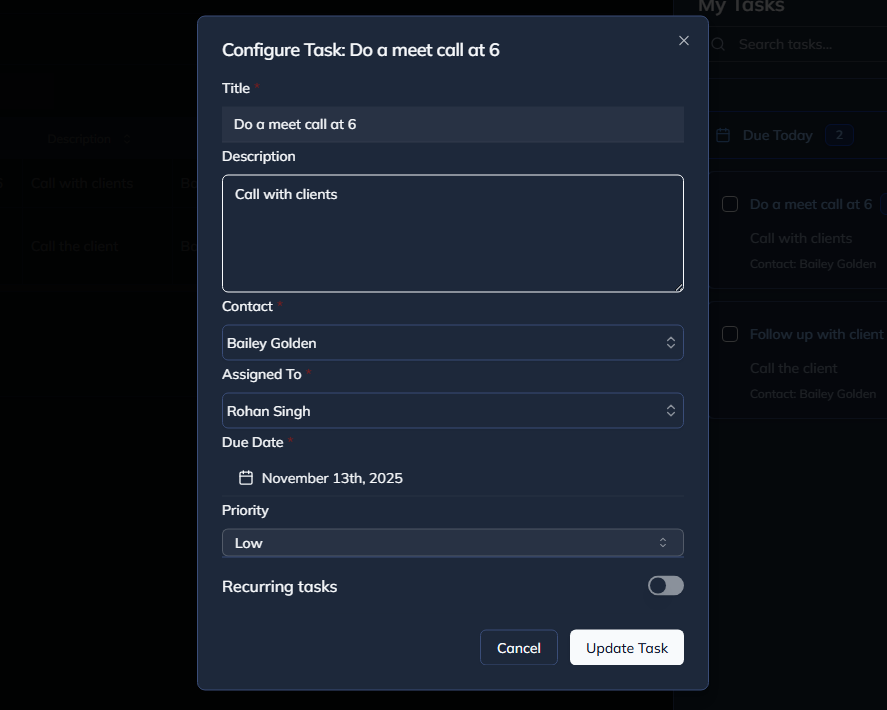
Click the three-dots (...) menu in the task row, then click Edit. The Edit Task form will open.
Update any details like name, priority, or due date. Click Update Task to apply the changes.

Delete a Task
Click the three-dots (...) menu in the task row, then click Delete.
A confirmation popup will appear. Confirm the action to delete the task.
What happens next
The new or updated task appears in the task list or card view. Deleted tasks are removed after you confirm the delete action.
Notes
- Use clear task names.
- Add tags if you want to group similar tasks.
- Mark tasks complete when the work is done.
Result
The change is saved in Franmantra CRM and is available to users with the right permissions.
Troubleshooting
- If you cannot see the option, check your role permissions or ask an admin to update your access.
- If the update does not appear immediately, refresh the page and confirm you are in the correct Sub-account.