Delete a Contact
What this does
This guide explains how to delete a contact in Franmantra CRM.
Before you start
- Sign in to Franmantra with a role that has permission to use this area.
- Confirm you are working in the correct Sub-account before making changes.
Steps
Franmantra makes it easy to remove outdated or duplicate contacts from your database. Follow the steps below to safely delete a contact.
Prerequisite: You must be logged in to Franmantra with the appropriate permissions to manage contacts.
1. Open the Contacts Module
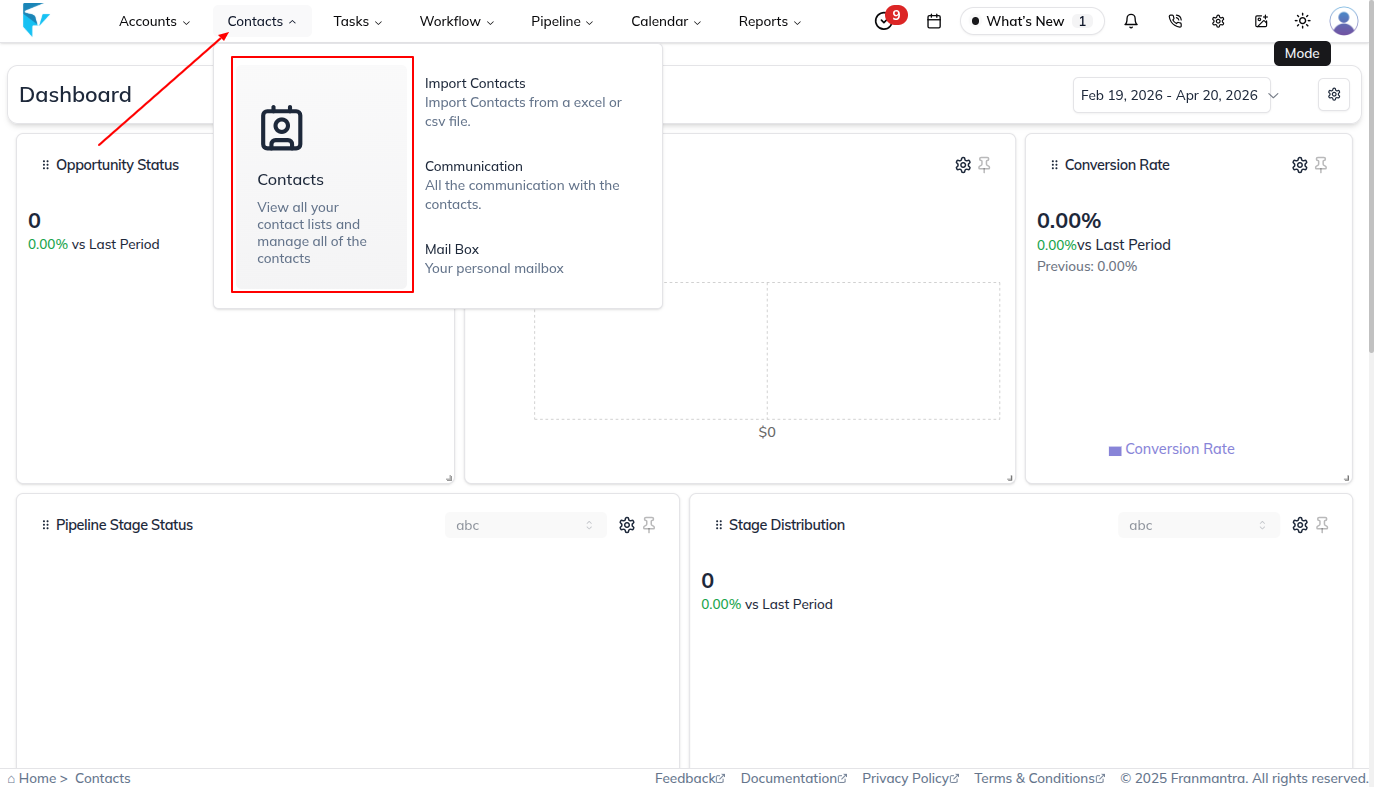
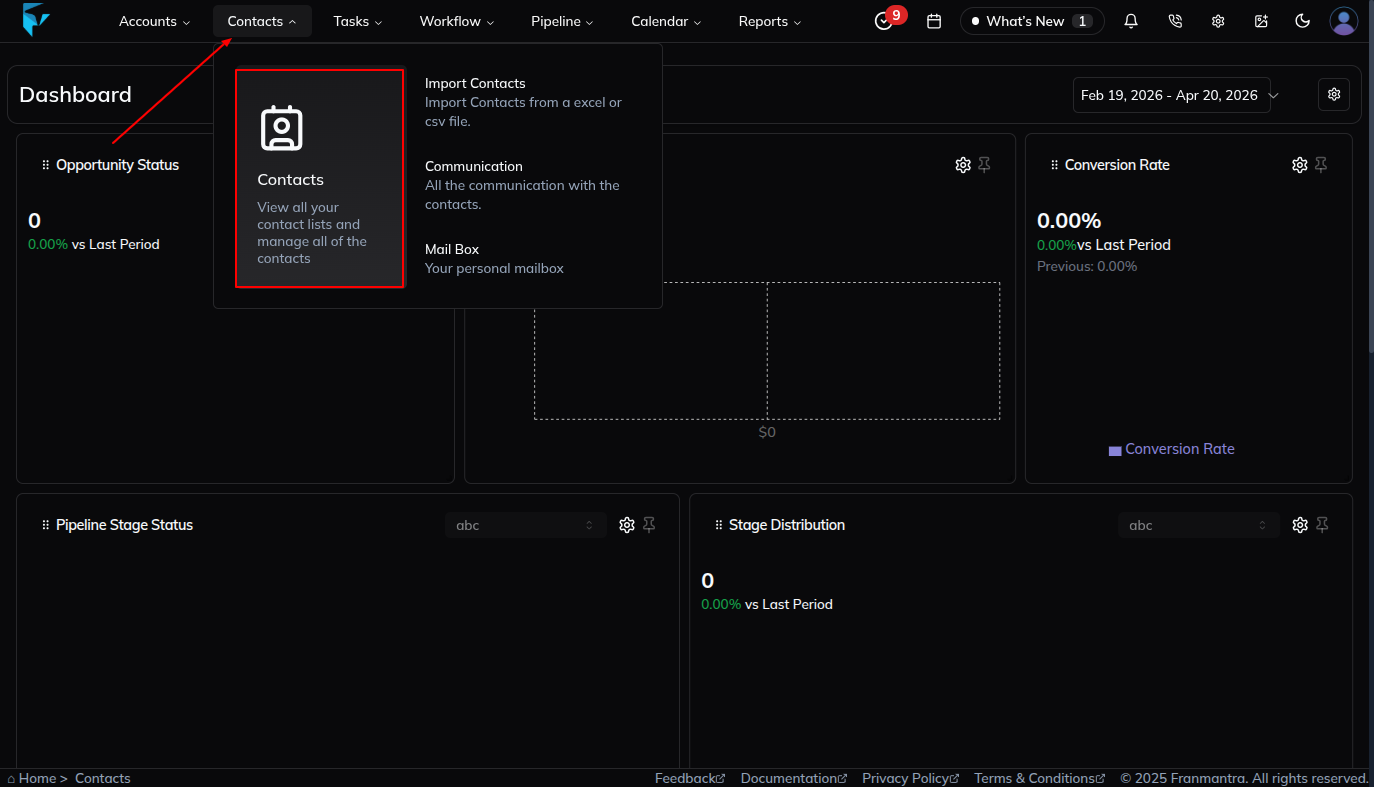
From the dashboard, look at the header (the menu at the top of the page).
- Move your mouse over the Contacts option. A dropdown menu will appear.
- Click on Contacts in the dropdown menu to open the Contacts module.
2. Locate the Contact
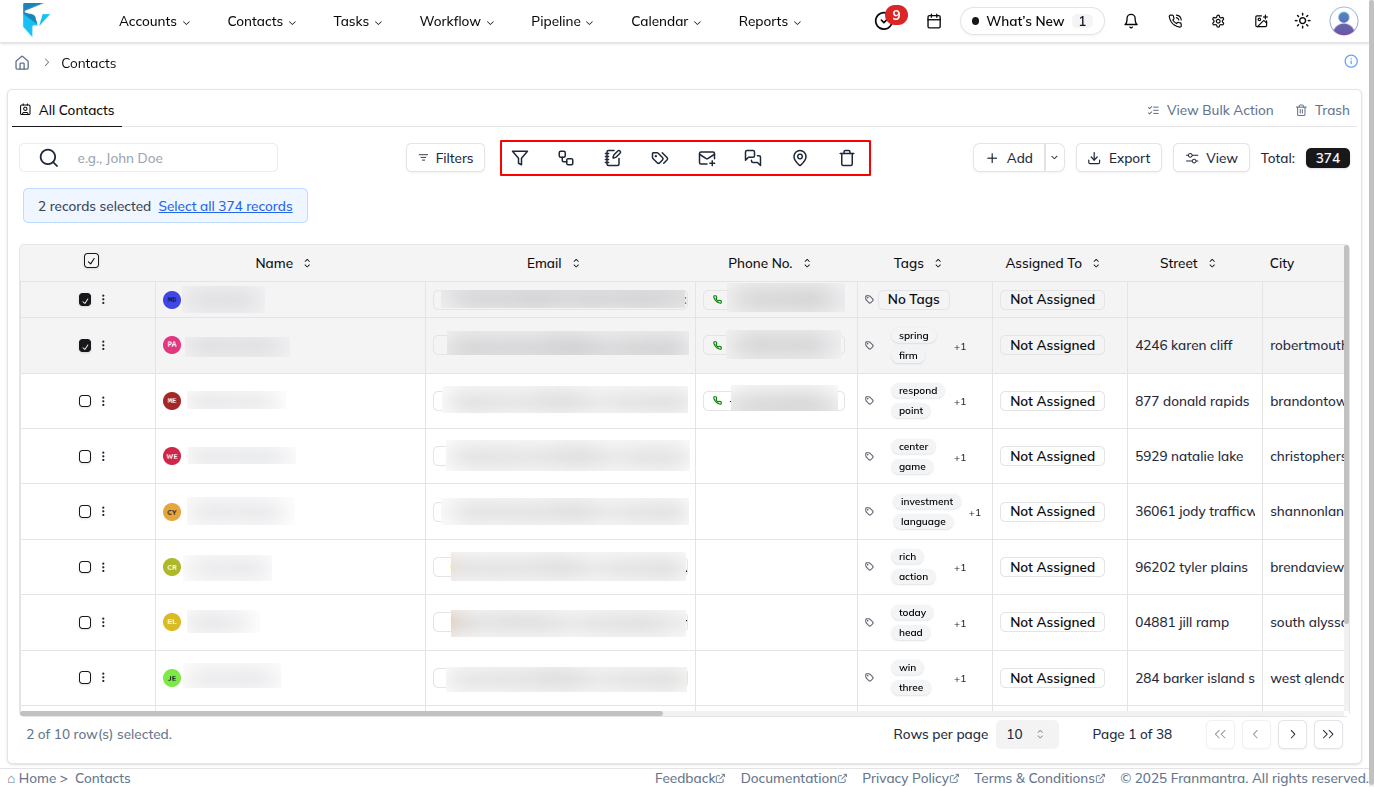
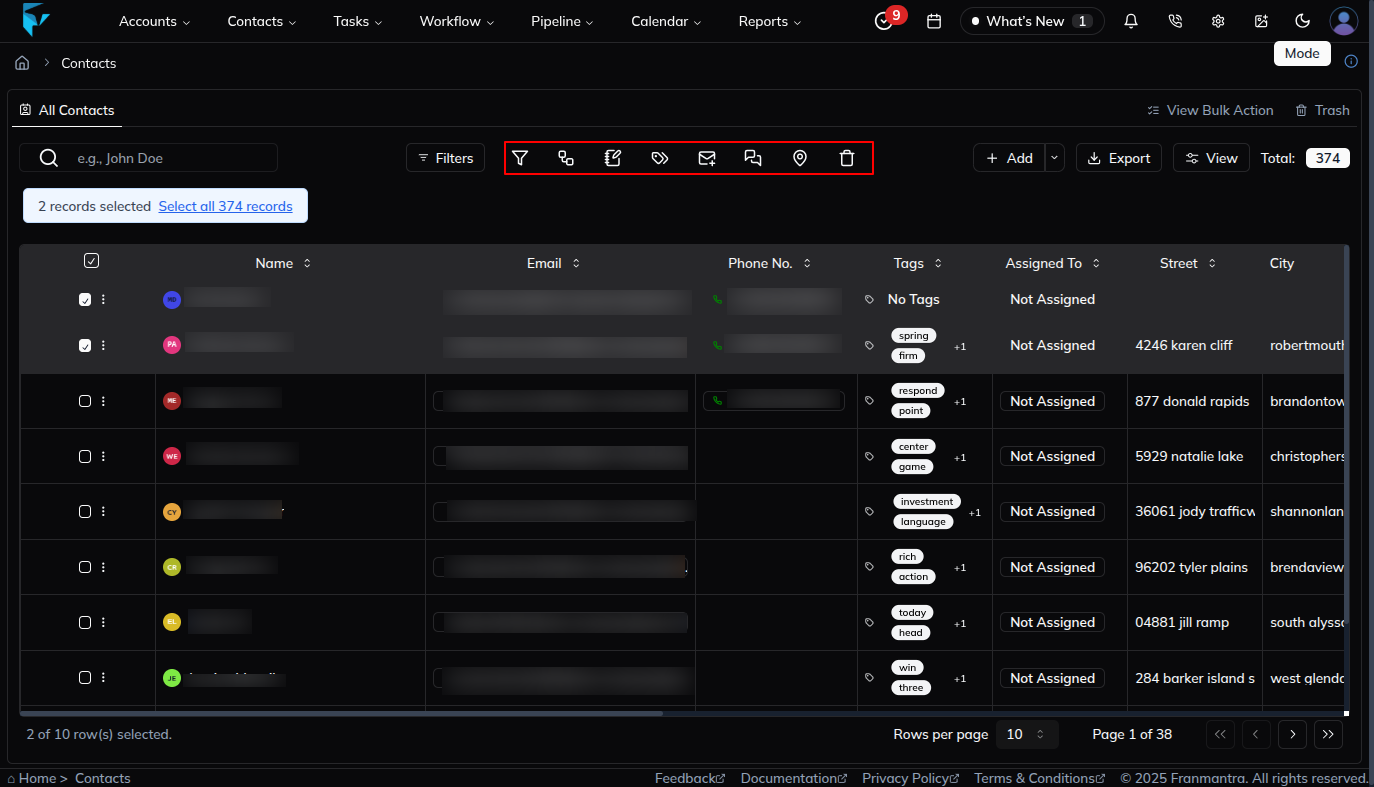
The All Contacts tab lists every contact in your system. Use the search bar or scroll to find the contact you wish to delete.
3. Choose How to Delete
You have two options for deleting contacts, depending on whether you want to delete a single contact or multiple contacts at once.
Option A: Delete a Single Contact
- Find the contact you want to delete in the list.
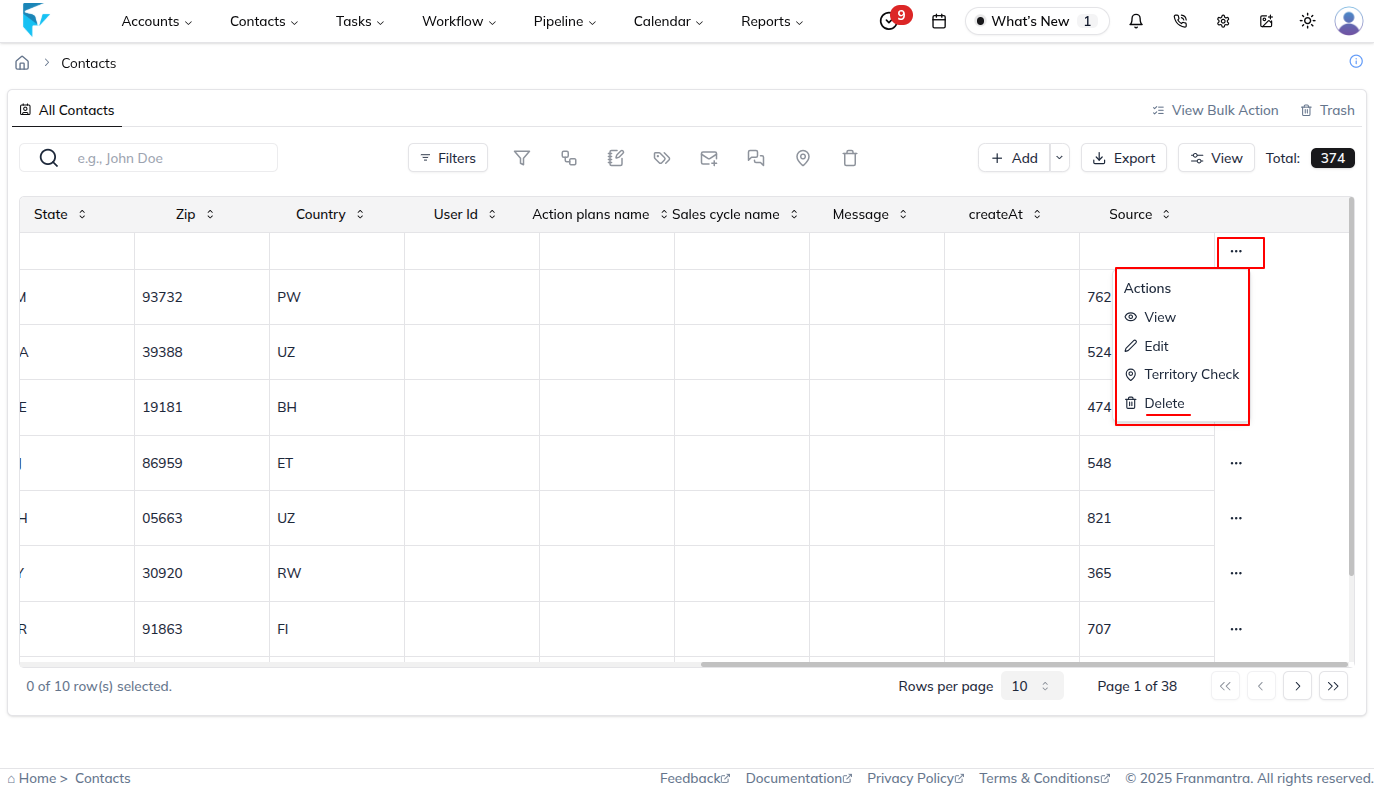
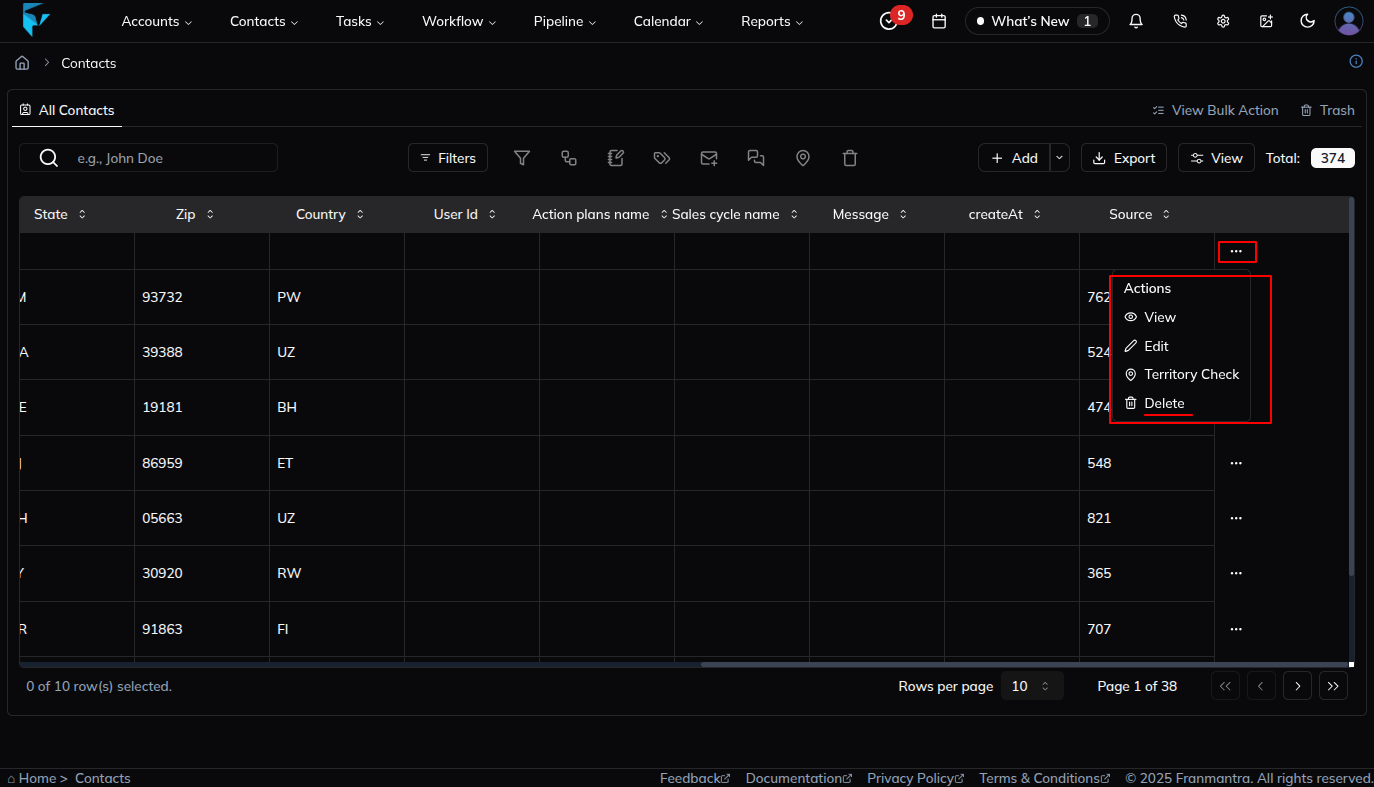
- Look at the Action column on the far right of that contact's row.
- Click the “…” (three dots) icon to open the action menu.
- From the menu, click Delete.
- A confirmation dialog will appear. Click Delete to confirm the action.
Option B: Delete Multiple Contacts (Bulk Delete)
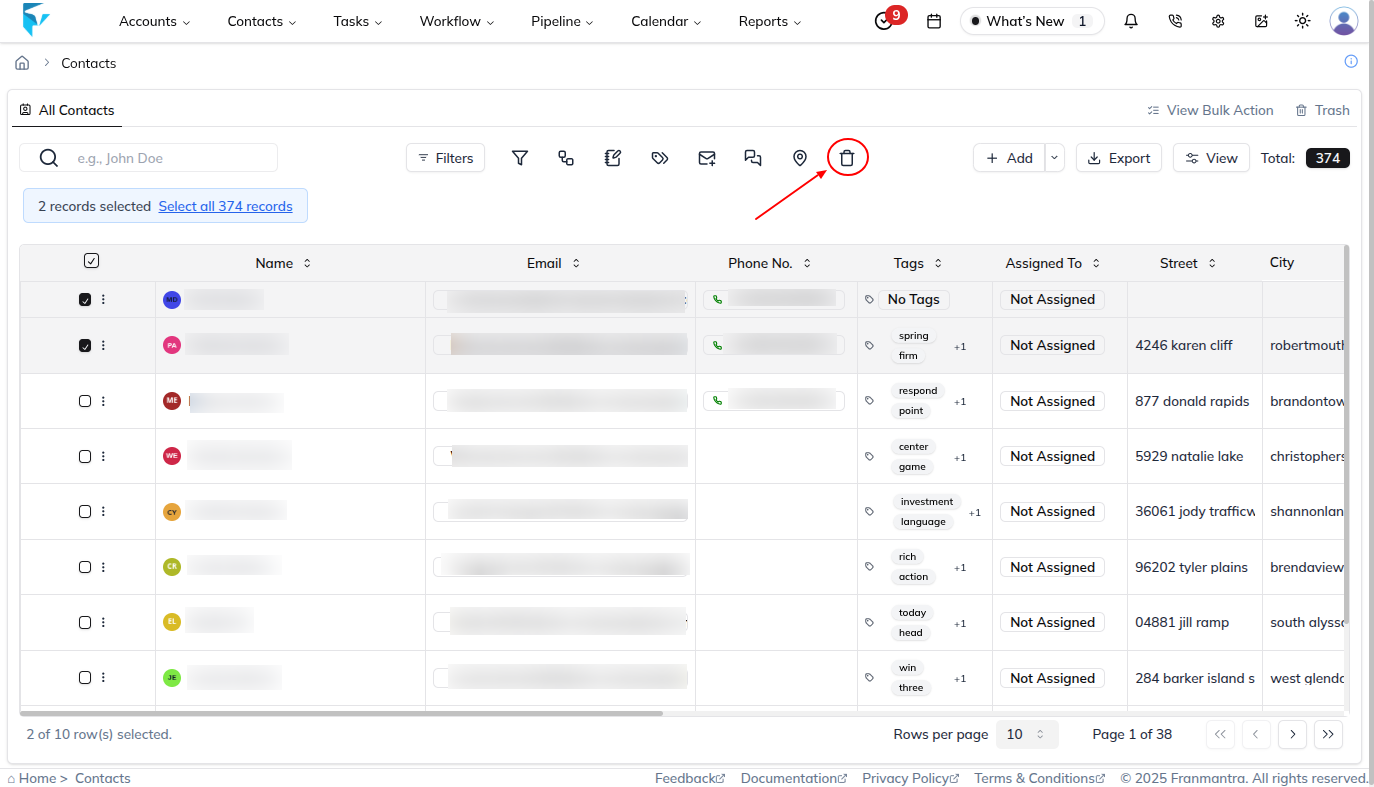
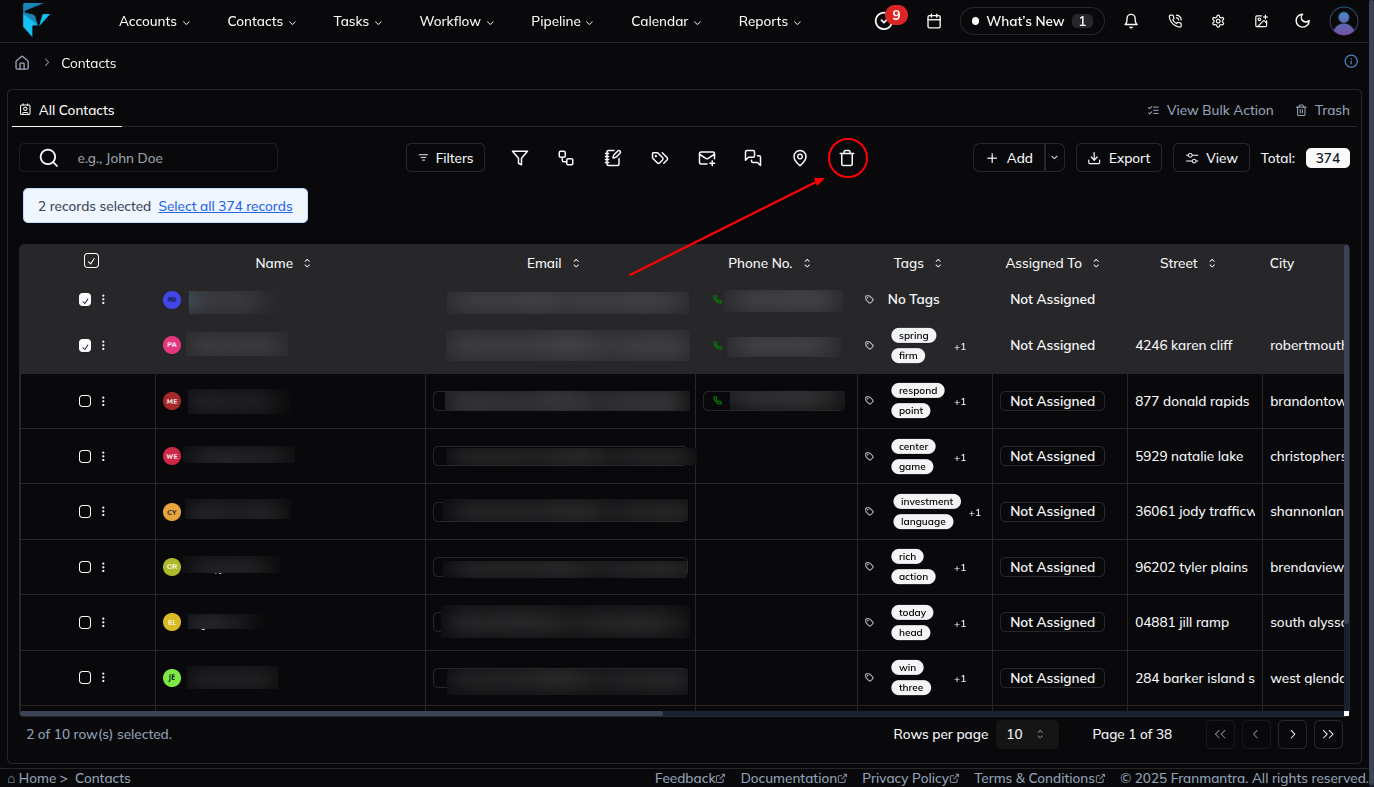
- Select multiple contacts by checking the box to the left of each contact’s name.
- Once you select at least one contact, the bulk delete icon (trash bin) will become active above the list.
- Click the bulk delete icon.
- A bulk delete form will appear to confirm the deletion. Click Delete to move the selected contacts to Trash.
4. Success Notification
Franmantra displays a success message indicating the contact has been moved to Trash.
Tips
- Deleted contacts are moved to Trash and can be restored from there.
- A contact is permanently removed only when you delete it from Trash.
- If you only need to deactivate a contact temporarily, consider tagging or archiving instead of moving it to Trash.
Result
The change is saved in Franmantra CRM and is available to users with the right permissions.
Troubleshooting
- If you cannot see the option, check your role permissions or ask an admin to update your access.
- If the update does not appear immediately, refresh the page and confirm you are in the correct Sub-account.