Share to Sub-Accounts
What this does
This guide explains how to share to Sub-accounts in Franmantra CRM.
Share one item with one or more Sub-accounts.
Before you start
- Make sure you are using an account that can share to Sub-accounts.
- Make sure the item is ready before sharing it.
- Know which Sub-accounts should receive the item.
Steps
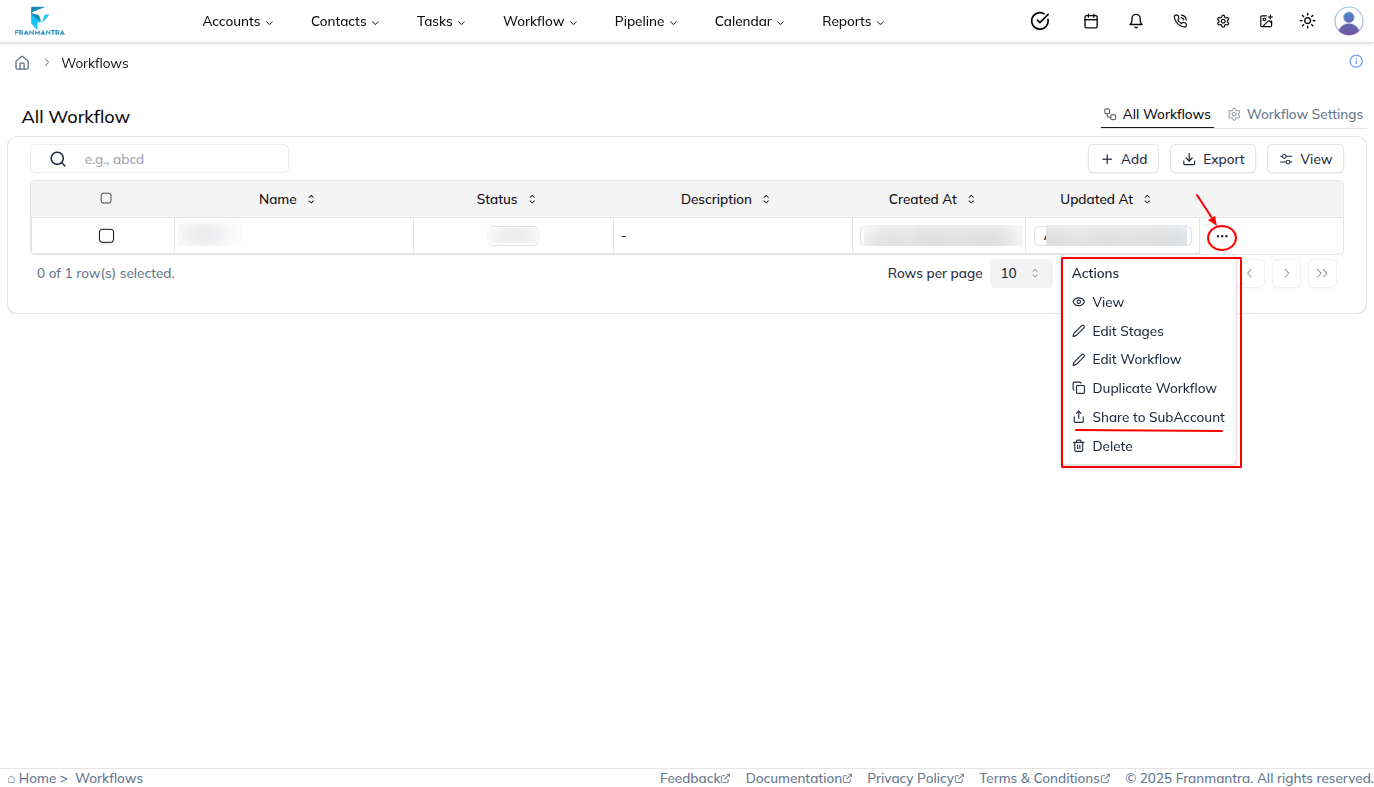
- Open a supported module, such as Workflows, Templates, Reports, or Pipelines.
- Find the item you want to share.
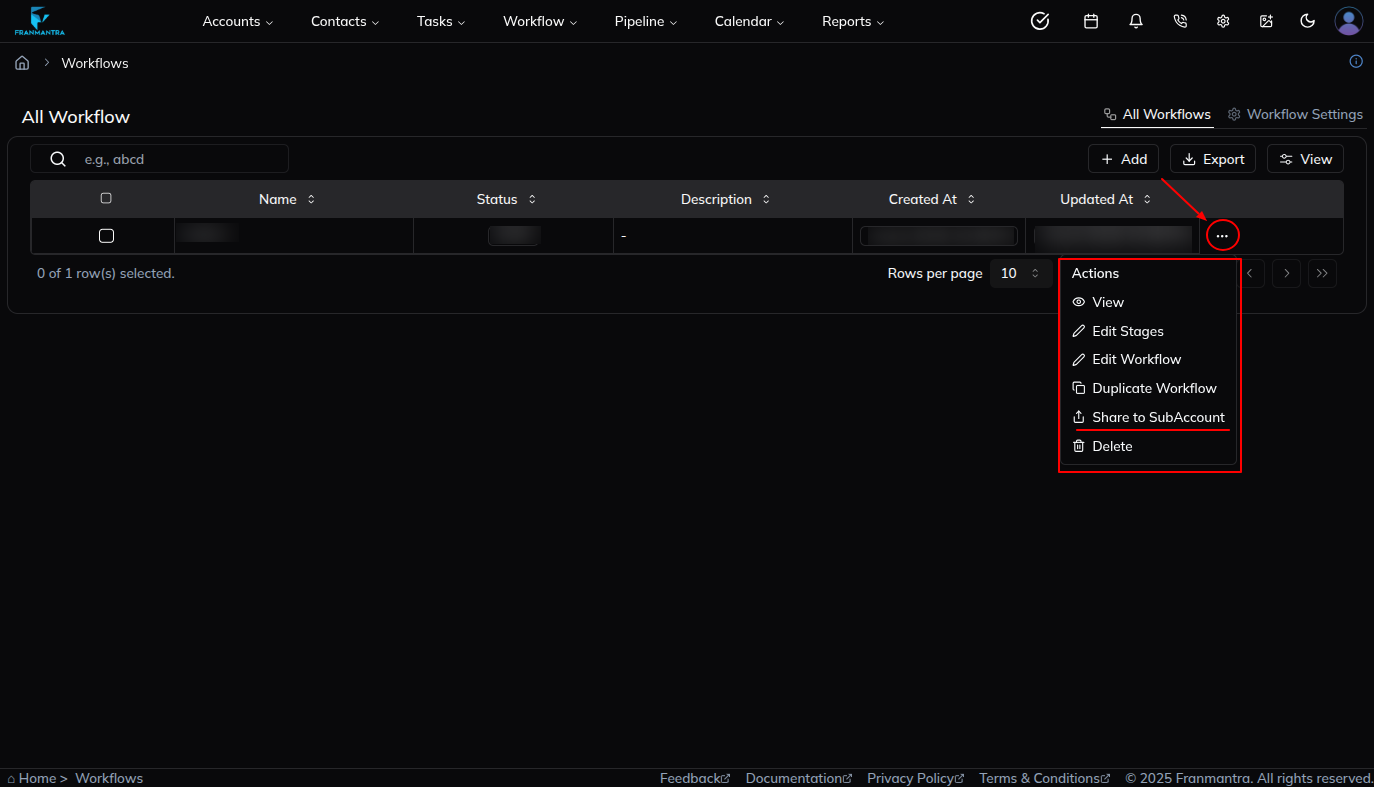
- Open the item's actions menu.
- Click Share to Sub-Account.
- Select one or more Sub-accounts.
- Review your selection.
- Click Share.
What happens next
The item is sent to the selected Sub-accounts. The shared item may show a status such as Pending, Accepted, or Rejected.
Notes
- Pending means the Sub-account has not completed the process yet.
- Accepted means the item was received successfully.
- Rejected means the Sub-account declined the shared item.
Result
The change is saved in Franmantra CRM and is available to users with the right permissions.
Troubleshooting
- If you cannot see the option, check your role permissions or ask an admin to update your access.
- If the update does not appear immediately, refresh the page and confirm you are in the correct Sub-account.