How to Modify Calendar Events
What this does
This guide explains how to modify a calendar event in Franmantra CRM.
Before you start
- Sign in to Franmantra with a role that has permission to use this area.
- Confirm you are working in the correct Sub-account before making changes.
Steps
Managing your calendar is simple and flexible. You can update existing events when details change or delete events that are no longer needed. Below are the steps to reach your calendar and manage its events.
There are two ways to reach the calendar page before modifying events.
Method 1: From the Header
- In the header menu, hover over the Calendar option.
- From the dropdown, click on the Calendar button.
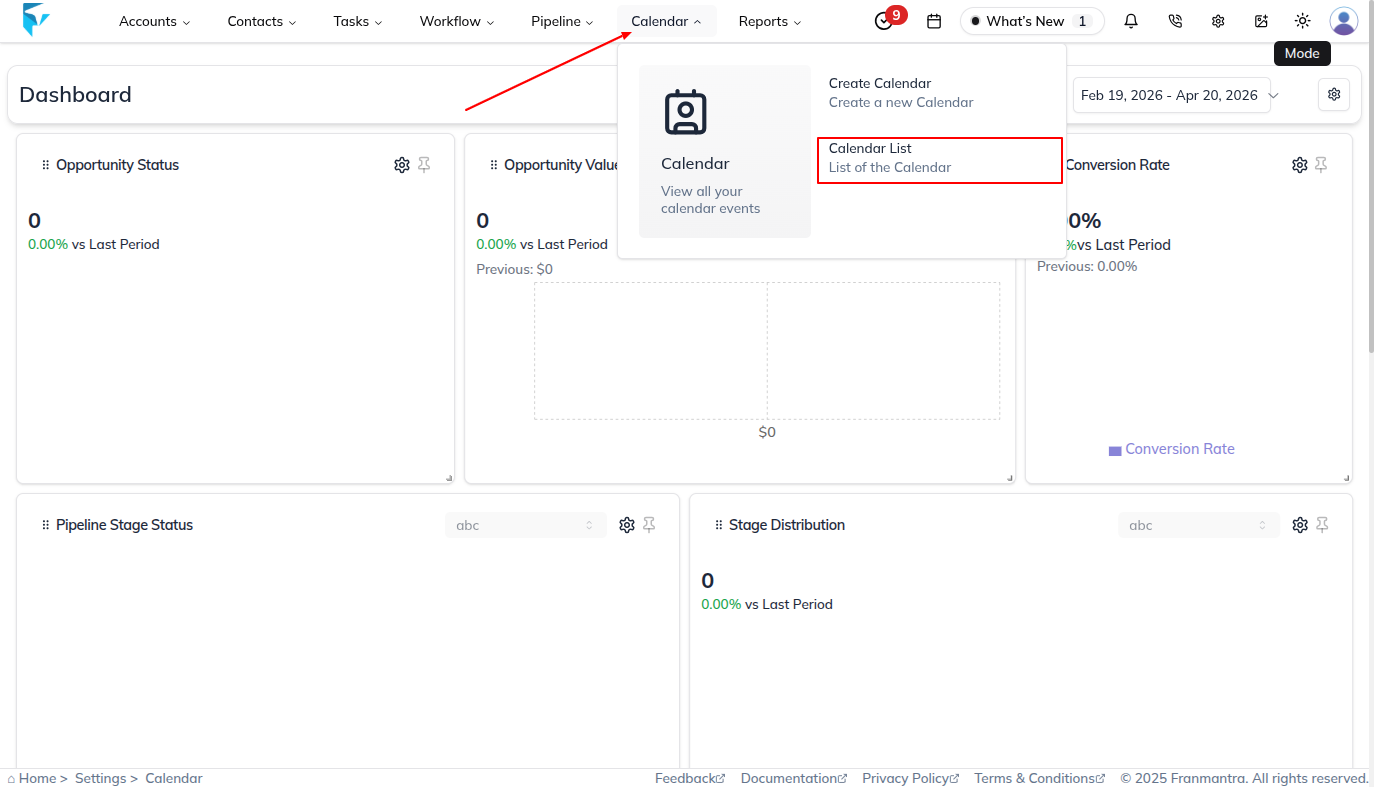
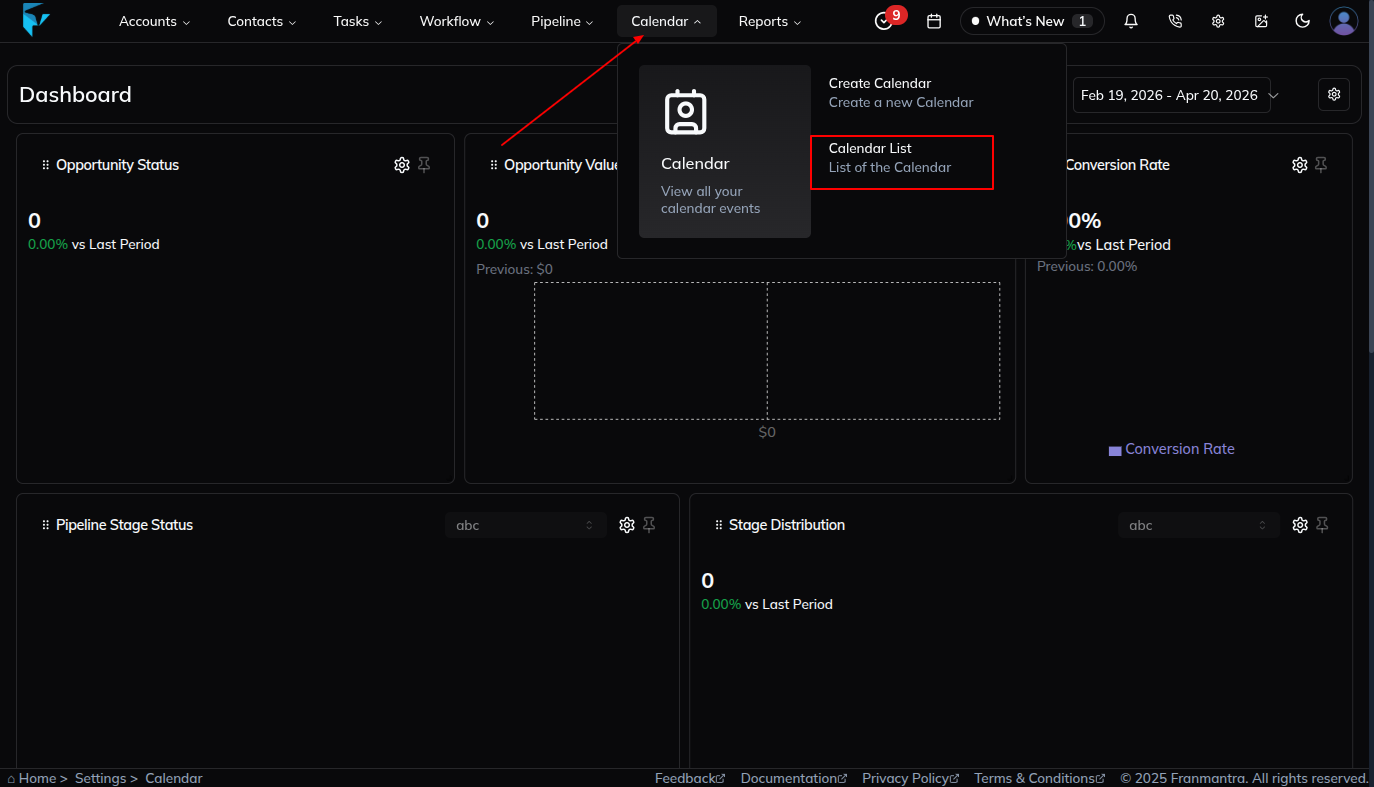
- You will land on the Calendar page.
Method 2: From Settings
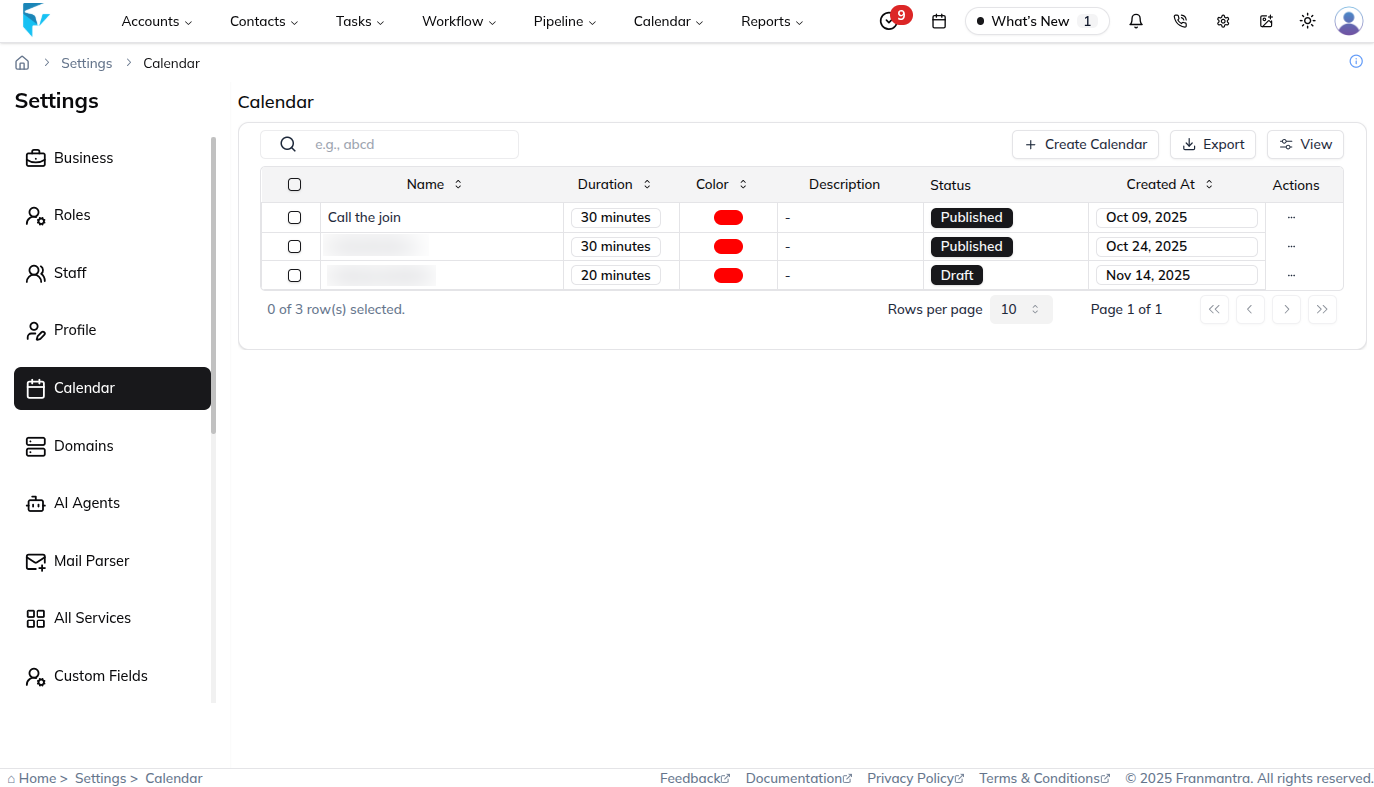
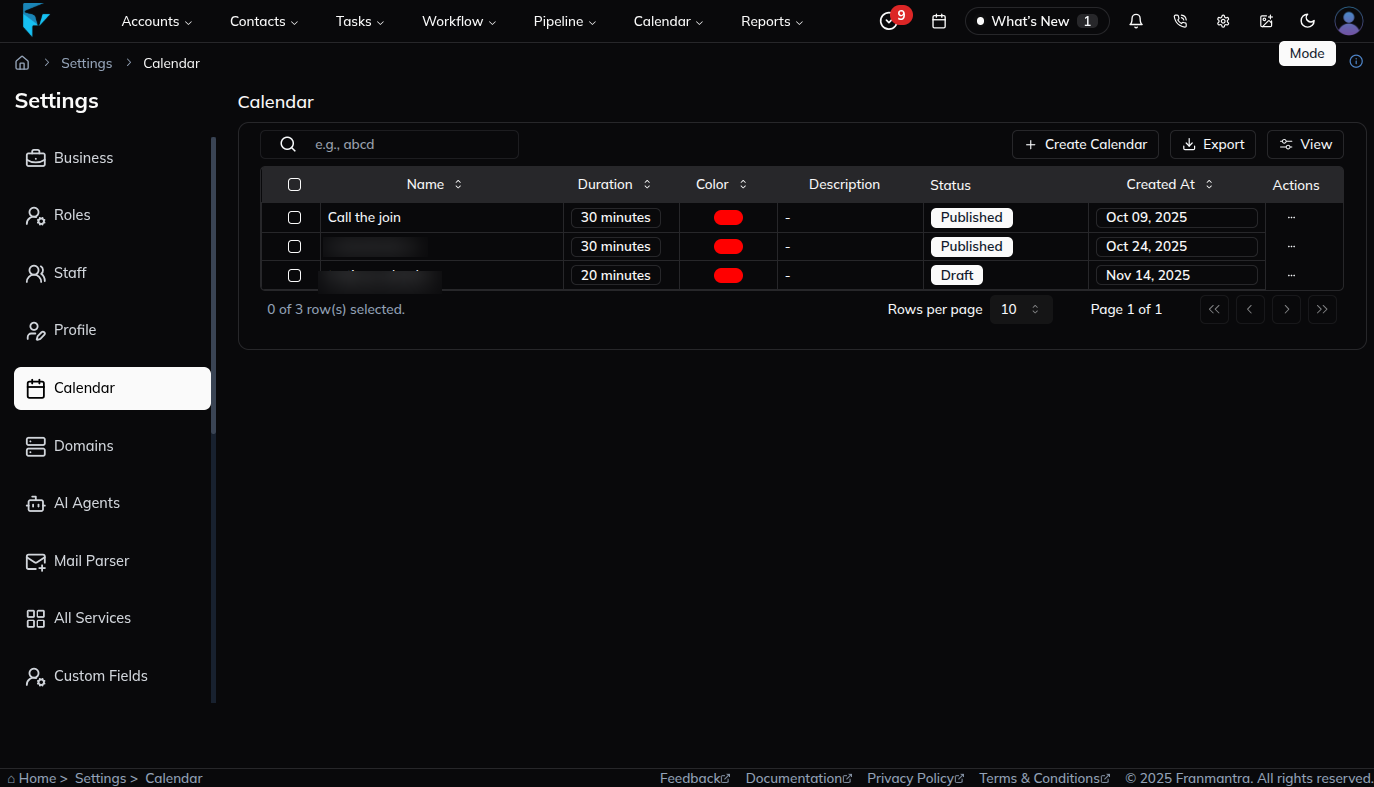
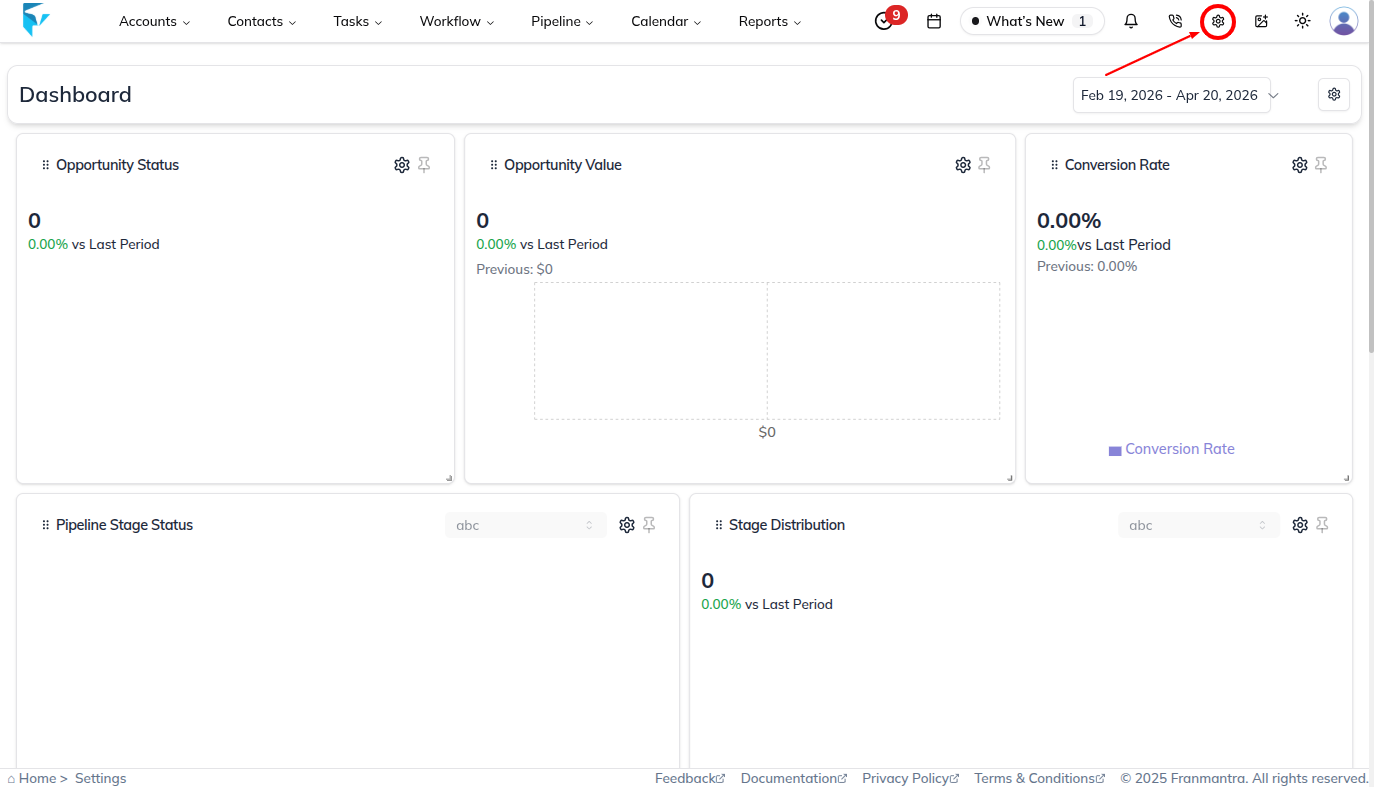
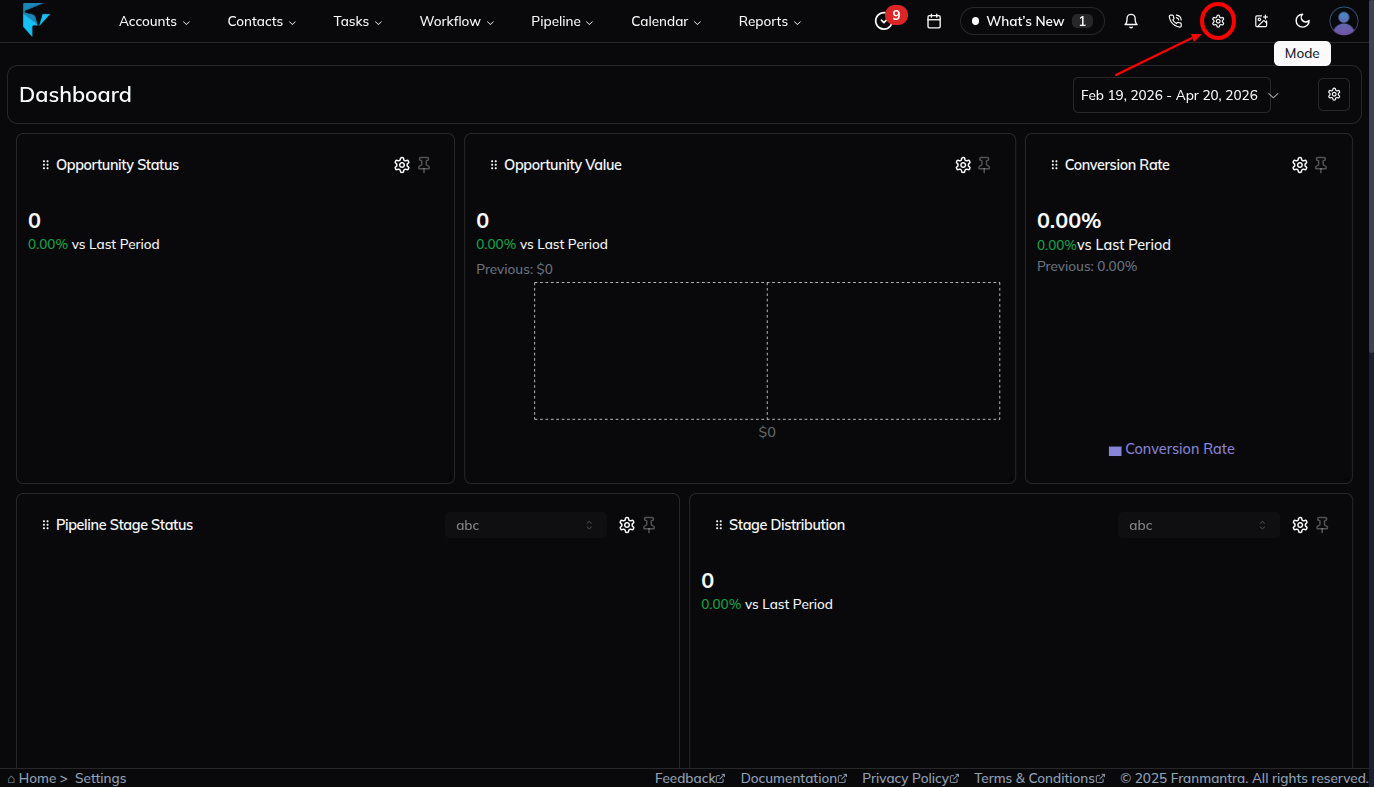
- Click on the Settings icon (top-right of the page). You’ll land on the Business Details section of the settings page.
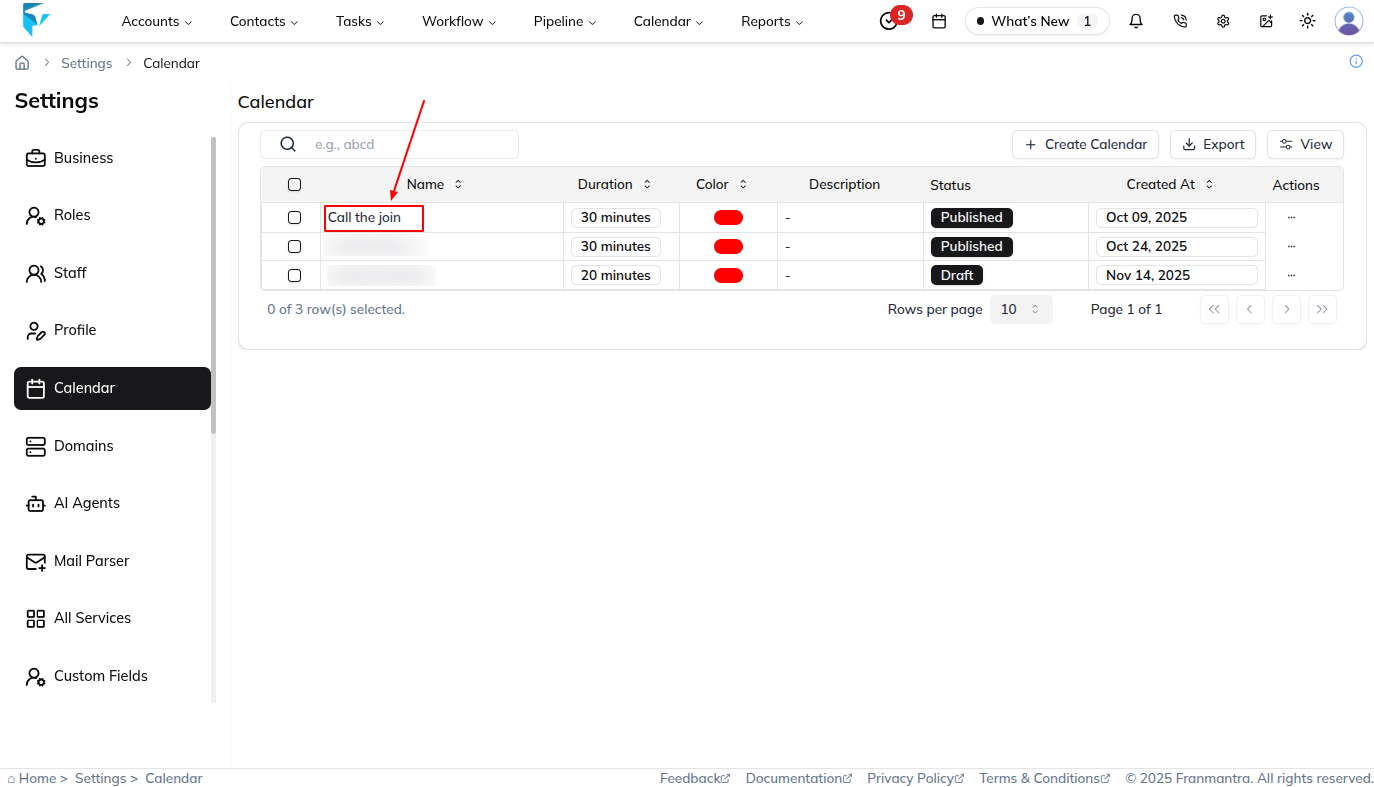
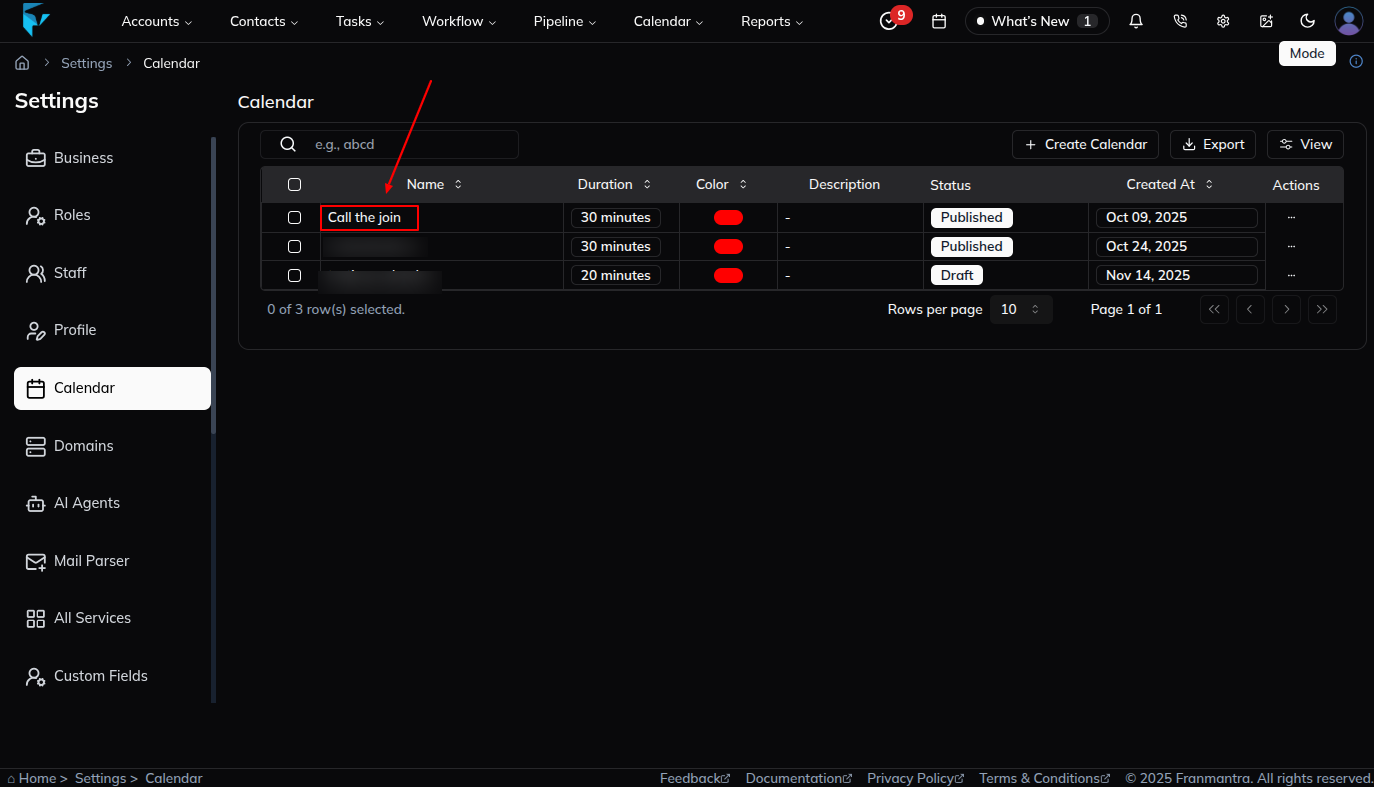
- From the left sidebar menu, select Calendar.
- A list of calendars will appear (if you already created them).
- Click on the name of the calendar record you want to open.
- You will land on the Calendar page.
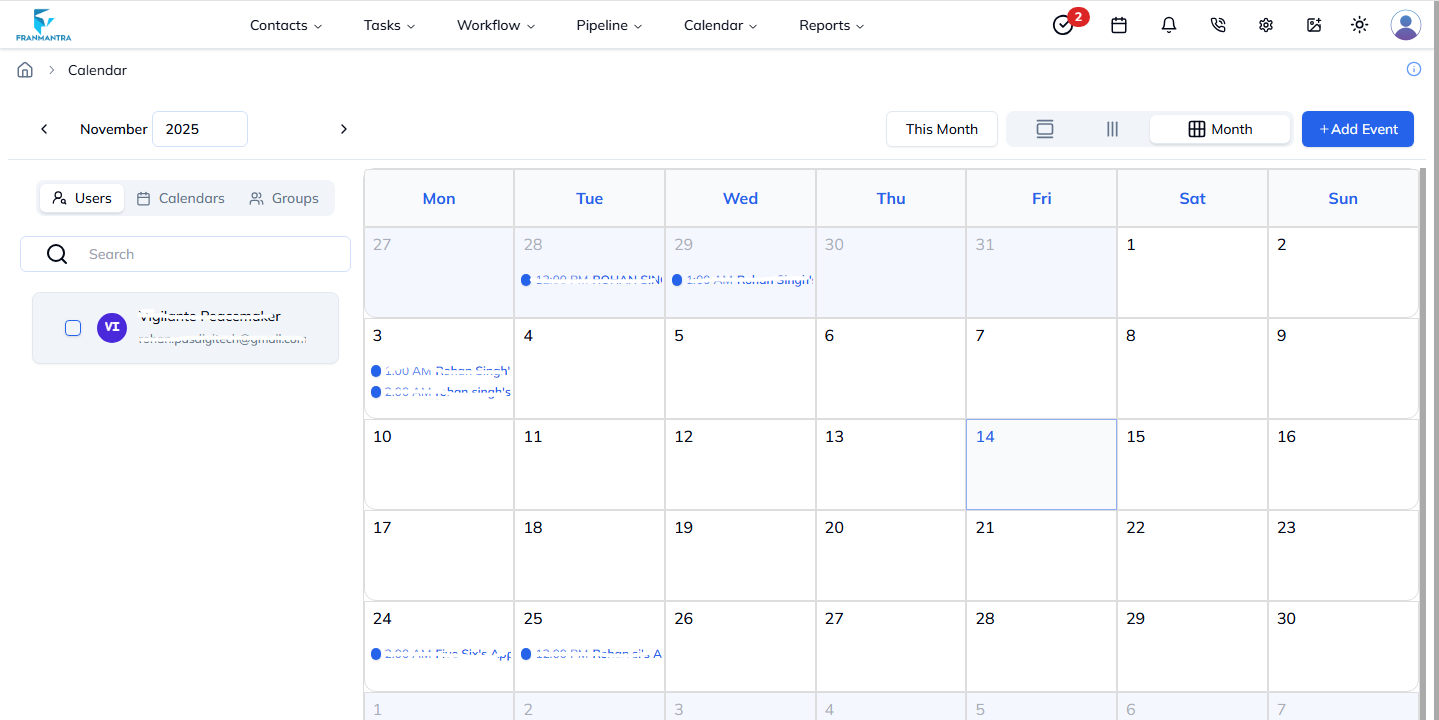
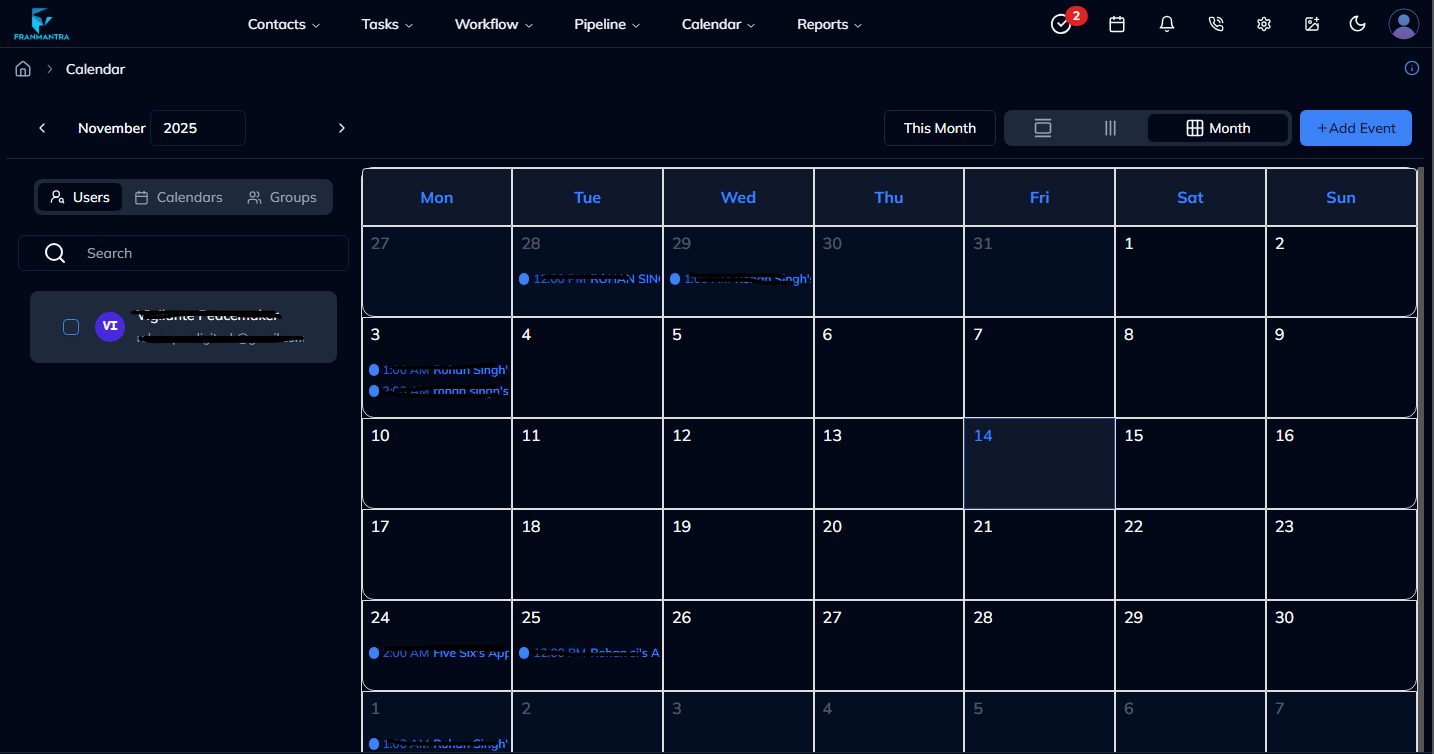
Modify Events in Calendar
- Click on the event you want to modify.
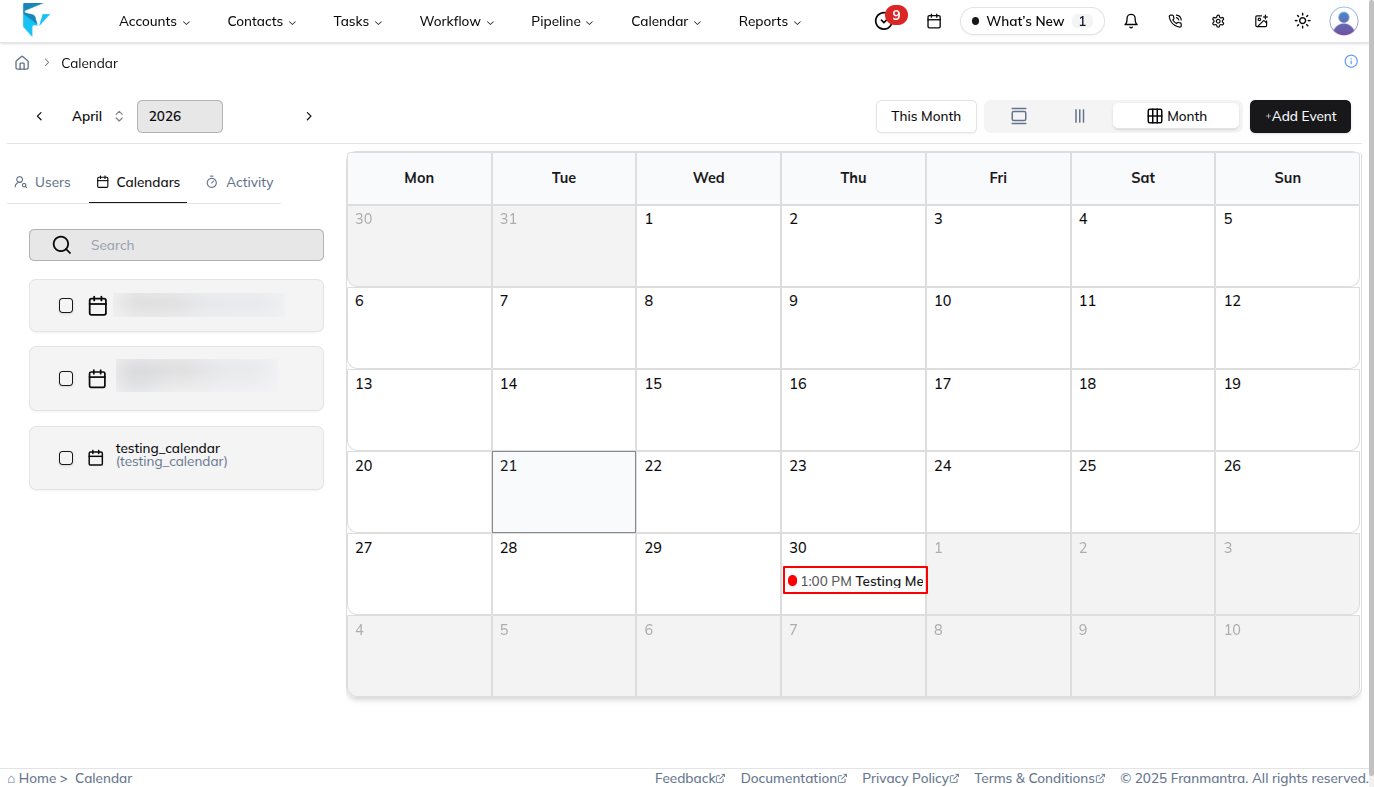
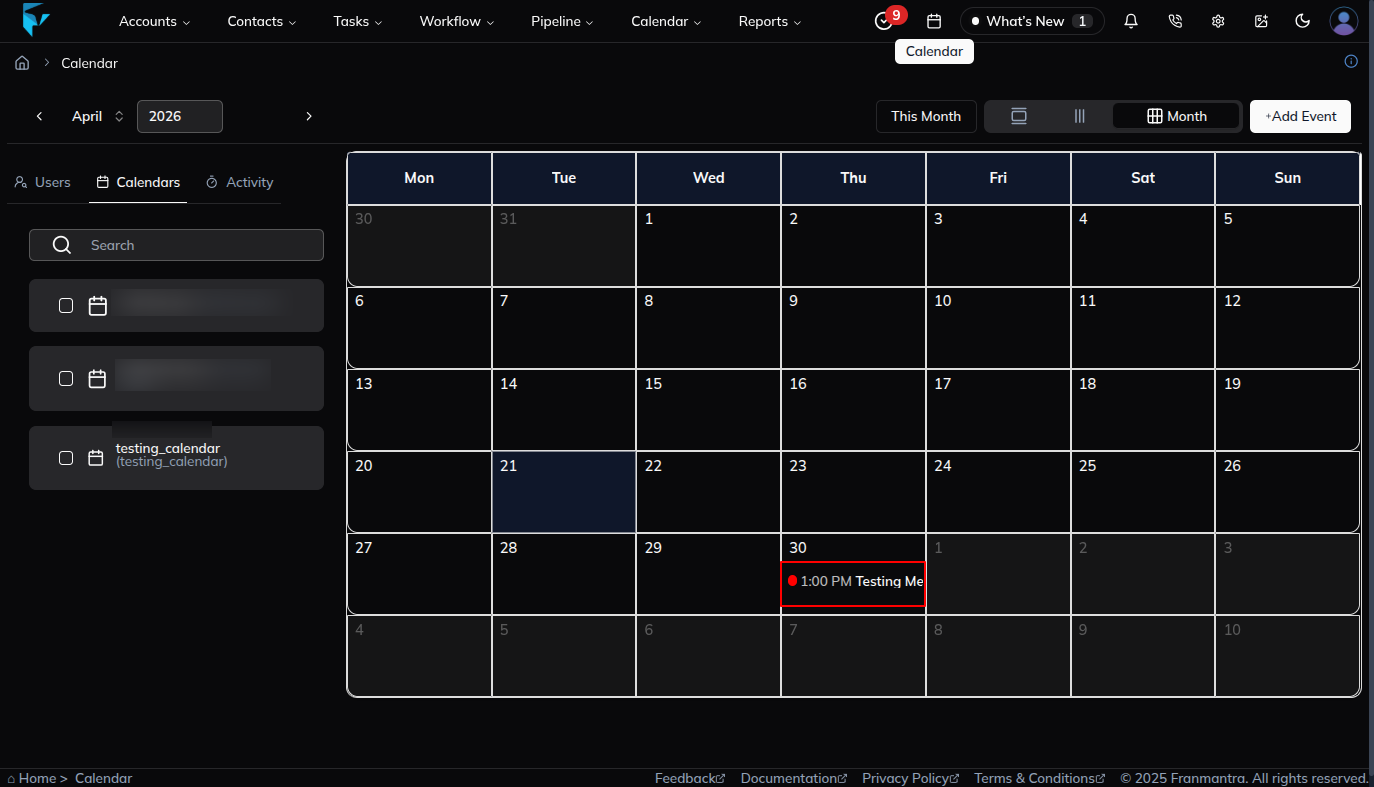
- An event pop-up will appear with options.
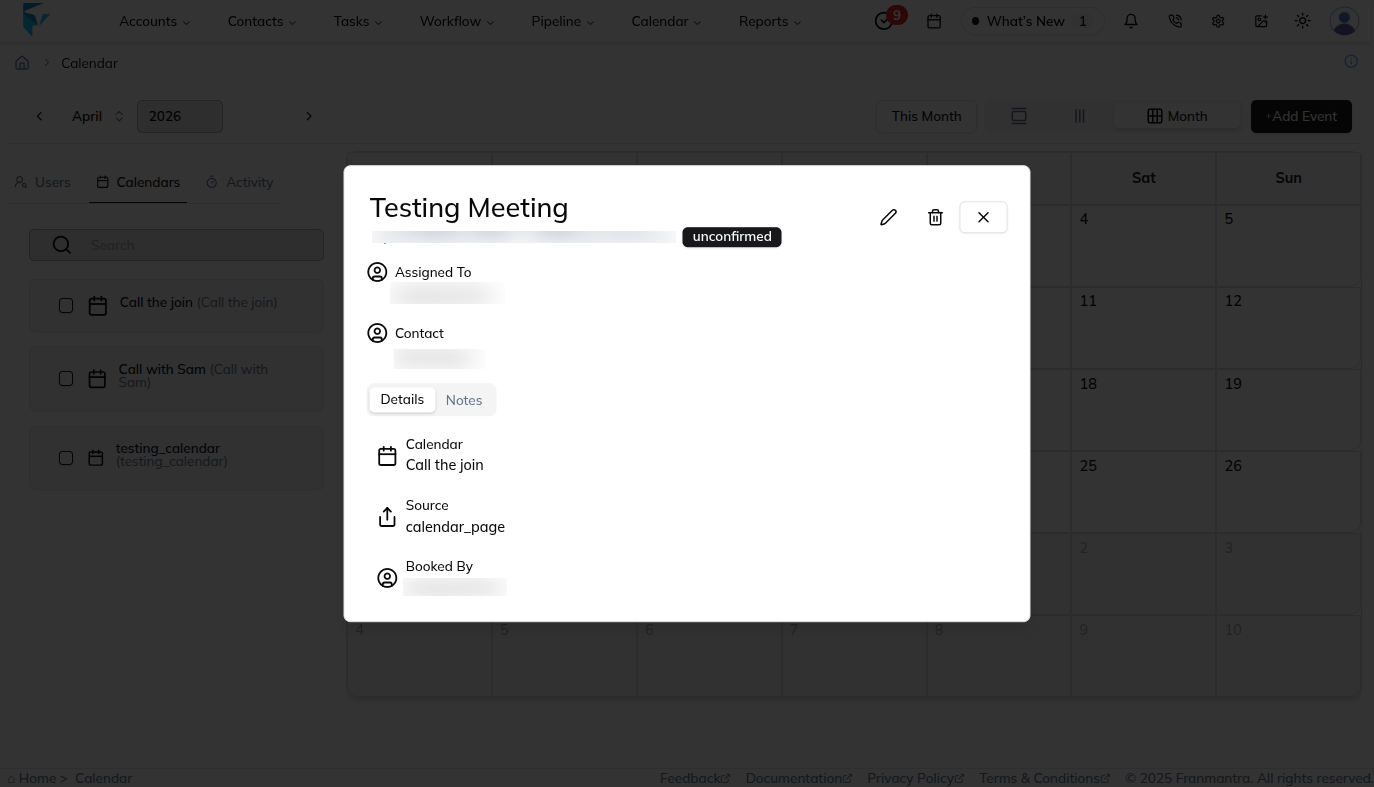
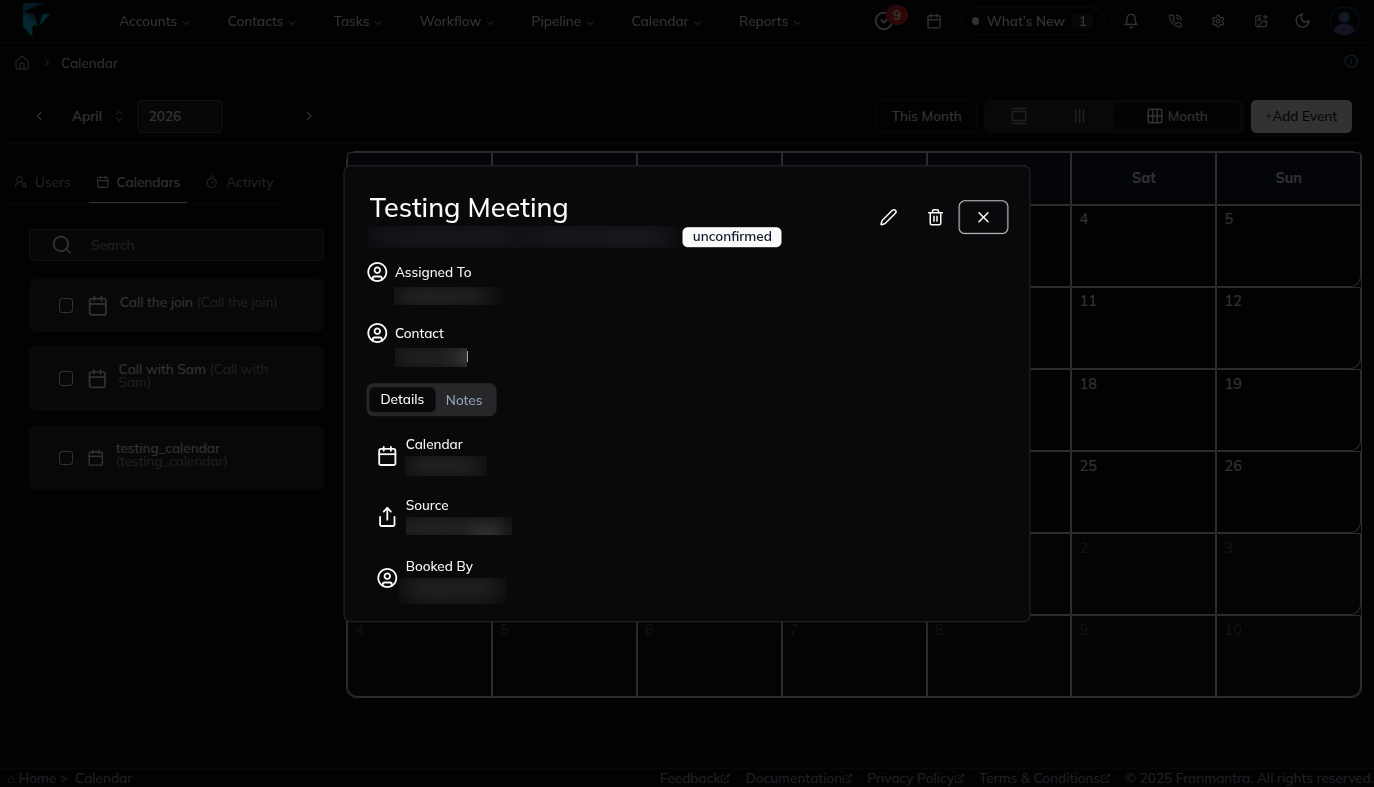
To Delete an Event
- In the pop-up, click on the Trash icon.
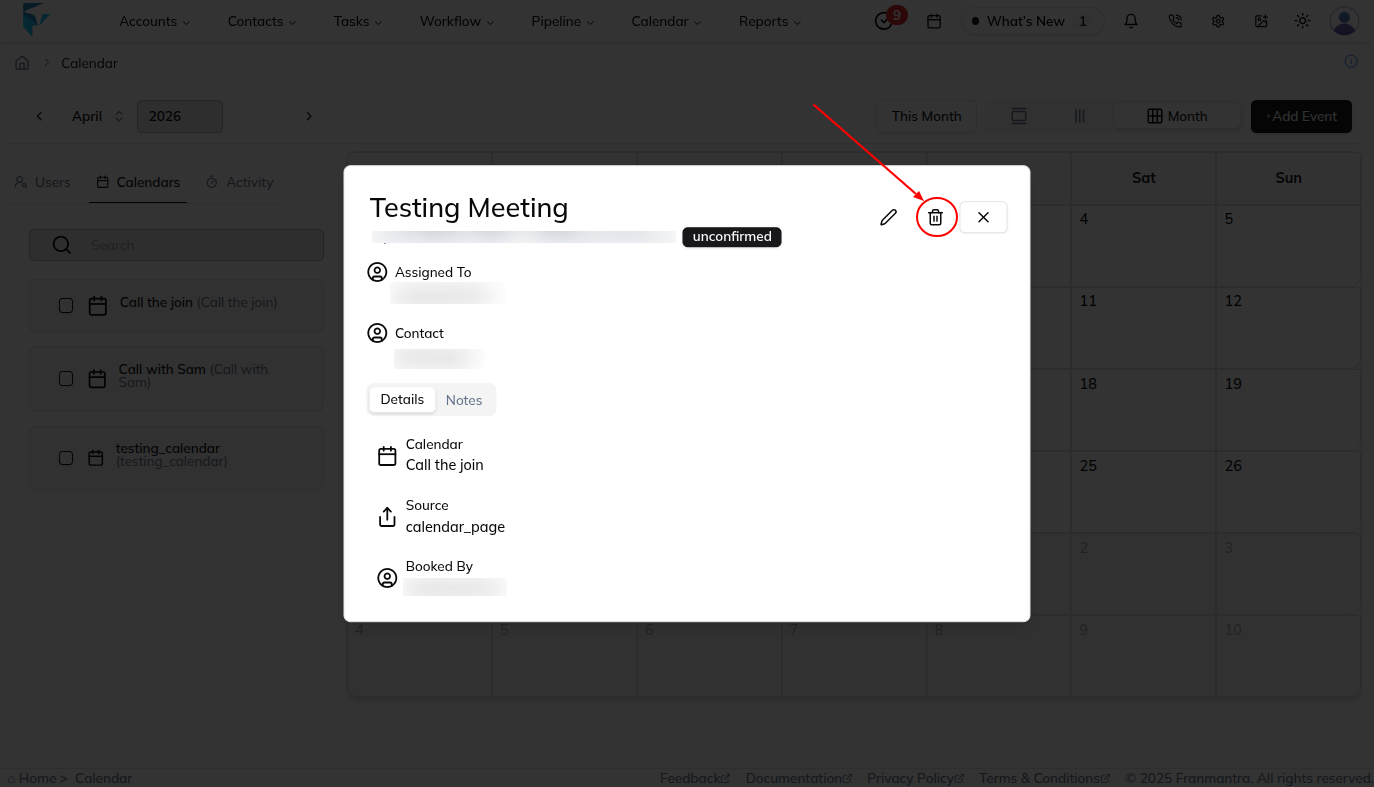
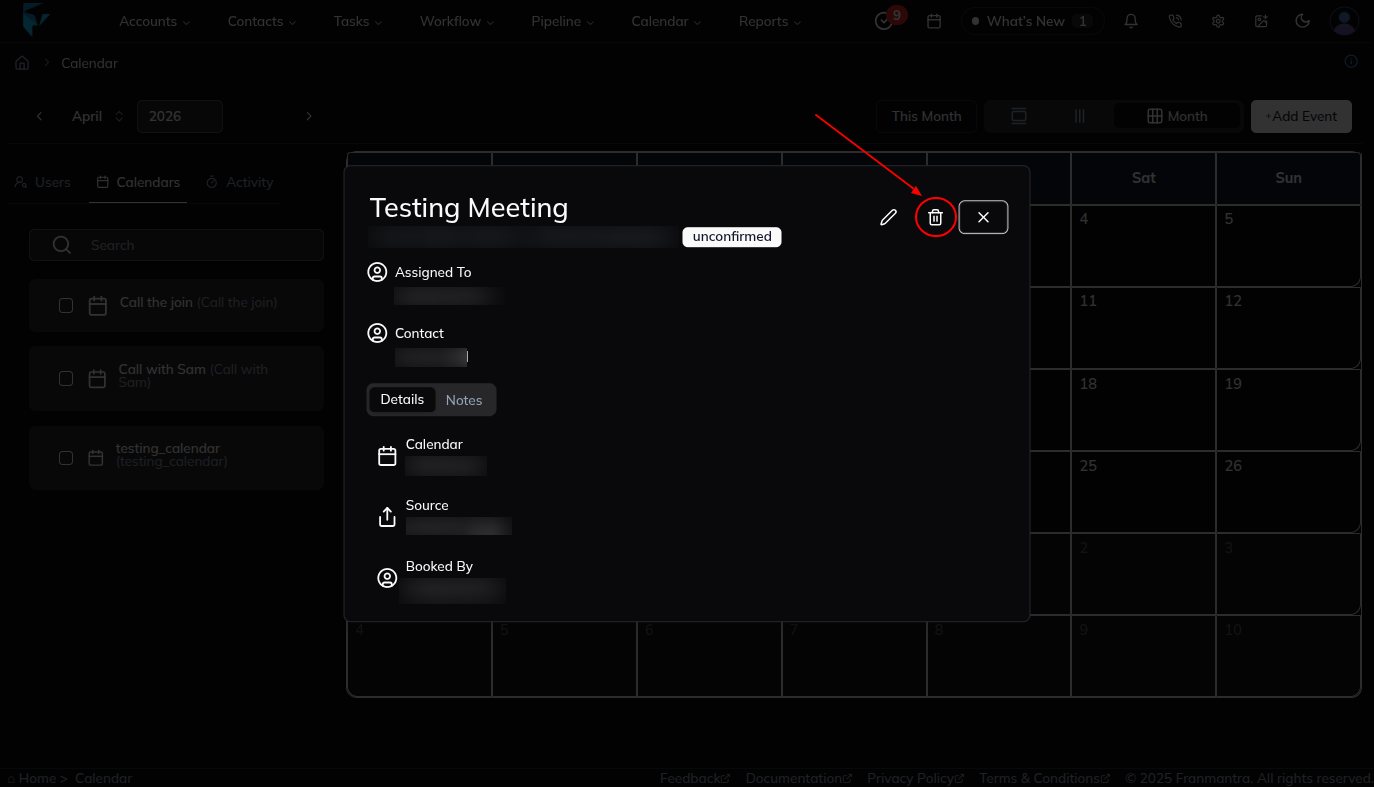
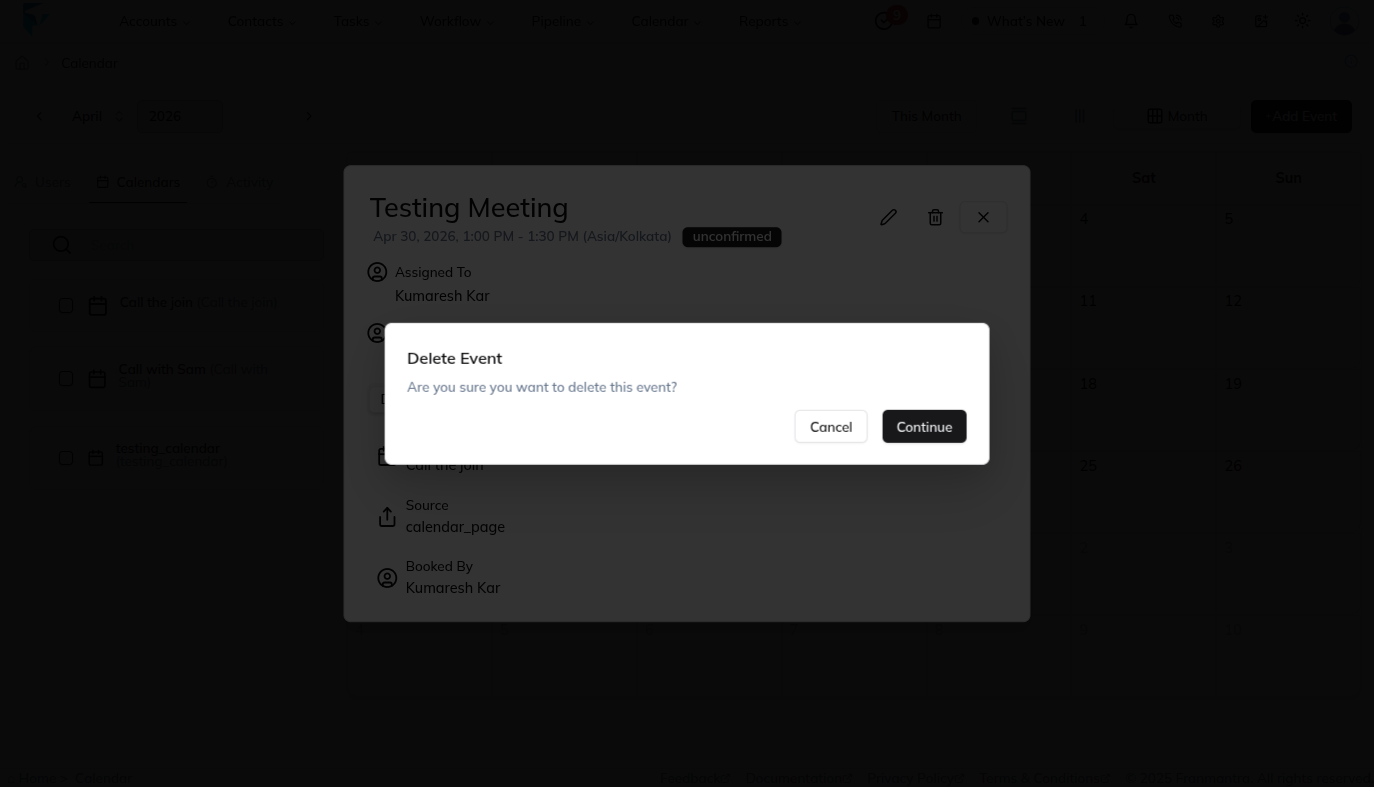
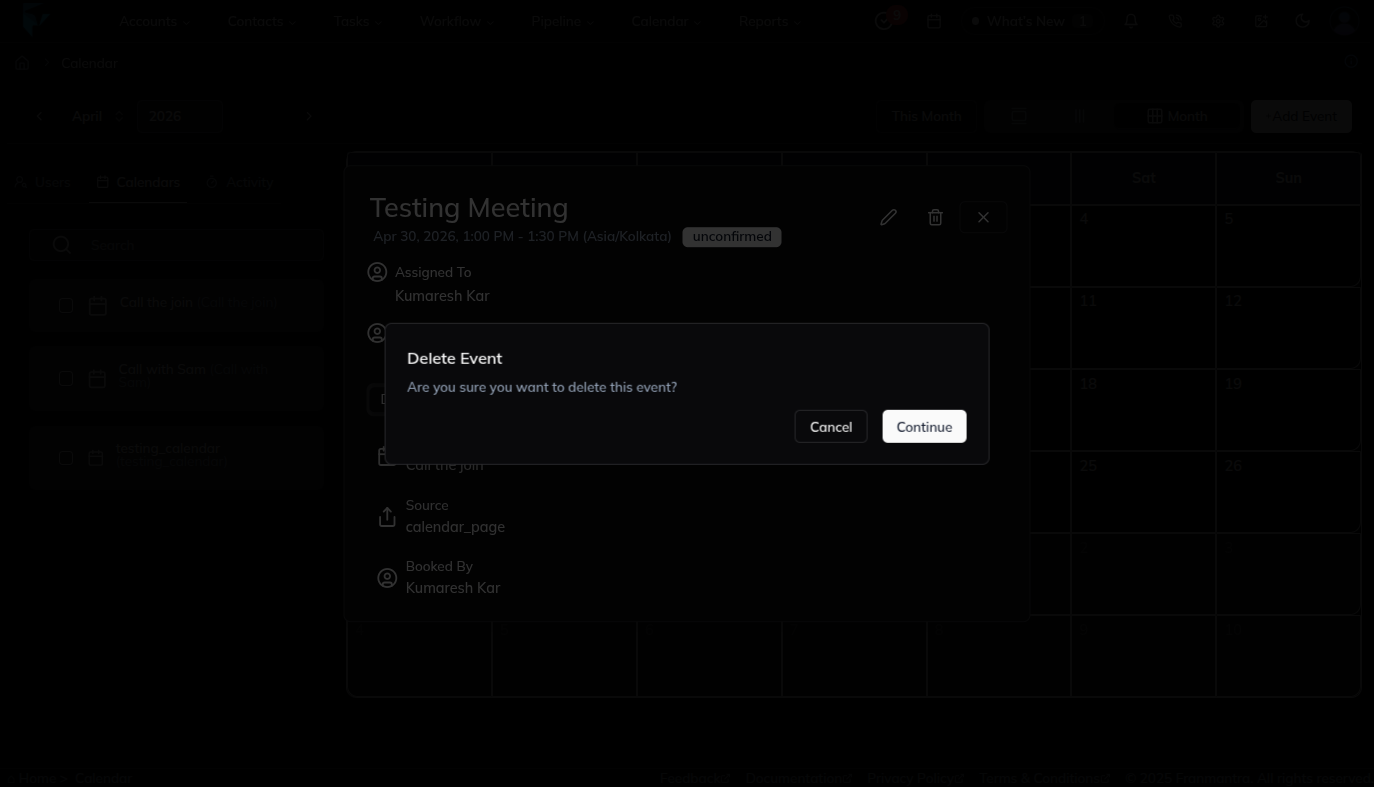
- A Delete confirmation pop-up will appear.
- Confirm the action, and the event will be deleted.
To Update an Event
- In the pop-up, click on the Pen (edit) icon.
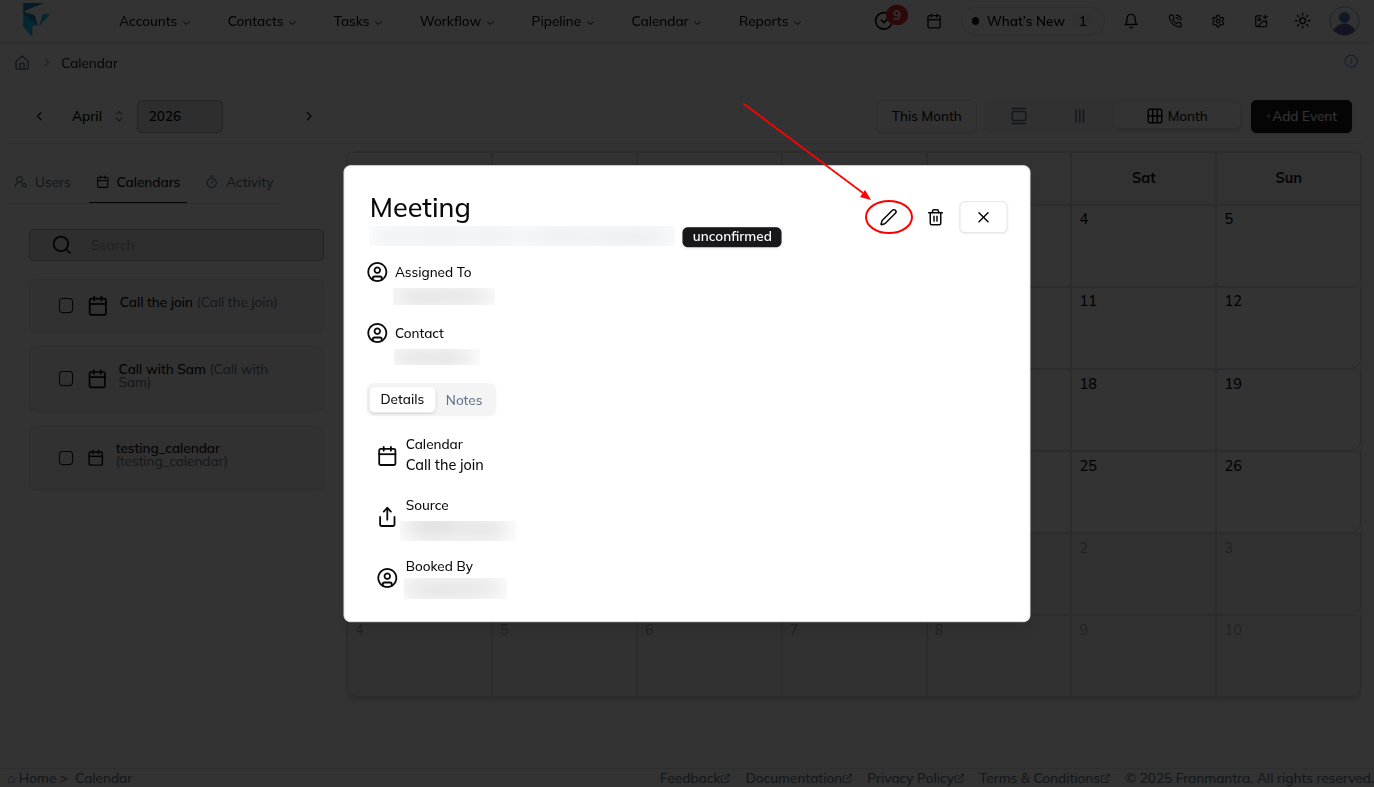
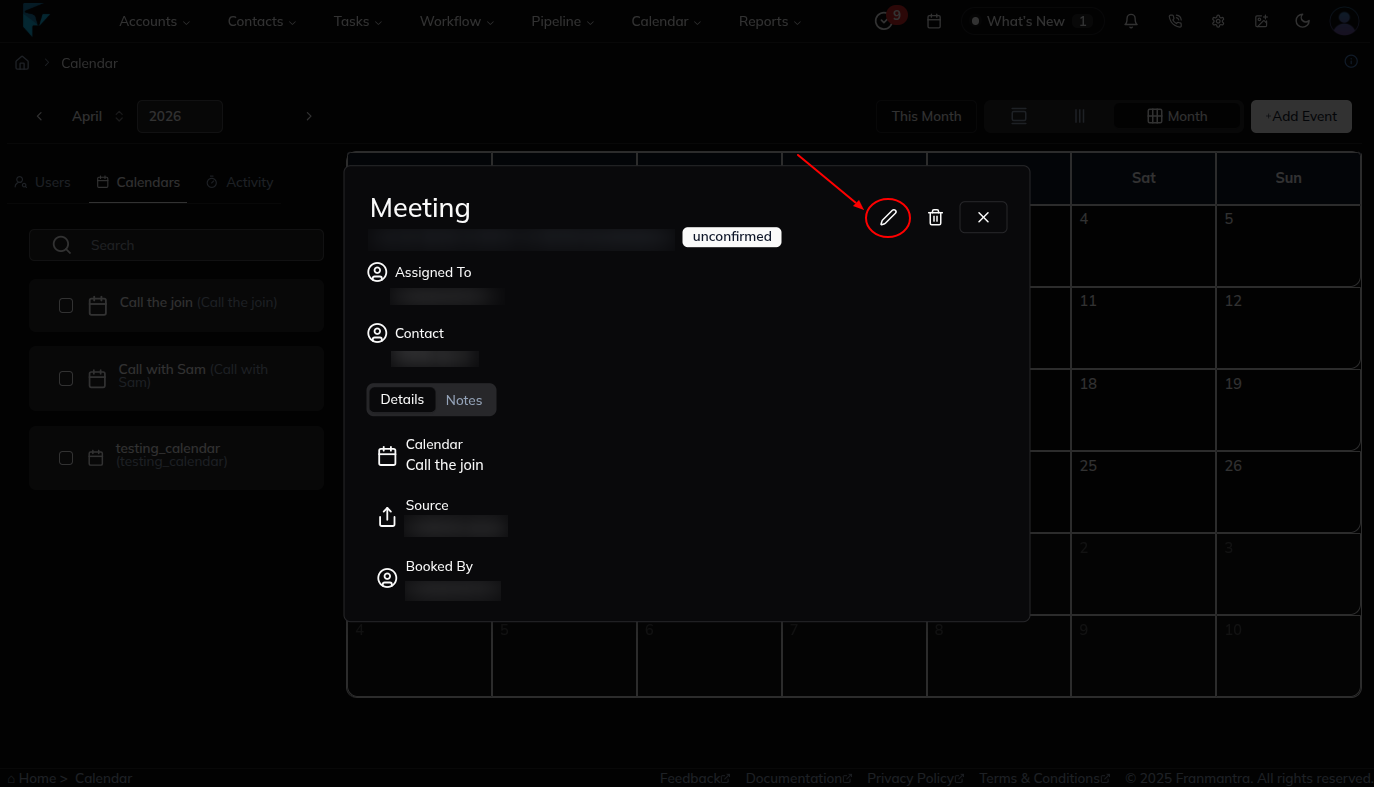
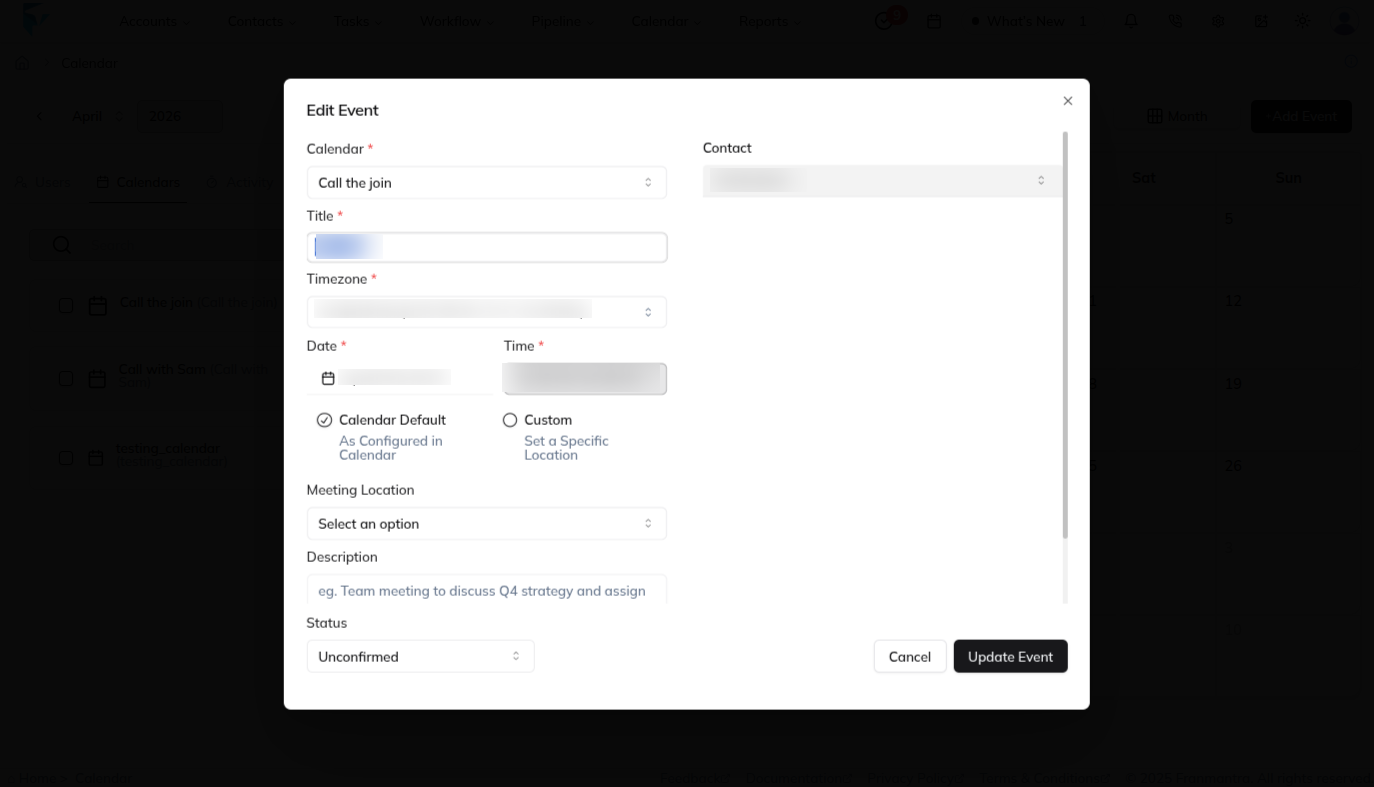
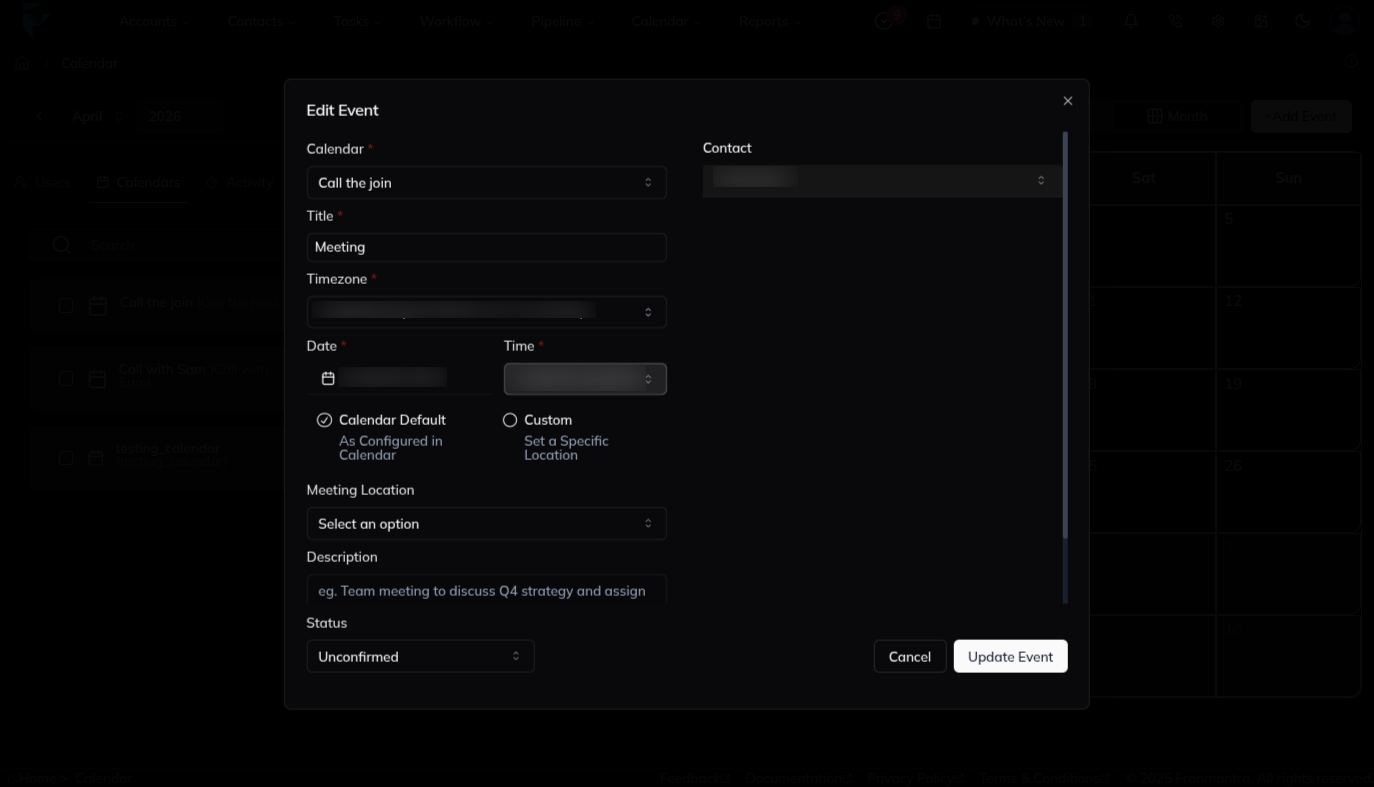
- An Edit Event pop-up will appear with pre-filled data.
- Modify the details as needed (title, time, participants, etc.).
- Click on the Update Event button to save changes.
Result
The change is saved in Franmantra CRM and is available to users with the right permissions.
Troubleshooting
- If you cannot see the option, check your role permissions or ask an admin to update your access.
- If the update does not appear immediately, refresh the page and confirm you are in the correct Sub-account.