Restore Deleted Contacts
What this does
This guide explains how to restore contacts in Franmantra CRM.
Before you start
- Sign in to Franmantra with a role that has permission to use this area.
- Confirm you are working in the correct Sub-account before making changes.
Steps
Sometimes, contacts may be deleted by mistake or need to be reactivated later. The Restore feature allows you to bring back single contacts or restore multiple contacts at once.
Reach the Restore Tab
- Go to the header menu and hover over the Contacts option.
- From the dropdown, click Contacts.
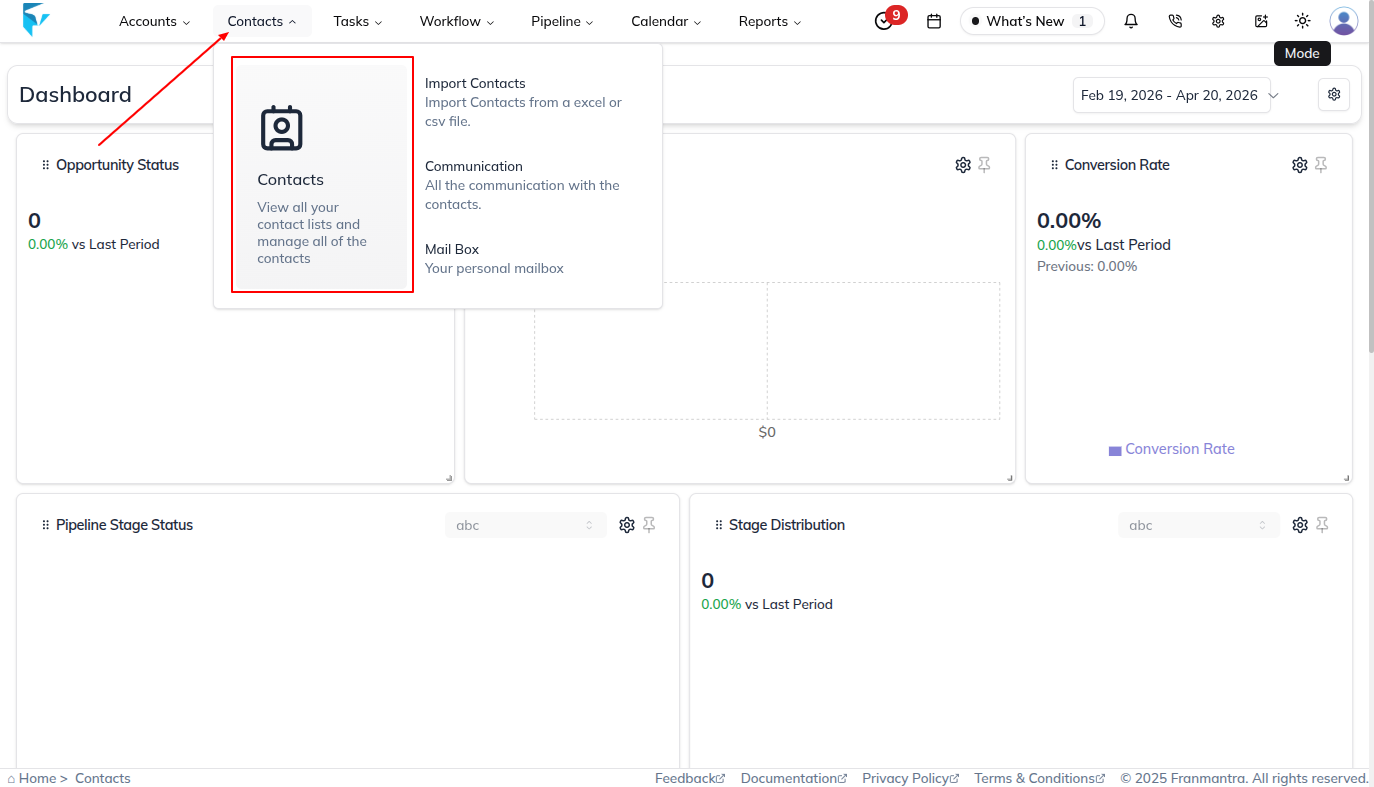
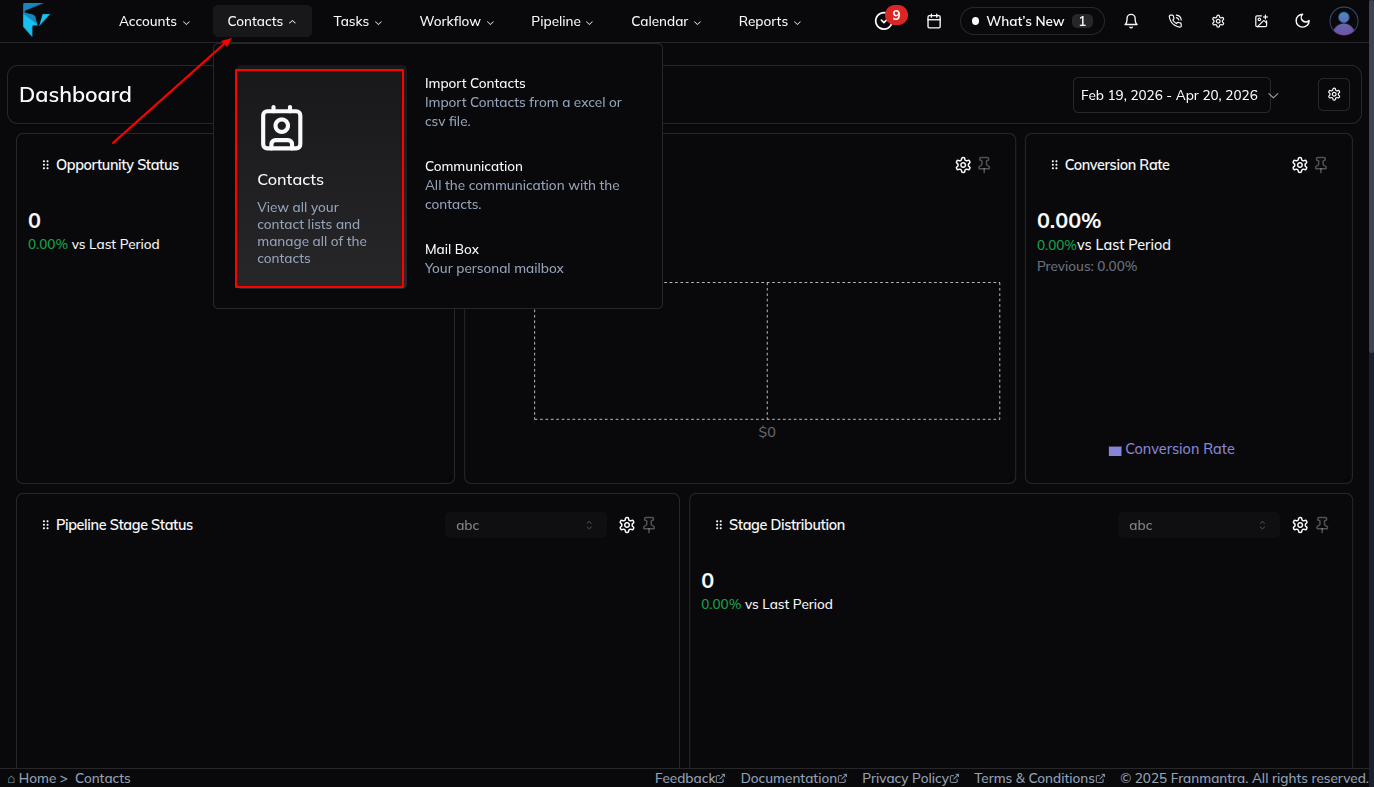
- You’ll land on the Contacts page, where all contacts are listed in a table format.
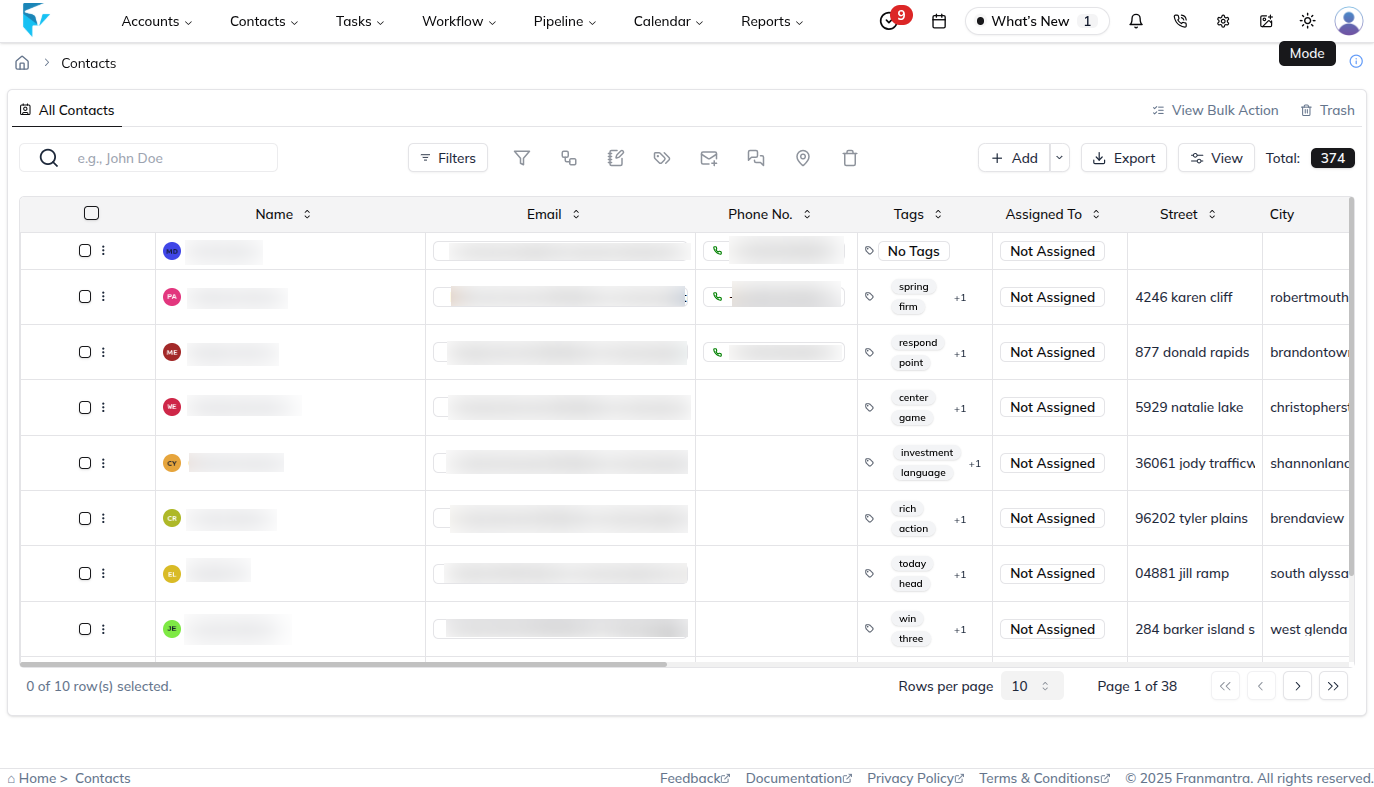
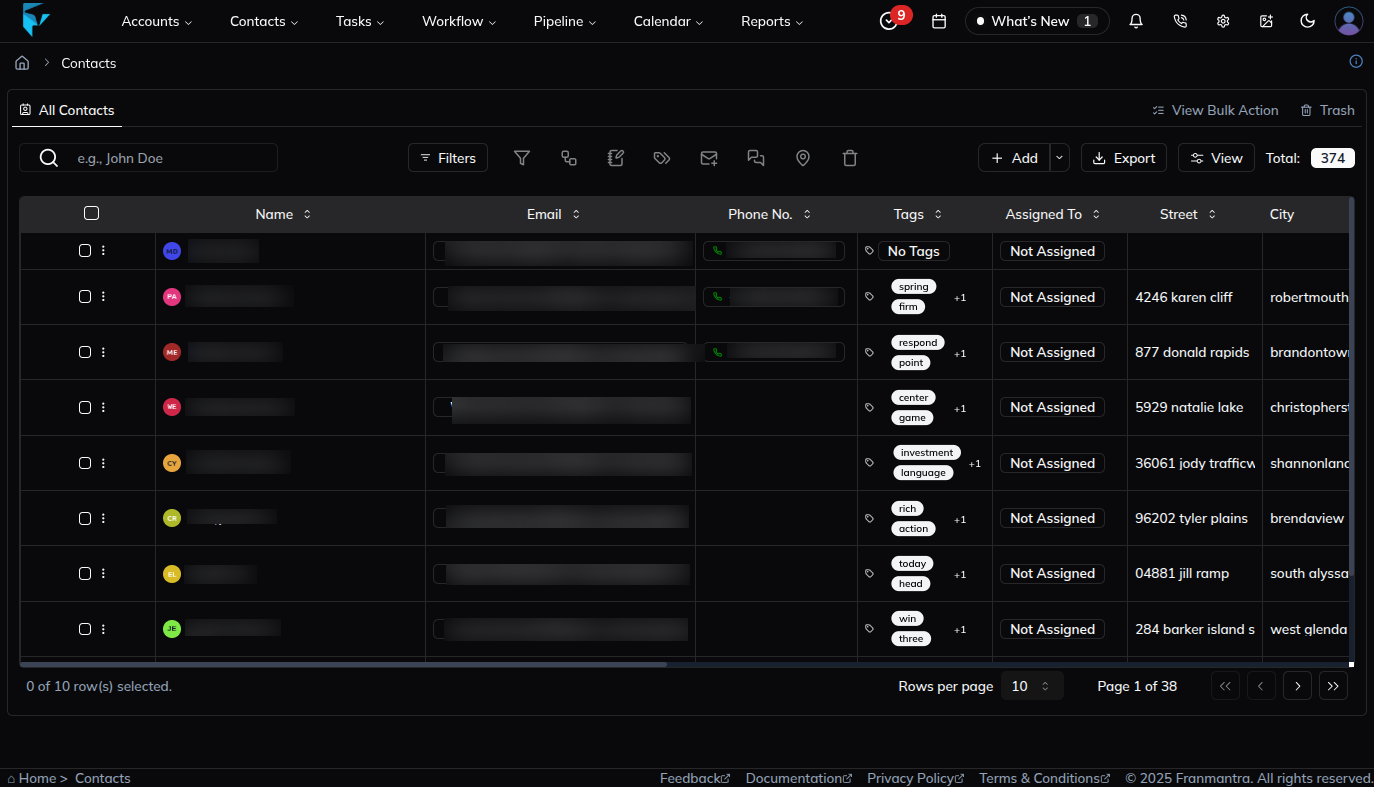
- On this page, find and click the Trash icon button.
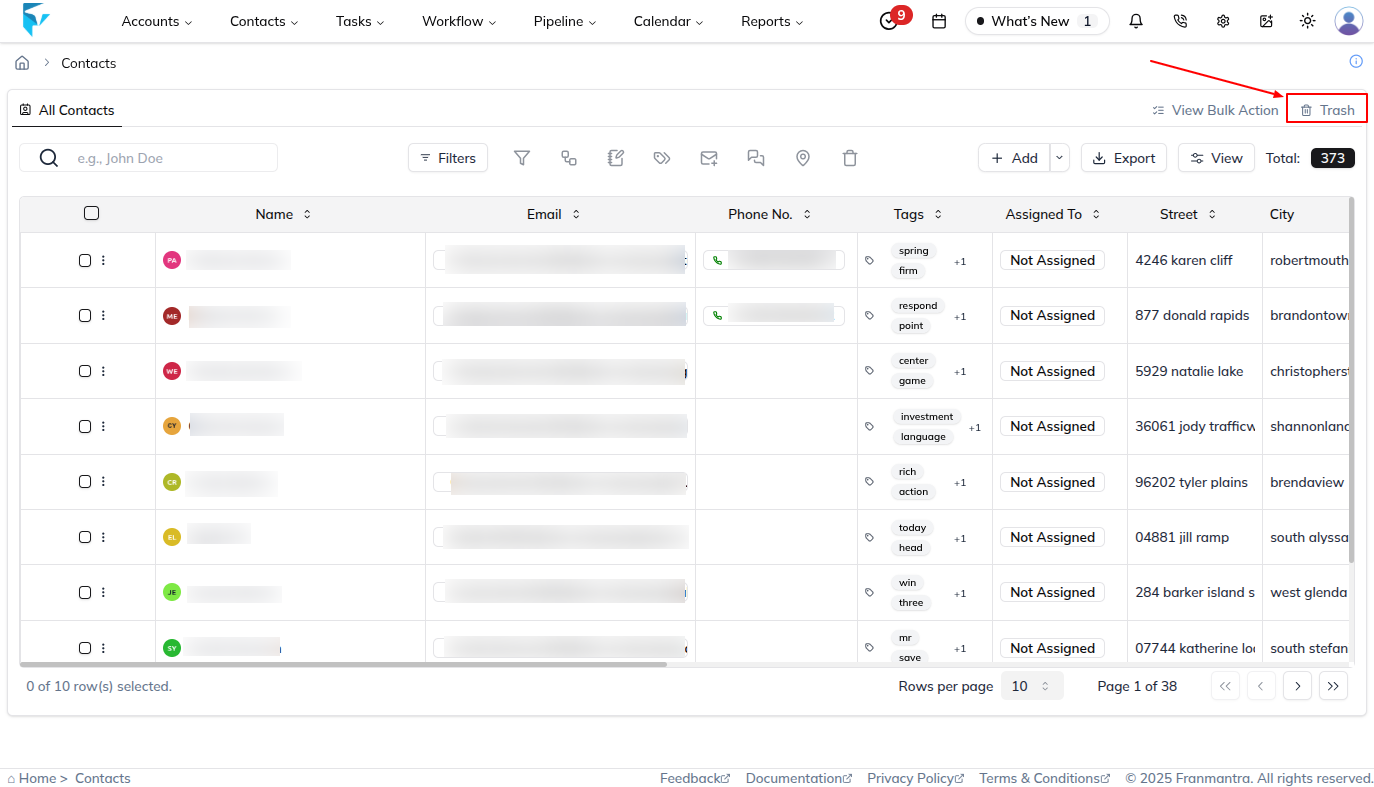
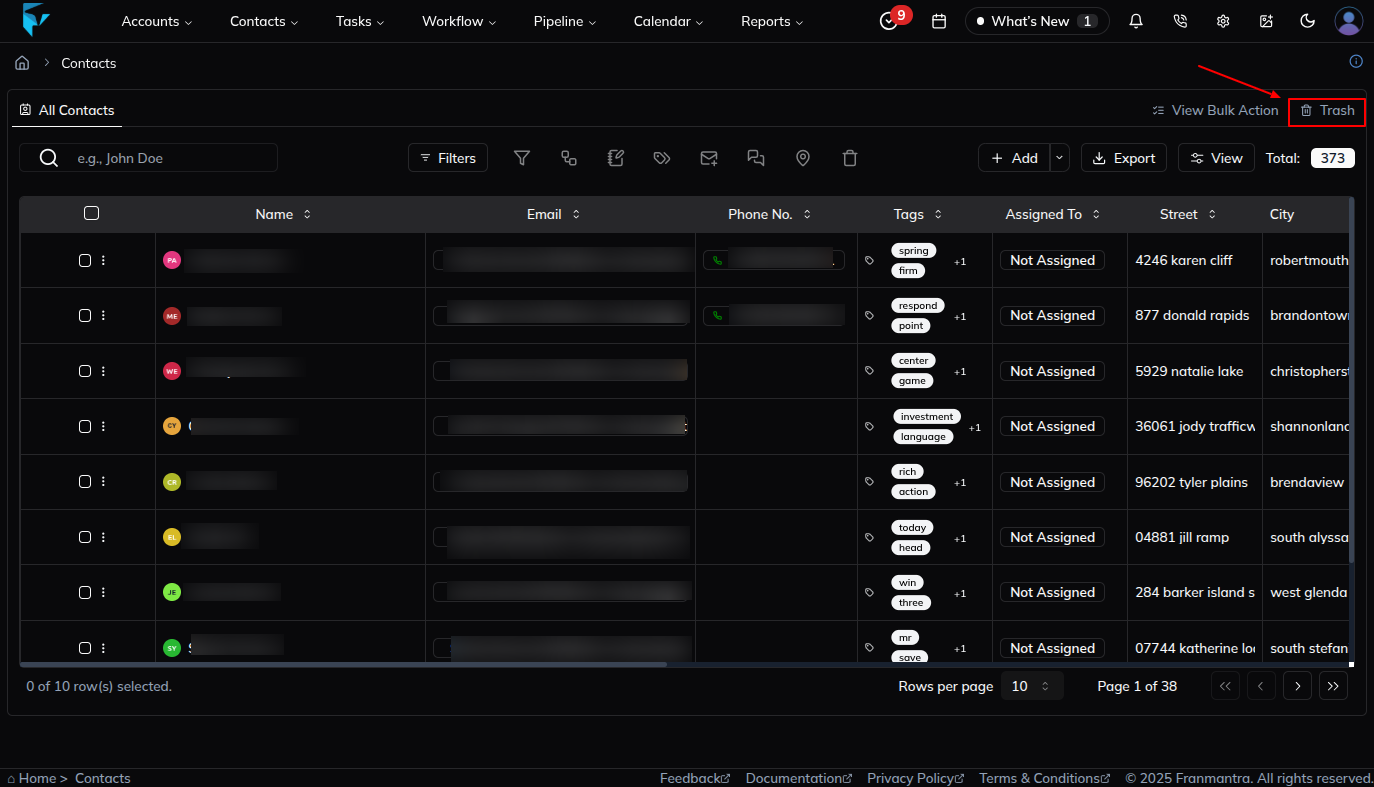
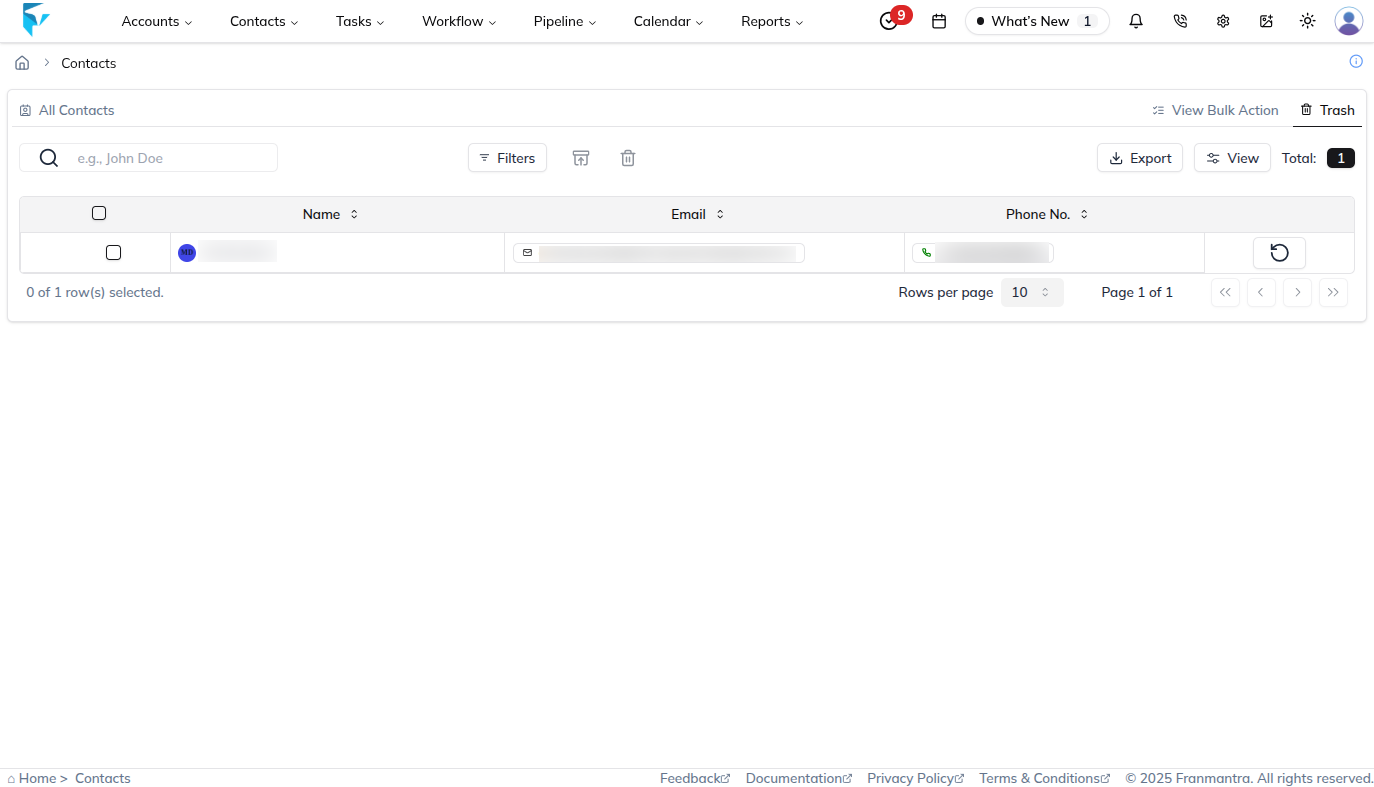
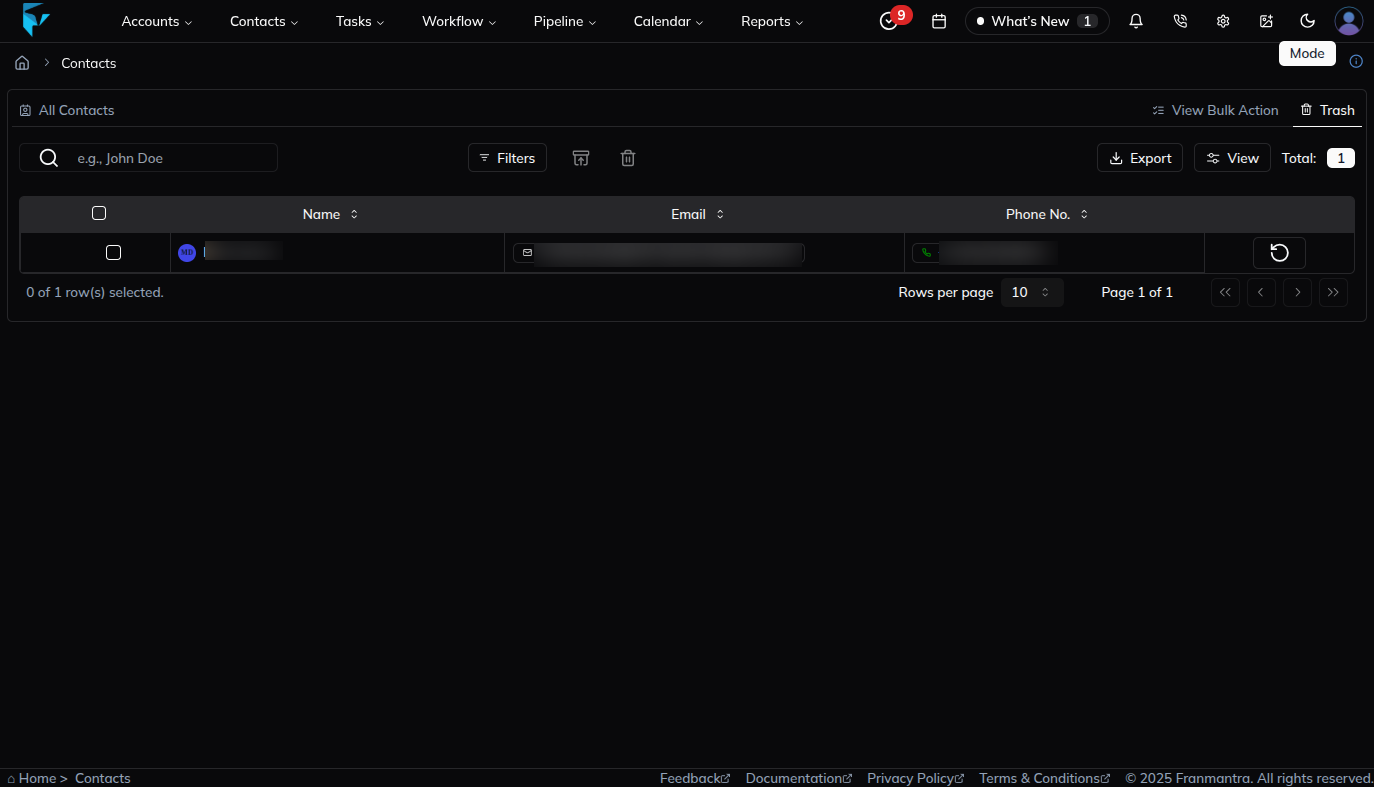
- You’ll be redirected to the Trash tab, where all deleted contacts are listed.
Restore a Single Contact
- In the deleted contacts table, go to the last column of the record.
- Click the Restore icon.
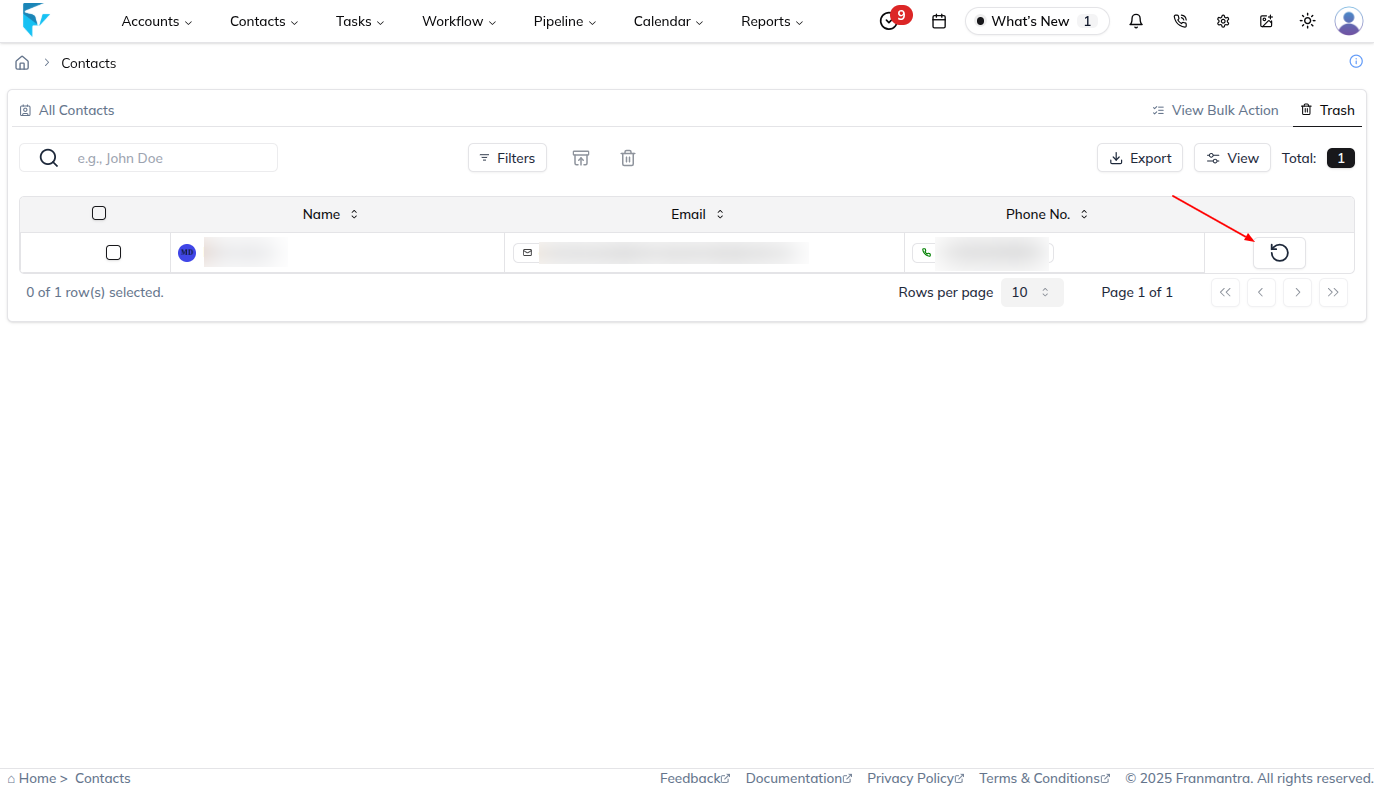
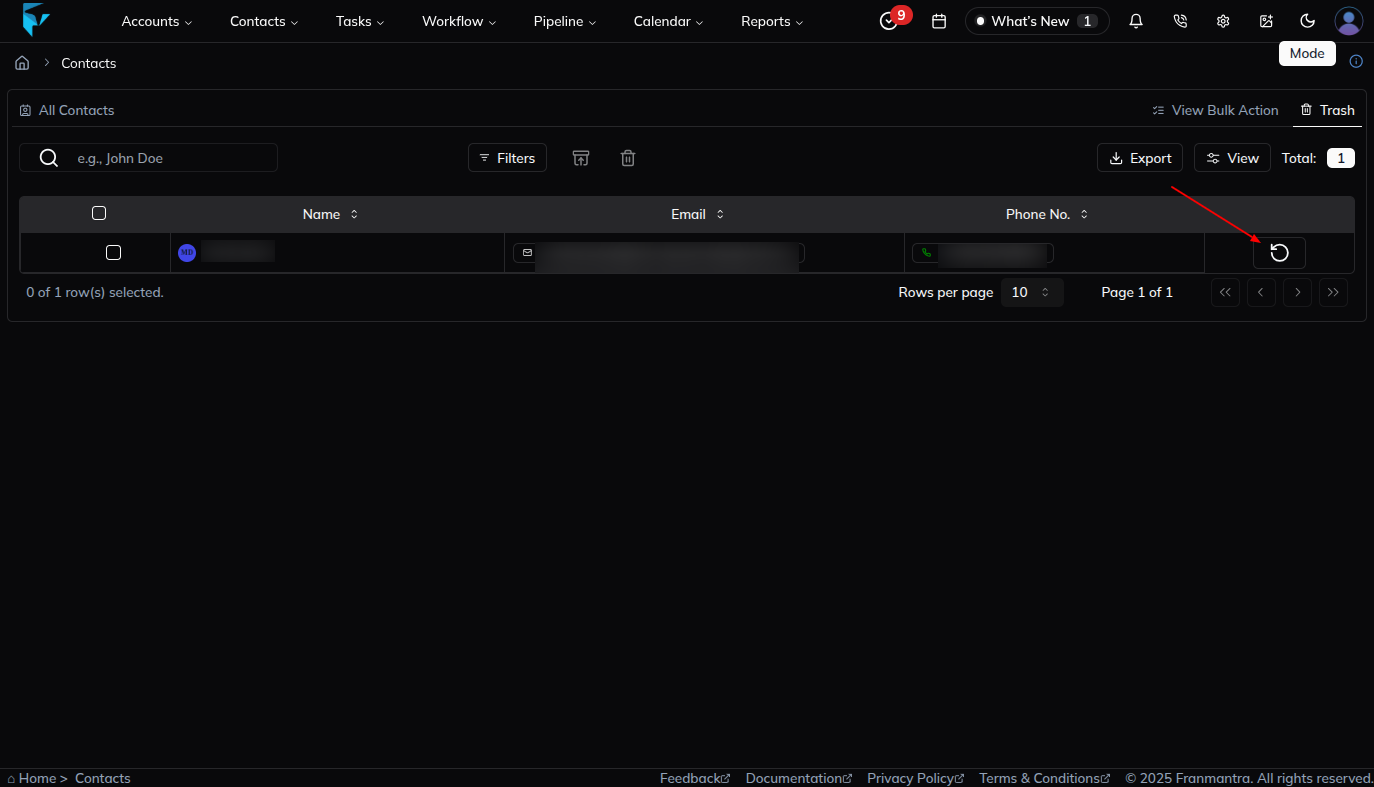
- A confirmation alert will appear.
- Confirm the action, and the contact will be restored successfully.
Restore Contacts in Bulk
- In the deleted contacts table, select multiple contacts you want to restore.
- Once selected, the Bulk Restore button (icon) becomes active.
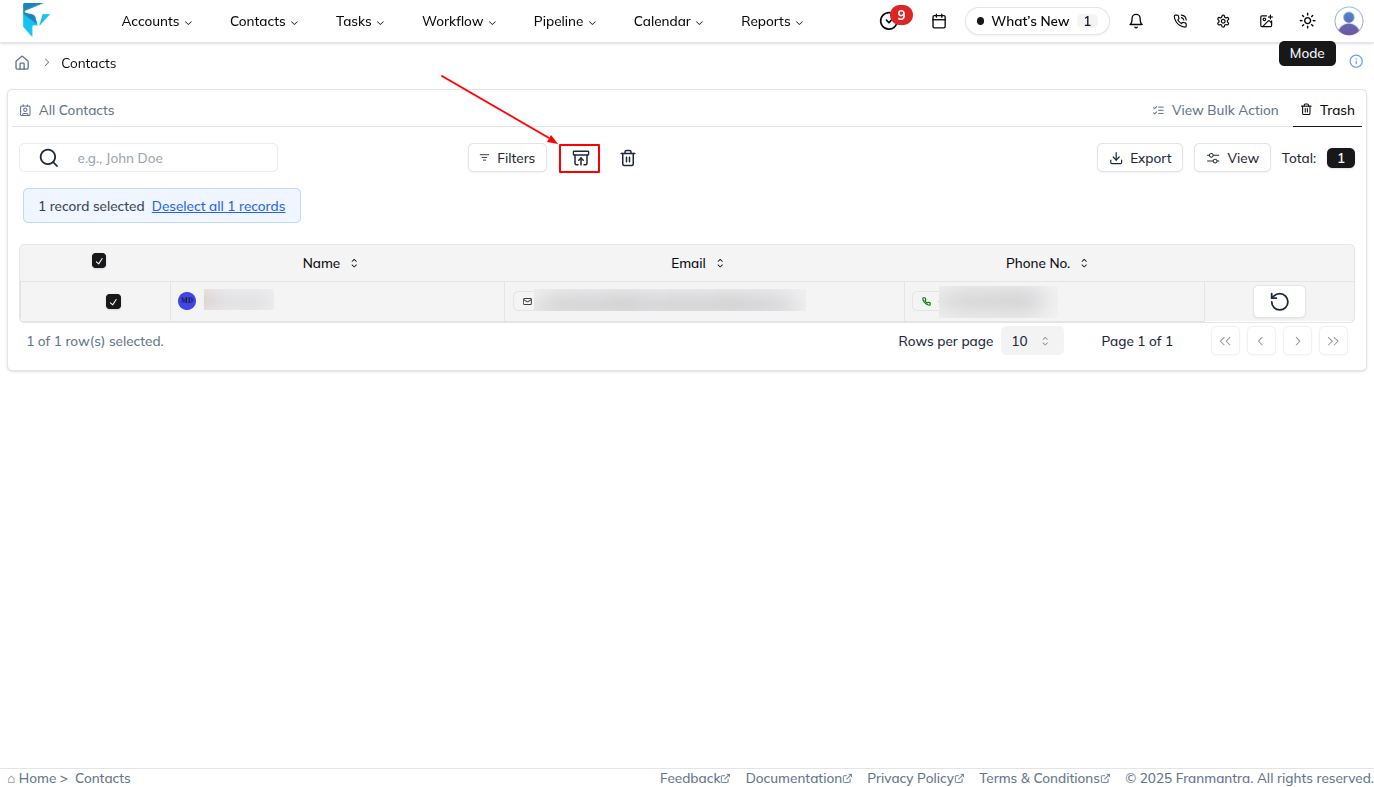
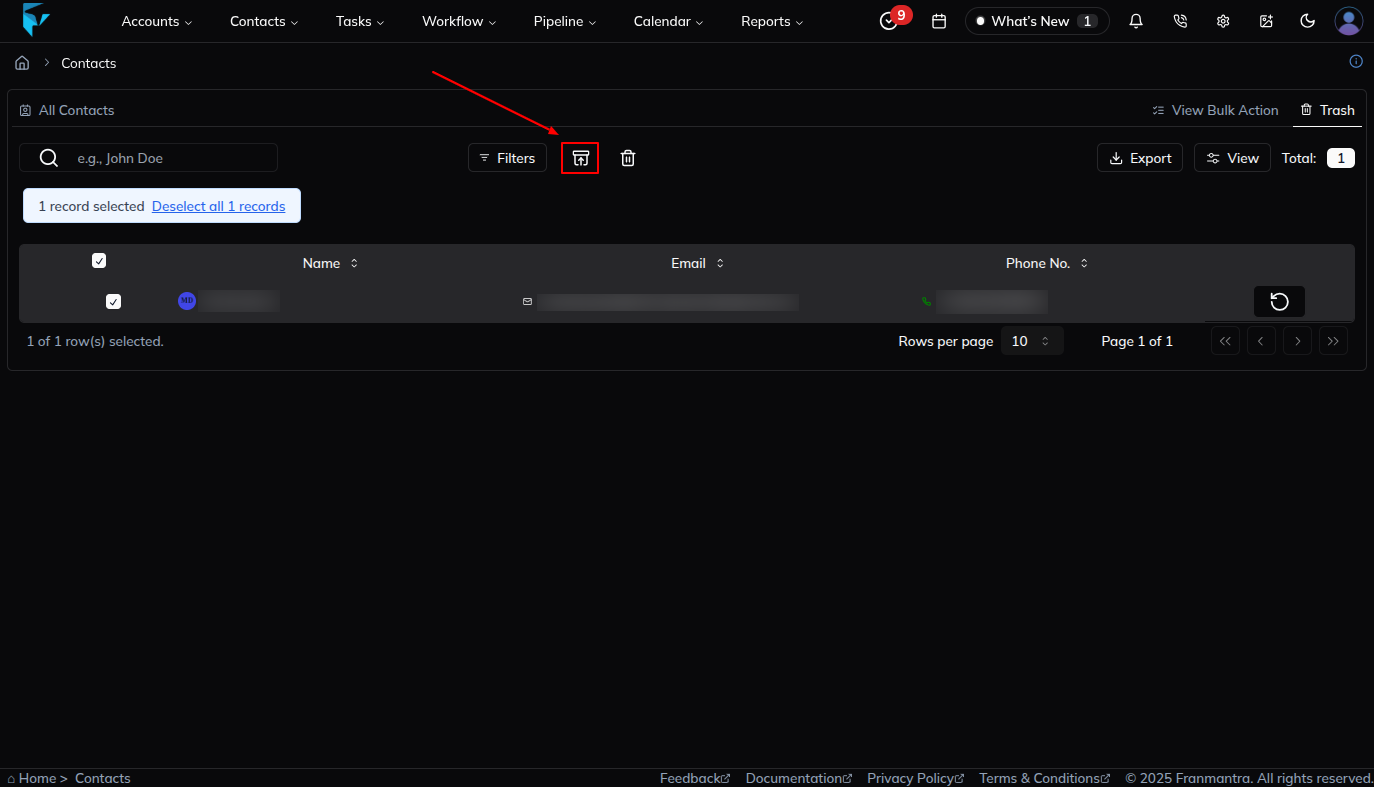
- Click the Bulk Restore icon.
- A confirmation pop-up will appear.
- Confirm the action, and all selected contacts will be restored successfully.
Result
The change is saved in Franmantra CRM and is available to users with the right permissions.