Smart Lists in Contacts
What this does
This guide explains how to add smart lists in contacts in Franmantra CRM.
Before you start
- Sign in to Franmantra with a role that has permission to use this area.
- Confirm you are working in the correct Sub-account before making changes.
Steps
Smart Lists help you organize your contacts into quick-access, filter-based tabs for efficient lead management.
1. What Are Smart Lists?
Smart Lists act as saved filters that automatically group contacts matching specific criteria — such as tags, lead stages, or owners. They appear as tabs on top of the Contacts page, allowing you to easily switch between different views.
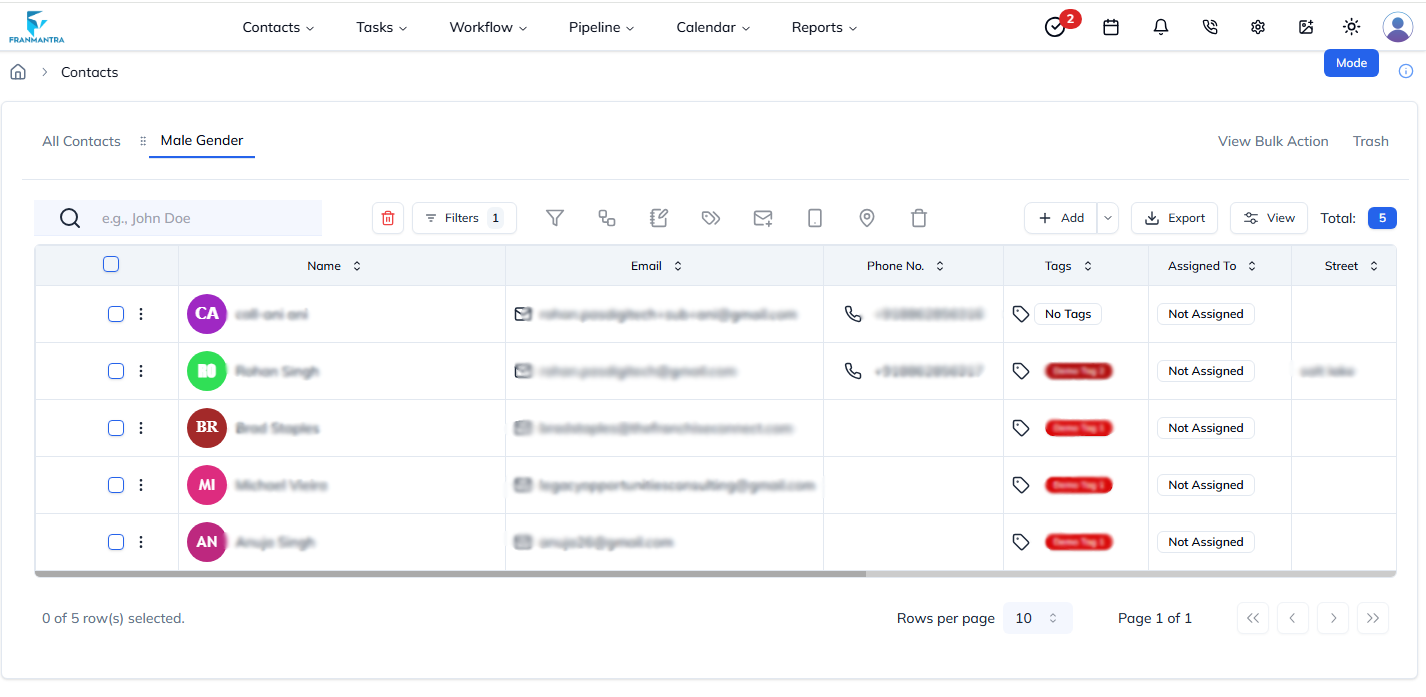
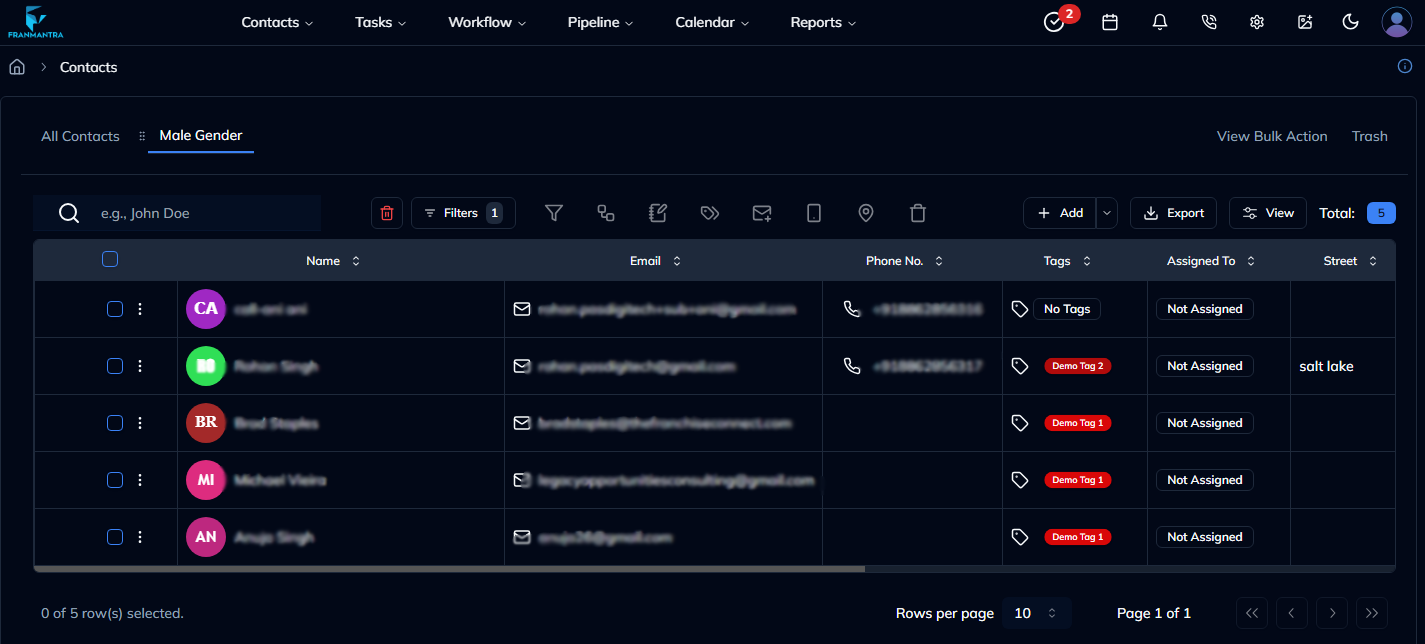
Figure 1: Smart List tabs at the top of the Contacts module.
2. How to Create a Smart List
- Hover over Contacts in the header, then click Contacts in the dropdown menu.
- Apply filters such as Owner, Status, Tags, or any other available filter options.
- Once the filtered results appear, click Save as Smart List.
- Enter a name for your Smart List (e.g., Hot Leads or New Prospects).
- Click Save, and a new tab will be created at the top for this list.
Tip: You can create multiple Smart Lists for different follow-up strategies or contact categories.
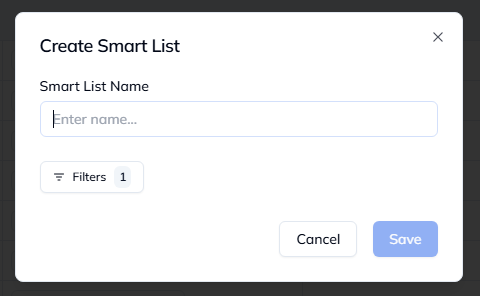
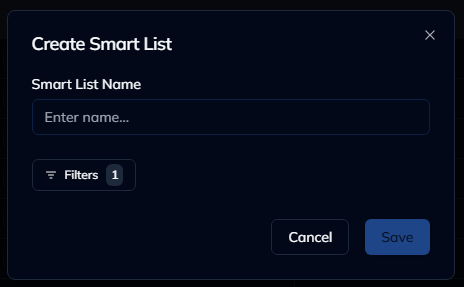
Figure 2: Create smartlist modal.
3. How to Reorder Smart Lists
You can drag and drop Smart List tabs to change their order:
- Click and hold a tab.
- Move it left or right to adjust the order.
- Release to drop it in the new position.
- Take in or out a smartlist from the dropdown.
The new order is saved automatically, so you can keep your most-used lists easily accessible.
4. How to Delete a Smart List
- Hover over the Smart List tab you want to remove.
- Click the Bin menu next to filter.
- Confirm your action.
Deleting a Smart List will only remove the saved view — it will not delete any contacts.
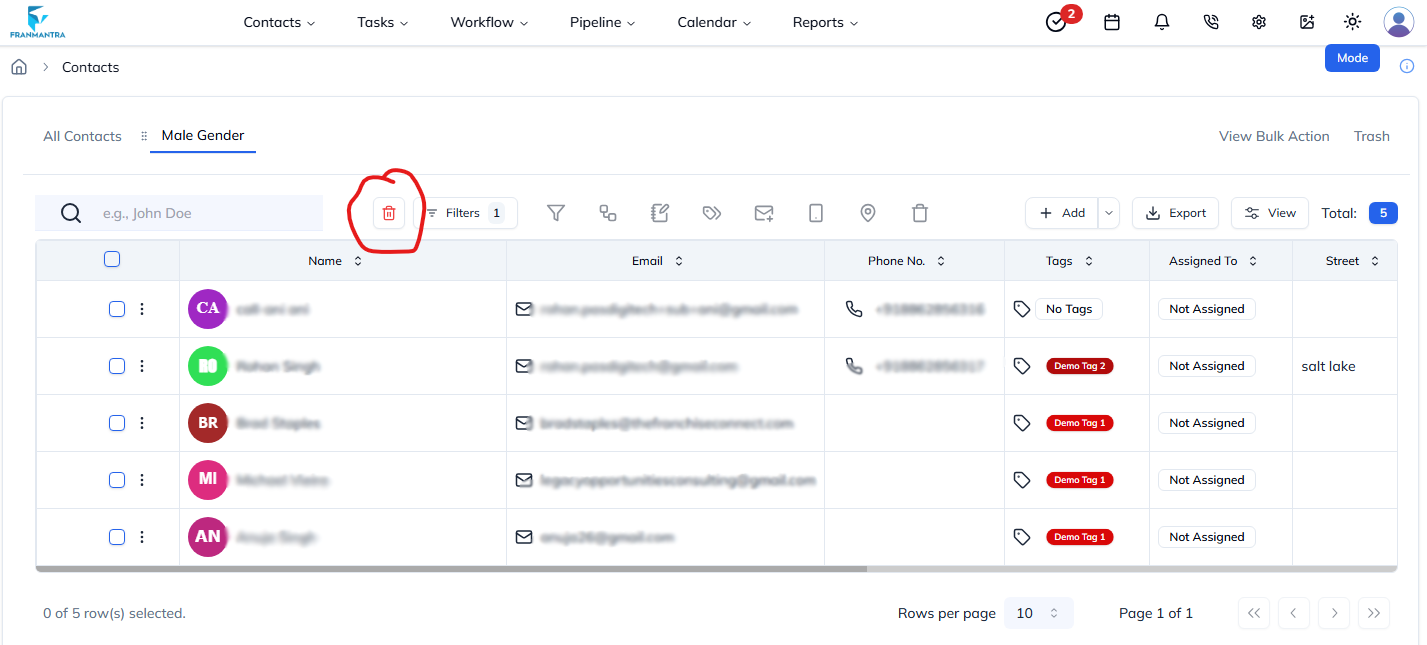
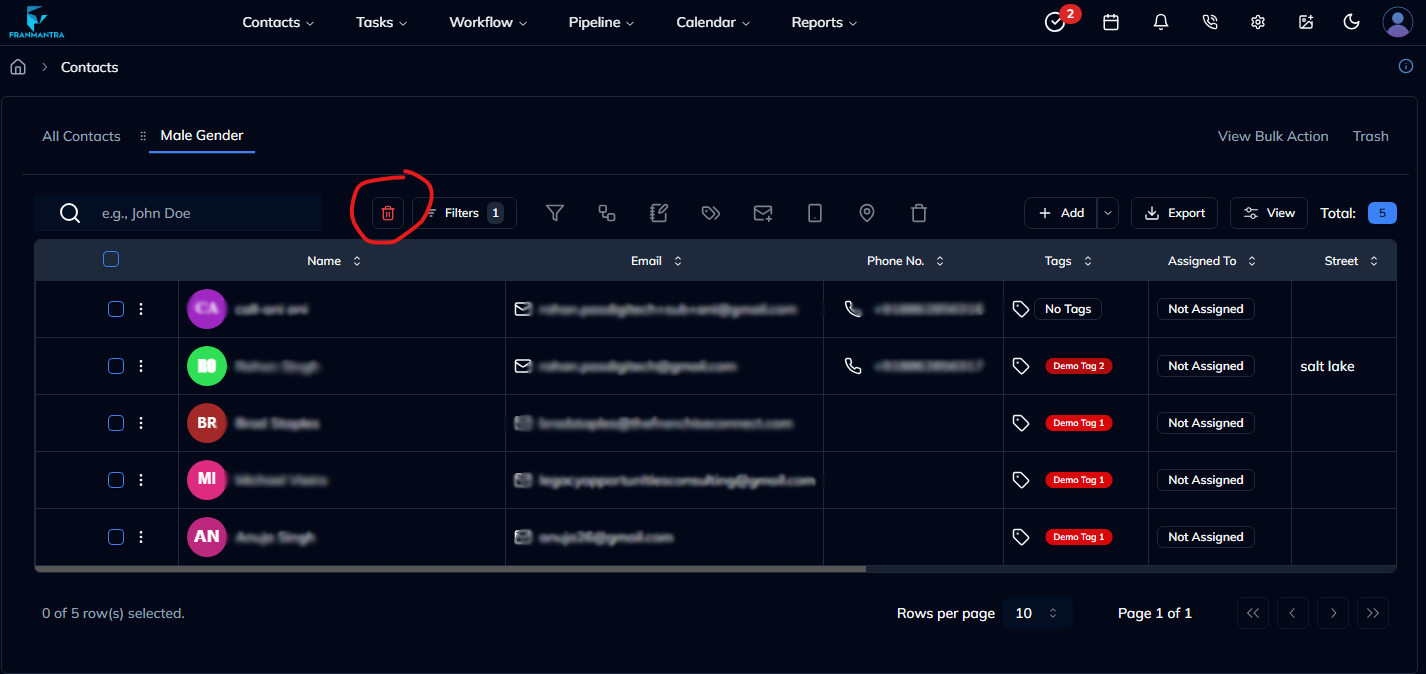
Figure 3: Delete smartlist.
5. Managing Hidden Smart Lists
If you have too many Smart Lists, some may be hidden under the More (⋯) dropdown menu. Click the menu to view or switch to hidden lists. You can also reorder these hidden lists using drag-and-drop.
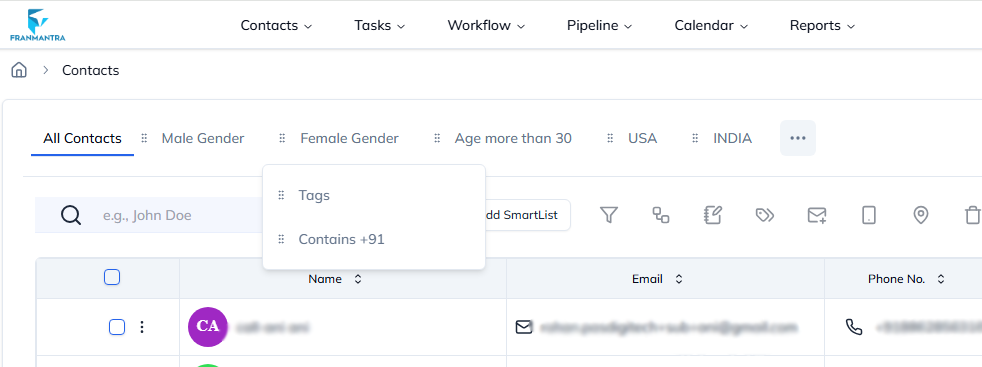
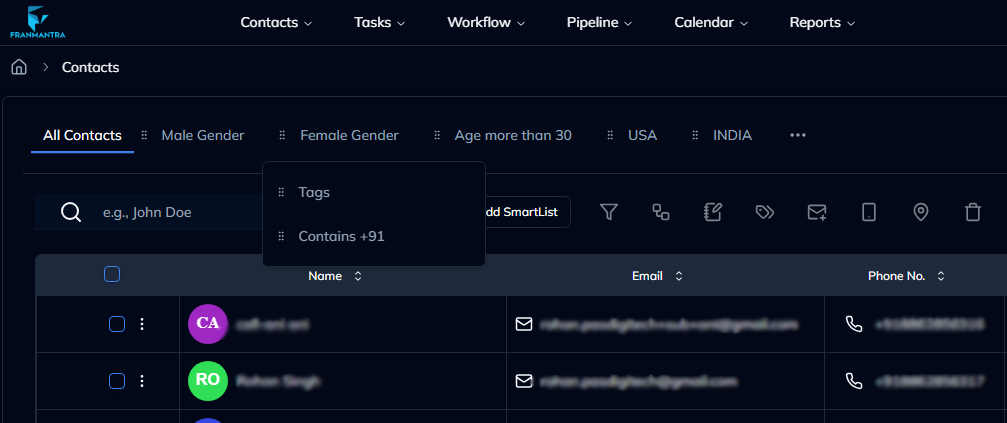
Figure 4: Overflow dropdown showing hidden Smart Lists.
6. Best Practices
✅ Keep your Smart Lists meaningful — e.g., “High Value Leads” or “Follow-up Today.” ✅ Avoid creating too many lists to maintain clarity. ✅ Reorder lists regularly to prioritize active campaigns or Workflows.
Result
The change is saved in Franmantra CRM and is available to users with the right permissions.
Troubleshooting
- If you cannot see the option, check your role permissions or ask an admin to update your access.
- If the update does not appear immediately, refresh the page and confirm you are in the correct Sub-account.