Change Workflow Status
What this does
This guide explains how to change Workflow status in Franmantra CRM.
Change a Workflow from Draft to Published, or back again.
Before you start
- Make sure you can open the Workflow page.
- Decide which Workflow you want to update.
Steps
- Hover over Workflows in the header menu.
- Click Workflow.
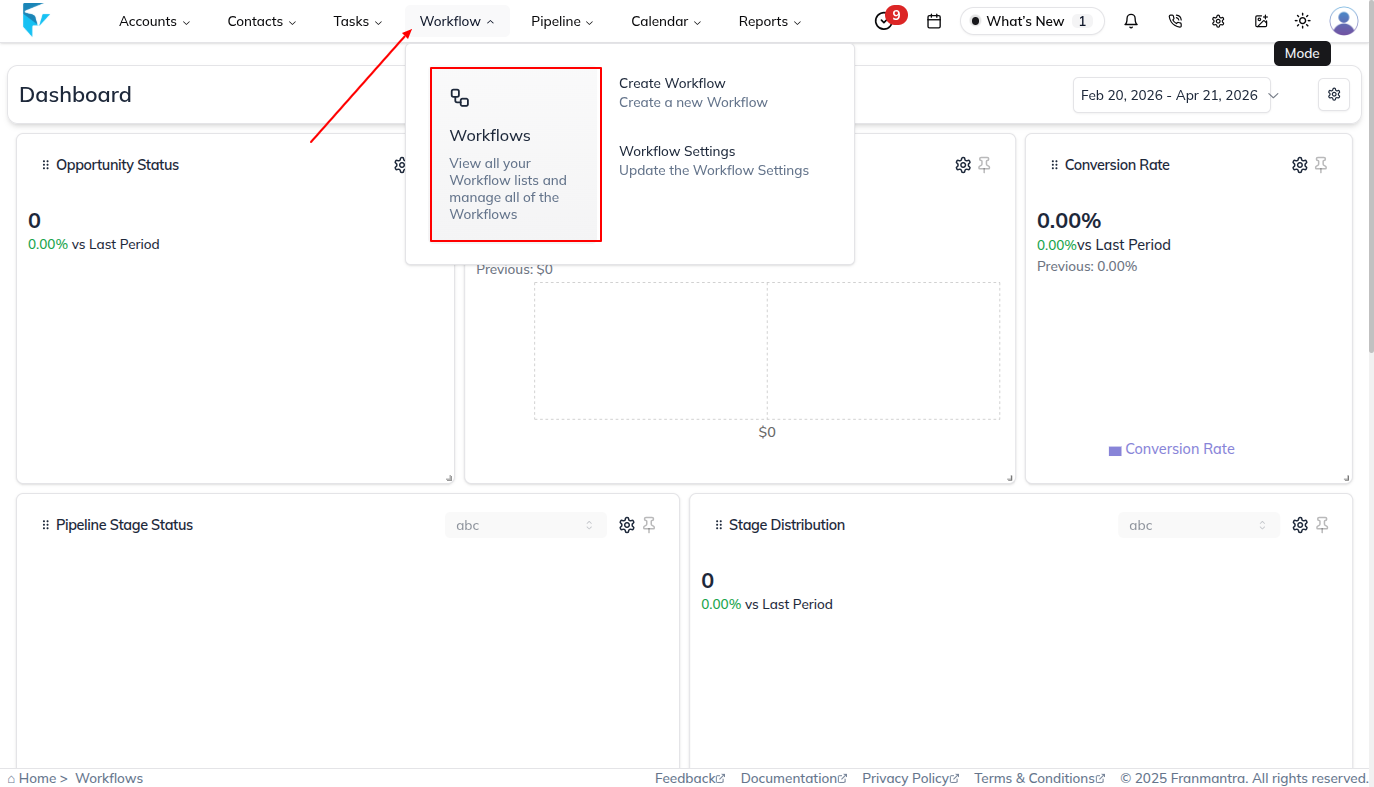
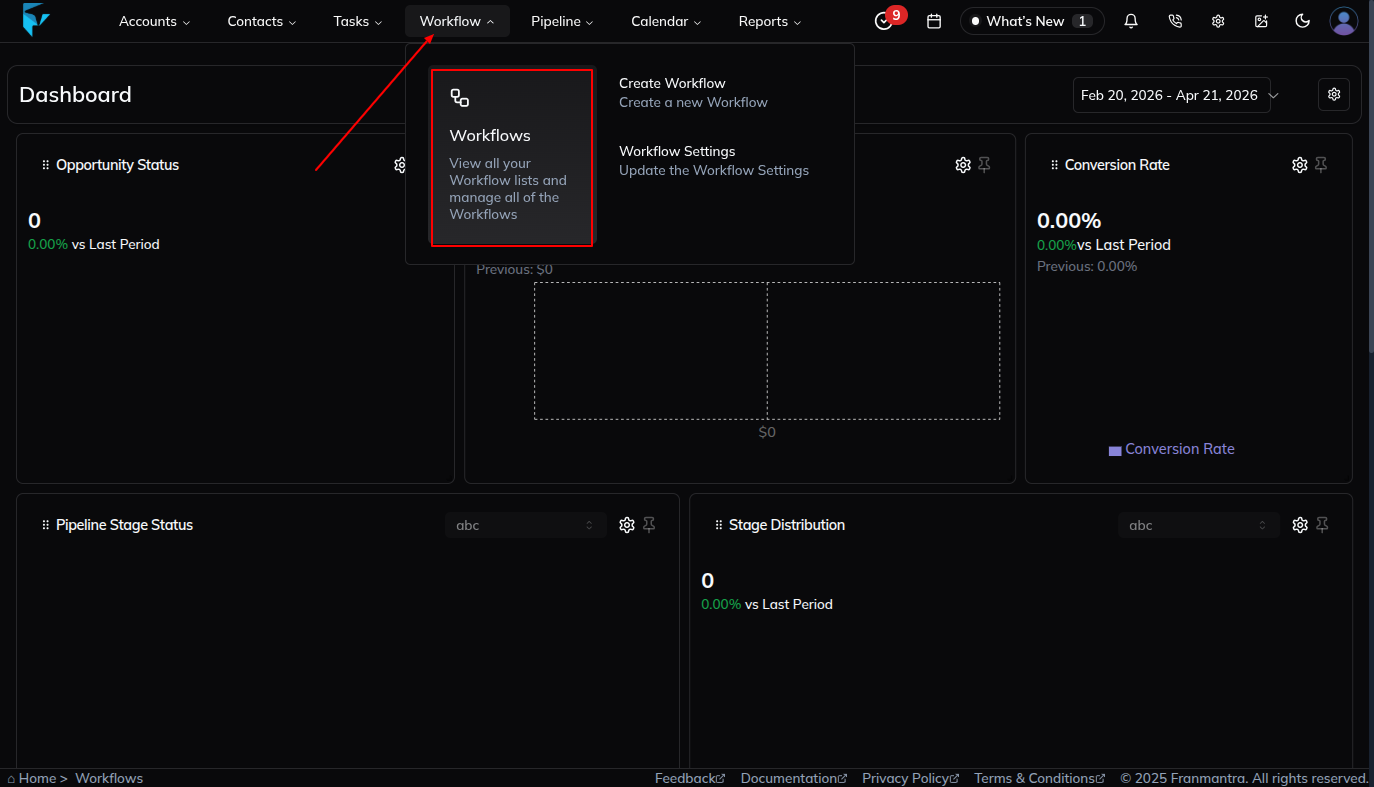
- Review the Workflow list.


Method 1: Change Status from the Table
- Find the Status column in the Workflow table.
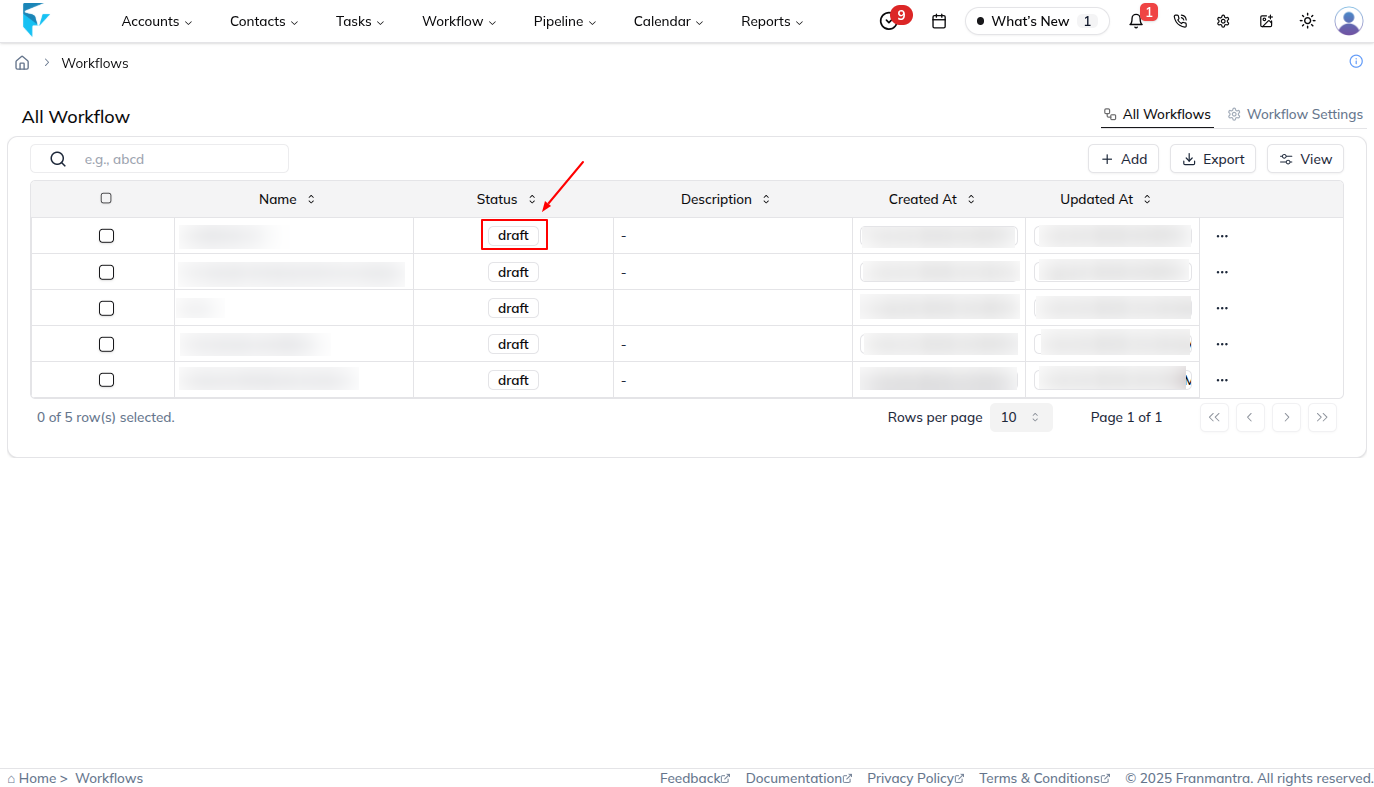
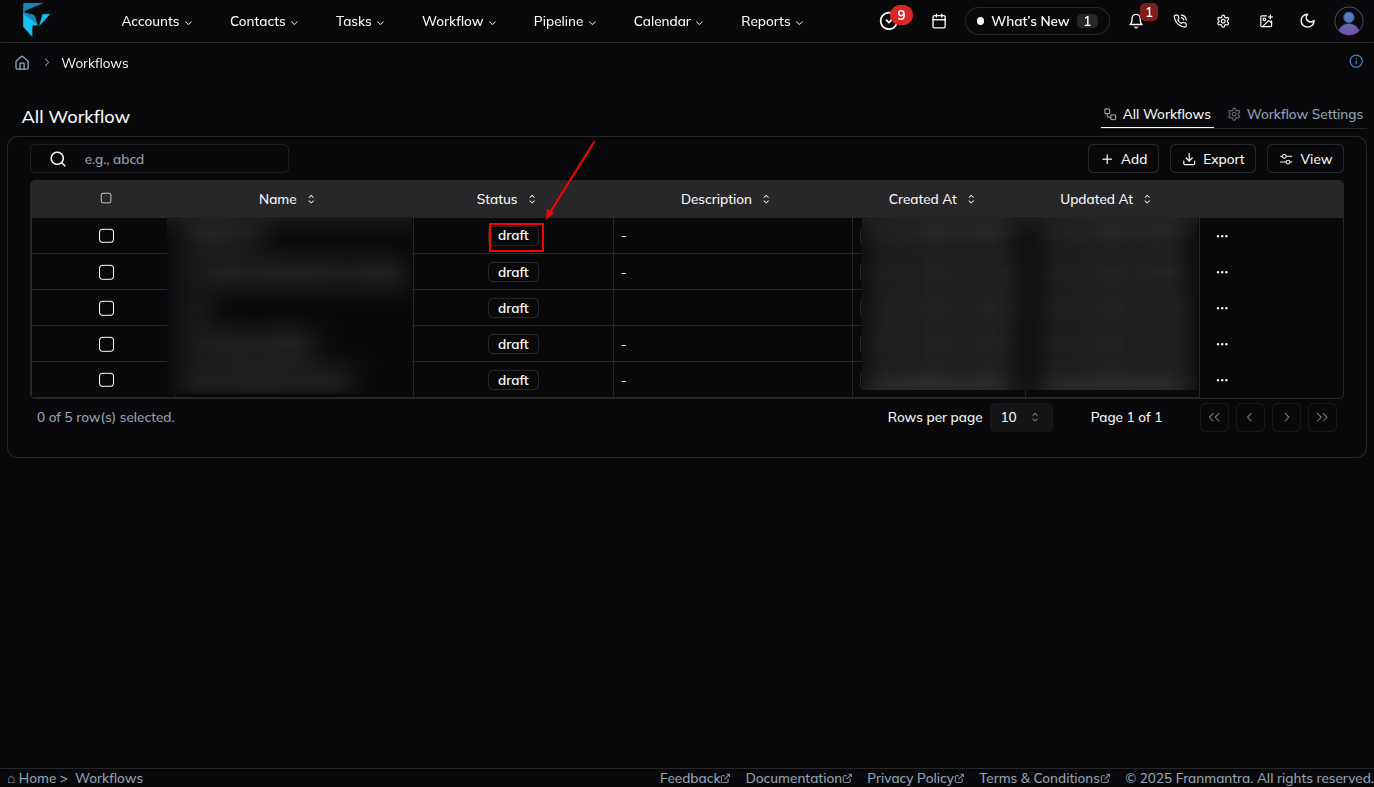
- Each Workflow shows a Draft or Published badge.
- Click the badge to update the status.
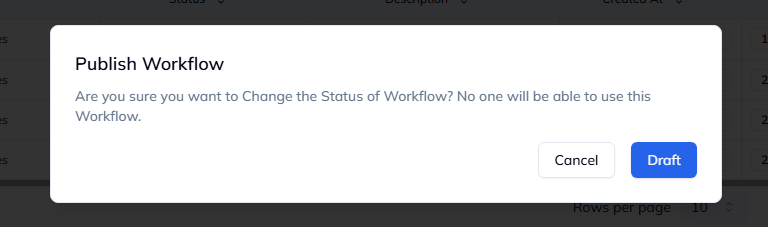
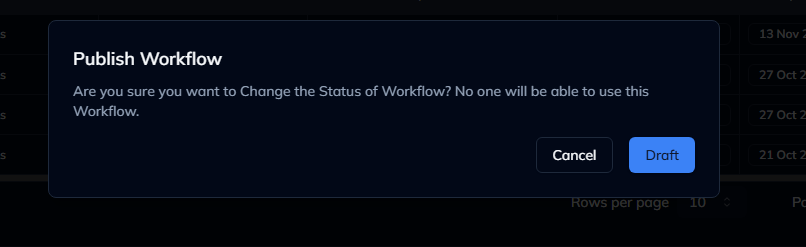
- Confirm the change in the popup.
- The status updates instantly.
Method 2: Change Status by Editing
- In the Workflow row, click the three dots menu.
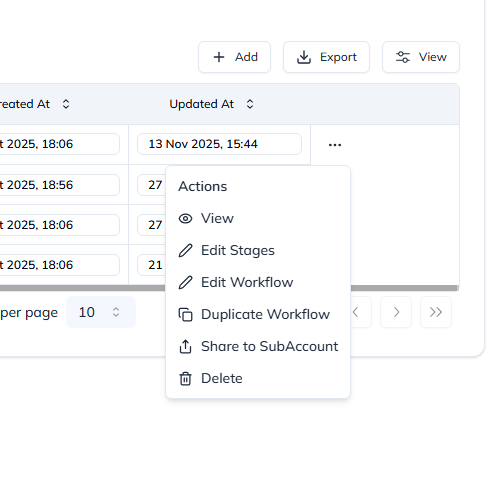
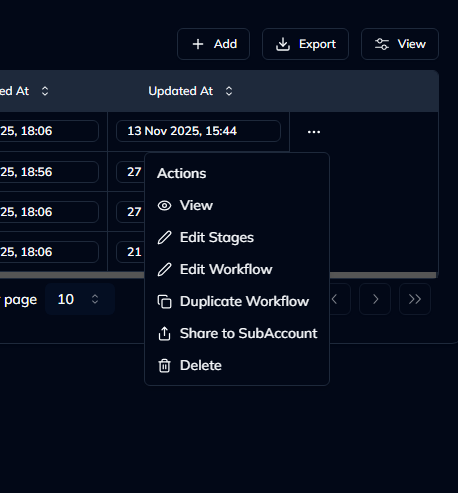
- Select Edit Stages.
- You’ll be taken to the Workflow Editor.
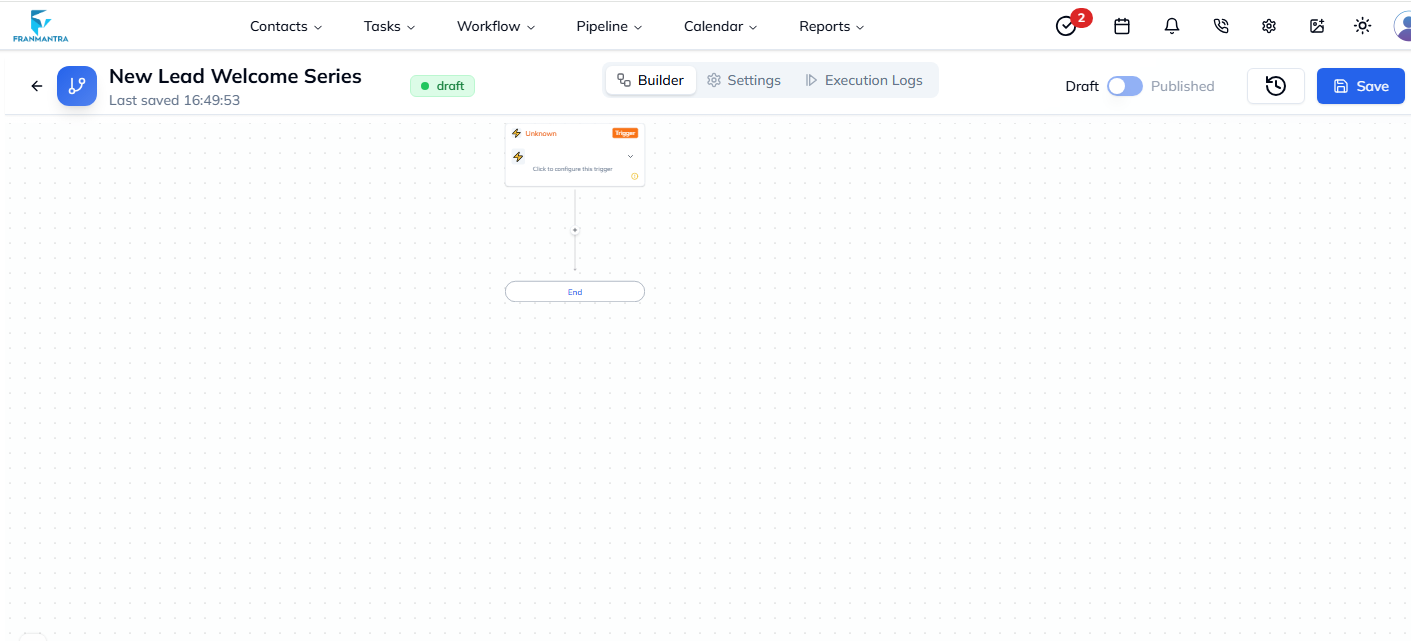
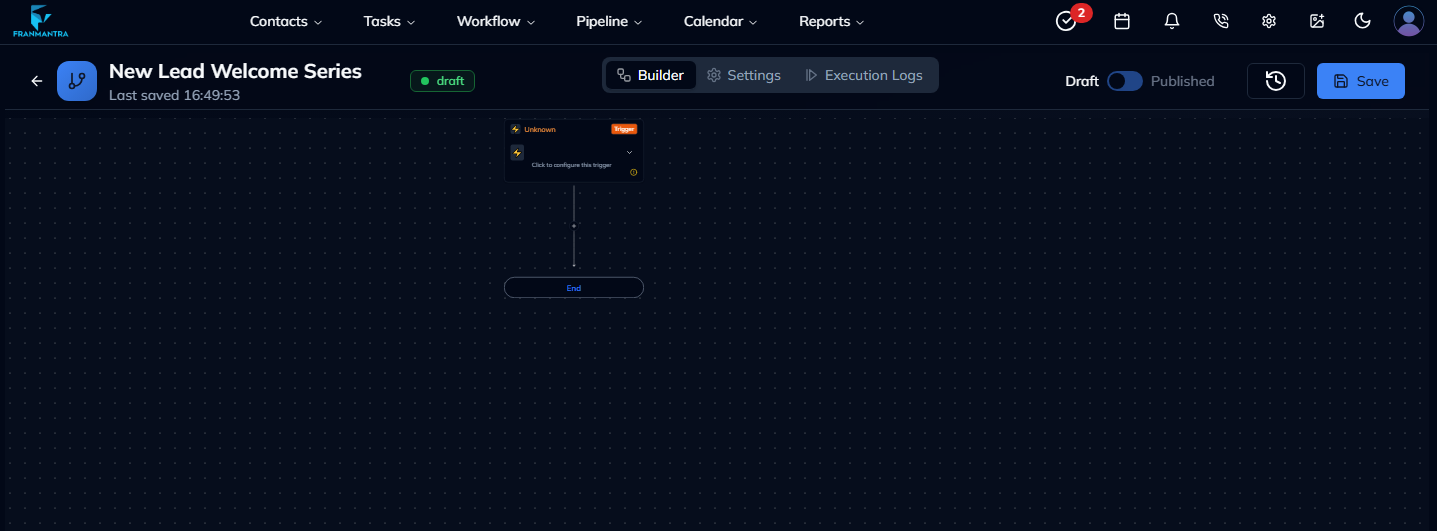
- At the top-right, use the status toggle to switch between Draft and Published.
- Click Save to apply the change.
What happens next
The Workflow keeps the new status until you change it again.
Notes
- Use Published only when the Workflow is ready to run.
- Use Draft when you still need to make changes.
Result
The change is saved in Franmantra CRM and is available to users with the right permissions.
Troubleshooting
- If you cannot see the option, check your role permissions or ask an admin to update your access.
- If the update does not appear immediately, refresh the page and confirm you are in the correct Sub-account.