How to Edit a Contact
Editing an existing contact lets you keep information up-to-date for more accurate communication and reporting. Follow these steps.
1. Open the Contacts List
- In the top navigation bar, hover over Contacts.
- Select Contacts from the dropdown.
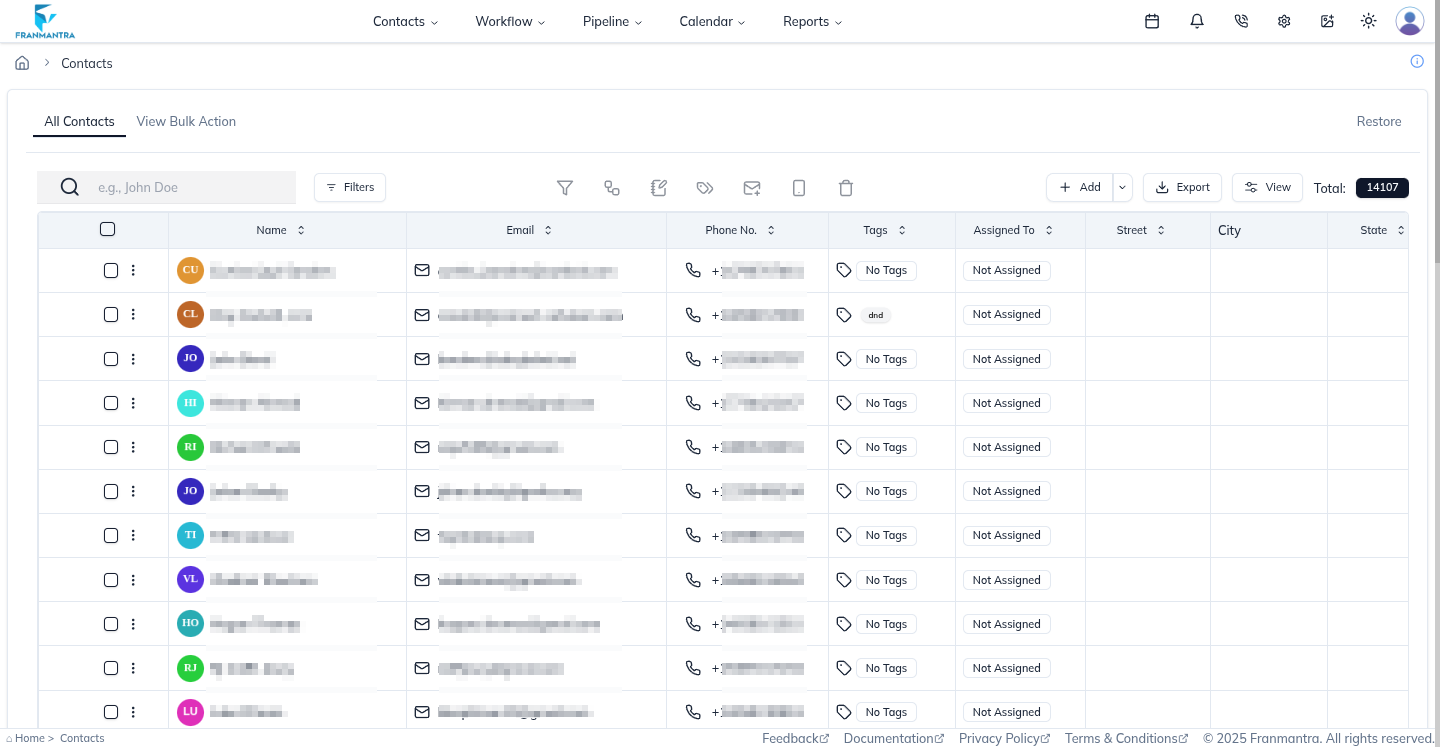
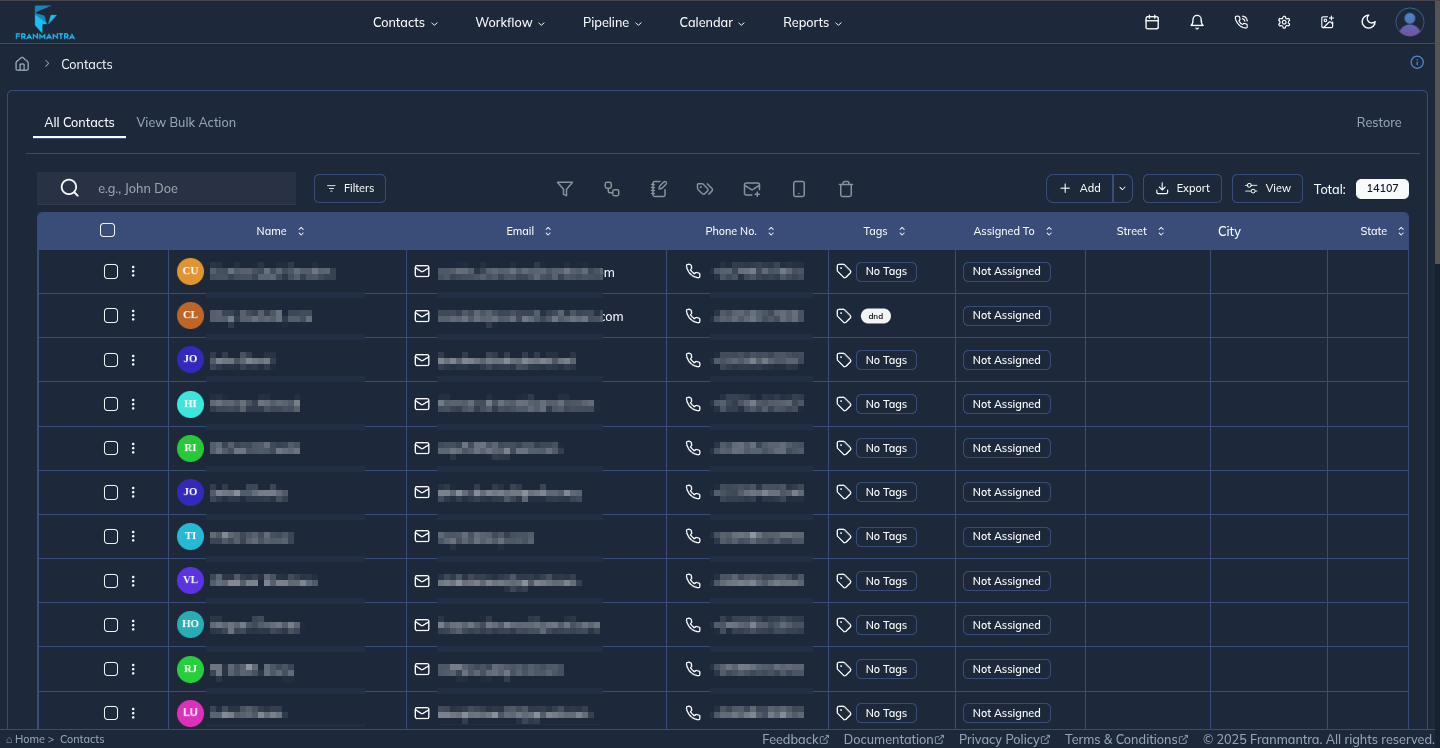
2. Locate the Contact
- Use the search bar or scroll to find the desired contact.
- Click the three-dots (⋯) action button on that row.
3. Choose Edit
Select Edit from the context menu to open the contact form in edit mode.

4. Update Contact Information
- Modify fields such as First Name, Middle Name, Last Name, Email, or Phone as required.
- Expand additional accordions like General Information or Actions for more details.
5. Save Changes
Click Update in the upper-right corner of the form. A confirmation toast will appear indicating the contact was updated successfully.
6. Verify
Return to the Contacts list to ensure the updated details are reflected.
That’s it!
Your contact has been edited successfully.