Invite or Add a New User
What this does
This guide explains how to invite a new user in Franmantra CRM.
Before you start
- Sign in to Franmantra with a role that has permission to use this area.
- Confirm you are working in the correct Sub-account before making changes.
Steps
This feature allows Business Admins (or users with the right permissions) to add new members to the business by sending them an email invitation. Each invited user gets assigned a role and scope so they can access the right parts of the system.
Steps to Invite a User
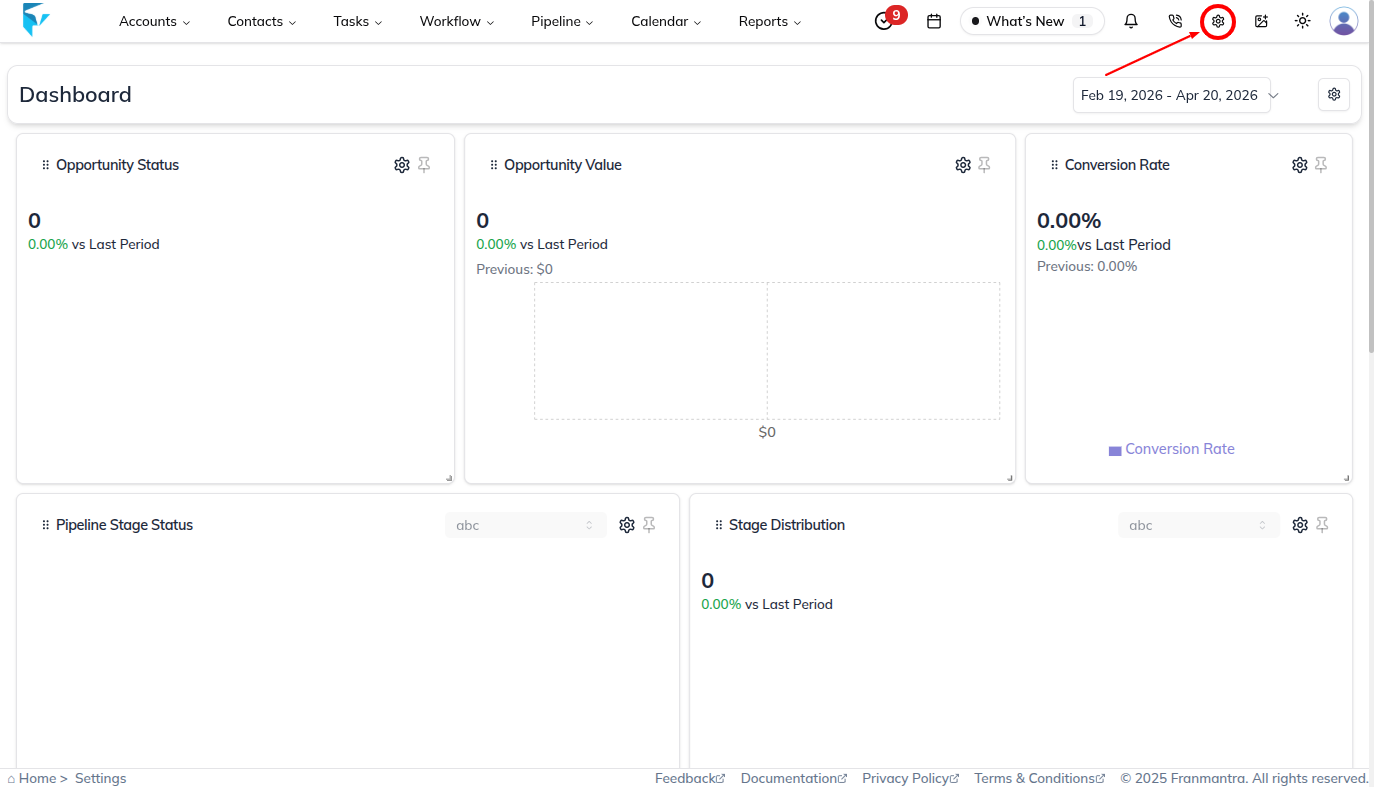
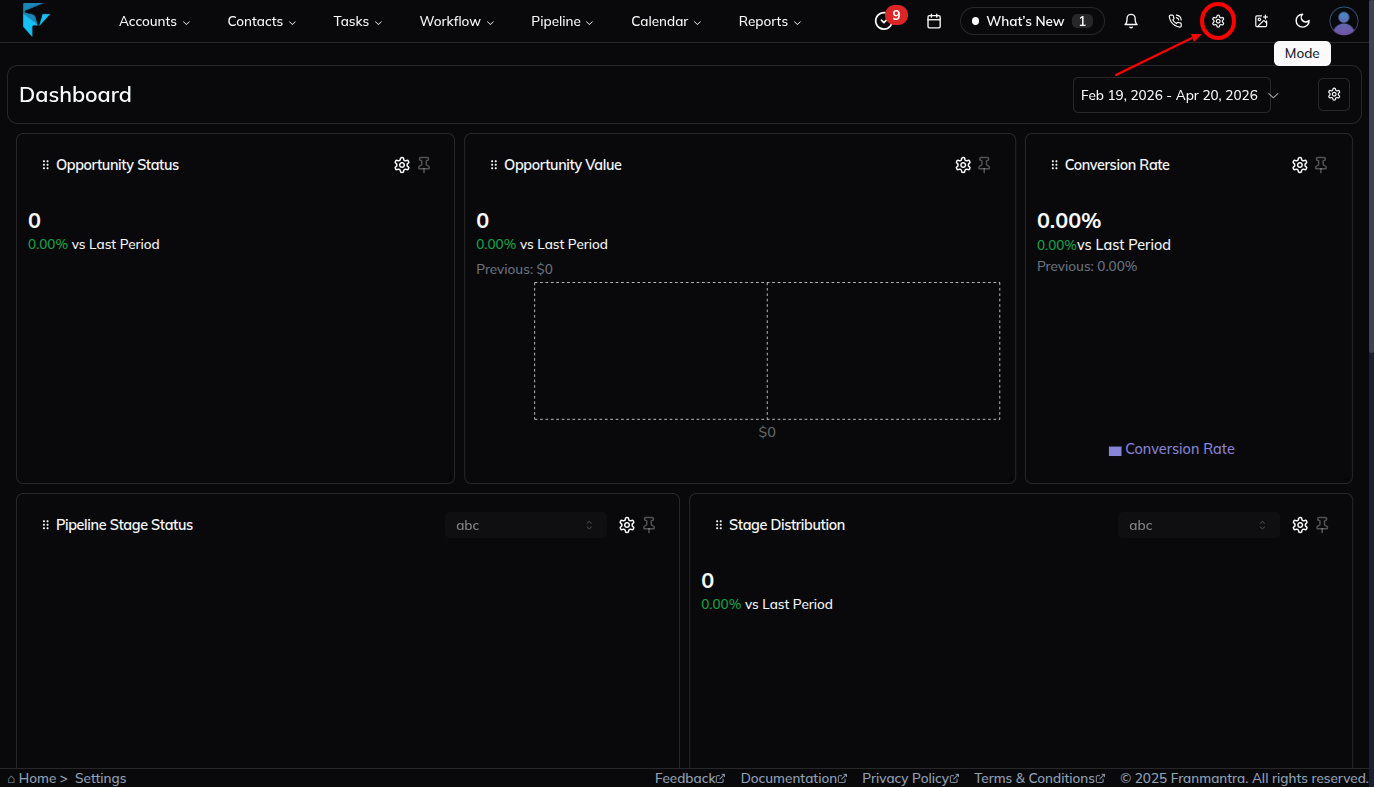
- First, click on the Settings icon at the top-right corner of the page, and you will land on the Business Details section of the settings page.
-
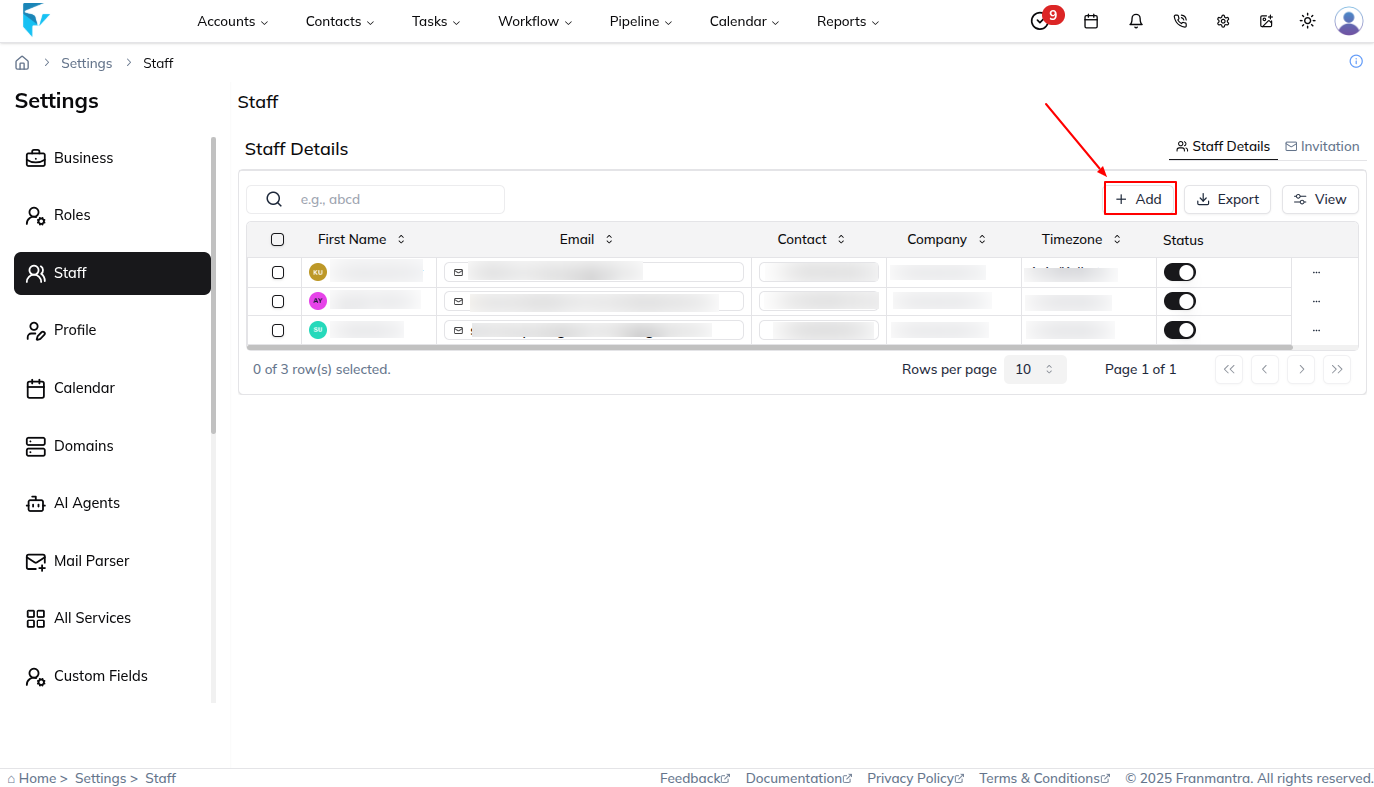
Next, click on the Staff option from the left-side menu, and you will see the Staff list displayed in a table format.
-
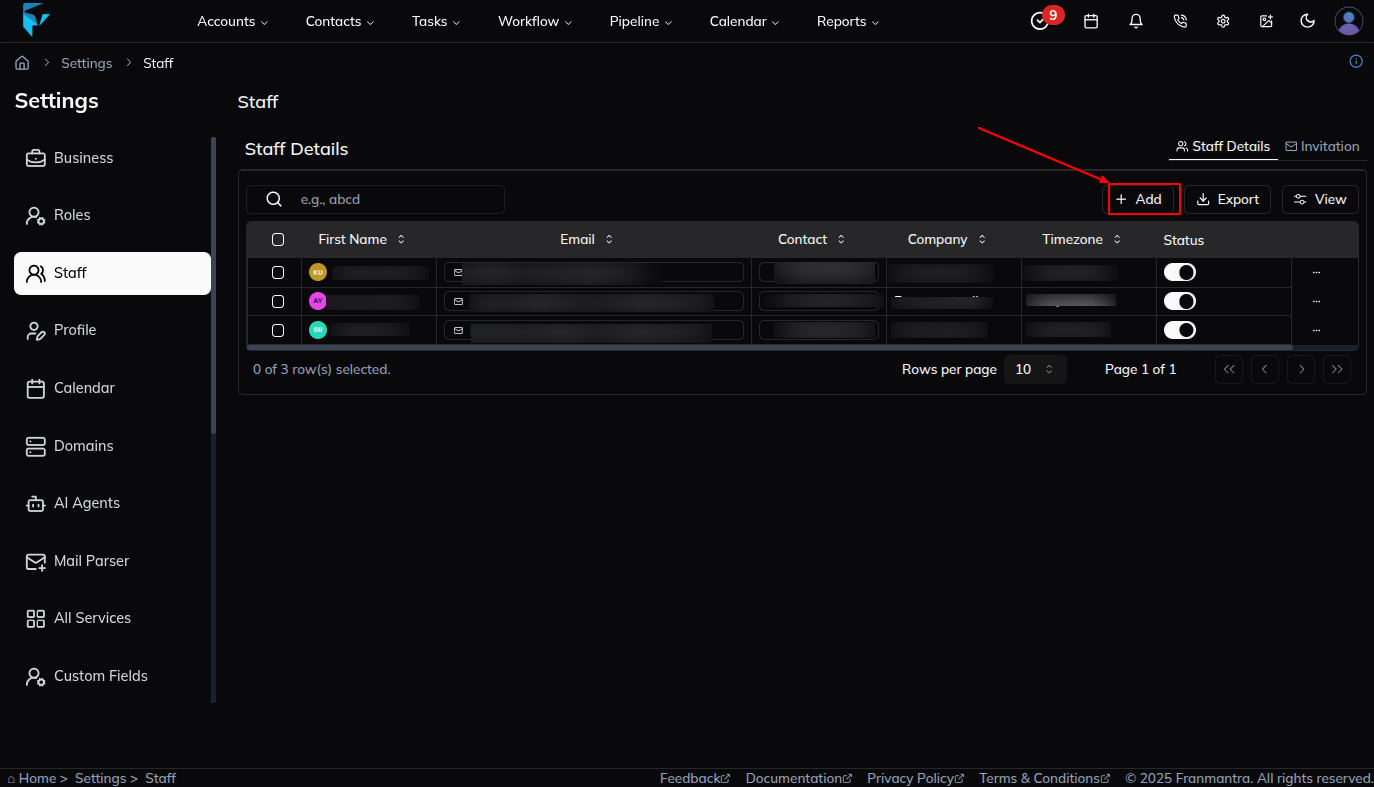
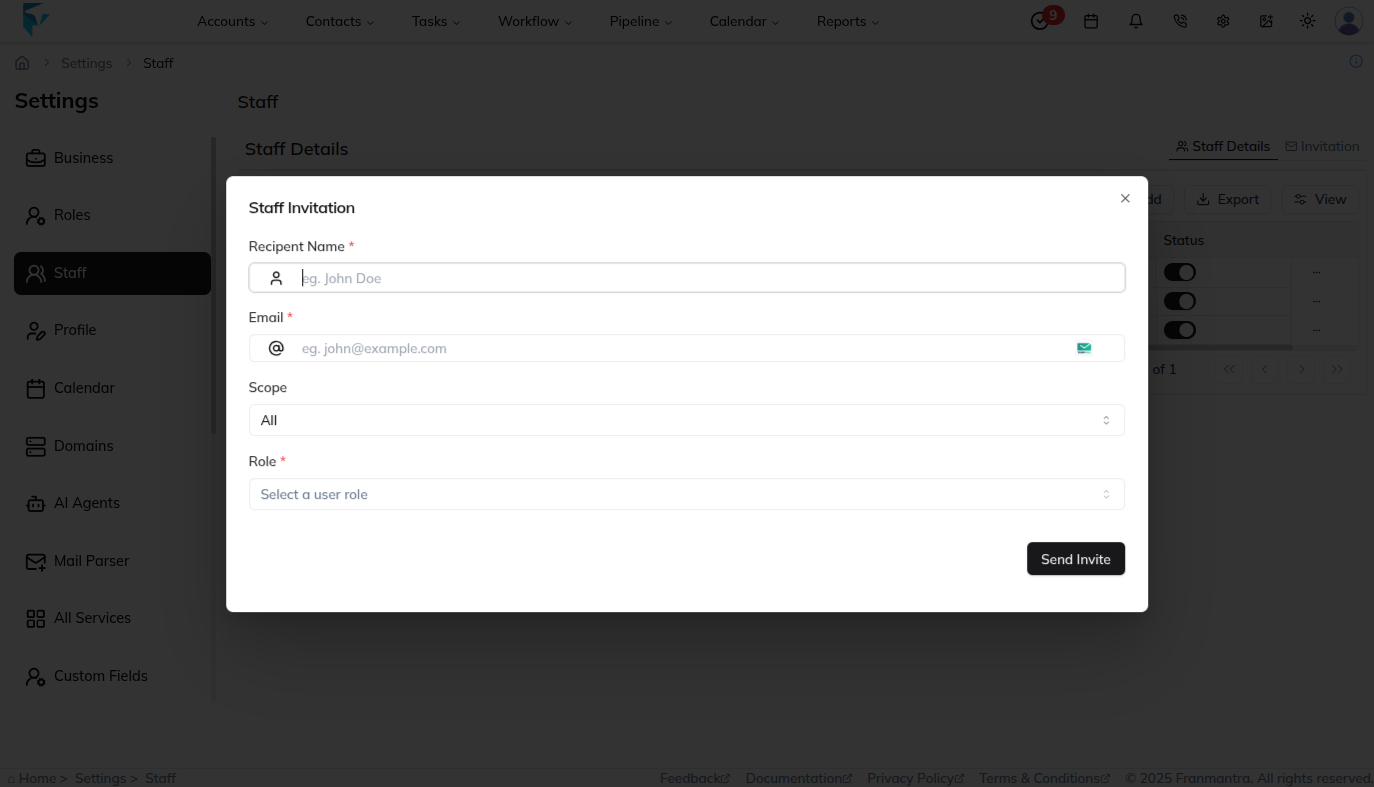
On the Staff page, click the Add button, and an Invitation Form will appear.
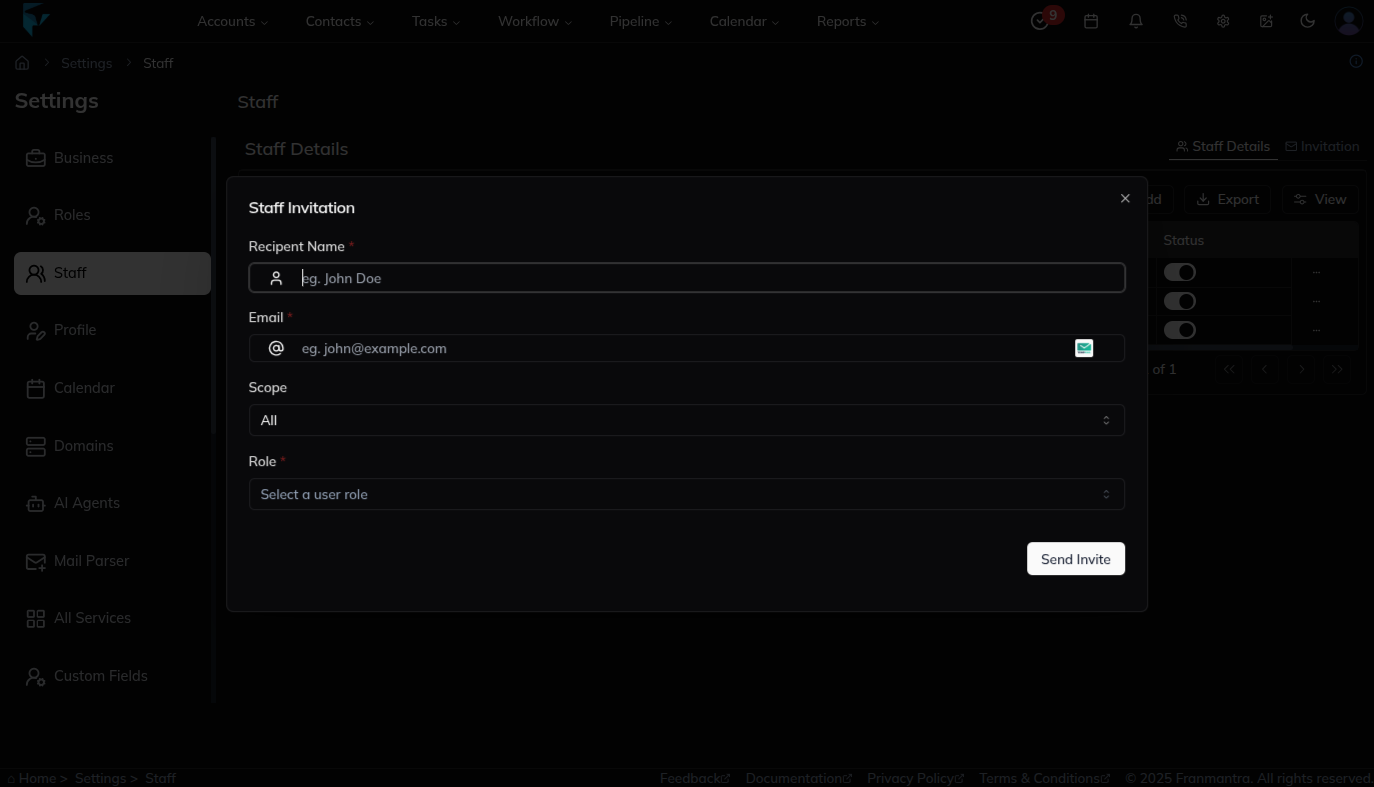
- In the Invitation Form, fill out the required details such as the Name, Email, Scope, and Role that will be assigned to the user.
- After filling in the details, click on the Send Invite button, and the system will send an invitation email to the user.
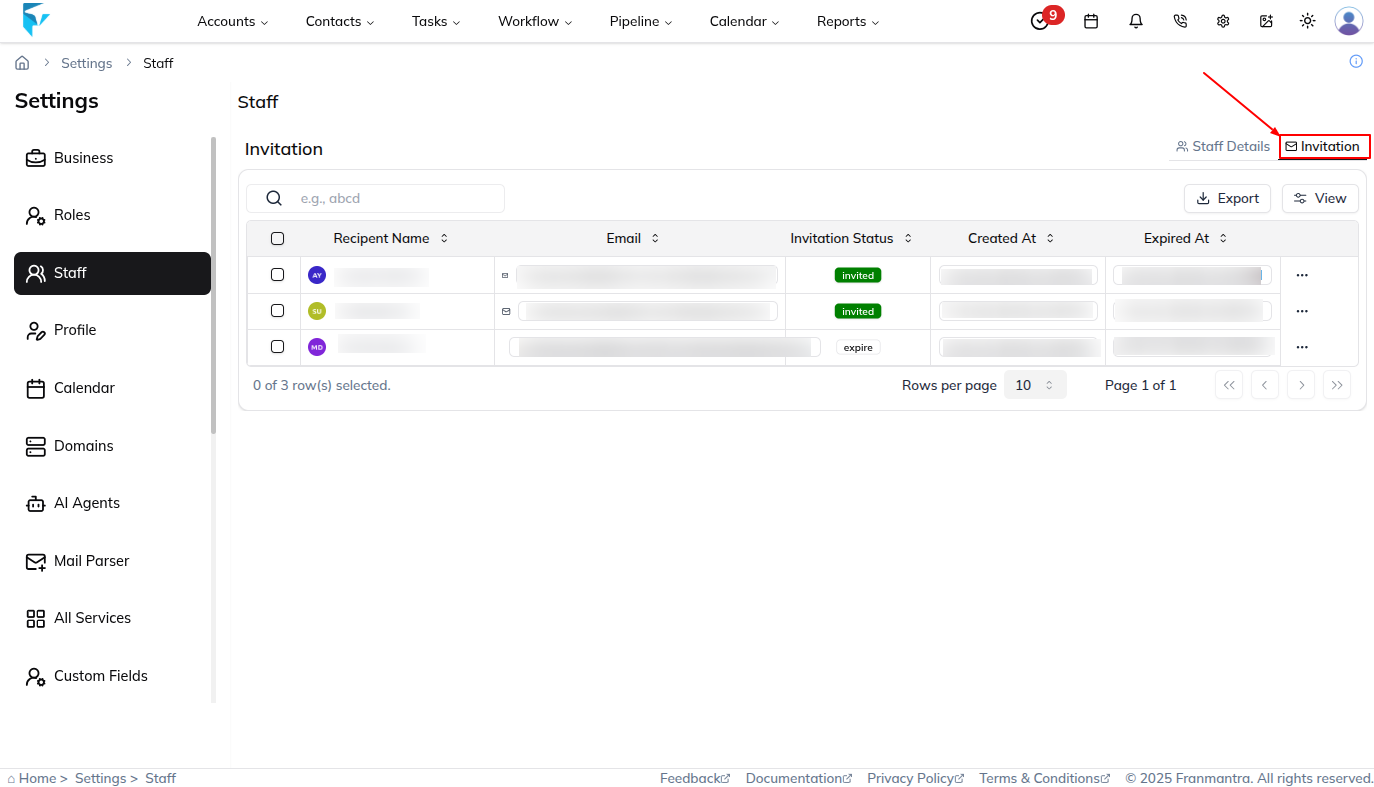
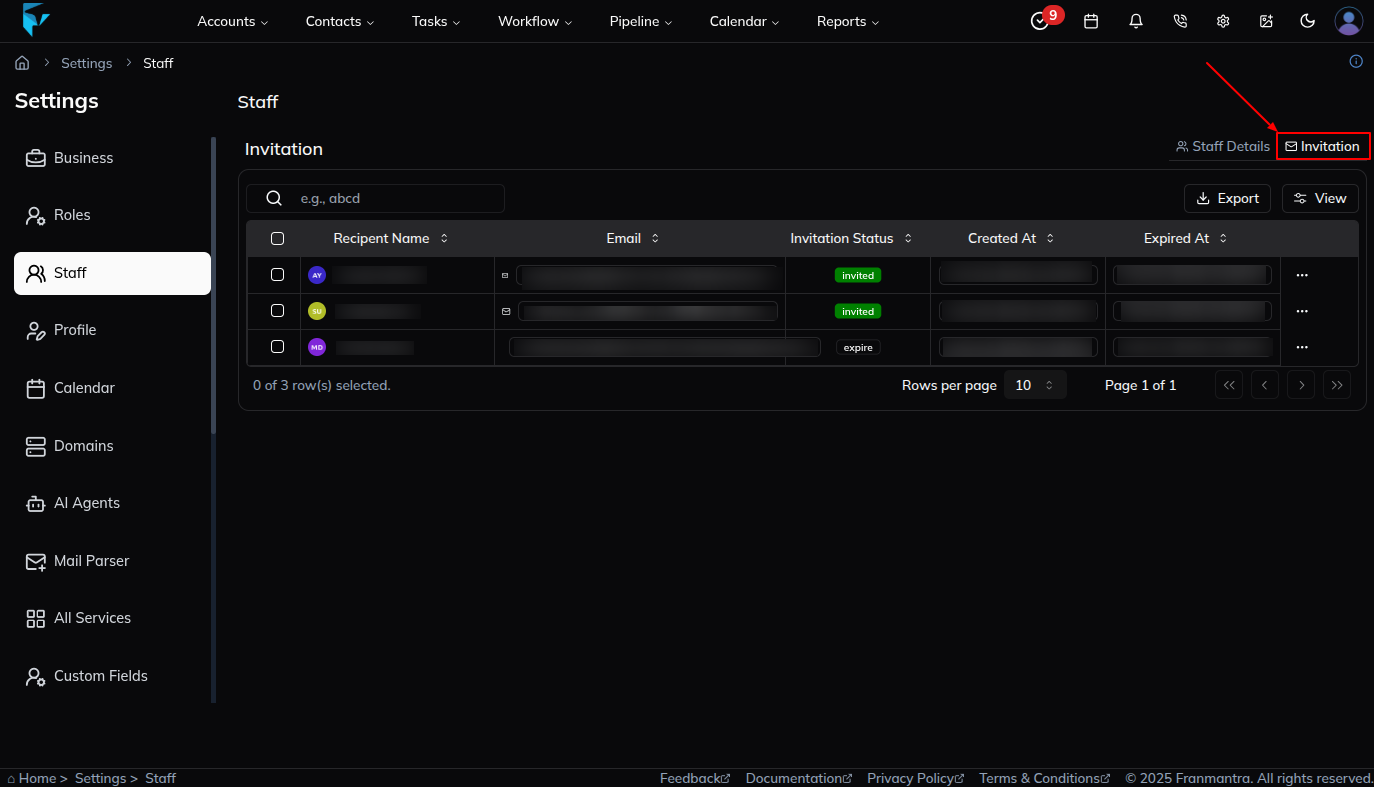
- Once the invitation is sent, you can track all invitations by going to the Invitations tab on the Staff page, where you can view the status as Accepted, Pending, or Expired.
Example
Suppose you want to add John Doe as a Sales Manager in the Sales Department. You go to Settings → Staff → Add, fill in the fields with his details, and click Send Invite. John then receives an email and can join after accepting the invitation.
Result
The change is saved in Franmantra CRM and is available to users with the right permissions.
Troubleshooting
- If you cannot see the option, check your role permissions or ask an admin to update your access.
- If the update does not appear immediately, refresh the page and confirm you are in the correct Sub-account.