How to Update Your Profile
What this does
This guide explains how to update profile in Franmantra CRM.
Update your own profile details, such as your name, phone number, address, and email signature.
Before you start
- Make sure you are logged in.
- Decide which profile details you want to update.
Steps
- Click the settings icon at the top-right corner of the page.
- Open the Business Details section if it is not already open.
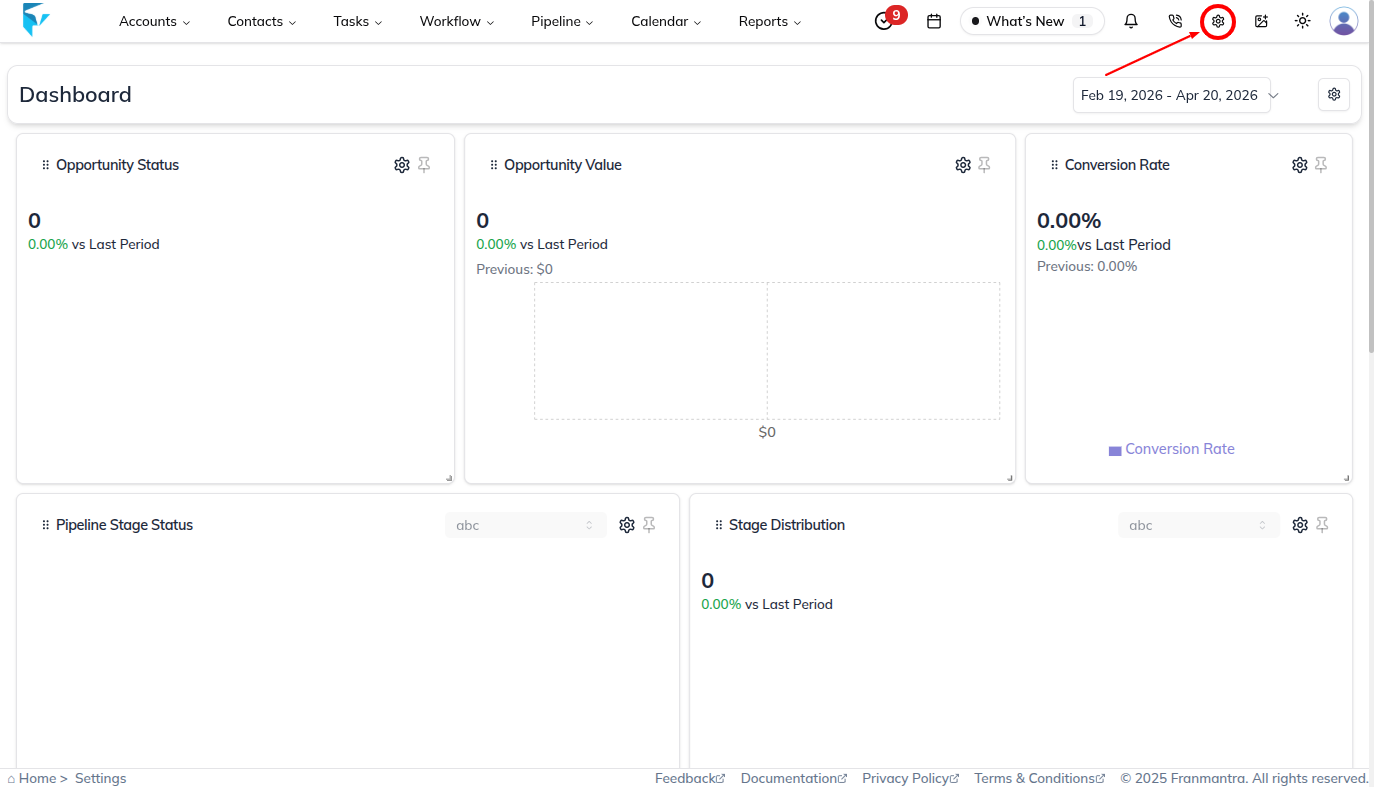
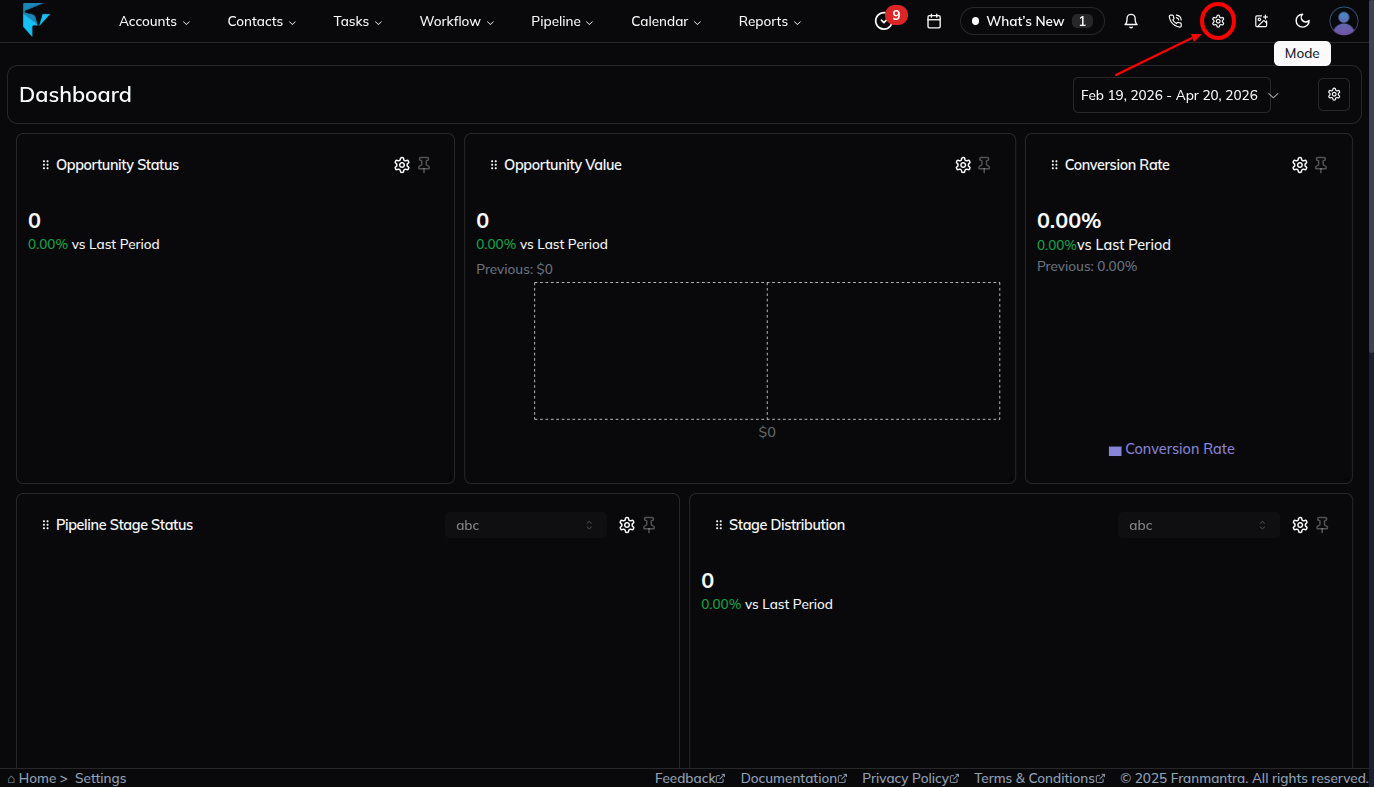
- Click Profile in the left menu.
- Review the profile fields on the page.
- Click the pen icon to start editing.
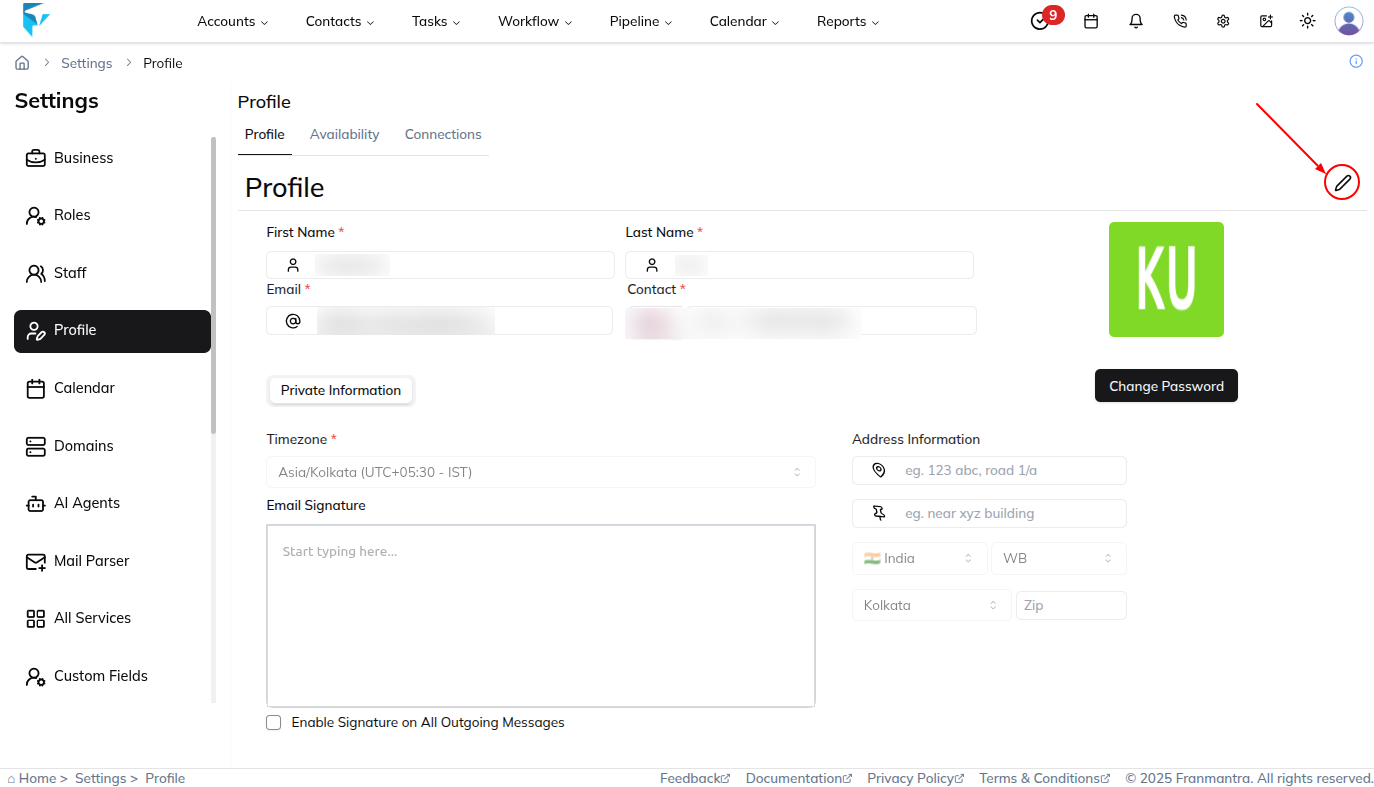
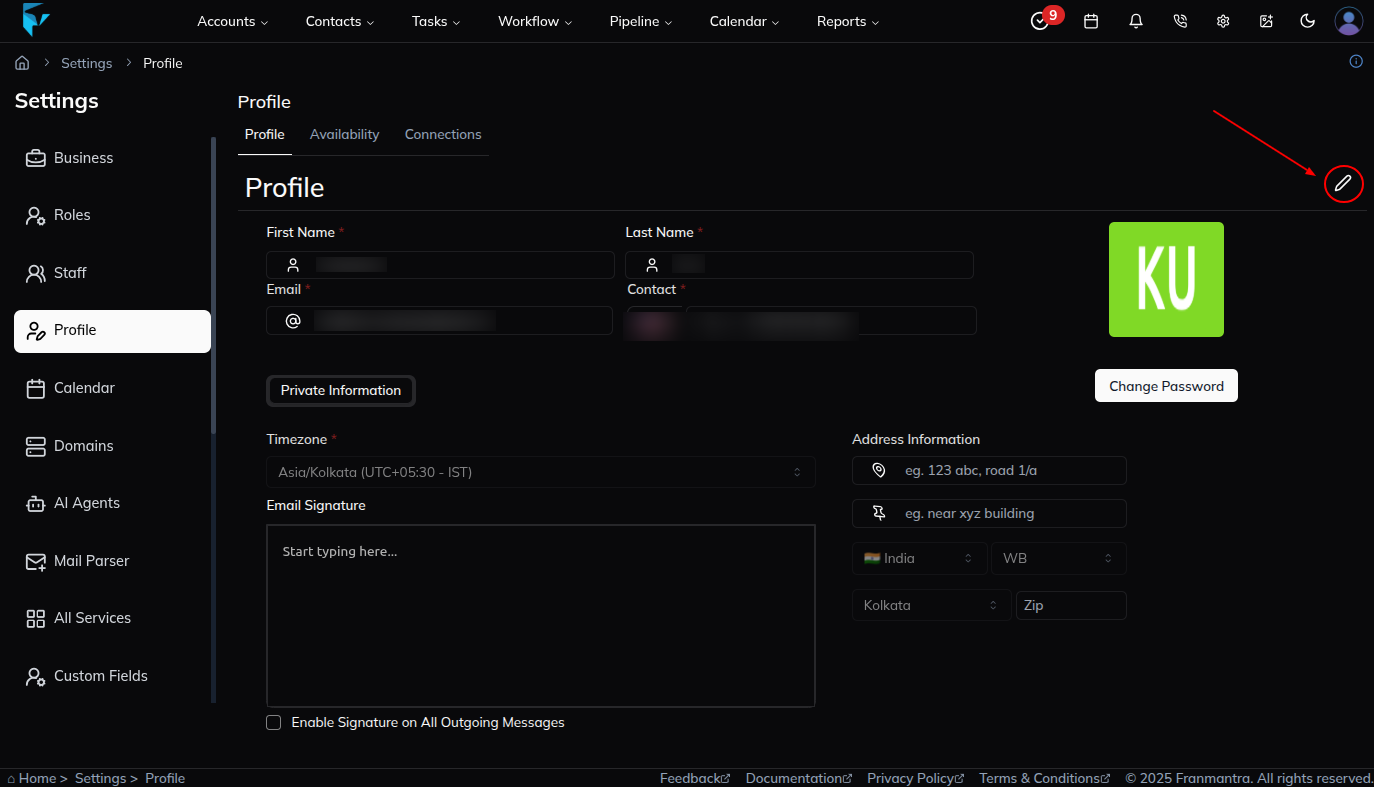
- Wait for the fields to switch to edit mode.
- Change the details you want to update.
- Click Update Profile.
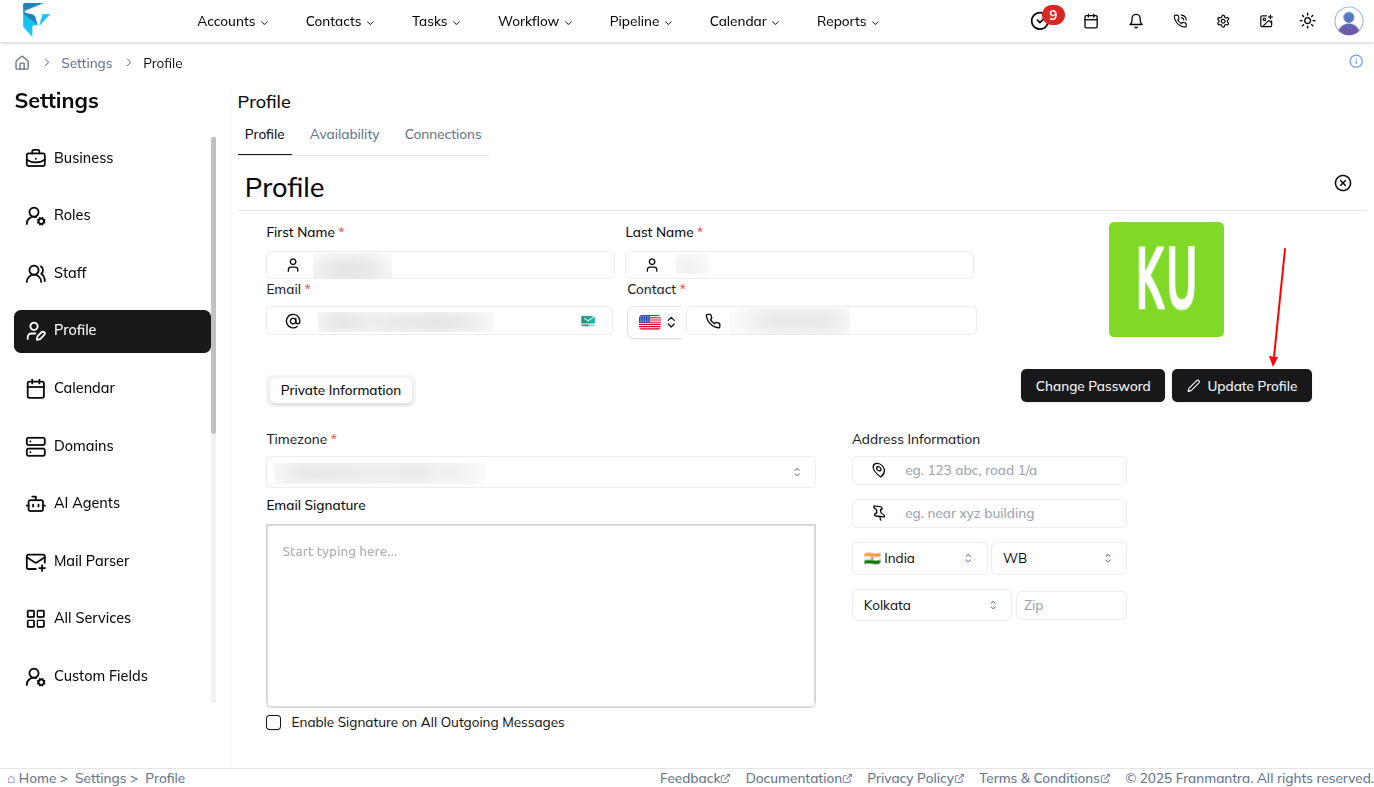
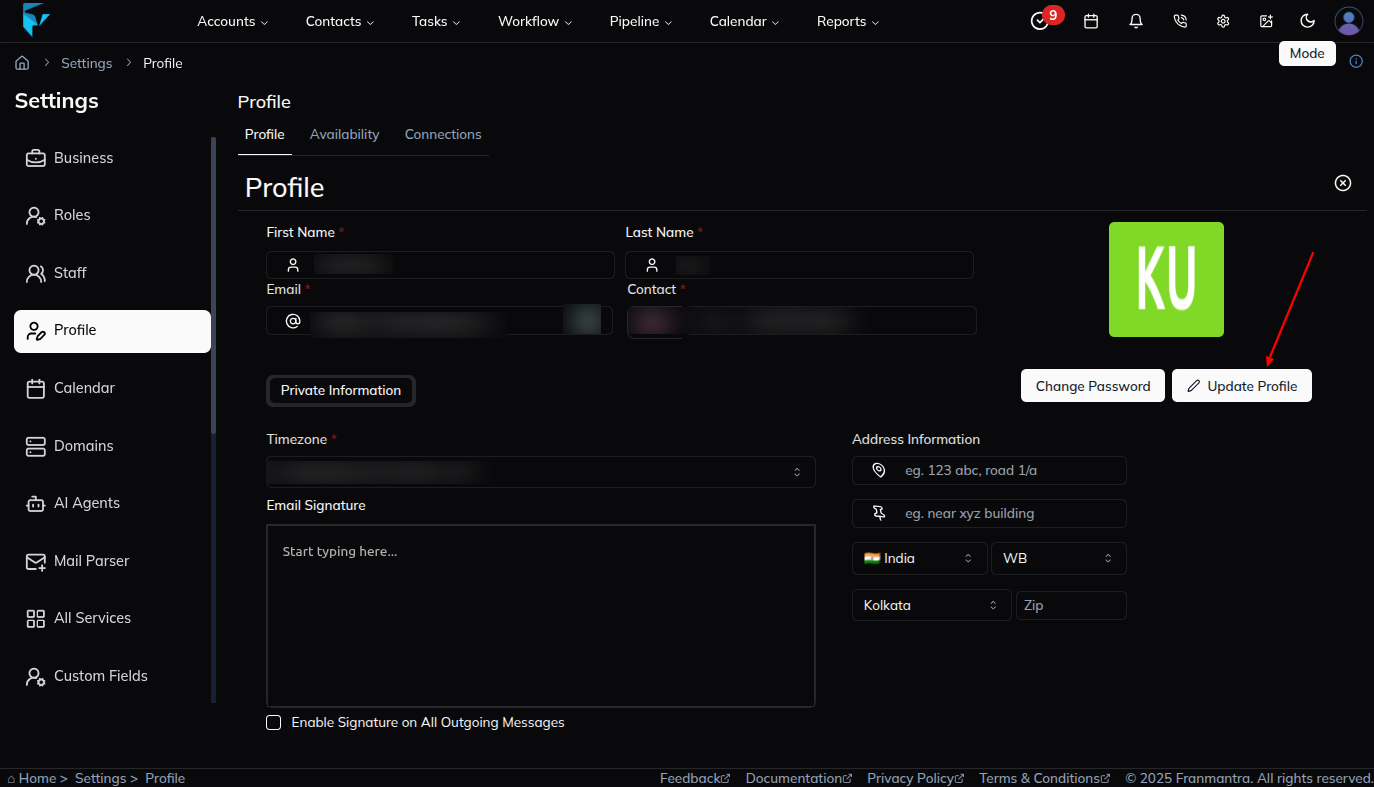
- Wait for the success message or updated profile details.
What happens next
Your new profile details appear in your account.
Notes
- The fields are read-only until you click the pen icon.
- Check your phone number and email carefully before you save.
Result
The change is saved in Franmantra CRM and is available to users with the right permissions.
Troubleshooting
- If you cannot see the option, check your role permissions or ask an admin to update your access.
- If the update does not appear immediately, refresh the page and confirm you are in the correct Sub-account.