How to Update Your Password
What this does
This guide explains how to update password in Franmantra CRM.
You can change your password while logged in or reset it from the login page.
Before you start
Steps
- Use the first method if you know your current password.
- Use the second method if you forgot your password.
1. Change Password While Logged In
🔑 Note: To use this method, you must know your current password.
- Click the settings icon in the top-right corner of the page.
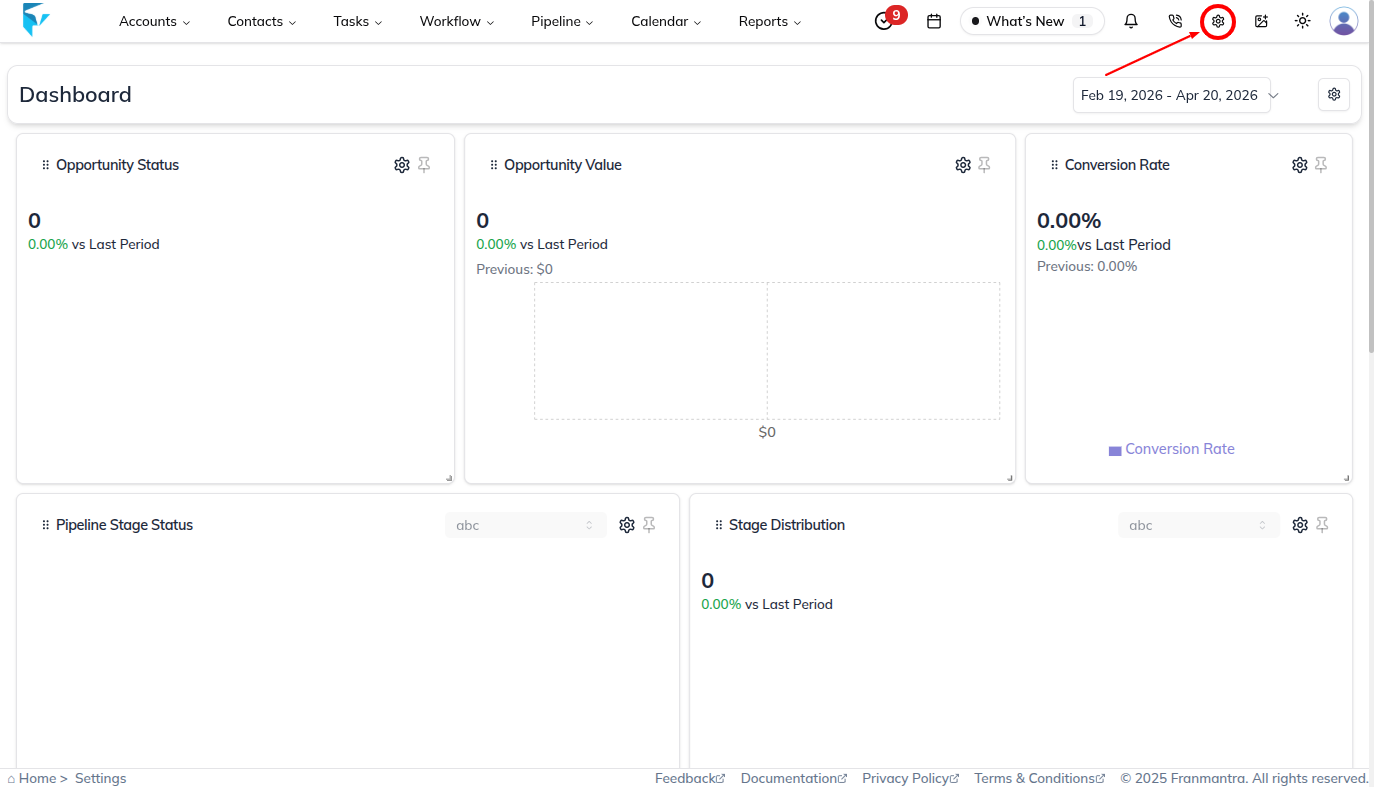
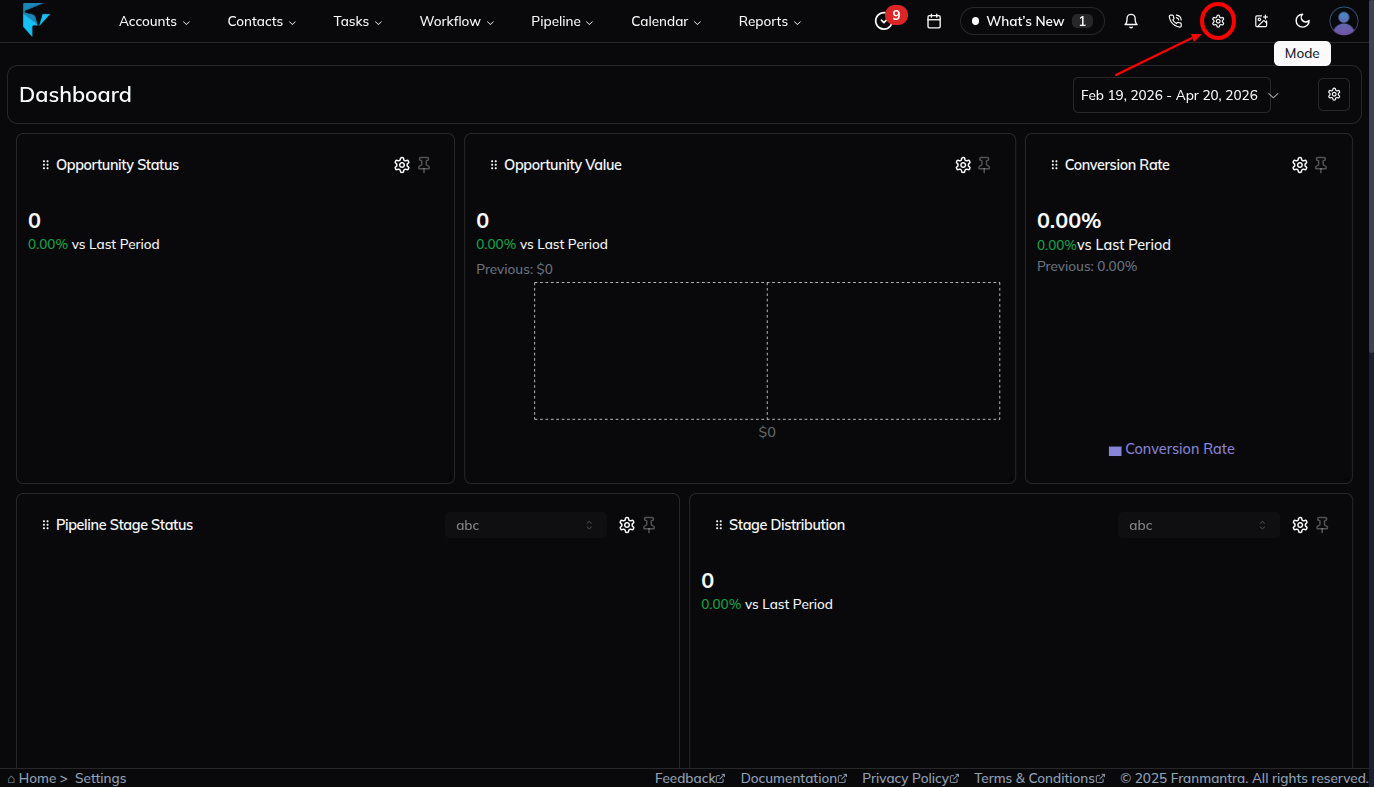
- You will land on the Business Details section by default.
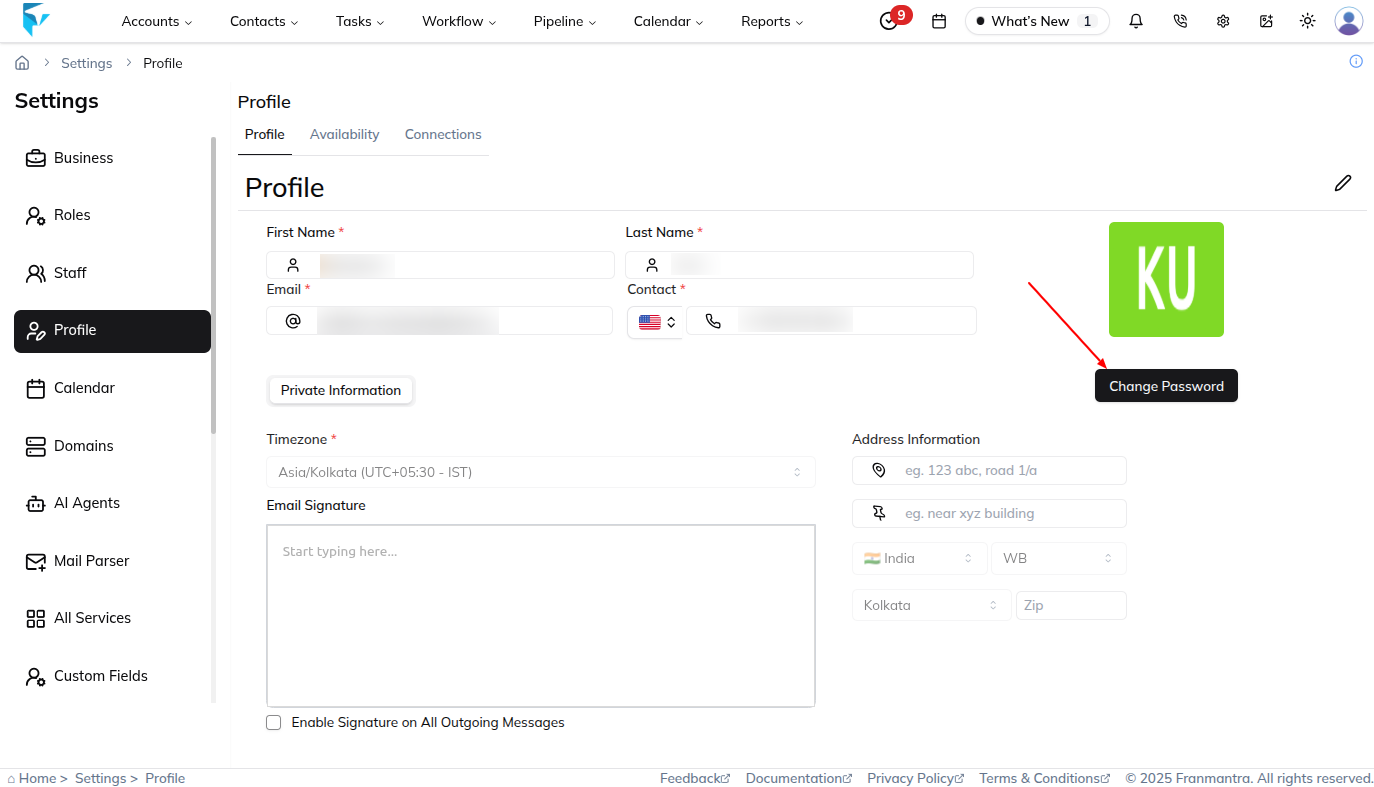
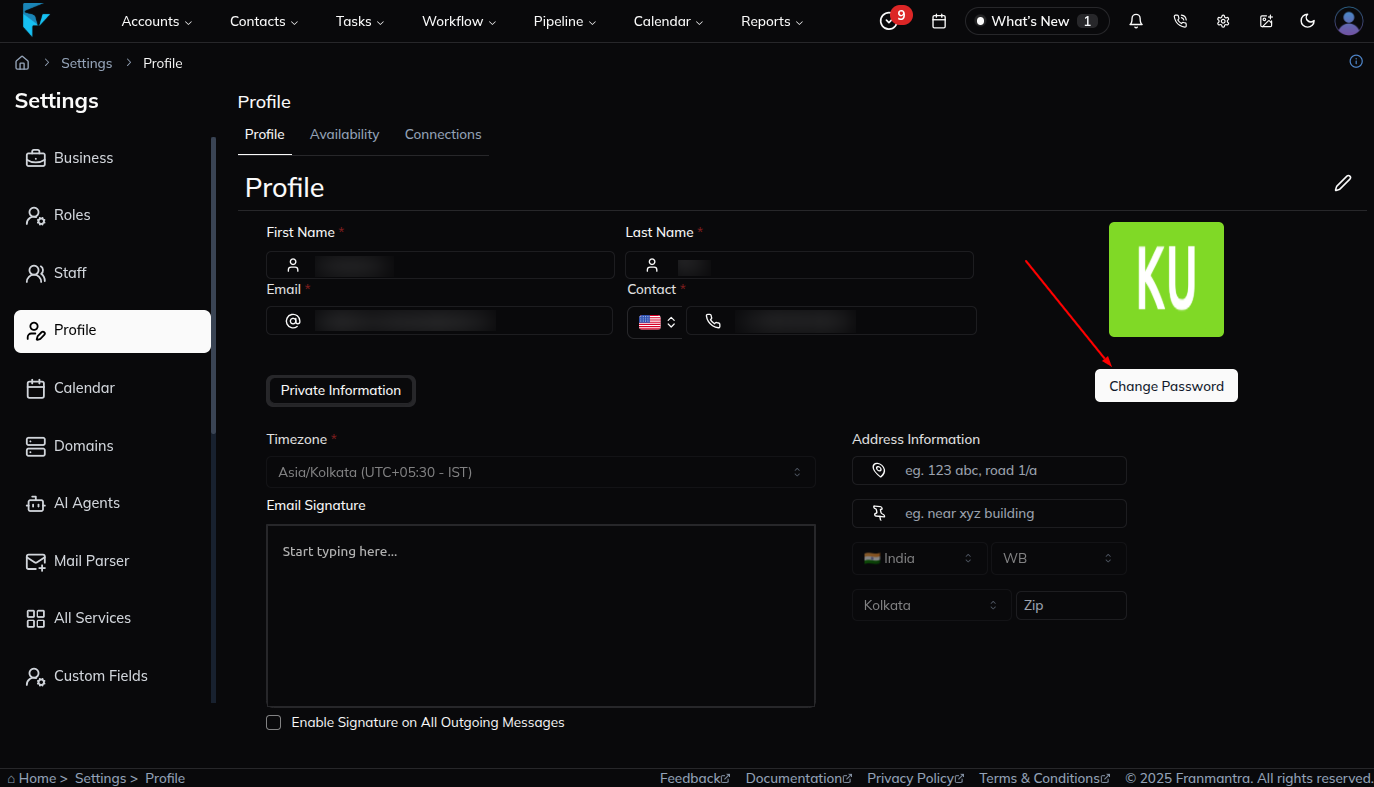
- From the left-side menu, click on Profile.
- You will now see your details like Name, Email, Contact Number, Address, and Email Signature. These fields are read-only.
- On the right side of the section, click the Change Password button.
- A popup will appear with a form containing:
- Current Password
- New Password
- Confirm New Password
- Fill in the form and click Change.
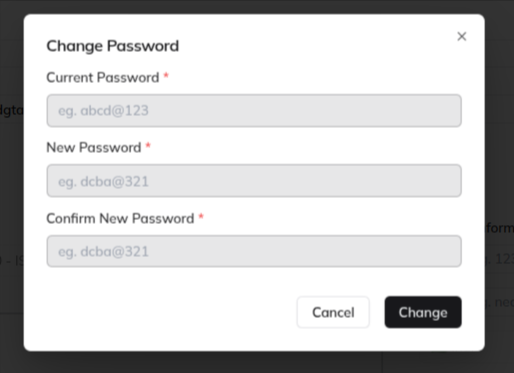
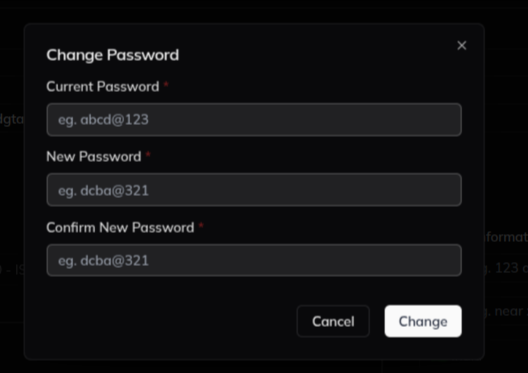
- Your password will be updated successfully.
2. Reset Password Using “Forgot Password”
- Go to the Login Page.
- Click on the Forgot Password link which is click here in the login page.
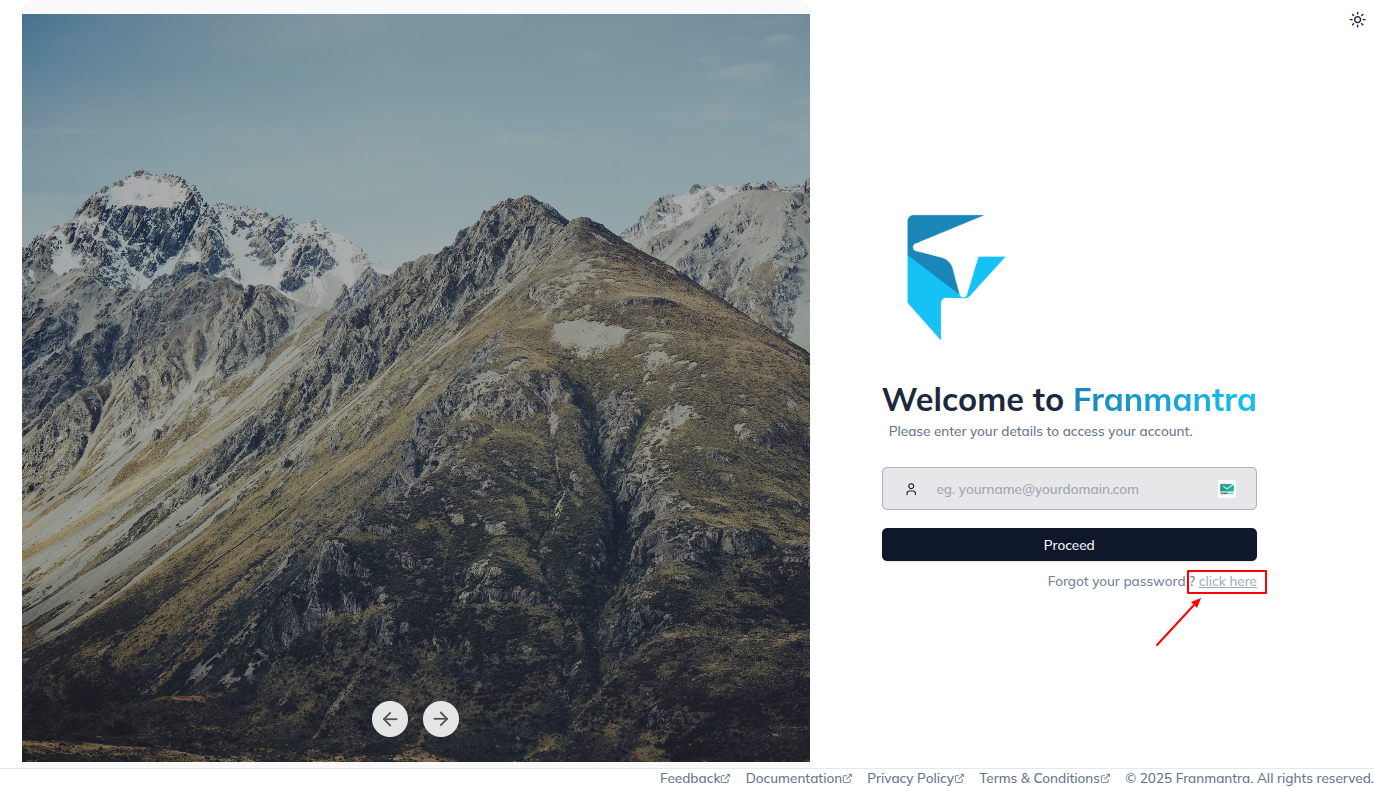
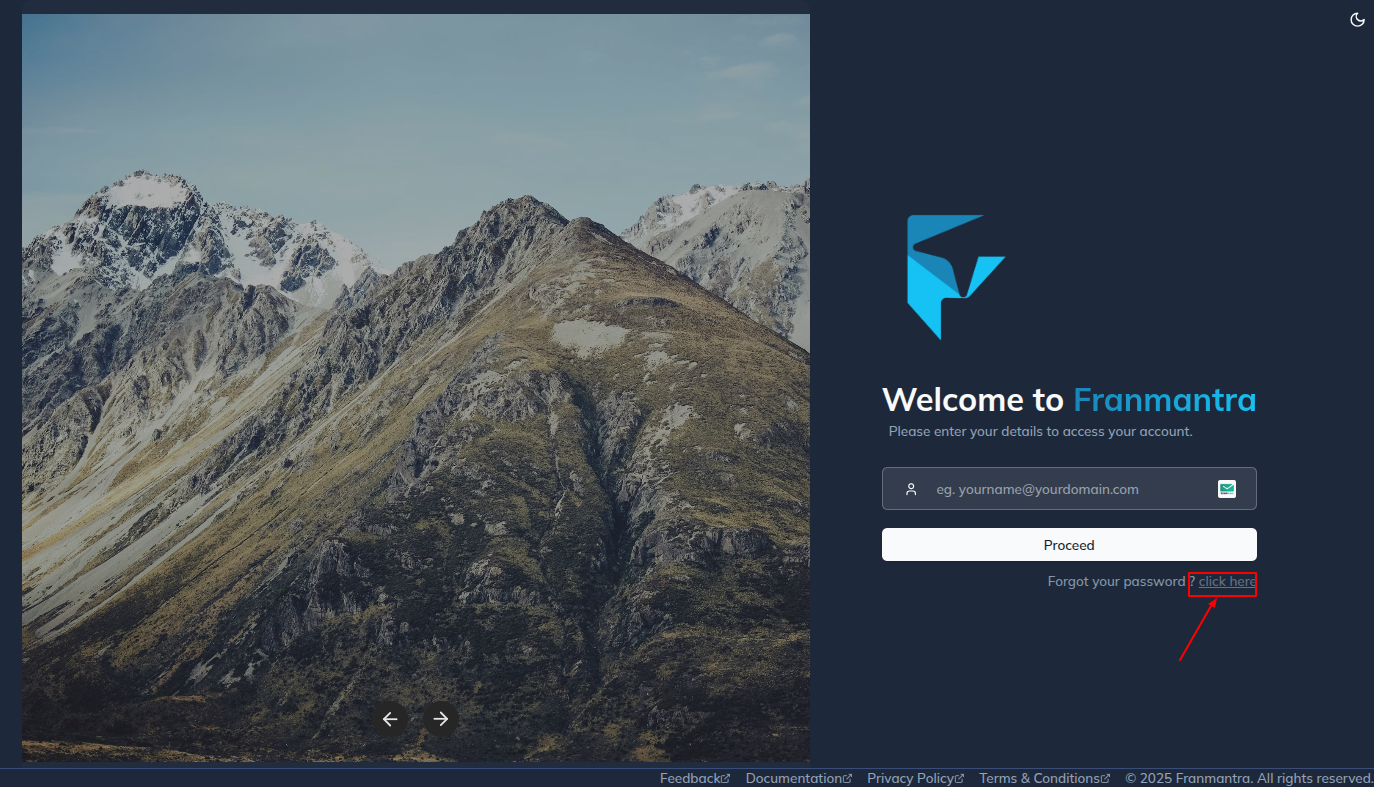
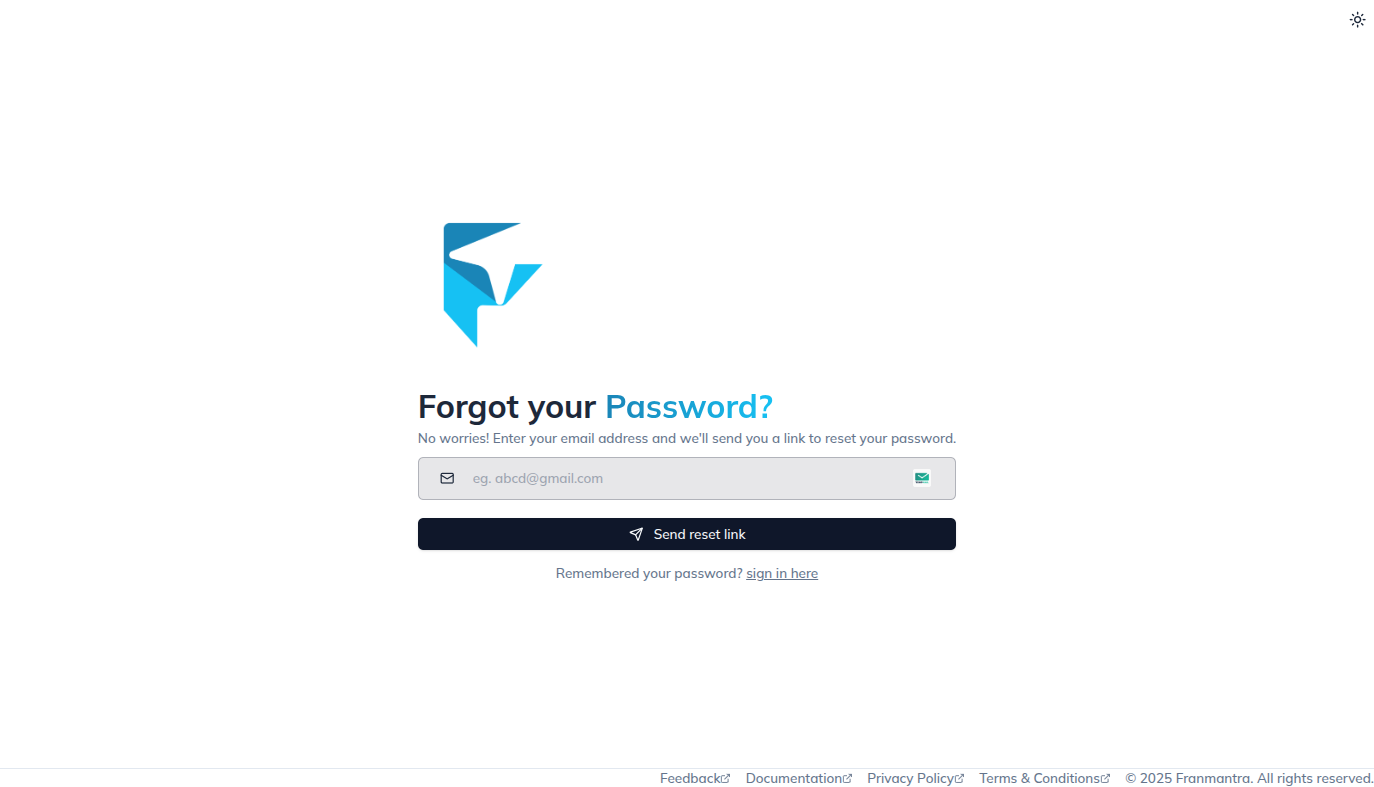
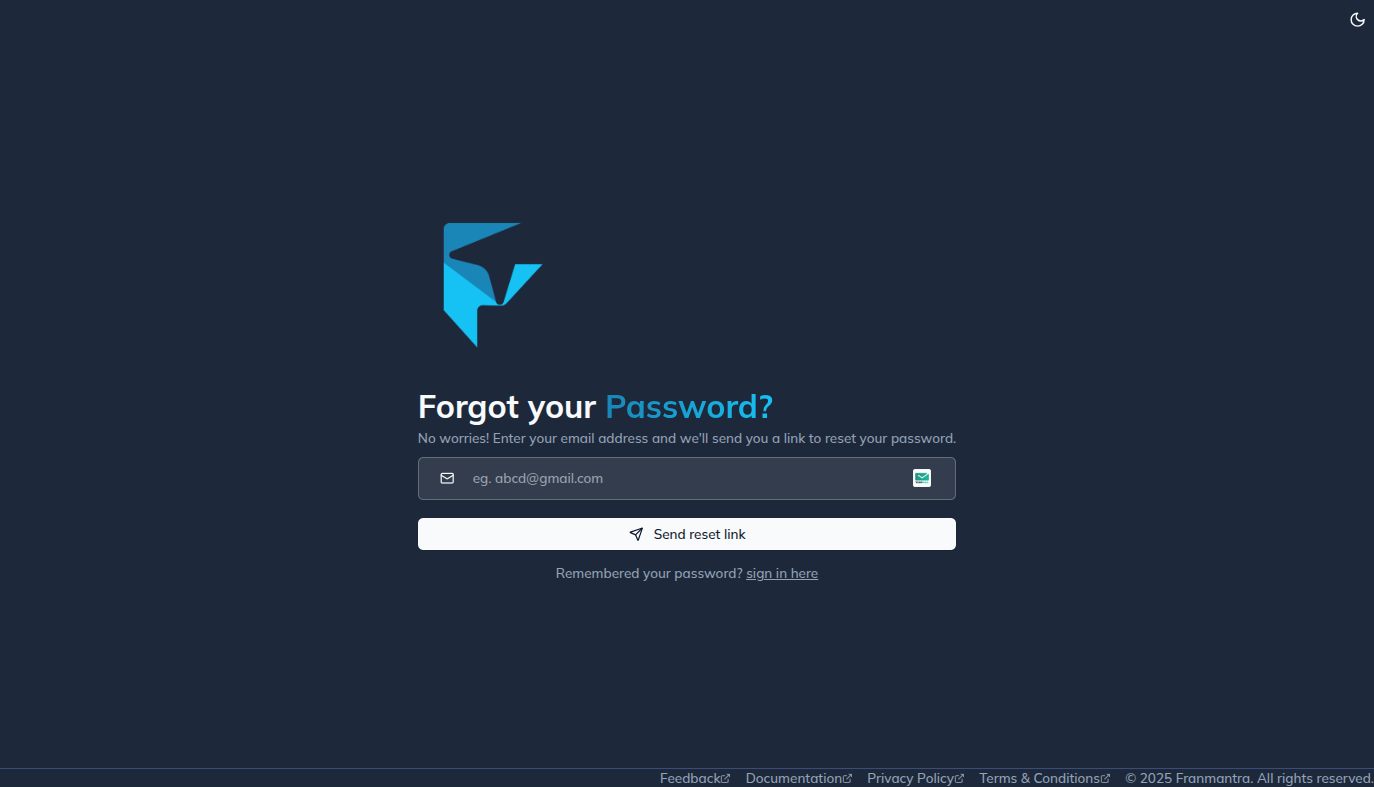
- You will land on the “Forgot Password” page.
- Enter your registered email and click Send Reset Link.
-
You will receive an email with:
- A 6-digit alphanumeric secret code
- A reset link or button
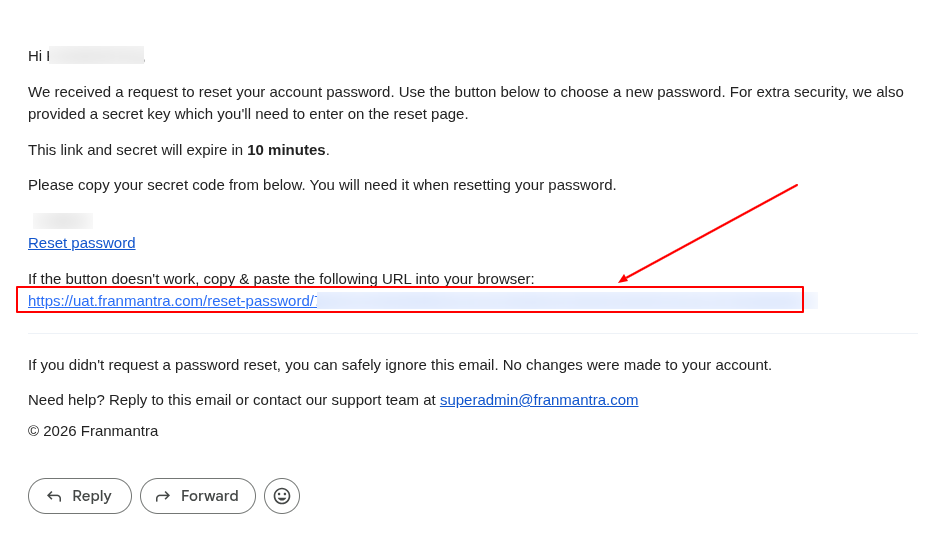
- Click the link/button to open the Reset Password page.
- Enter the secret code, then type your New Password and Confirm New Password.
- Click Reset Password.
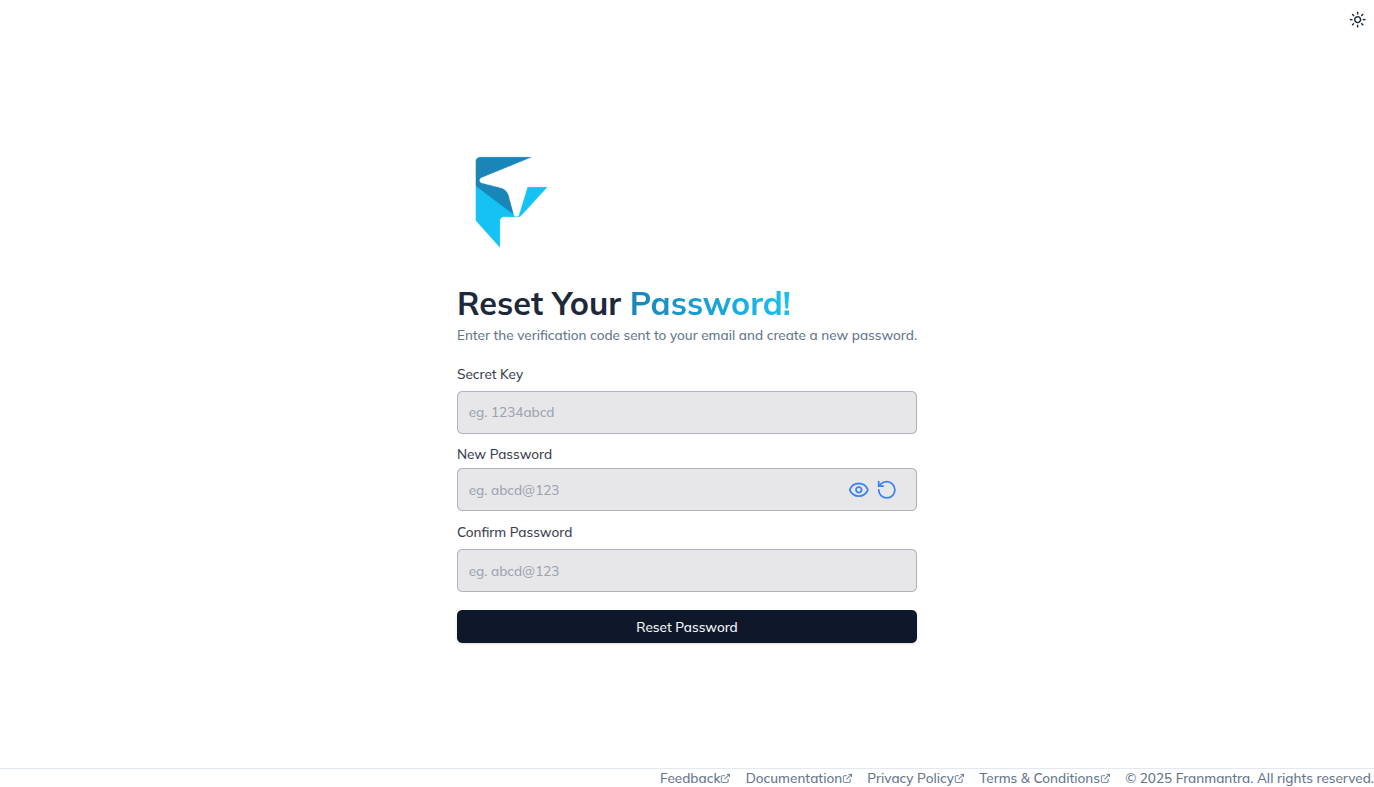
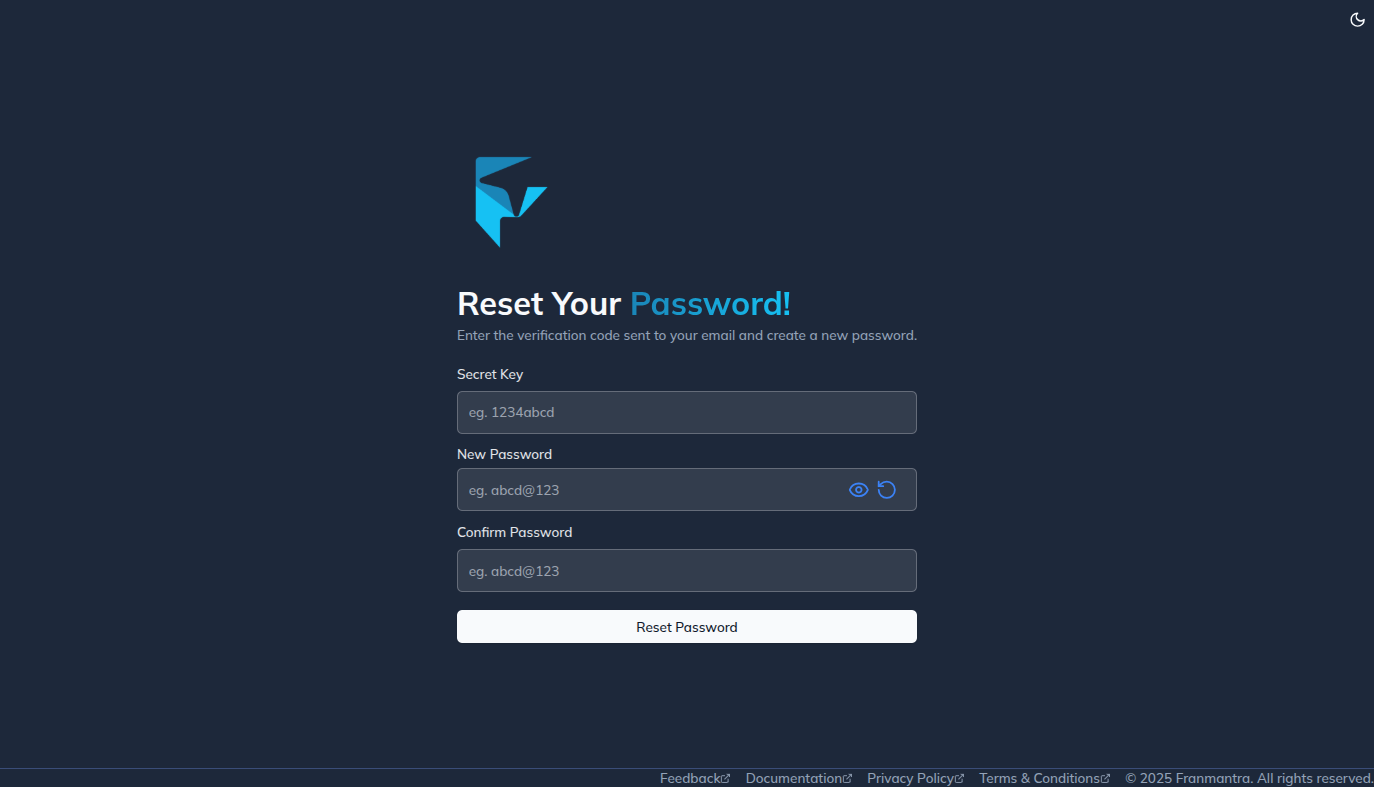
- Your password will be updated, and you will also receive a confirmation email.
What happens next
You can sign in with the new password after the update is complete.
Notes
- Use a strong password that you do not reuse elsewhere.
- Make sure the new password and confirm password fields match.
Result
The change is saved in Franmantra CRM and is available to users with the right permissions.
Troubleshooting
- If you cannot see the option, check your role permissions or ask an admin to update your access.
- If the update does not appear immediately, refresh the page and confirm you are in the correct Sub-account.