Duplicate a Workflow
What this does
This guide explains how to duplicate a workflow in Franmantra CRM.
Before you start
- Sign in to Franmantra with a role that has permission to use this area.
- Confirm you are working in the correct Sub-account before making changes.
Steps
The Duplicate Workflow feature lets you create a copy of an existing Workflow, including its triggers, actions, and settings. This saves time when you want to reuse or slightly modify an existing automation without rebuilding it from scratch.
1. Why Duplicate a Workflow
Duplicating Workflows helps when:
- You want to reuse a structure for another campaign or process.
- You need to test changes safely without affecting the live automation.
- You manage similar Workflows across different Sub-accounts or pipelines.
2. How to Duplicate a Workflow
- Navigate to the Workflows module from the main menu.
- Locate the Workflow you want to copy in the list view.
- Click the ⋯ (Actions Menu) next to the Workflow name.
- Select Duplicate.
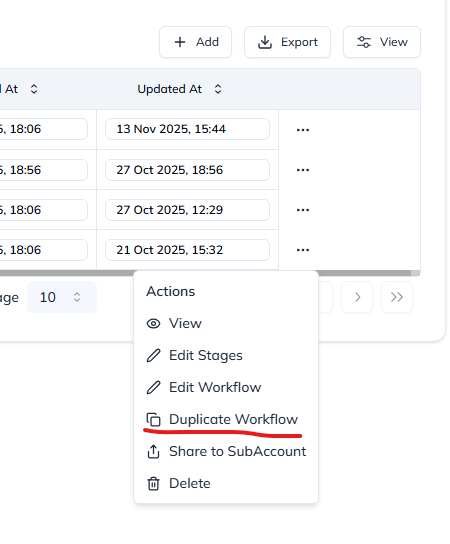
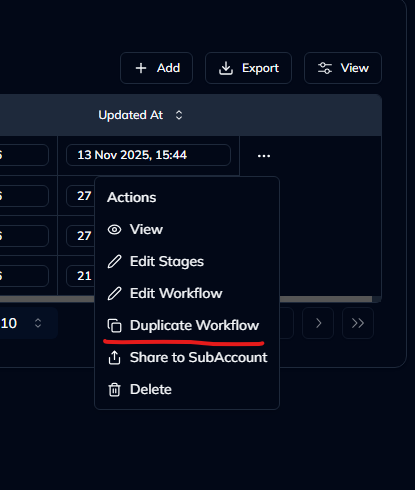
Figure 1: Duplicate option in the Workflow actions menu.

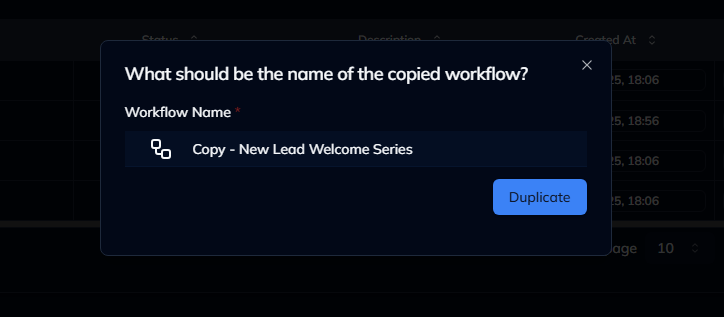
Figure 2: Duplicate modal in the Workflow.
- A confirmation modal will appear — click Confirm.
- A new Workflow will be created with the same setup, named as “Copy of [Original Workflow Name]”.
3. Editing the Duplicated Workflow
Once duplicated, you can:
- Rename the Workflow for better identification.
- Update triggers, conditions, or actions as needed.
- Enable or disable the Workflow independently from the original.
4. Notes
- The duplicated Workflow starts in draft mode (disabled).
- Connected actions like email templates, SMS, or reports are linked automatically — you can change them in the editor.
- You can duplicate both active and inactive Workflows.
- Sub-accounts can only duplicate Workflows they own or that have been shared with them.
Tip: Use duplication to build a template library of standard automation flows, then clone and customize for each client or Sub-account.
Result
The change is saved in Franmantra CRM and is available to users with the right permissions.
Troubleshooting
- If you cannot see the option, check your role permissions or ask an admin to update your access.
- If the update does not appear immediately, refresh the page and confirm you are in the correct Sub-account.