Manage Mail Parser
What this does
This guide explains how to manage mail parser in Franmantra CRM.
Open a mail parser, review its details, update its status, change its settings, or turn it on and off.
Steps
- Log in with an account that can access business settings.
- Know which mail parser you want to manage, such as Website Lead Parser or Support Email Parser.
- Make sure you only delete a parser when it is no longer needed.
1. Open Mail Parser
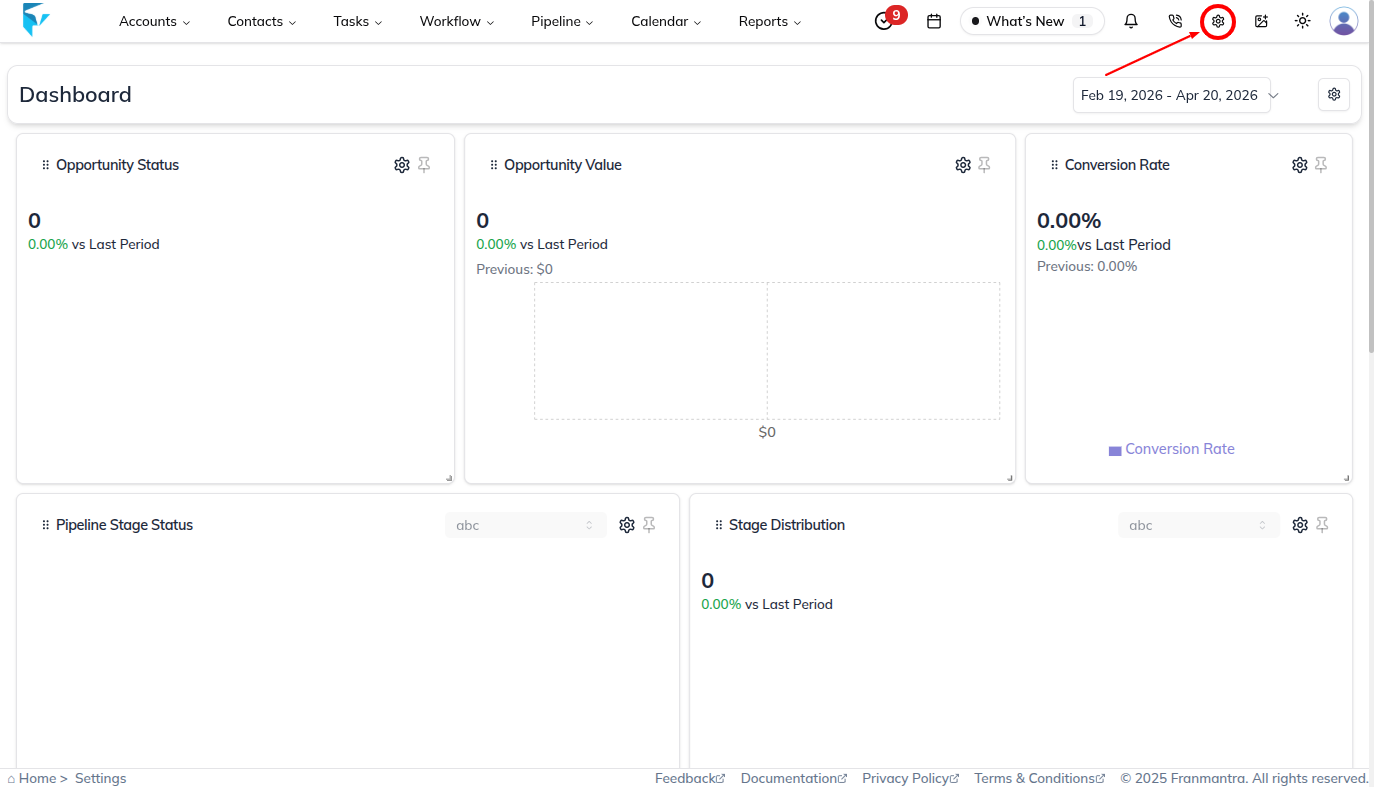
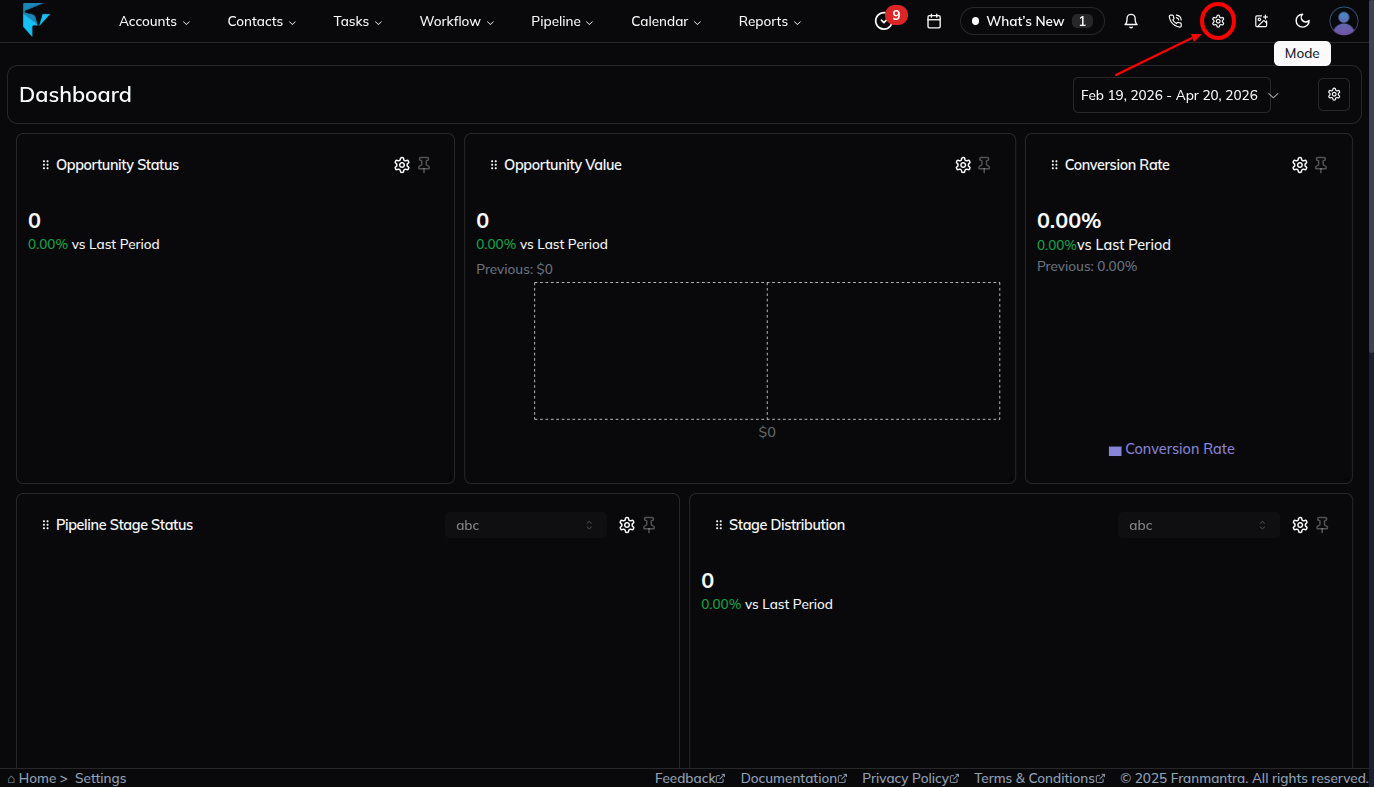
- In the header, click the settings icon.
- After you click the settings icon, you land on the business settings page.
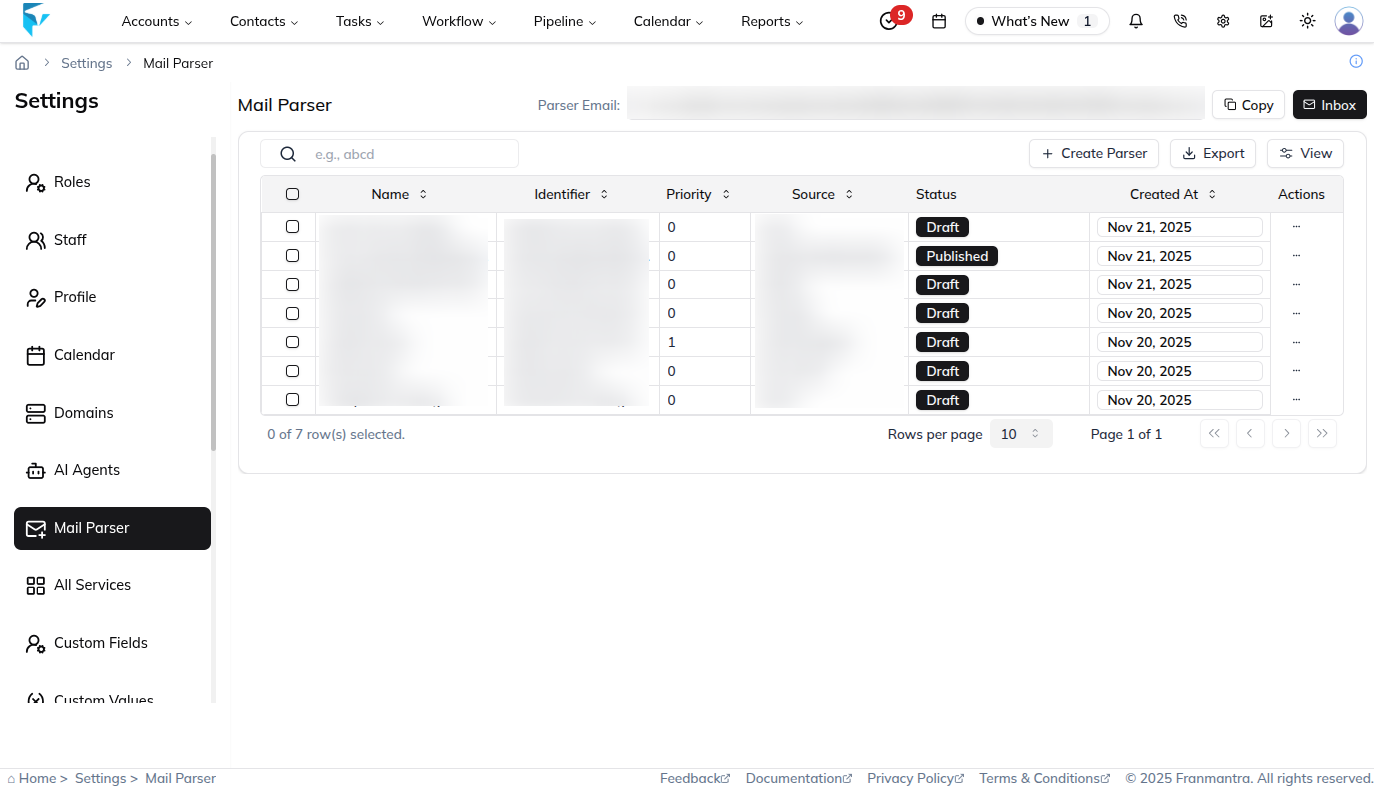
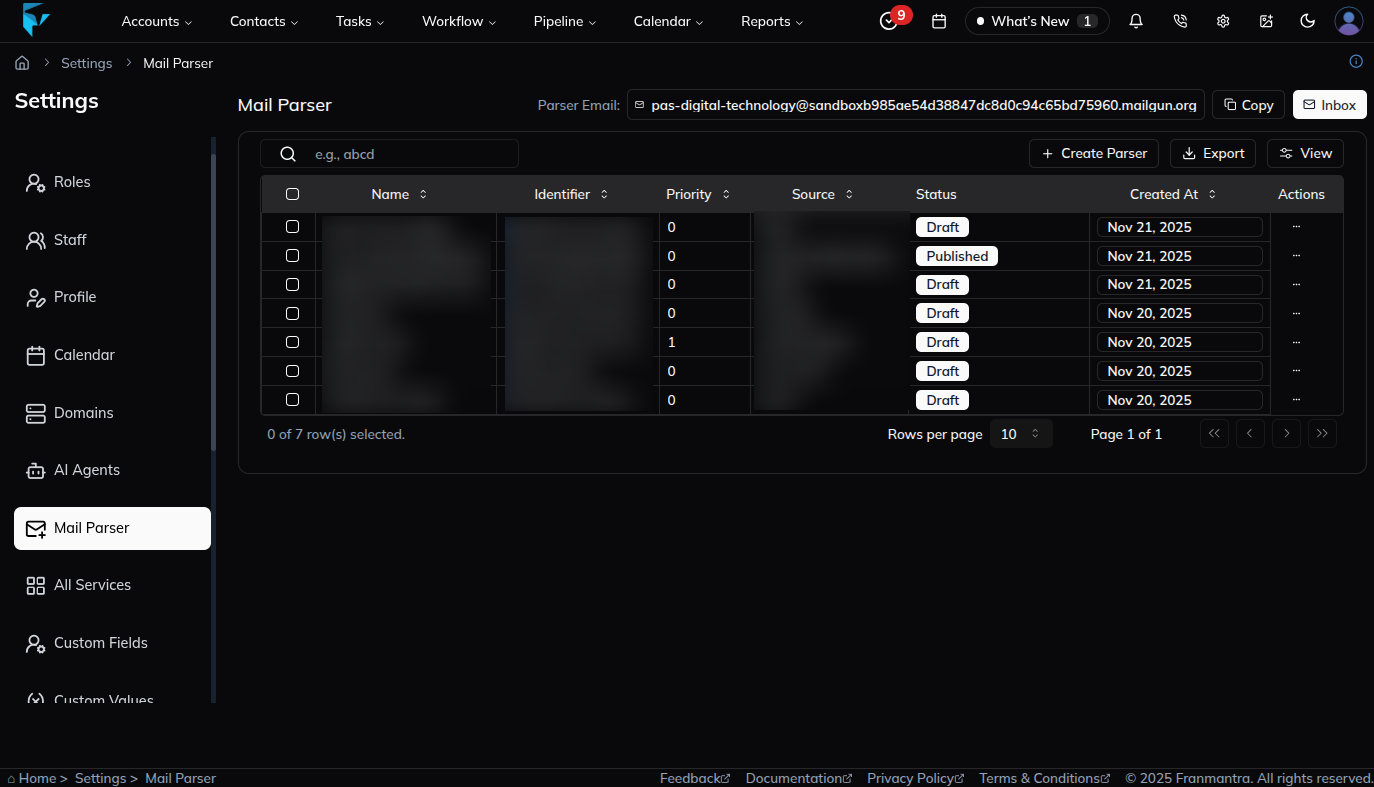
- In the sidebar menu, click Mail Parser.
- The Mail Parser page opens with a list of existing mail parsers.
2. Change Mail Parser Status
- On the Mail Parser list page, find the parser record you want to update.
- In that row, click the value in the Status column.
- A confirmation popup appears.
- Confirm the action to change the status from Draft to Public, or from Public back to Draft.
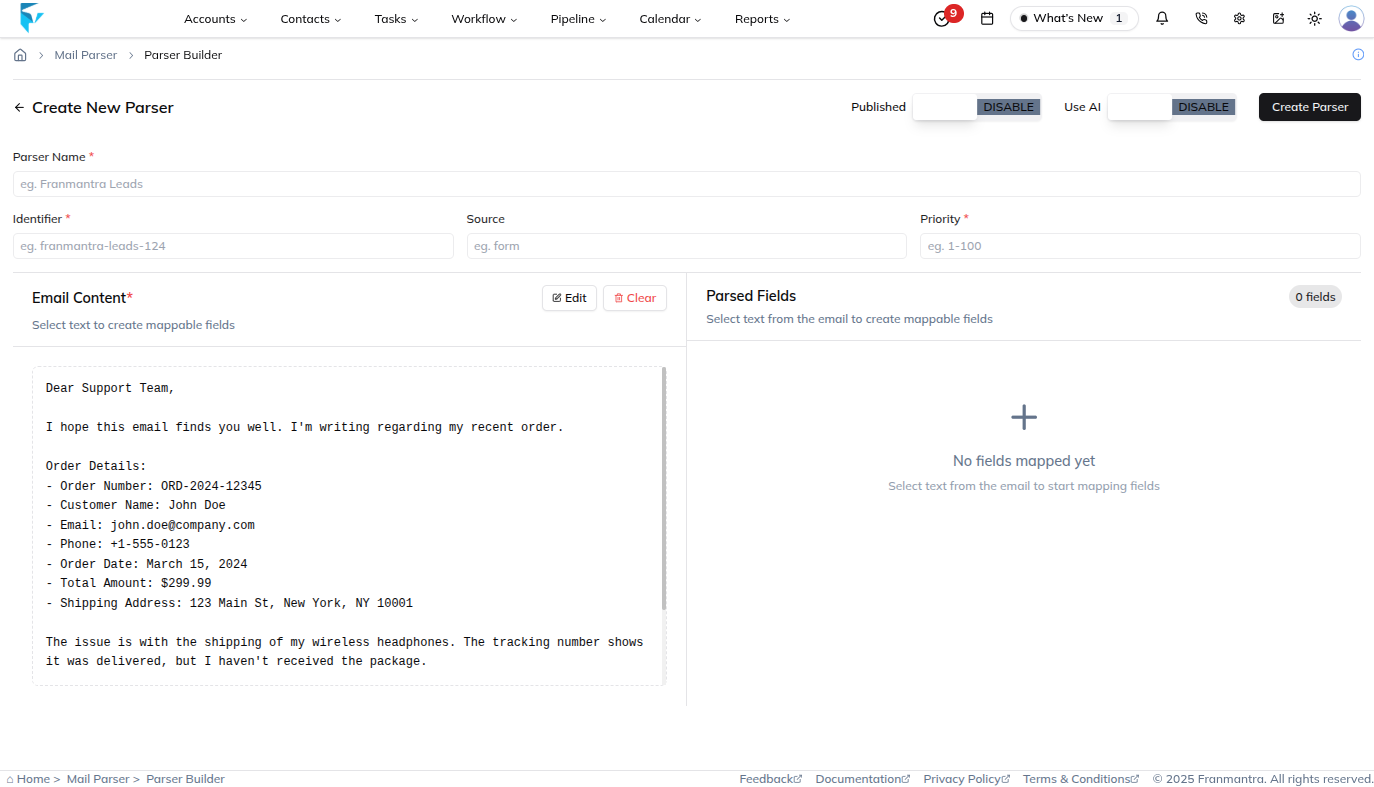
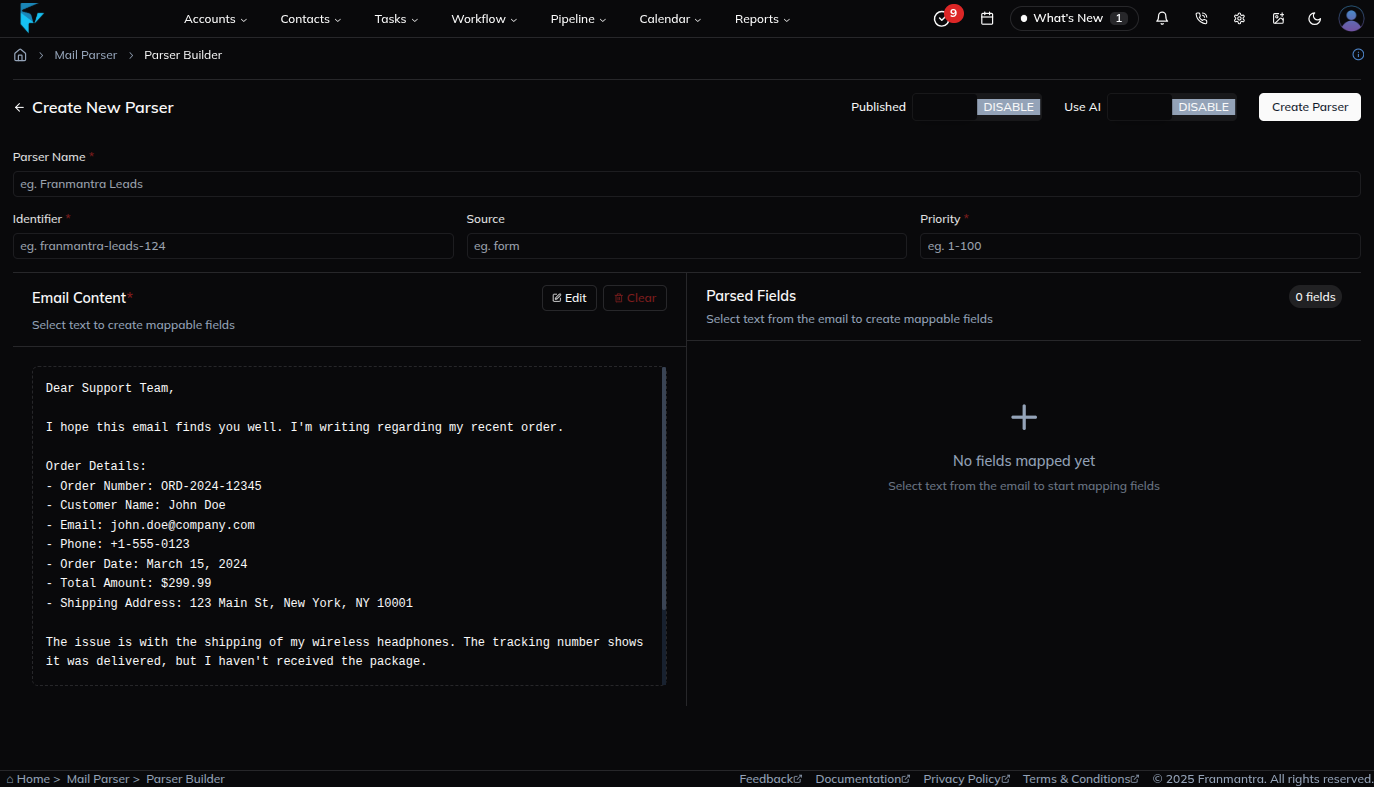
3. Open the Mail Parser Editor
You can open the editor in two ways.
Click the Parser Name
- On the Mail Parser list page, find the parser you want to update.
- Click the parser name, such as Website Lead Parser.
- The mail parser editor opens.
Use the Row Action Menu
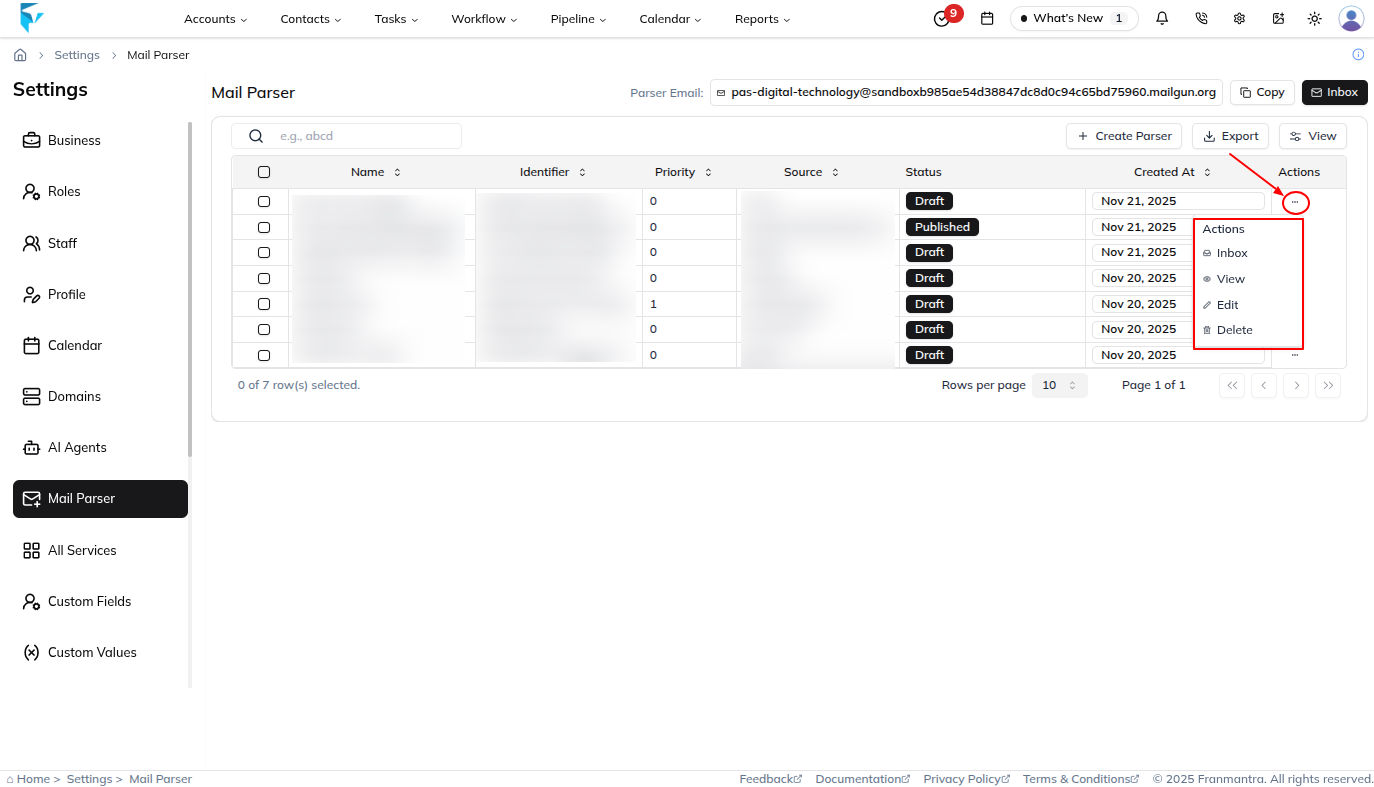
- On the Mail Parser list page, find the parser row.
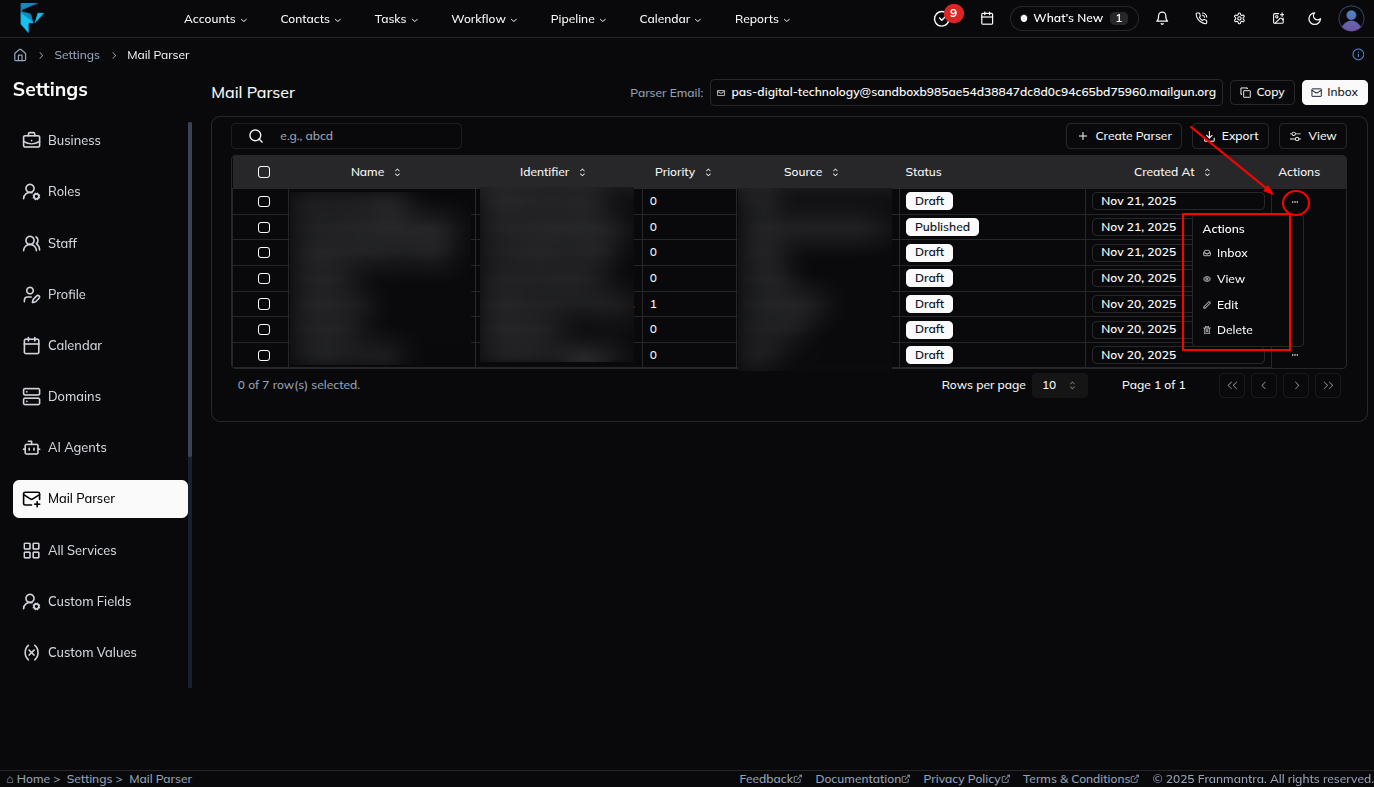
- Click the ... action icon in that row.
- In the action menu, click Edit.
- The mail parser editor opens.
4. View or Delete a Mail Parser
- On the Mail Parser list page, click the ... action icon for the parser.
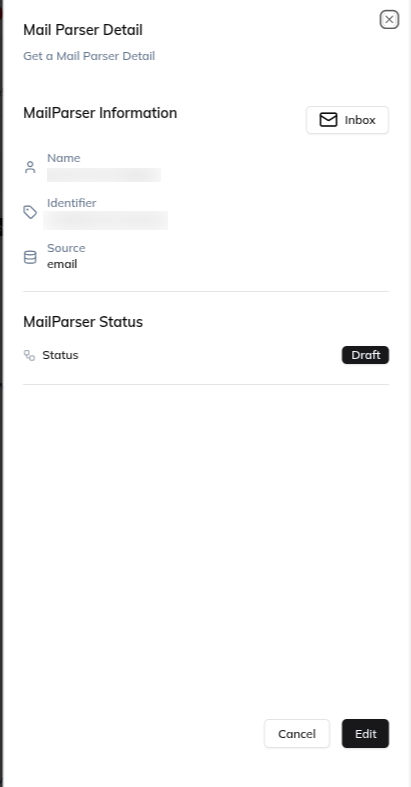
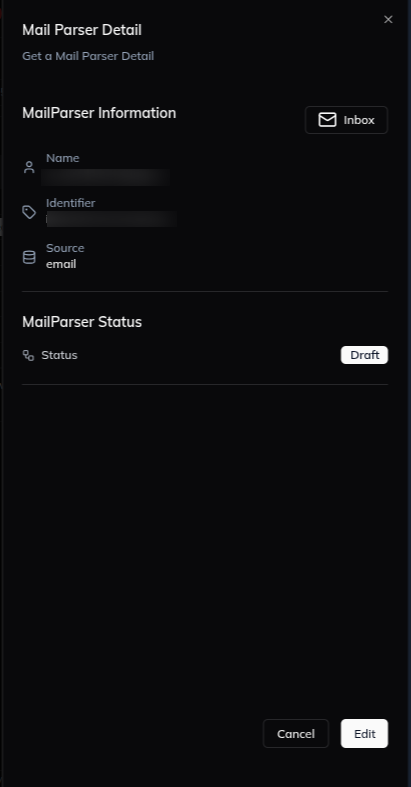
- In the action menu, click View.
- Review the parser details.
- If the parser should be removed, use the delete action from the details page.
5. Enable or Disable Mail Parser Options
In the mail parser editor, use the available switches to control how the parser works.
- Turn the AI switch on to enable AI for the parser. Turn it off to disable AI for that parser.
- Turn the Enable switch on to keep the parser active. Turn it off to disable the parser without deleting it.
What happens next
The mail parser uses the latest settings and status you saved. If Enable is turned off, the parser stays in the system but does not run as an active parser.
Notes
- Use Edit when you need to change parser settings.
- Use View when you only need to review parser details or delete the parser.
- Use Draft while you are still reviewing a parser, and use Public when it is ready to be available.
- Turning off AI does not delete the parser.
- Turning off Enable is useful when you want to pause a parser instead of deleting it.
Result
The change is saved in Franmantra CRM and is available to users with the right permissions.
Troubleshooting
- If you cannot see the option, check your role permissions or ask an admin to update your access.
- If the update does not appear immediately, refresh the page and confirm you are in the correct Sub-account.