Manage Custom Values
What this does
This guide explains how to manage custom values in Franmantra CRM.
Create reusable values that can be inserted into supported CRM fields.
Steps
- Log in with an account that can access business settings.
- Prepare the value name and content you want to reuse.
- Decide whether the value should belong to an organization folder.
Open Custom Values
- In the header, click the settings icon.
- After you click the settings icon, you land on the business settings page.
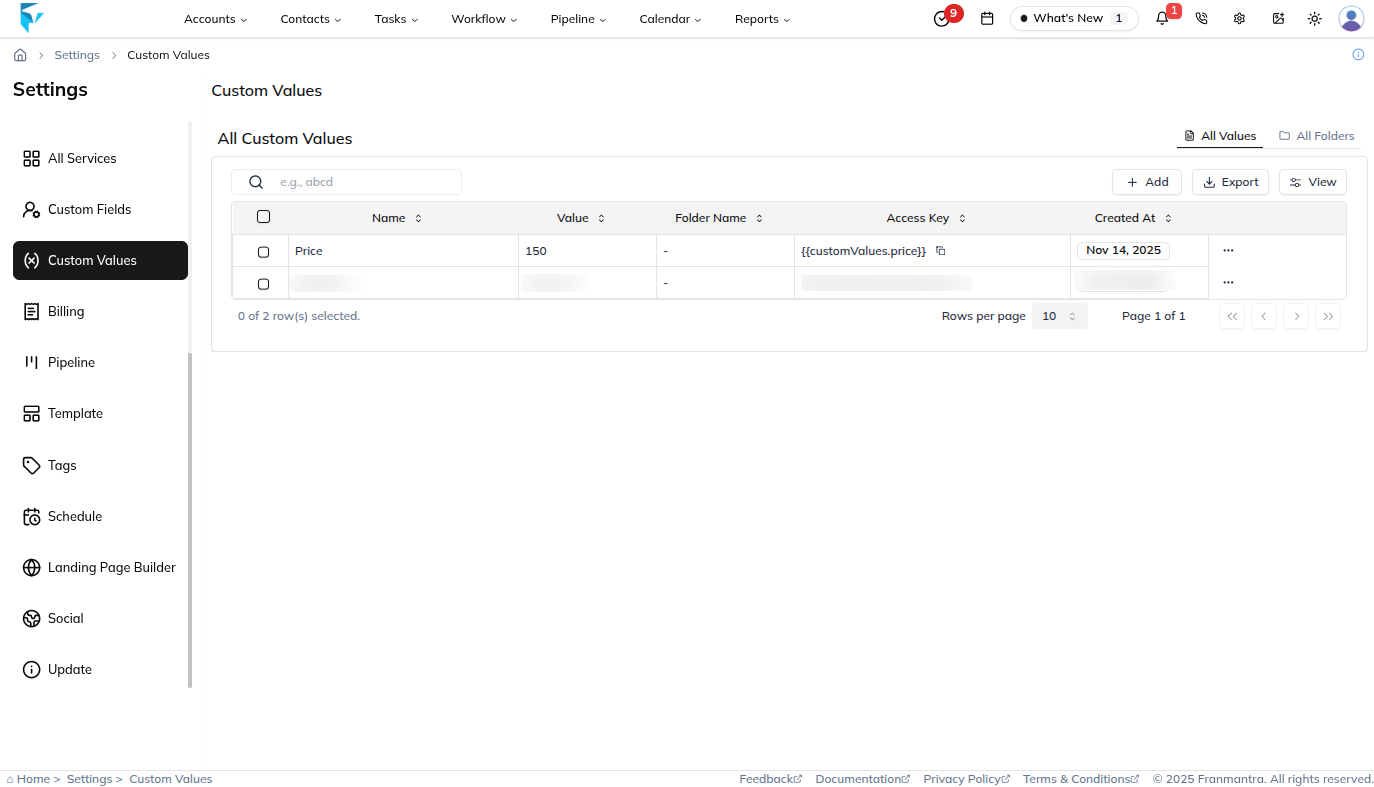
- In the sidebar menu, click Custom Value.
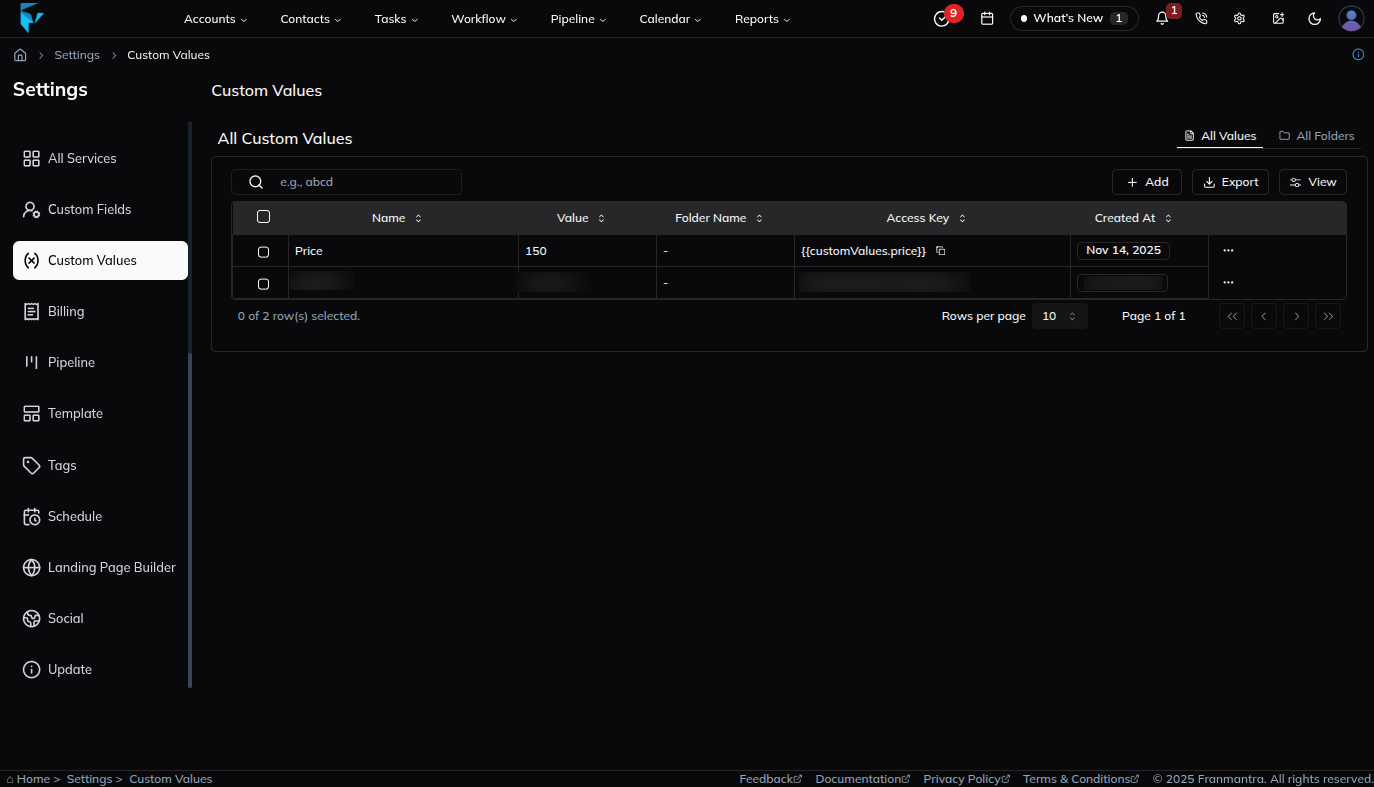
- The Custom Values page opens with a list of saved custom values.
Create a Custom Value
- Click Add.
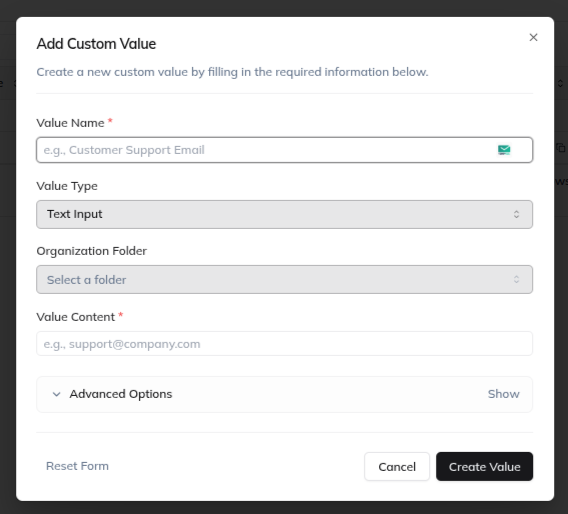
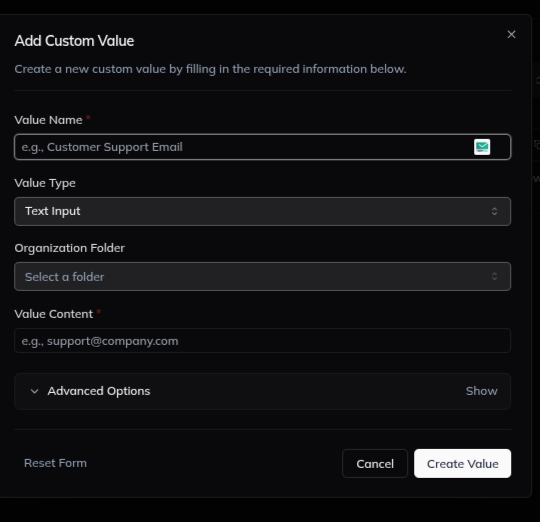
- Fill in the custom value form.
- Enter the Value Name.
- Select the Value Type.
- Choose the Organization Folder if the value belongs in a folder.
- Enter the Value Content.
- Open Advanced Options if you need additional settings.
- Click Create Value.
Open the Action Menu
- Return to the Custom Values list page.
- Find the custom value record you want to manage.
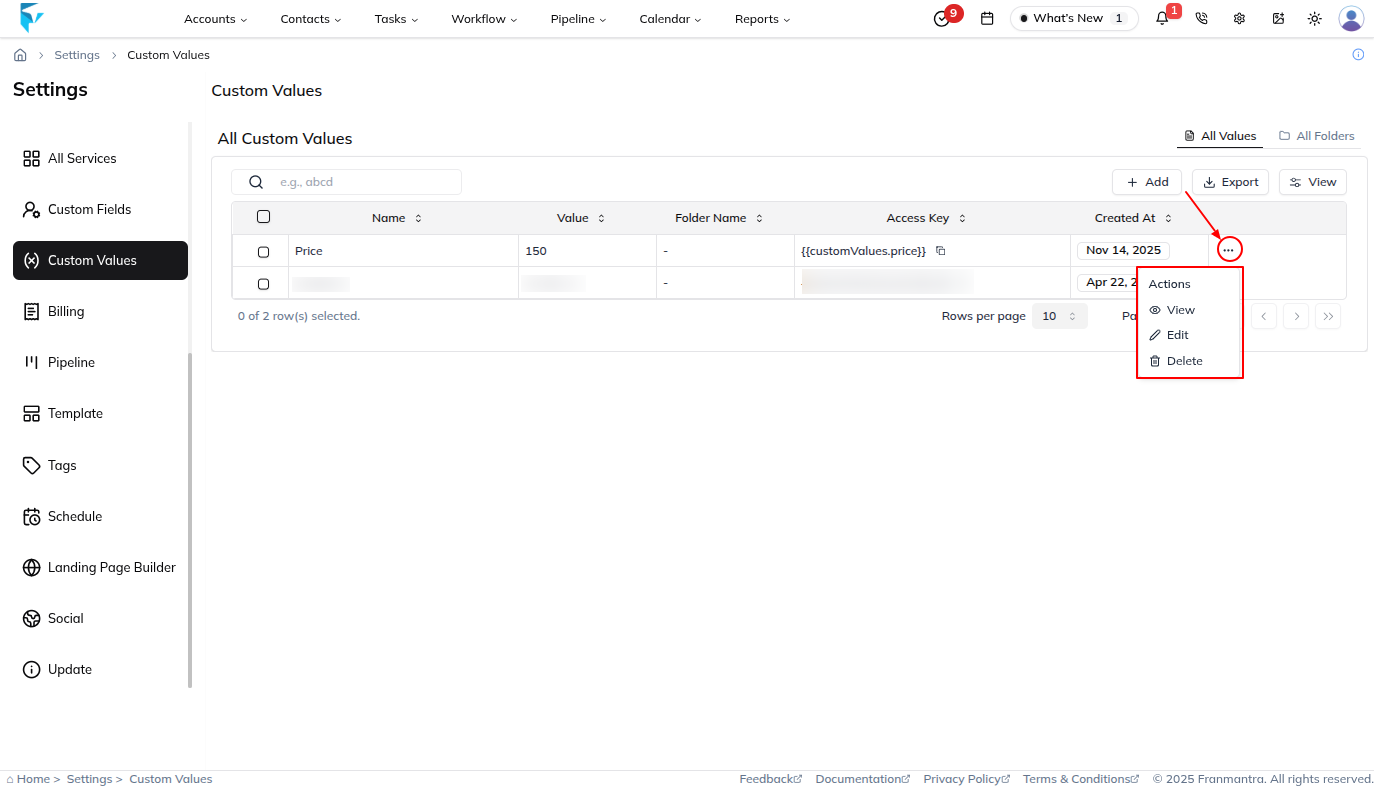
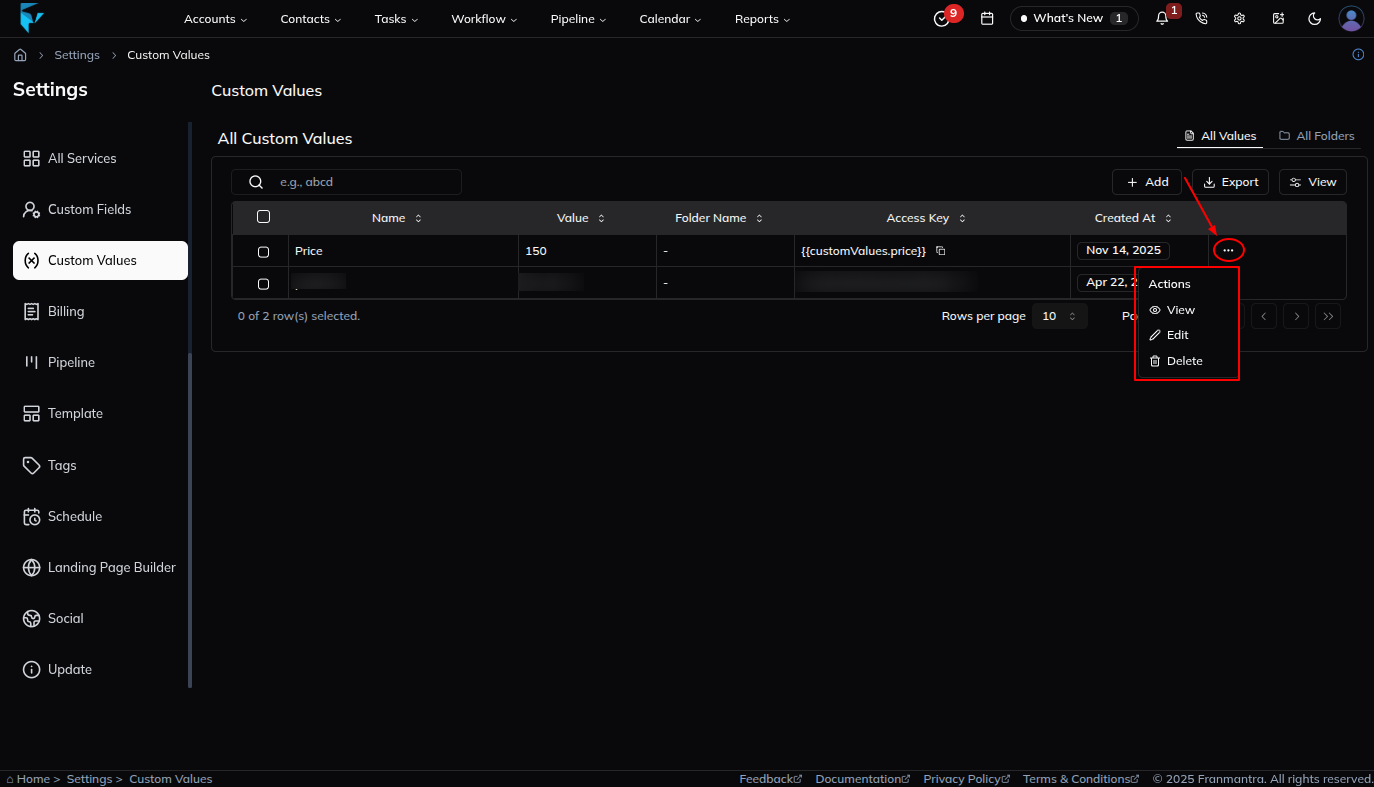
- Click the ... action icon in that row.
- Review the available actions: Edit, View, and Delete.
Edit a Custom Value
- Open the ... action menu for the custom value.
- Click Edit.
- Update the fields in the edit form.
- Click Update to save the changes.
View a Custom Value
You can view a custom value in two ways.
- Click the custom value name in the list.
- Or open the ... action menu and click View.
- Review the custom value details.
Delete a Custom Value
- Open the ... action menu for the custom value.
- Click Delete.
- A confirmation form appears.
- Confirm the action to delete the custom value.
Use a Custom Value in Supported Fields
- Open a CRM area that supports tag-style insert options in a field.
- Click the tag option in the field.
- In the dropdown menu, click Custom Value.
- Select one of the custom values you created.
- The selected custom value is appended to the field.
What happens next
The custom value is saved and becomes available in supported CRM areas. If you edit the value later, places that use the saved custom value can use the updated content.
Notes
- Use custom values for information that is reused often.
- Use folders to keep related values organized.
- Review a value before deleting it, especially if it is used in forms, templates, Workflows, or messages.
Result
The change is saved in Franmantra CRM and is available to users with the right permissions.
Troubleshooting
- If you cannot see the option, check your role permissions or ask an admin to update your access.
- If the update does not appear immediately, refresh the page and confirm you are in the correct Sub-account.