Configure Lead Scoring
Use Lead Scoring to assign points to contact details and actions so your team can identify high-potential contacts.
Before you start
- Sign in with an account that can access Lead Scoring settings.
- Decide which profile, behaviour, opportunity, and inactivity signals matter to your business.
- If you create rules for tags, fields, forms, or users, make sure those records already exist.
1. Open Lead Scoring
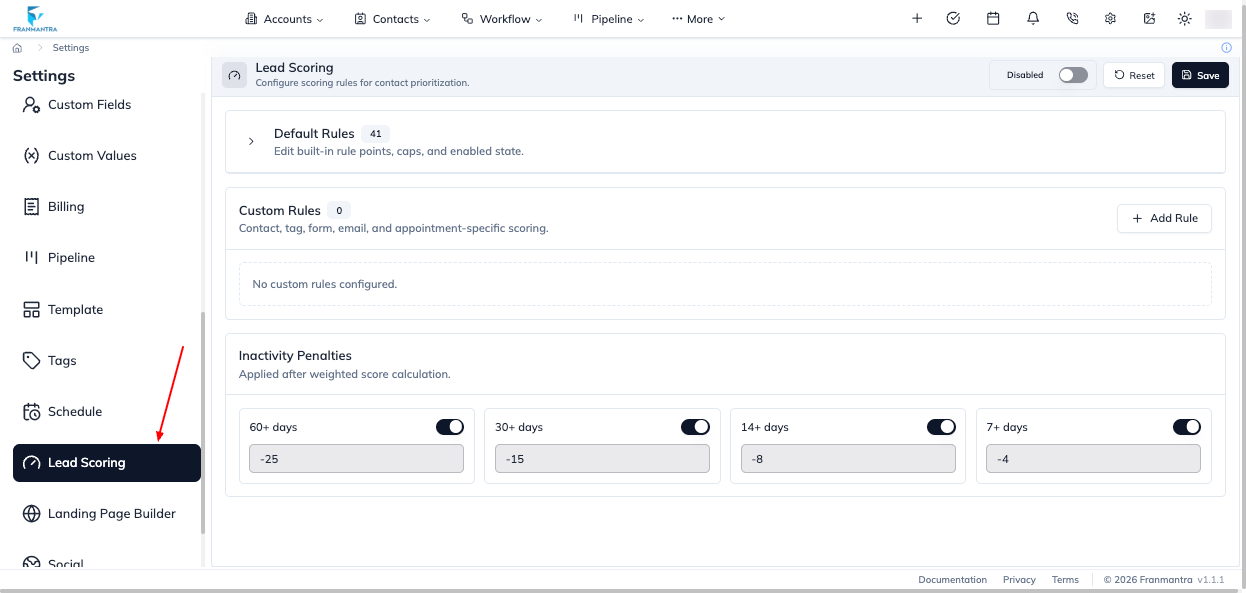
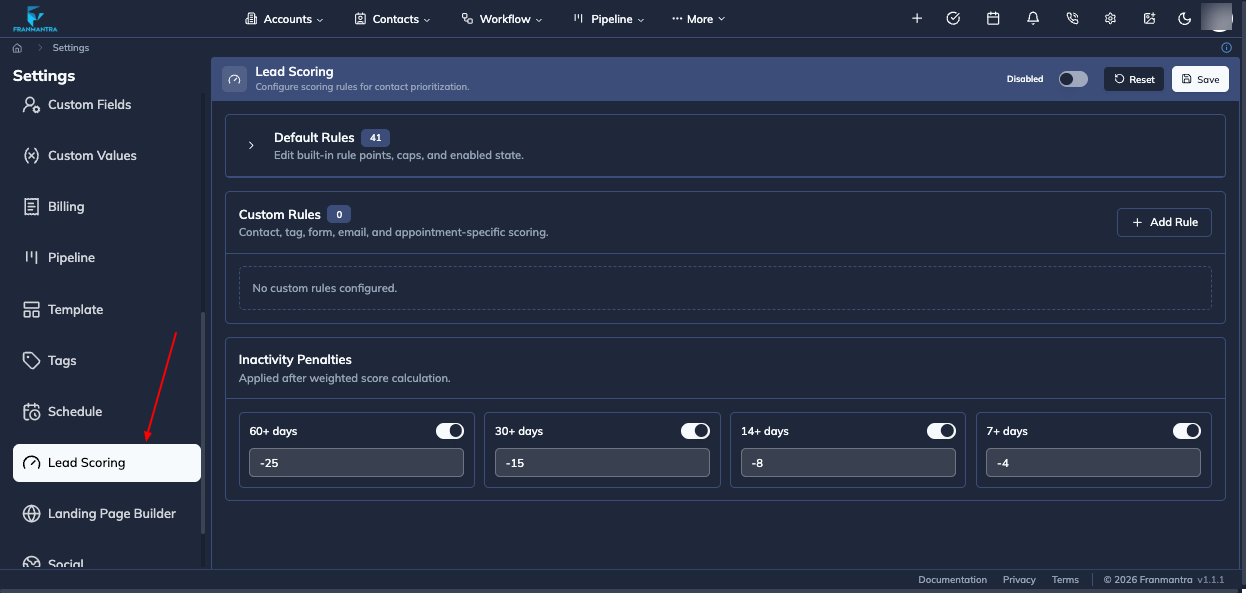
- Open Settings.
- In the settings sidebar, click Lead Scoring.
- Review the current Enabled or Disabled state.
2. Enable scoring and review default rules
- Turn on the Enabled switch.
- In Default Rules, expand a rule to review its Rule, Category, Points, and Cap.
- Change the Points or Cap when needed.
- Turn a rule's switch off when it should not contribute to scores.
- Use Expand all or Collapse all to review the rule list quickly.
3. Add a custom rule
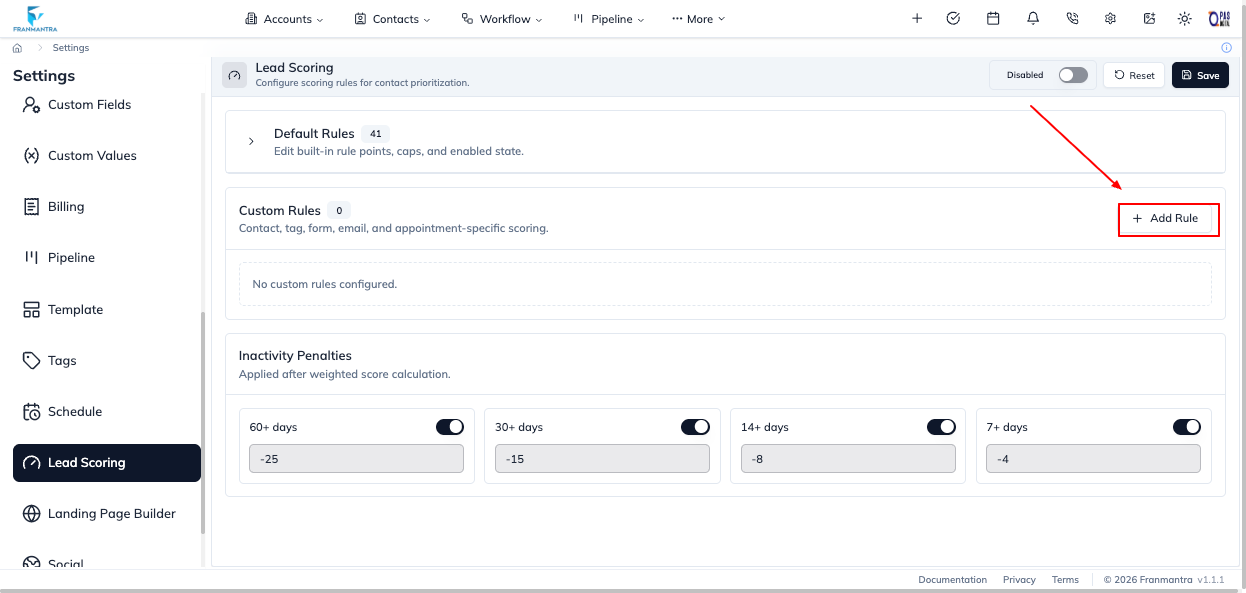
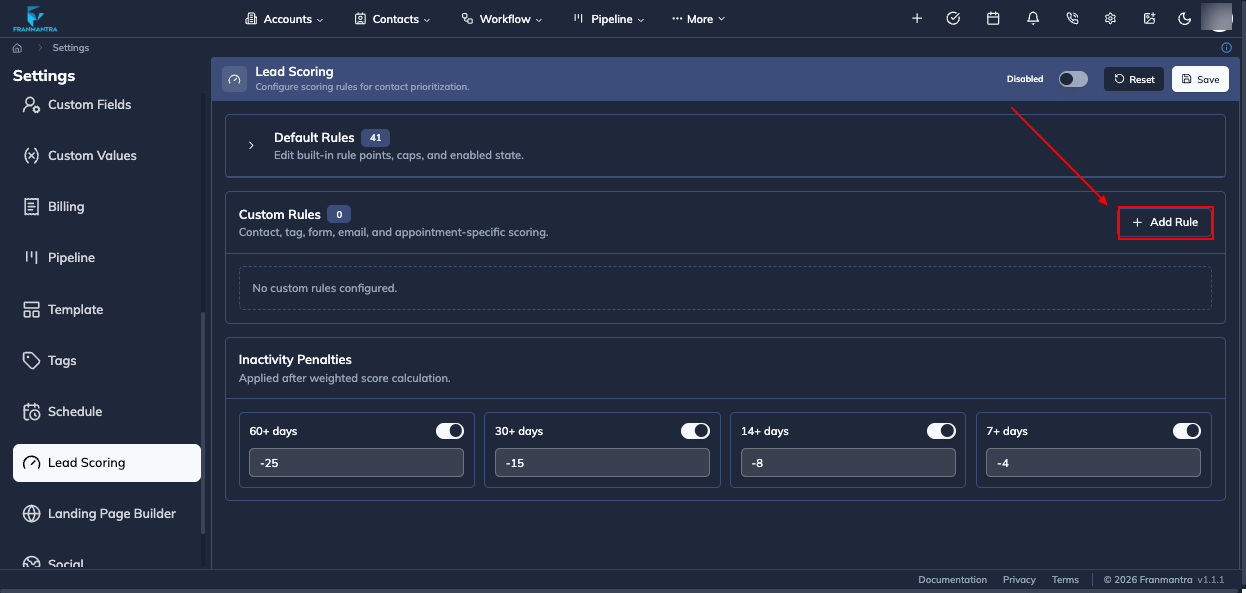
- In Custom Rules, click Add Rule.
- Enter a Name.
- Select a Type: Tag, Custom field, Form submit, Email event, Contact field, or Appointment status.
- Select a Category: profile, behaviour, or opportunity.
- Enter Points and, if needed, a Cap.
- Configure the criteria shown for that rule type.
- Leave the rule switch on when it should be active.
For example, an email-event rule can use events such as delivered, opened, clicked, replied, unsubscribed, bounced, or complained. An appointment rule can use statuses such as confirmed, showed, no_show, cancelled, or rescheduled.
4. Add inactivity penalties
- Scroll to Inactivity Penalties.
- For each threshold, review the displayed number of days.
- Enter the point reduction.
- Turn the threshold switch on or off.
The penalty is applied after the weighted score calculation.
5. Save and review the result
- Click Save.
- Open Contacts.
- Review the lead score badge when scoring is enabled.
- Open a contact to review its score breakdown.
- From the contact actions, choose Recalculate score when you need to run the rules again against current contact data.
Reset the configuration
Click Reset on the Lead Scoring page if you need to restore the scoring configuration. Review the result before making more changes, then click Save if the reset configuration is the model you want to keep.
Troubleshooting
- If scores are not visible in Contacts, confirm that the Lead Scoring Enabled switch is on and that the configuration was saved.
- If a rule has no effect, check that its switch is on and that its criteria match the contact data or activity.
- If a contact score is out of date, use Recalculate score from the contact actions.