Manage Social Media Posts
This guide explains how to manage business posts for Facebook Pages, LinkedIn Pages, and Instagram or Instagram Business accounts from the Social setting.
Before you start
- Connect the required Facebook, LinkedIn, or Instagram service in Settings > All Services.
- Confirm that the connected account has permission to publish to the selected page or account.
- Prepare the post text and any images or videos. Instagram posts require media.
1. Open Social
- Open Settings.
- In the settings sidebar, click Social.
- Choose Social Hub for a combined view, or choose Facebook, Linkedin, or Instagram for a platform-specific view.
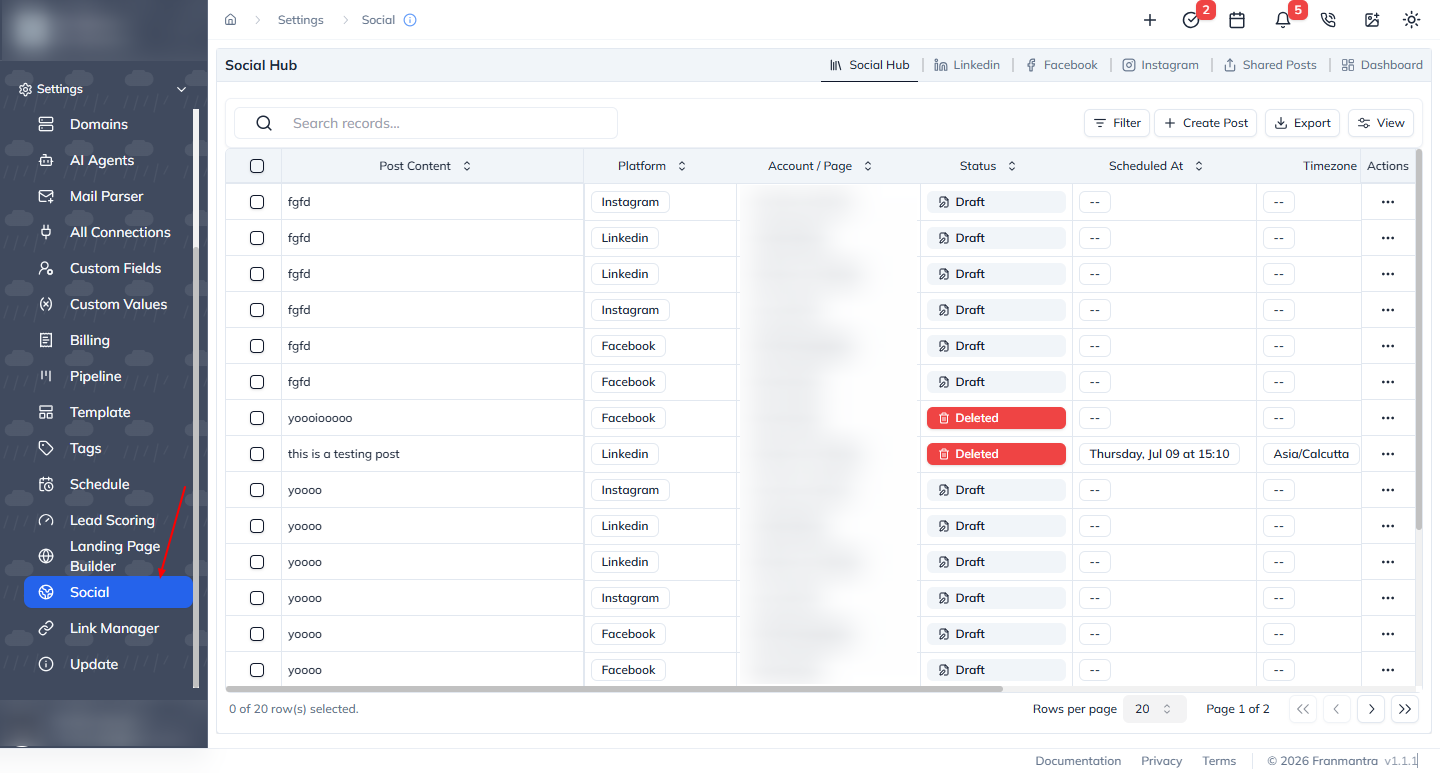
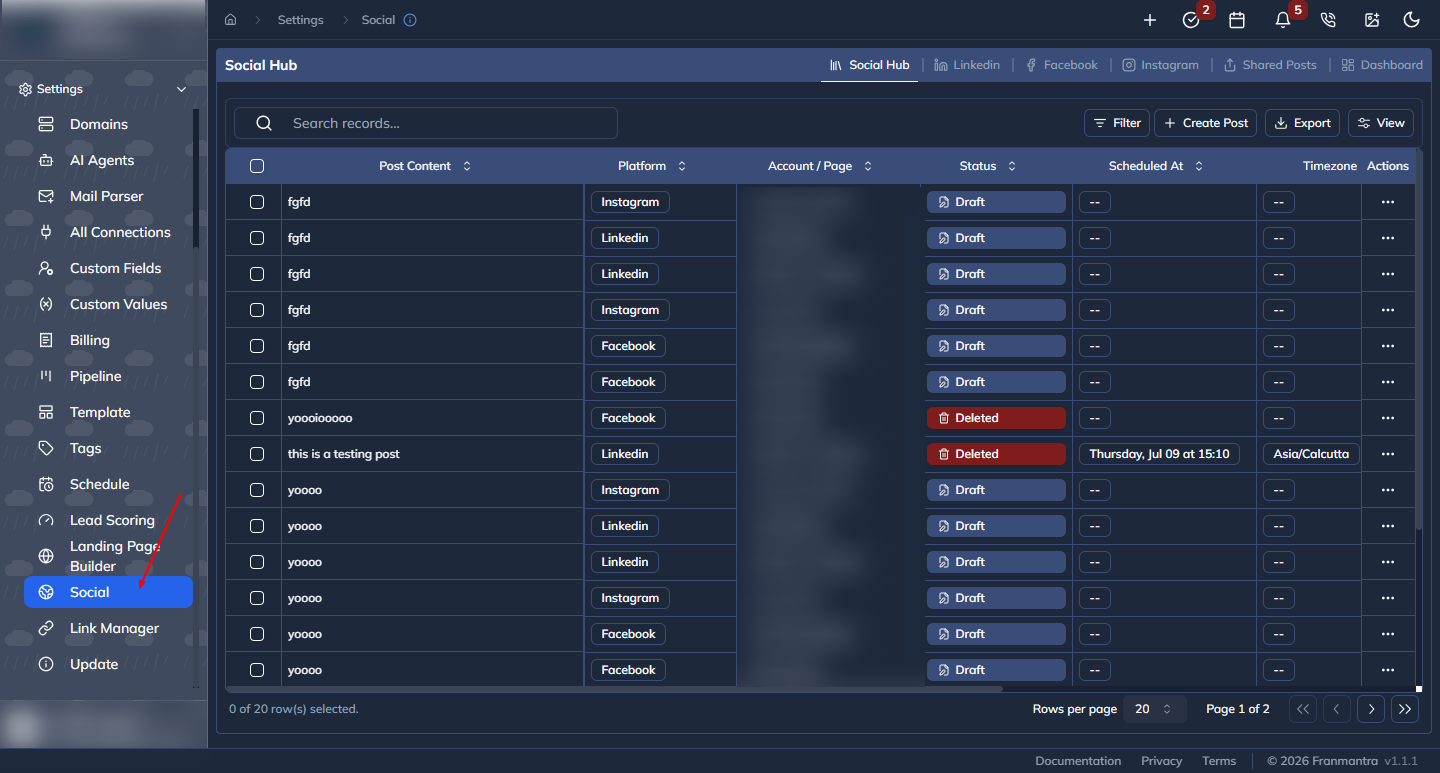
If no account is connected, the page shows No social accounts connected. Click Connect Social Account and complete the connection from All Services.
2. Create a post
- Click Create Post.
- Enter the post in Post Content.
- Click Add Photos or Videos and select media when needed.
- In Platforms, select Facebook, LinkedIn, Instagram, or Instagram Business.
- Under Select Accounts, choose the Facebook Pages, LinkedIn Pages, or Instagram accounts that should receive the post.
When using a platform-specific tab, select the page or account in its account selector before creating the post.
3. Publish now or schedule
- Leave Schedule (Optional) empty to publish immediately.
- To publish later, enter a future date and time in Schedule (Optional).
- Select the Timezone for that scheduled time.
- Submit the post.
The post appears with a status such as published, scheduled, draft, or failed. A scheduled post can be reviewed in the Social table and from Settings > Schedule > Social.
4. Save a draft
Complete the post content, media, platform, and account selection, then choose the draft action instead of publishing. Open the draft later from Social Hub and use its actions menu to edit or publish it.
5. View, edit, publish, or delete a post
- Find the post in Social Hub, Facebook, Linkedin, or Instagram.
- Use the row actions to choose View, Edit, Publish, or Delete when available.
- Review the confirmation dialog before publishing or deleting.
Use Shared Posts to review posts shared with subordinate accounts. Use Dashboard to review social interactions and performance information.
Notes
- Instagram requires at least one photo or video; text-only Instagram posts cannot be submitted.
- The available pages and accounts depend on active connections and permissions.
- Facebook, LinkedIn, and Instagram may restrict editing or deletion after publication depending on the post status and platform rules.
- Use the post's Timezone and Local Scheduled Time values to verify when a scheduled post is expected to publish.