Run a Territory Check for a Contact
What this does
This guide explains how to start a territory check for one contact from the Contacts action menu.
Before you start
- Sign in to Franmantra with a role that has permission to use Contacts and territory checks.
- Confirm you are working in the correct Sub-account.
- Make sure the contact has at least one account with an email address available for checking.
Steps
1. Open the Contacts page
Open Contacts from the header and find the contact you want to check.
2. Open the contact actions
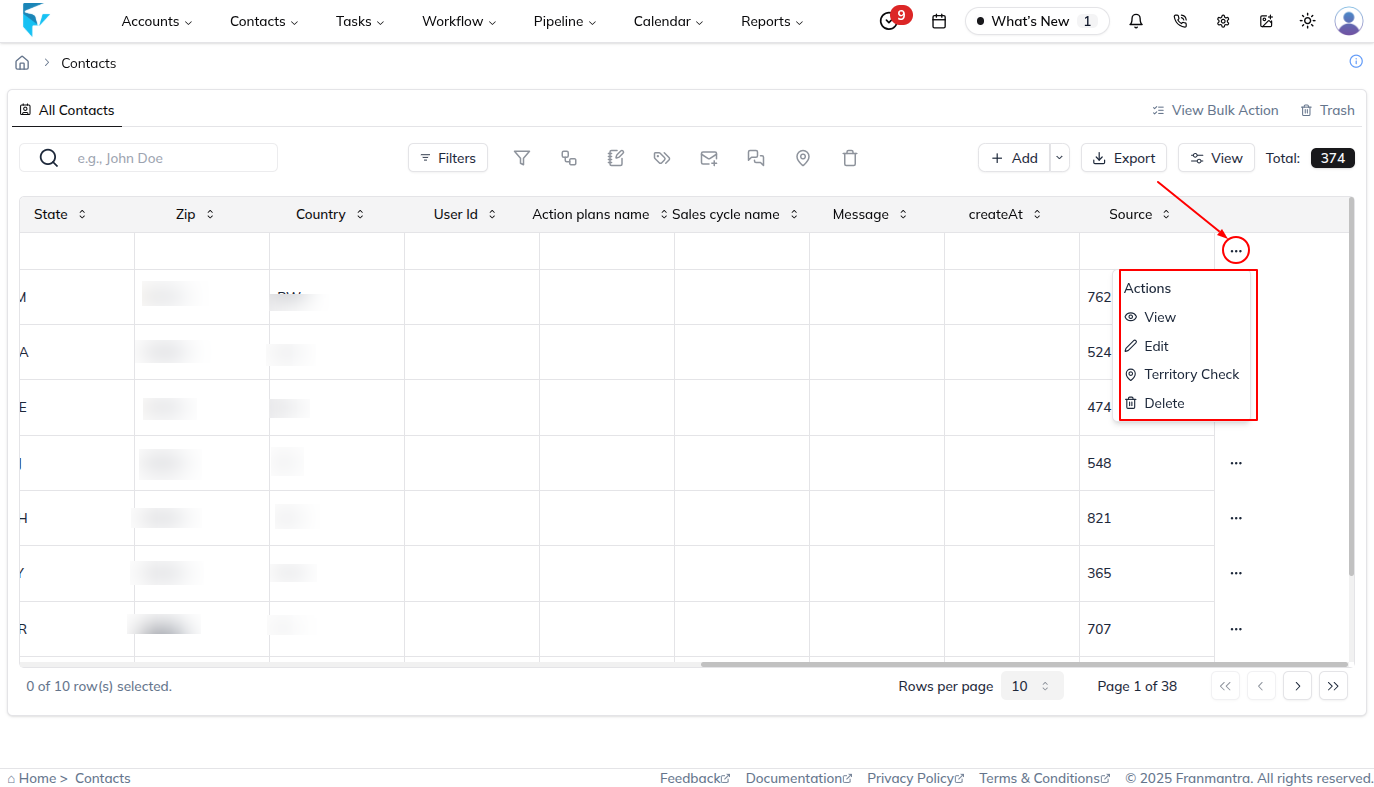
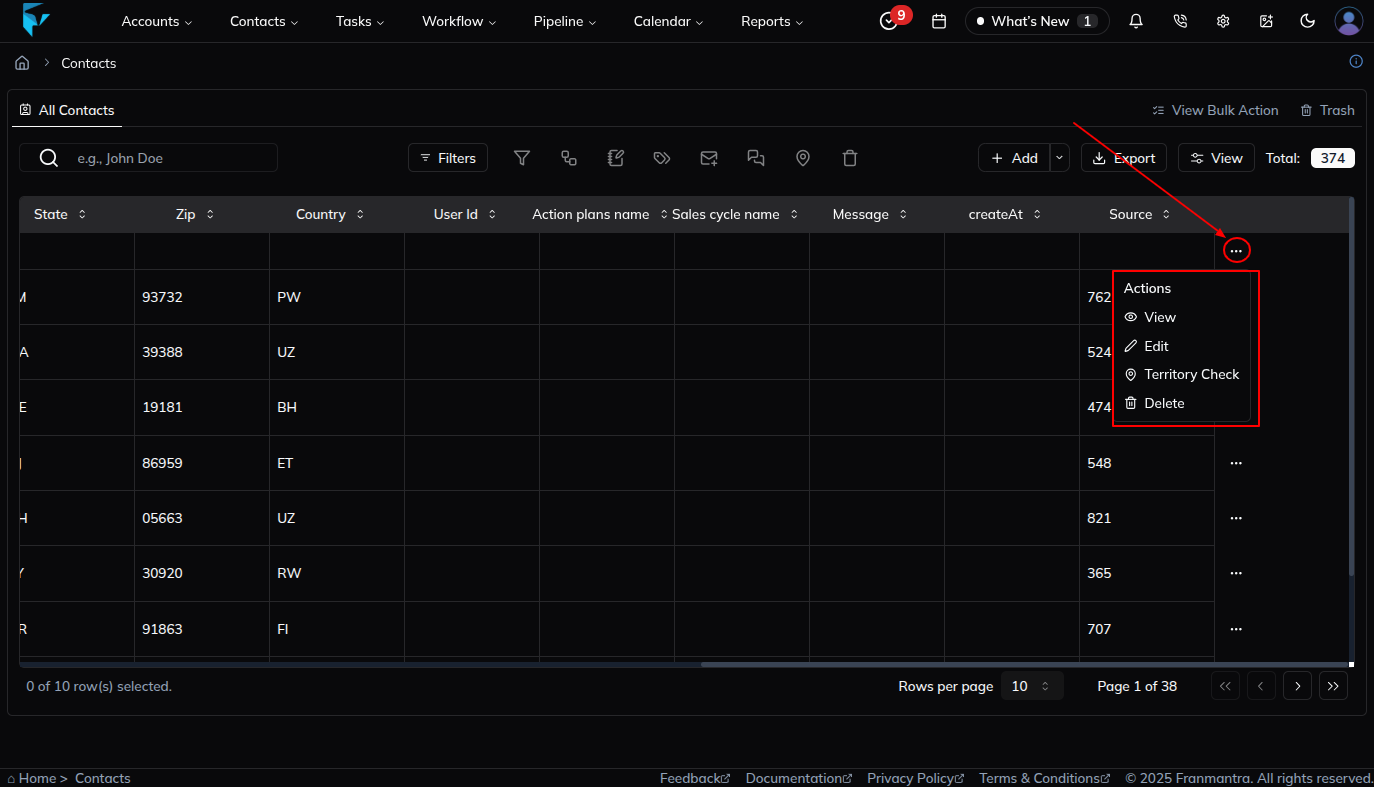
In the contact's row, select the ... button in the Action column to open the Actions menu.
3. Select Territory Check
Select Territory Check from the menu. The Start Territory Check dialog opens for that contact.
If the contact's territory check is already completed, Territory Check is disabled for that contact.
4. Choose accounts to check
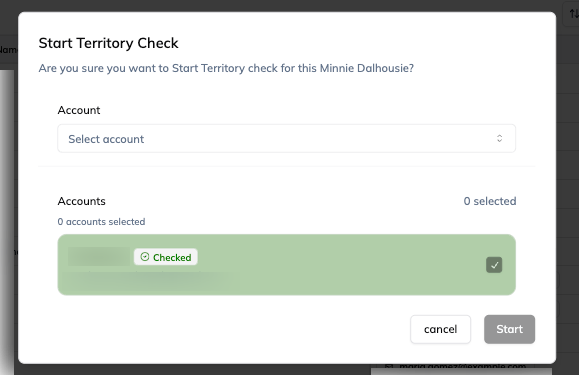
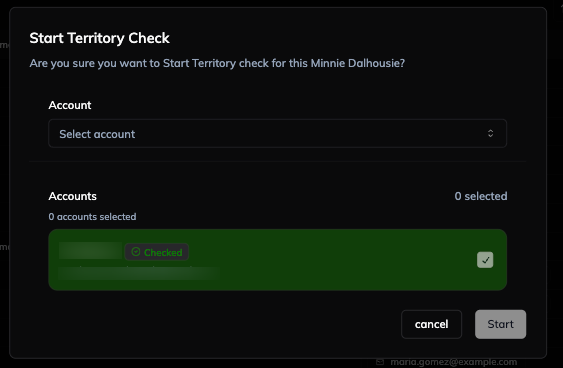
Review the accounts shown in the dialog. The contact's existing accounts appear in the list.
- Use the Account field to add another account.
- Use Search accounts... to find an account by name.
- Select an account with its checkbox or by selecting the account row.
- Accounts that were already checked show a Checked badge and cannot be selected again.
- Accounts without an email address are disabled. Select Add email and add an email before using that account.
The dialog shows the number of selected accounts. At least one eligible account must be selected before you can start the check.
5. Start the territory check
Select Start. Franmantra submits the selected account names for the contact's territory check, closes the dialog after a successful request, and displays confirmation feedback.
The Start button remains disabled while no eligible account is selected or while the request is loading.
Result
The selected accounts are submitted for the contact's territory check. Accounts that complete the check are shown as Checked the next time you open the dialog.
Troubleshooting
- Territory Check is disabled: The contact may already have a completed territory check, or your role may not have permission to use the feature.
- Start is disabled: Select at least one account that has an email address and is not already marked Checked.
- No accounts are listed: Use the Account selector and search for an account.
- An account cannot be selected: Add an email address to that account first, or choose an account that is not already checked.
- The request does not complete: Confirm you are in the correct Sub-account and try again. Keep the dialog open if an error is displayed.