Customize Workspace Navigation
What This Is
Navigation Settings let you control where the main CRM navigation appears and which modules are easiest to reach. You can use a Top Navbar or a Left Sidebar, arrange modules, and customize sidebar behavior when the left-sidebar layout is selected.
When To Use It
Use this when your team wants frequently used modules, such as Contacts, Pipeline, or Tasks, to be easier to reach.
Before You Start
- Sign in with access to business settings.
- Decide whether the workspace should use a Top Navbar or Left Sidebar.
- Decide which modules should stay in the primary navigation area and which can move into More Menu.
Steps
- Open Settings > Business.
- Select the Navigation Settings tab.
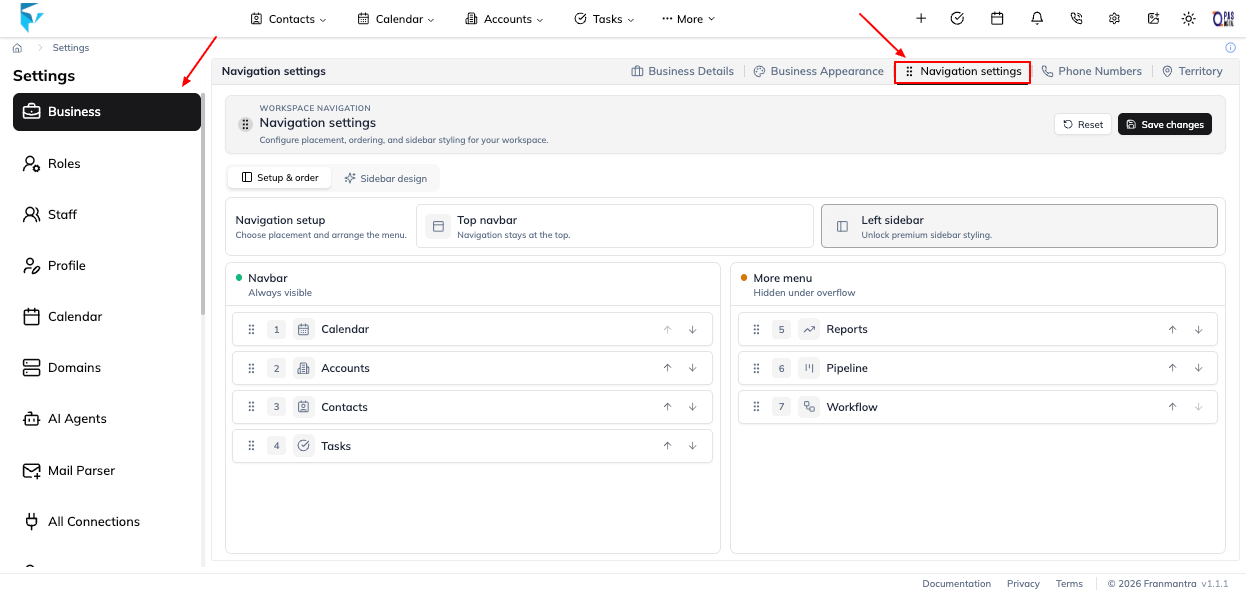
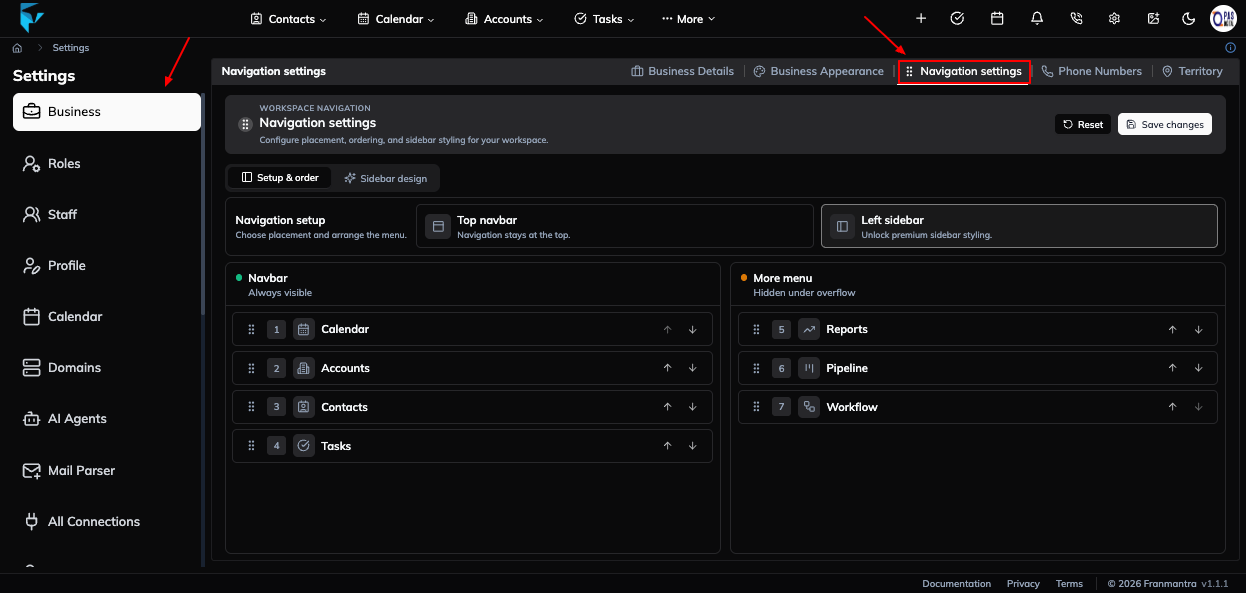
- In Navigation Setup, choose Top Navbar or Left Sidebar.
- Arrange modules in the Navbar area or move less-used modules to More Menu. The first four modules remain in the primary navigation area; additional modules are available under More Menu.
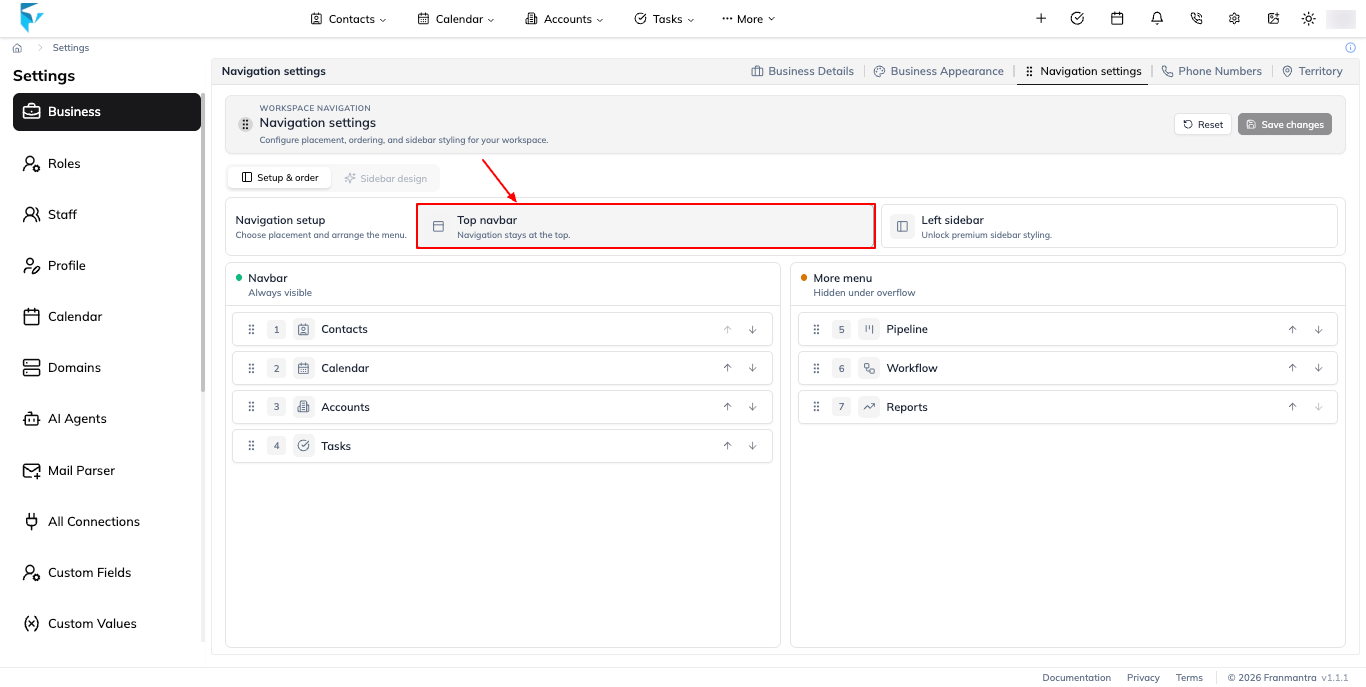
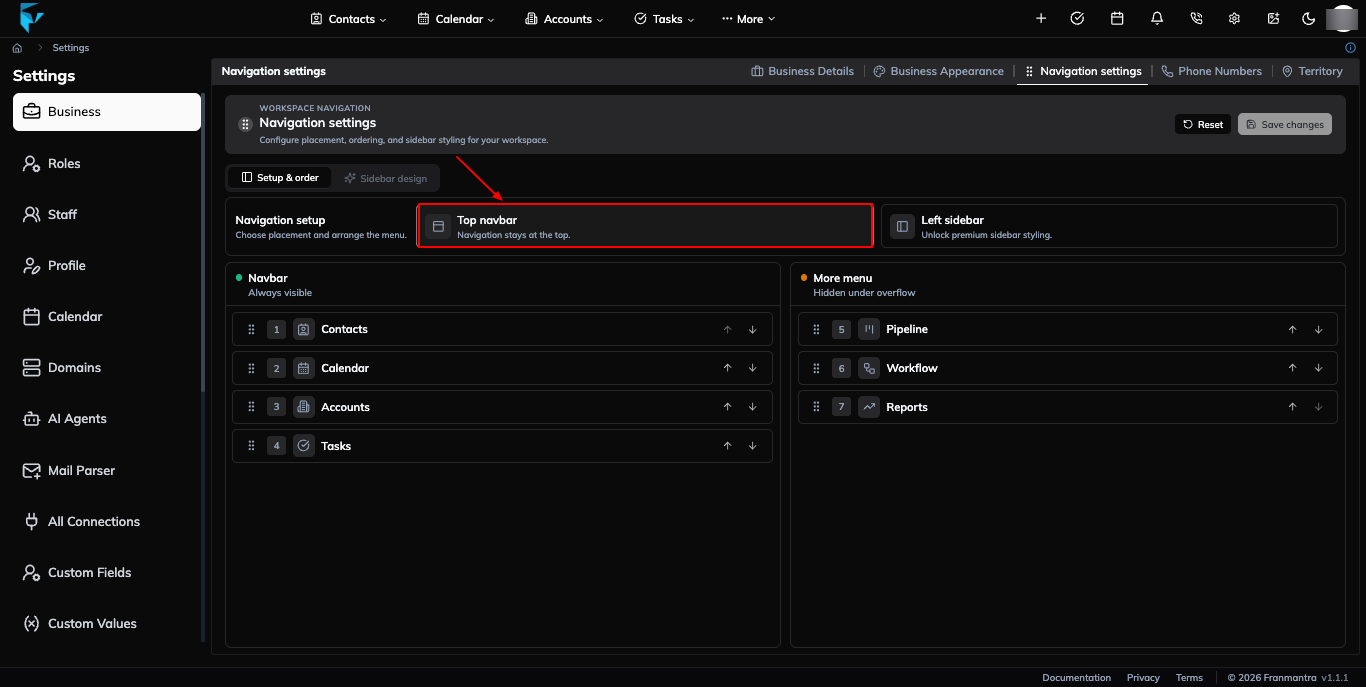
- Use the move controls or drag modules into the order you want.
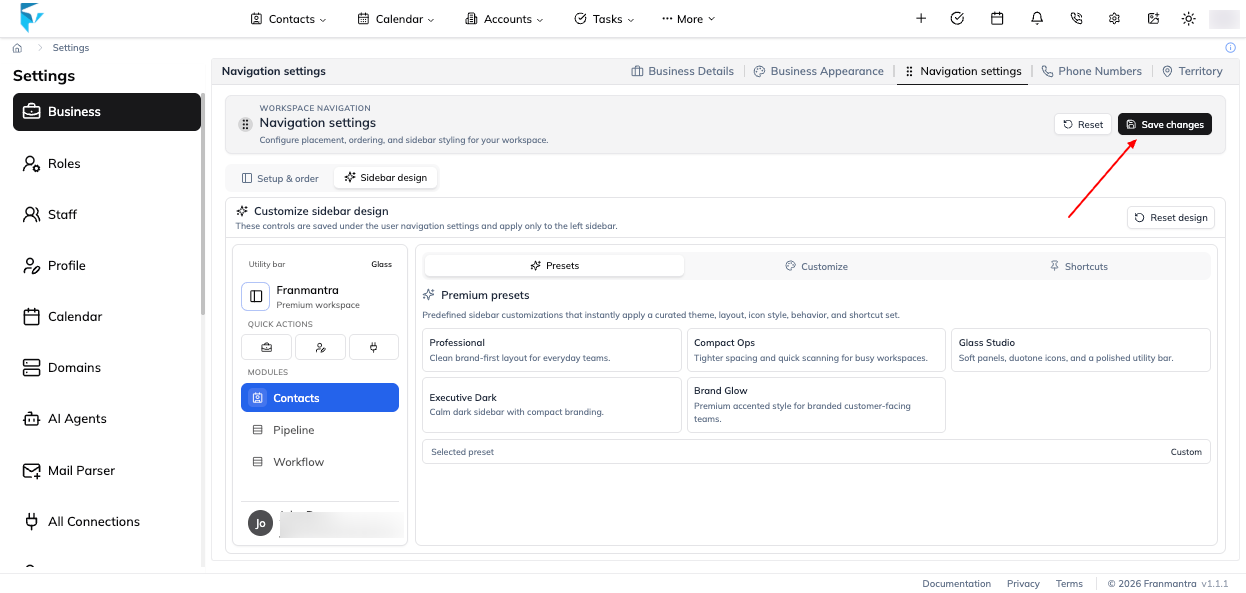
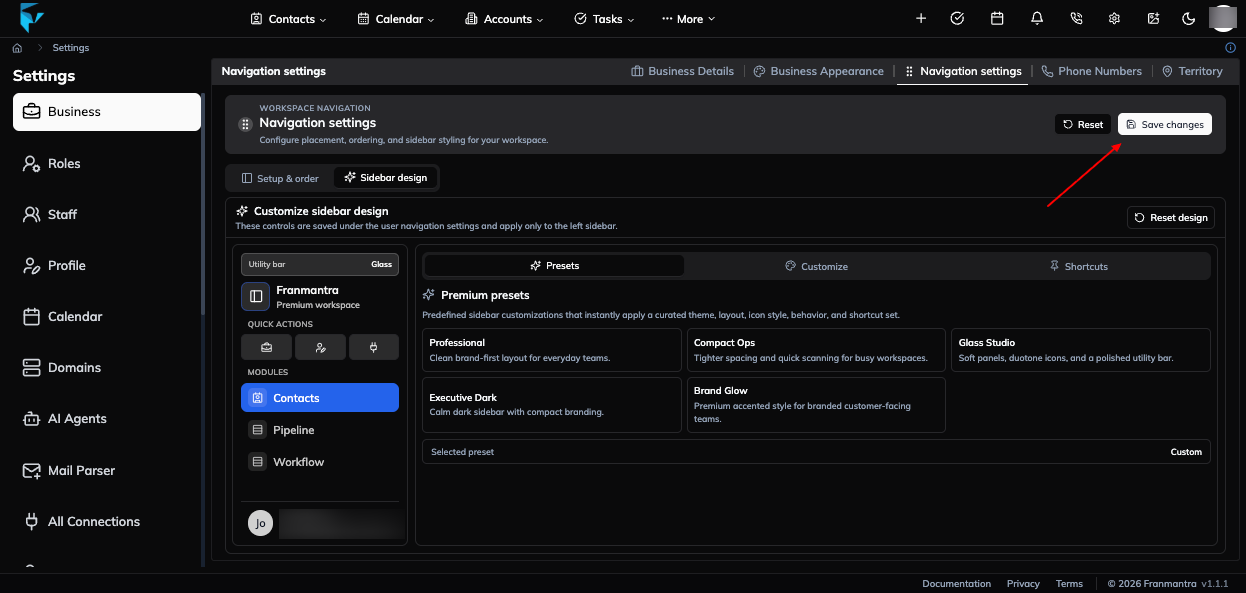
- If you chose Left Sidebar, open Sidebar Design and adjust presets, colors, background, density, item styles, collapse behavior, labels, profile details, and pinned shortcuts.
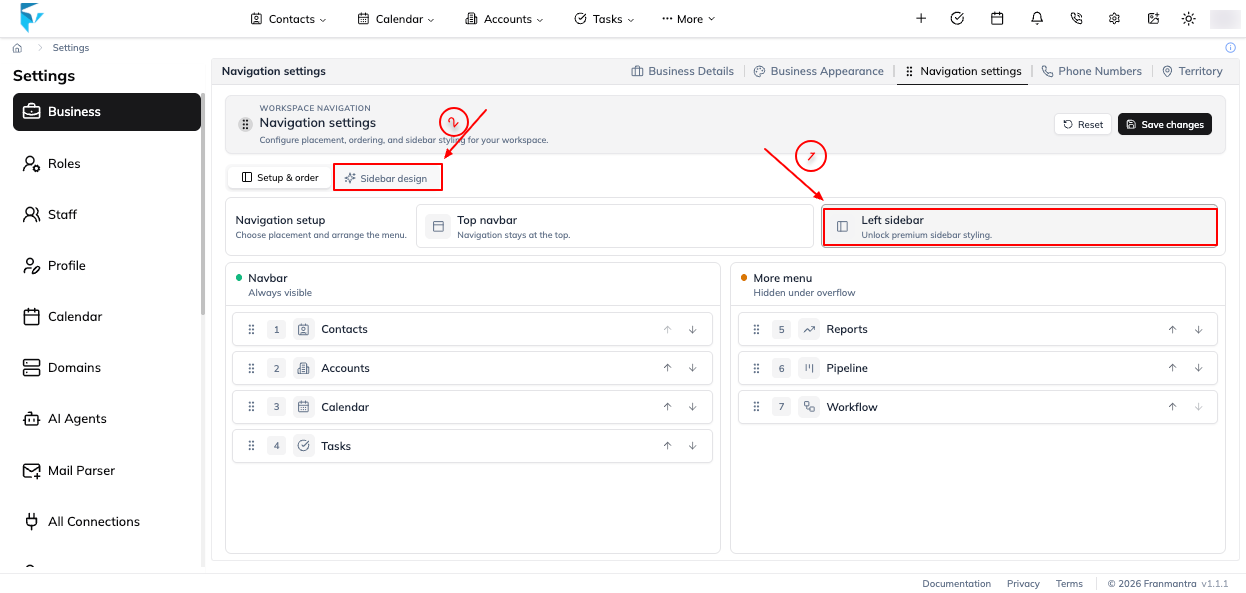
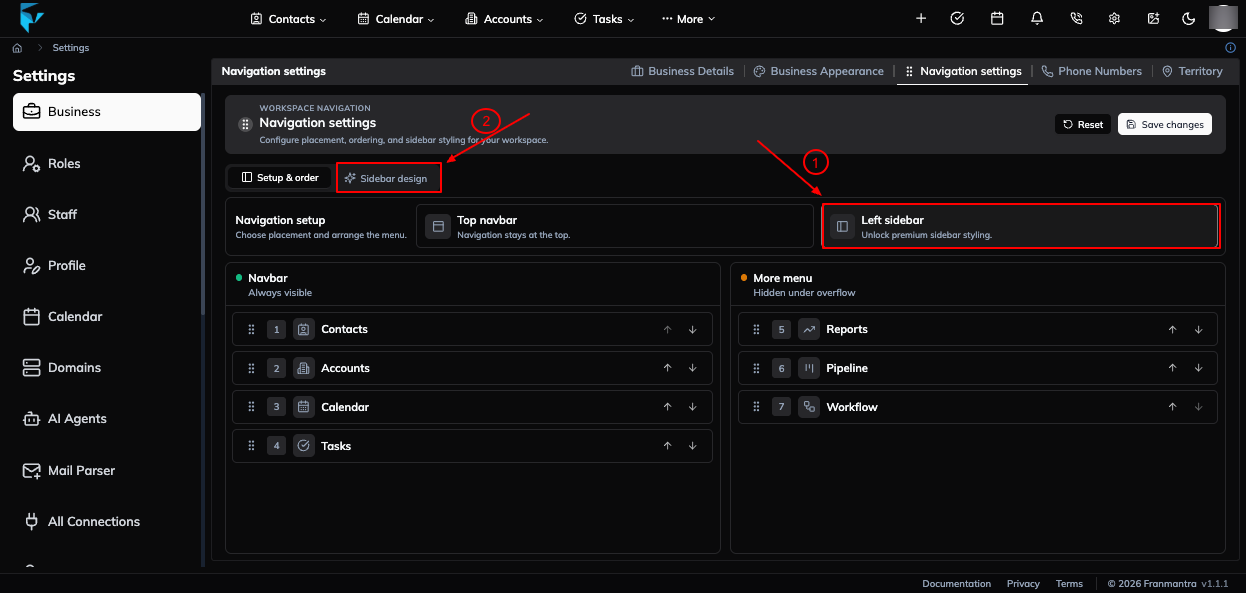
- Select Save changes. To restore the default navigation position, module order, and sidebar settings, click Reset.
Result
Franmantra saves the navigation placement, module order, and sidebar settings for the workspace. The updated layout is used the next time you navigate through the CRM.
Notes and Troubleshooting
- Sidebar Design is available only when Left Sidebar is selected.
- Navigation settings are saved at the business/workspace level, so they can affect other users in that workspace.
- If the tab or save control is unavailable, ask a business admin to check your access.