Reset a User’s Password
What This Is
An authorized admin can set a new password for another staff member from that user’s edit page. This is different from changing your own password from Profile.
When To Use It
Use this when a staff member cannot sign in or needs an administrator to issue a new password.
Before You Start
- Sign in with permission to manage staff users.
- Confirm you are working in the correct business or sub-account.
- Have a secure temporary password ready, or use Generate password in the dialog.
Steps
- Open Settings > Staff.
- In Staff Details, open the row’s actions menu.
- Click Edit.
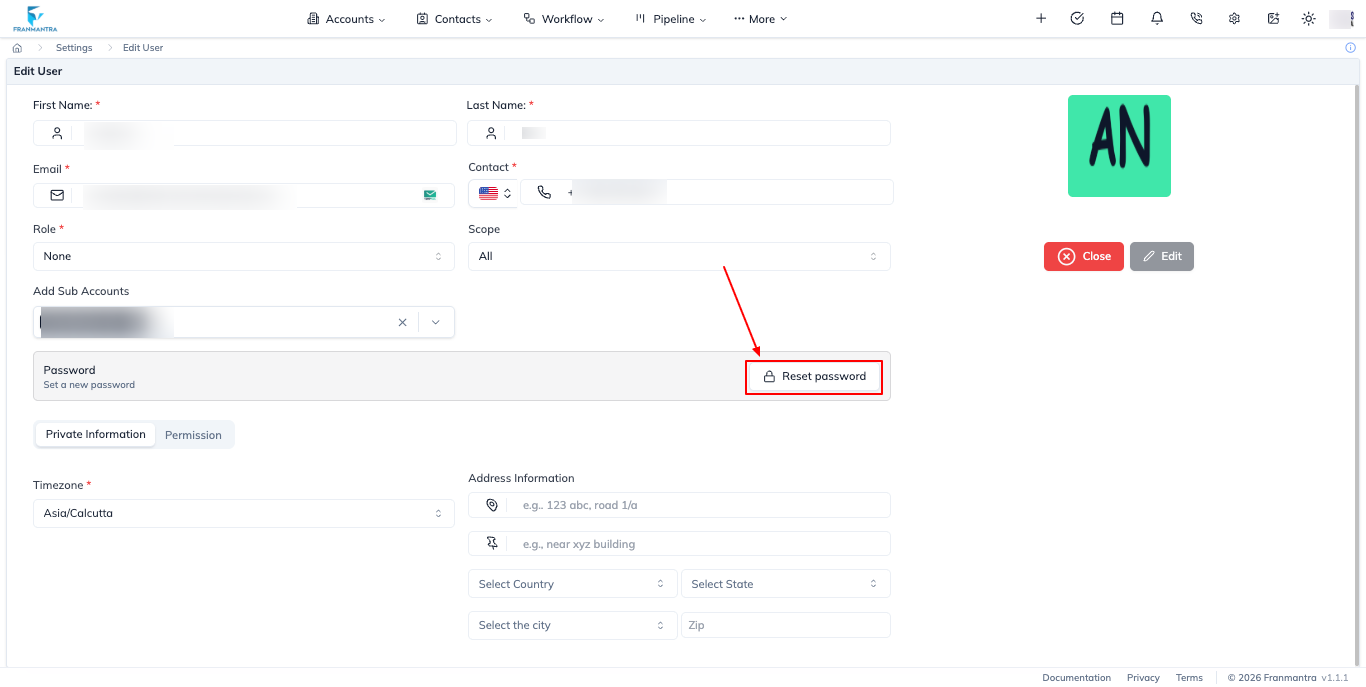
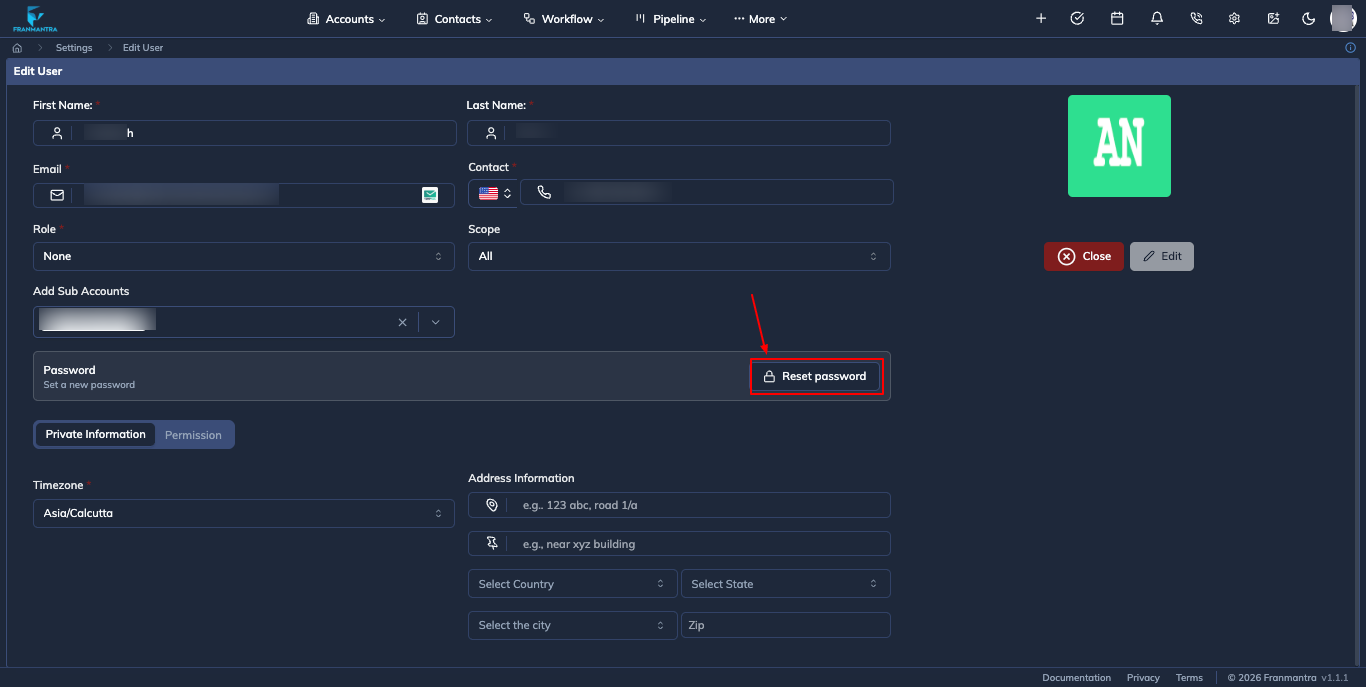
- In the Password section, click Reset password.
- Enter a New password.
- Enter the same value in Confirm password.
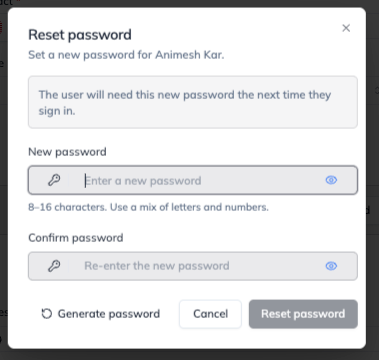
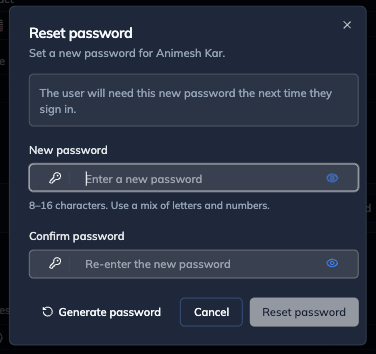
- Click Reset password.
To create a generated password, click Generate password before submitting the form.
Result
The selected staff member’s password is replaced. They must use the new password the next time they sign in.
Notes and Troubleshooting
- The password must be 8–16 characters.
- The confirmation must match the new password.
- The reset action is not shown when you edit your own profile. Use Update Password for your own password instead.
- If Edit or Reset password is unavailable, ask a business admin to check your staff-management permissions.
- The current repository does not include a dedicated screenshot of the admin reset-password dialog.